Page Table of Contents

PAGE CONTENT:
Cloning your PC allows you to create an identical copy of the hard drive. In most cases, people clone their PCs to upgrade, improve performance, back up, or create identical hard disks. While many PC clone software is available on the market, very few are trustworthy.
Here, we will discuss the 4 best clone apps for PC and detail what they offer to make cloning simpler. We outline their features, prices, pros, and cons to help you choose the best one for your needs.
How to Pick the Right PC Cloning Software
Since cloning is a complex process and there is a plethora of PC cloning software, the next question is how to pick the right one. Here's what you need to consider before choosing the software.
- Ease of use: The software should be easy to use and intuitive, even for beginners.
- Performance: Since we use cloning in various situations, the software should also handle them, such as cloning hard drives of different sizes, cloning to a smaller SSD, or cloning an SSD to a larger HDD.
- Reliable: A hard drive contains the boot.ini, NTLDR, and other system files. Reliable disk cloning software should be able to copy all of them, along with their data, so we can instantly boot the device.
Based on the above standards, our test lab has tested many clone apps for PC, including Windows OS and macOS, to help you select the best ones.
| 📶How many we test | 20 cloning software |
| 💻Devices we used | Windows 10 HP PC, Windows 11 Lenovo PC, MacBook Air M2 |
| ⏰Time Duration | 10 days |
| ✅What we value | Compatibility, ease of use, functionality, performance, reliability, pros and cons, price, etc. |
| 🥇Most recommendable | EaseUS Disk Copy |
EaseUS Disk Copy stands out among cloning apps for PCs, and we strongly recommend it.
 Free Download
Windows 11/10/8/7
Top 4 Clone APP for PC Recommendation
The section includes the top 4 PC cloning tools for safe, accurate cloning. You can learn detailed information on each cloning software. Let's come to the details:
| Products | Compatibility | Effectiveness | Ease of Use |
| Top 1. EaseUS Disk Copy | Windows | High | ⭐⭐⭐⭐⭐ |
| Top 2. Acronis True Image | Windows & macOS | High | ⭐⭐⭐⭐ |
| Top 3. EaseUS Todo Backup Home | Windows & macOS | High | ⭐⭐⭐ |
| Top 4. Clonezilla | Windows, Linux, & macOS | Medium | ⭐ |
Top 1. EaseUS Disk Copy🥇
🏅Rating: ★★★★★ 4.6 out of 5
EaseUS Disk Copy is the best clone app for PC. It's very simple to use and can clone the disk quickly and efficiently. In addition, it can run on various Windows versions, including Windows 11, 10, 8.1, and 7.

The tool is a reliable option for cloning and image creation. It can help you replace a laptop's hard drive without data loss, work with various file systems and hard drive manufacturers with ease, and create efficient solutions to all your cloning needs.
Free Download
Windows 11/10/8/7
Review: EaseUS Disk Copy Pro is an easy-to-use disk cloning and disk management tool from software experts EaseUS.- BestBackupReviews.
💻Compatibility: Windows
💲Price: The monthly plan starts at $19.90.
🎯Key Features of EaseUS Disk Copy:
- Clone your hard drive, the entire system, or a part of your SSD.
- Allow data migration from one drive to another or from one system to another.
- Create disk images for complete data recovery in case of failing drives or emergencies.
- Transfer Windows from HDD to SSD without losing data.
- Work with various file systems like FAT12, NTFS, FAT16, and FAT32.
⭕ Pros
- Simple and easy to use.
- Clone a hard drive with bad sectors.
- You can create a WinPE bootable disk.
- Transfer data from one SD card to another.
- Support many disks like HDDs, SSDs, SSHDs, SD cards, USB drives, etc.
❌ Cons
- No free version available
- Only works for Windows OS
If you find this post useful, you can share it on your social platforms.

Top 2. Acronis True Image
🏅Rating: ★★★★ 4 out of 5
Acronis True Image(formerly Acronis Cyber Protect Home Office) is a popular tool for data security and hard drive cloning. This app is a one-stop solution for cloning, featuring cutting-edge technologies. Probably one of the very few tools that provide backup and sync for both local and cloud storage. Along with Acronis cloning software, you will get access to security and anti-malware services to keep your system safe.
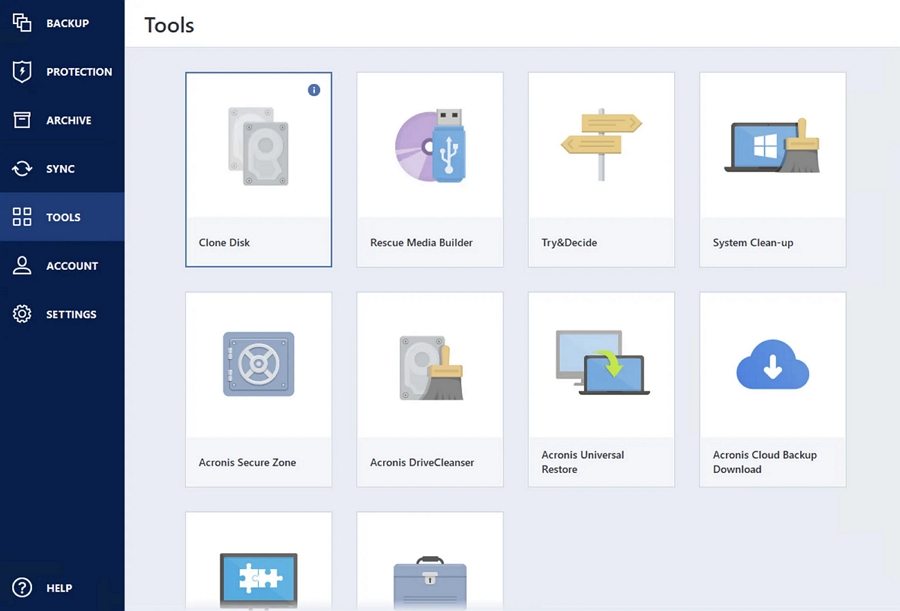
Review: Acronis True Image's flexible backup options and useful security extras are excellent. Some features may be too risky for cautious users. - PCMag.
💻Compatibility: Windows, macOS
💲Price: Starts at $79.99 per year.
🎯Key Features of Acronis True Image:
- Offers advanced backup and recovery options with cloning and imaging programs.
- Also capable of providing advanced security solutions to safeguard data.
- You will get cloud backup and sync to automate cloning.
- Get web protection and URL filtering features from external threats.
⭕ Pros
- Simple and easy to use.
- A great tool to clone disks, backups, and restore.
- Back up data locally or back up data to the cloud.
- Provides advanced backup solutions and malware protection.
❌ Cons
- Consumes a lot of system resources.
- Encounter software glitches sometimes.
Top 3. EaseUS Todo Backup Home
🏅Rating: ★★★★★ 4.5 out of 5
EaseUS Todo Backup Home is a complete tool for cloning, backup, imaging, and data recovery. The only tool in our list has advanced backup options and cloud backup features. The tool implements various cloning options to upgrade, transfer, and back up data.
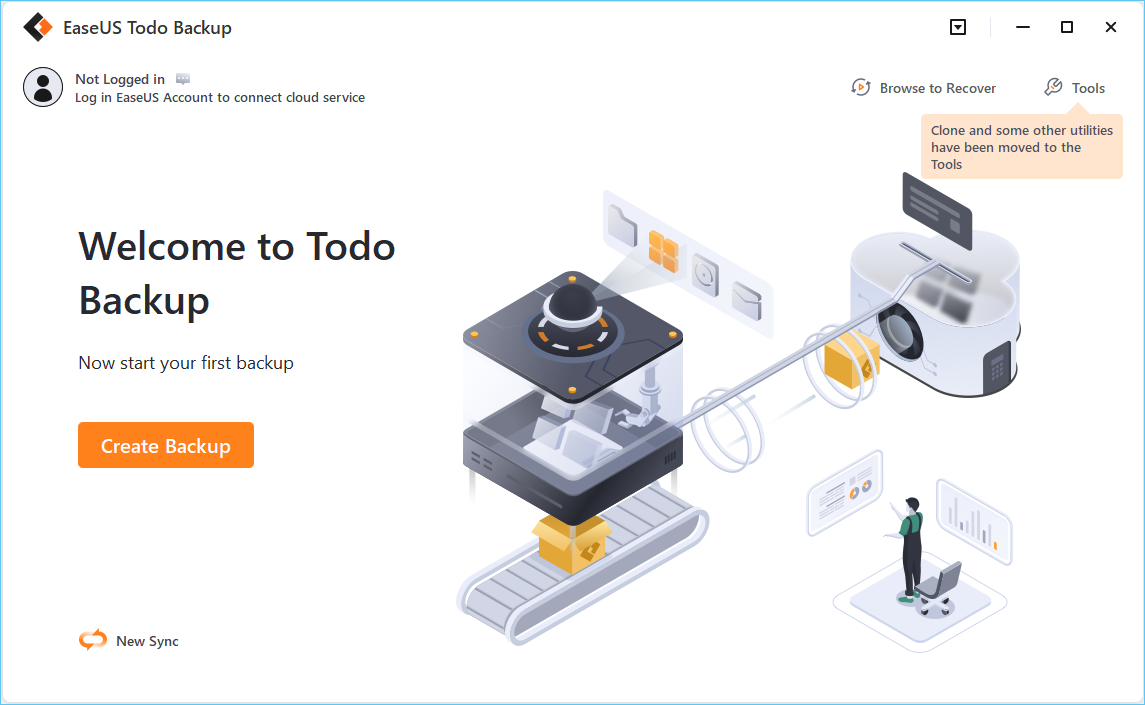
Review: Though it's sporting a new, slightly more serious appearance, Todo Backup remains the same highly competent backup program we've grown to appreciate over the years.
💻Compatibility: Windows and macOS
💲Price: Offers both free and paid versions. Starts at $39.95 per year.
🎯Key Features of EaseUS Todo Backup Home:
- Offers award-winning clone and backup solutions.
- You can create bootable media with CDs, DVDs, and drives.
- You can create exact copies of the system for backups and upgrades.
- Transfer your Windows 10 from one computer to another.
- Offers security zones to protect data from ransomware.
⭕ Pros
- Beginner-friendly.
- Back up multiple hard drives at once.
- Offers 250G free cloud storage for data security.
- A complete tool for clones, images, backup, and restoration.
❌ Cons
- Limited features with the free version.
Free Download Windows 11/10/8.1/8/7
Secure Download
Top 4. Clonezilla
🏅Rating: ★★★★ 4 out of 5
Clonezilla is an open-source tool with robust features for disk cloning. But is Clonezilla safe to use? This software offers two different modes: device-to-device and device-to-image cloning. It is very simple to use and a great option for clones, images, migration, and partitions.
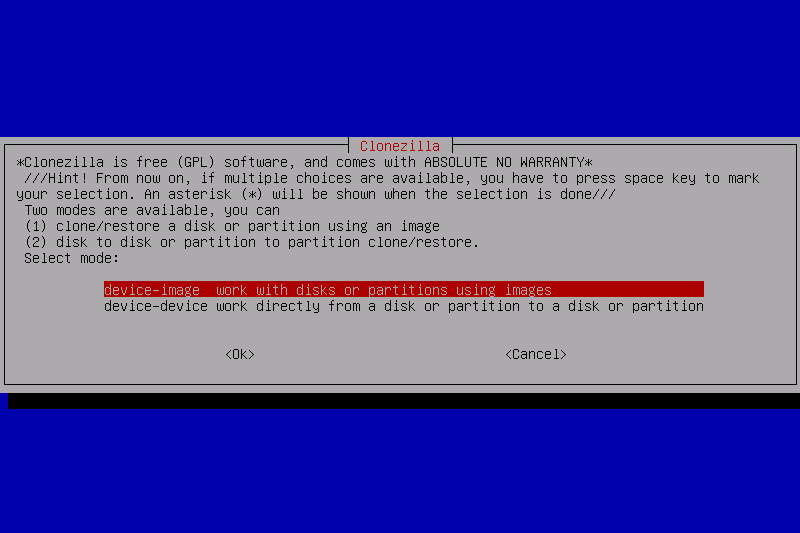
Review: Clonezilla is decent software for cloning, but it has a noticeably complex interface, making it unideal for users. Though the features sound good, it offers pretty limited features. - TechRadar.
💻Compatibility: Windows, Linux, and macOS
💲Price: Free
🎯Key Features of Clonezilla:
- Encryption and compression features.
- Create a bootable clone of the Windows disk.
- You can create system clones and images of the entire disk or partition.
- Two cloning modes are available: device-to-device and device-to-image.
- Supports various file systems like FAT, NTFS, XFS, ext2, ext3, ext4, etc.
⭕ Pros
- The app is open-source and free.
- Great support with various file systems and devices.
- Frequent updates from the community members.
- Flexible offers to create clones, backups, and images.
❌ Cons
- Complex user interface.
- Works through a text-based interface, making it visually unappealing and difficult.
- No direct download is available.
When Do You Need to Clone PC Hard Drive
As we have discussed, the cloning process involves copying the contents of one hard drive or disk to another one. Rather than copying and pasting the files, cloning creates an exact replica of all components on the source disk, including the OS and hidden files.
But when and why do we need to clone a PC hard drive? Here are some reasons people do it.
- To create backups: Data loss threats have become very common, and to save ourselves from losing data, we make backups. Backups help us in situations such as corrupted or damaged hard disks, viruses, and sudden emergencies.
- Replacing the hard drive: If your current disk is small or running out of space, you should clone it to the new disk.
- For better performance: Since SSDs run processes and functions quickly, people often clone data to an SSD to improve the overall system performance.
- For upgrading: If you wish to upgrade a disk to a larger one with contents similar to the old one, cloning is useful.
If you find this post useful, you can share it on your social platforms.
To Wrap Things Up
Cloning your systems, hard drives, and disks can help you in many ways. To clone a system or hard drive efficiently, you need professional PC cloning software to do it quickly and accurately. We have tried many tools and filtered out the top 4 PC clone software in the market.
Along with cloning, backups, images, and security measures, they help you stay up to date with technology and threats. EaseUS Disk Copy is a tool that can be your one-stop solution for all your needs. Download this PC cloner as soon as possible and try it out now. If you like the content, share it with your friends.
Free Download
Windows 11/10/8/7
FAQs on PC Clone Software
Here are some of the most frequently asked questions about PC clone software. If you have similar queries, I hope this helps.
1. Is it safe to clone Windows from HDD to SSD?
Yes, it is safe to clone Windows from HDD to SDD. Most people often do otherwise, as SDD is fast; transferring data from HDD to SSD makes the system perform faster.
2. Is it better to clone or image a hard drive?
Disk cloning is better than imaging a hard drive. Cloning creates a replica of the hard drive, whereas imaging creates an archive to create the exact replica of the source hard drive.
3. Does Windows 11 have cloning software?
No, Windows does not have a built-in cloning utility. To clone Windows 11, you can use EaseUS Disk Copy to create clones and images of your hard drive, system, or partition.
4. Why is Windows 10 not starting after cloning?
If the SSD clone is not starting, it may be due to boot issues. The operating system's boot files are preset on the primary partition, and it should be marked as the active partition. If not, Windows 10 won't boot after cloning. You can try the best clone app for Windows 10 - EaseUS Disk Copy to help you clone your hard drive or migrate OS to another drive.
-
Updated by
![]()
Jerry
"I hope my articles can help solve your technical problems. If you are interested in other articles, you can check the articles at the bottom of this page, and you can also check my Facebook to get additional help."…Read full bio