Download & Enjoy Limited Time Deal

00 H 00 M 00 S 000 MS
  •  
  • Trial
  • Pro
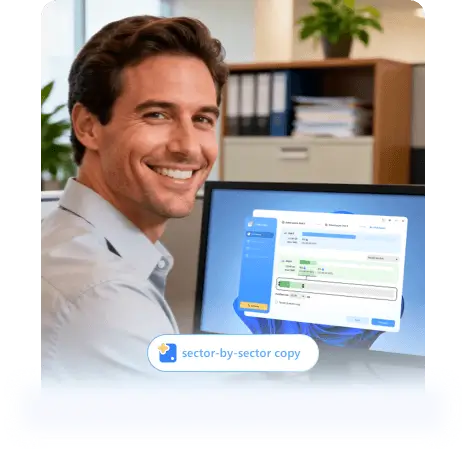
  • Sector level cloning
  • One-click OS migrate
  • Resize partition when copying disks
  • Support GPT disk
  • Local disk copy
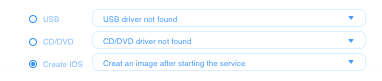
  • Create WinPE bootable disk

Disk Copy

Windows Disk Cloning Software Makes It Smooth and Easy to Clone A Disk

Upgrade Hard Drive Without Losing Data

Upgrade Hard Drive Without Losing Data

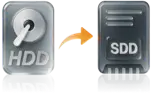
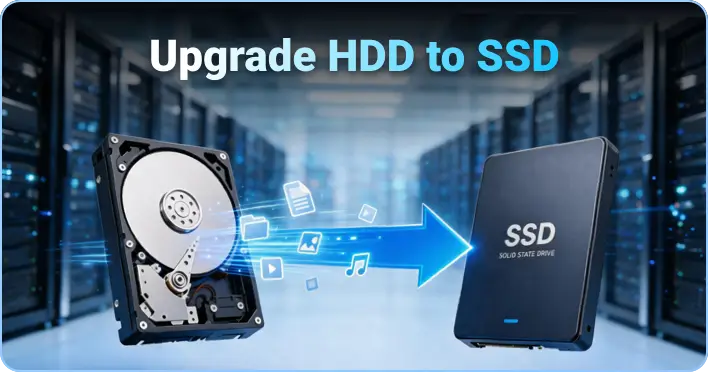
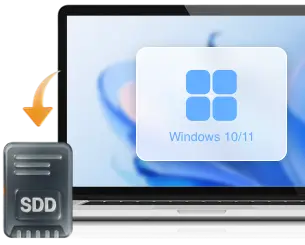
To resolve a low disk space issue on a computer, nothing is more helpful than replacing the current hard drive with a newer and bigger HDD/SSD. Cloning a disk ensures a smooth upgrade from one hard drive to another as it copies files, programs and OS as they were.
Migrate Windows 10/11 Without Reinstalling

Migrate Windows 10/11 Without Reinstalling

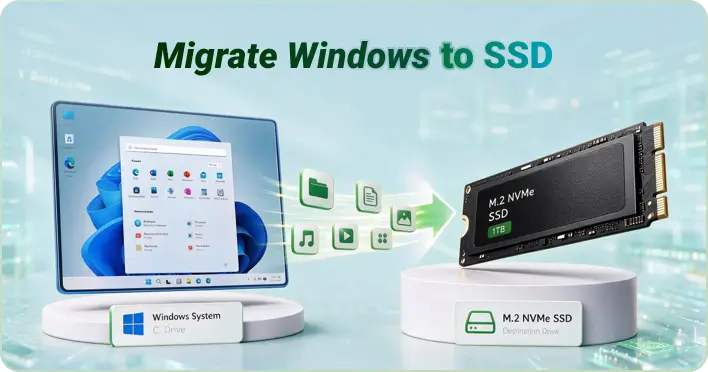
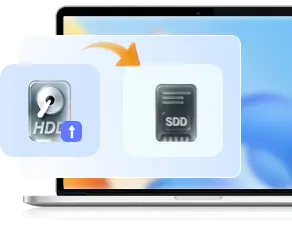
Reinstalling Windows 10/11 from scratch will take a long time and may get stuck during the process. EaseUS SSD cloning software can easily migrate Windows OS installation from HDD to SSD, or clone SSD to M.2 SSD or SATA/M.2/NVMe types.

Replace Failing Hard Drive for Complete Data Recovery

Replace Failing Hard Drive for Complete Data Recovery

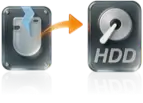
Losing access to data on a failing hard drive? The expert-approved way to recover data from a failing or even dead hard drive is to create a disk image of the bad one to a new healthy drive with the help of the best disk cloning software.
Clone An Old HDD/SSD to A New Computer

Clone An Old HDD/SSD to A New Computer

When you build a new PC, it's a great idea to clone old hard drive to new computer, including OS, all data, files and applications, and boot your new computer from the cloned hard drive to avoid a new round of reinstallation.

Transfer Data from One Drive to Another in Your Pocket

Transfer Data from One Drive to Another in Your Pocket

Experience the ultimate portability and convenience. With EaseUS Disk Copy, you can transfer all data from one drive to another without losing data or reinstalling the Windows OS. It's the fastest, most secure way to upgrade your storage or create a backup.
Create A Complete Backup for Instant Restore

Create A Complete Backup for Instant Restore

You can clone your hard drive to serve as a backup. If the original hard drive fails, you can swap it out with the backup drive immediately. Without the time-consuming data restore process, everything remains there, and all looks familiar on the original drive.

EaseUS Clone Software Offers Comprehensive
Feature for Disk Cloning

One-click Disk/Partition Clone

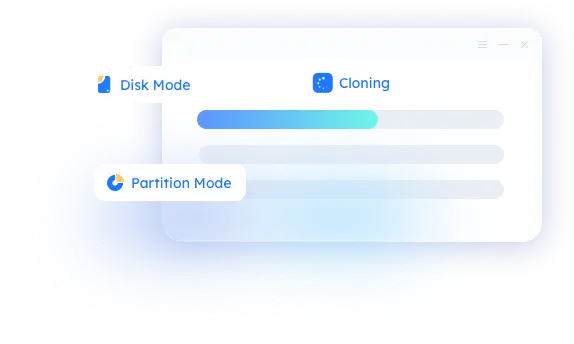
Using EaseUS Disk Copy, you can quickly duplicate entire HDD/SSD or a partition with a single click, ensuring effortless data transfer without reinstalling.

One-click Disk/Partition Clone
Seamless OS Migration Mode

Seamless OS Migration Mode

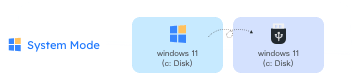
Smoothly and safely move your operating system to a new drive without reinstalling or reactivating, keeping all files, settings, and apps intact.

Create WinPE Bootable Media

Create WinPE Bootable Media

EaseUS Disk Copy can help you build a bootable USB/disk even when your system won't boot into it, ensuring a smooth disk clone or data migration.

Sector-Level Copy Technology

Sector-Level Copy Technology

Clone data bit by bit with precision, automatically skipping bad sectors to ensure an error-free copy process and safe data protection.

Pick the Best EaseUS Disk Copy Edition for Your Needs

Feature Pro Server Technician
Best For Personal & Home Users IT Administrator Businesses & Service Providers
One license for 1 PC / 2 PCs 1 Server / PC Multiple PCs & Servers
Primary Use Case Single PC disk upgrade & OS migration Windows Server disk migration & system backup Multi-system maintenance & commercial IT services
OS Support Windows 11/10/8.1/8/7 Windows Server 2022-2008 & Windows 11-7 Windows Server 2022-2008 & Windows 11-7
One-Click OS Migration & Sector Cloning      
Bad Sector Bypass & BitLocker Cloning      
Resize Partition When Copying Disks      
Support GPT disk      
Create WinPE Bootable USB      
Local / Network Disk Copy      
Batch Disk Copy      
Unlimited Usage Within Company      
Provide Service to External Clients      
Technical Support Standard Support Priority Support 24/7 Priority VIP Support (Live Chat & Email)
  • 30-day money
    back guarantee

  • 100% Secure
    Secure always comes first

  • Free
    tech support

Trusted by Over a Million Users
Real Cloning Stories Real Seamless Migration

See why people choose EaseUS Disk Copy for fast, reliable disk cloning — no reinstall, no data loss

Home User Clones 256GB Boot Drive to 2TB in a Few Clicks

I just finished cloning my old 256GB NVMe SSD to my new 2TB NVMe SSD using EaseUS Disk Copy, opened up the computer, swapped in the new SSD and it booted right up and looks like it's all perfect.

  • User profile: Desktop PC user, self-upgraded hardware
  • Task: Clone 256GB NVMe SSD → 2TB NVMe SSD (boot drive)
  • Result: Swapped & booted perfectly, zero issues

UK User Migrates Entire System to New SSD, Identical Layout

I used EaseUS Disk Copy to clone my entire computer onto a new SSD in a new computer, including the operating system. Everything copied over perfectly and everything is in the same place — it is identical to my old computer layout.

  • User profile: Home user migrating to a new computer
  • Task: Clone Clone entire system (OS + all data) to new SSD
  • Result: Perfect 1:1 copy, identical layout, great value

IT Professional Recommends EaseUS for Disk Management

EaseUS is a dependable solution for backup, recovery, migration, and disk management tasks. Its combination of powerful features, ease of use, and reliable performance makes it a solid choice for both home users and professionals.

  • User profile: IT professional, evaluates software critically
  • Task: Disk migration and management across multiple use cases
  • Result: Swapped & booted perfectly, zero issues

EaseUS Disk Copy: Compatible with Disks of
Various Brands, Types, and Interface

ALL Disk Brands

Supports all major disk brands used in consumer, business, and enterprise environments, like Samsung, WD, Toshiba, etc.

  • sansung
  • western digital
  • Seagate
  • Toshiba
  • crucial
  • Kingston
  • sandisk
  • intel
  • pny

ALL Disk Types & Interfaces

EaseUS Disk Copy is designed to handle a wide variety of disk types, from traditional spinning hard drives to ultra-fast NVMe SSDs.

  • SATA HDD

    SATA HDD

  • SAS HDD

    SAS HDD

  • SATA SSD

    SATA SSD

  • NVMe SSD

    NVMe SSD

  • PCIe SSD

    PCIe SSD

  • PATA HDD/SSD

    PATA HDD/SSD

  • USB Flash Drive

    USB Flash Drive

  • SD Card

    SD Card

  • SSHD SATA

    SSHD SATA

The Simple Way to Clone: Featured in Our Video Tips

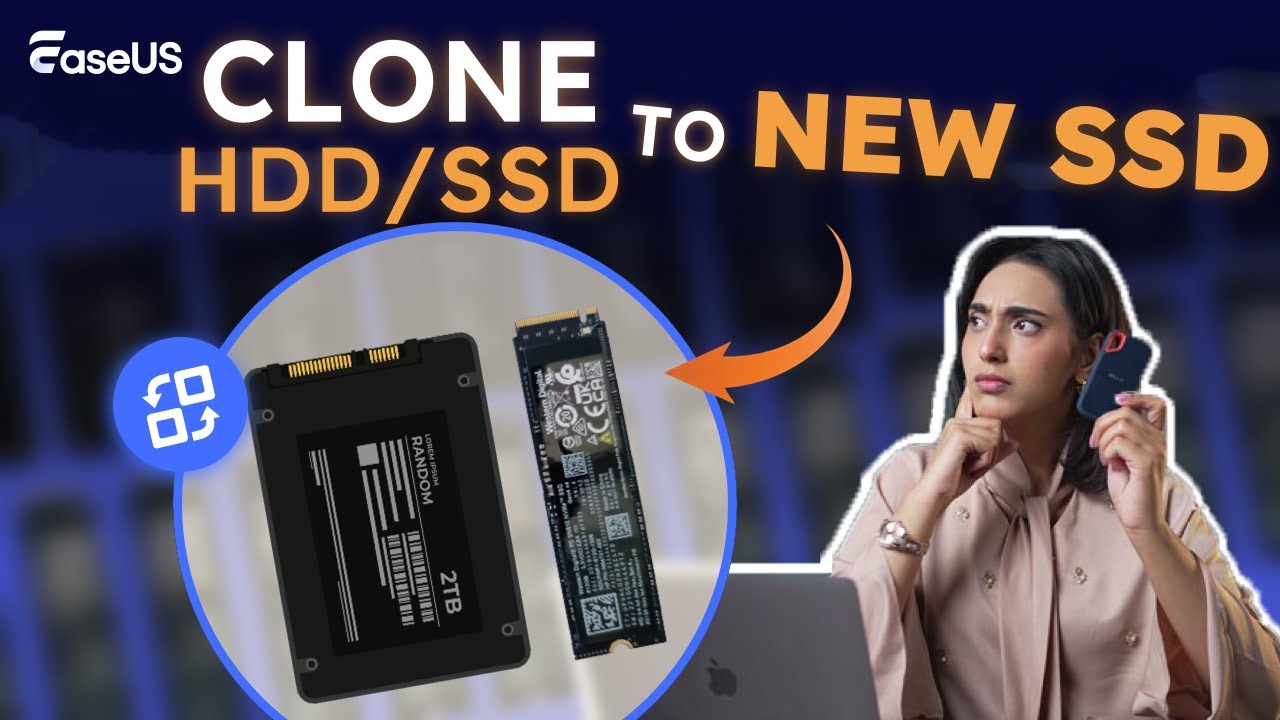
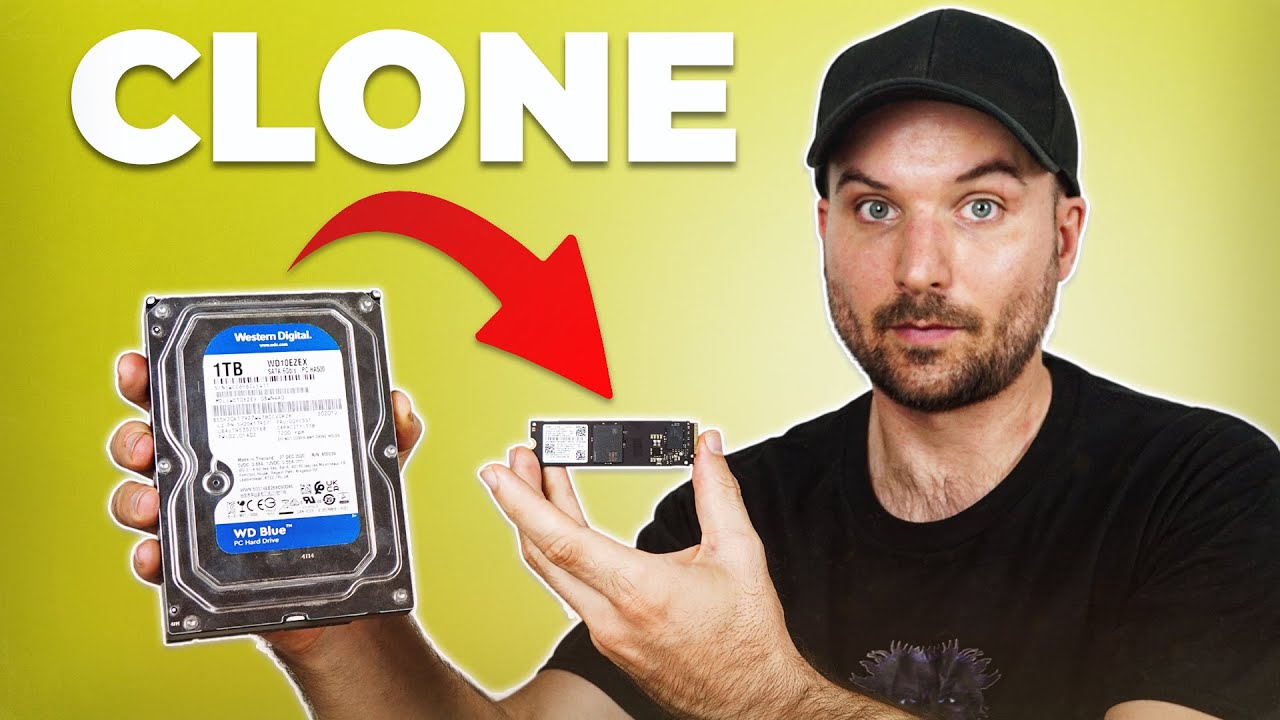
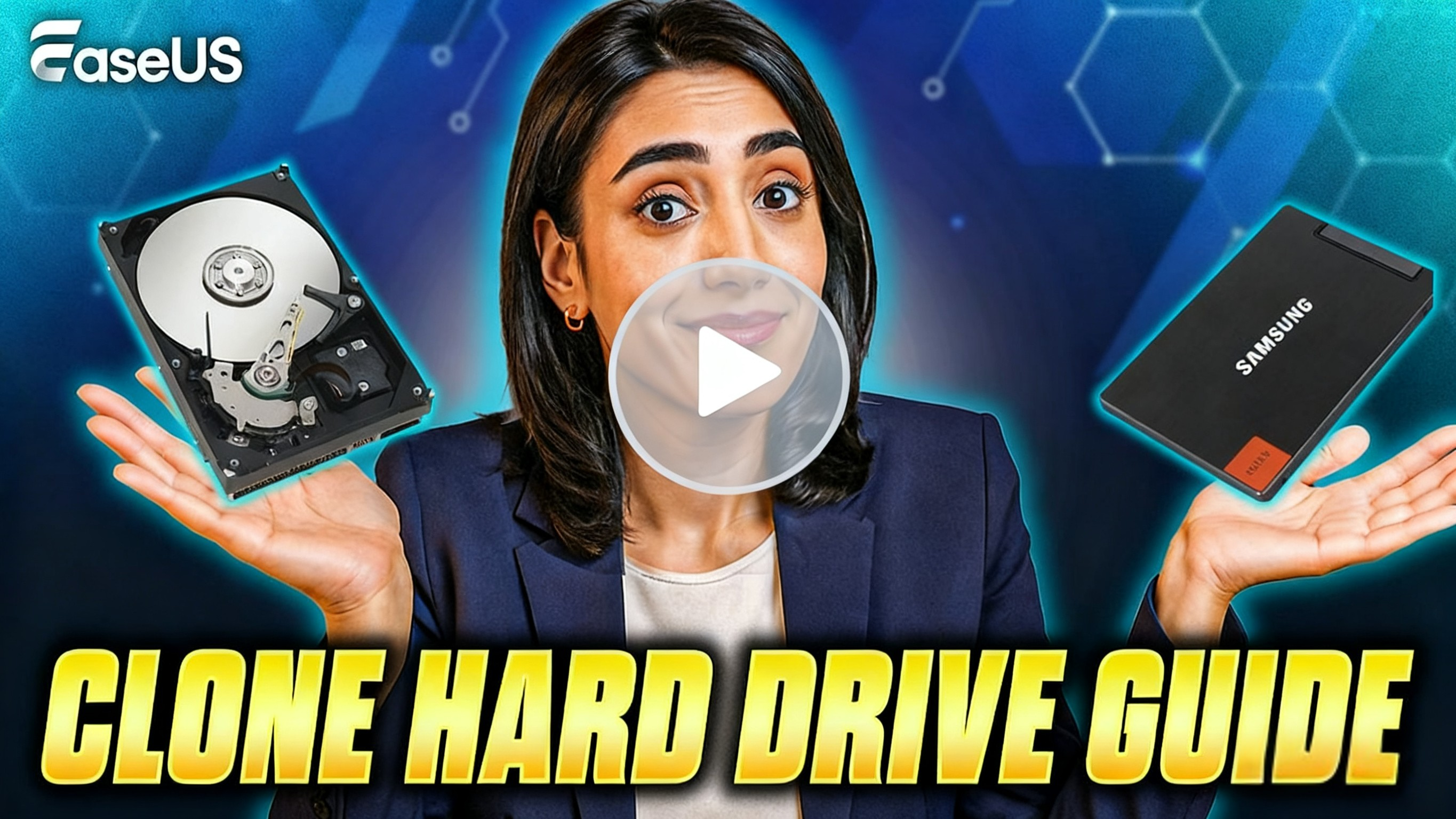
Skip the stress! Professional-approved video tips show you the fastest, easiest way to clone your disk to a new one with EaseUS hard drive cloning software. Watch now and upgrade your drive in minutes.


Tech Specification

Operating System Supported

Windows 11/10/8/7

Windows Server 2008/2012/2016/2019/2022

Files Systems Supported

FAT12, FAT16, FAT32, NTFS

Check Tech Specification

What's New?

7.6 Versions Features

Add NPS user satisfaction survey entry

Add "Invite friends & get rewards" entry

Align in-app purchase logic

How to Clone Hard Drive: Step-by-Step

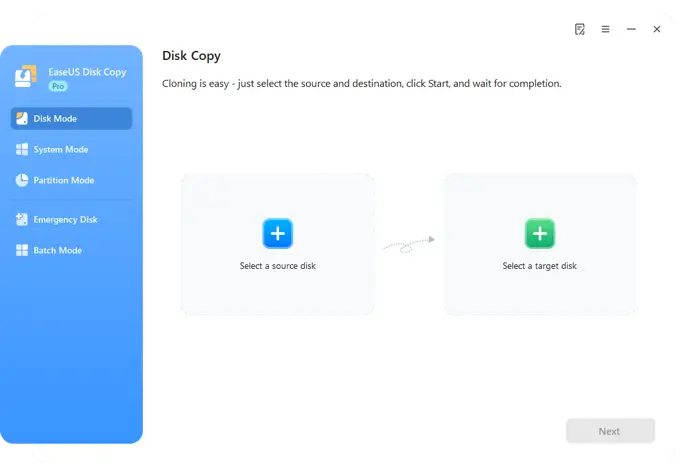
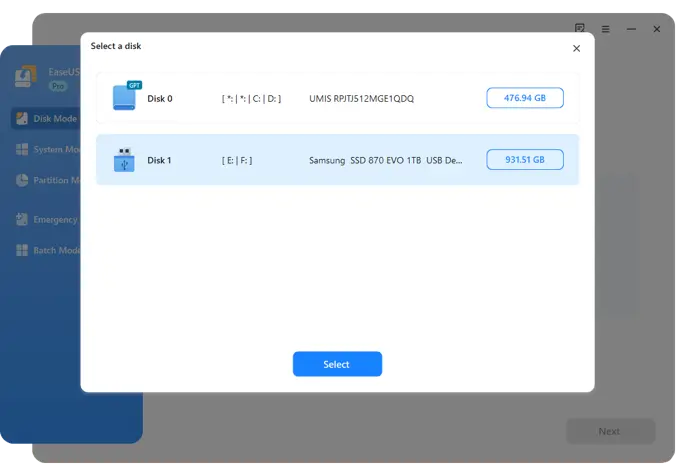
Step 1. Choose the source disk

Launch EaseUS Disk Copy, select the source disk under the Disk Mode.

Step 2. Select the target HDD/SSD

Choose the target disk, and ensure it has larger space than the source one.

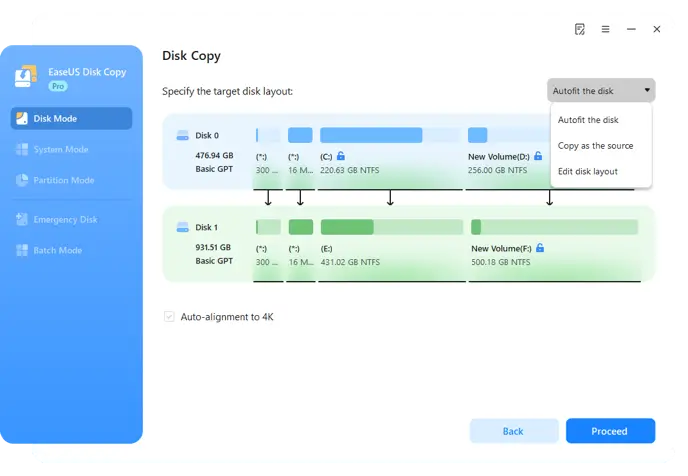
Step 3. Adjust disk layout and clone

You can choose to 'autofit the disk', 'copy as the source', or 'edit disk layout' as needed. Then click Proceed to start cloning.

Award-Winning Disk Clone Software

2004

EaseUS Founded

1,500K

Disk Clone Users

20,000+

Loyal Partners

160+

Countries Are Covered

  •  

    EaseUS Disk Copy copies any disk or partition sector-by-sector for an exact copy of the original. Disk Copy is a perfect tool for upgrading your operating system to a new, larger hard drive, or just making a quick clone of a drive full of files. Its with easy-to-use interface, this app is a fast, effective tool for quick drive copying.

  •  

    EaseUS Disk Copy Pro is a simple disk cloning software for Windows PC that helps you make a full copy of contents on a disk and move your data, EaseUS disk clone tool works effectively to clone your HDDs or SSDs of different brands. Compatible with Windows systems, it explores all features of your hardware and ensures a 100% same copy.

  •  

    The lowest-priced drives lack these niceties, but free programs can get the job done, too. We've had luck using EaseUS's Disk Copy.

  •  

    EaseUS Disk Copy creates sector by sector clones of partitions or hard disks, independent of operating system, file systems or partition scheme. It's a versatile tool for both the novice and experienced user.

Frequently Asked Questions

How long does it take to clone a 1TB hard drive?

The cloning time depends on the type of drives and the interface used. Cloning from an HDD to another HDD is slower, usually taking several hours, while SSD-to-SSD cloning is much faster. The amount of used data also affects speed. With modern NVMe SSDs, a 1TB drive can often be cloned in under an hour.

How to clone HDD to SSD without losing data?

To clone HDD to SSD safely, it's important to copy all partitions, including the system, applications, and personal files. Sector-level cloning ensures no data is skipped or lost. During the process, partitions can be resized to fit the SSD's capacity. Once completed, the SSD becomes bootable with all original content intact, making it an effective way to upgrade storage without reinstalling the operating system or programs.

How to upgrade to a larger SSD while keeping Windows 10/11?

Upgrading to a larger SSD requires migrating the system partition along with applications and personal files. The process involves copying the OS and automatically adjusting partitions to match the new drive size. After cloning, the larger SSD can boot normally, preserving the existing Windows installation and avoiding the need to reinstall programs or reconfigure settings.

Can I clone a disk with bad sectors?

Yes, disks with bad sectors can be cloned by skipping damaged areas while copying healthy data. This ensures the cloning process completes without being interrupted by corrupted sections. Sector-by-sector cloning reads valid sectors and ignores problematic ones, minimizing the risk of data loss.

Is it possible to migrate Windows to a new PC with different hardware?

Migrating Windows to a new PC with different hardware is feasible by adjusting system configurations during the transfer. Drivers may be updated or replaced to match the new motherboard or CPU. The process preserves installed programs, personal files, and system settings, allowing the OS to boot successfully on the new machine. This method enables hardware upgrades or full system replacements without requiring a fresh Windows installation.

Can I clone an NVMe SSD to another NVMe SSD?

Cloning from one NVMe SSD to another is fully supported and typically offers very fast transfer speeds. The process to clone nvme to nvme involves copying all partitions, including the OS, applications, and personal files. Partition sizes can be adjusted automatically to fit the destination drive. Once the clone is complete, the new NVMe SSD can boot immediately with all data intact, making it an efficient way to upgrade or replace high-speed storage.