Page Table of Contents

When replacing a laptop hard drive, we must ensure no data is lost and avoid reinstalling Windows and apps. Cloning is the best way to replace a hard drive without data loss. To replace a laptop hard drive without losing data, clone your old drive to a new one using safe, reliable disk cloning software. After cloning, physically swap the drives, and your laptop will boot up with everything intact, since the new drive contains an exact copy of the old one's operating system, applications, and files.
Can You Replace a Laptop Hard Drive Without Losing Data?
Yes, you can replace a laptop hard drive without losing data by performing disk cloning. This method copies everything from your old drive to the new one, including the operating system, applications, and personal files.
When you physically replace a hard drive, the data does not transfer automatically. The new drive is empty by default, which is why many people think replacing a drive will delete everything. In reality, your data still exists on the old drive, and you just need a way to move it.
Common reasons to replace a laptop hard drive:
- Upgrade to a larger drive for more storage
- Swap out a failing or damaged drive
- Replace a slow HDD with a faster SSD
3 methods to replace a hard drive on a PC:
| Method | Data Loss | Difficulty | Speed | Best for |
| Disk Cloning | NO | Easy |
Fast (direct copy) |
Move everything to new drive without reinstalling |
| Backup & Restore | NO | Medium |
Slower (image creation + restore) |
Restore system to its earlier state |
| Clean Install | YES | Medium |
Long (manual setup) |
Remove junk files, bloatware, and system errors |
So, will you lose everything if you replace your hard drive?
Not if you clone it first. Disk cloning is the easiest and most reliable way to replace a hard drive without reinstalling Windows or losing data.
If you find this post useful and can solve your problem, you can share it on your social platform.
How to Replace a Laptop Hard Drive Without Losing Data
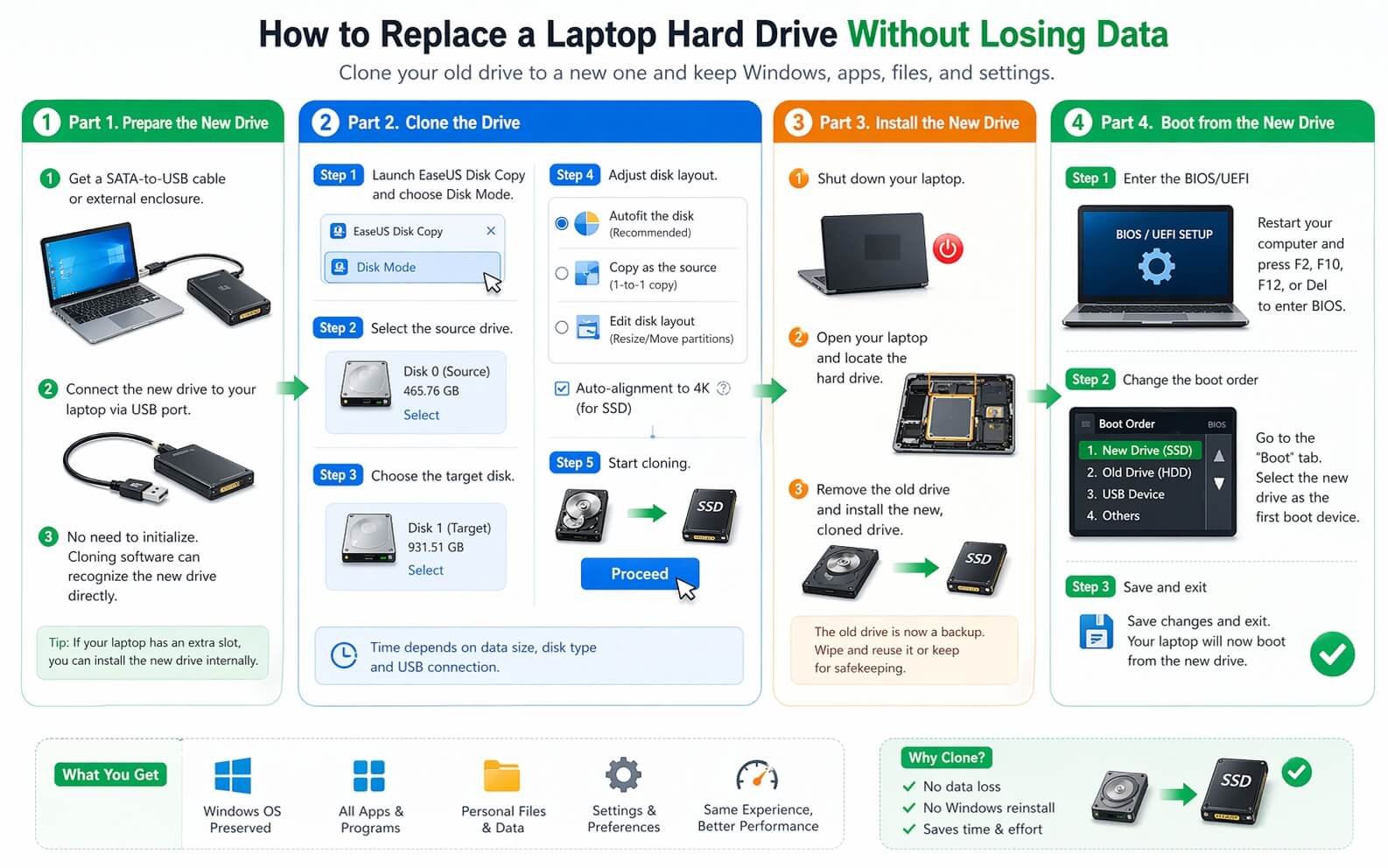
Cloning is the best way to transfer everything from one disk to another without losing data, including Windows, apps, personal files, and settings. Here are the detailed steps for laptop hard drive replacement:
Part 1. Prepare the New Drive
Before cloning a hard drive, you need to prepare your new disk for a smooth OS and data transfer.
- Get a SATA-to-USB cable or an external enclosure that fits your new drive (e.g., a USB enclosure for an M.2 SSD).
- Connect the new drive into the external enclosure or USB to SATA cable and connect it to your laptop via a USB port.
If your laptop has 2 slots, you can also install it in an available slot. If you are wondering whether you need to initialize the new HDD or SSD, the answer is no. Modern cloning software can recognize and clone a disk to another without the need to initialize it.
Part 2. Clone the Drive
To clone a hard drive, first, you will need third-party drive cloning software because Windows does not offer such a tool. Under such circumstances, EaseUS Disk Copy, a cloning utility for Windows 11/10/8/7, comes in handy.
 Free Download
Windows 11/10/8/7
EaseUS Disk Copy can help clone your system, disk, partition, etc., and replace a laptop drive with an SSD without reinstalling Windows. Featuring an easy-to-use interface, it ensures seamless data transfer and OS migration.
Here is how to clone one disk to another using EaseUS Disk Copy:
Step 1. Launch EaseUS Disk Copy and choose Disk Mode.
Install EaseUS Disk Copy cloning software on your Windows computer, then launch it and select Disk Mode from the left panel.

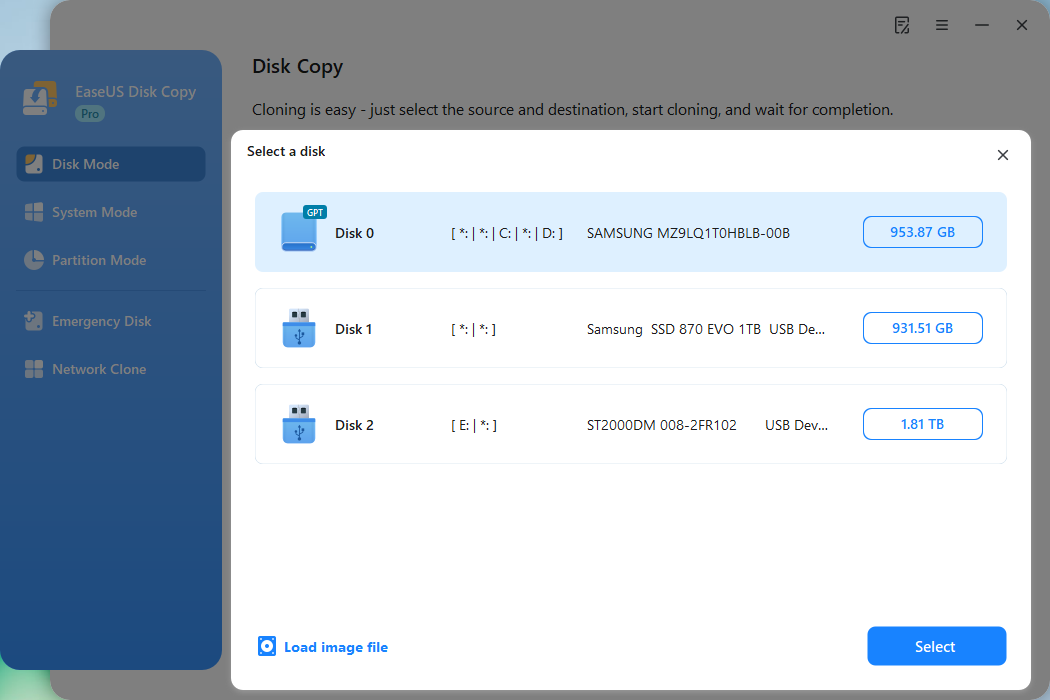
Step 2. Select the source drive.
Select the drive you want to copy, then click Select.
Step 3. Choose the target disk.
Choose the disk that you want to clone data to, and click Select. Note that the used space of the source disk should be less than the target disk capacity.
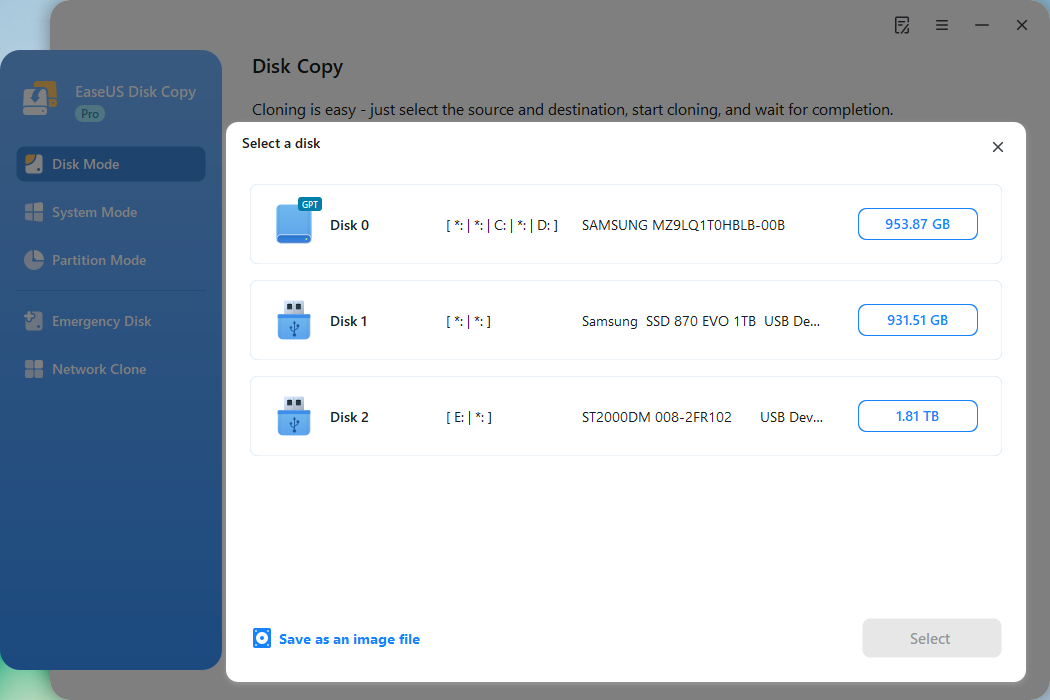
*At this step, you can also click the option "Save as an image file" to store your disk as a compressed image file, which can be restored without any data loss.
Step 4. Adjust disk layout.
Specify the target disk layout as your preference. You can choose among:
- Autofit the disk: makes some changes to the destination disk layout by default so it can work at its best.
- Copy as the source: create a 1-to-1 copy of your source disk; the layout is the same as the source disk.
- Edit disk layout: allows you to manually resize or move partitions on this destination disk.
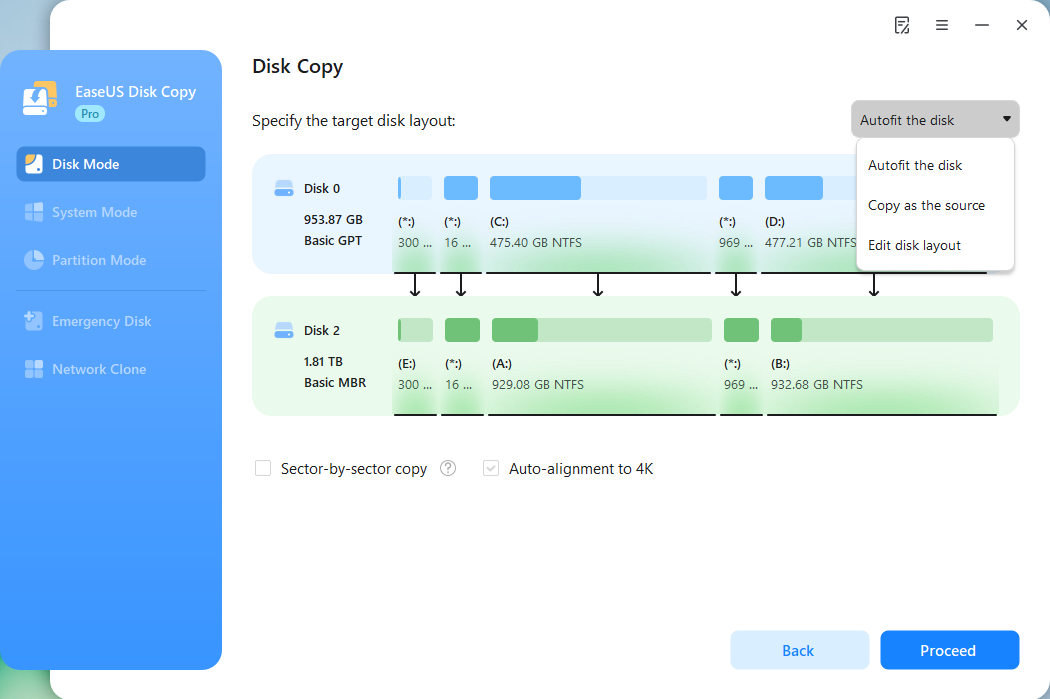
*If the target disk is an SSD, the option "Auto-alignment to 4K" will be checked automatically to optimize the performance of your SSD.
Step 5. Start cloning.
Click Proceed, and a message will appear, warning you that data will be lost. Confirm the message by clicking Continue.
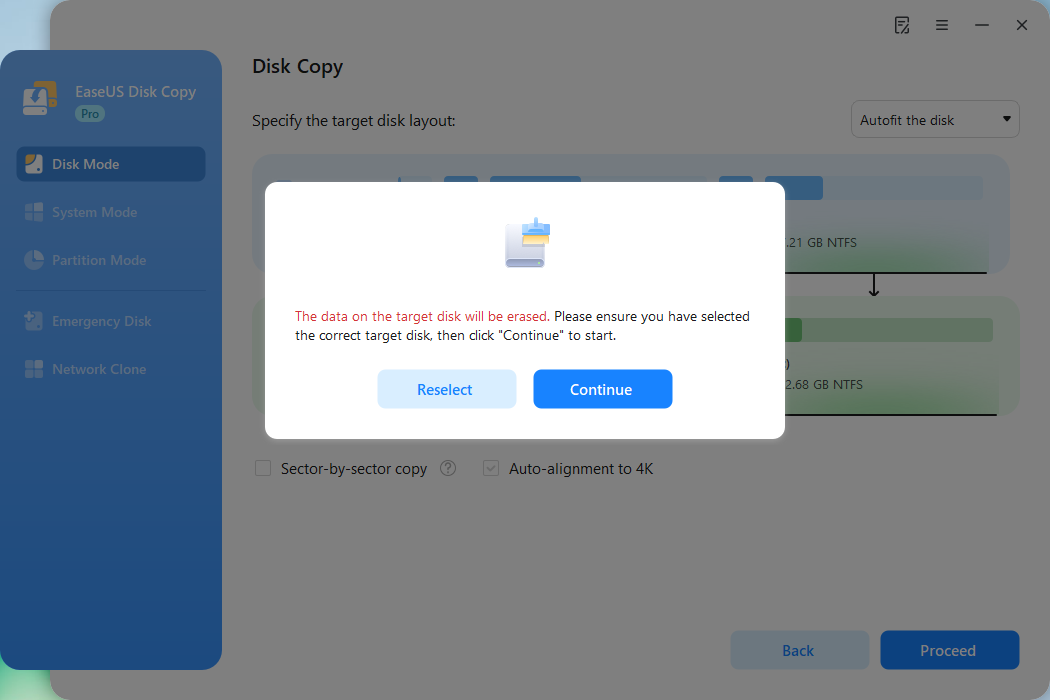
Now, it will start executing the cloning task.
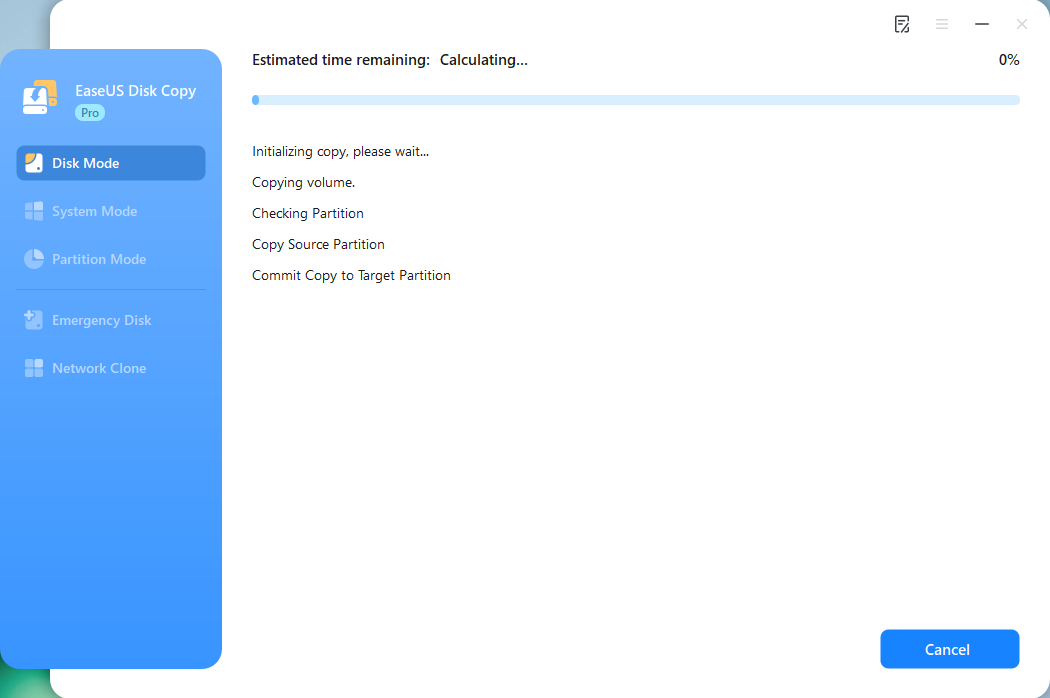
*The time it takes to clone a hard drive depends on how much data is on the source disk, and it will also be affected by the disk type, USB connection, etc.
This video demonstrates how to clone a hard drive using EaseUS Disk Copy:
If you find this post useful and can solve your problem, you can share it on your social platform.
Part 3. Install the New Drive
When the cloning is done, you can replace your old drive with a new one without worrying about losing data. Generally speaking, it would be best to refer to the laptop's user manual or a relevant video tutorial. You can also follow the steps below to replace hard drive with the cloned one:
Step 1. Shut down your laptop completely.
Step 2. Carefully open your laptop and locate the hard drive.
Step 3. Remove the old drive and install the new, cloned drive in its place.
The old drive is now a backup, which you can securely wipe and reuse or keep for safekeeping. On the new hard drive, your Windows operating system and all your programs will function smoothly and error-free, exactly like they did on the old hard drive. Without losing a single file, all of your data remains intact.
Part 4. Boot from the New Drive
Turn on your laptop. It should boot up and function exactly as it did before, but from the new, larger hard drive, with all your data and settings preserved. If you choose to leave the old drive on your laptop, you need to go to the BIOS/UEFI settings to set the new drive as your first boot drive.
Step 1. Enter the BIOS/UEFI
- Restart your computer.
- As it boots up, repeatedly press the specific key for your computer's BIOS/UEFI setup. This is often F2, F10, F12, or Del.
Step 2. Find and change the boot order
- Navigate to the "Boot" or "Boot Order" tab using your keyboard's arrow keys.
- The interface will vary by manufacturer, but you'll need to find the list of bootable devices.
- Select your new drive and move it to the top of the list, making it the first boot device.
Step 3. Save and exit
- Save the changes you've made and exit.
- Your computer will now restart and should boot from the new drive.
To Wrap Things Up
That's how to replace hard drive without losing data. All in all. Cloning is the only way to replace a hard drive without data loss. It can help you easily and quickly transfer all your data from an old drive to a new one. EaseUS Disk Copy is your best choice for cloning your hard drive or performing other cloning tasks. So, what are you waiting for? Just download and install it on your laptop to explore its practical functions and features.
Free Download
Windows 11/10/8/7
FAQs on How to Replace Hard Drive Without Losing Data
Below are some frequently asked questions about replacing a hard drive without losing data or reinstalling Windows.
1. What if the new drive is smaller?
If the new drive is smaller, ensure the used space on your old drive is less than its capacity. You may need to delete files or shrink partitions before cloning to avoid errors or data loss.
2. Can I replace the HDD with SSD without reinstalling Windows?
Yes, you can replace HDD with SSD without Windows reinstallation if you clone an HDD to an SSD. Cloning can help you copy a drive to another drive without reinstalling Windows or losing data.
3. How can I swap my SSD without losing my data?
Cloning is the best and easiest way to change or upgrade SSD without losing data. To do this, you will need 2 things. First, you will need a USB enclosure to connect your new drive to your PC if it has only one slot. Second, you will need third-party drive cloning software to clone the old SSD to the new one, as Windows lacks a built-in cloning solution.
4. How long does it take to replace a hard drive?
Replacing a hard drive typically takes 30 minutes to 1 hour. The total time depends on the amount of data being cloned, the drive speed, and your hardware setup.
5. Is it cheaper to replace a hard drive or buy a new computer?
Replacing a hard drive is usually much cheaper than buying a new computer. Upgrading to an SSD can significantly improve performance at a fraction of the cost of a full system replacement.
-
Updated by
![]()
Jerry
"I hope my articles can help solve your technical problems. If you are interested in other articles, you can check the articles at the bottom of this page, and you can also check my Facebook to get additional help."…Read full bio