Page Table of Contents

Quick Steps: How to Clone Disk Windows 10/11 (Clone the Whole Disk)
- 🎯Applies To: Clone Disk in Windows 10/11, Clone Windows 10/11 Operating System
- 🧩Steps Needed: 3 Steps
- 🛠️Tool Needed: Disk Cloning Software - EaseUS Disk Copy
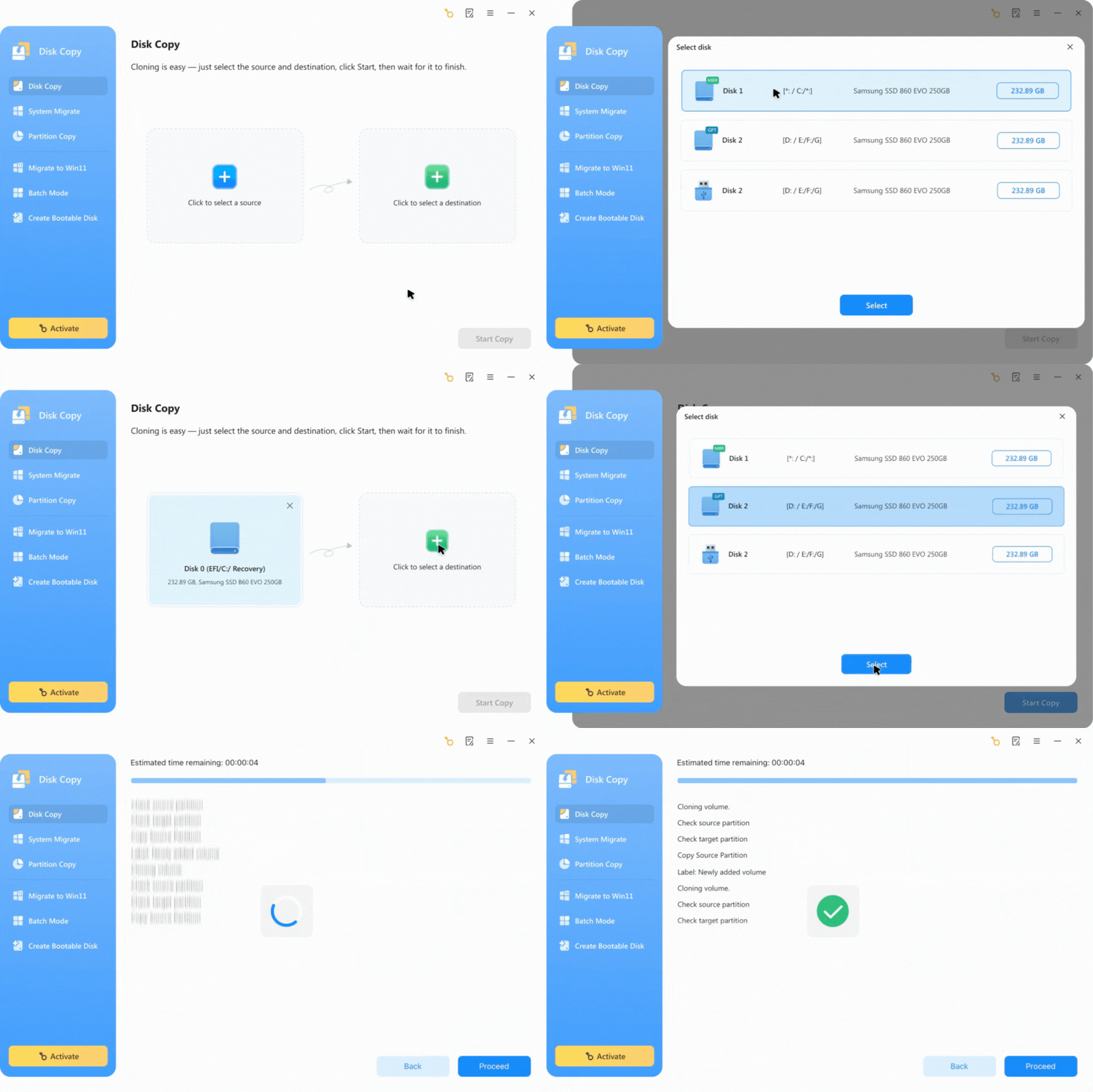
- Step 1. Launch and run EaseUS Disk Copy on your PC and select "Disk Mode" on the left pane.
- Step 2. Select the disk where the Windows 10 is located.
- Step 3. If you prefer to allocate the target disk with the same layout as the source disk, just enable a sector-level clone. Click "Proceed" to start cloning your disk or partition now...Read More>>
 Free Download
Windows 11/10/8/7
Why Do You Need to Clone Windows 10/11 Disk
Disk cloning in Windows 10/11 does greatly helps to optimize your computer. There are two main reasons for you to clone a disk in Windows 10:
- Clone Hard Drive (Data Drive) to Upgrade Storage Capacity
Windows disk clone is the most useful and straightforward method for you to upgrade your computer's hard drive to a bigger one. By doing so, you can increase your computer's storage and improve its performance simultaneously.
- Clone Windows 10 to Improve Computer Performance
Over time, the free space on your system disk will decrease; you must transfer all your present hard disk data to a faster SSD to optimize your computer. Or, to make Windows 10 boot faster, you can choose to clone the whole hard disk drive with the OS to an SSD.
- Create a Full Backup
Cloning Windows 11/10 provides a one-to-one copy of your OS, apps, and settings, which can serve as a reliable backup in case the system crashes. If your original disk fails or becomes corrupted, having a cloned disk ensures you can boot into Windows instantly.
The Tool Needed: Disk Cloning Software for Windows 10
Since manually copying data from one hard drive to another is time-consuming, plus Windows doesn't provide a disk cloning utility, you'd better clone the disk in Windows 10 or clone Windows 10 with third-party disk cloning software - EaseUS Disk Copy.
This professional disk cloning software makes it easy for you to upgrade and clone Windows 10 disk (whether it contains the operating system or not) and will free you from system reinstallation and data copying issues. Here are the main features of this tool:
- Disk/Partition/Operating System clone
- Windows OS migration to HDD/SSD
- Transfer Windows 11 OS and programs to a portable USB drive
- Compatible with HDDs/SSDs from various brands, types and interface
- Fast & safe cloning process without losing data, no OS reinstallation
- Clone hard drive with bad sectors by using the sector-by-sector copy feature
Free Download
Windows 11/10/8/7
How to Clone Disk in Windows 10: Step-by-Step
EaseUS Disk Copy software allows you to perform a Windows 10 disk clone with simple clicks, and it has a sector-by-sector clone feature that allows you to clone every file to a new hard disk with the same disk layout. Download this software and connect the new HDD/SSD with your PC, and follow the next tutorial steps to clone the disk (whether it contains Windows 10 OS or not) without reinstalling Windows 10 now:
💾Before you start using the disk cloning software, there are requirements for the target hard drive:
- ✅Total capacity exceeds the used space on the source disk (or system and boot partitions on the source disk if you want to clone Windows 10 only).
- ✅Displays as unallocated in Disk Management. If not, delete all partitions. Thus, make sure you have backed up your important files in advance.
- ✅It is the same partition style as the source disk (by initializing or converting). You may want to know how to convert between GPT and MBR.
Make sure your target disk meets the requirements above, and now choose what you would like to use the disk cloning software for.
- 1️⃣Before cloning, remember to create a backup of your Windows 10 system to avoid data loss during the process.
- 2️⃣Ensure that the target HDD/SSD has enough storage capacity to save the Windows 10 OS.
- 3️⃣If you clone a larger disk to a smaller SSD, you need to remove these junk files, and make sure the uses space is smaller than the capacity of the target disk.
- 4️⃣Sector-by-sector clone will copy all sectors, even empty/unused space and hidden partitions, check this option when you clone Windows 10 OS.
📚Here is the step-by-step guide to cloning Windows 10 to a new disk.
Before cloning:
- If your computer has only one slot, connect the target disk to your machine via a USB-to-SATA/NVMe adapter.
- If your computer has an extra slot, install the target disk into the empty slot properly, and make sure it is compatible.
Step 1. Launch EaseUS Disk Copy and choose Disk Mode.
Install EaseUS Disk Copy cloning software on your Windows computer, then launch it and select Disk Mode from the left panel.

Step 2. Select the source drive.
Select the drive you want to copy, then click Select.
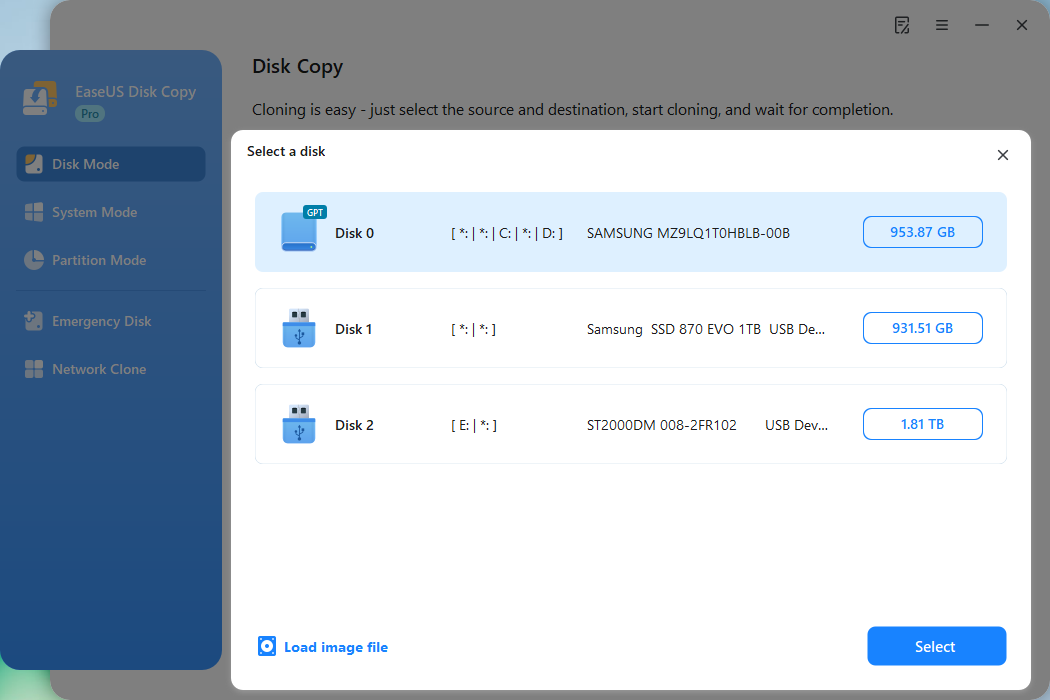
Step 3. Choose the target disk.
Choose the disk that you want to clone data to, and click Select. Note that the used space of the source disk should be less than the target disk capacity.
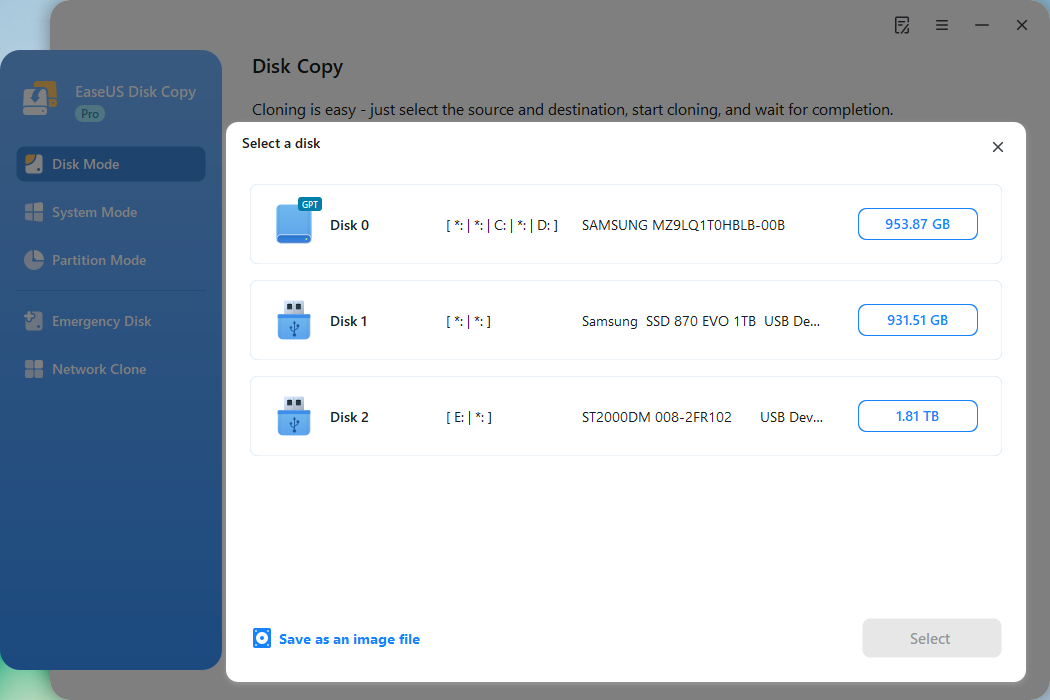
*At this step, you can also click the option "Save as an image file" to store your disk as a compressed image file, which can be restored without any data loss.
Step 4. Adjust disk layout.
Specify the target disk layout as your preference. You can choose among:
- Autofit the disk: makes some changes by default on the destination disk layout so that it can work at its best.
- Copy as the source: create a 1-to-1 copy of your source disk; the layout is the same as the source disk.
- Edit disk layout: allows you to manually resize/move the partition layout on this destination disk.
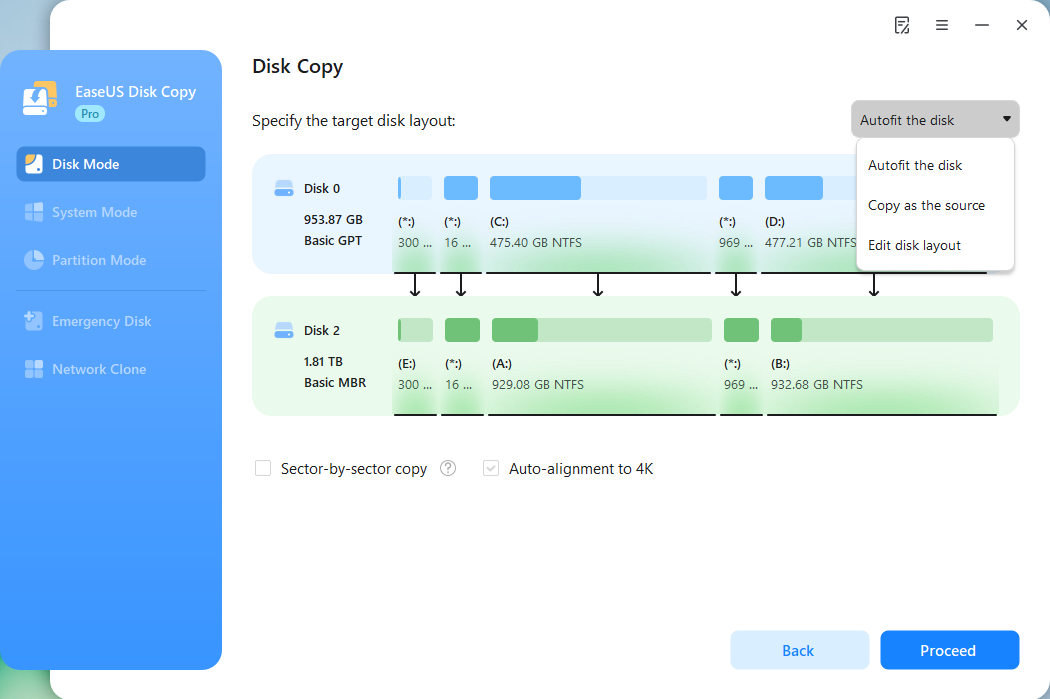
*If the target disk is an SSD, the option "Auto-alignment to 4K" will be checked automatically to optimize the performance of your SSD.
Step 5. Start cloning.
Click Proceed, and a message will appear, warning you that data will be lost. Confirm the message by clicking Continue.
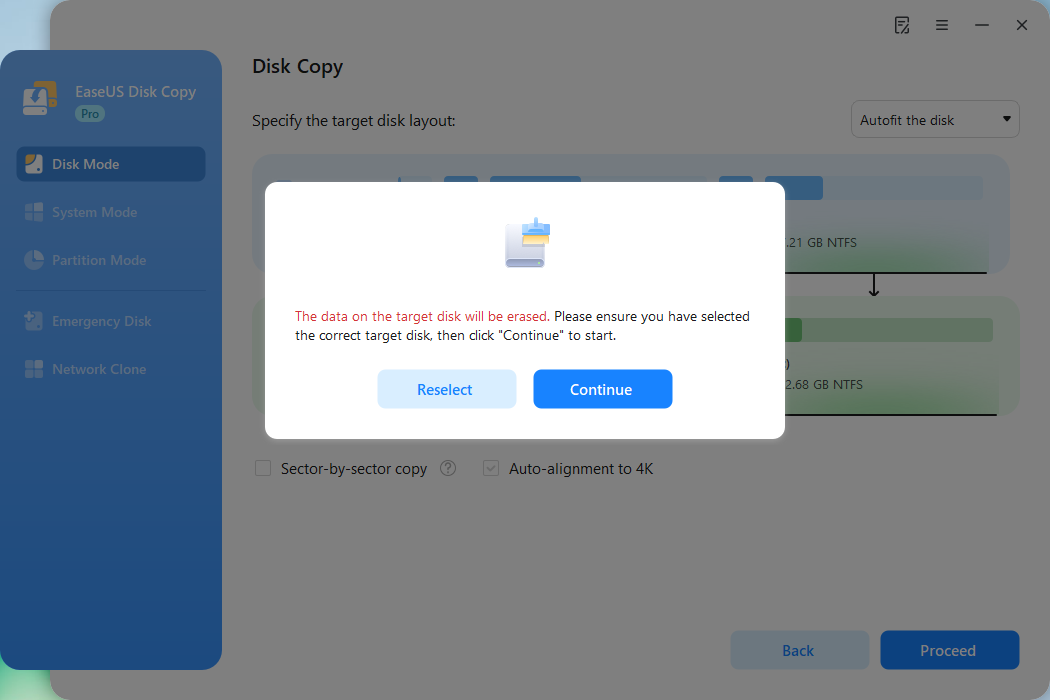
Now, it will start executing the cloning task.
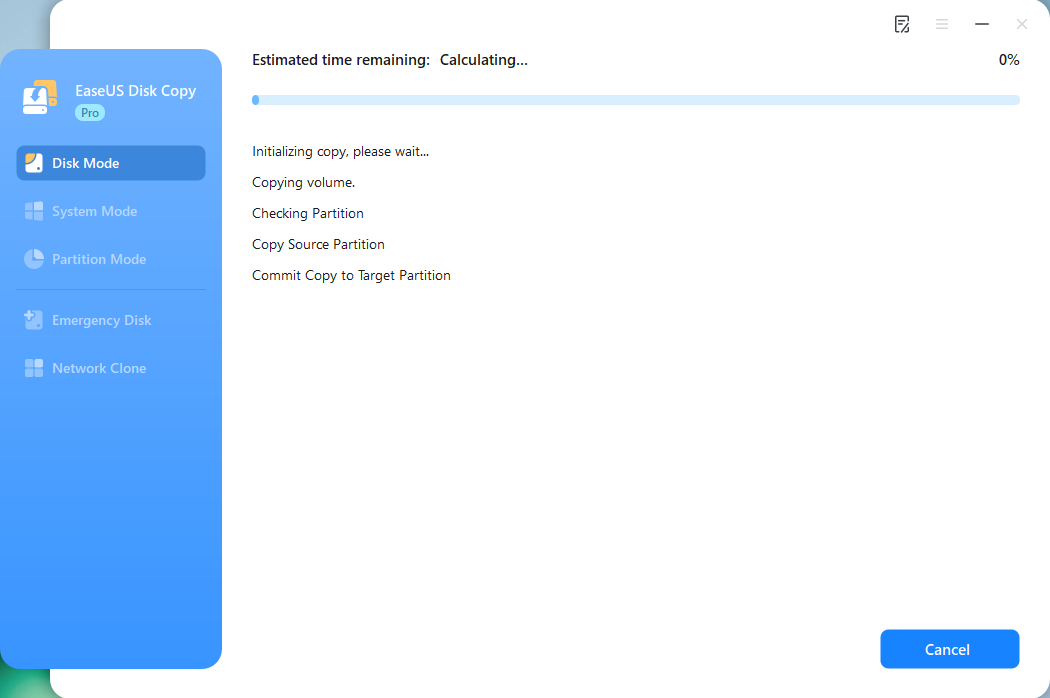
*The time it takes to clone a hard drive depends on how much data is on the source disk, and it will also be affected by the disk types, USB connection, etc.
After this, you can reboot PC and continue to use Windows 10 on your new hard disk or SSD without reinstallation. Then you can choose to remove the source disk or use it for data storage on your computer.
🎯Bonus: How to Boot from the Clone Disk after Cloning
It is reported that 32% of users have trouble booting from the cloned disk after cloning because they forget the process of swapping the boot disk. How to do that? Well, don't worry, keep reading, and learn how.
- Install the new cloned SSD into the computer properly.
- Shut down your PC and restart it, then press the BIOS key(F2/F12/Del) repeatedly.
- Navigate to the boot menu and select the clone SSD as the boot drive.
- Press F10 > Yes to save the changes, and your PC will boot from the new SSD successfully.
Share the post on Twitter/Reddit to help other users clone Windows 10 with this guide easily.

Free Windows 10 Disk Cloning Software
While exploring free alternatives is a great way to understand your options, it’s important to find a tool that balances ease of use, reliability, and functionality for regular backup and cloning tasks. Here’s a quick comparison of several widely used free cloning utilities available today.
| Software | Key Features | Pros | Cons |
| Clonezilla / Rescuezilla | Open-source, supports full disk/partition cloning, ideal for system imaging and recovery. | Completely free, powerful, supports multiple file systems. | Command-line driven, can be intimidating for non-technical users. |
| DiskGenius | Integrated partition management, disk cloning, and data recovery functions. | Entirely free, highly configurable, supports a wide range of file systems and scenarios. | Free version restricts certain advanced features such as large file recovery and VM disk support. |
| Macrium Reflect Free | Image-based backups, disk cloning, scheduling, and rapid delta cloning. | Very user-friendly, reliable performance, good for routine personal backup tasks. | Development of the free version has been discontinued; lacks future updates and support. |
Each of these free tools has its merits, depending on your technical comfort and needs. However, if you're looking for a more streamlined and consistently supported experience—especially for regular system migrations or business use—many users find that investing in a dedicated, user-oriented solution like EaseUS Disk Copy provides greater peace of mind. It simplifies the cloning process while ensuring compatibility and professional-grade reliability, making disk management tasks both efficient and worry-free.
Free Download
Windows 11/10/8/7
Conclusion
EaseUS disk cloning software is frequently used to upgrade computer disks. If your computer runs slower with Windows 10 since the disk is almost full or you want to transfer all your present hard disk data into a bigger HDD or SSD so to optimize your computer, this tool fits your needs exactly. Whether you want to clone disk, clone Windows 10, or make a backup of your files elsewhere, this software will be helpful to you.
Clone Drive Windows 10 Frequently Asked Questions
You can read these questions and answers to get additional help if you have difficulty in disk cloning Windows 10.
How do I clone a bootable hard drive Windows 10?
To clone bootable hard drive for Windows 10/8/7
- Launch EaseUS Disk Copy and click "Disk Clone". The current system (Windows 10) partition and boot partition will be automatically selected.
- Choose the target drive - It could be a hard drive or an SSD.
- Click "Proceed" to start cloning Windows 10.
Does Windows 10 have cloning software?
Windows 10 itself doesn't have cloning software. But you can use EaseUS Disk Copy. It is a backup tool that is perfect for cloning a hard drive. The software is neat, clean, and very straightforward, and it is free to download as well. Using this tool, you can clone Windows 10 OS to a new hard drive within a few minutes.
Why can't I clone my old hard drive to my new hard drive?
Make sure the capacity of the drive that you are cloning is equal to or larger than the capacity of the drive you are cloning from. If there are bad sectors or errors on the old hard drive, it may not be able to be cloned.
How do I transfer Windows 10 to my SSD?
To migrate OS to SSD:
- Connect the new HDD/SSD to your PC.
- Run EaseUS Disk Copy and select System Mode from the left panel.
- Choose the destination disk - new HDD/SSD to save the Windows 10 system. Then, click "Proceed".
-
Updated by
Tracy became a member of the EaseUS content team in 2013. Being a technical writer for over 10 years, she is enthusiastic about sharing tips to assist readers in resolving complex issues in disk management, file transfer, PC & Mac performance optimization, etc., like an expert.…Read full bio