Page Table of Contents

Disk cloning lets you make an exact copy of your source disk to the target disk, including operating system and files. Hard disk drive cloning software can simplify the process if you want to upgrade your hard drive to a larger one or create a disk backup. Since Windows does not have preinstalled cloning settings, EaseUS Disk Copy, the safe and reliable hard drive cloning software, allows you to clone hard drives easily and safely.
Download Best Hard Drive Cloning Software for Windows
Based on the standards outlined below, EaseUS Disk Copy is the best disk-cloning software to meet your needs. It is an efficient and reliable disk-cloning tool for HDDs/SSDs from various manufacturers, including Seagate, Toshiba, Samsung, Intel, Kingston, Western Digital, and SK Hynix.
What is generally considered the best hard drive cloning software?
by u/Ill_Swan_3209 in cloningsoftware
This software offers a user-friendly interface, enabling you to clone your entire hard drive or specific partitions. It supports cloning to larger or smaller drives and offers options for creating a bootable USB drive.
It allows you to clone HDD to HDD in max 4 clicks without losing data and create a bootable drive to boot your computer when placing a hard drive on it. In addition, it can easily copy your Windows installation disk to an SSD or clone your boot drive to an HDD or SSD.
EaseUS Disk Copy: Best Software for Cloning Hard Drives
- Simple interface: Clone a disk to another with several steps.
- Disk Mode: Clone to a new, bigger disk for full transfer.
- System Mode: Migrate Windows system to another drive.
- Partition Mode: Clone one partition to another hard drive.
- Sector-by-sector clone: Clone HDD/SSD with bad sectors.
- Reliable technical support. Offer free technical support 24/7.
 Free Download
Windows 11/10/8/7
Hard disk cloning software full version download for Windows 11/10/8/7!
How to Clone a Hard Drive Step-by-Step
After downloading the EaseUS HDD clone software, you can perform an HDD clone on your Windows PC.
Step-by-step guide on how to clone an HDD to another using EaseUS Disk Copy:
Before cloning:
- If your computer has only one slot, connect the target disk to your machine via a USB-to-SATA/NVMe adapter.
- If your computer has an extra slot, install the target disk into the empty slot properly, and make sure it is compatible.
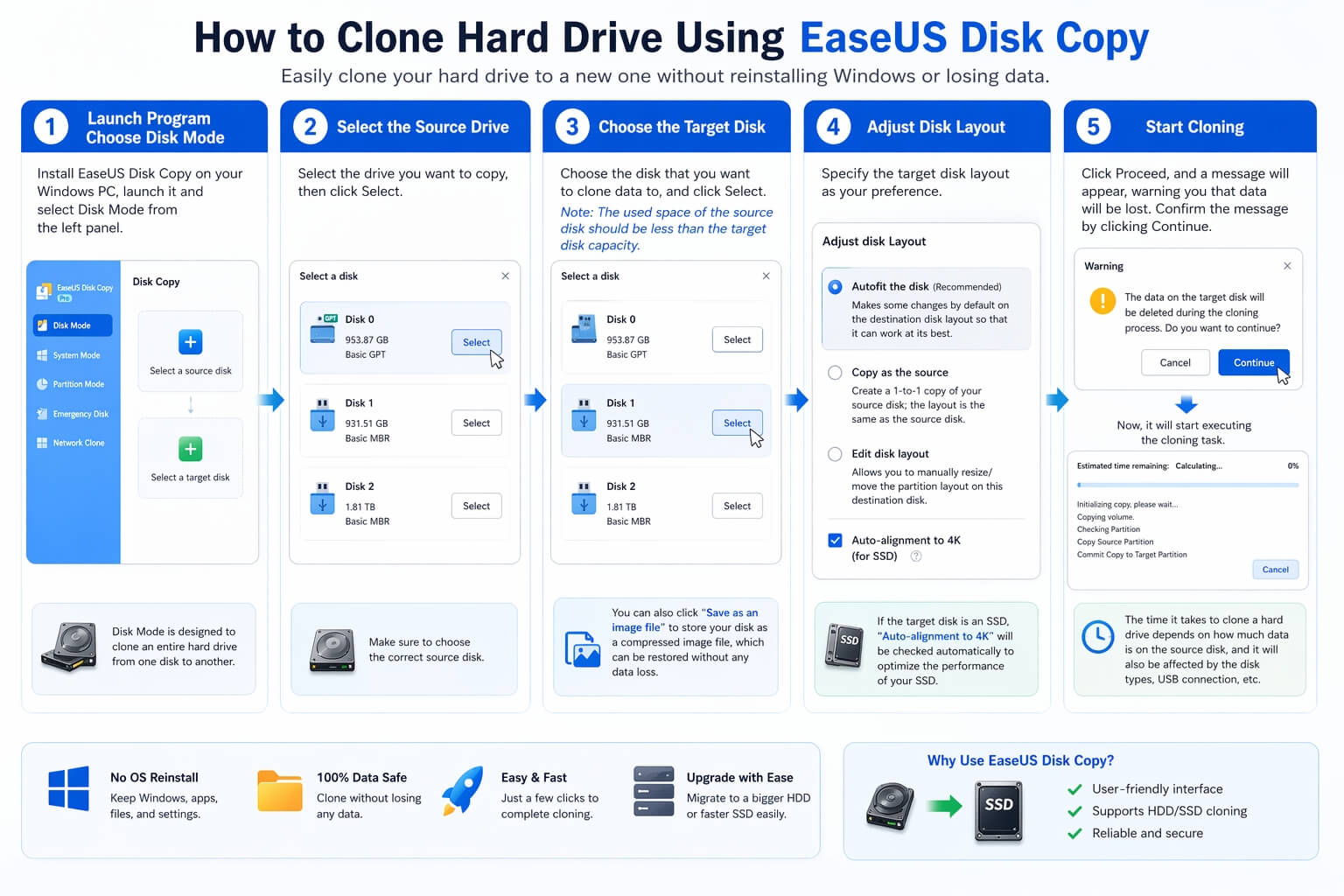
Step 1. Launch EaseUS Disk Copy and choose Disk Mode.
Install EaseUS Disk Copy cloning software on your Windows computer, then launch it and select Disk Mode from the left panel.

Step 2. Select the source drive.
Select the drive you want to copy, then click Select.
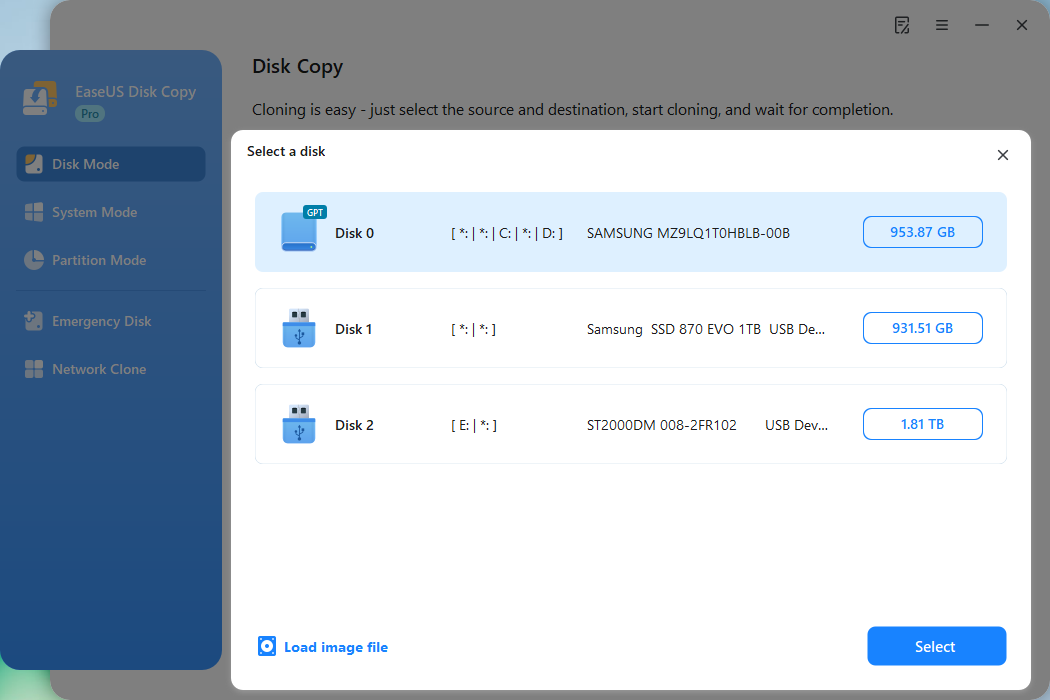
Step 3. Choose the target disk.
Choose the disk that you want to clone data to, and click Select. Note that the used space of the source disk should be less than the target disk capacity.
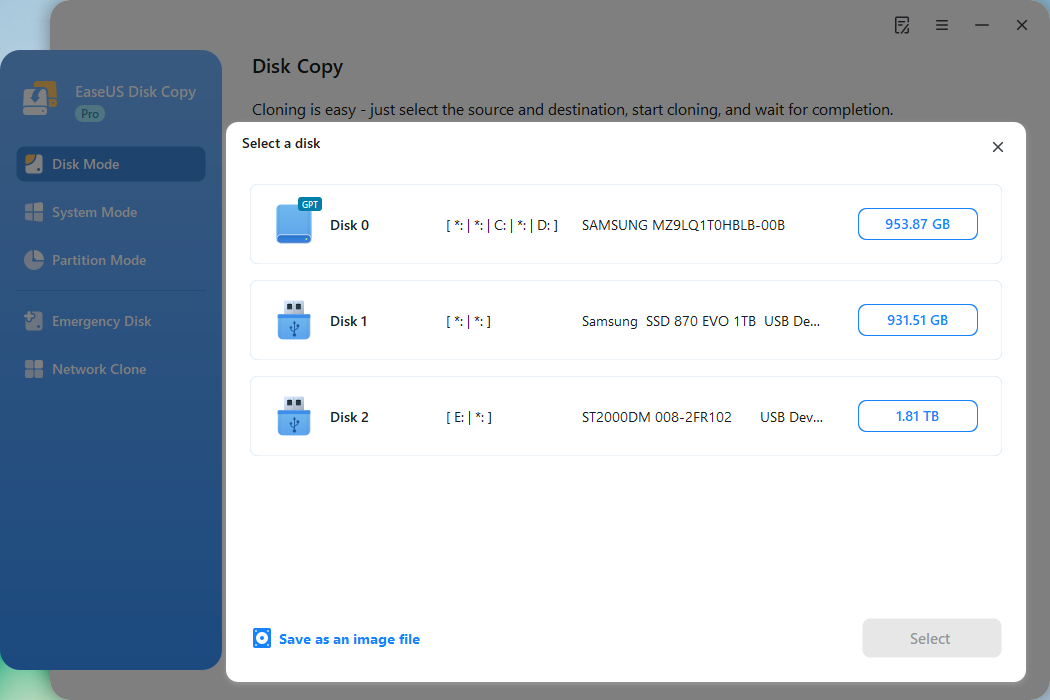
*At this step, you can also click the option "Save as an image file" to store your disk as a compressed image file, which can be restored without any data loss.
Step 4. Adjust disk layout.
Specify the target disk layout as your preference. You can choose among:
- Autofit the disk: makes some changes by default on the destination disk layout so that it can work at its best.
- Copy as the source: create a 1-to-1 copy of your source disk; the layout is the same as the source disk.
- Edit disk layout: allows you to manually resize/move the partition layout on this destination disk.
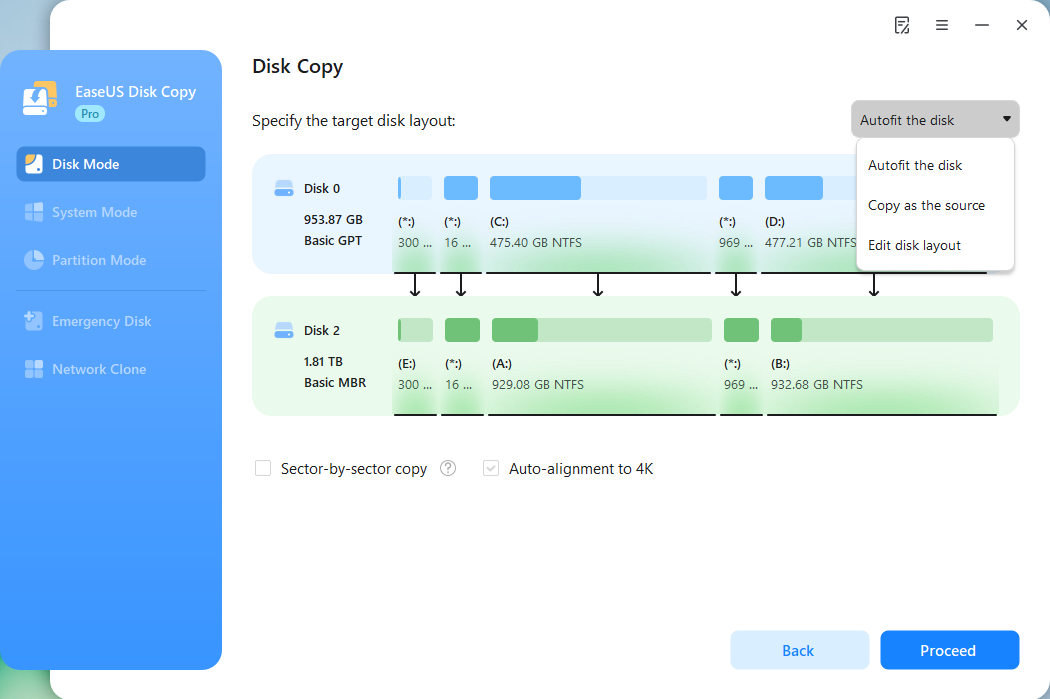
*If the target disk is an SSD, the option "Auto-alignment to 4K" will be checked automatically to optimize the performance of your SSD.
Step 5. Start cloning.
Click Proceed, and a message will appear, warning you that data will be lost. Confirm the message by clicking Continue.
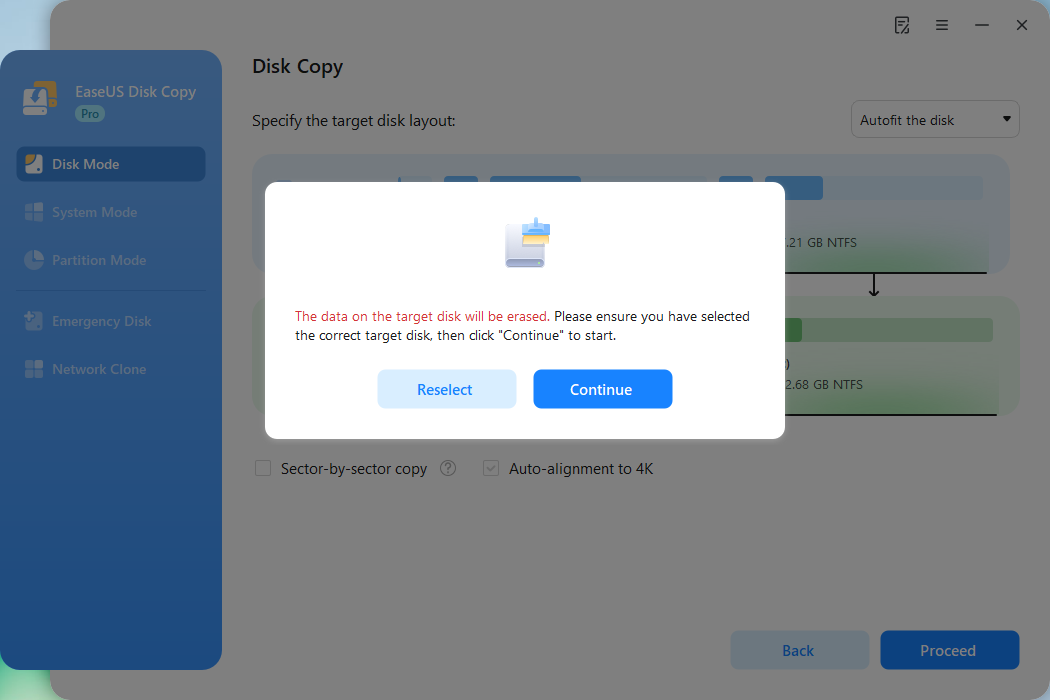
Now, it will start executing the cloning task.
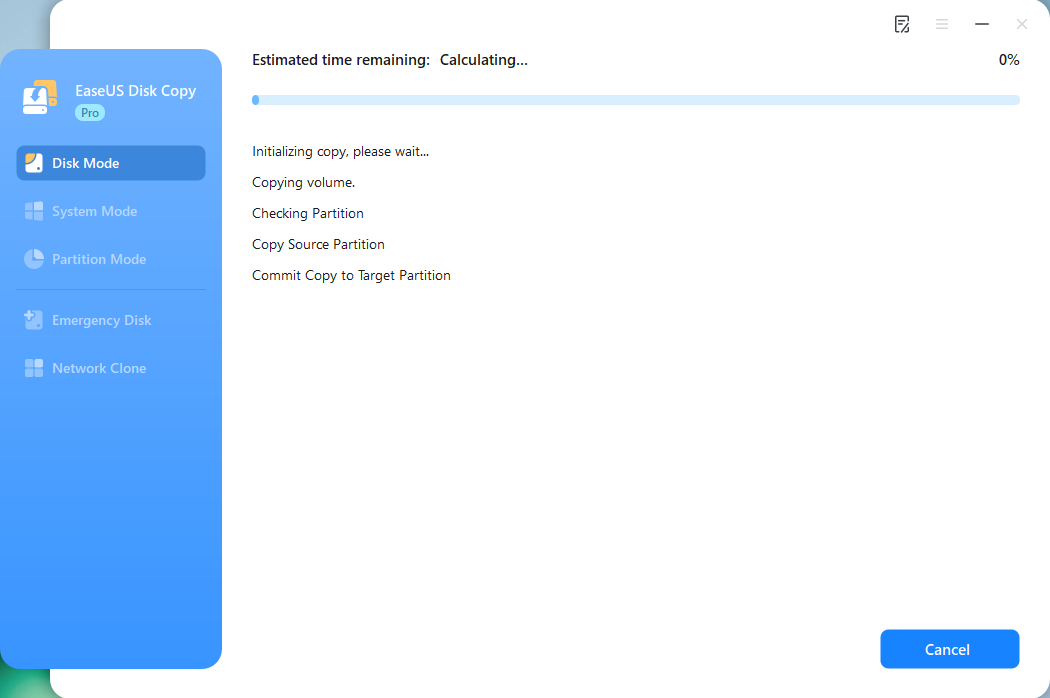
*The time it takes to clone a hard drive depends on how much data is on the source disk, and it will also be affected by the disk types, USB connection, etc.
Video tutorial on how to clone HDD to SSD using EaseUS Disk Copy:
Is this blog useful? Share it on your social platforms, such as Facebook, Twitter, etc., to help more people find a reliable HDD cloning tool.
Why You Need Hard Disk Cloning Software & How to Pick One
You may want to clone your hard drive on Windows computers for the following reasons:
- Upgrade to a larger hard drive when the current one is too small to meet your data storage requirements.
- Create a disk backup to avoid data restoration issues, since the hard drive is immune to damage or viruses.
- Replace HDD with SSD to enjoy smooth computer performance and a better user experience, as SSD offers faster read & write speeds.
Since Windows has no built-in hard disk cloning software, you must use a third-party disk clone tool to complete disk cloning. Here is how to select disk clone software for your Windows computers:
- Compatibility. Ensure the disk copy software is compatible with your Windows computer, as some do not support Windows 11.
- Ease of use. An HDD clone tool saves time and effort by eliminating the need to reinstall everything. If the disk cloner is complicated, why not reinstall Windows and programs?
- Sector-by-sector clone. If your target disk has bad sectors or you only want to clone your Windows to another drive, the disk copy tool should be able to do that.
- Clone HDD to SSD with different sizes. You may need to upgrade a large HDD to a smaller SSD or replace the HDD with a larger one. Therefore, the HDD copy software should be able to copy an HDD to another one of a different size.
To Wrap Things Up
Find the right HDD copy software, and you can replace your HDD with an SSD or larger HDD without reinstalling Windows and apps. This article describes HDD cloning software for Windows computers. EaseUS Disk Copy is the best HDD clone software to help you clone a hard drive or migrate OS from HDD to SSD. Download this HDD copy software to explore its practical features!
Free Download
Windows 11/10/8/7
FAQs on Hard Drive Cloning Software
Below are some frequently asked questions about "disk clone software".
1. Can I clone a hard drive without software?
The short answer is no. Windows doesn't have a built-in disk cloning tool. Therefore, you must use third-party cloning software, such as EaseUS Disk Copy or Clonezilla, to clone a hard drive. If the hard drive is a data storage disk, you can use the command lines or Backup and Restore (Windows 7) to transfer data from one disk to another.
2. How do I transfer my hard drive to a new hard drive?
Connect the old hard drive to your PC via a USB adapter. Then, manually copy and paste the files/folders to the new drive. However, it will take more time to install the Windows operating system and programs. Cloning can help you copy data from one hard drive to another without reinstalling Windows or losing data.
3. How can I clone my hard drive for free?
You can use free disk-cloning software like Clonezilla or Rescuezilla to clone a hard drive. Additionally, some hard drive brands offer built-in cloning solutions, such as Samsung's Data Migration Software for Samsung hard drives and Intel's Data Migration Software for Intel SSDs.
4. Does cloning a hard drive copy programs?
Yes, cloning an HDD/SSD will copy all the data, including the Windows operating system (OS), installed programs, saved files, and settings. To clone a disk, you can try EaseUS Disk Copy, Clonezilla, and Rescuezilla. These tools allow you to create a full copy of your hard drive, including the operating system, applications, and files, onto another drive. This can be useful for upgrading to a larger or faster drive or for creating a backup of your system.
-
Updated by
![]()
Jerry
"I hope my articles can help solve your technical problems. If you are interested in other articles, you can check the articles at the bottom of this page, and you can also check my Facebook to get additional help."…Read full bio