Page Table of Contents

PAGE CONTENT:
Acronis True Image for Western Digital Edition is popular disk cloning software to create backups and migrate data. However, sometimes users encounter roadblocks like "clone failed" issues that prevent successful cloning.
We'll delve into the potential reasons behind these issues and offer step-by-step instructions to troubleshoot them effectively. This article will fix issues whether a user is facing errors during the cloning process or if the clone is not bootable.
This article from EaseUS will guide you through the disk cloning process to help resolve the problem and get the cloning process running smoothly. So, let's dive in and find solutions to fix the Acronis True Image WD Edition clone not working properly.
📖Related Reading: Western Digital Cloning Software
Common Issues of Acronis True Image WD Edition Will Not Clone
When it comes to cloning a hard drive using Acronis True Image WD Edition, users may encounter a few common issues that can be frustrating. There are many common issues behind it, but the most common reasons behind this problem can be narrowed down to three:
- One potential problem is an error message during the clone operation, which might indicate compatibility issues between the software and the user's hardware.
- Another issue users might face is when the user's clone HDD is not bootable, preventing users from accessing their data.
- Lastly, outdated versions of the Acronis True Image WD Edition can also cause problems during the cloning process.
Furthermore, if users have incompatible hardware or drivers, the cloning software may fail to recognize their disk drives. These issues can be quite a headache, but don't worry! In the next section, we'll discuss practical solutions to fix Acronis True Image WD Edition and get the cloning software back on track.
How to Fix Acronis True Image WD Edition Clone Not Working
Now that we've explored the common issues faced with the Acronis True Image WD Edition clone, let's dive into the step-by-step solutions. From creating a bootable media using Acronis rescue media to ensuring the compatibility of users' external USB devices, this section will guide them through the troubleshooting process. So let's begin:
- Fix 1. Clean WD Hard Drive
- Fix 2. Disable Secure Boot
- Fix 3. Download And Run .exe File
- Fix 4. Try Acronis Bootable Media
Fix 1. Clean WD Hard Drive
Cleaning the target drive where users intend to clone their data can also fix this issue. Whether it's internet or external, cleaning the WD Hard Drive seems to fix the issue for many users. Here's how they can do that:
Step 1: Download and install WD Drive Utilities.
Step 2: Start up the WD Drive Utilities software.
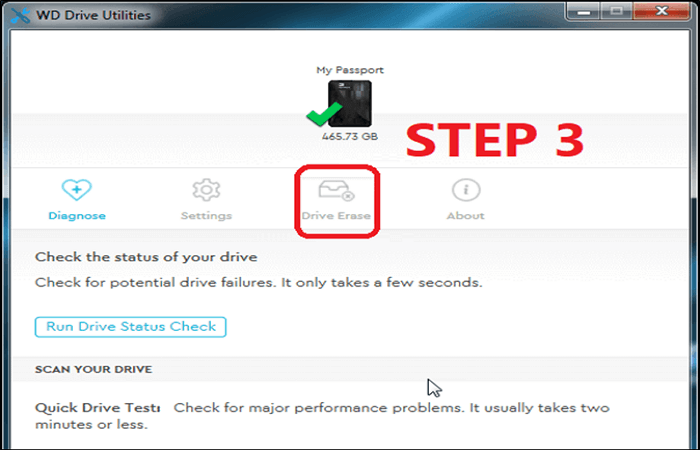
Step 3: Tap on the drive and then click the Drive Erase option.
Step 4: Give confirmation when prompted.
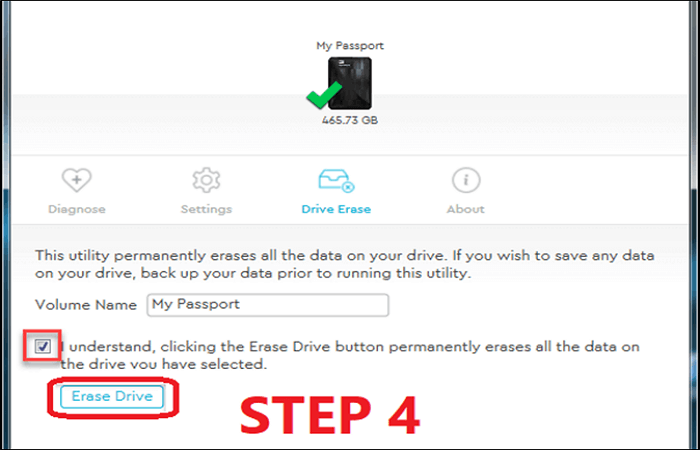
Now, users should be careful not to erase the WD HDD with their data on it. So, focus on removing data from only the empty and target/destination disk.
Fix 2. Disable Secure Boot
Disabling secure boot comes down to the PC and the kind of motherboard that the user has. But this fix is only applicable if the main and designation drives are internal. If that's the case, then here's what users should do to disable secure boot:
Step 1: Head into PC's BIOS according to the manufacturer.
Step 2: Find Boot/Security options.
Step 3: Locate Secure Boot Control.
Step 4: Disable it.
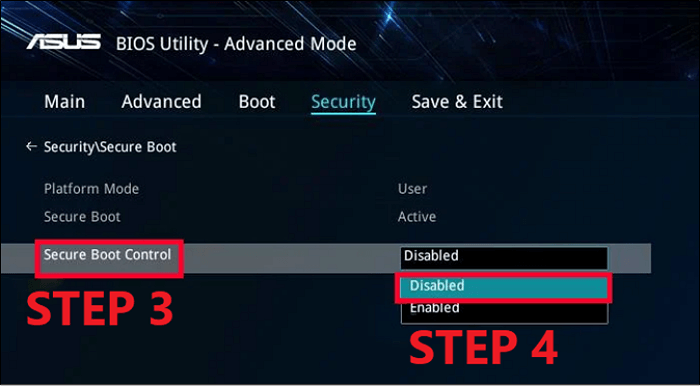
Step 5: Save and restart the PC for settings to take effect.
This will disable secure boot and allow WD HDD to work without bounds. Thus, it might ensure that the Acronis True Image WD edition works properly.
Fix 3. Download And Run .exe File
There are times when users get an error that says:
"Acronis True Image WD edition installation restricted - this product edition requires at least one Western Digital drive to be installed in your system"
This means users will have to go to Western Digital's official Product Software page. From there, downloading and installing their specific HDD firmware will fix this issue. And you can also contact WD support to download a special .exe file to solve this.
Fix 4. Try Acronis Bootable Media
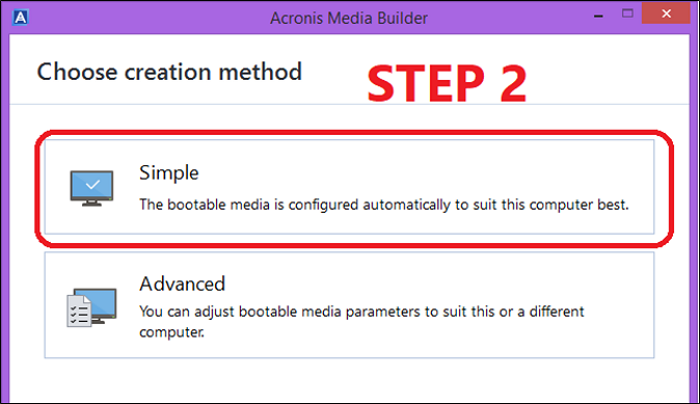
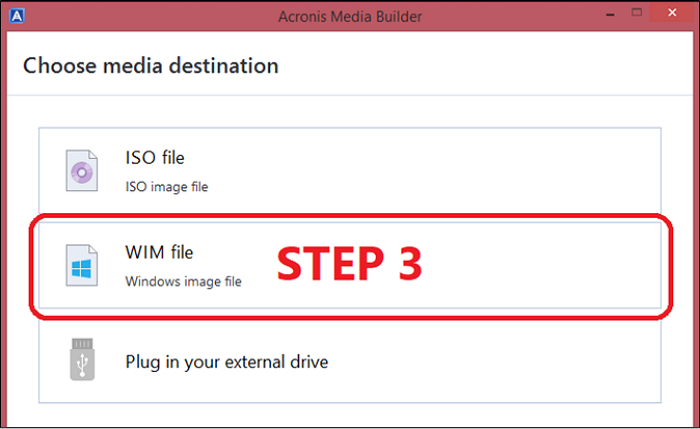
Using Acronis Bootable Media is another common fix for this problem. This requires users to use the Acronis Bootable Media feature by downloading the Rescue Media Builder feature. Then here's how they can fix the problem:
Step 1: Head into Acronis Media Builder.
Step 2: Select the Simple method.
Step 3: Click on the WIM file option.
Step 4: Then click Proceed.
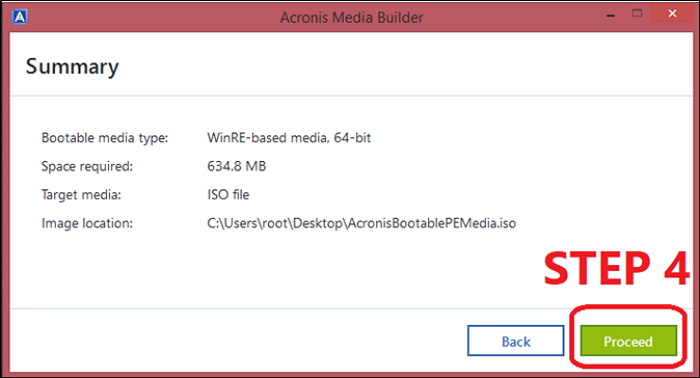
Then restarting the system will ensure that Acronis True Image WD edition detects the WD HDD quite efficiently.
If you like this post, you can share it on your social platforms to help more people.
100% Working Solution to Acronis True Image for WD Not Working
Now some users might be looking for a better alternative and something that works 100%. That's when a good-quality replacement for Acronis is necessary, and one such program is EaseUS Disk Copy - reliable disk cloning software. You can use it to help you clone WD hard drives without meeting any problems.
EaseUS Disk Copy provides a hassle-free solution. This intuitive software allows users to clone disk partitions quite easily and ensures that their data remains intact and accessible. It allows you to replace a laptop's hard drive without losing data or reinstalling OS. In addition, it lets you migrate OS from HDD to HDD, HDD to SSD, and SSD to SSD. For example, you can use it to transfer your Windows from HDD to SSD without data loss.
Here are some of the key features to explain this remarkable software:
EaseUS Disk Copy
- Offers simple instructions and a straightforward interface
- Offer sector-by-sector clone. Users can clone a hard drive with bad sectors
- Ability to migrate data from one PC to another - even if the hardware is not the same
- Upgrade to a larger disk and create a WinPE bootable disk easily and quickly
- Supports various disk types and can be used with external USB devices as well
 Free Download
Windows 11/10/8/7
That's why it's also ideal for those who need to create bootable media. This cloning software enables them to generate rescue media for smooth operations. So, if users are looking for a reliable and efficient way to clone disks drives, then they can use EaseUS Disk Copy like this:
Before cloning:
- If your computer has only one slot, connect the target disk to your machine via a USB-to-SATA/NVMe adapter.
- If your computer has an extra slot, install the target disk into the empty slot properly, and make sure it is compatible.
Step 1. Launch EaseUS Disk Copy and choose Disk Mode.
Install EaseUS Disk Copy cloning software on your Windows computer, then launch it and select Disk Mode from the left panel.

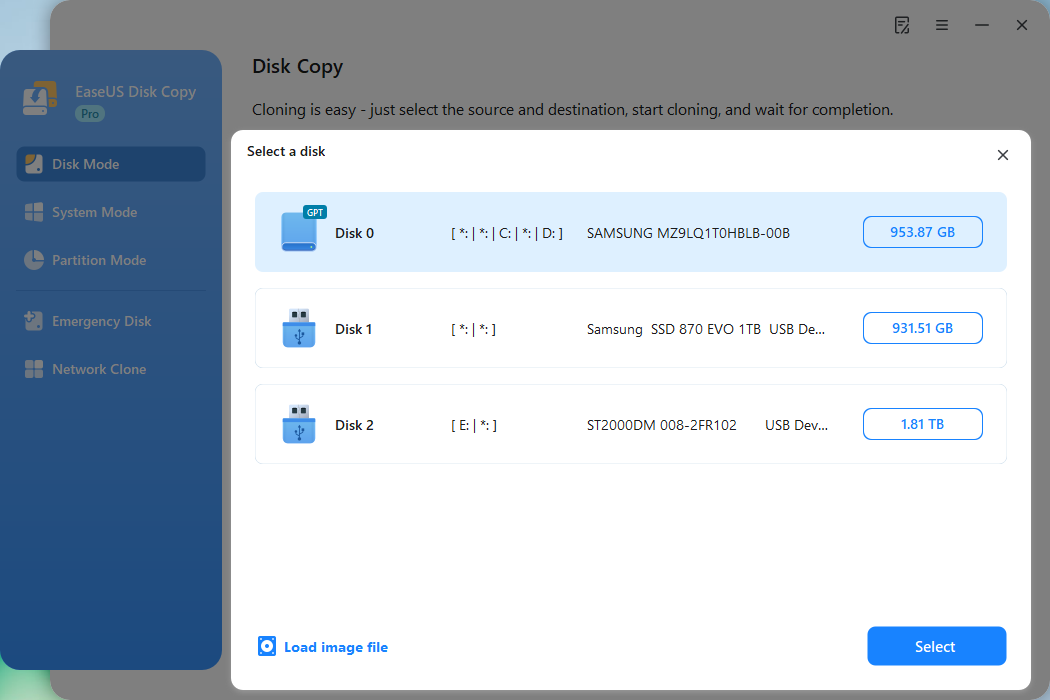
Step 2. Select the source drive.
Select the drive you want to copy, then click Select.
Step 3. Choose the target disk.
Choose the disk that you want to clone data to, and click Select. Note that the used space of the source disk should be less than the target disk capacity.
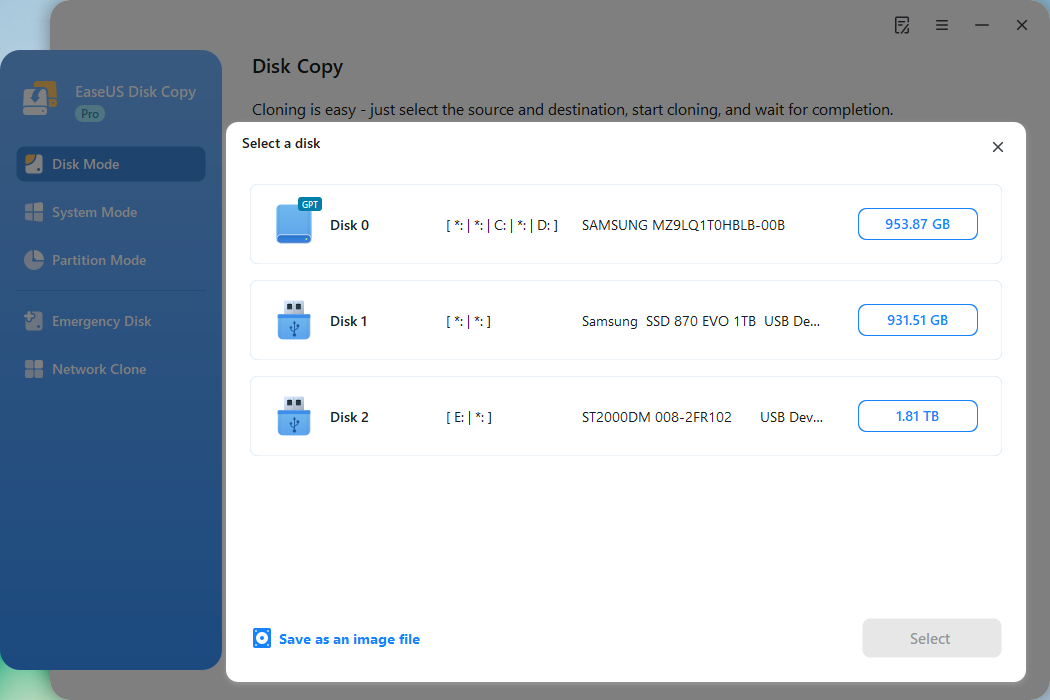
*At this step, you can also click the option "Save as an image file" to store your disk as a compressed image file, which can be restored without any data loss.
Step 4. Adjust disk layout.
Specify the target disk layout as your preference. You can choose among:
- Autofit the disk: makes some changes by default on the destination disk layout so that it can work at its best.
- Copy as the source: create a 1-to-1 copy of your source disk; the layout is the same as the source disk.
- Edit disk layout: allows you to manually resize/move the partition layout on this destination disk.
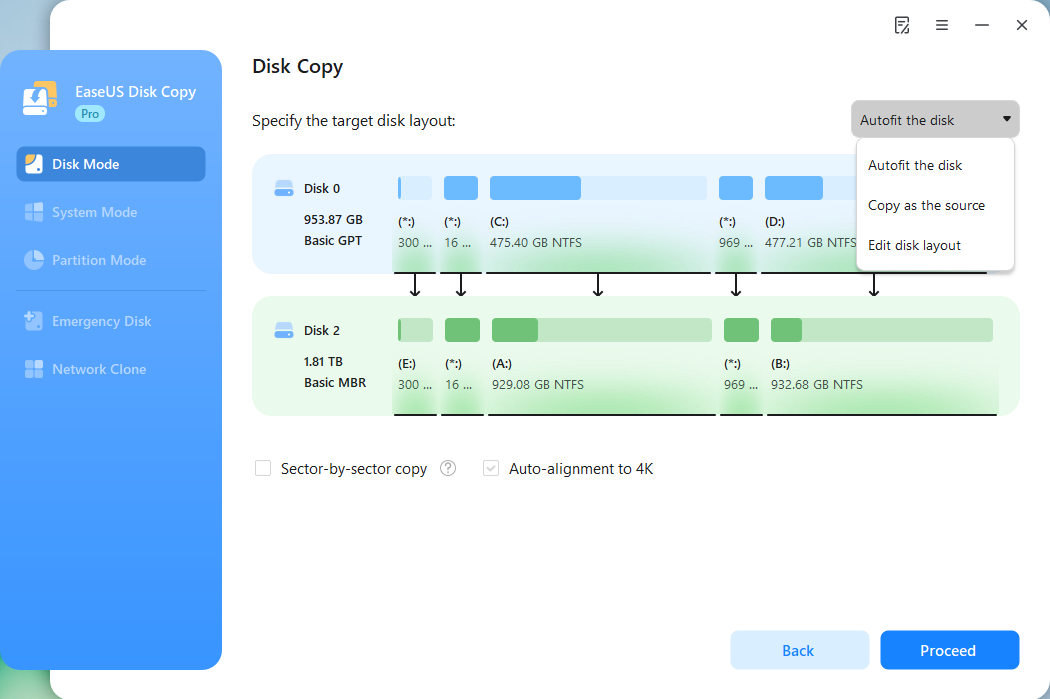
*If the target disk is an SSD, the option "Auto-alignment to 4K" will be checked automatically to optimize the performance of your SSD.
Step 5. Start cloning.
Click Proceed, and a message will appear, warning you that data will be lost. Confirm the message by clicking Continue.
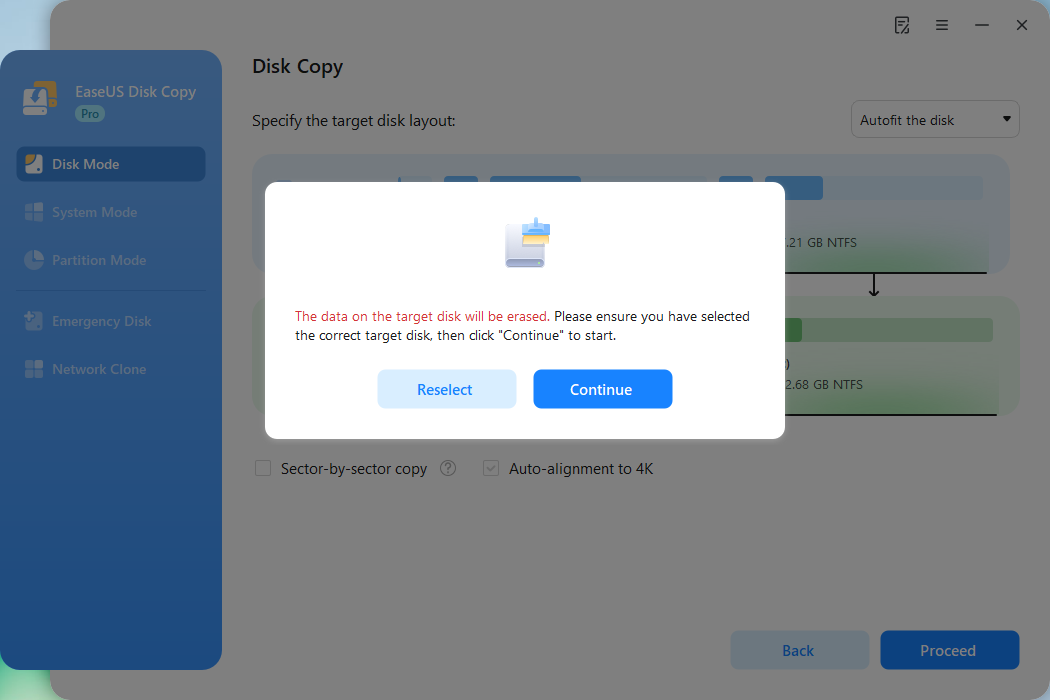
Now, it will start executing the cloning task.
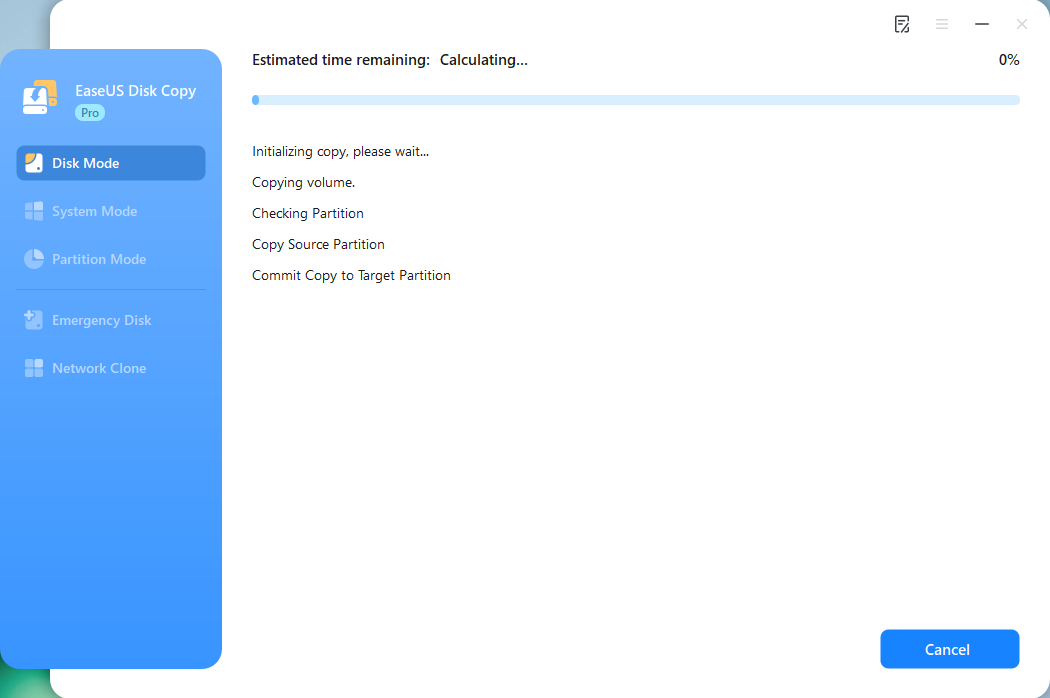
*The time it takes to clone a hard drive depends on how much data is on the source disk, and it will also be affected by the disk types, USB connection, etc.
To Wrap Things Up
These are the best methods to fix Acronis True Image WD Edition clone not working. It's important that users follow all of the mentioned steps in this article carefully. Only then will they be able to fix the problem and get the Acronis WD edition up and running for smooth cloning?
But it's better to simply use the alternative than indulge oneself in all the hassle. So using EaseUS Disk Copy instead is a much better option. It is easier and offers a lot safer options to clone external or internal WD HDDs. So, downloading and installing EaseUS Disk Copy is a much easier option than any of the fixes in this article.
Free Download
Windows 11/10/8/7
FAQs on Acronis True Image WD Edition Clone Not Working
Here are some FAQs on the topic to assist users further:
1: Does WD SSD come with cloning software?
WD SSD does not come with cloning software. If you want to clone WD SSDs, you can use professional cloning software - EaseUS Disk Copy. It allows users to easily transfer data from their old drive to the new WD SSD, making the upgrade process more convenient and efficient.
2: Why is Acronis not seeing my external hard drive?
Acronis may not be able to detect a user's external hard drive due to various reasons. It could be due to a faulty connection, outdated drivers, or incompatible file systems. Checking the cable, updating drivers, and ensuring compatibility can help resolve the issue and make the external hard drive visible to Acronis again.
3: Why is my internal WD hard drive not showing up?
If an internal WD hard drive is not showing up, it could be due to a loose cable connection, driver issues, or incorrect BIOS settings. That's why it's important to check the cables and verify BIOS settings. These solutions are known to help resolve the problem and make internal WD hard drives visible again.
4: How to clone a HDD to SSD with Acronis True Image HD software?
To clone an HDD to an SSD with Acronis True Image HD software, launch the software, select "Clone Disk", choose the source HDD and destination SSD, configure cloning options, and start the cloning process. Acronis True Image HD will then offer on-screen instructions to guide users through the cloning process.
-
Updated by
![]()
Jerry
"I hope my articles can help solve your technical problems. If you are interested in other articles, you can check the articles at the bottom of this page, and you can also check my Facebook to get additional help."…Read full bio