







Content
Page Table of Contents
About the Author
Hot Topics
- Table of Contents
-
— Why Do You Need to Defragment Your Hard Drive?
— How to Defragment Hard Drive on Windows 11/10
— How to Defragment Hard Drive on Windows 7/8
— Want to Thoroughly Clean Hard Drive? Try the Free Defrag Software
— Tips for Defragging a Hard Drive
1# How Often Should You Defrag Your Hard Drive?
2# What to Do Before You Defrag Your Hard Drive?
If your computer feels slower than usual, or programs lag, you may need to defragment your hard drive. Files on your hard drive become scattered over time. Then, the system needs to work harder to read and store data. This process can slow everything down. Fortunately, defragmenting your hard drive can fix this issue and improve performance.
In this guide, you'll learn how to fragment hard drive on Windows 11/10/8/7. There are some of the easiest ways to keep your hard drive and computer running smoothly.
Is defragging hard drives important? My drives are probably getting close to 5 years old. I just assumed Windows would take care of hard drive maintenance automatically. - From Reddit
What Does Defragment Mean?
Defragmentation is the process of reorganizing files on your hard drive. When you save, edit, or delete files, pieces of them can scatter across the drive. These scattered pieces are called fragments. On a traditional HDD, the drive has a mechanical arm that moves to read data. If a file is in one spot, the arm reads it quickly. But if fragments are spread out, the arm jumps around more. This slows down your computer.
Defragmenting gathers those fragments and puts them together. It arranges files in continuous blocks. This makes reading and writing faster. Think of it like tidying a messy desk. Everything is easier to find when it's organized. Modern Windows handles some of this automatically. But manual defragmentation can still help, especially on older or heavily used HDDs.
- Notice:
- It's important to note that traditional defragmentation only applies to HDDs (Hard Disk Drives). If you use an SSD, you should not defragment it. SSDs use flash memory with no moving parts.
Why Do You Need to Defragment Your Hard Drive?
Regular defragmentation offers several benefits.
- 📁Faster file access. Your system reads files more quickly when data is stored in one place.
- ⏰Shorter boot time. Defrag helps Windows start faster by reorganizing system files.
- 💾Longer hard drive lifespan. A less fragmented drive requires fewer read/write actions, reducing mechanical wear over time.
- 💻Better overall performance. Programs run more smoothly, and multitasking becomes easier.
Defragmenting your hard drive can boost computer performance. You'll find things faster, and everything will feel more organized.
How to Defragment Hard Drive on Windows 11/10
Windows 11 includes a built-in tool called "Optimize Drives" that makes defragmentation simple. To defragment hard drive, follow the steps:
Step 1. On your PC, search for "Defragment and Optimize Drives" and open it.
Step 2. In the list of drives, select a hard drive and click "Analyze."
Step 3. Windows will check how fragmented your drive is.
Step 4. If fragmentation is above 10%, click "Optimize" to start the process.
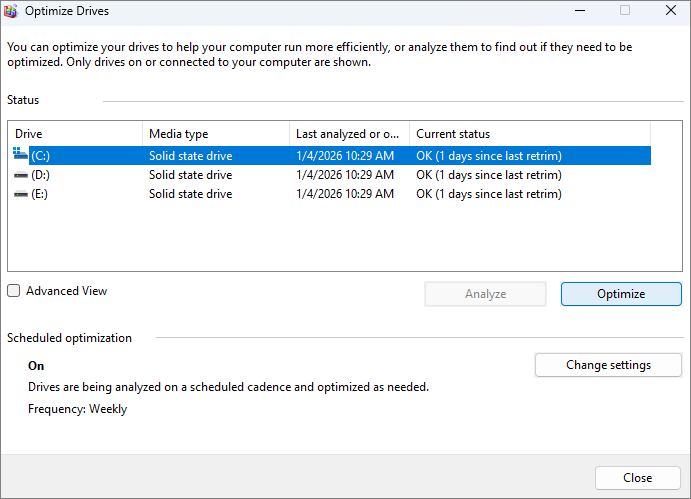
Windows can also automatically schedule regular defragmentation. You can set when this defragmenter runs.
Step 1. Just click "Change settings" under "Scheduled Optimization."
Step 2. Select how often you want it to run.
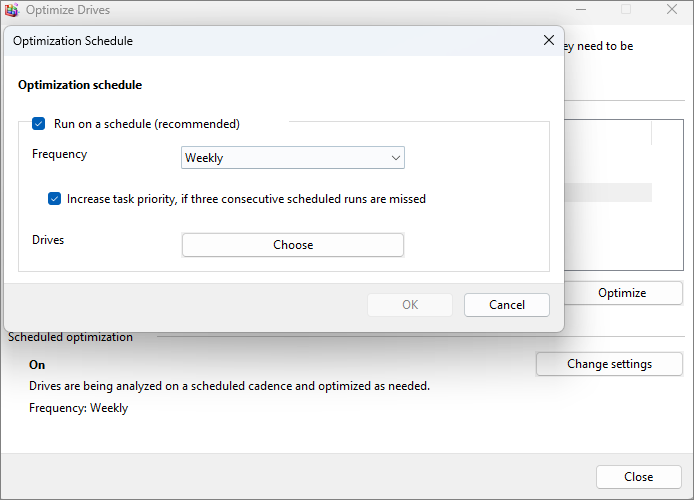
From Microsoft: Check this guide to learn more about how to defragment your drive.
How to Defragment Hard Drive on Windows 7/8
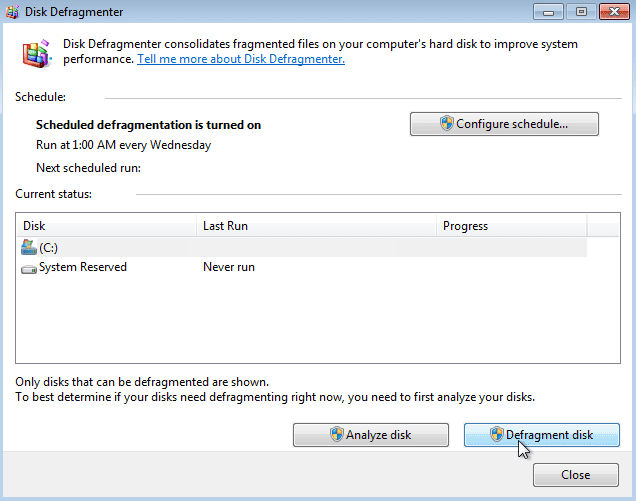
If you are using Windows 10, Windows 8, or Windows 7, the easy way to defragment your hard drive is to use Windows Disk Defragmenter.
Step 1. Click Start and type "Disk Defragmenter."
Step 2. Select the drive you want to defragment.
Step 3. Click "Analyze disk" to check the fragmentation status.
Step 4. Click "Defragment disk" to start.
Want to Thoroughly Clean Hard Drive? Try the Free Defrag Software
While Windows provides a basic defragmentation tool, sometimes you may want more advanced features. If you need deeper cleaning or faster analysis, there is free defrag software that helps a lot.
EaseUS Partition Master is one of the most popular free tools for defragmenting and managing hard drives. It's more than just a defragger. It handles partitions, clones drives, and optimizes performance. Using this free defrag software, you can perform a thorough cleanup that frees space and improves PC performance.
With EaseUS Partition Master Free:
- You can defragment the hard drive via its 4K alignment and disk layer adjustment.
- Moves scattered data blocks for better speed improvement.
- It checks disk health and cleans large or junk files.
- Clean, analyze, and defrag with minimal effort.
- Apart from defrag, it helps manage disk space efficiently.
How to analyze hard drive space:
Step 1. Launch EaseUS Partition Master and turn to Discovery. Find and Download Space Analyzer below Frequently Used Tools.
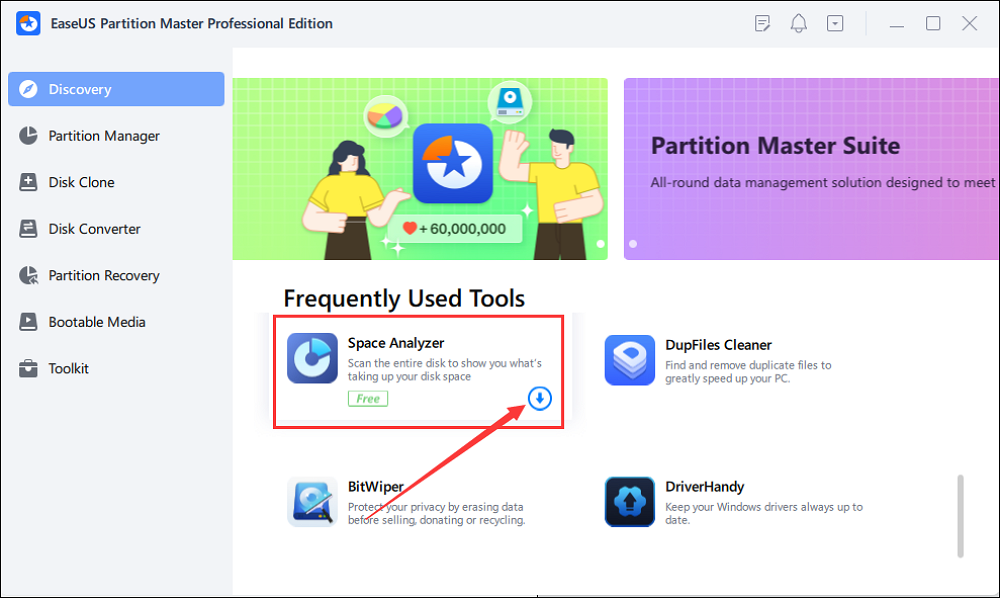
Step 2. In the Space Analyzer pop-up window, select the target disk to be analyzed and click Analyze in the upper right corner.
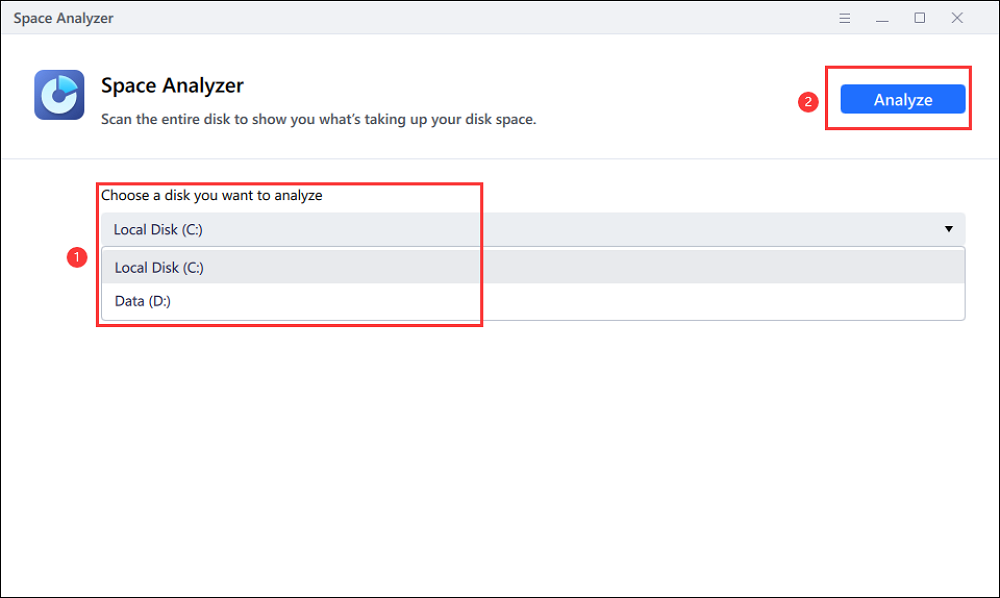
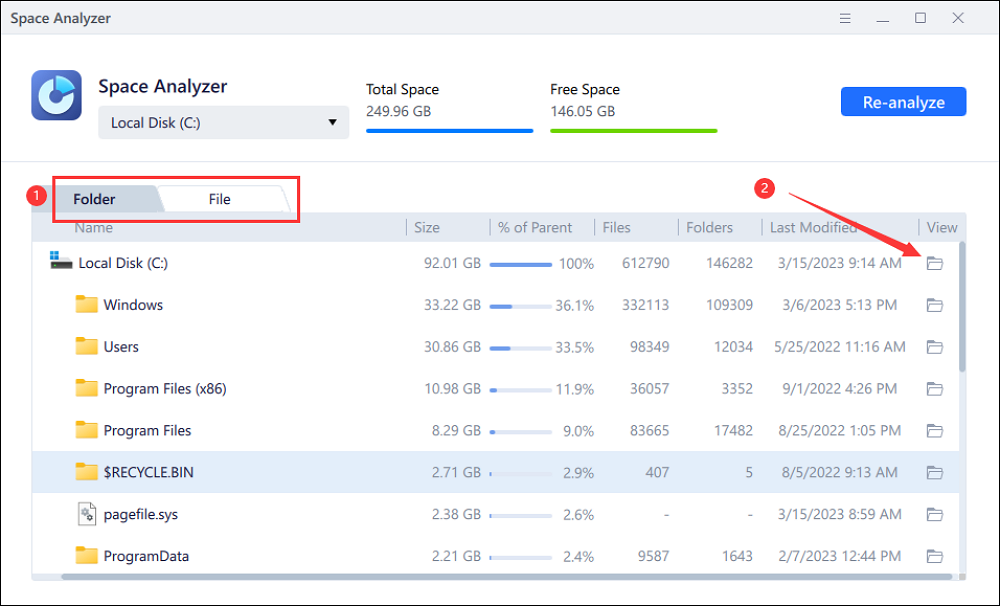
Step 3. Wait a while, and you will see the detailed data. You can click on Folder/File to view different data types and click on the small folder icon to see more information inside the file.

How to Safely Extend the Life of an Old HDD or SSD
As storage prices keep climbing, are you worried about your hard drive's longevity and the safety of your data? Not every slow drive is on the verge of failure, but knowing how to extend disk life without added risk is now more crucial than ever.
Tips for Defragging a Hard Drive
Defragmenting your hard drive is simple, but a few smart habits can make the process faster and safer. These tips will help you get smoother results and longer drive life.
1. How Often Should You Defrag Your Hard Drive?
You may wonder about the right schedule for defragmenting. It depends on your drive type and how you use your computer. Windows can schedule automatic defragmentation. You can keep this setting on to make sure your drive always stays optimized.
| Usage Type | Defrag Frequency | Reason |
| Heavy use (large file transfers, gaming) | Every 1 week | Large files cause more fragmentation |
| Moderate use (office work, casual gaming) | Every 2 weeks | Keeps the drive organized for steady performance. |
| Light use (web browsing, emails) | Every 1–2 months | Data changes slowly, so fragmentation builds up slowly. |
| Rare use (backup or storage drive) | Every 3–6 months | Files are rarely changed. |
| Automatic defrag in Windows | Weekly by default | Windows handles scheduled optimization automatically. |
2. What to Do Before You Defrag Your Hard Drive?
Before starting, you should take a few steps to prepare. Good preparation ensures a smoother and faster defragmentation process.
- Backup important data: Defragging is generally safe, but it's best to have a backup.
- Close all running programs: This lets the tool work faster without interruptions.
- Check free space: Leave at least 15% of your drive space empty for best results.
- Run a disk cleanup: Remove temporary files and junk before defragging to save time.
3. How Long Does Defragmentation Take?
The time depends on the size of your hard drive and how fragmented it is. A small drive may take 10 to 20 minutes. A larger or heavily fragmented one can take an hour or more. During this time, avoid using your computer. Let the process finish completely for the best effect.
4. More Tips to Boost Your Hard Drive's Performance
Defragmentation is only one part of good drive maintenance. For example, you can also free up disk space to boost its performance. To keep your system fast, try these extra tips:
1️⃣Keep plenty of free space. Aim for at least 15-20% free space on your drive. Full drives slow down because the system struggles to find room for new files or temporary data.
2️⃣Run Disk Cleanup regularly. Windows has a built-in tool to remove junk files like temporary items. You can also use EaseUS Partition Master to clean up your drive deeply.
3️⃣Uninstall unused programs and disable startup items. Extra software takes up space and runs in the background.
4️⃣Scan for errors and malware. Bad sectors or viruses can slow things down. Always check for errors and malware in your hard drive.
If you find these tips helpful, share them to help more users defragment hard drive and boost PC performance.

Conclusion
A fragmented hard drive can make your computer sluggish. Learning how to defragment hard drive regularly helps keep your system fast and reliable. If you're using a Windows PC, the built-in Optimize Drives tool works well for basic maintenance.
However, if you want a deeper clean and better performance insights, tools like EaseUS Partition Master are excellent choices. This EaseUS defragmenter offers powerful defragmentation features and easy automation to keep your PC optimized with minimal effort.
FAQs on How to Defragment Your Hard Drive
1. Will defragging damage my computer?
No, defragging will not damage your computer. It's a safe maintenance process built into Windows. It simply rearranges data on your hard drive for faster access. However, you should only defrag traditional HDDs, not SSDs, because SSDs don't need it and use a different storage method.
2. Does Defragging delete files?
Defragging does not delete or remove any files. It only reorganizes data to create continuous file blocks, making your computer read files more quickly. All your documents, photos, and programs remain untouched. Still, backing up important files before starting is always a smart habit.
3. Can I stop a defrag in progress?
Yes, you can stop a defrag while it's running. It won't harm your system, but your files may remain partially fragmented. For best results, let the process finish completely before using your computer again.
4. How to check if my drive is SSD or HDD in Windows?
Open File Explorer, right-click a drive, and select Properties > Hardware. You'll see the drive type listed there.
5. Is defragmentation risky?
Defragmentation is not risky when done correctly. The built-in Windows tool is designed to run safely in the background. Problems are rare, but power loss during defragmentation might cause incomplete rearrangement. To stay safe, run defrag with your laptop plugged in and your system stable.
6. Can I Use My Computer While Defragging?
You can, but it's not recommended. Using your computer slows the process and can reduce its effectiveness. It's better to let the defrag run when you're not working. So your hard drive can reorganize files without interference.
How Can We Help You
About the Author

Sherly joined EaseUS in 2022 and she has always loved writing articles and enjoys the fun they bring. She receives professional training here, focusing on product performance and other relative knowledge. She has written over 200 articles to help people overcome computing issues.

Written by Joey Albert
Joey is an enthusiast of science and technology. With a passion for uncovering the latest tech innovations, she creates clear, engaging how-to guides that make technology accessible and enjoyable for all.
Product Reviews
-
I love that the changes you make with EaseUS Partition Master Free aren't immediately applied to the disks. It makes it way easier to play out what will happen after you've made all the changes. I also think the overall look and feel of EaseUS Partition Master Free makes whatever you're doing with your computer's partitions easy.
Read More -
Partition Master Free can Resize, Move, Merge, Migrate, and Copy disks or partitions; convert to local, change label, defragment, check and explore partition; and much more. A premium upgrade adds free tech support and the ability to resize dynamic volumes.
Read More -
It won't hot image your drives or align them, but since it's coupled with a partition manager, it allows you do perform many tasks at once, instead of just cloning drives. You can move partitions around, resize them, defragment, and more, along with the other tools you'd expect from a cloning tool.
Read More
Related Articles
-
Top 5 Best OS Migration Software/Tools Free Download 2026
![author icon]() Tracy King/2026/09/23
Tracy King/2026/09/23 -
How to Recover Deleted Partition in Windows 11 Without Data Loss
![author icon]() Sherly/2026/09/24
Sherly/2026/09/24 -
Can't Type Password on the Login Screen in Windows 11/10
![author icon]() Cici/2026/09/24
Cici/2026/09/24 -
Format FS=NTFS Diskpart Has Encountered an Error
![author icon]() Tracy King/2026/09/23
Tracy King/2026/09/23
 Tracy King/2026/09/23
  Cici/2026/09/24









