Prolong Disk Lifespan: How to Safely Extend the Life
of an Old HDD or SSD

As storage prices keep climbing, are you worried about your hard drive's longevity and the safety of your data? Not every slow drive is on the verge of failure, but knowing how to extend disk life without added risk is now more crucial than ever. Using a tool like EaseUS Partition Master for health monitoring, routine optimization, and careful maintenance allows you to manage your disk's condition proactively and postpone costly upgrades.

Free Download

100% secure

How to Tell If My SSD or HDD Is Failing

Before deciding how to prolong disk lifespan, you need clarity on one thing: Is this drive still usable, or am I already taking unnecessary risks with my data? Aging disks rarely fail without signals. Below is a practical reference table based on real support cases, showing when replacement is the safer choice and when continued use is still reasonable with proper monitoring.

Signs What It Usually Indicates Recommendation
Reallocated or Pending sectors increasing in SMART Physical surface degradation Back up immediately and plan replacement
SMART warning present but values stable Early risk indicators, not active failure Continue using with monitoring
Frequent file system errors Logical corruption, not hardware damage Safe to repair and observe
Disk suddenly becomes RAW after power loss Structural issue caused by interruption Back up data, then evaluate before replacing
Disk speed drops sharply but SMART is normal File system errors or partition pressure Optimize and reassess performance
Drive intermittently disappears from system Interface, cable, or controller issues Test environment before assuming failure
Clicking or grinding noises (HDD) Mechanical failure Replace immediately
SSD becomes read-only unexpectedly Wear-leveling or controller protection Back up data and prepare replacement

Expert Advice: When to Replace vs. When to Monitor

Based on long-term experience from the EaseUS disk management team, the key is to distinguish physical failure from logical instability.

Replace the drive immediately if:

  • SMART data shows increasing reallocated or pending sectors
  • The drive makes abnormal mechanical noise (HDD)
  • The disk frequently disappears or cannot be detected

In these cases, continued use significantly increases data loss risk.

Continue using the drive with caution if:

  • SMART indicators remain stable
  • Issues are limited to file system errors
  • Performance degradation is gradual rather than sudden

Such drives are often mistaken for "dying," while they are still manageable with proper monitoring and disk management.


Get the Free Disk Health Check & Monitoring Tool

upgrade hdd to ssd

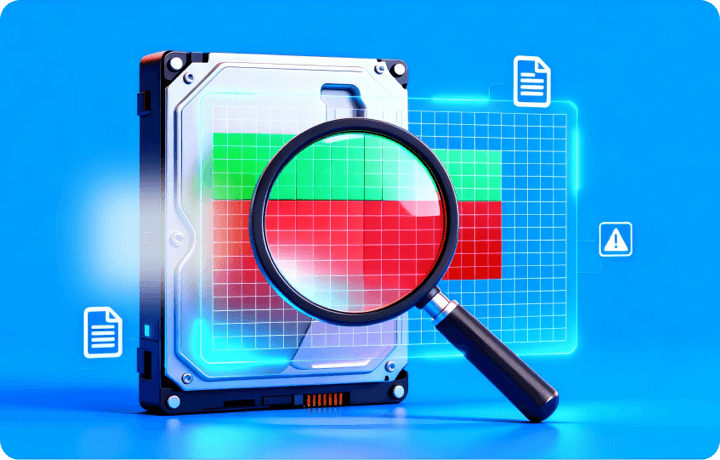
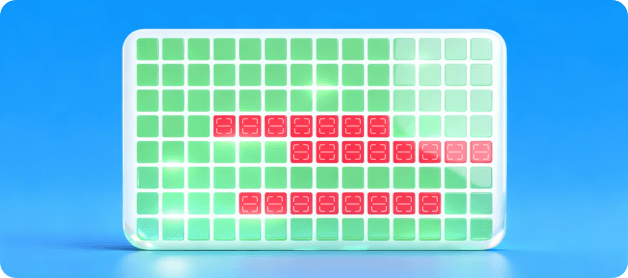
EaseUS Partition Master provides a practical way to evaluate disk health before making any risky decisions. It allows you to monitor HDDs, SSDs, and external storage devices through non-destructive health checks, including SMART diagnostics, disk speed testing, and surface scanning to locate and mark bad sectors. Rather than relying on a single warning sign, these tools help you understand overall stability, performance trends, and early risk indicators, so you can determine whether a drive is still safe to use, needs closer monitoring, or should be prepared for replacement.

Free Download

100% secure

Tech Specification

Supported Operating Systems:

Windows 11, Windows 10, Windows 8.1, Windows 8, Windows 7, Windows Vista, Windows XP

Supported File Systems:

NTFS/EXT3/EXT2/FAT32/FAT16/FAT12/ReFS/exFAT/EXT4

Supported Disk Brands:

Samsung/Western Digital (WD)/Seagate/KIOXIA (Original Toshiba)/Crucial/Kingston/SanDisk/Intel/PNY/LaCie/Lexar/Corsair

Supported Storage Devices

HDD: Parallel ATA (IDE), Serial ATA (SATA), External SATA (eSATA), SCSI, IEEE 1394 (FireWire)

SSD: SATA SSD, M.2 SSD, NVMe SSD, Large Capacity Hard Disk(GPT and MBR Disk)

Removable Devices: USB 1.0/2.0/3.0, flash drive, memory card, memory stick, etc.

SCSI, IDE and SATA RAID Controllers, RAIDed Configurations (Hardware RAIDs)

Free Disk Health Check: 3 Tests Every User
Should Start With

EaseUS Partition Master includes a set of free disk health tools designed to help users evaluate disk condition before taking any risky action. These checks are non-destructive and work with HDDs, SSDs, and external storage devices, making them a safe first step when assessing disk stability and lifespan.

Disk Speed Test

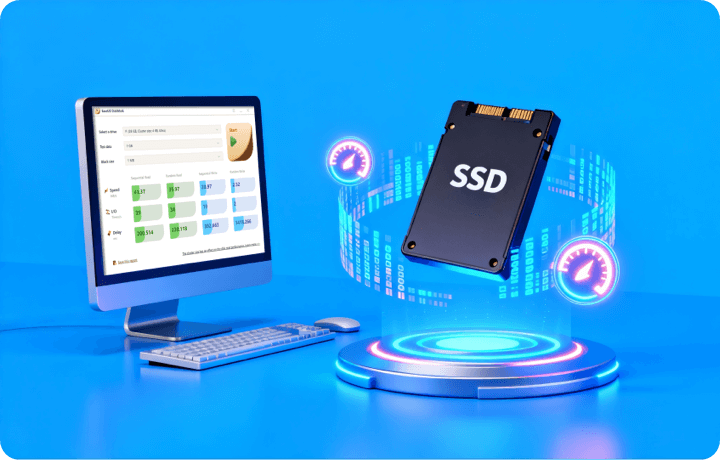
With the built-in Diskmark in EaseUS Partition Master, you can quickly measure SSD/HDD read and write performance. This helps determine whether slowdowns are caused by temporary structural issues or potential hardware degradation. In many cases, abnormal disk speed is linked to file system errors or long-term high usage, rather than an immediate sign of disk failure.

Free Download

100% secure

upgrade hdd to ssd

SMART Diagnostics

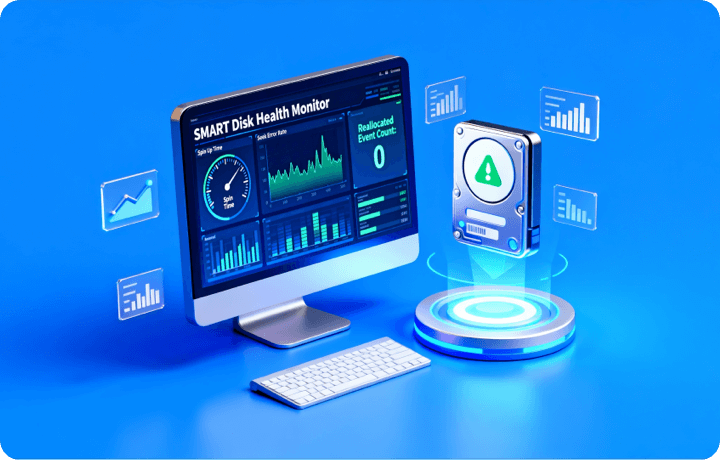
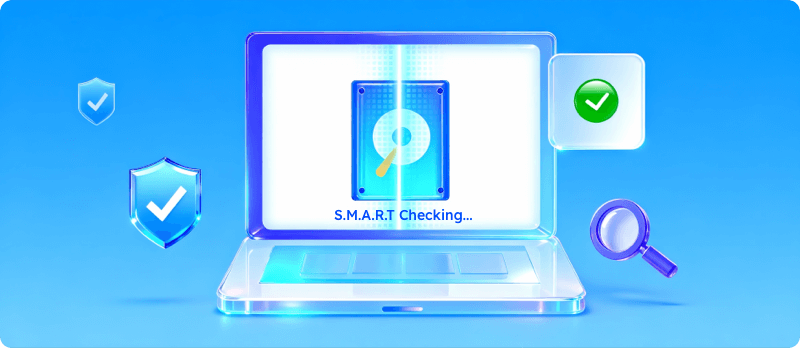
EaseUS Partition Master’s SMART diagnostics allow you to view critical health indicators such as reallocated sectors, pending sectors, and overall disk status. Instead of relying on a single alert, this feature helps you monitor whether these values remain stable or continue to worsen over time; it's a key factor in deciding whether a drive can still be safely used.

Free Download

100% secure

upgrade hdd to ssd

File System Check

The file system check in EaseUS Partition Master is designed to detect and correct logical errors that affect disk accessibility and stability. These errors often result from improper shutdowns, unsafe removal, or interrupted operations. Addressing file system issues can restore normal performance without impacting the physical structure of the disk, making it a low-risk maintenance step.

Free Download

100% secure

upgrade hdd to ssd

What If Your Disk Is No Longer Functioning Properly

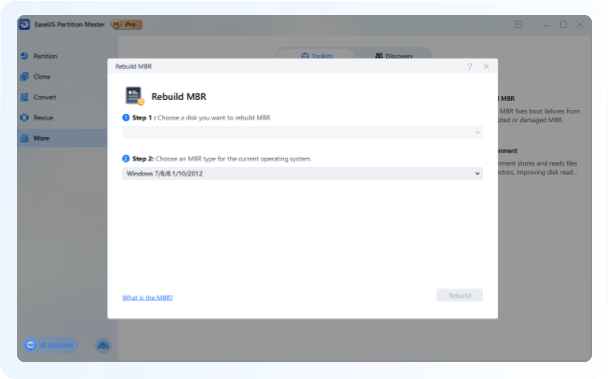
Rebuild MBR

Rebuilding the MBR (Master Boot Record) is a practical solution when a hard drive is not recognized by the computer or a corrupted partition table cannot access Windows 11.

This process does not repair physical disk damage, but it can help your PC correctly redetect the disk's structure. By rebuilding the MBR, users can determine whether the hard drive is still accessible, assess its usability, and decide if data recovery or further troubleshooting is possible.

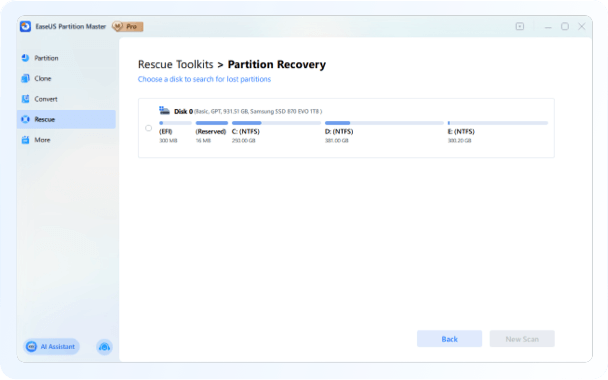
Partition Recovery

Partition loss can occur due to accidental deletion, corrupted partition tables, mistaken disk formatting, system crashes, or malware attacks, rendering your hard drive unusable or inaccessible.

In these situations, the most effective solution is to use reliable third-party partition recovery or disk management software to scan the drive, restore missing partitions, and safely regain access to your data.

Tips to Prolong Disks' Lifespan without $0
Payments

Most aging hard drives don’t fail all at once; instead, problems gradually develop due to long-term heavy use, accumulated disk errors, and hidden bad sectors. Common user mistakes include replacing a hard drive prematurely, which increases costs, or over-repairing the disk, which adds excessive write stress and ultimately shortens the drive's lifespan.

This section outlines a set of low-risk disk life extension operations, featuring several key functions available in EaseUS, designed to help improve storage efficiency and extend drive usability safely.

Free Download

100% secure

Tip 1. >> Tip 2.>> Tip 3. >> Tip 4.>> Tip 5.>>

Release Space

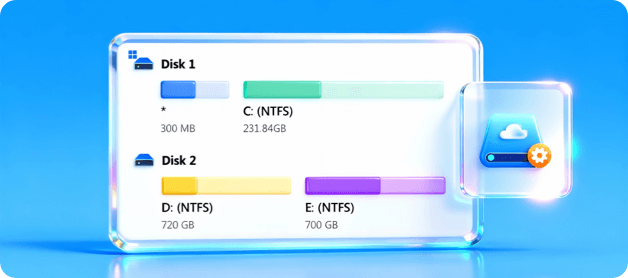
When a hard drive is running out of space, many users feel stuck because they don't want to replace the disk or risk losing data. However, keeping a drive at over 90% capacity for long periods can lead to write amplification, reduced performance, and faster wear. With EaseUS Partition Master, you can efficiently free up disk space by cleaning redundant partitions and merging low-usage partitions.

choose a disk
 

Partition Adjustment

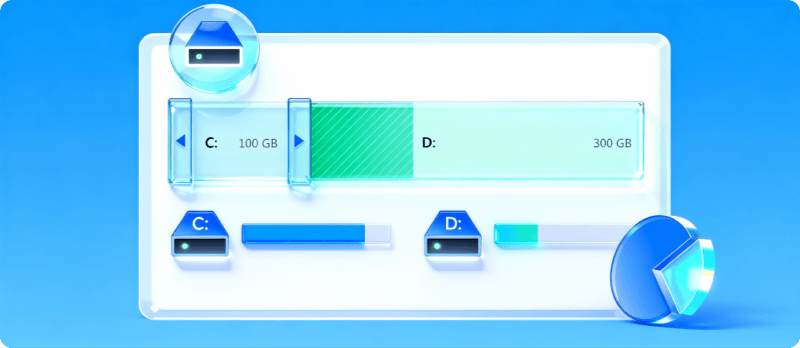
When the C drive is out of space, and the system slows down, poor performance is often caused by a mix of system and data files or an improper partition design. With EaseUS Partition Master's Resize, Move, and Split Partition features, you can optimize disk space, boost system speed, and maintain stable performance without replacing the hard drive.

choose a disk
 

Health Monitor

Many users want to know if a failing hard drive is worth saving before spending time or money on repairs. The free disk health scans and SMART feature of this powerful partition manager can quickly assess the drive’s condition. The key isn’t just finding problems, but determining whether they’re worsening, so you can decide on backup, repair, or replacement.

choose a disk
 

Hard Disk Performance Recovery

When your PC slows down, but you don’t want to format the drive, the issue is often file system errors, not hardware failure. Checking the file system offers a low-risk way to restore performance without data loss. This makes it a safe first step for users who want to speed up computer performance without reinstalling the system.

choose a disk
 

Data Migrate

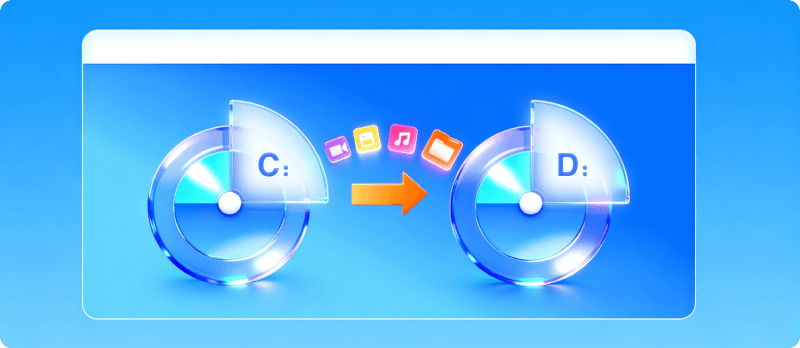
If you’re worried an old hard drive may fail suddenly, a data migration strategy can reduce risk and extend its life. By reducing write activity and moving important data to a new or external drive with the Data Migrate feature of EaseUS Partition Master, you can protect your data without immediately replacing the system disk.

choose a disk
 

Please share this guide to help others extend the lifespan of their HDD or SSD for free, without any extra cost or hardware upgrades.


How to Systematically Extend the Lifespan of
Hard Drives

When you intend to use a systematic approach to prolong HDD/SSD lifespan, you may consider the following comprehensive features provided by the powerful EaseUS Partition Master.

Free Download

100% secure

Upgrade to Pro

Unlock Full Features

Customized Service

EaseUS delivers secure, efficient, and compliant migration solutions with robust enterprise support tailored to your needs.

Our experienced specialists assess your infrastructure and create custom migration plans. We provide end-to-end guidance from strategy to execution. Enjoy 24/7 remote support, real-time monitoring, and proactive issue resolution for a smooth and dependable migration experience.

  • Call

    1-800-992-8995 (5/24 available from Mon. to Fri. )

  • Livechat

    Need instant help? Start a live chat with our experts.

Contact us
 

Frequently Asked Questions

1. Should I replace my old hard drive if it's slow?

A slow HDD doesn’t always mean it’s dying. Speed can drop due to fragmented data, full partitions, or logical errors rather than physical degradation. Run a disk speed test and SMART diagnostics to check the actual health status. If the drive shows increasing bad sectors or freezing under light use, back up your data and replace it soon.

2. Can I continue using the hard drive if it malfunctions with SMART?

Yes, but with caution. SMART warnings indicate that some parameters are outside normal ranges. If these numbers stay stable across several scans, your HDD or SSD may still work safely for a while. Use reliable monitoring tools to track trends rather than one-time readings. Avoid heavy writes or defragmentation. You can prolong disk health by minimizing write load and regularly backing up important data. Once you see values worsen, replacement becomes the safer option.

3. Is it safe after a successful RAW repair?

A RAW repair only restores the file system structure. It doesn’t fix hidden hardware issues. If the repair was caused by a sudden power loss or improper ejection, the disk might still be usable. Run a surface test and SMART health scan afterward to confirm that no physical sectors are failing. If the drive’s performance and disk speed return to normal and SMART data remains stable, you can continue using it under lighter workloads.

4. Which operations are most likely to cause data loss?

Any task involving direct writes carries data loss risk. Unsafe sector repairs or repeated ow-level tests can speed up drive wear, increasing failure risk. Even moving partitions under low disk health may trigger bad sector spread or structural corruption. Always back up important files before major operations. Avoid stress-inducing tasks that could accelerate degradation in an already weak drive.

5. What's the average lifespan of an SSD?

Most consumer SSDs last between five and ten years. It depends on usage intensity and data write volume. SSD health is influenced by write cycles and controller wear-leveling efficiency. Monitoring SMART indicators, such as total written bytes or wear leveling count, helps estimate remaining life. To prolong SSD lifespan, keep 10–20% free space, update firmware, and avoid unnecessary writes. Even when old, a stable SSD can maintain consistent disk speed and reliability if managed correctly.

6. What shortens SSD lifespan?

Frequent large writes, improper power-offs, and full-capacity usage all shorten SSD lifespan. Heavy workloads like repeated disk cloning or defragging can also strain NAND cells. To prolong SSD lifespan, reduce background writes, use hibernation carefully, and enable TRIM for efficient block recycling.

7. What is better for longevity, SSD or HDD?

It depends on how you use them. HDDs handle cold storage better, lasting many years if kept cool and rarely written to. SSDs excel under active daily use. However, excessive writes shorten an SSD’s lifespan more quickly than an HDD’s magnetic degradation. For long-term data retention, use HDDs; for performance and reliability under system workloads, prefer SSDs. In mixed setups, combining both can prolong overall disk lifespan.

8. How do firmware bugs affect SSD lifespan?

Firmware controls how the SSD manages NAND memory, error correction, and wear leveling. Bugs or outdated firmware can cause unbalanced cell wear, data misplacement, or excessive background writes. Corrupted firmware may show symptoms like sudden speed drops, freezing, or false bad sector reports.

9. How does power supply quality affect disk lifespan?

Unstable or low-quality power supplies directly harm both HDD and SSD lifespan. HDDs rely on consistent voltage to spin platters smoothly. SSDs, though solid-state, can suffer controller or NAND damage from sudden shutdowns. Using a surge protector or a UPS helps keep the power stable. Check power connectors and cables regularly. Reliable electricity ensures steady disk speed, healthier cells, and fewer data errors over time.

10. What affects external hard drive lifespan?

External hard drive lifespan is affected by usage intensity, heat, humidity, physical shocks, and power stability. External drives face extra wear from physical movement, heat, and frequent connection cycles. Vibrations or cable strain can trigger bad sectors or interface instability. Dust, poor airflow, and weak USB power also degrade disk health faster.