






-
![]()
-
![]() How Long Do Hard Drives or External Hard Drives Last (If Unused)
How Long Do Hard Drives or External Hard Drives Last (If Unused) October 14,2026
 6 min read
 -
![]() Free Download Bad Sector Repair Tool - Flobo Hard Disk RepairOctober 14,20266 min read
Free Download Bad Sector Repair Tool - Flobo Hard Disk RepairOctober 14,20266 min read -
![]() SSD File Recovery | How to Recover Data from SATA SSDOctober 14,20266 min read
SSD File Recovery | How to Recover Data from SATA SSDOctober 14,20266 min read -
![]()
-
![]() Cannot Initialize Disk Due to I/O Error? 5 Proven Fixes to RepairOctober 14,20266 min read
Cannot Initialize Disk Due to I/O Error? 5 Proven Fixes to RepairOctober 14,20266 min read -
![]() How to Fix WD My Book Not Showing Up Windows 10 Without Losing DataOctober 14,20266 min read
How to Fix WD My Book Not Showing Up Windows 10 Without Losing DataOctober 14,20266 min read -
![]() Fix Hard Drive Disappeared in Windows 10 No Data LossOctober 14,20266 min read
Fix Hard Drive Disappeared in Windows 10 No Data LossOctober 14,20266 min read -
![]()
-
![]() Fix 'This Drive Is Read Only' on SD Card/USB/Hard Drive [5 Methods]October 14,20266 min read
Fix 'This Drive Is Read Only' on SD Card/USB/Hard Drive [5 Methods]October 14,20266 min read
Page Table of Contents
The error "The request failed due to a fatal device hardware error" usually means that there is a hardware problem that is preventing the device from communicating with the operating system. A defective connection, bad sectors on the disk, or a problem with the drive itself could be the cause of this. But it isn't necessarily as bad as it first appears. Read on to learn how to fix this problem and recover your files.
PAGE CONTENT:
Overview of The Request Failed Due to a Fatal Device Hardware Error
What does the 'fatal device hardware error' mean? This usually appears when the operating system can no longer access the hard drive or is unable to perform read and write operations upon it.
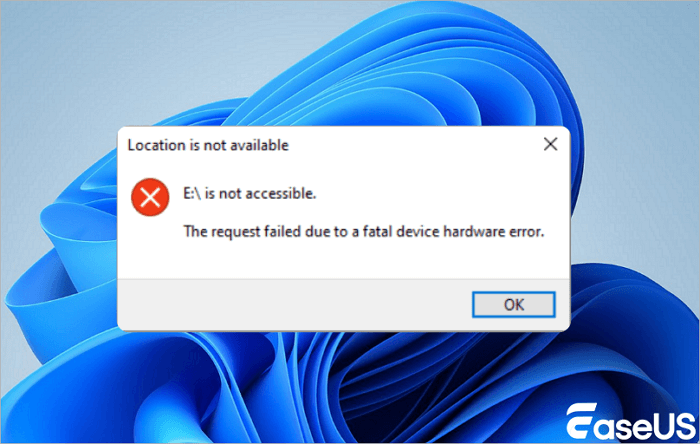
So what caused this error and how to define if you are having this error on your drive? Check the table below:
Causes:
- Faulty USB cable or a loose connection.
- The hard drive might have experienced a hardware malfunction.
- Too many bad sectors on the disk.
- System or hardware fault.
- The hard drive is dying.
Symptoms:
- "X: is not accessible. The request failed due to a fatal device hardware error."when initializing disk.
- "Error 0x800701E3: The request failed due to a fatal device hardware error." on external hard drive.
- "Virtual Disk Manager: The request failed due to a fatal device hardware error."on SSD.
6 Ways to Fix The Request Failed Due to Fatal Device Hardware Error
So how do I fix "the request failed due to fatal device hardware error" on my external hard drive? Here we listed 6 effective ways that can help:
- 1. Check the Connection
- 2. Ask Hard Drive Repair Services for Help
- 3. Verify the Smart Status
- 4. Check and Repair Bad Sectors
- 5. Update Storage Device Disk Driver
- 6. Send Problematic Device for Repair
Fix 1. Check Hard Drive Connection
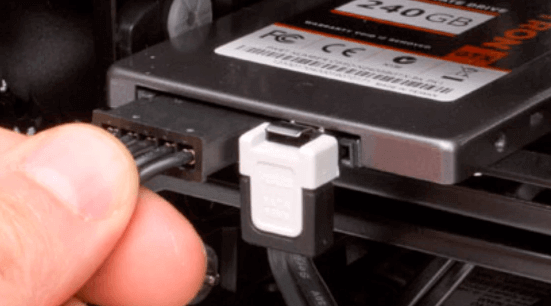
- Check if the cable connections are loose. If so, push them firmly back into the ports.
- Try unplugging, then reconnecting the external hard drive or switching to another USB port.
- Replace the USB cable with a new one.
- Connect the drive to another computer if possible, to see if the problem is with the PC rather than the drive.
If these don't fix the problem, you can try the below-mentioned options.
Fix 2. Ask Hard Drive Repair Services for Help
The most effective way to fix "the request failed due to a fatal device hardware error" is by asking experts for help. EaseUS provides data recovery services and hard drive repair tips to repair hard drives and SSDs. Contact the experts to repair the hard drive's fatal errors.
Consult with EaseUS data recovery experts for one-on-one manual recovery service. We could offer the following services after a FREE diagnosis
- Repair corrupted RAID structure, unbootable Windows OS, and corrupted virtual disk file
- Recover/repair lost partition and re-partitioned drive
- Unformat the hard drive and repair the RAW drive (BitLocker encrypted drive)
- Fix disks that become GPT-protected partitions
If you find this information helpful, please share it with others on social media to assist them in overcoming this common challenge.
Fix 3. Verify SMART Status
SMART stands for Self-Monitoring, Analysis, and Reporting Technology. Checking a drive’s SMART attributes, it can help you determine whether a drive is damaged as well as assess the extent of the problem.
This is how to check a hard drive's SMART status:
Step 1. Press Windows + X keys to open the Quick Links menu, then select Command Prompt (Admin).
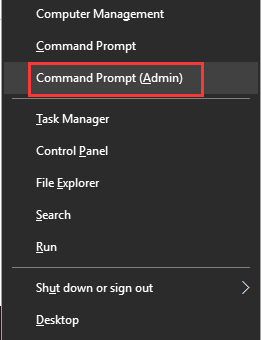
Step 2. Type wmic diskdrive get status, and hit Enter.
Step 3. The command returns four different statuses: "OK", "Bad", "Unknown", and "Caution".
- Ok: Don't worry, try Fix 4 (see below) to restore your hard drive to its normal state.
- Bad, Unknown: You can correct the error by using Fix 4, 5, or 6 (see below). It's also highly advisable to immediately use a data recovery solution.
- Caution: Suggests that the hard drive corruptions are quite bad. In this instance, it's best to take the disk for repair
Fix 4. Check and Repair Bad Sectors
Bad sectors are not as horrible as you think unless they are spread across the hard disk. We often use the Windows DiskPart utility to check and repair file system corruption and hard disk bad sectors. It’s a good tool and worth trying for most hard drive inaccessibility issues.
- Warning
- Running chkdsk can hopefully fix the bad sector errors, however, it can also result in total data loss. So, perform data recovery in advance, and then continue with the CMD method.
This is how to run the Diskpart command to fix bad errors:
Step 1. Press Windows + S keys, type cmd in the Search box.
Step 2. Right-click Command Prompt, select "Run as Administrator".
Step 3. Type chkdsk F: /f or chkdsk F: /f /r /x and hit Enter.
(F: represents the drive letter of the problematic HDD, so change the letter to match that of your drive when entering the command.)
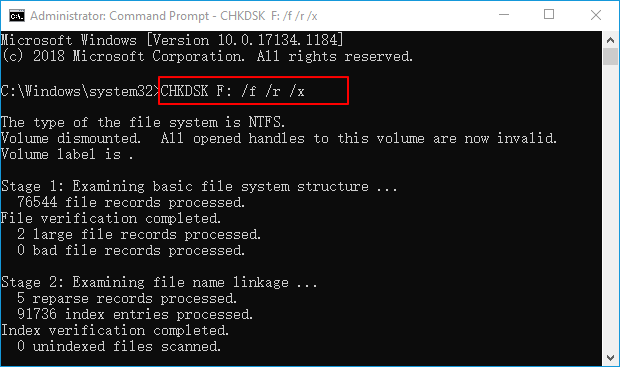
The syntax for check disk:
- /f fixes system errors.
- /r locates bad sectors and recovers readable information.
- /x forces the volume to dismount first, if necessary.
Fix 5. Update Disk Driver
If the driver for the problematic storage device is outdated, then this can cause the fatal device hardware error. Therefore, updating the driver can fix the issue.
Here are the steps:
Step 1. Press Windows + S keys, type device manager in the Search box.
Step 2. Expand "Disk drives", locate and check the state of the hard drive with fatal device error.
See if it's covered by a yellow exclamation mark as shown below, if yes, update the disk driver with Step 3.
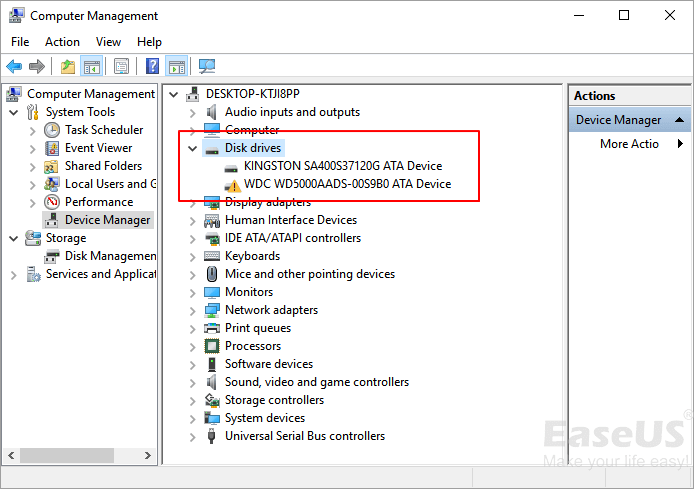
Step 3. Right-click the problematic hard drive and select "Update driver".
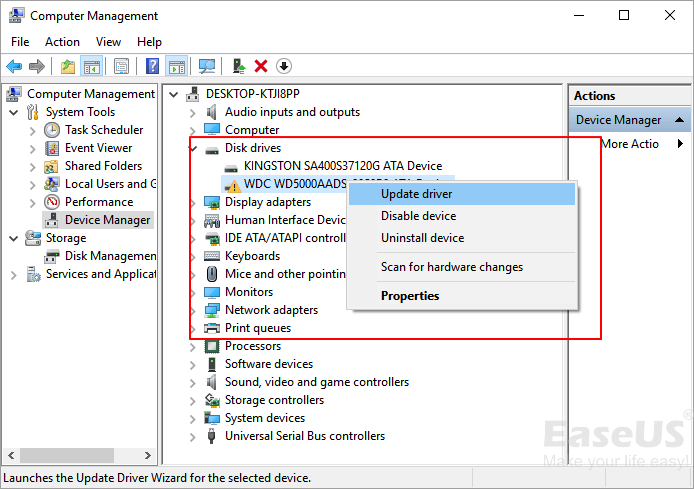
Step 4. Click "Automatically search for driver software online" and wait for the process to complete.
After this, restart the computer and see if you can now access the drive.
Fix 6. Send Problematic Device for Repair
If you've tried the methods outlined above but still have a problem with the drive, the last option is to take it in for repair. In most cases, you’ll have options open to you.
- 1. Contact the hardware manufacturer for help.
- 2. Find a local repair center and send your device for repair.
3 Steps to Recover Data After Fixing Fatal Device Hardware Error
When 'The request failed due to a fatal device hardware error' occurs, your HDD, external hard disk, or removable disk turns inaccessible. You must fix the error first.
Once the 'fatal device hardware error' is fixed, you may still find missing your data. To get it all back, you'll want to use a reliable recovery tool like EaseUS data recovery software. This enables you to scan the problematic drive, find all of your files and move them to another storage device.
Key features of EaseUS hard drive data recovery software:
- Recover 1000+ types of files, including photos, videos, documents, audio files, etc.
- Restore data from SD card, USB, pen drive, HDD, SSD, external hard drive, and more
- Retrieve lost data due to deletion, derive formatting/corrupting, partition loss, RAW drive, etc.
- Repair corrupted files after data recovery. Support repair Word, Excel, PDF, videos, photos, etc.
EaseUS Data Recovery Wizard Free offers up to 2 GB of free data recovery, including 500 MB available by default and an extra 1.5 GB unlocked after sharing on Facebook and X.
3-Step Guide to Recover Data After Fixing Fatal Device Hardware Error:
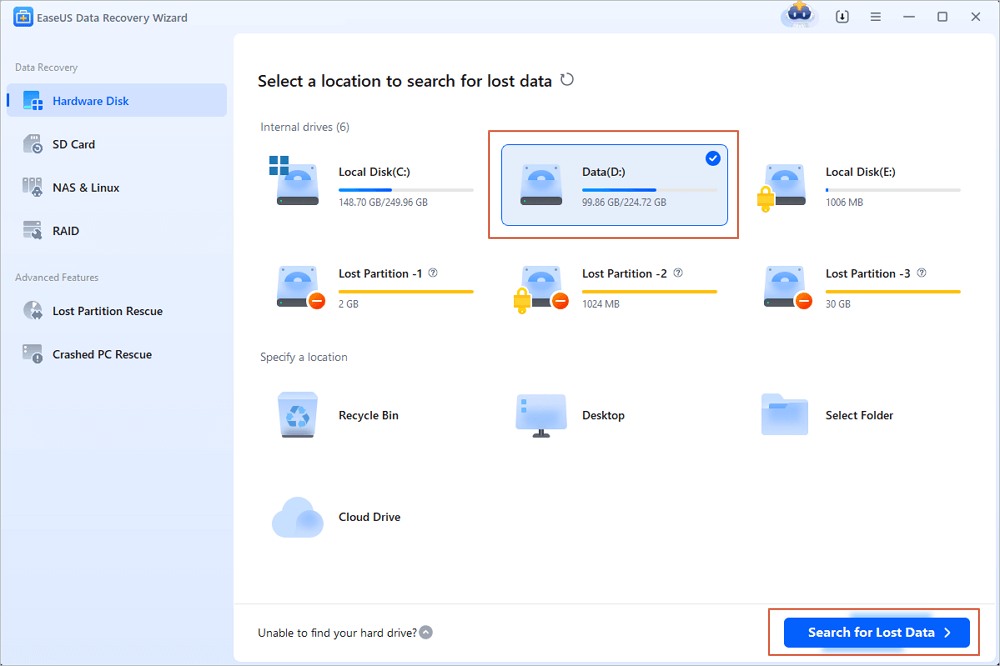
Step 1. Scan the hard drive partition
Select the drive on your hard disk where you lost or deleted files. Click "Search for Lost Data" and let EaseUS data recovery software scan for all lost data and files on the selected drive.
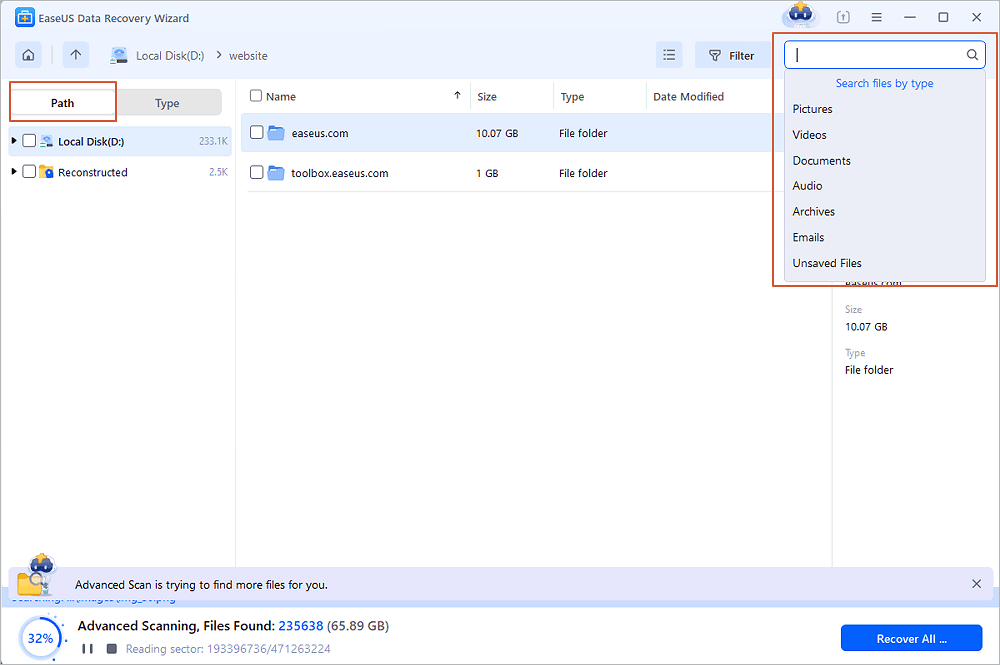
Step 2. Check the results
When the scan completes, you can apply the "Filter" feature or click the "Search files or folders" option to find the lost files on the hard drive.
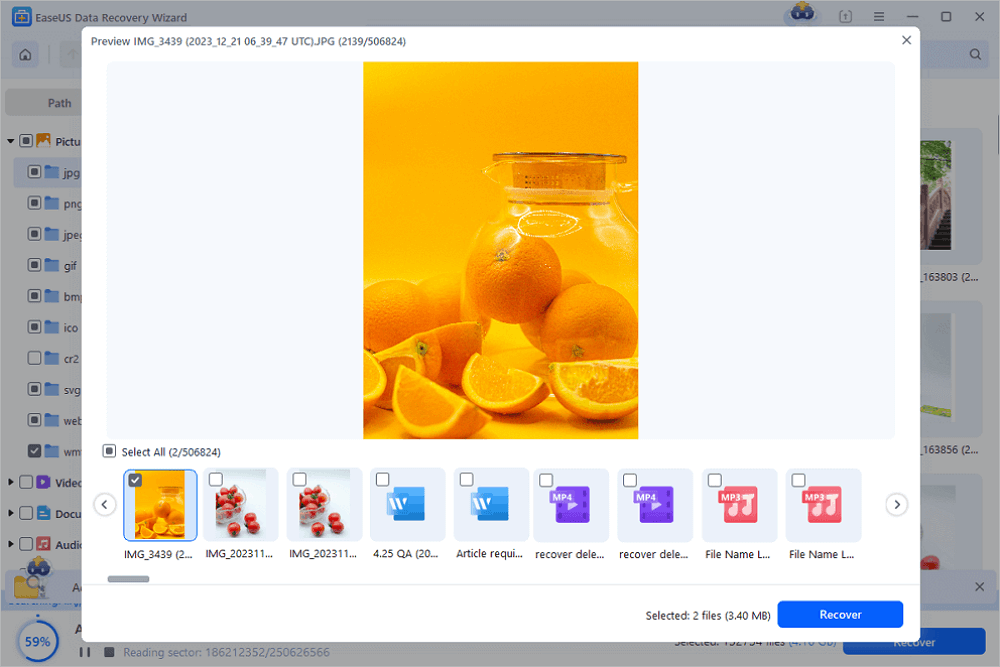
Step 3. Restore lost hard drive data
Select wanted files that you lost on the drive and click "Recover" to save them to another location.
💡Tip: You can restore data on the local disks, external hard drives, and also the cloud storage.
Hopefully, now, after following the methods above, you will have a working hard drive or at the very least, managed to recover your precious data. Hardware is prone to failure when you least expect it, so we'd advise always having a copy of the EaseUS Data Recovery Wizard on hand to salvage your data immediately if disaster strikes.
Stop Using Fatal Device, You Can Fix The Hardware Error
Remember, whenever you have this problem with your storage devices, stop using the drive first. On this page, we discussed what the request failed due to a fatal device hardware error, common symptoms, and six reliable ways that work to fix your problematic device to a normal state.
If you have valuable files saved on the problematic device, remember to run the best data recovery software - EaseUS Data Recovery Wizard and restore all your data immediately after fixing this error.
The Request Failed Due to a Fatal Hardware FAQs
We hope the solutions above have solved your fatal device hardware error. If you have some other problems, read the questions and answers below.
1. What does fatal disk error mean?
A fatal disk error refers to a problem with the computer's hard drive or other storage devices that prevents it from being accessed. This can occur due to several reasons, such as data corruption, physical damage to the drive, or a logical error. When this happens, the computer will usually display an error message and may attempt to repair the problem automatically. If the problem cannot be fixed, the computer will often shut down or reboot itself to prevent further damage. Sometimes, a fatal disk error can also lead to data loss. Therefore, it is essential to ensure that all important files and data are backed up regularly.
2. Can a corrupted hard drive be recovered?
In short, the answer is yes - a corrupted hard drive can be recovered. Steps to recover files from a corrupted hard drive:
- Scan the hard drive partition.
- When the scan completes, find the lost files on the hard drive.
- Select wanted files that you lost on the drive and click Recover.
3. How do I know if my hard drive is damaged?
Here are the most common hard drive failure signs:
- Overheating
- Strange sounds
- Corrupted data, files, and folders
- Frequent error messages
- System crashes
- Blue screen of death
Was this page helpful?
 Why Trust EaseUS
 Editor Reviews

20+
Years of experience

160+
Countries and regions

72 Million+
Downloads

4.9 +
Trustpilot Score





