







Content
Page Table of Contents
About the Author
Hot Topics
A full C drive is one of the most common Windows problems, and also one of the most stressful. When your system drive runs out of space, Windows becomes slow, updates fail, apps crash, and simple tasks take longer than they should. Many users worry that a full C drive means their disk is"dying" or that they must replace their SSD immediately.
In our long-term observations, especially across Reddit and Quora discussions, many users are experiencing a "C drive full" warning:
|
C drive is basically full. How can I free up more space? - r/Windows10 |
|
How do I clear my C drive? I already tried disk cleanup and it only removed 8 GB trash. Is it okay if I move default system files to drive E for more space in C? I currently have 10 GB free. - Quora |
If your C drive is full but you still want to improve performance, speed up Windows, and delay costly upgrades, this guide will walk you through safe and effective ways to clean and optimize your C drive without risking data loss.
How to Clean C Drive in Windows 11/10?
Cleaning and optimizing the C drive does more than free up space. It improves disk speed, reduces background pressure on the system, and helps extend the lifespan of both HDDs and SSDs. Below are proven methods, from basic cleanup to advanced space management, suitable for different user needs.
To learn more about C drive Cleaners for Windows 11/10, check our full guide here.
Method 1. Use Disk Cleanup
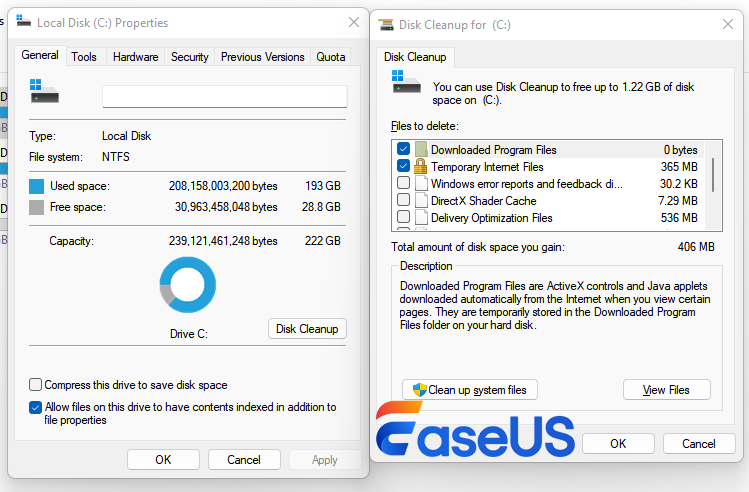
Disk Cleanup removes unnecessary system files that accumulate over time, such as temporary files, cache, and update leftovers. These files often consume several gigabytes without providing any real value.
Step 1. Type Disk Cleanup in the Windows search box and open it.
Step 2. Select drive C: and click OK.
Step 3. Check items like Temporary Files, Recycle Bin, and Windows Update Cleanup, then click OK.
Method 2. Extend C Drive (Most Directly)
When cleaning is no longer enough, extending the C drive is often the most effective solution. There will often be unused space on other partitions that cannot be accessed by the C drive directly. EaseUS Partition Master allows you to resize and extend the C drive without data loss. It supports all major Windows versions and lets you reallocate free space from other partitions to C drive safely.
Guide 1. Extend C Drive
Whether there is unallocated space next to C drive or not, EaseUS Partition Master can extend the C drive directly:
Extend System C drive with unallocated space
- 1. Right-click on the System C: drive and select "Resize/Move".
- 2. Drag the system partition end into the unallocated space so to add it to the C: drive. And click "OK".
- 3. Click "Execute Task" and "Apply" to execute the operations and extend the C drive.
Guide 2. Allocate Space to C Drive
When the C drive is full but the D drive has enough space, you can allocate space from the D drive to the C drive:
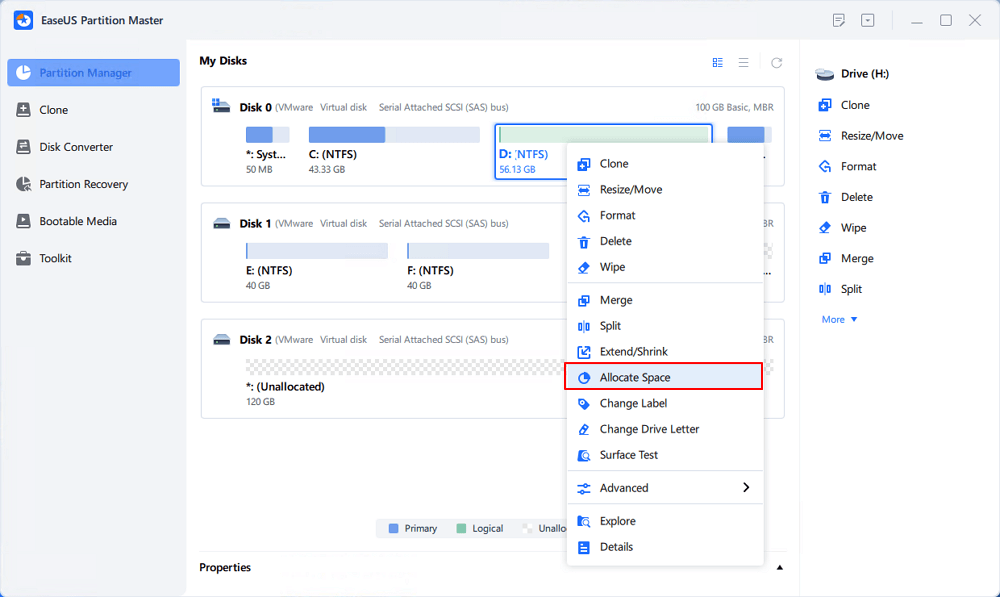
Step 1. Right-click on the D: partition with enough free space and select "Allocate Space".
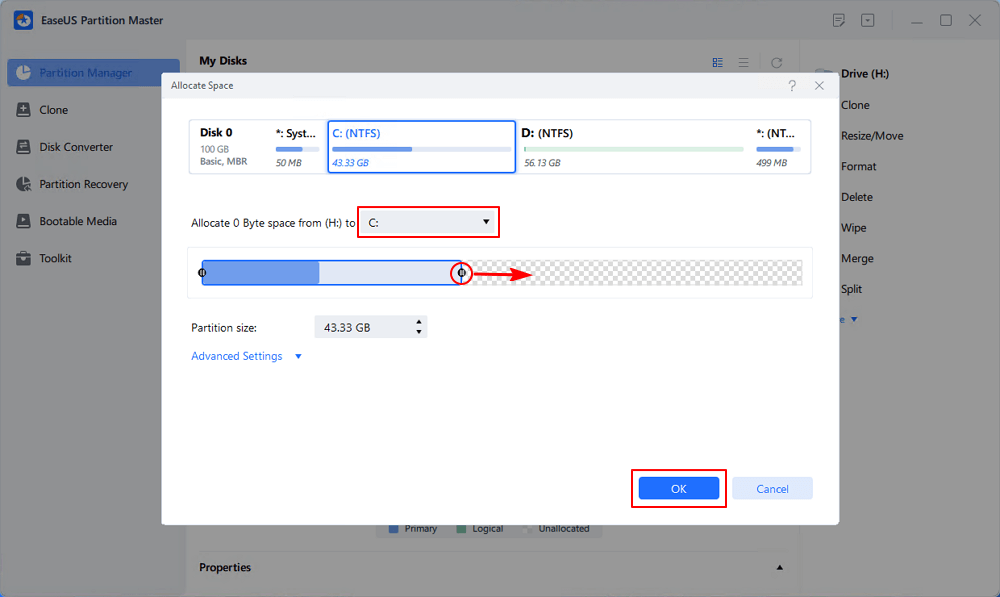
Step 2. Select the target partition - C: drive and drag the partition panel rightward to add the free space from D: drive to C: drive. Then click "OK" to confirm.
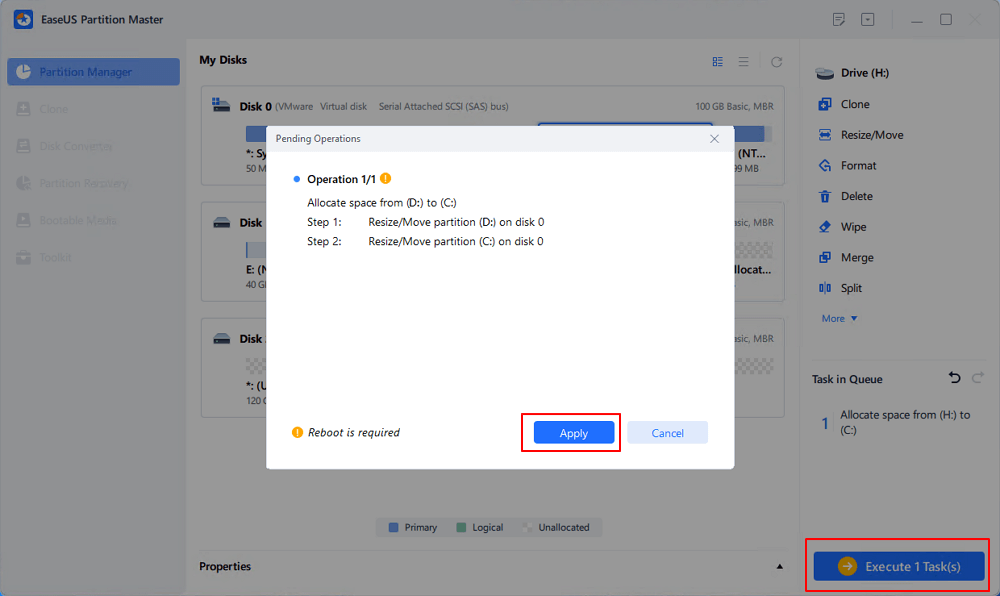
Step 3. Click the "Execute Task" button and click "Apply" to start the process of moving free space from D: drive to C: drive.
Feel free to share this post to help more users get rid of C drive full errors.

Method 3. Enable Storage Sense
Storage Sense automatically frees disk space by removing temporary files and managing Recycle Bin content. It is useful for users who want hands-off disk maintenance. Here is how to enable Storage Sense on Windows:
Step 1. Go to Settings > System > Storage.
Step 2. Turn on Storage Sense.
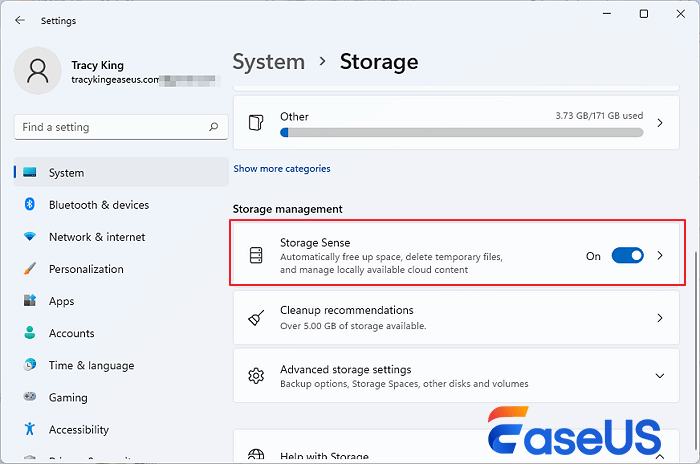
Step 3. Customize cleanup frequency based on your usage.
(From Microsoft) Check this page to learn more details about how to manage disk space with Storage Sense.
Method 4. Uninstall Unused Apps/Games
Applications installed on the C drive can silently occupy large amounts of disk space, especially games, creative software, and development tools. Hence, uninstalling unused apps can free up disk space on the C drive. Here is how:
Step 1. Open Settings > Apps > Installed Apps.
Step 2. Sort apps by size.
Step 3. Uninstall programs or large games you no longer use.
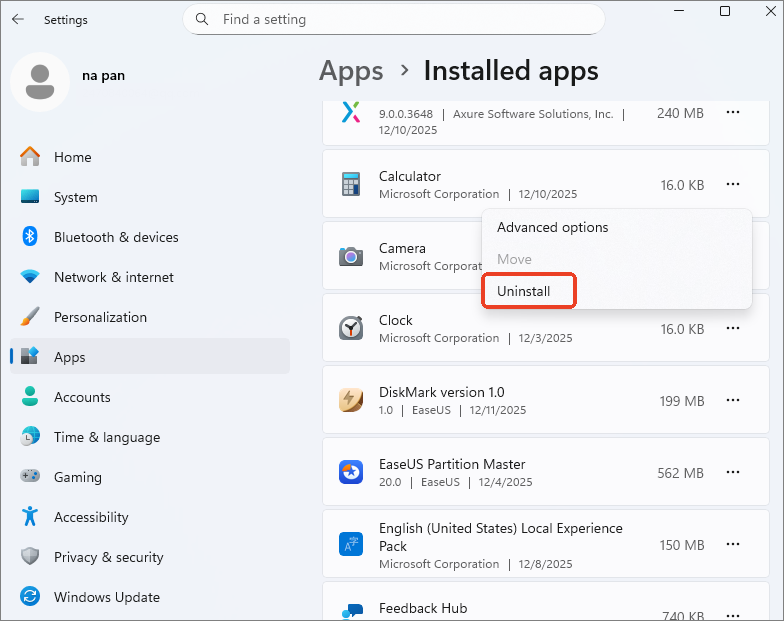
There might be a slight difference based on your OS; click here (From Microsoft) to learn how to uninstall apps in Windows 11/10.
Method 5. Delete Temporary Files
Temporary files are created by apps, browsers, and system processes. Over time, they slow down disk performance and waste valuable space. Here is how to delete temporary files to free up C drive:
Step 1. Press Win + R, type %temp%, and press Enter.
Step 2. Select all files and delete them.
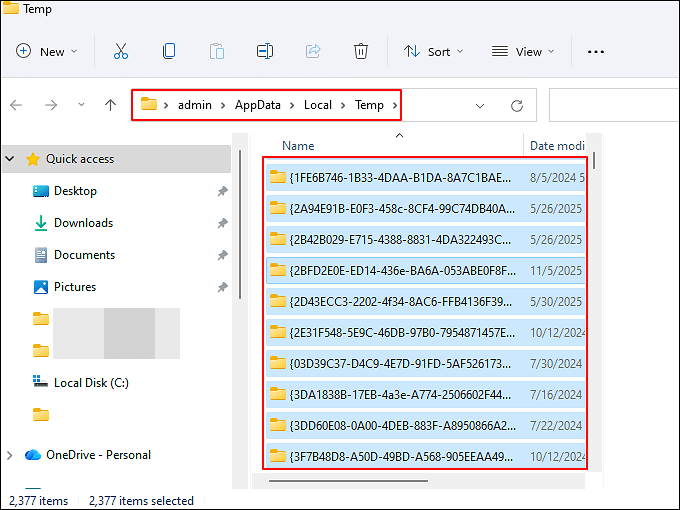
Step 3. Skip files currently in use.
Worried about data loss? Check this Reddit post to learn whether it's safe to delete temporary files in Windows 10/11.
Is it safe to delete files in C:WindowsTemp
byu/Visible-Place5521 inWindows10
Share this post and let more users know how to delete temp files to solve local disk C full error.
Method 6. Move Large Files Off C Drive
Videos, backups, and installers are common reasons why C drive fills up unexpectedly. Moving them reduces disk pressure instantly. Here is how to do it:
Step 1. Open File Explorer and check folders like Downloads, Videos, and Desktop.
Step 2. Move large files to another internal or external drive and update app paths if necessary.
- Tip
- You can also choose to move these large files to cloud storage instead of keeping them on a local drive. Services such as OneDrive, Google Drive, or Dropbox allow you to offload videos and backups while keeping them accessible when needed. This approach is especially useful if your C drive is small but you still want quick access to important files. Just make sure files are fully synced before deleting local copies, and avoid using cloud-only storage for active system or application files.
Method 7. Use Disk Space Analyzer
When you are not sure what is filling up your C drive, a disk space analyzer provides clarity. EaseUS Partition Master includes a built-in space analysis tool that visually shows which folders and file types consume the most space. This helps users quickly identify storage hogs, clean unnecessary data, and optimize disk usage efficiently.
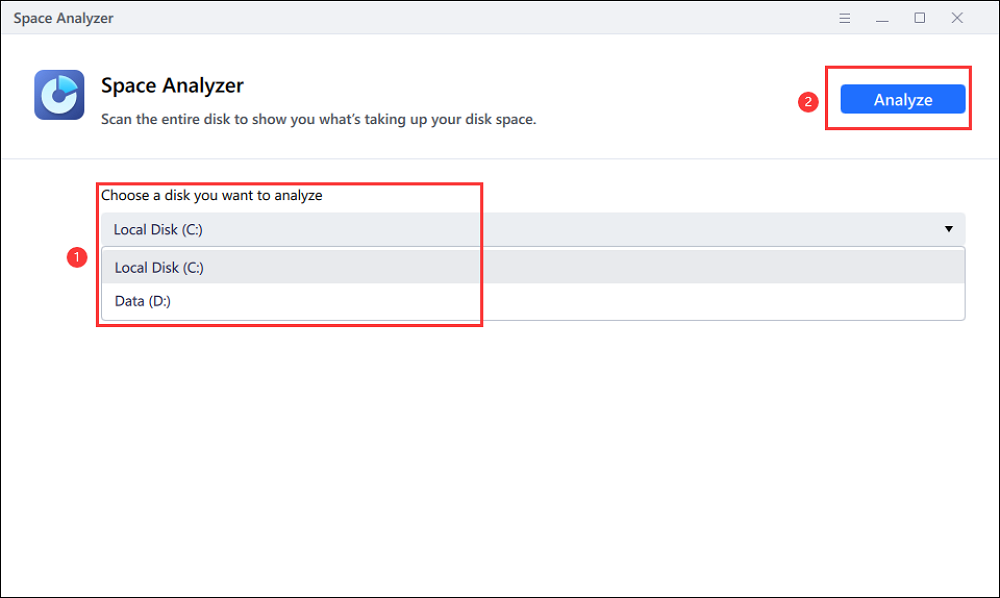
Step 1. Launch EaseUS Partition Master and turn to Discovery. Find and Download Space Analyzer below Frequently Used Tools.
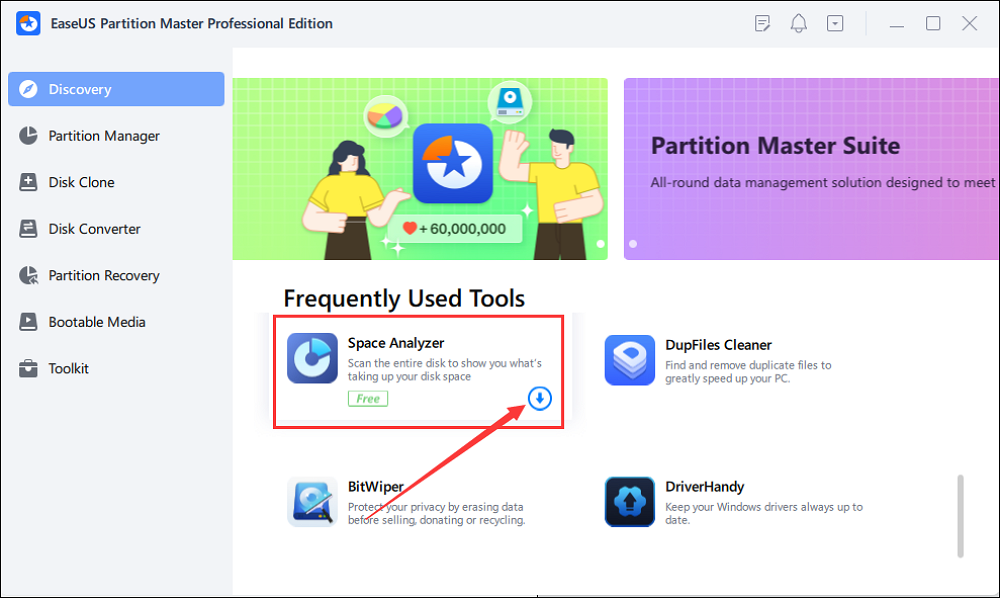
Step 2. In the Space Analyzer pop-up window, select the target disk to be analyzed and click Analyze in the upper right corner.
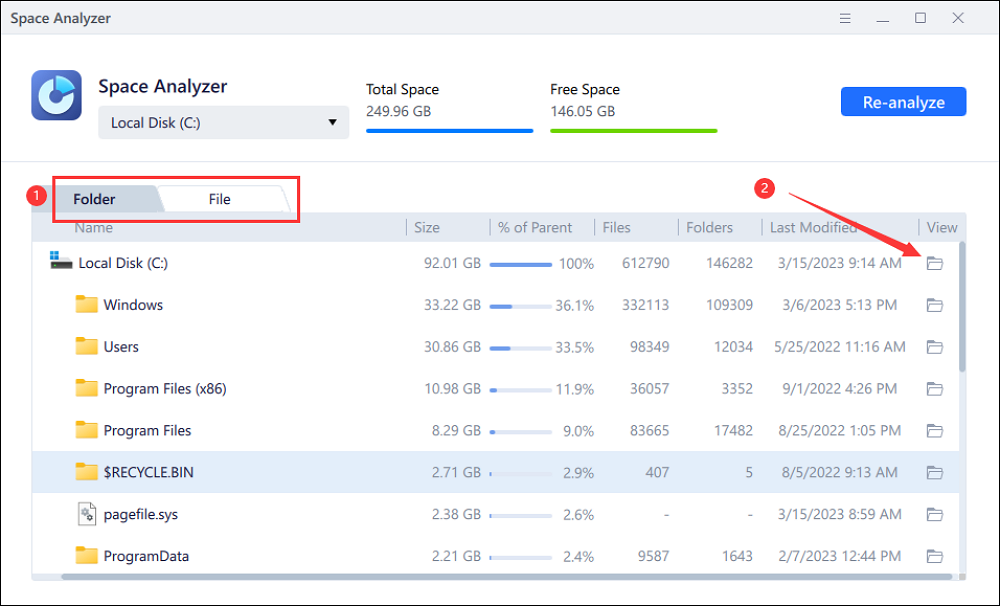
Step 3. Wait a while, and you will see the detailed data. You can click on Folder/File to view different data types and click on the small folder icon to see more information inside the file.
Method 8. Delete System Restore and Shadow Copies (Disk Cleanup)
Old restore points and shadow copies can consume significant space without users realizing it. So follow these steps to delete System Restore and shadow copies:
Step 1. Open Disk Cleanup as administrator.
Step 2. Click Clean up system files.
Step 3. Under System Restore and Shadow Copies, choose Delete.
Method 9. Manage System Restore Points
System Restore is designed to protect Windows from critical system failures, but unmanaged restore points are a common reason why the C drive becomes full over time. On many systems, Windows automatically allocates a large portion of system storage to restore snapshots without clear user visibility. When disk space is limited, excessive restore points can silently consume several gigabytes and contribute to slow system performance. Managing restore point size helps balance system safety and available disk space without disabling this feature entirely.
Step 1. Press Windows + S, search for Create a restore point, and open the System Properties window. This is where Windows manages restore snapshots stored on your system drive.
Step 2. Under the System Protection tab, select Drive (C:) and click Configure. You will see how much disk space is currently reserved for restore points.
Step 3. Adjust the Max Usage slider to reduce space allocation, or click Delete to remove old restore points. After applying changes, Windows will keep future restore points smaller and prevent excessive C drive usage.
Method 10. Save New Personal Files to Another Drive
One of the most effective long-term strategies to clean C drive in Windows is preventing new data from accumulating there in the first place. Documents, videos, photos, and downloaded files often default to the system drive, gradually increasing disk pressure and reducing available space. Changing default save locations helps maintain stable disk health and avoids repeated cleanup cycles. This approach is especially useful for users with small SSD system drives.
Step 1. Open Settings, go to System > Storage, and scroll to Advanced storage settings.
Step 2. Click Where new content is saved to view default save locations for different file types.
Step 3. Change the destination for Documents, Music, Pictures, Videos, and Apps to another internal or external drive. This ensures future downloads and personal files no longer consume the C drive space.
Method 11. Disable Hibernation
Hibernation is a power-saving feature, but it creates a hidden system file called hiberfil.sys that can occupy several gigabytes on the C drive. On systems with limited storage, this file alone can trigger low disk space warnings and slow Windows startup performance. If you do not rely on hibernation regularly, disabling it is a safe way to instantly free disk space. This method is particularly effective for SSD users looking to reduce unnecessary write activity.
Step 1. Press Windows + S, type cmd, right-click Command Prompt, and select Run as administrator. Administrator permission is required to modify power settings.
Step 2. Type the following command and press Enter: powercfg.exe /hibernate off
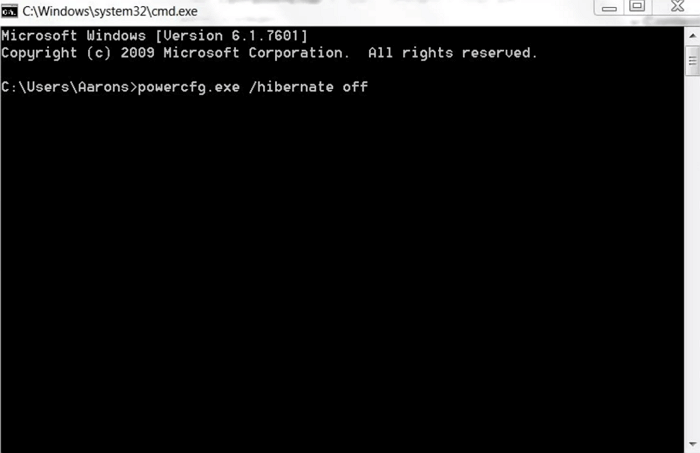
Step 3. Restart your computer to apply changes and verify reclaimed disk space. You should see several gigabytes freed instantly.
Method 12. Scan for Malware
Malware infections can cause unexplained disk space usage by creating hidden files, cache folders, and background processes that continuously write data. These issues not only fill up the C drive but also degrade disk speed and overall system performance. If the C drive keeps filling up without an obvious reason, malware should be ruled out early. Running a full system scan helps protect disk health and ensures cleanup efforts are not undermined by active threats.
Step 1. Open Windows Security from the Start menu, or launch a trusted third-party antivirus tool. Built-in protection is sufficient for most users.
Step 2. Navigate to Virus & threat protection and choose Full scan instead of Quick scan. (A full scan checks hidden folders, background services, and startup locations.)
Step 3. Remove or quarantine detected threats, then restart your computer. After cleanup, monitor disk usage to confirm abnormal space consumption has stopped.
Free Up C Drive Quickly
After trying the manual cleanup methods above, you can also use EaseUS Partition Master's Clean feature to find more opportunities to free up C drive space. It can analyze your storage usage, scan for junk files, identify large applications, and move supported apps or files to another drive.
You can use EaseUS Partition Master to find and free up C drive space without manually checking multiple locations.
- Open EaseUS Partition Master and select Clean.
- Use Space Analysis to identify what is taking up the most space.
- Scan for and remove unnecessary junk files.
- Find and uninstall large or unwanted applications.
- Use Data Migration to move supported large apps or files from the C drive to another drive, such as the D drive.
- Check the available C drive space again after cleanup.
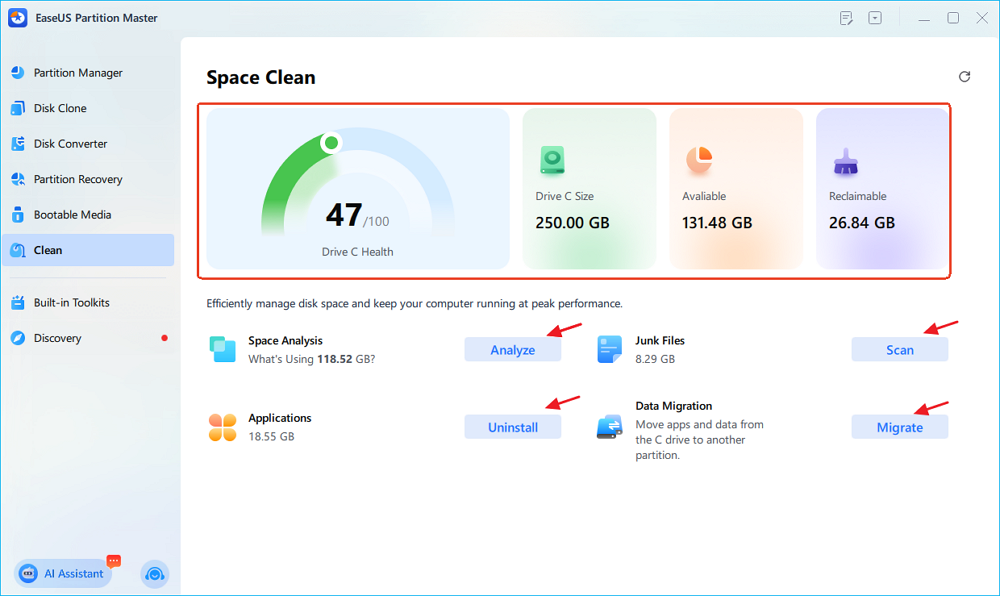
This feature lets you analyze disk usage and free up space through cleanup, app removal, and data migration from a single interface.
How to Prevent C Drive from Filling Up Again
Cleaning your C drive solves the immediate problem, but long-term stability depends on how you manage storage going forward. Many users experience repeated "C drive full" warnings simply because Windows continues saving data to the system drive by default. By building better storage habits and monitoring disk usage regularly, you can reduce system disk pressure, maintain consistent disk speed, and avoid frequent cleanup cycles.
- Keep at least 20–25% free space on C drive to maintain disk speed and system responsiveness
- Separate system files and personal data onto different partitions
- Regularly monitor disk usage, disk health, and performance trends
- Move high-write activities (downloads, browser cache, temporary files) off the system drive
- Perform routine disk health checks and space analysis
These habits help reduce long-term disk pressure, improve system stability, and extend overall disk lifespan. Share this post to help more.
Conclusion
Cleaning and optimizing your C drive is not just about freeing space, it is about restoring performance, reducing unnecessary disk stress, and making smarter storage decisions. Most "C drive full" issues are caused by poor space allocation and accumulated system data, not actual disk failure. When addressed early through cleanup, partition adjustment, and better storage habits, users can significantly improve Windows performance and delay unnecessary hardware upgrades.
FAQs About How to Clean C drive in Windows
1. Does cleaning C drive improve performance?
Yes. Cleaning the C drive reduces disk pressure, improves available free space, and allows Windows to manage temporary files, updates, and virtual memory more efficiently. When the system drive is nearly full, read and write operations slow down significantly, especially on older SSDs and HDDs. Freeing space helps restore normal disk speed and overall system responsiveness.
2. Is extending C drive safe?
Extending the C drive is safe when performed with reliable disk management tools that support non-destructive partition resizing. Modern partition managers can reallocate unused space from other partitions without deleting data or reinstalling Windows. The key is ensuring the operation is handled properly and avoiding abrupt interruptions during the process.
3. How much free space should C drive have?
It is generally recommended to keep at least 20–25% free space on the C drive for optimal performance and disk health. This space allows Windows to handle system updates, cache files, paging operations, and background processes efficiently. Insufficient free space often leads to slower boot times, application lag, and frequent low disk space warnings.
4. Will a full C drive damage my SSD?
A consistently full C drive can accelerate SSD wear over time due to increased write amplification and reduced space for wear leveling. While a full disk does not cause immediate failure, prolonged high usage increases long-term stress on flash memory cells. Managing disk space properly helps extend SSD lifespan and maintain stability.
How Can We Help You
About the Author

Sherly joined EaseUS in 2022 and she has always loved writing articles and enjoys the fun they bring. She receives professional training here, focusing on product performance and other relative knowledge. She has written over 200 articles to help people overcome computing issues.
Product Reviews
-
I love that the changes you make with EaseUS Partition Master Free aren't immediately applied to the disks. It makes it way easier to play out what will happen after you've made all the changes. I also think the overall look and feel of EaseUS Partition Master Free makes whatever you're doing with your computer's partitions easy.
Read More -
Partition Master Free can Resize, Move, Merge, Migrate, and Copy disks or partitions; convert to local, change label, defragment, check and explore partition; and much more. A premium upgrade adds free tech support and the ability to resize dynamic volumes.
Read More -
It won't hot image your drives or align them, but since it's coupled with a partition manager, it allows you do perform many tasks at once, instead of just cloning drives. You can move partitions around, resize them, defragment, and more, along with the other tools you'd expect from a cloning tool.
Read More
Related Articles
-
Disk Health Checker Free Download | How to Guide
![author icon]() Sherly/2026/10/22
Sherly/2026/10/22 -
C Drive Cleaner Free Download for Windows 11/10
![author icon]() Sherly/2026/10/22
Sherly/2026/10/22 -
Can I Use exFAT Instead of FAT32? How to Convert without Data Loss
![author icon]() Sherly/2026/10/22
Sherly/2026/10/22 -
Is Partition Magic Full Crack Secure? How to Download It
![author icon]() Tracy King/2026/10/22
Tracy King/2026/10/22
 Tracy King/2026/10/22









