







Content
Page Table of Contents
About the Author
Hot Topics
Trying to copy a large video or game file to a USB drive and getting blocked is a frustrating experience many users face, and in most cases, FAT32 is the reason. This older file system limits individual files to 4GB, which no longer fits modern storage needs. As USB drives and SD cards grow larger, users are increasingly turning to exFAT, Microsoft's modern alternative to FAT32. exFAT removes the file size limit, supports large-capacity drives, and works smoothly across Windows and macOS, making it a more practical choice for today's cross-platform storage.
|
In this guide, you'll learn:
|
If your goal is better compatibility, large file support, or a safer way to upgrade your file system, this article will give you clear, actionable answers. Feel free to share if this post helps.

Can I Use exFAT Instead of FAT32?
Yes, you can, and in most cases, you should use exFAT instead of FAT32. exFAT is Microsoft's modern file system designed specifically to overcome FAT32's biggest limitation: the 4GB maximum file size. It supports very large files and volumes, making it far more suitable for today's storage demands, such as high-definition videos, large game installations, backups, and disk images.
For most users, exFAT offers a better balance of capacity, flexibility, and cross-platform compatibility. It works natively on Windows 11/10/8/7 and macOS, and is widely supported by modern devices such as cameras, smart TVs, and gaming consoles. This makes exFAT a strong choice for removable storage that moves between different operating systems.
That said, FAT32 still has a role. It provides slightly broader compatibility with very old hardware and embedded systems that may not recognize exFAT. Additionally, exFAT does not support journaling, which means it can be more vulnerable to corruption if a drive is unplugged improperly.
|
In short:
|
To convert FAT32 to exFAT without formatting or losing any data, use the professional FAT32 to exFAT converter - EaseUS Partition Master.
- ✔️No data loss, no need to format the drive.
- ✔️Provide full exFAT support, including formatting, resizing, cloning, creating, and deleting exFAT partitions.
- ✔️Works smoothly on Windows 11/10/8/7.
|
EaseUS unveils Partition Master 20.0 with breakthrough exFAT solution, the first complete partition manager shattering 4GB limits across all devices. - From PR Newswire |
What's the Difference Between exFAT and FAT32?
Choosing between exFAT and FAT32 is less about which file system is "better" and more about how you use your storage device. Factors such as file size requirements, device compatibility, and storage capacity all play a role.
The comparison below highlights their key differences, advantages, and recommended use cases.
💡FAT32 VS exFAT Comparison
| Feature | FAT32 | exFAT |
|---|---|---|
| Maximum file size | 4GB | Virtually unlimited |
| Maximum partition size | Limited, 32GB (r/techsupport) | Very large volumes supported |
| Cross-platform support | Excellent, including legacy devices | Excellent for modern Windows and macOS |
| Performance on large files | Poor | Optimized for large files |
| Flash storage optimization | Basic | Designed for flash memory |
| Best use cases | Older devices, small drives | Large USB drives, SD cards, external storage |
When to Stick with FAT32 (Specific Compatibility Needs)
- Very old devices: Legacy cameras, car stereos, or older game consoles that don't support exFAT
- Small drives: Low-capacity USB flash drives where the 4GB file size limit is not an issue
When to Use exFAT (Recommended for Most Users)
- Large files: Transferring videos, ISO files, backups, or game folders larger than 4GB
- Cross-platform workflows: Moving files between Windows and macOS systems
- Large drives: Formatting USB drives or SD cards over 32GB for general-purpose use
Once you decide exFAT is the right choice, the next question becomes how to convert from FAT32 and whether you can do it without losing data.
How to Convert FAT32 to exFAT Without Formatting or Losing Data
Many users assume that switching file systems always requires formatting, which means erasing all data. While this is true for Windows built-in tools, it's not the only option.
EaseUS Partition Master allows you to convert FAT32 to exFAT without formatting and without data loss, making it ideal for users who already have important files on their drive.
Unlike command-line utilities or manual disk management, EaseUS provides a graphical, user-friendly interface that simplifies file system conversion for both beginners and advanced users.
Key advantages of EaseUS Partition Master:
- Supports Windows 11, 10, 8, and 7
- Converts FAT32 to exFAT without deleting existing data
- No complex commands or technical expertise required
- Suitable for USB flash drives, SD cards, and external disks
How to convert FAT32 to exFAT on Windows PCs:
Step 1. Install and launch EaseUS Partition Master on your computer.
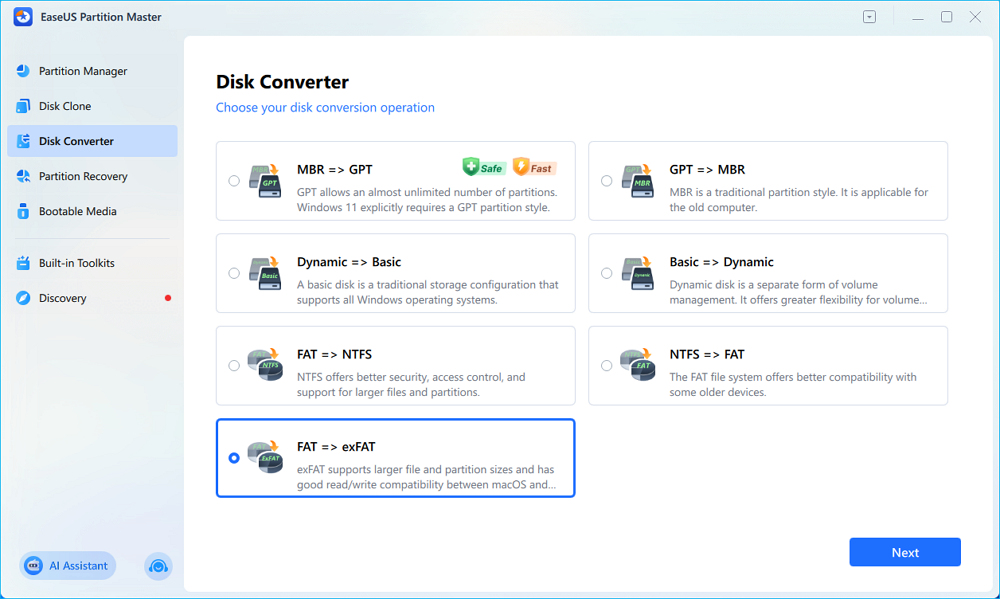
Step 2. In the "Disk Converter" window, select "FAT => exFAT" and click "Next."
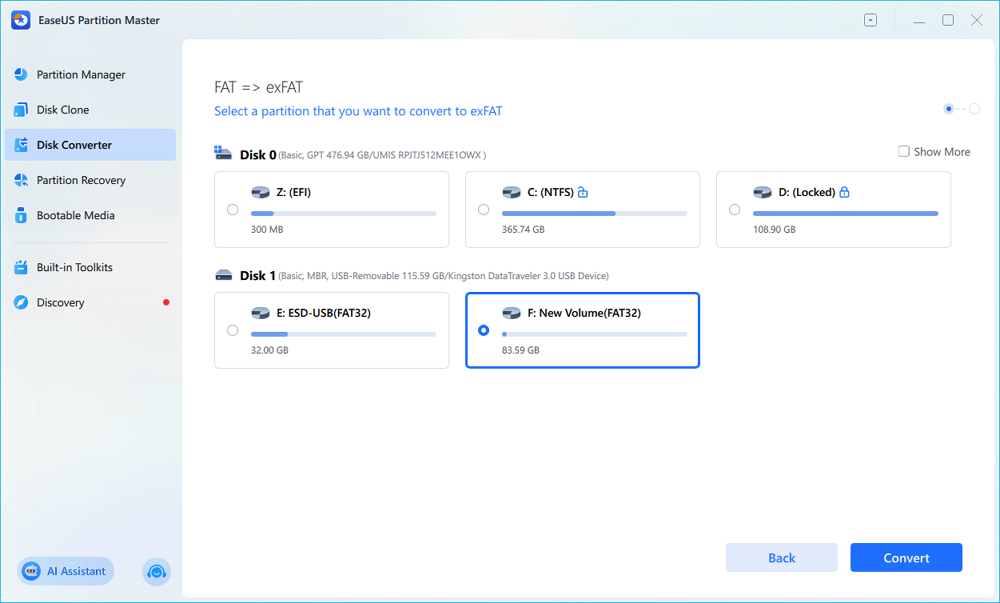
Step 3. In the new window, choose the partition you want to format to exFAT, and click "Convert."
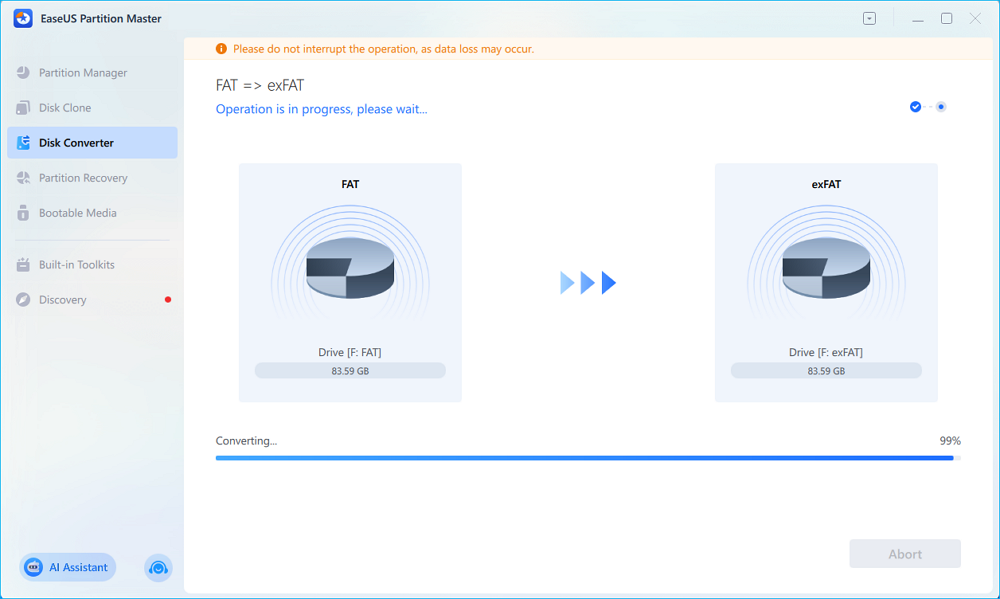
Step 4. During the process, do not interrupt the operation or turn off the program. Wait for it to finish, click "Done," and you can see the FAT32 partition has been switched to exFAT.
Feel free to share this post and help more users who want to get more differences between FAT32 and exFAT and how to change from FAT32 to exFAT.
How to Format FAT32 to exFAT
If data loss is not a concern or if you've already backed up your files, you can format a FAT32 drive to exFAT using Windows native tools. These methods are free and readily available, but they will erase all data on the selected drive.
|
⚠️ Important Notice Before Formatting Back up all important files in advance Double-check the selected drive letter; formatting the wrong drive will cause permanent data loss |
Way 1. Disk Management
Step 1. Press Win + X and select Disk Management.
Step 2. Locate the FAT32 partition you want to convert.
Step 3. Right-click the partition and choose Format.
Step 4. Select exFAT as the file system. Make sure you checked the "Perform a quick."
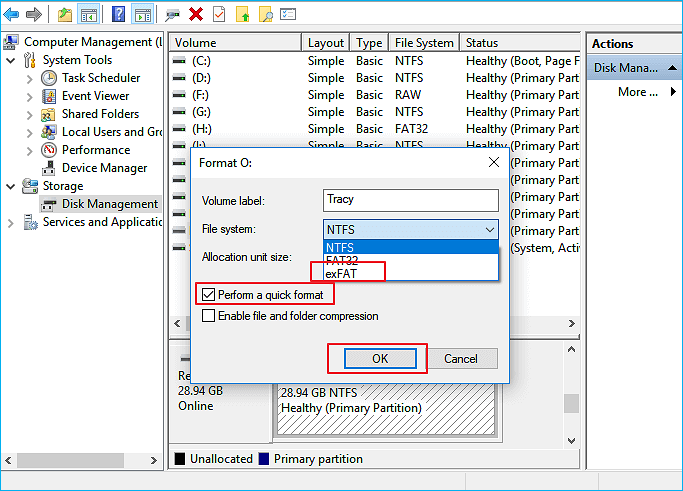
Step 5. Set a volume label if needed, then click OK to confirm.
Way 2. File Explorer
Step 1. Open File Explorer and go to This PC.
Step 2. Right-click the FAT32 drive and select Format.
Step 3. Choose exFAT from the File System dropdown. You can leave allocation size as default or change the cluster size based on your needs.
Step 4. Click Start and confirm the warning
If this guide helped you, consider sharing it with others who are struggling with FAT32 file size limits or storage compatibility issues.
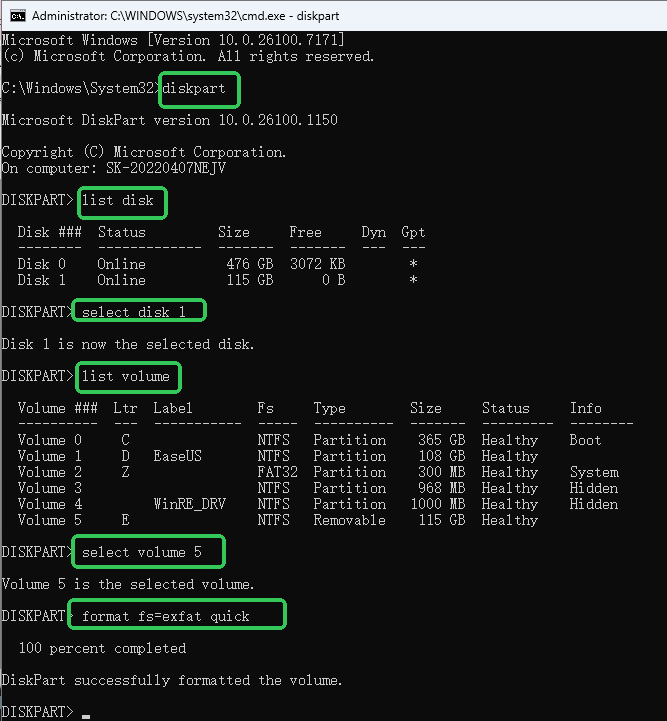
Way 3. DiskPart (Command Prompt)
|
Step 1. Open Command Prompt as Administrator
Step 2. Type diskpart and press Enter, type the following command lines, and press Enter after each:
- list disk
- select disk X (replace X with the correct number)
- list volume
- select volume 5 (replace 5 with the correct number)
- format fs=exfat quick
Conclusion
So, can you use exFAT instead of FAT32? For most modern storage needs, the answer is a clear yes. exFAT eliminates FAT32’s restrictive file size limit, supports large drives, and offers excellent cross-platform compatibility for Windows and macOS users. While FAT32 still has value for legacy devices, exFAT is the more practical choice for USB drives, SD cards, and external storage in everyday use. Whether you choose to format your drive or convert it without data loss using professional tools like EaseUS Partition Master, understanding these file systems helps you make safer, smarter storage decisions.
FAQ About FAT32 and exFAT
1. Is exFAT better than FAT32 for USB flash drives?
Yes. exFAT is better for most USB drives because it supports files larger than 4GB and works well across Windows and macOS systems.
2. Does exFAT work on Windows and macOS?
exFAT is natively supported by modern versions of Windows and macOS, making it ideal for cross-platform file sharing.
3. Can I convert FAT32 to exFAT without losing data?
Windows built-in tools cannot do this, but third-party software like EaseUS Partition Master allows no-data-loss conversion.
4. Why do some devices still require FAT32?
Some older hardware and embedded systems only recognize FAT32 and do not support newer file systems like exFAT.
5. Is exFAT safe for long-term storage?
exFAT is suitable for removable storage, but since it lacks journaling, you should always safely eject drives to avoid corruption.
How Can We Help You
About the Author

Updated by Tracy King
Tracy became a member of the EaseUS content team in 2013. Being a technical writer for over 10 years, she is enthusiastic about sharing tips to assist readers in resolving complex issues in disk management, file transfer, PC & Mac performance optimization, etc., like an expert.

Sherly joined EaseUS in 2022 and she has always loved writing articles and enjoys the fun they bring. She receives professional training here, focusing on product performance and other relative knowledge. She has written over 200 articles to help people overcome computing issues.
Product Reviews
-
I love that the changes you make with EaseUS Partition Master Free aren't immediately applied to the disks. It makes it way easier to play out what will happen after you've made all the changes. I also think the overall look and feel of EaseUS Partition Master Free makes whatever you're doing with your computer's partitions easy.
Read More -
Partition Master Free can Resize, Move, Merge, Migrate, and Copy disks or partitions; convert to local, change label, defragment, check and explore partition; and much more. A premium upgrade adds free tech support and the ability to resize dynamic volumes.
Read More -
It won't hot image your drives or align them, but since it's coupled with a partition manager, it allows you do perform many tasks at once, instead of just cloning drives. You can move partitions around, resize them, defragment, and more, along with the other tools you'd expect from a cloning tool.
Read More
Related Articles
-
Disk Health Checker Free Download | How to Guide
![author icon]() Sherly/2026/09/14
Sherly/2026/09/14 -
C Drive Cleaner Free Download for Windows 11/10
![author icon]() Sherly/2026/09/29
Sherly/2026/09/29 -
Is Partition Magic Full Crack Secure? How to Download It
![author icon]() Tracy King/2026/09/28
Tracy King/2026/09/28 -
How to Clean C drive in Windows 10/11 - 12 Methods
![author icon]() Sherly/2026/09/29
Sherly/2026/09/29










