







Content
Page Table of Contents
About the Author
Hot Topics
With SSD prices continuing to rise(r/DataHoarder), many users are reconsidering one simple question: Do I really need to replace my disk right now? For some, the drive still works but feels slower. For others, storage is nearly full (r/computers), yet buying a new SSD during a price surge feels unnecessary and risky.
This is where a disk health checker becomes more than a diagnostic tool. It . If you are worried about sudden disk failure, performance drops, or data safety, but still want to delay an upgrade without risking your files, proper disk health monitoring allows you to make a smarter, lower-risk decision.
Disk Health Checker Free Download
EaseUS Partition Master provides a practical and non-destructive way to monitor disk health before you make any irreversible changes. It supports HDDs, SSDs, and external storage devices, combining SMART diagnostics, disk speed testing, and file system checks to give you a complete picture of disk stability, performance trends, and early failure indicators.
Instead of relying on a single warning sign, EaseUS Partition Master helps you understand why a disk behaves abnormally, whether the issue comes from physical degradation, logical errors, or capacity pressure, so you can decide whether to continue using the drive, monitor it closely, or prepare for replacement.
What EaseUS Partition Master Can Help You
| Workable Solutions | What It Detects | Best For |
|---|---|---|
| SMART Diagnostics |
|
HDDs, SSDs, aging drives |
| Disk Speed Test | Read/write speed drops, performance instability | SSDs, system disks, external drives |
| File System Check | Logical errors, RAW status, corrupted structures | HDDs, USB drives, external storage |
Technical Specifications
Supported Operating Systems
- EaseUS Partition Master works on Windows 11, Windows 10, Windows 8.1, Windows 8, Windows 7, Windows Vista, Windows XP
Supported File Systems
- NTFS, EXT2/3/4, FAT12/16/32, ReFS, exFAT
Supported Storage Devices
- HDD: IDE, SATA, eSATA, SCSI, IEEE 1394 (FireWire)
- SSD: SATA SSD, M.2 SSD, NVMe SSD, large-capacity disks (MBR & GPT)
- Removable Devices: USB flash drives, memory cards, external enclosures
- Advanced Configurations: SCSI, IDE, SATA RAID controllers, hardware RAID arrays
How to Check If My Disk Is Failing
Disk failure rarely happens without warning. In many cases, users mistake file system instability or performance degradation for physical disk death. The methods below help you separate real failure risks from manageable issues, using built-in tools from EaseUS Partition Master.
Method 1. Check Disk Health
EaseUS Partition Master comes with a Disk Health feature to analyze SMART data and surface conditions. It helps identify early signs of physical wear, bad sectors, and abnormal indicators that may suggest an increased risk of disk failure.
Here is how to check SSD/HDD health on Windows 11/10:
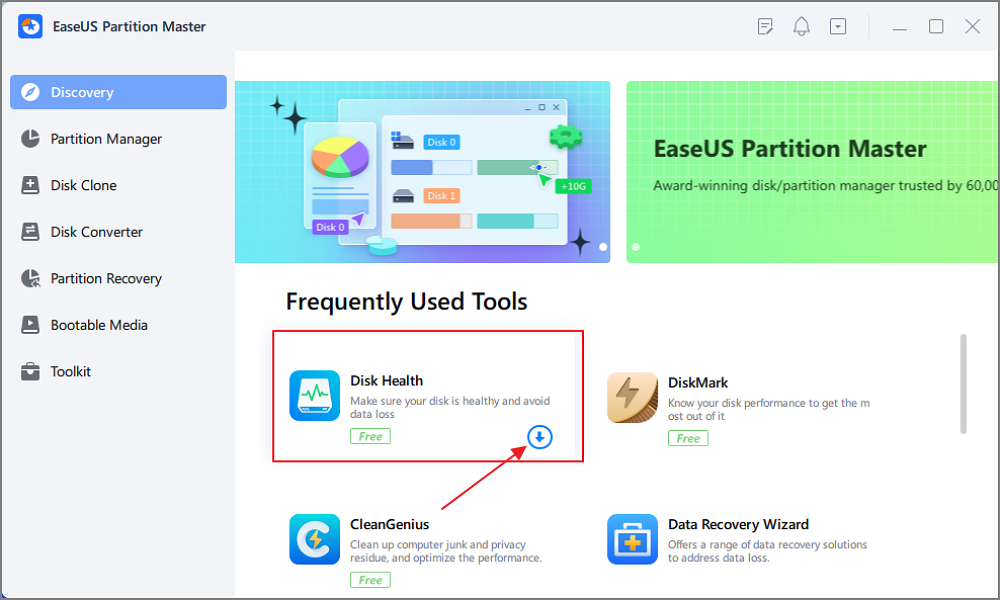
Step 1. Launch EaseUS Partition Master and click the blue arrow to activate the "Disk Health" feature under the "Discovery" section.
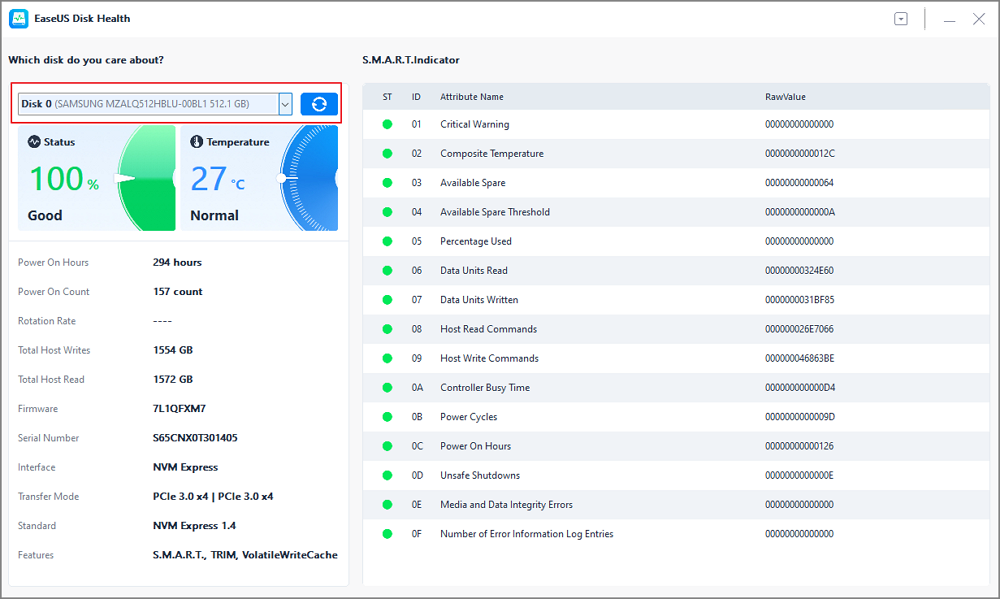
Step 2. Select the target disk and click the "Refresh" button. Then, you can see the health condition of your disk.
- Tip
- If the drive shows unusual behavior, this old hard drive management guide can help you find the cause.
Method 2. Disk Speed Test
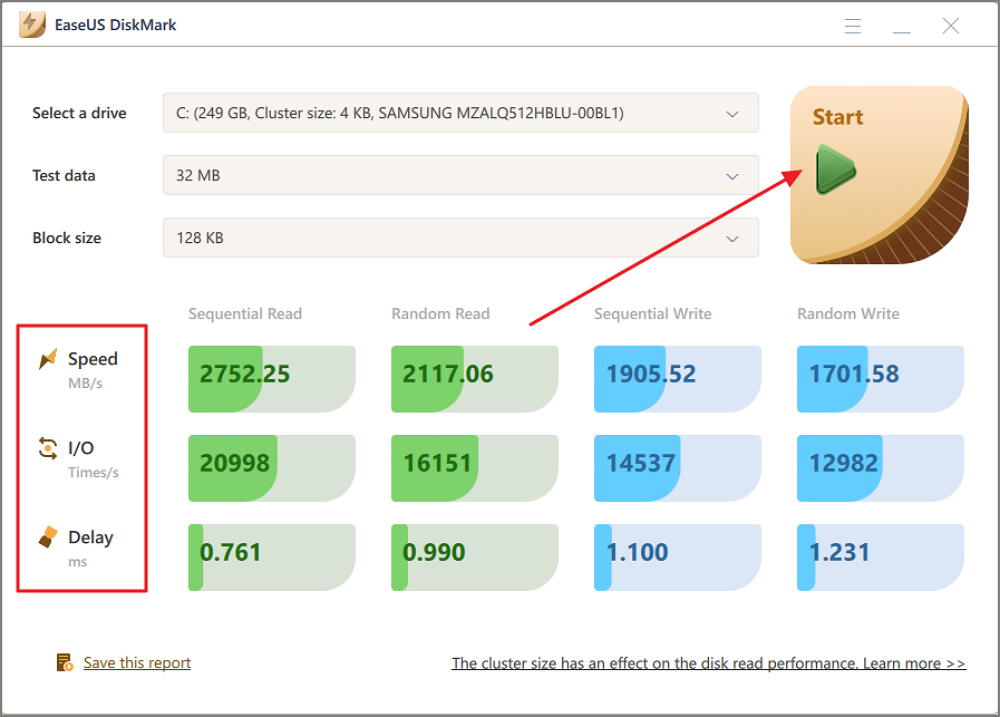
The DiskMark feature of EaseUS Partition Master measures the read and write speeds of SSD or HDD. Sudden performance drops, unstable speeds, or severe degradation often signal underlying disk issues, especially on SSDs approaching their endurance limits.
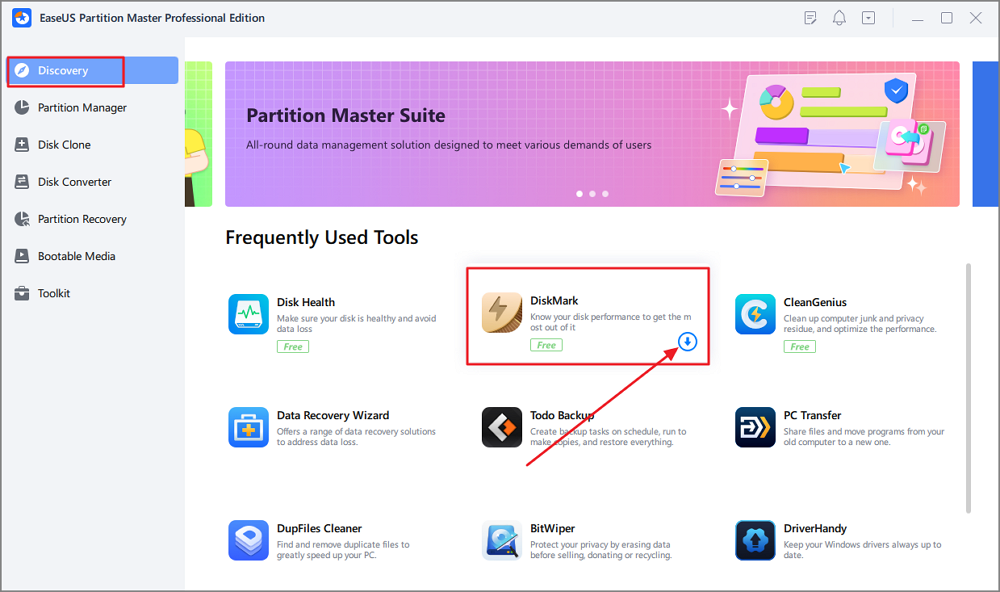
Step 1. Launch EaseUS Partition Master. And click the download button to activate the "DiskMark" feature under the "Discovery" section.
Step 2. Click on the drop-down box to choose the target drive, test data, and block size.
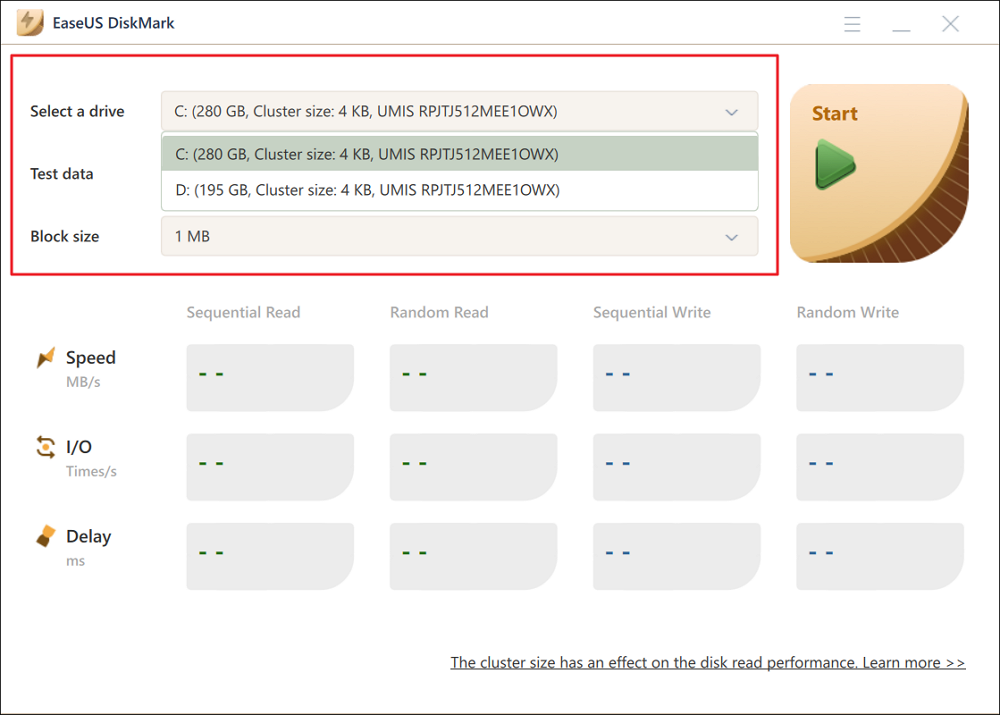
Step 3. Once everything is configured, click "Start" to begin the disk test. Then, you can see the Sequential or Random read/write speed, I/O, and Delay data.
Method 3. Check File System Errors
The Check File System function scans for logical errors that may cause RAW status, read/write failures, or access issues. Many disks labeled as "dying" are actually suffering from file system corruption rather than physical damage.
Here is how to check the file system error on your disk:
Step 1. Right-click the target partition that may have a problem.
Step 2. Choose "Check" > "Check File System".
Step 3. In the Check File System window, check the "Try to fix errors if found" option by clicking the "Start" button.
Step 4. Please wait patiently. After the process, you can click the "Finish" button to exit the window.
Should I Replace My Old Disk with a New SSD?
Many users reach this point feeling stuck. The disk still works, but it feels slower, throws occasional errors, or triggers vague health warnings. Replacing it too early means unnecessary cost, especially during rising storage prices, while continuing to use it without clarity raises concerns about sudden failure and data loss. The real challenge is not choosing a tool, but making the right decision at the right time.
How often should I replace my hard drive?
by inDataHoarder
From the EaseUS disk management team's experience, the key is distinguishing physical failure from logical instability.
You should strongly consider immediate replacement if:
- SMART data shows increasing reallocated, pending, or uncorrectable sectors
- The drive frequently disconnects, disappears from the BIOS, or fails to initialize
- HDDs produce clicking, grinding, or repeated spin-up noises
- The disk fails surface scans or cannot complete read tests
- The drive becomes read-only unexpectedly (common in worn SSDs)
- The system experiences repeated freezes, I/O errors, or boot failures tied to the disk
You may continue using the disk, with caution, if:
- SMART indicators remain stable over time
- Errors are limited to the file system or partition structure
- Performance degradation is gradual rather than sudden
- The disk remains consistently detectable and responsive
In rising price cycles, we see many users safely prolong disk lifespan by monitoring disk health trends, backing up important data, and correcting logical errors, instead of replacing drives that are not yet physically failing. If this framework helps you make a clearer decision, feel free to share it with others facing similar uncertainty around an aging HDD or SSD.

Conclusion
Rising SSD prices do not automatically mean you should replace your current drive. With the right disk health checker, you can understand whether your disk is truly failing or simply under strain from usage, capacity, or logical errors. EaseUS Partition Master helps you monitor disk health safely, reduce unnecessary risk, and delay upgrades without sacrificing data security. The goal is not to avoid replacement forever, but to replace only when it truly becomes necessary.
FAQ About SSD/HDD Health Checker
1. Is a disk health checker safe to use?
In most cases, yes. Disk health checks such as SMART diagnostics, disk speed tests, and file system scans are read-only or minimally invasive. They do not alter existing data or accelerate disk wear. This is why health checks are usually recommended as the first step before attempting any repair or optimization. The risk typically comes from aggressive write-heavy operations, not from monitoring tools.
2. Can SMART data predict disk failure accurately?
SMART data is useful, but it is not a crystal ball. Certain indicators, such as reallocated or pending sectors, are strong warning signs when they increase over time. However, stable SMART values combined with normal performance often indicate that a disk is still usable. SMART results should always be evaluated together with disk speed trends and file system stability, not in isolation.
3. Does a slow disk always mean it is failing?
No. Slow disk speed is commonly caused by file system errors, high disk usage, fragmentation, or long-term heavy load, especially on older drives. Many disks labeled as "dying" are actually suffering from structural or logical issues rather than physical damage. Performance tests help determine whether the slowdown is sudden and hardware-related, or gradual and manageable.
4. Should I replace a disk immediately after detecting errors?
Not necessarily. Logical errors, such as file system corruption or partition issues, can often be repaired without replacing the disk. Immediate replacement is usually recommended only when errors are accompanied by worsening SMART indicators, repeated I/O failures, or physical symptoms. The goal is to assess risk realistically, not to replace a drive at the first warning sign.
How Can We Help You
About the Author

Updated by Joey Albert
Joey is an enthusiast of science and technology. With a passion for uncovering the latest tech innovations, she creates clear, engaging how-to guides that make technology accessible and enjoyable for all.

Sherly joined EaseUS in 2022 and she has always loved writing articles and enjoys the fun they bring. She receives professional training here, focusing on product performance and other relative knowledge. She has written over 200 articles to help people overcome computing issues.
Product Reviews
-
I love that the changes you make with EaseUS Partition Master Free aren't immediately applied to the disks. It makes it way easier to play out what will happen after you've made all the changes. I also think the overall look and feel of EaseUS Partition Master Free makes whatever you're doing with your computer's partitions easy.
Read More -
Partition Master Free can Resize, Move, Merge, Migrate, and Copy disks or partitions; convert to local, change label, defragment, check and explore partition; and much more. A premium upgrade adds free tech support and the ability to resize dynamic volumes.
Read More -
It won't hot image your drives or align them, but since it's coupled with a partition manager, it allows you do perform many tasks at once, instead of just cloning drives. You can move partitions around, resize them, defragment, and more, along with the other tools you'd expect from a cloning tool.
Read More
Related Articles
-
Can I Use exFAT Instead of FAT32? How to Convert without Data Loss
![author icon]() Sherly/2026/06/17
Sherly/2026/06/17 -
Is Partition Magic Full Crack Secure? How to Download It
![author icon]() Tracy King/2026/06/17
Tracy King/2026/06/17 -
C Drive Cleaner Free Download for Windows 11/10
![author icon]() Sherly/2026/08/17
Sherly/2026/08/17 -
How to Clean C drive in Windows 10/11 - 12 Methods
![author icon]() Sherly/2026/08/17
Sherly/2026/08/17
 Tracy King/2026/06/17









