







Content
Page Table of Contents
About the Author
Hot Topics
Have you used your hard drive for years? You might notice slower file transfers, frequent errors, missing partitions, or a drive that suddenly disappears from Windows. The key is to find the cause before you start changing the disk. Some problems are easy to fix, while others are signs that the drive is wearing out.
This is a complete guide to managing your hard drive. It covers how to check an old hard drive, diagnose common problems, fix disk issues, choose the right management tools, and decide when it is time to replace the drive.
How to Tell If an Old Hard Drive Has Problems
A good way to judge an aging drive is to look at how it behaves during everyday use.
For example, a hard drive that takes longer than usual to open folders could simply be running out of free space. On the other hand, slow access combined with read errors, bad sectors, or strange noises can point to a more serious problem.
Here are some of the most common signs that an old hard drive needs attention:
| Symptom | What It Could Mean |
| The hard drive is getting slower | Low free space, bad sectors, file system problems, or hardware wear |
| Files take a long time to open | Read errors, disk overload, or drive degradation |
| The drive disappears from Windows | Connection problems, driver issues, or hardware failure |
| Files or folders cannot be opened | File system errors, permissions issues, or bad sectors |
| The drive shows as RAW | File system corruption |
| Windows reports disk errors | File system or disk problems |
| The drive keeps disconnecting | Cable, USB port, power, overheating, or hardware issues |
| The HDD makes clicking or grinding sounds | Possible physical failure |
| The drive is almost full | Not enough free space for normal use |
| Bad sectors keep increasing | The drive could be deteriorating |
How to Check an Old Hard Drive Before Fixing It
Once an old hard drive starts behaving strangely, you might think it needs repair. A better approach is to check the drive from several angles. Start with simple checks, then move on to the disk health, file system, bad sectors, and partition layout.
1. Check Whether Windows Detects the Drive
Step 1. Start with File Explorer. See if the drive appears under This PC.
Step 2. If it does not, open Disk Management.
Step 3. Press "Windows + X" and select Disk Management.
Step 4. Look for the old drive in the disk list. It could appear as:
- Online
- Offline
- Unallocated
- RAW
- Unknown
- Not Initialized
- A healthy partition without a drive letter
The status tells you what to check next. For example, you can often fix a healthy partition without a drive letter by assigning a new drive letter. An uninitialized disk needs more caution, especially if it contains important data.
2. Check the Physical Connection
For an internal HDD, check the SATA data cable and power connection.
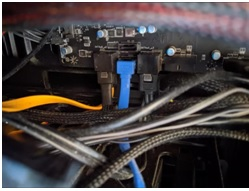
For an external HDD, check:
- USB cable
- USB port
- USB hub
- Power adapter
- Another computer
3. Check Disk Health
A disk health check can give you a better idea of the drive's condition. Look for signs such as:
- SMART warnings
- High operating temperature
- Increasing bad sectors
- Read or write errors
- Frequent disk timeouts
If the health status is poor and the drive contains important files, focus on backup or cloning first.
4. Check for Bad Sectors
Bad sectors are another common problem with aging storage devices. When Windows has trouble reading certain parts of a disk, you might experience slow file access, corrupted files, freezes, or errors during copying.
A surface test can scan the drive and identify sectors that cannot be read correctly. This is useful when you suspect that a slow or unstable drive has physical problems.
5. Check the File System
Windows uses a file system such as NTFS, exFAT, or FAT32 to organize files on a drive. When the file system becomes damaged, the drive can become inaccessible or appear as RAW.
You can use Windows tools to check file system errors, but be careful when the drive contains important data. If Windows asks you to format a RAW drive, do not accept the prompt automatically. Formatting can make data recovery more difficult.
6. Check the Partition Layout
An old drive can also have a storage layout that no longer fits your needs. Open Disk Management and look at the entire disk. Check for:
- Unallocated space
- Very small partitions
- A full system partition
- Missing partitions
- Incorrect partition sizes
- Unused partitions
How to Fix Common Old Hard Drive Problems
Once you know what is causing the problem, you can choose the right fix. Some issues are easy to resolve, while others can be signs of hardware failure. Before making major changes to an old hard drive, back up important files whenever possible.
Tip: For more detailed information on disk issues and solutions, refer to the guide: Hard Drive Problems and Fixes.
Fix 1: Speed Up a Slow Old Hard Drive
An old hard drive can become slow because it is nearly full, fragmented, or affected by file system errors or bad sectors.
Step 1. Check the available space and remove or move unnecessary files.
Step 2. Check the file system and run a surface test if the slowdown is unusual.
Step 3. Defragment your hard drive with Windows Optimize Drives.
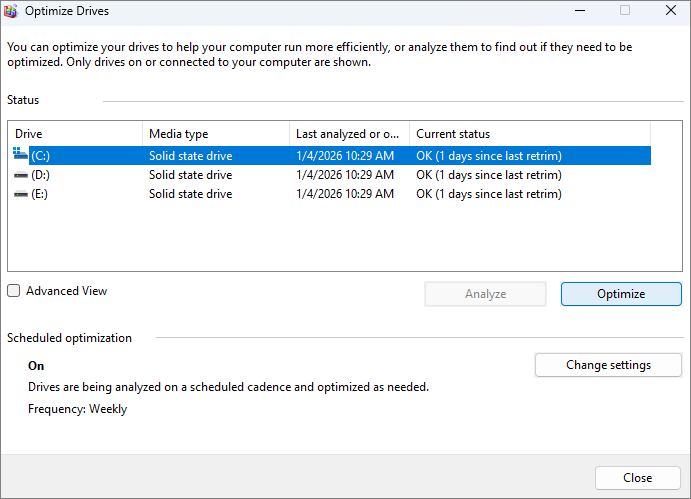
Step 4. If the drive remains slow and shows health warnings or bad sectors, consider replacing it with a new HDD or SSD.
Fix 2: Fix a Hard Drive That Is Not Detected
A missing hard drive can be caused by a faulty connection, missing drive letter, partition problem, or hardware failure.
Step 1. Check the cable, power connection, and USB or SATA port.
Step 2. Open Disk Management and check whether the drive appears there.
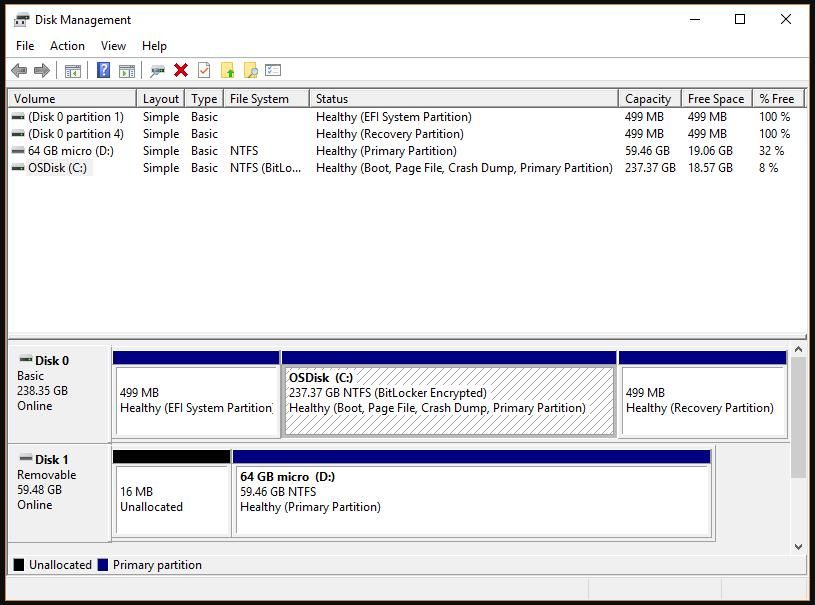
Step 3. Assign a drive letter if the partition is healthy but has no letter.
Step 4. Test the drive on another computer. If it is not detected anywhere, check its health and consider hardware failure.
Fix 3: Fix an Inaccessible Hard Drive
A drive that appears in Windows but cannot be opened can have file system errors, bad sectors, or other disk problems.
Step 1. Check the error message and the file system in Disk Management.
Step 2. Check the disk health and scan for bad sectors.
Step 3. Run CHKDSK if the problem appears to be a logical file system error.
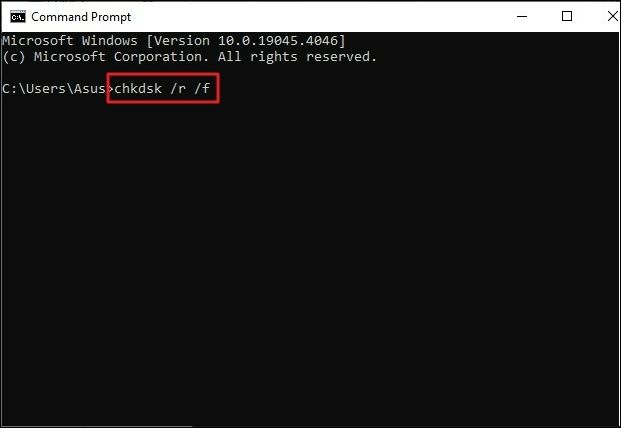
Step 4. If the drive remains inaccessible, back up or recover the data before trying more repairs.
Fix 4: Check and Deal With Bad Sectors
Bad sectors might cause slow performance, read errors, file corruption, and system freezes.
Step 1. Run a surface test to scan the drive for bad sectors.
Step 2. Back up or clone the drive if bad sectors are found.
Step 3. Monitor the drive for additional errors.
Step 4. Replace the drive if bad sectors continue to increase or the drive develops other signs of failure.
Fix 5: Fix a RAW Hard Drive
A RAW drive means Windows cannot recognize its file system correctly. Formatting it immediately can put important data at risk.
Step 1. Check the drive's health and connection.
Step 2. Recover or back up important files if possible.
Step 3. Try an appropriate file system or partition repair method.
Step 4. Format the drive only after the data is safe, and the hardware is healthy.
Fix 6: Free Up Space on a Full Hard Drive
A full drive can slow down Windows and leave too little space for updates, temporary files, and new data.
Step 1. Remove temporary files, unused programs, and unnecessary downloads.
Step 2. Move large photos, videos, and other files to another drive.
Step 3. Check the partition layout for unused or unallocated space.
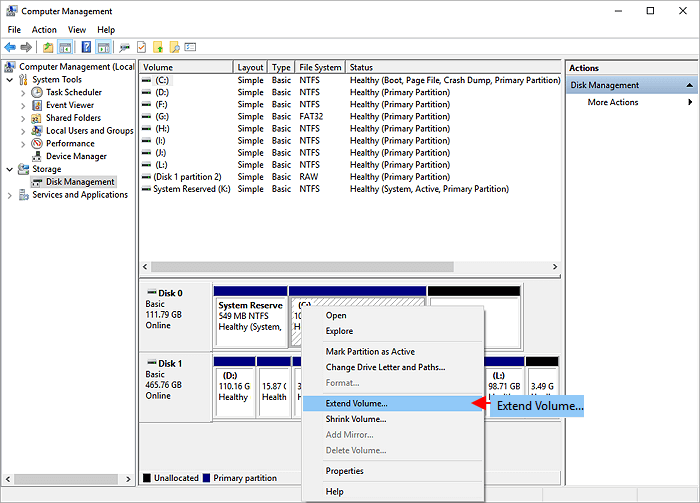
Step 4. Extend the full partition if suitable unallocated space is available.
Fix 7: Fix Partition Problems on an Old Hard Drive
An old disk can have partitions that no longer match your storage needs. A partition manager can resize, move, extend, or merge partitions without rebuilding the entire disk.
Step 1. Back up important data before changing the partition layout.
Step 2. Check the current partition structure and available unallocated space.
Step 3. Resize, move, extend, or merge partitions as needed.
Step 4. Verify the partition layout and make sure your files are accessible.
Fix 8: Fix a Hard Drive That Keeps Disconnecting
Frequent disconnections are common with external HDDs and can result from connection, power, temperature, or hardware problems.
Step 1. Try another cable and USB or SATA port.
Step 2. Connect the drive directly to the computer instead of using a USB hub.
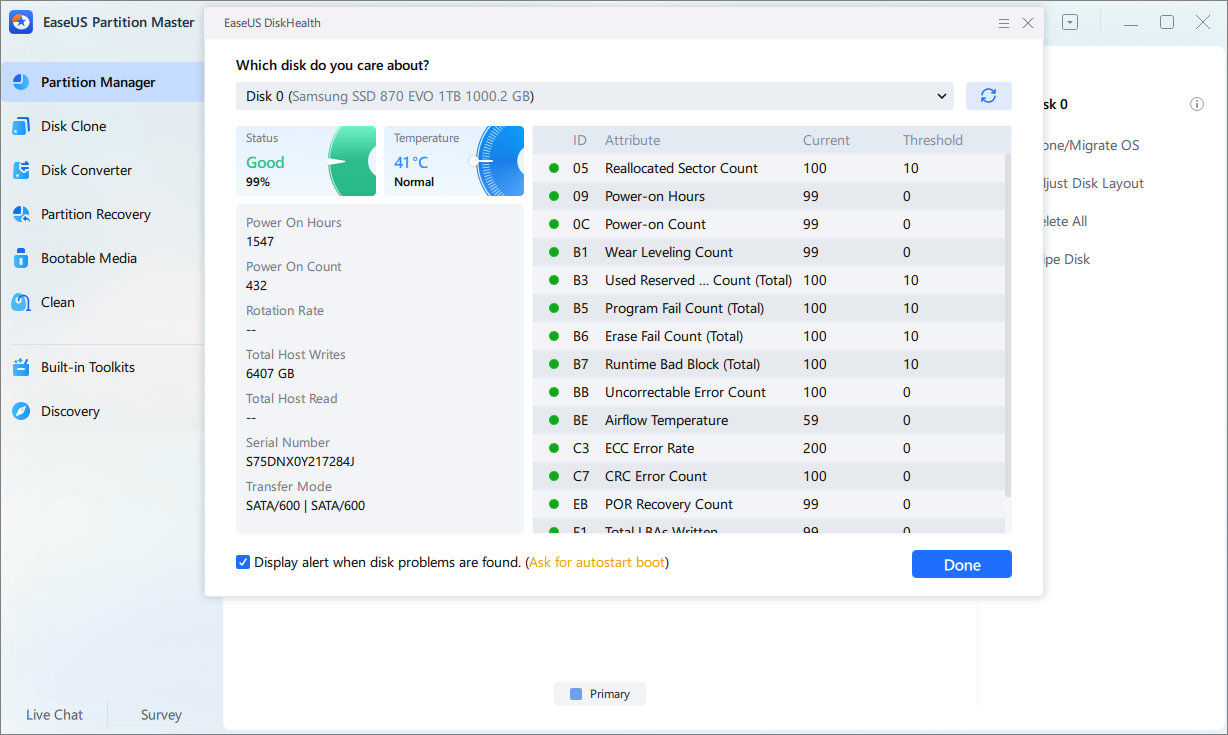
Step 3. Check the drive's temperature and health with EaseUS Partition Master.
Step 4. Test it on another computer. If the problem continues, back up the data and consider replacing the drive.
Fix 9: Fix File System Errors
File system errors can make files inaccessible or cause Windows to report disk problems.
Step 1. Check the file system in Disk Management.
Step 2. Run CHKDSK to check and repair supported logical errors.
Step 3. Run a surface test if errors continue.
Step 4. Back up your files and consider reformatting or replacing the drive if the errors keep returning.
Fix 10: Clone an Aging Hard Drive Before It Fails
If an old drive is still accessible but becoming unreliable, cloning it to a new drive can help you migrate your data before the situation gets worse.
Step 1. Connect a healthy HDD or SSD with enough storage capacity.
Step 2. Check the source drive for serious health problems.
Step 3. Clone the old drive to the new drive.
Step 4. Boot from or open the new drive and verify your files.
If the source drive is already failing badly, a normal cloning process can fail. In that case, prioritize recovering important files rather than repeatedly scanning or writing to the damaged drive.
Fix 11: Move Windows to a New Drive and Keep the Old Drive for Data
If your old hard drive still works but has become slow or outdated, you can move Windows to a newer SSD and keep the old drive for data storage or backups. This lets you use the new drive for the system while still using the old drive.
Step 1. Connect a new SSD or HDD with enough space for Windows.
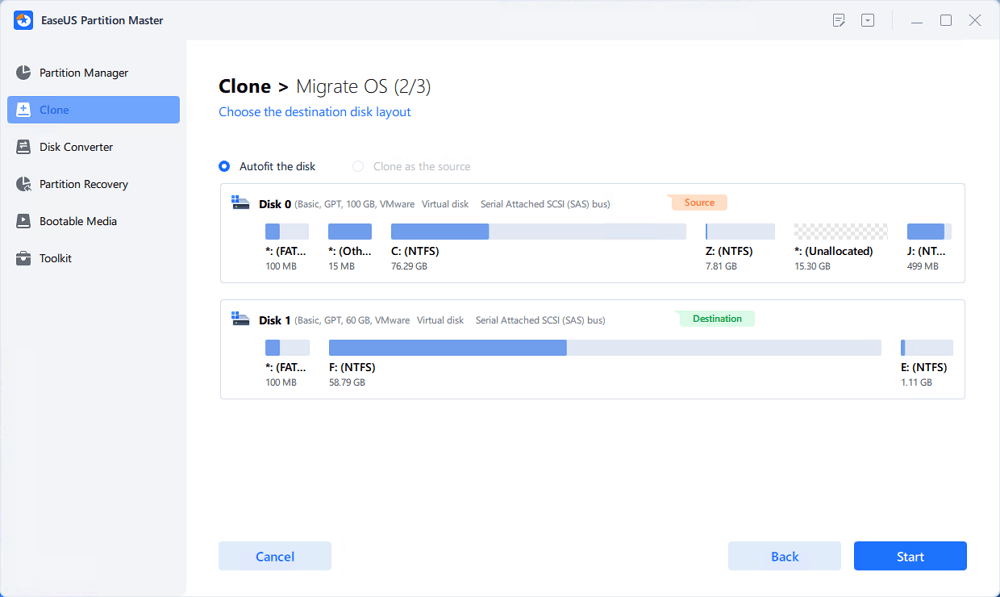
Step 2. Use EaseUS Partition Master to migrate OS from the old drive to the new drive.
- Run EaseUS Partition Master and select "Disk Clone" from the left menu.
- Check "Migrate OS" and click "Next".
- Select the new drive as the destination disk and click "Next".
- Check Warning: the data and partitions on the target disk will be deleted. Make sure that you've backed up important data in advance. If not, do it now.
Step 3. Set the new drive as the boot drive and make sure Windows starts normally.
Step 4. Keep the old hard drive as a secondary drive for files or backups.
Best Tools for Managing an Old Hard Drive
Windows includes several tools for basic disk management. Third-party software becomes useful when you need more functions in one place. Here's what drive management tools do.
| Tool | Best For |
| Disk Management | Viewing and managing basic partitions |
| DiskPart | Advanced disk and partition commands |
| CHKDSK | Checking and repairing supported file system errors |
| Device Manager | Checking storage drivers |
| SMART tools | Monitoring drive health |
| Data recovery software | Recovering files from damaged or inaccessible drives |
| Partition management software | Resizing, cloning, converting, and managing disks |
EaseUS Partition Master
If you need one tool for several disk management tasks, EaseUS Partition Master is a practical option for managing an aging drive. It combines partition management, disk checking, cloning, and other storage functions in one interface.
Useful features of EaseUS Partition Master for an old hard drive:
- Disk Health Check: Check a disk's overall condition.
- Surface Test: Scan the drive for bad sectors.
- Check File System: Find and address file system problems.
- Resize/Move Partition: Adjust partition sizes without rebuilding the entire disk.
- Extend Partition: Add available space to a partition.
- Merge Unallocated Space: Make unused disk space available for partitions.
- 4K Alignment: Optimize SSD partition alignment.
- Disk Clone: Move data from an aging drive to a new HDD or SSD.
- Create Bootable Media: Manage disks when Windows cannot start normally.
- MBR to GPT Conversion: Change the partition style when the disk and system setup require it.
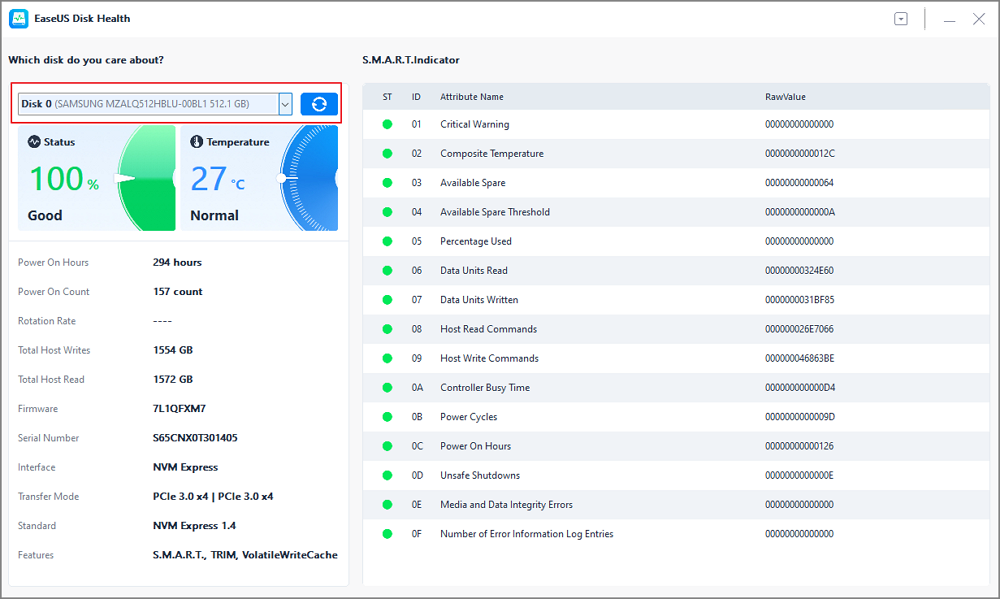
Here is how to check disk health using EaseUS Partition Master.
Step 1. Launch EaseUS Partition Master and click the blue arrow to activate the "Disk Health" feature under the "Discovery" section.
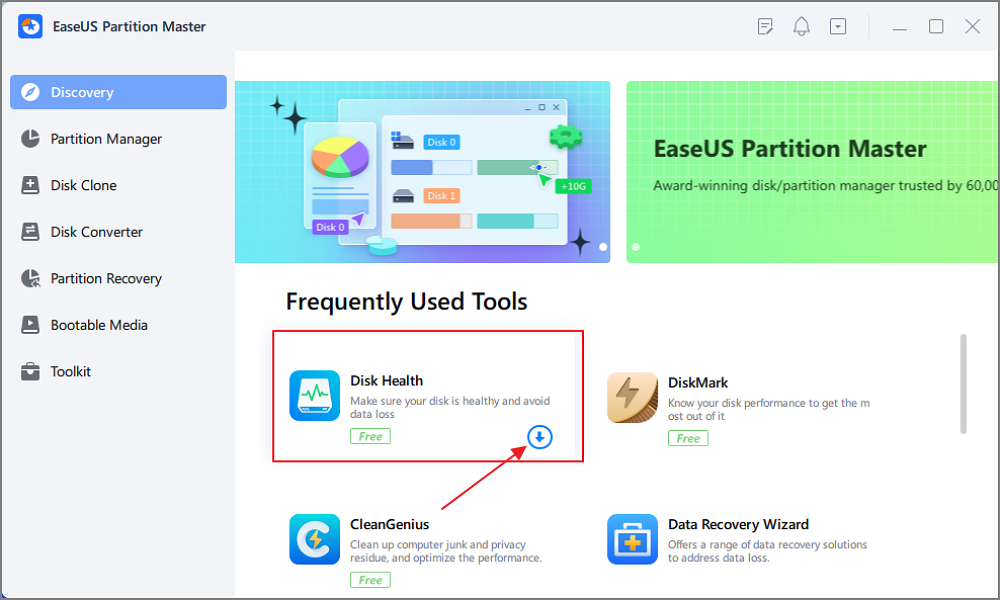
Step 2. Select the target disk and click the "Refresh" button. Then, you can see the health condition of your disk.
When Should You Replace an Old Hard Drive?
If a hard drive remains healthy, performs reliably, and has enough capacity for your needs, you can continue using it. Replacement becomes a better option when the drive starts showing repeated signs of physical deterioration.
Consider replacing the drive when you notice:
- SMART warnings or poor health status
- An increasing number of bad sectors
- Repeated read or write errors
- Frequent disconnections
- Files becoming corrupted
- The drive disappearing from Windows regularly
- Severe performance problems that keep returning
- Clicking, grinding, or other unusual mechanical sounds
If the drive still works, move your important data to a healthy drive. Cloning can be useful when you want to migrate an entire system or disk layout, while normal file backup is enough when you only need to save selected files. Do not wait until the old drive becomes completely inaccessible. Data recovery is much harder when the hardware has already failed.
How to Manage and Maintain an Old Hard Drive
An old hard drive needs regular checks and good storage habits to stay reliable. A few simple practices can help you catch problems early and reduce the risk of data loss.
- Keep enough free space: Avoid letting the drive stay almost full. Remove unnecessary files or move large data to another drive.
- Check disk health regularly: Monitor SMART status, temperature, bad sectors, and other warning signs.
- Back up important data: Keep at least one additional copy of important files on another drive or in cloud storage.
- Clone the drive before replacement: If an old drive is becoming unreliable, clone it to a new HDD or SSD while it is still accessible.
- Keep the drive cool: Ensure good airflow around internal and external drives, especially during long periods of use.
- Replace the drive when necessary: If errors, bad sectors, or other failure signs keep increasing, move your data to a healthy drive instead of continuing to rely on the old one.
Conclusion
Managing an old hard drive starts with identifying the real problem. Check whether Windows detects the drive, review its partitions and file system, and check its health before choosing a fix.
Windows tools can handle basic disk tasks, while EaseUS Partition Master offers more advanced options for disk checking, partition management, and cloning. If the drive shows signs of physical failure, back up or clone your data as soon as possible and replace the drive before it fails completely.
How Can We Help You
About the Author

Sherly joined EaseUS in 2022 and she has always loved writing articles and enjoys the fun they bring. She receives professional training here, focusing on product performance and other relative knowledge. She has written over 200 articles to help people overcome computing issues.

Written by Joey Albert
Joey is an enthusiast of science and technology. With a passion for uncovering the latest tech innovations, she creates clear, engaging how-to guides that make technology accessible and enjoyable for all.
Product Reviews
-
I love that the changes you make with EaseUS Partition Master Free aren't immediately applied to the disks. It makes it way easier to play out what will happen after you've made all the changes. I also think the overall look and feel of EaseUS Partition Master Free makes whatever you're doing with your computer's partitions easy.
Read More -
Partition Master Free can Resize, Move, Merge, Migrate, and Copy disks or partitions; convert to local, change label, defragment, check and explore partition; and much more. A premium upgrade adds free tech support and the ability to resize dynamic volumes.
Read More -
It won't hot image your drives or align them, but since it's coupled with a partition manager, it allows you do perform many tasks at once, instead of just cloning drives. You can move partitions around, resize them, defragment, and more, along with the other tools you'd expect from a cloning tool.
Read More
Related Articles
-
Can I Clone SSD to M.2 Free? Yes, Sure. Your Guide Is Here
![author icon]() Cici/2026/09/28
Cici/2026/09/28 -
Resolve 100% Disk Usage in Windows 11
![author icon]() Tracy King/2026/09/22
Tracy King/2026/09/22 -
How to Install APK on Windows 11 to Sideload Android Apps
![author icon]() Tracy King/2026/09/23
Tracy King/2026/09/23 -
How to Check SSD Speed [Step-by-Step Guide]
![author icon]() Sherly/2026/09/17
Sherly/2026/09/17
 Cici/2026/09/28
  Tracy King/2026/09/22









