







Content
Page Table of Contents
About the Author
Hot Topics
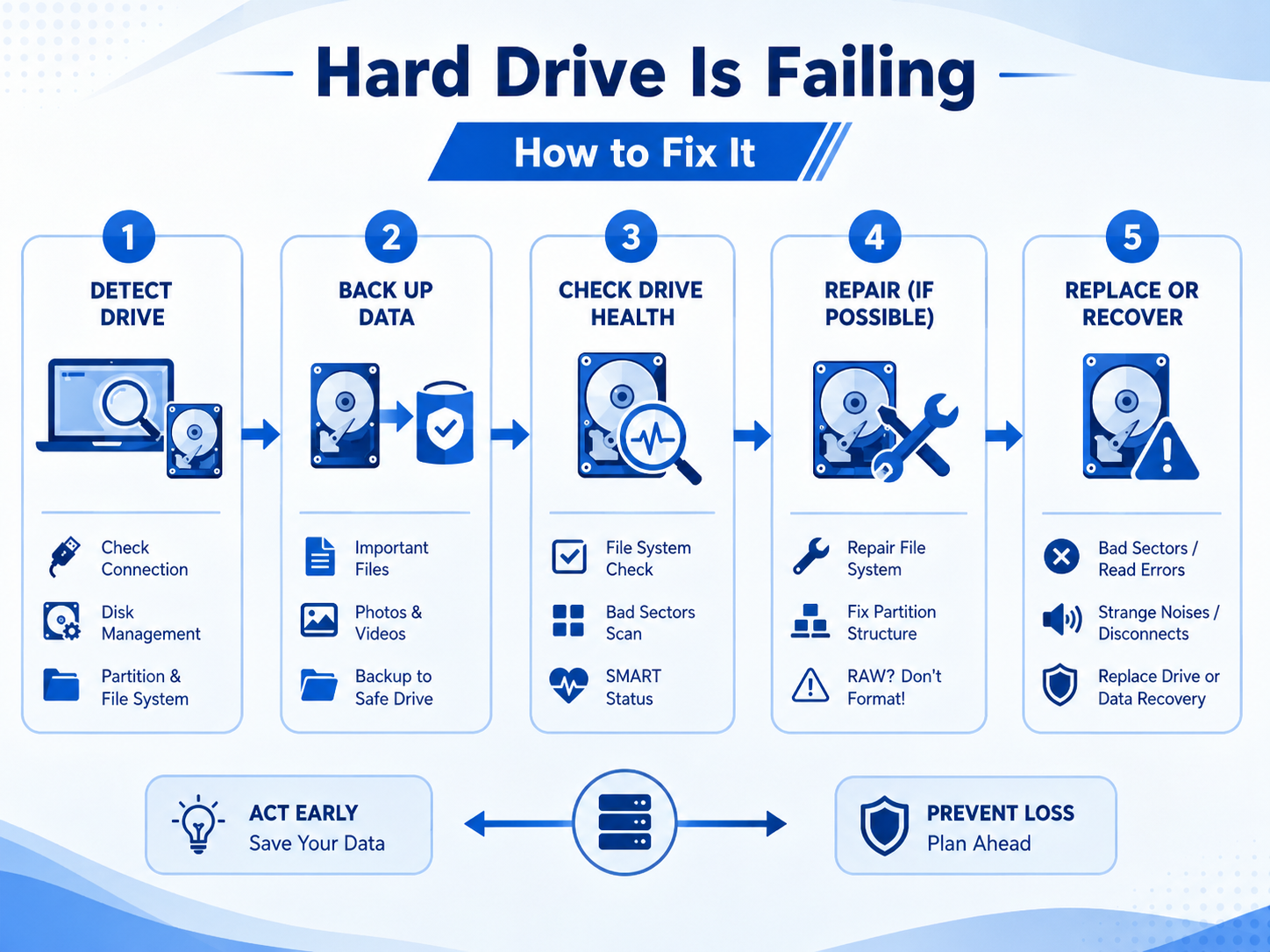
Having trouble with an old hard drive? Does the drive start running slower, take longer to open files, disconnect without warning, or throw errors when you try to access your data? Some problems are caused by low storage space or file system issues, while others point to physical wear and a drive that is approaching failure.
If you have been using the same hard drive for several years, it is worth paying attention to these changes. This page brings together 10 common old hard drive problems, along with practical fixes and tips to help you avoid data loss.
🔭Let's take an overview of these common disk issues.
| Problem | Common Causes | What to Check |
| Low space, fragmentation, bad sectors, aging hardware | Free space, disk health, surface test | |
| Cable, port, power, driver, hardware failure | Connections, Disk Management, BIOS/UEFI | |
| File system corruption, partition errors, bad sectors | File system, partition status, disk health | |
| Cable, power, USB port, enclosure, failing disk | Cable, port, power, SMART status | |
| Large files, applications, backups | Disk usage and free space | |
| Physical wear or logical disk errors | Surface test and disk health | |
| Corruption, unsafe shutdown, bad sectors | File system check and disk health | |
| File system or partition corruption | Partition status, disk health, data recovery | |
| Age, heat, bad sectors, hardware wear | SMART data, temperature, surface test | |
| Severe hardware failure | Backup, recovery, drive replacement |
Looking for an easier way to diagnose and fix old hard drive problems? EaseUS Partition Master brings disk diagnostics, partition management, error checking, disk cloning, and recovery tools together in one place. Instead of switching between utilities, you can diagnose the problem, manage the disk, and protect your data from a single interface.
1. Hard Drive Is Slow
A slow hard drive is one of the first problems many people notice as a disk gets older. When this issue occurs, you might notice
- Windows takes longer to start.
- Folders take several seconds to open.
- Copying large files is slower than it used to be.
A slow hard drive does not always mean that the drive is failing. Low free space, file system errors, background tasks, and bad sectors can all affect performance.
How to Fix It
Fix 1: Start by checking how much free space is available. If the drive is nearly full, remove unnecessary files or move large files to another disk. For an HDD, defragmentation can also help when files have become heavily fragmented.
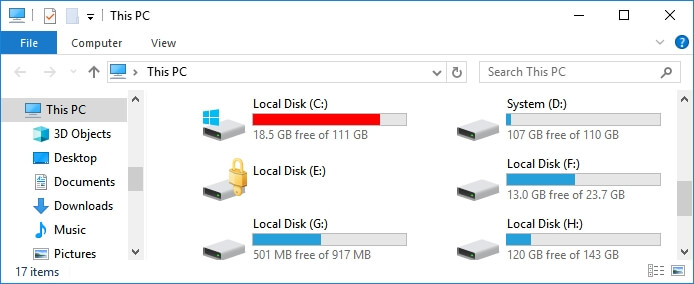
Fix 2: Check the drive for file system errors and bad sectors. You can also check its SMART information to see whether the drive is reporting signs of wear.
Fix 3: If you also notice read errors, freezes, or disappearing files, back up your important data before doing anything else. A performance problem that keeps getting worse deserves more attention than a drive that is simply running out of space.
Pro tip: Do not keep using a slow drive for important files just because it still opens normally. Back up your data before running intensive repair or testing operations.
2. Hard Drive Is Not Detected or Recognized
One day, you plug in an external hard drive or turn on your PC, and the disk is simply gone. It does not appear in File Explorer, or Windows does not show it in Disk Management. In more serious cases, the drive is not showing up in BIOS or UEFI.
The cause can be something simple, such as a damaged USB cable or a loose SATA connection. Power problems and USB enclosures can cause the same symptoms. If the connections are fine, an aging drive with hardware problems is another possibility.
How to Fix It
Fix 1: Check the physical connection. For an external HDD, try another USB port and, if possible, replace the USB cable. If the drive uses a separate power adapter, check that connection as well. For an internal HDD, check the SATA data and power cables.
Fix 2: Open Disk Management and see whether the drive appears there. If it is listed without a drive letter, assign a new letter and check File Explorer again. If the disk appears as Offline, try bringing it online after making sure the disk itself is stable.
Step 1. Press Win + X and select Disk Management.
Step 2. Find the hard drive in the list.
Step 3. Check whether it has a drive letter or shows as Offline/Unallocated.
Step 4. Choose the appropriate action based on its status.
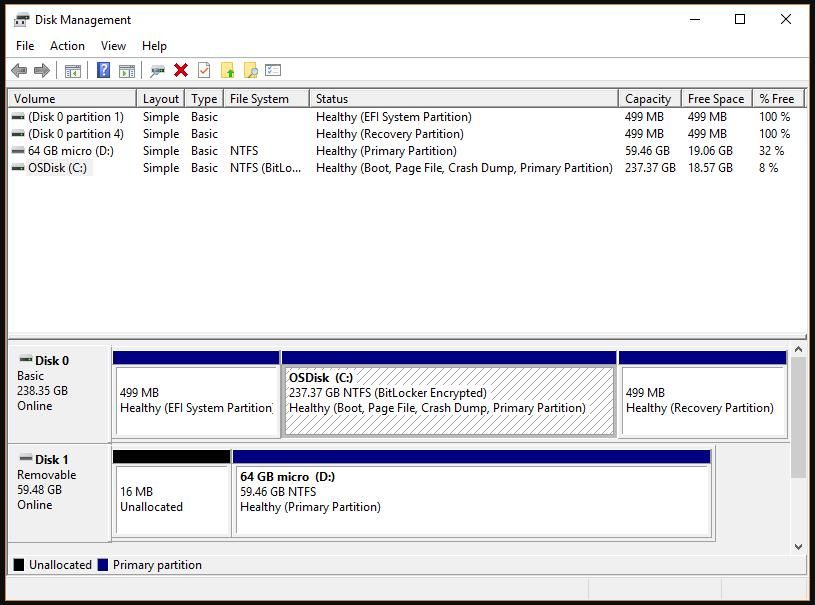
Fix 3: Check whether the drive appears in BIOS or UEFI. If the BIOS detects the disk but Windows does not, the problem could be related to the partition, driver, or file system. If BIOS does not detect it either, focus on the cable, power, or hardware.
Fix 4: Connect the drive to another computer if possible. This can help separate a problem with the old HDD from a problem with your current computer or USB port.
Fix 5: If the drive is still not detected and contains important data, avoid formatting, initializing, or repartitioning it. If the disk is physically failing, repeated attempts to access it can make data recovery more difficult.
Pro tip: If an old drive suddenly disappears, stop unnecessary writes to it. If the data is important, focus on data recovery or backup before trying destructive operations.
3. Hard Drive Is Not Accessible or Cannot Be Opened
Sometimes Windows knows that a hard drive is connected, but you still cannot open it. You might click the drive in File Explorer and get an "Access Denied" message, a corruption error, or a request to format the disk.
This can happen when the file system has become corrupted. Bad sectors can also damage parts of the file system and make certain files or folders unreadable. If the drive has recently become slow or unstable as well, there could be a deeper disk problem.
How to Fix It
Fix 1: Check the drive in Disk Management. Look at the partition status, file system, capacity, and drive letter. If the partition looks normal, try assigning another drive letter and see whether the problem is resolved.
Fix 2: Check the file system for errors. CHKDSK can repair certain logical file system problems, while a surface test can help identify bad sectors that are making parts of the disk difficult to read.
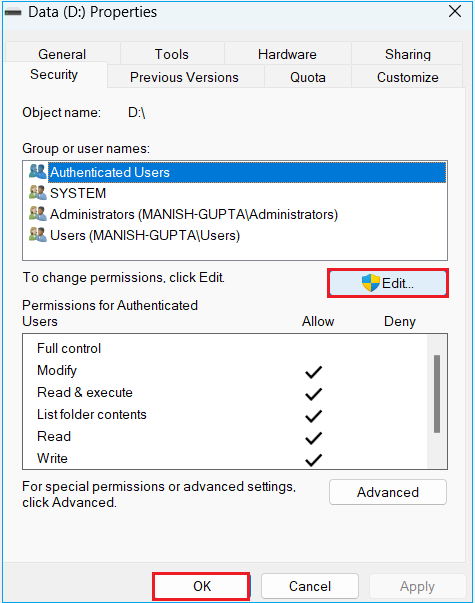
Fix 3: If the problem is related to permissions, check the drive or folder's security settings and make sure your Windows account has access to the files. This is more likely when the disk works normally on another computer.
Step 1. Right-click the drive or folder and select Properties.
Step 2. Open the Security tab.
Step 3. Select your Windows account and click Edit.
Step 4. Make sure your account has the required permissions.
Fix 4: If Windows says that you need to format the disk, stop before formatting if the drive contains important files. Recover or back up the data first, then format the drive if you decide to reuse it.
Pro tip: An inaccessible drive is not the same as an empty drive. If the files are important, check the disk status before formatting, deleting partitions, or creating a new file system.
4. Hard Drive Keeps Disconnecting
A hard drive that keeps disconnecting can be difficult to diagnose because it might work normally for a while. Then, during a file transfer or while opening a large folder, the drive suddenly disappears and reconnects later.
With an external HDD, the USB cable, port, power supply, or enclosure is often worth checking first. An internal drive can have similar problems because of a loose SATA connection. When none of these are responsible, repeated disconnections can point to an aging or failing drive.
How to Fix It
Fix 1: Try a different USB port and replace the USB cable if you are using an external HDD. Connect the drive directly to the computer instead of using a USB hub. If the drive has its own power adapter, check that as well.
Fix 2: Test the drive on another computer to see whether the same problem occurs. For an internal HDD, check the SATA data and power connections and replace the SATA cable if you have a spare.
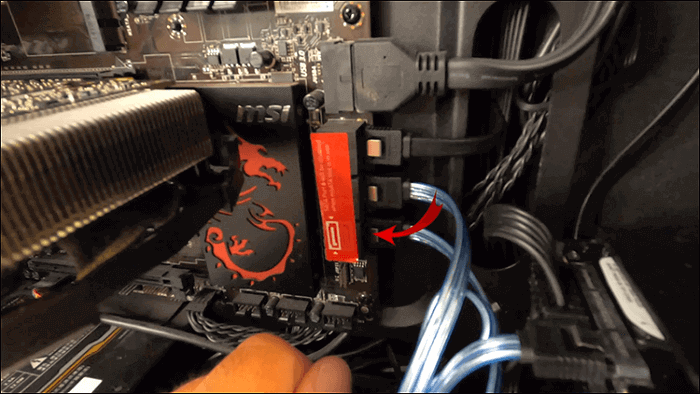
Fix 3: If the drive still disconnects, check its health and scan for bad sectors and file system errors. Pay extra attention if the disconnections happen together with slow reads, freezing, or unusual noises.
Pro tip: Frequent disconnections are more serious when they happen together with clicking sounds, slow reads, bad sectors, or SMART warnings. Back up important files as soon as possible.
5. Hard Drive Is Full or Running Out of Space
After years of use, an old hard drive can slowly fill up with files you no longer need. Downloads, videos, photos, application data, Windows files, and old backups can take up hundreds of gigabytes without you noticing.
Common signs include:
- C drive is full or almost full.
- Hard drive is running out of space.
- Windows shows a low disk space warning.
- Not enough space for Windows updates.
- Hard drive is full even though another partition has free space.
A nearly full system drive can also make Windows less responsive and leave too little room for updates and temporary files. This is not necessarily a sign that the HDD is failing, but it can still cause noticeable performance problems.
How to Fix It
Fix 1: Check which files and folders are using the most space. Remove unnecessary downloads, temporary files, old backups, and unused applications. Move large videos, photos, and other personal files to another drive if you still need them.
Fix 2: If the problem is caused by a small system partition, check whether there is unallocated space on the same disk. You can extend the partition to make better use of the available capacity.
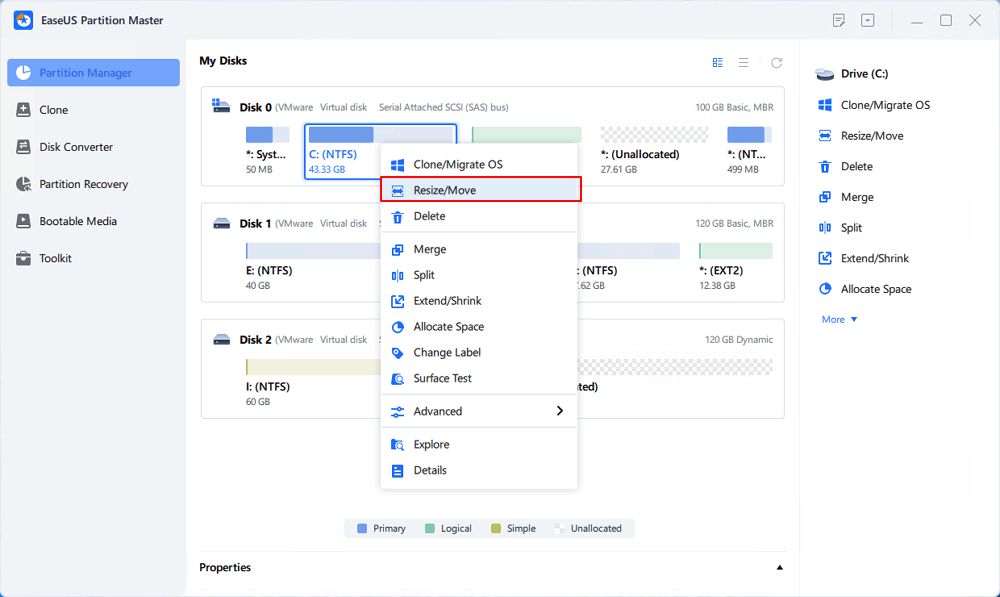
If your hard drive has enough free space but the C drive or another partition is too small, EaseUS Partition Master can help resize or extend the partition without rebuilding the disk. You can also move partitions when unallocated space is not directly next to the partition you want to extend.
Here is how to increase the C drive with EaseUS Partition Master.
Step 1: Free up unallocated space for C drive.
If there is no unallocated space on the system disk, go to Partition Manager and right-click on a partition next to the C: drive and select "Resize/Move".
Drag left panel of the partition to shrink and leave unallocated space behind the system C: drive and click "OK".
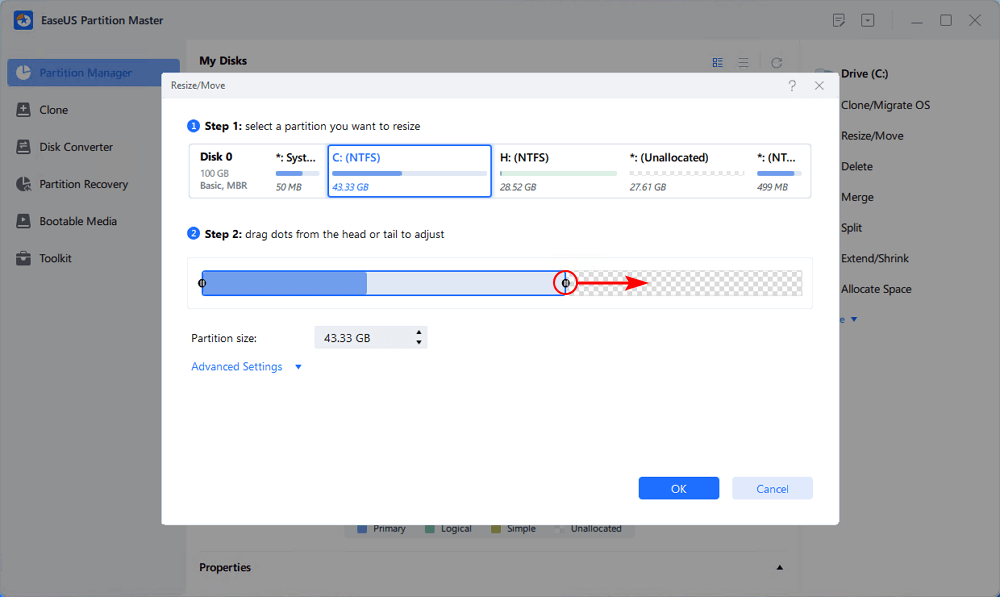
Step 2: Increase C drive space.
1. Right-click on C: drive and select "Resize/Move".
2. Drag the system partition end into unallocated space so to add space to C: drive, or click the "fill in all unallocated" and click "OK".
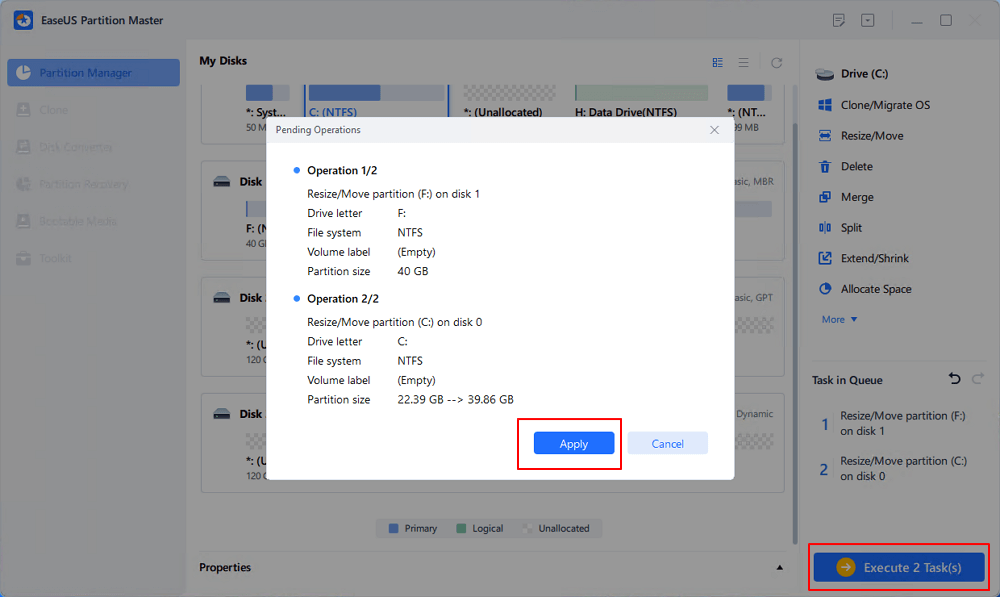
Step 3: Keep all changes to extend C: drive.
Click the "Execute Task" and click "Apply" to keep all changes so to extend the system C: drive.
Fix 3: If the unallocated space is not next to the partition you want to extend, use a partition manager that can move or resize partitions without requiring you to rebuild the entire disk.
Fix 4: If the HDD simply no longer has enough capacity, move your data to a larger HDD or SSD. This is a better long-term solution than constantly deleting files to make room.
Pro tip: Do not wait until the drive reaches 100% capacity. Keep enough free space for Windows, applications, temporary files, and normal file operations.
6. Hard Drive Has Bad Sectors
Bad sectors are a common problem on aging HDDs. They are areas of the disk that cannot reliably store or read data. Affected files might become corrupted, file transfers can get stuck, and Windows might report read or write errors.
A small number of bad sectors does not always mean that the drive is immediately unusable. The bigger concern is whether the number is increasing. Physical bad sectors are usually caused by wear or damage to the disk surface, and software cannot restore those areas to their original condition.
How to Fix It
Fix 1: Run a surface test to check the disk for bad sectors. This gives you a clearer picture of whether the problem is limited to a few areas or is spread across the drive.
Step 1. Open EaseUS Partition Master. Go to Toolkit and select "Bad Sector Scan."
Step 2. Tick "Scan Disk" and choose the target disk from the drop-down menu.
Step 3. Click "Scan" to apply the bad sector scaning process.
Fix 2: Check the file system for logical errors and repair them when possible. This can fix some problems associated with file system corruption, but it does not repair physical damage to the disk.
Fix 3: Check the drive's SMART information to see whether it is reporting reallocated sectors, pending sectors, or other signs of deterioration. Compare the results over time if you regularly monitor the disk.
Fix 4: If bad sectors continue to appear or increase, back up your important files and replace the drive. Do not use a drive with growing bad sectors as the only location for important data.
Pro tip: Do not assume that a successful bad sector repair means the drive is healthy again. A growing number of bad sectors is a strong reason to move important data to another drive.
7. Hard Drive Has File System Errors
File system errors can make files disappear, folders become inaccessible, or the entire partition difficult to use. Windows might also report that the file or directory is corrupted or ask you to format the drive.
An unexpected shutdown or interrupted file transfer can cause a one-time file system problem. If errors keep returning, however, the cause could be bad sectors or a failing disk.
How to Fix It
Fix 1: Back up any files that are still accessible. If the drive is unstable, secure the important data before running repair operations.
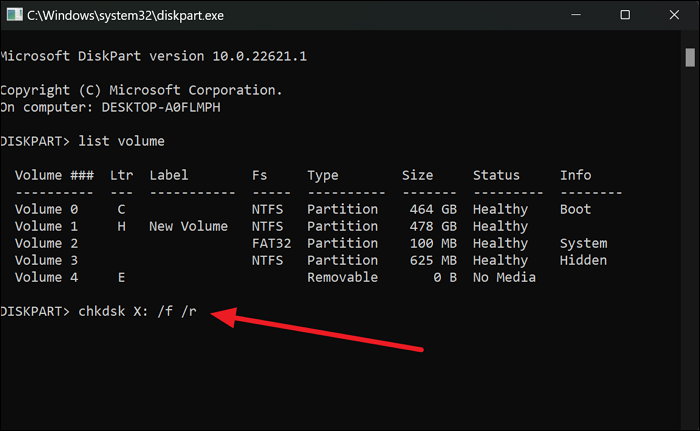
Fix 2: Run CHKDSK or another file system checking tool to look for logical errors. The tool can repair certain file system problems and restore access to some files or folders.
Step 1. Press "Win + X" and select Terminal (Admin).
Step 2. Type "chkdsk X: /f/r" and press Enter. (Replace X with the drive letter you want to check.)
Step 3. Wait for the scan to finish and follow any instructions shown on the screen.
Fix 3: Check the disk for bad sectors if file system errors appear alongside slow performance, freezes, or read errors. This helps determine whether the file system problem is actually caused by a deteriorating disk.
Fix 4: If the same errors return after repair, check the drive's SMART information and overall health. Repeated corruption is a good reason to move your data to another drive.
Pro tip: If the same file system errors return after repair, do not keep repairing the drive indefinitely. Check the disk health and consider replacing the drive.
8. Hard Drive Shows as RAW
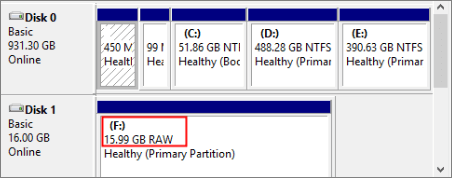
A RAW hard drive is a common headache because Windows can detect the disk but cannot recognize its file system. The partition might appear as RAW in Disk Management, and File Explorer can ask you to format the drive before you can use it.
RAW status can result from file system corruption, partition problems, bad sectors, or hardware failure. It does not automatically mean that all the files are gone.
How to Fix It
Fix 1: Check the drive's capacity and partition status in Disk Management. Also check its health if possible. If the drive has other warning signs, such as bad sectors or frequent disconnections, address those before attempting a repair.
Fix 2: If the files are important, do not format the RAW partition immediately. Use data recovery software to scan the drive and recover the files to another disk.
Fix 3: If the partition structure is damaged, try a partition recovery or repair tool that can identify lost partitions. Avoid writing new data to the affected disk while you are trying to recover the existing files.
Fix 4: After the important data has been recovered, format the RAW partition with the appropriate file system. If the drive has physical problems, replace it rather than continue using it for important data.
Step 1. Open Disk Management.
Step 2. Right-click the RAW partition.
Step 3. Select Format.
Step 4. Choose "NTFS/exFAT" and confirm.
9. Hard Drive Health Is Declining
An old HDD can show several warning signs before it fails completely. You might notice:
- Higher operating temperatures.
- Clicking or grinding sounds.
- More frequent read or write errors.
- Increasing bad sectors.
- SMART warnings.
- Longer response times.
- Frequent disconnections.
- Files becoming corrupted.
These symptoms do not all have the same cause. For example, High temperatures can be related to poor airflow, while clicking or grinding sounds can point to mechanical problems. When several warning signs appear together, the risk is much higher.
How to Fix It
Fix 1: Check the drive's SMART information and temperature. Look for warnings related to bad sectors, read errors, or other health indicators, and keep track of changes instead of relying on a single health check.
Fix 2: Run a surface test if the drive has become slow or unstable. This can help identify areas that are difficult to read and give you more information about the disk's condition.
Fix 3: Improve the drive's operating conditions if it is running too hot. Make sure the computer has adequate airflow and that the drive is not surrounded by dust or blocked ventilation.
Fix 4: If the drive is making new clicking or grinding sounds, avoid putting unnecessary stress on it. Back up important data as soon as possible and consider replacing the HDD.
Fix 5: If SMART warnings, bad sectors, read errors, and other problems continue to increase, stop relying on the drive for important storage. Move your data to a healthy disk and replace the old one.
Before replacing an old hard drive, it is worth checking its condition and securing your data. EaseUS Partition Master provides disk health checks, surface tests, partition management, and disk cloning tools in one place, making it easier to assess an aging drive and move your data to a healthy disk when necessary.
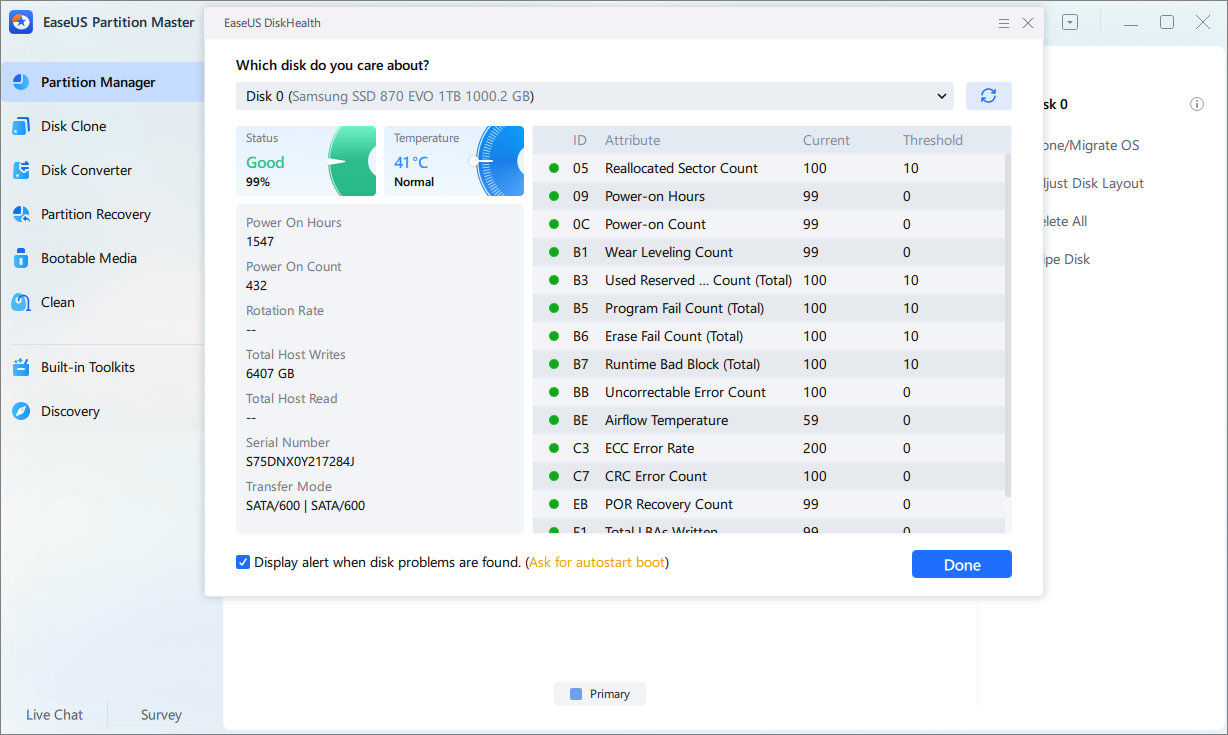
Pro tip: Monitor disk health before a failure happens. Regular checks can give you time to move your files instead of waiting for the drive to stop working.
10. Hard Drive Is Failing or Corrupted
A hard drive might become corrupted or start failing after years of use. You might notice that Windows takes a long time to read the disk, files suddenly become corrupted, folders disappear, or the drive keeps showing errors. In more serious cases, the HDD can freeze the computer, disconnect during file transfers, or stop being detected altogether.
Corruption and hardware failure can also happen together. For example, bad sectors can damage the file system and make the drive appear corrupted. If the drive is also making unusual noises, showing SMART warnings, or becoming slower over time, the problem is more likely to involve physical wear.
How to Fix It
Fix 1: Start by checking whether Windows can still detect and access the drive. Try another USB or SATA connection if the disk is not showing up. You can also check Disk Management to see whether the partition and file system are still recognized.
Fix 2: If you can still access the files, back up important data before attempting repairs. Copy irreplaceable documents, photos, videos, and other important files to another healthy drive first.
Fix 3: Check the drive for file system errors and bad sectors. A file system check can repair certain logical errors, while a surface test can help identify areas of the disk that are difficult to read. Checking the SMART information can also show whether the drive is reporting signs of physical wear.
Fix 4: If the drive is corrupted but the hardware appears stable, try repairing the file system or partition structure. If Windows shows the drive as RAW or asks you to format it, do not format it before recovering important files.
Fix 5: If the drive has increasing bad sectors, repeated read errors, frequent disconnections, or unusual clicking and grinding sounds, stop treating it as a normal repair problem. Move your data to another drive and replace the old HDD. For critical files on a severely damaged drive, professional data recovery can be a safer choice.
One-Click Diagnostics Software for Fast, Safe Disk Management
An old hard drive may develop many problems over time, including slow performance, file system errors, low disk space, and partition issues. Finding the cause is often the first challenge, especially when several problems arise simultaneously.
EaseUS Partition Master brings disk diagnosis, repair, and management tools together in one place. You can check disk health, scan for bad sectors and file system errors, resize or extend partitions, manage MBR/GPT and FAT32/exFAT drives, and clone your data to a new disk when an old drive starts to fail.
🏷️What EaseUS Partition Master helps:
- Check disk health and performance: Monitor drive health, scan for bad sectors, and check SSD 4K alignment.
- Manage disk space: Find low C: drive space, use unallocated space, and resize or extend partitions.
- Manage disk and partition formats: Convert MBR to GPT or FAT32 to exFAT when needed.
- Prepare your system: Check system disk configuration, startup items, and Windows 11 upgrade readiness.
- Protect your data: Find BitLocker recovery keys, clone an aging drive, and create a bootable rescue USB.
🏷️Meet Smart Diagnostics: A Smarter Way to Find Disk Problems:
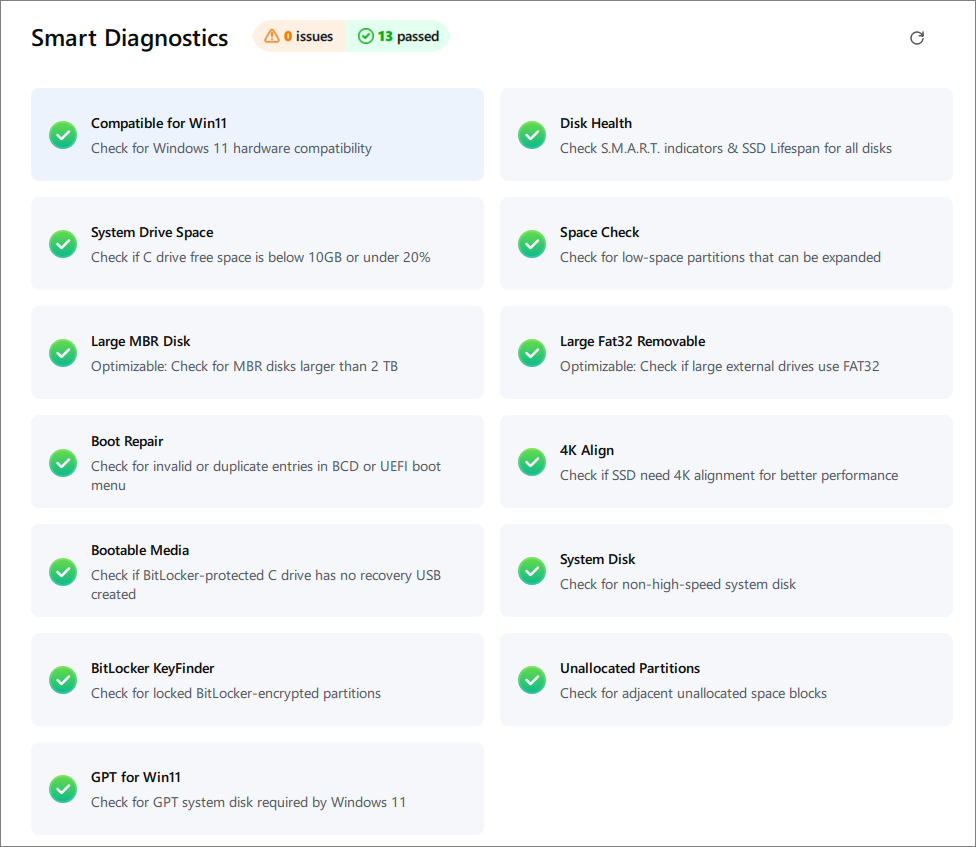
EaseUS Partition Master now goes a step further with its new Smart Diagnostics feature. Instead of checking different disk settings one by one, Smart Diagnostics automatically scans your disks and system for common issues.
After the scan, it turns detected problems into practical actions, guiding you to the right feature to diagnose, manage, or fix each issue.
How Can We Help You
About the Author

Sherly joined EaseUS in 2022 and she has always loved writing articles and enjoys the fun they bring. She receives professional training here, focusing on product performance and other relative knowledge. She has written over 200 articles to help people overcome computing issues.

Written by Joey Albert
Joey is an enthusiast of science and technology. With a passion for uncovering the latest tech innovations, she creates clear, engaging how-to guides that make technology accessible and enjoyable for all.
Product Reviews
-
I love that the changes you make with EaseUS Partition Master Free aren't immediately applied to the disks. It makes it way easier to play out what will happen after you've made all the changes. I also think the overall look and feel of EaseUS Partition Master Free makes whatever you're doing with your computer's partitions easy.
Read More -
Partition Master Free can Resize, Move, Merge, Migrate, and Copy disks or partitions; convert to local, change label, defragment, check and explore partition; and much more. A premium upgrade adds free tech support and the ability to resize dynamic volumes.
Read More -
It won't hot image your drives or align them, but since it's coupled with a partition manager, it allows you do perform many tasks at once, instead of just cloning drives. You can move partitions around, resize them, defragment, and more, along with the other tools you'd expect from a cloning tool.
Read More
Related Articles
-
How to Shrink Partition in Windows 11/10
![Brithny]() Brithny/2026/10/29
Brithny/2026/10/29 -
How to Delete Partition on Windows PC? 3 Ways
![Daisy]() Daisy/2026/10/29
Daisy/2026/10/29 -
Guide on Seagate External Hard Drive Transfer Speed
![Tracy King]() Tracy King/2026/10/29
Tracy King/2026/10/29 -
How Much Disk Space Does Windows 10 Take [Full Explanation]
![Cici]() Cici/2026/10/29
Cici/2026/10/29
 Brithny/2026/10/29
  Daisy/2026/10/29
  Tracy King/2026/10/29
  Cici/2026/10/29









