







Content
Page Table of Contents
About the Author
Hot Topics
Is there any way to clone SSD from BIOS? Sure! You can clone an SSD or a damaged hard drive from BIOS by booting Windows from a bootable USB that contains a disk cloning environment. In this post, EaseUS Software offers a step-by-step guide on cloning an SSD without installing the SSD cloning tool on the PC or booting Windows.
When or Why Need to Clone SSD From BIOS?
Cloning an SSD is usually straightforward until Windows refuses to load or there is not enough space to install a SSD cloner on the source disk. Typically, you need to boot from a USB disk and clone the SSD from the BIOS in the following cases:
- "My SSD is failing and Windows 11 won't load anymore. The system drops straight into BIOS. I want to clone the failing SSD to an external hard drive before total data loss." - From FaceBook
- "I want to clone my old SSD to a larger one, but the disk is completely full. There isn't enough free space to install cloning software inside Windows." - From r/DataHoarder
- "Windows is corrupted or stuck in a boot loop. BIOS detects the SSD correctly, but the OS never loads, making in-system cloning impossible."
- Additional scenarios may include malware-damaged systems, BitLocker-related boot failures, or upgrading to NVMe/M.2 SSDs on systems that no longer boot reliably.
Feel free to share this post and let more users learn why and how to clone SSD without entering Windows or installing SSD cloner on Windows.

How to Clone SSD From BIOS
To clone an SSD from BIOS, you need to create a bootable USB containing a bootable disk cloner for Windows. This section walks through the process step by step, starting with what you must prepare to avoid data loss or cloning failure.
- Stage 1. Preparations
- Stage 2. Create a Bootable USB
- Stage 3. Clone SSD From BIOS
- Stage 4. Boot From the BIOS (Optional)
Stage 1. Preparations
1. A Reliable USB Flash Drive
2. A Disk-Cloning Tool That Supports Bootable USB Creation
EaseUS Partition Master supports bootable USB creation and can clone an SSD in a WinPE environment. It can:
- Create a bootable USB and boot a PC when Windows cannot start
- Clone SSDs, including SATA SSD, M.2 SSD, NVMe SSD, Large Capacity Hard Disk (GPT and MBR Disk)
- Clone damaged or failing disks to external drives when readable
- Support Windows 11/10/8/7XP/Vista
3. A PC That Can Run Properly
If your current computer cannot boot into Windows, you will need another working PC to:
- Install the cloning software
- Create the bootable USB
Once the USB is created, you can return to the non-bootable computer.
4. Prepare the Target Drive in Advance
- If it's an external hard drive or SSD, connect it securely
- If it's a new disk, ensure it has been initialized
- Confirm the drive has enough capacity to hold the source SSD
🔊Learn how to initialize SSD before cloning.
5. Create a Backup in Advance (Strongly Recommended)
All existing data on the destination disk will be erased during the clone, and creating a bootable USB will also wipe the USB drive itself. So back up before proceeding if necessary.
Stage 2. Create a Bootable USB
Using EaseUS Partition Master, you can create a WinPE-based bootable USB drive with the disk cloning feature. This environment allows your PC to run independently of Windows and clone an SSD from the BIOS.
Step 1. To create a bootable disk of EaseUS Partition Master, you should prepare a storage media, like a USB drive, flash drive or a CD/DVD disc. Then, correctly connect the drive to your computer.
Step 2. Launch EaseUS Partition Master, and find the "Bootable Media" feature on the left. Click on it.
Step 3. You can choose the USB or CD/DVD when the drive is available. However, if you do not have a storage device at hand, you can also save the ISO file to a local drive, and later burn it to a storage media. Once made the option, click the "Create" button to begin.
- Check the Warning message and click "Yes".
Step 4. When the process finishes, you'll see a pop up window, asking if you want to restart computer from the bootable USB.
- Reboot Now: it means you want to restart the current PC and enter EaseUS Bootable Media to manage your disk partitions without OS.
- Done: it means you don't want to restart the current PC but to use the bootable USB on a new PC.
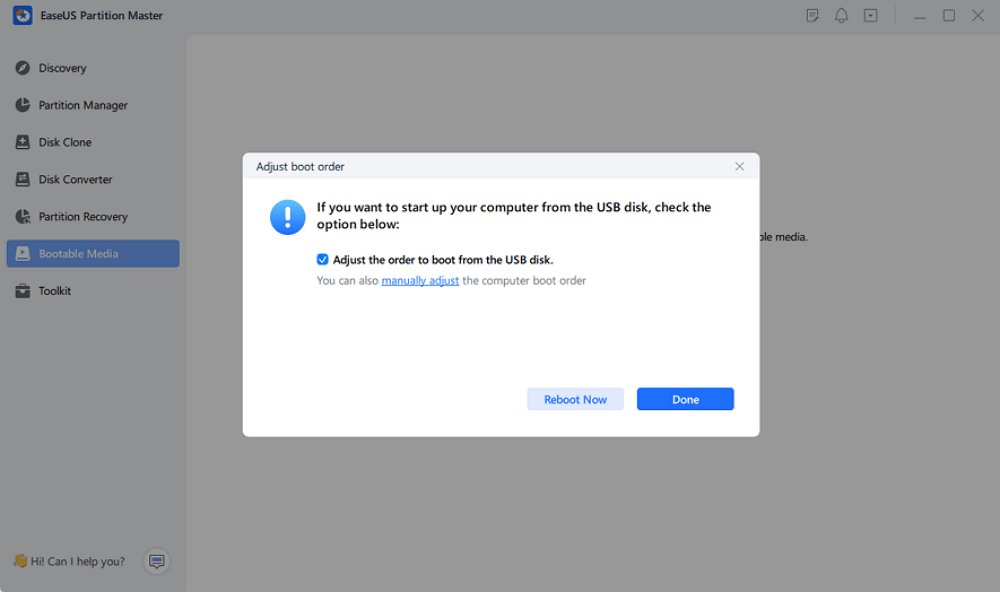
Note: To use the bootable disk on a new PC, you need to resart the target computer and press F2/F8/Del key to enter BIOS, and set the USB bootable disk as the first boot disk.
Wait patitiently and your computer will automatically boot up from the USB bootable media and enter EaseUS WinPE desktop.
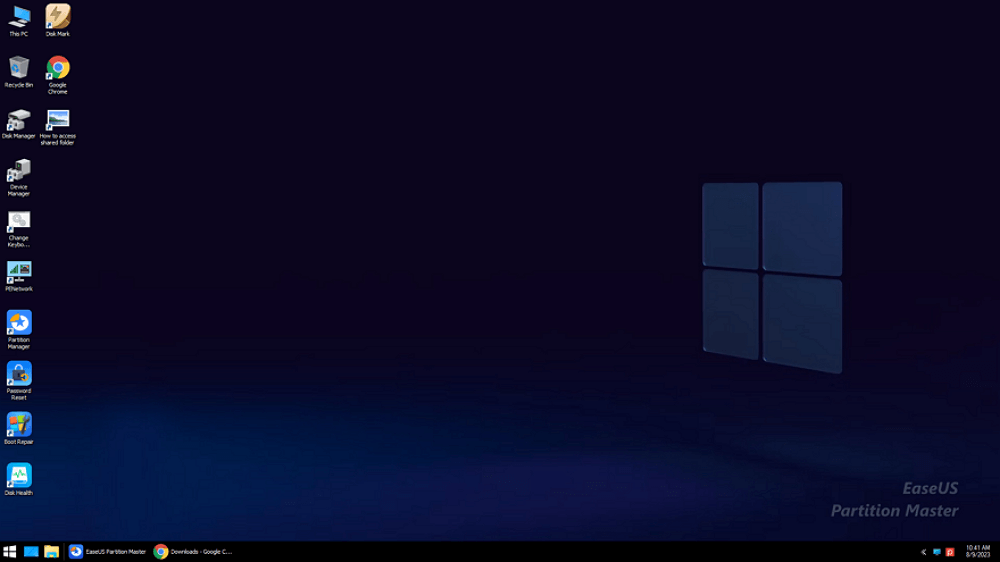
Connect the bootable disk USB to the computer on which you want to clone the SSD, and set the computer to boot from the bootable disk by changing the boot order in BIOS.
Stage 3. Clone SSD From BIOS
Launch EaseUS Partition Master and follow the steps below to begin:
Step 1. Select the source disk.
- Click the "Clone" from the left menu. Select the "Clone OS Disk" or "Clone Data Disk" and click "Next".
- Choose the source disk and click "Next".
Step 2. Select the target disk.
- Choose the wanted HDD/SSD as your destination and click "Next" to continue.
- Read Warning message and confirm "Yes" button.
Step 3. View the disk layout and edit the target disk partition size.
Then click "Continue" when the program warns it will wipe out all data on the target disk. (If you have valuable data on the target disk, back up it in advance.)
You can select "Autofit the disk", "Clone as the source" or "Edit disk layout" to customize your disk layout. (Select the last one if you want to leave more space for C drive.)
Step 4. Click "Start" to start the disk cloning process.
Stage 4. Boot From New SSD/HDD (Optional)
If you cloned the system disk and want to boot from the new drive, you need to change the boot order in BIOS. Here is how to set the new disk as the boot drive.
Step 1. Restart your computer. When the startup screen appears, press the F2/F12/DEL key repeatedly to enter the BIOS. (Different brands have different boot menu keys; contact the manufacturer to learn the exact keys.)
Step 2. Next, use the arrow keys to select the "Boot" tab, then choose the cloned SSD as the first boot option.
Step 3. Press F10 to save and exit the BIOS, then restart your computer.
Common Problems After Cloning an SSD (And How to Fix Them)
Even when cloning succeeds, boot issues may still occur. Understanding the causes helps you resolve them quickly.
1️⃣BIOS Detects the SSD But Windows Won't Load
Possible causes:
- EFI partition is missing or mismatched
- Secure Boot is blocking an unsigned bootloader
Solution:
- Verify EFI partition cloning
- Temporarily disable Secure Boot in BIOS
2️⃣The Cloning Is Stuck
Possible causes:
- GPT/MBR partition style mismatch
- Incorrect boot mode (UEFI vs Legacy)
Solution:
- Match the boot mode with the source disk
- Ensure partition style consistency
3️⃣Cloned SSD Won't Boot
Possible causes:
- The system boot files were not correctly copied or are missing from the cloned SSD.
- The cloned disk is set to the wrong partition style (e.g., MBR vs. GPT) for the system's boot mode.
- BIOS is still configured to boot from the old disk instead of the new SSD.
Solutions:
- Reclone the SSD using a reliable cloning tool, ensuring only the target drive is connected during the process.
- Check that the SSD's partition style matches the system's boot mode (UEFI requires GPT; Legacy BIOS requires MBR).
- In BIOS, set the cloned SSD as the primary boot drive.
- If boot files are missing or corrupted, rebuild the boot configuration using Windows recovery tools or command prompt commands such as bootrec /fixmbr, bootrec /fixboot, and bootrec /rebuildbcd.
But no worry. Not everyone will meet errors above; using a reliable cloning tool such as EaseUS Partition Master and applying the correct BIOS settings can prevent most of these issues entirely.
Conclusion
Cloning an SSD from the BIOS using a bootable USB is a practical and efficient solution when Windows cannot start, or there is not enough space to install cloning software. By creating a bootable environment with a reliable disk cloning tool such as EaseUS Partition Master, users can clone or back up their systems in a WinPE environment without entering Windows. This approach is suitable for situations like system corruption, disk failure, or SSD upgrades. Although the cloning process is generally stable, issues such as incorrect boot modes, partition mismatches, or missing EFI partitions can cause post-cloning boot errors.
FAQs About How to Clone SSD in BIOS
1. Can I clone an SSD from BIOS without Windows installed?
Yes, but not directly. BIOS can only boot a system. You must use a bootable USB that contains disk-cloning software capable of running without Windows.
2. Is it possible to clone a failing SSD to an external hard drive?
If the SSD is still readable, yes. A bootable cloning environment can copy accessible data even when Windows cannot start.
3. Why does BIOS see my SSD but Windows won't boot after cloning?
This is usually caused by EFI partition issues, Secure Boot restrictions, or incorrect boot mode settings.
4. Is cloning better than reinstalling Windows in this case?
In most scenarios, yes. Cloning preserves applications, settings, and user data, while reinstalling Windows requires full reconfiguration.
5. Do I need to initialize the target disk before cloning?
Yes. Initialization ensures the disk structure is ready to receive partitions and boot data, reducing the risk of cloning failure.
How Can We Help You
About the Author

Sherly joined EaseUS in 2022 and she has always loved writing articles and enjoys the fun they bring. She receives professional training here, focusing on product performance and other relative knowledge. She has written over 200 articles to help people overcome computing issues.
Product Reviews
-
I love that the changes you make with EaseUS Partition Master Free aren't immediately applied to the disks. It makes it way easier to play out what will happen after you've made all the changes. I also think the overall look and feel of EaseUS Partition Master Free makes whatever you're doing with your computer's partitions easy.
Read More -
Partition Master Free can Resize, Move, Merge, Migrate, and Copy disks or partitions; convert to local, change label, defragment, check and explore partition; and much more. A premium upgrade adds free tech support and the ability to resize dynamic volumes.
Read More -
It won't hot image your drives or align them, but since it's coupled with a partition manager, it allows you do perform many tasks at once, instead of just cloning drives. You can move partitions around, resize them, defragment, and more, along with the other tools you'd expect from a cloning tool.
Read More
Related Articles
-
How to Clone Windows 10 to SSD Without Software
![author icon]() Larissa/2026/09/24
Larissa/2026/09/24 -
Can You Clone an M.2 SSD with Only One Slot? Yes — Here's the Trick
![author icon]() Larissa/2026/09/22
Larissa/2026/09/22 -
Can I Clone BitLocker Encrypted Drive Without Disabling It? Yes! [3 Minutes Guide]
![author icon]() Tracy King/2026/08/14
Tracy King/2026/08/14 -
Need a Macrium Reflect Alternative for Easier Disk Cloning? Here Is It!
![author icon]() Jerry/2026/09/22
Jerry/2026/09/22
 Larissa/2026/09/24
  Tracy King/2026/08/14
  Jerry/2026/09/22









