- EaseUS Freeware
- Free Data Recovery Software
- Free Backup Software
- Free Partition Manager

Updated on Apr 22, 2019 by Jean to Todo Backup Resource
- Summary:
- This guide provides tried and true tips to make SanDisk drive bootable so that you can carry it anywhere along with your own personalized operating system. Either using a third-party tool or the Windows Diskpart can do you a favor.
Why Do You Create a SanDisk Bootable Drive
Any media, whether it's a USB drive, CD, or DVD is bootable if you can use it to boot your computer from the USB drive or disc, instead of the computer’s hard drive. Thanks to the development of digital technology, you can say goodbye to installing an operating system from a CD. Nowadays, you are able to make a bootable USB.
Owning a bootable USB drive is necessary.
First of all, it allows you to save your personalized Windows OS and use it on any compatible device without changing your personal settings and files along with you.
Secondly, it enables you to keep your work and home entertainment separately if you use the same PC for them.
Thirdly, you can still boot into your computer even when your computer is faced with a system crash.
Therefore, if it's possible, we strongly suggest every one of you create a bootable media in hand, let it be from SanDisk, Lexar, Toshiba, PNY or other brands.
Two Ways to Make SanDisk Bootable
Generally, there are two ways to make SanDisk drive bootable in Windows 10/8.1/8/7, which is either by Diskpart command line or a third-party USB bootable software.
PAGE CONTENT:
- Method 1. Make SanDisk Cruzer USB Bootable with EaseUS
- Method 2. Using Diskpart Command to Create a Bootable USB
Using Diskpart actually is using command line prompts. It is more complicated and every operation is irreversible. The action will be executed right after you press the Enter Key. But it is still useful for advanced users. Before you take this method into account, read the easier one first - Using EaseUS Todo Backup.
This easy-to-use software can not only make SanDisk USB bootable but also can make any other brand of USB drive bootable as long as the external device has enough space.
Tips:
- Use a SanDisk external hard drive to create a bootable USB drive.
- The USB flash drive and pen drive are not able to help. For almost 99% of the Windows systems must have two partitions, the system partition, and the boot partition.
- If you clone Windows 10/8/7 to a USB flash drive or pen drive, only the first partition can be accessed. In this case, it cannot boot at all. So you must use an external hard drive!!
Method 1. Make SanDisk Cruzer USB Bootable with EaseUS
Step 1. Launch EaseUS Todo Backup. Expand the menu and click "System Clone" in the lower position.
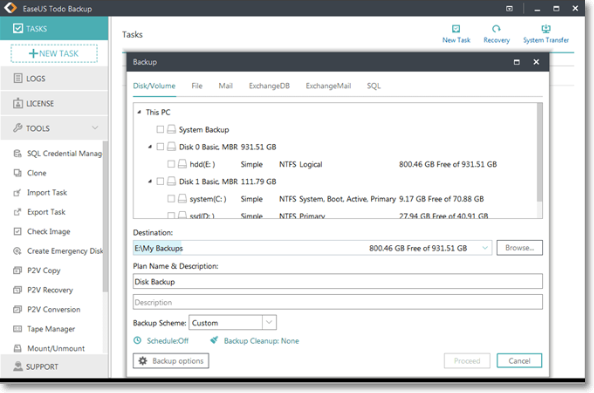
Step 2. On the "System clone" window, the software will choose the system partition and boot partition by default. Just Choose the USB drive as the destination disk.
Click on "Advanced options" and then "Create Portable Windows USB drive". Click "OK".
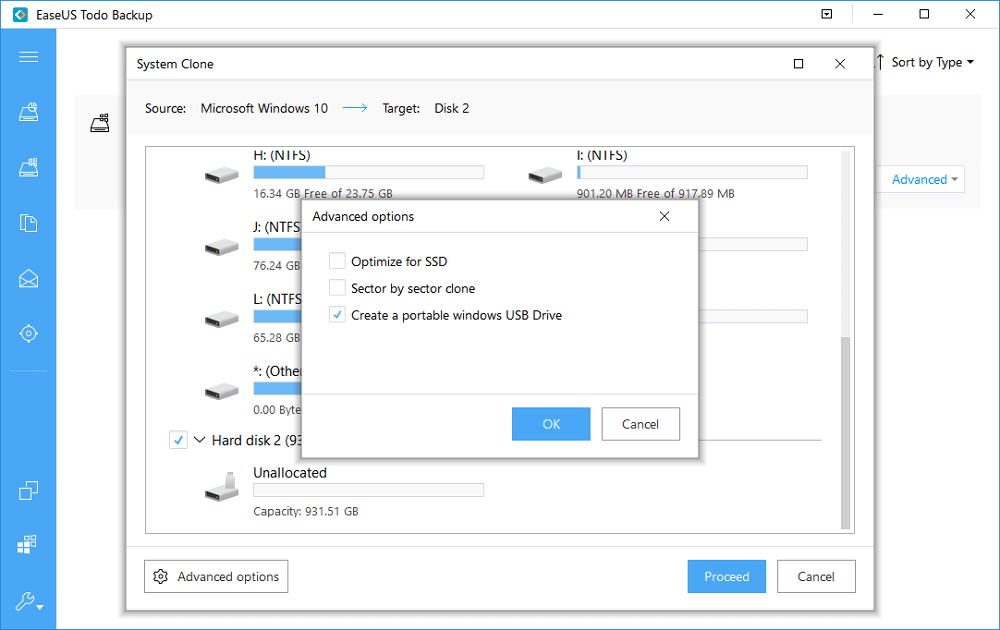
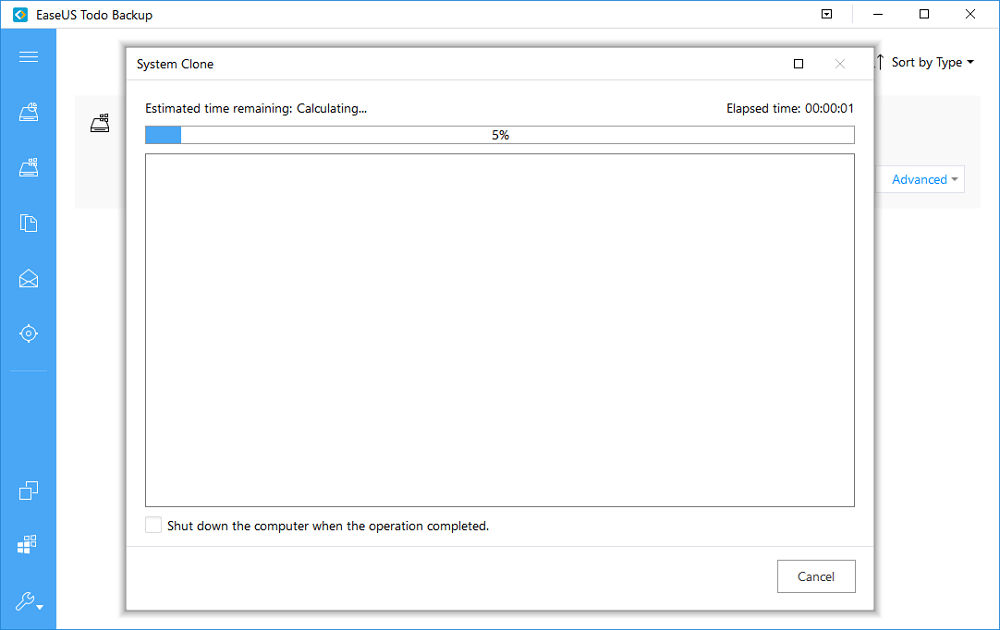
Click "Proceed". The software will start immediately cloning the default partitions of your desktop/laptop to the USB drive. After the cloning process is over, you can safely plug the USB drive out.
Step 3. To boot the cloned system from the USB drive on other Windows devices, just connect the drive to the device. After the connection,
Wait for the computer configuring system settings and you will finally arrive at the desktop screen that's exactly the same with that of the cloned system.
Put the "username" and "password" of the cloned system.
Done. You should now successfully enter the cloned system.
Method 2. Using Diskpart Command to Create a Bootable USB
Notice:
- You need to press Enter key each time after you type the command order.
- Do remember to back up the system or important data before you take actions. The action below may cause data loss.
1. Insert the SanDisk USB drive into the running computer. Open Command Prompt window as an administrator and type diskpart.
2. Type these commands in order, list disk (find out the disk number of your SanDisk USB drive) > select disk X (X represents the USB drive’s number) > clean > create partition primary > select partition 1 > assign letter=N > select partition N > format fs=ntfs quick (if your SanDisk USB drive supports UEFI, then type format fs=fat32 quick) > active >exit.
3. Save your prepared custom image to the root of the USB drive.
Related Articles - ALSO ON EaseUS SOFTWARE
-
Automatically Copy Files from One Folder to Another Easily
2017-10-24 16:22:28

Brithny - Are you wasting too much time when you copy files from one folder to another? Download the best backup software here to …
-
How to Move Windows 8/8.1 to SSD Without Reinstalling Windows and Applications
2016-06-17 13:43:28

Daisy - This article shows how to move Windows 8/8.1/10 system from HDD to SSD with reliable backup and clone software - EaseUS …
-
Automatic SSD Backup: How to Backup SSD to HDD Automatically
2018-04-23 14:55:45
Brithny - Automatic backup SSD (Solid State Drive) is necessary, especially after migrating operating system (OS) to your SSD. Fol…
-
Free Backup iTunes Library Media Files to External Hard Drive on Windows/Mac 2017
2017-07-26 15:20:40

Tracy King - Need a simple and easy way to move and backup your iTunes media library to external hard drive? This article will provid…