


Content
Page Table of Contents
About the Author
Hot Topics

Updated on Jun 17, 2026
Running out of space on the C drive? When the system drive gets too full, Windows can slow down, updates may fail, and everyday tasks start feeling less reliable. If your D drive still has plenty of room, you can move the space from D drive to C drive. Follow this guide, and you'll get 2 ways to increase C drive from D drive.
What to Check Before You Increase C Drive From D Drive
To increase C drive from D drive, you might have the following questions:
- Can you directly move space from drive D to drive C?
- Will data on drive D be lost after resizing?
- Do the partitions have to be adjacent or on the same physical hard drive?
- Can the system's built-in disk management system complete this?
Please note that you are not copying files from one drive to another when you move space from D drive to C drive. You are resizing partitions, so Windows can use the extra space on the system drive. In many cases, this only works smoothly when the disk layout allows it. For example, if you use Disk Management, you can only adjust the unallocated space that is right next to C drive. If the layout is more complicated, the built-in tools may not be enough.
Before changing partitions, take a few minutes to check a few important things.
- Back up your important files. Any disk operation carries some risk.
- Make sure C and D are on the same physical drive. You cannot directly transfer space from one disk to another.
- Check the partition layout. If another partition is between C and D, Windows Disk Management may not let you extend C drive. In that case, Use Method 1.
How to Increase C Drive From D Drive Windows 11/10/8/7
There are two ways to increase C drive from D drive. You can use Windows built-in Disk Management, or EaseUS Partition Master when the built-in option is not enough.
Method 1. EaseUS Partition Master
|
Apply to:
|
EaseUS Partition Master is a more flexible solution when you want to increase C drive from D drive. It is a dedicated disk and partition manager that helps you resize partitions, move unallocated space, and extend C drive. This tool is a better choice for users who want a safer, easier way to manage disk space on Windows 11/10/8/7. EaseUS Partition Master is a professional partition manager for all levels of Windows users. It is best if you want a simpler way to manage partition changes.
What EaseUS Partition Master help with when increasing C drive?
- The unallocated space is not next to C drive.
- Extend C drive space with non-adjacent unallocated space.
- Another partition is blocking the extension.
- Don't require deleting partitions or reinstalling Windows.
Here is how to increase C drive from D drive with EaseUS Partition Master.
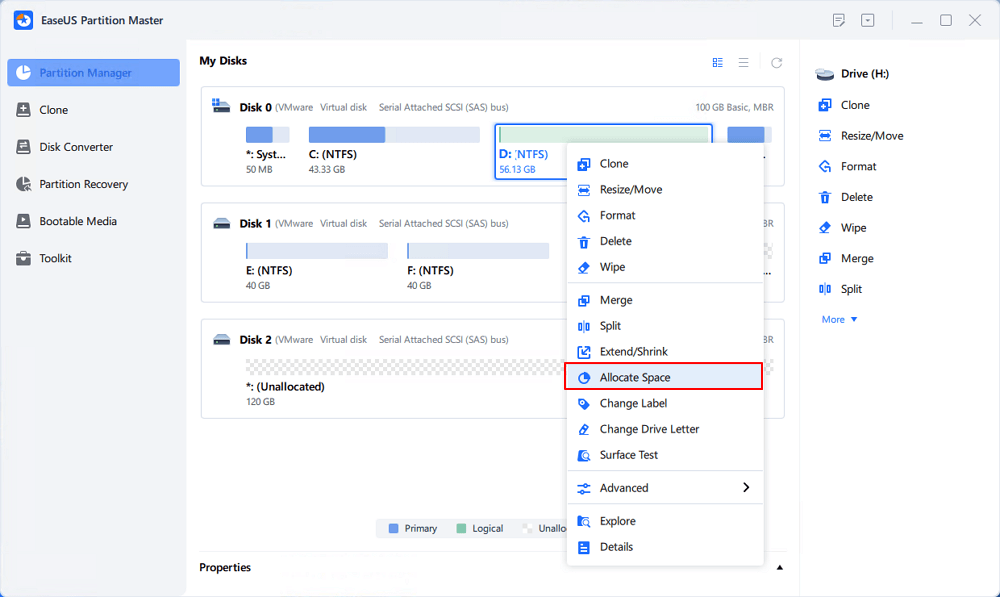
Step 1. Right-click on the D: partition with enough free space and select "Allocate Space".
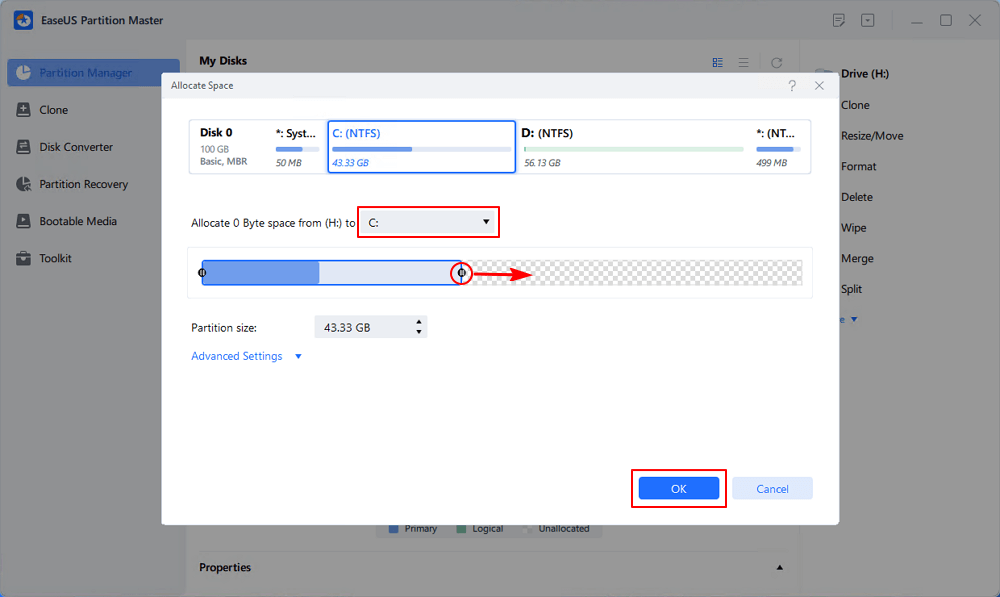
Step 2. Select the target partition - C: drive and drag the partition panel rightward to add the free space from D: drive to C: drive. Then click "OK" to confirm.
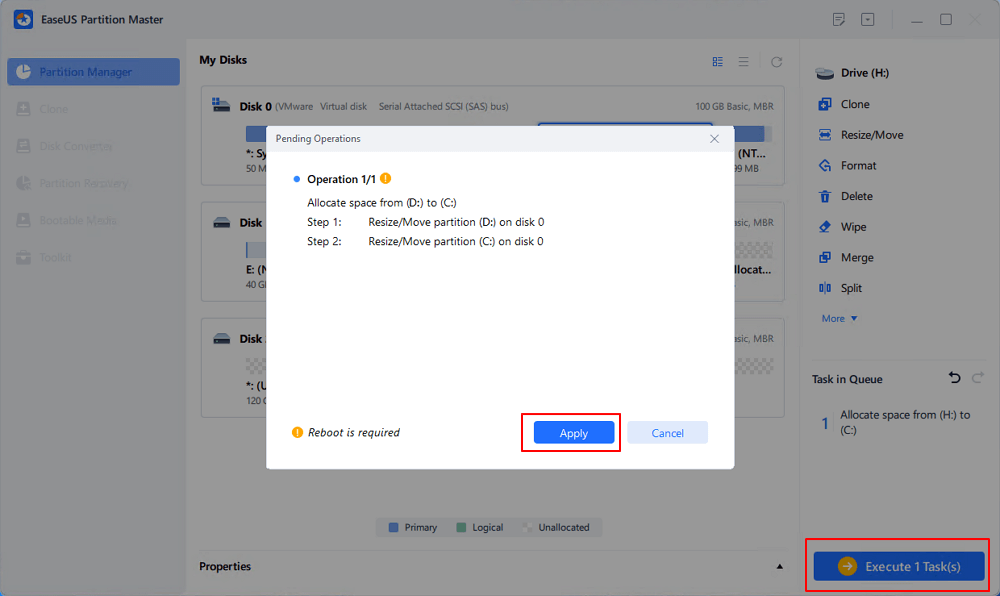
Step 3. Click the "Execute Task" button and click "Apply" to start the process of moving free space from D: drive to C: drive.
Method 2. Windows Disk Management
|
Apply to:
|
Another way to extend C drive from D drive is by using Disk Management. It is a built-in Windows tool that can shrink one partition and extend another. You can increase the C drive by using its "Extend Volume" feature.
📝Note: Backup all important data on both C: and especially D: drives. Because this method will delete all the files on the D drive.
How to increase C drive from D drive with Disk Management:
Step 1. Right-click the Start button and open Disk Management.
Step 2. Right-click the D partition and choose Delete Volume.
This creates adjacent unallocated space, which is required for extending the C drive. D drive will now turn into unallocated space right next to C.
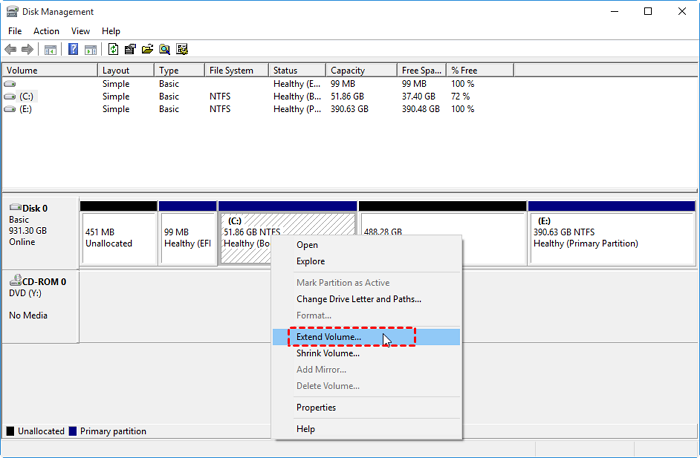
Step 3. Right-click the C: drive and choose Extend Volume.
Step 4. Follow the wizard to add the space to your C drive.
💡Bonus: There are two situations when you use Disk Management:
1️⃣There is adjacent Unallocated Space to C drive.

In this case, you can extend C drive using the unallocated space.
2️⃣There is no adjacent unallocated space to C drive

If the unallocated space is not next to C drive, the Extend Volume option is grayed out. In this case, Disk Management cannot extend C drive unless you delete the entire D partition to create unallocated space. Instead, use EaseUS Partition Master.
Common Issues Troubleshooting
When trying to increase C drive from D drive, you may run into specific issues. Don't worry, there are the most common issues and how to fix them:
1. Extend Volume Option is Greyed Out
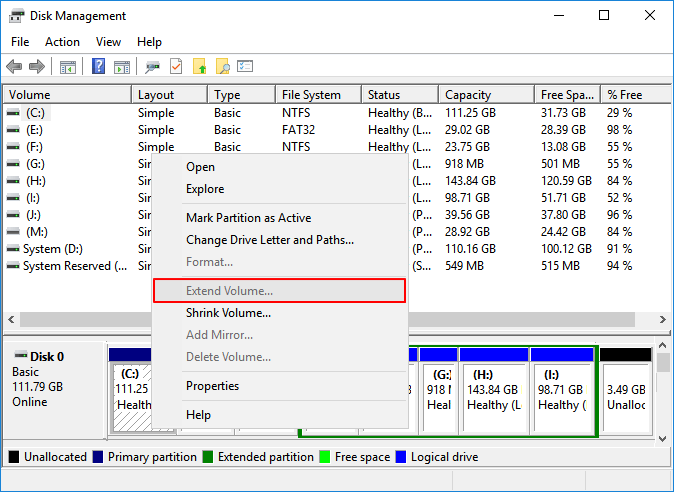
Common reasons:
- Unallocated space is not next to C drive.
- There's a recovery partition or system reserved partition between C and the free space.
- C drive is not the last partition on the disk.
Quick fixes:
- Check your disk layout in Disk Management. Disk Management cannot move partitions.
- If unallocated space appears on the right side of D drive > switch to EaseUS Partition Master.
2. C and D Are on Different Physical Disks
Common reasons:
- You can't merge C and D on different disks.
Quick fixes:
- Use Storage Spaces to check space.
- Clean up C drive space first.
- Move files from C drive to D drive to free up C drive space.
- Migrate Windows to a larger SSD.
3. Process Gets Stuck or Freezes
Common reasons:
- Partition tools often show 0% progress for 10-15 minutes.
- There are some small bugs.
Quick fixes:
- Wait 30+ minutes for large resizing.
- Hard reboot > check disk health.
4. C Drive is Still Full After Extending
Quick fixes:
- Move large personal files to D whenever possible.
- Store large personal files on D instead of C.
- Uninstall apps you do not use.
- Clear temporary files regularly.
Does this guide help? Share it to help more users learn how to increase C drive.

Conclusion
If your C drive is running low on space, you can add space to C drive from D drive. To increase C drive from D drive, you can apply two methods. In simple cases, Windows Disk Management may be enough. If that does not work, EaseUS Partition Master gives you a more flexible way to shrink D and extend C safely. With the right approach, you can increase C drive space without reinstalling Windows or risking your files.
FAQs
1. Can I increase C drive from D drive without formatting?
Yes, you can increase C drive from D drive without formatting. EaseUS Partition Master offers a simple way to extend C drive without data loss.
2. Why can't I extend C drive in Windows?
The most common reason is that the unallocated space is not directly next to C. Windows Disk Management is limited in how it can move partitions around.
3. Is it safe to shrink D drive?
Yes, it's safe. With EaseUS Partition Master, you won't lose data on the D drive. The main risk comes from unexpected power loss, disk issues, or user error.
How Can We Help You
About the Author
Updated by Joey Albert
Joey is an enthusiast of science and technology. With a passion for uncovering the latest tech innovations, she creates clear, engaging how-to guides that make technology accessible and enjoyable for all.
Product Reviews
-
I love that the changes you make with EaseUS Partition Master Free aren't immediately applied to the disks. It makes it way easier to play out what will happen after you've made all the changes. I also think the overall look and feel of EaseUS Partition Master Free makes whatever you're doing with your computer's partitions easy.
Read More -
Partition Master Free can Resize, Move, Merge, Migrate, and Copy disks or partitions; convert to local, change label, defragment, check and explore partition; and much more. A premium upgrade adds free tech support and the ability to resize dynamic volumes.
Read More -
It won't hot image your drives or align them, but since it's coupled with a partition manager, it allows you do perform many tasks at once, instead of just cloning drives. You can move partitions around, resize them, defragment, and more, along with the other tools you'd expect from a cloning tool.
Read More
Related Articles
-
How to Clean C Drive Without Losing Data in Windows 11 (Safe & Easy Guide)
![author icon]() Sherly/2026/06/17
Sherly/2026/06/17 -
Solved: C Drive Full and Out of Space in Windows 11/10/8/7
![author icon]() Jean/2026/06/30
Jean/2026/06/30 -
How to Extend C Drive Space in Windows 11 [2026 Tutorial]
![author icon]() Tracy King/2026/07/01
Tracy King/2026/07/01 -
How to Format C Drive from BIOS - 3 Methods
![author icon]() Joey Albert/2026/06/30
Joey Albert/2026/06/30
 Sherly/2026/06/17
  Jean/2026/06/30
  Tracy King/2026/07/01









