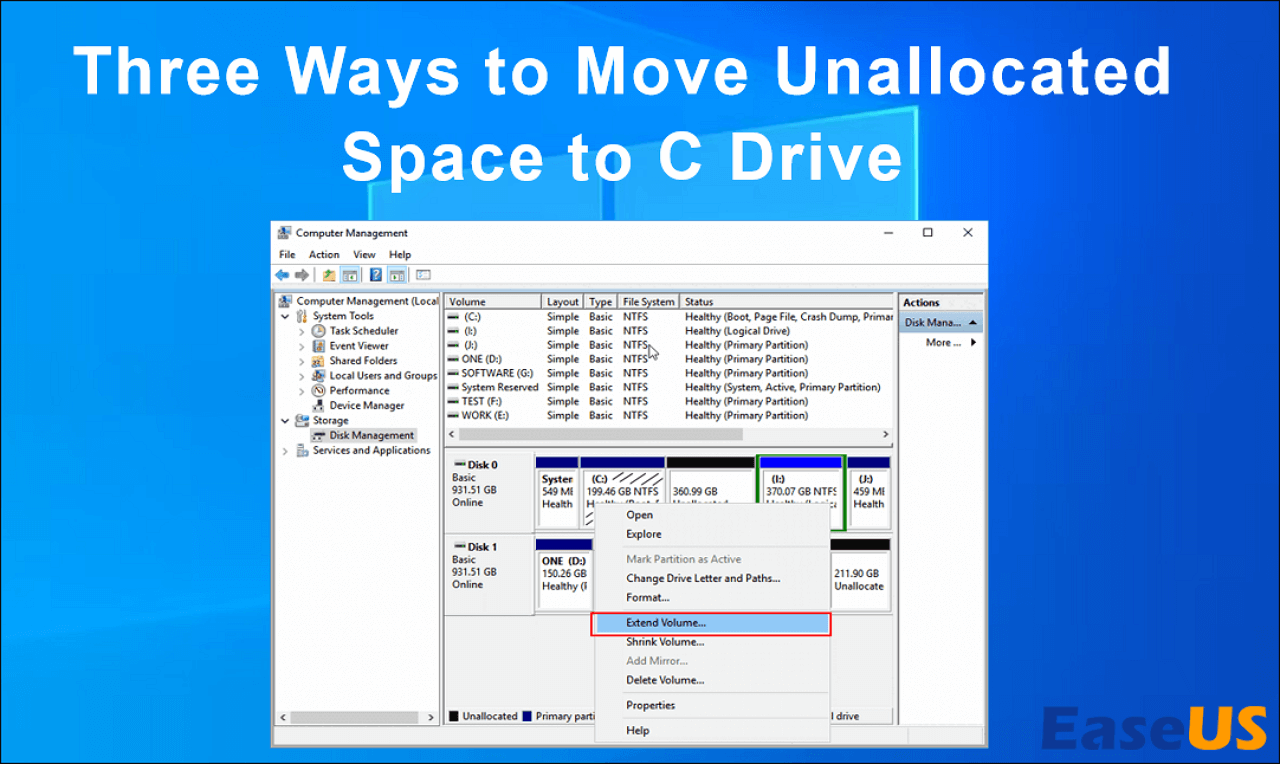
Move Unallocated Space Next to C Drive in Windows 10/11/8/7
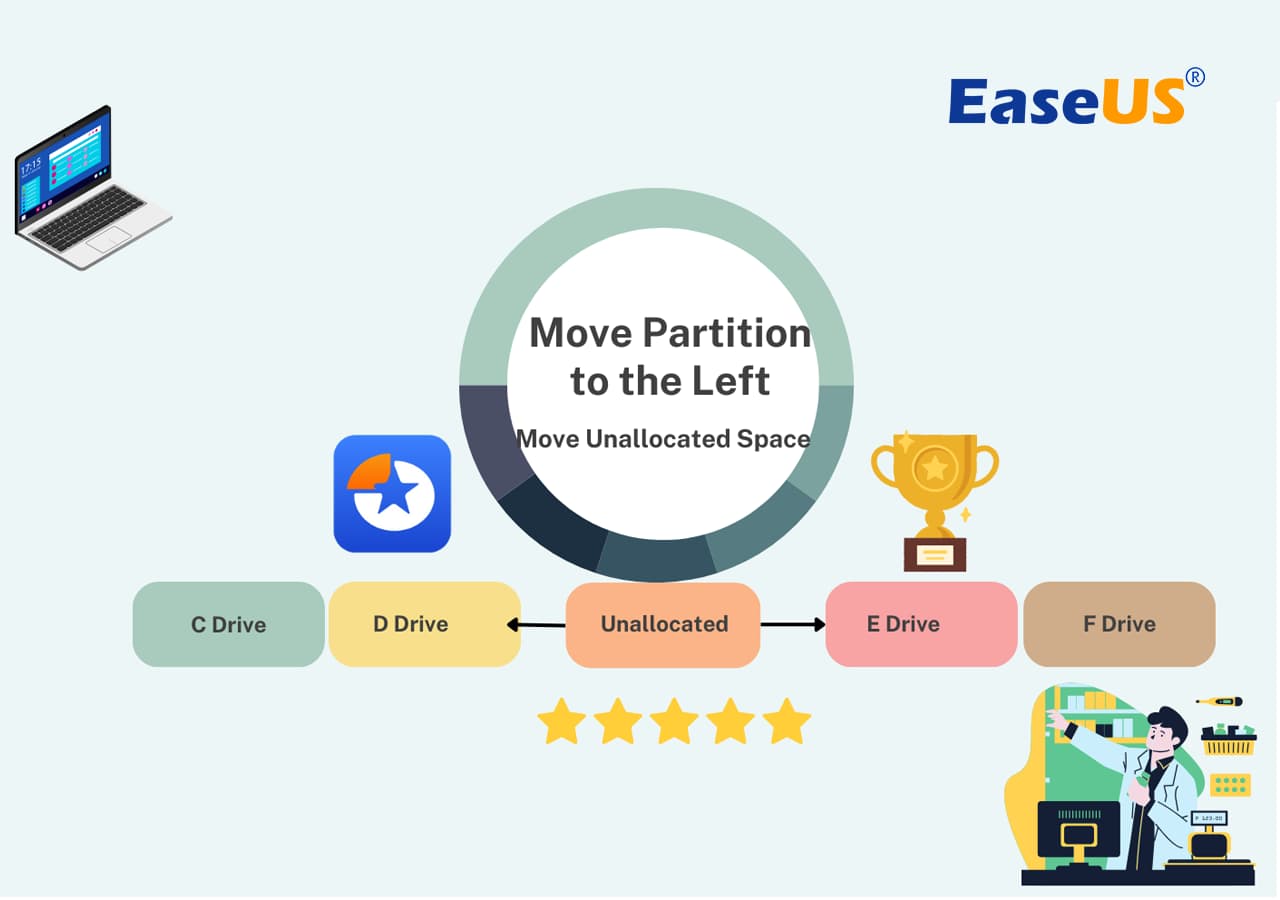
This article provides a detailed guide on how to move unallocated space next to C drive and introduces three ways to help you transfer unallocated space to C drive.
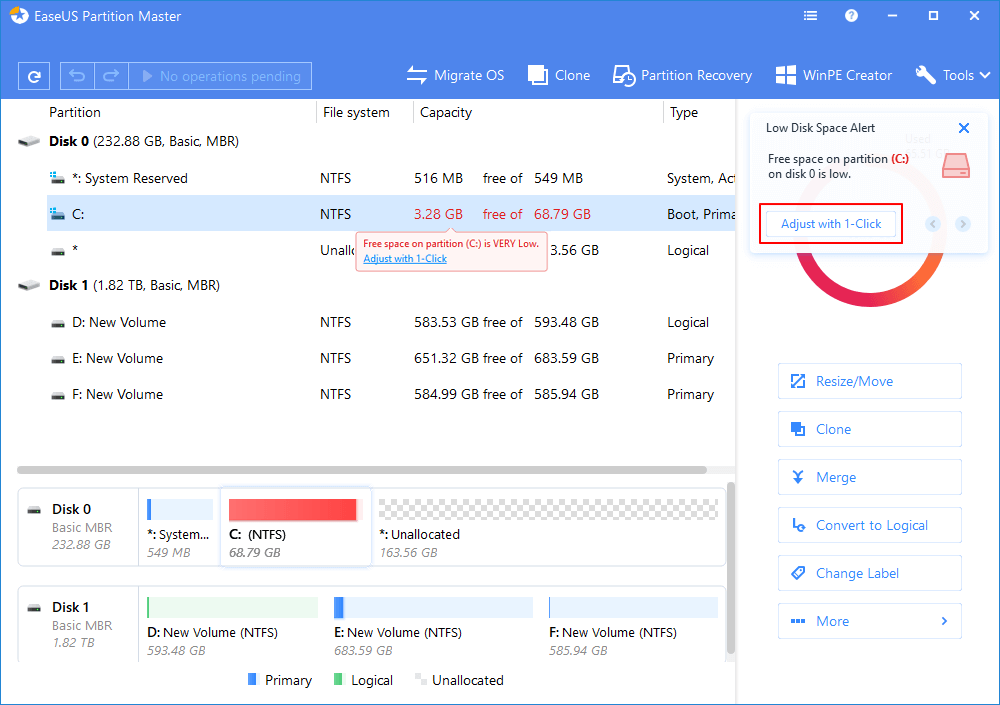
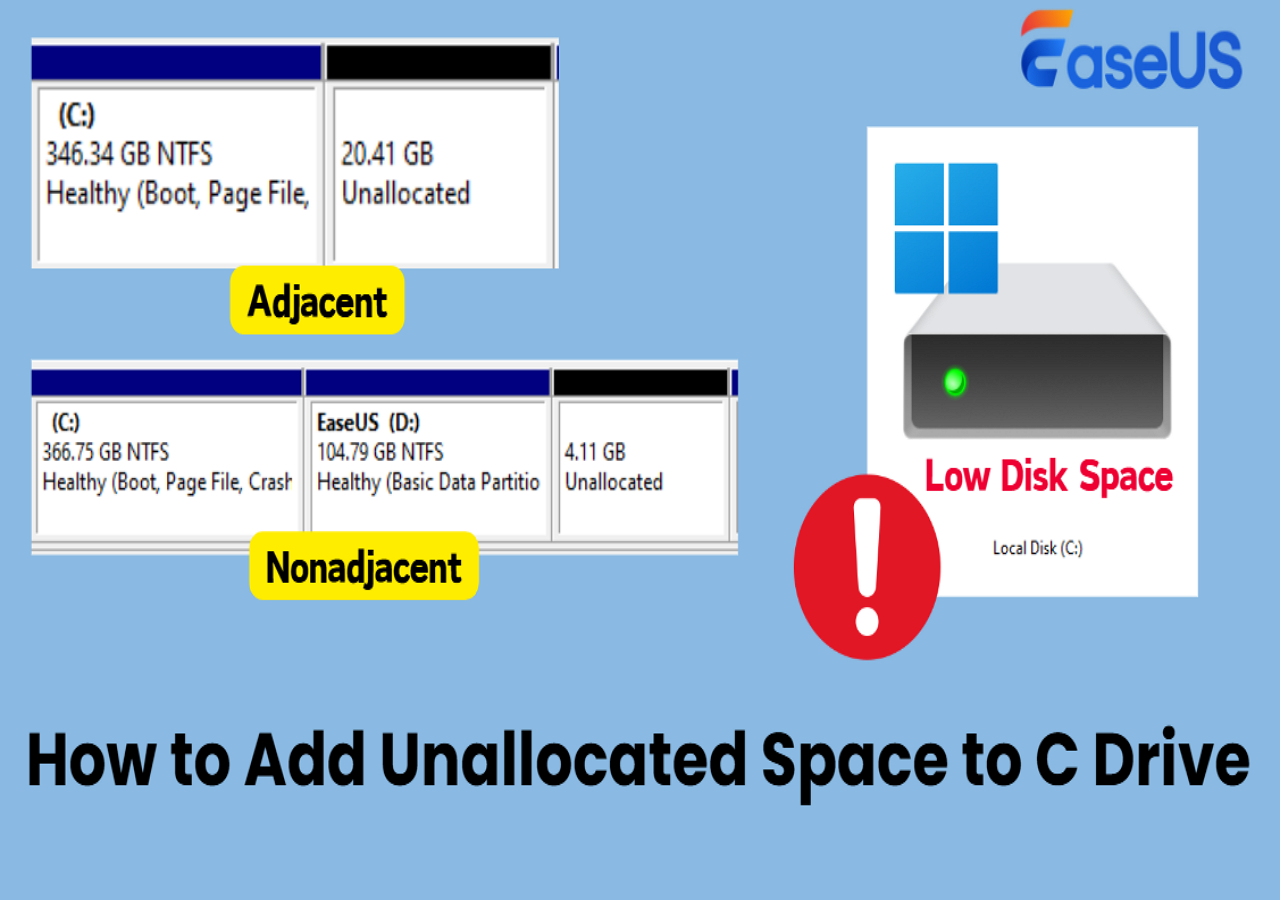
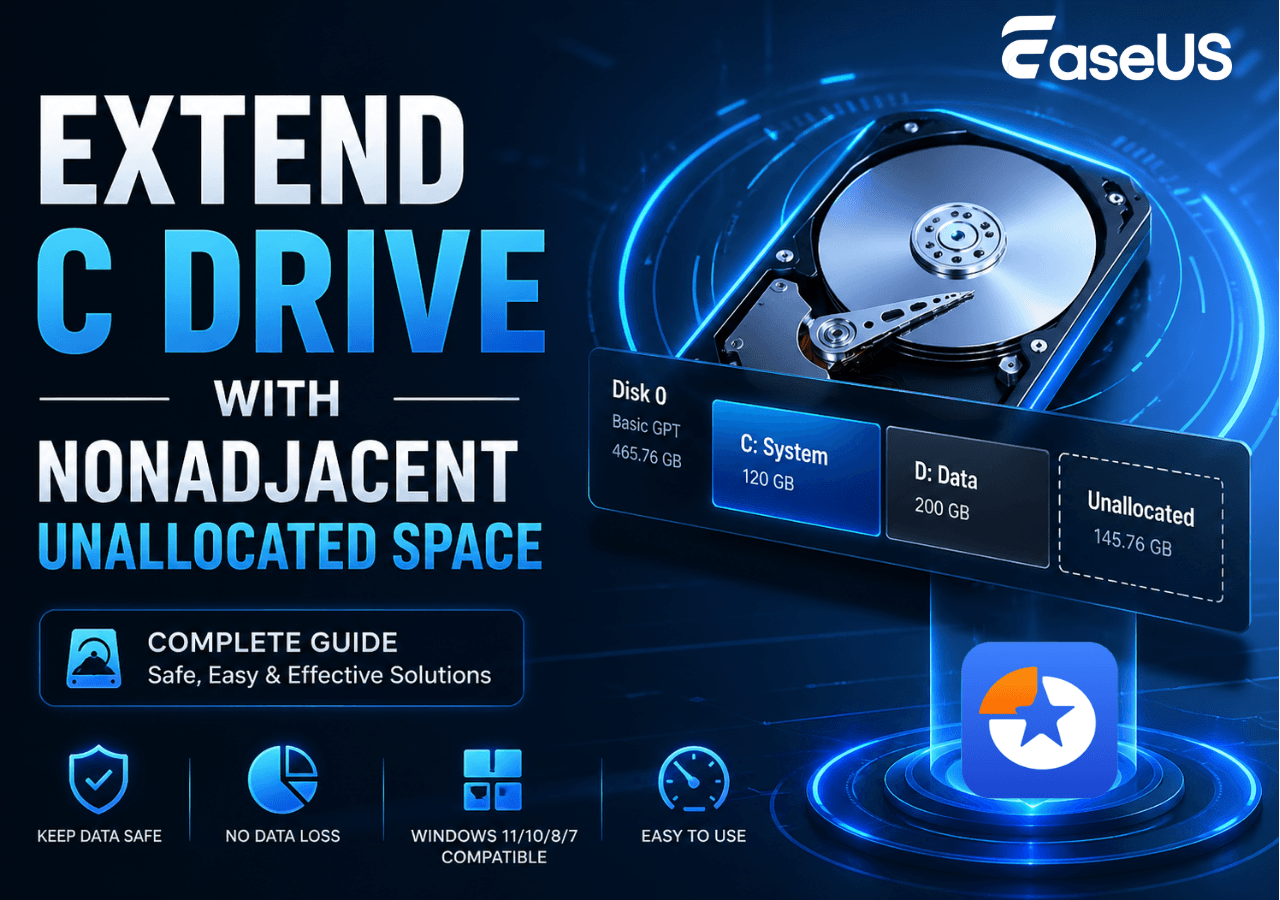
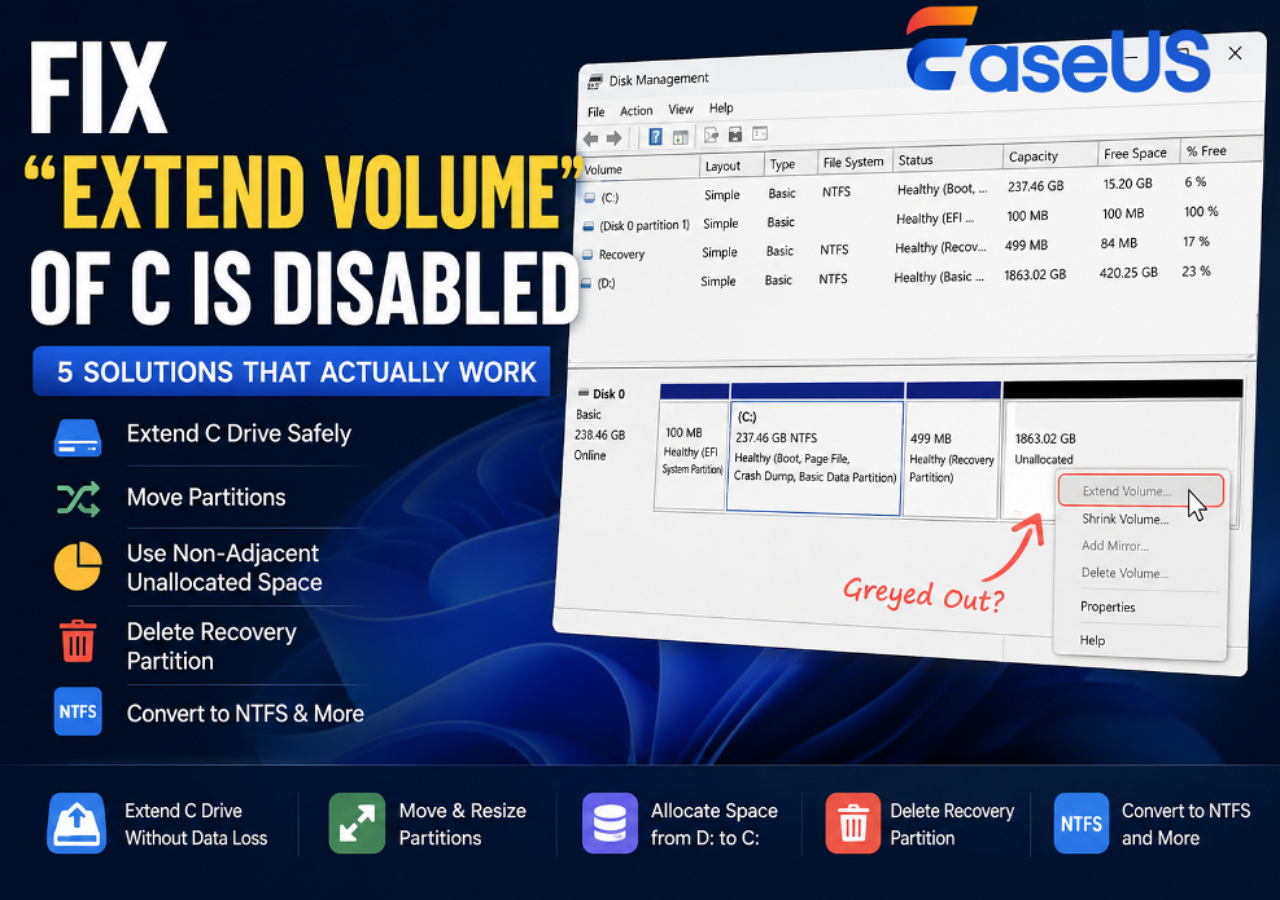
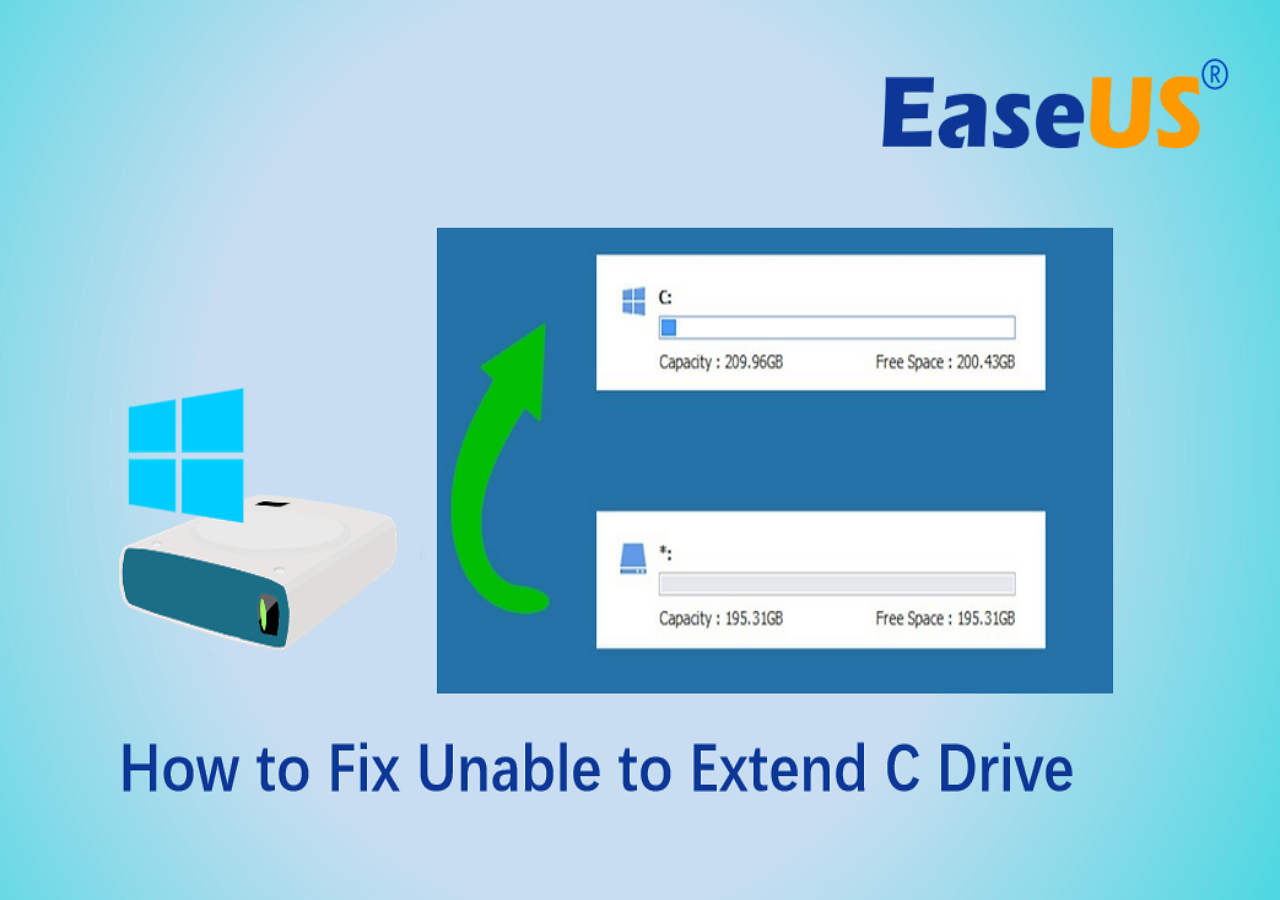
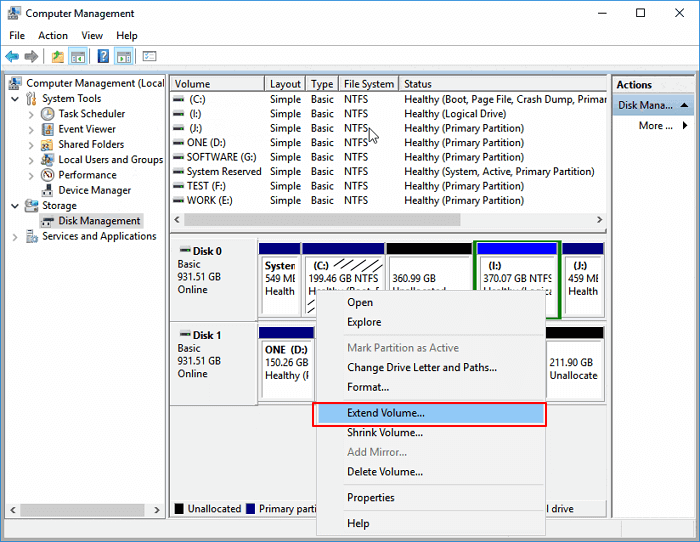
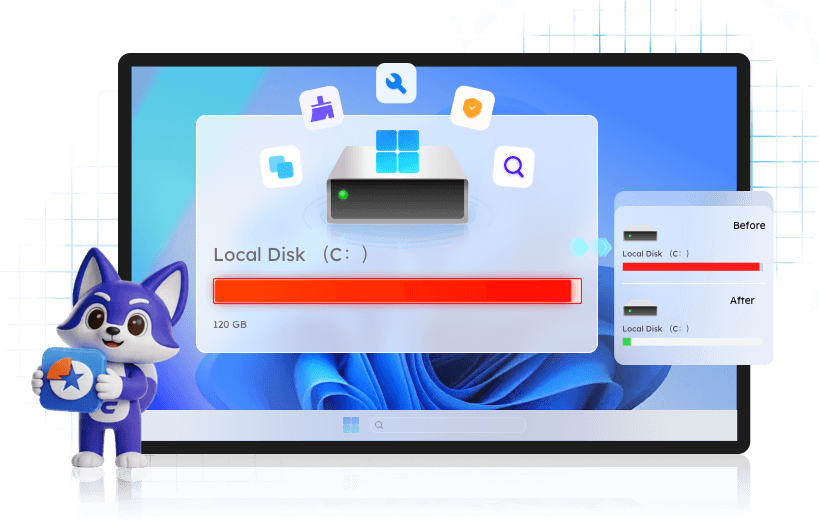
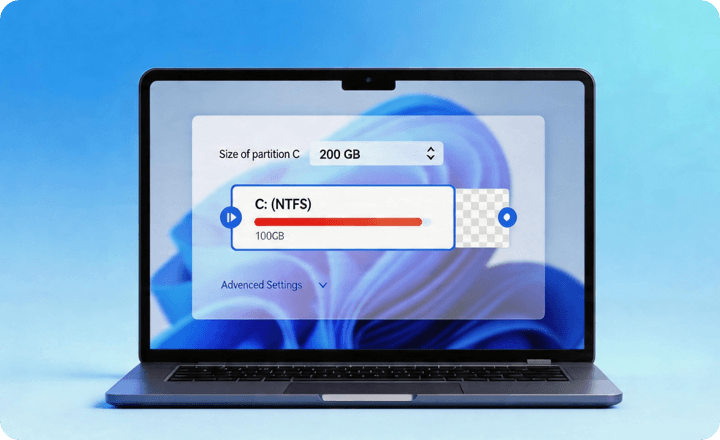
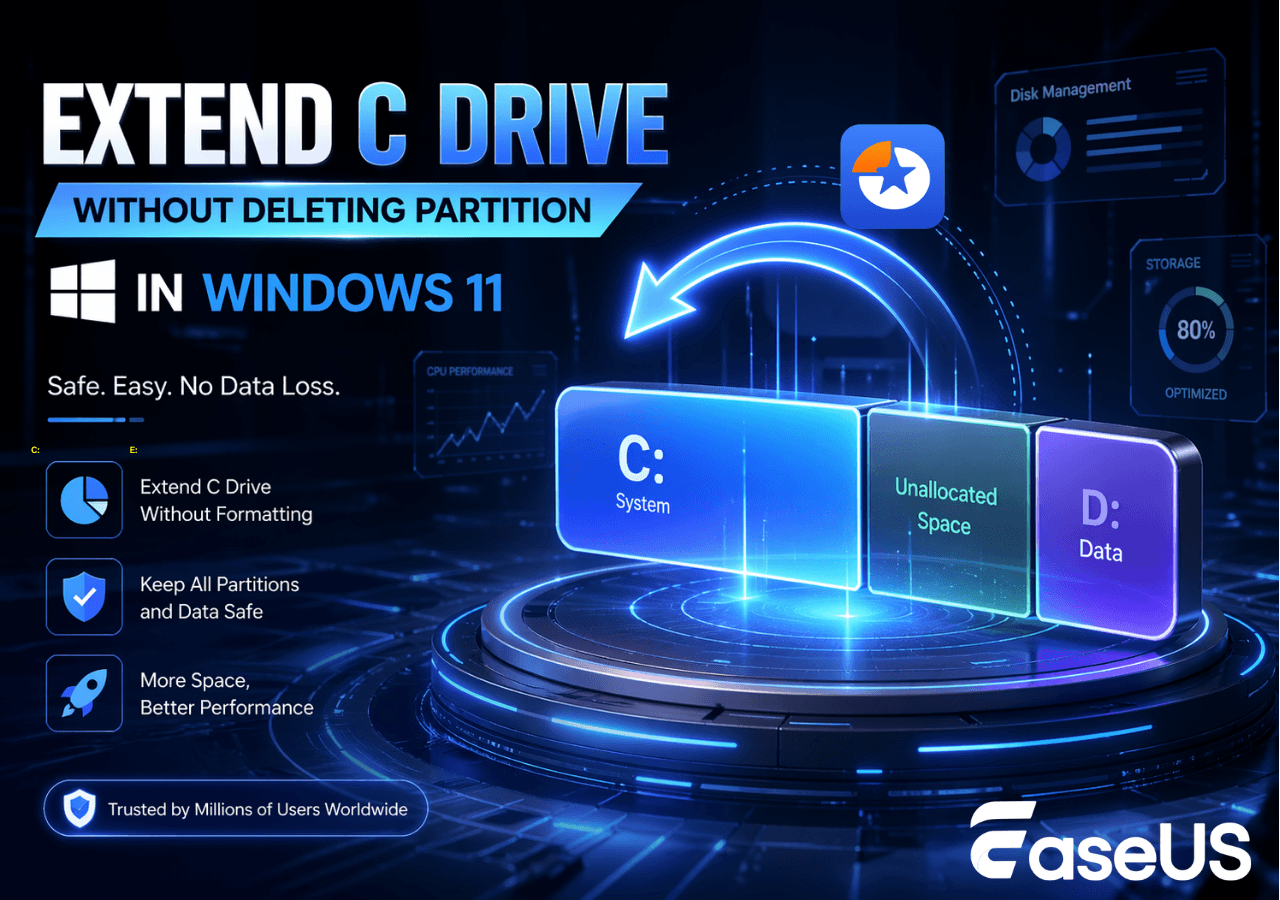
When your C drive runs out of space, your entire system starts to slow down; updates fail, apps freeze, and even basic operations become unreliable. Windows Disk Management often can’t extend the C drive unless the unallocated space is to the right side of the C drive, or the Extend Volume option is grayed out. With a powerful C drive resizer, you can directly extend C drive with adjacent/nonadjacent unallocated space, all without reinstalling Windows or losing data.
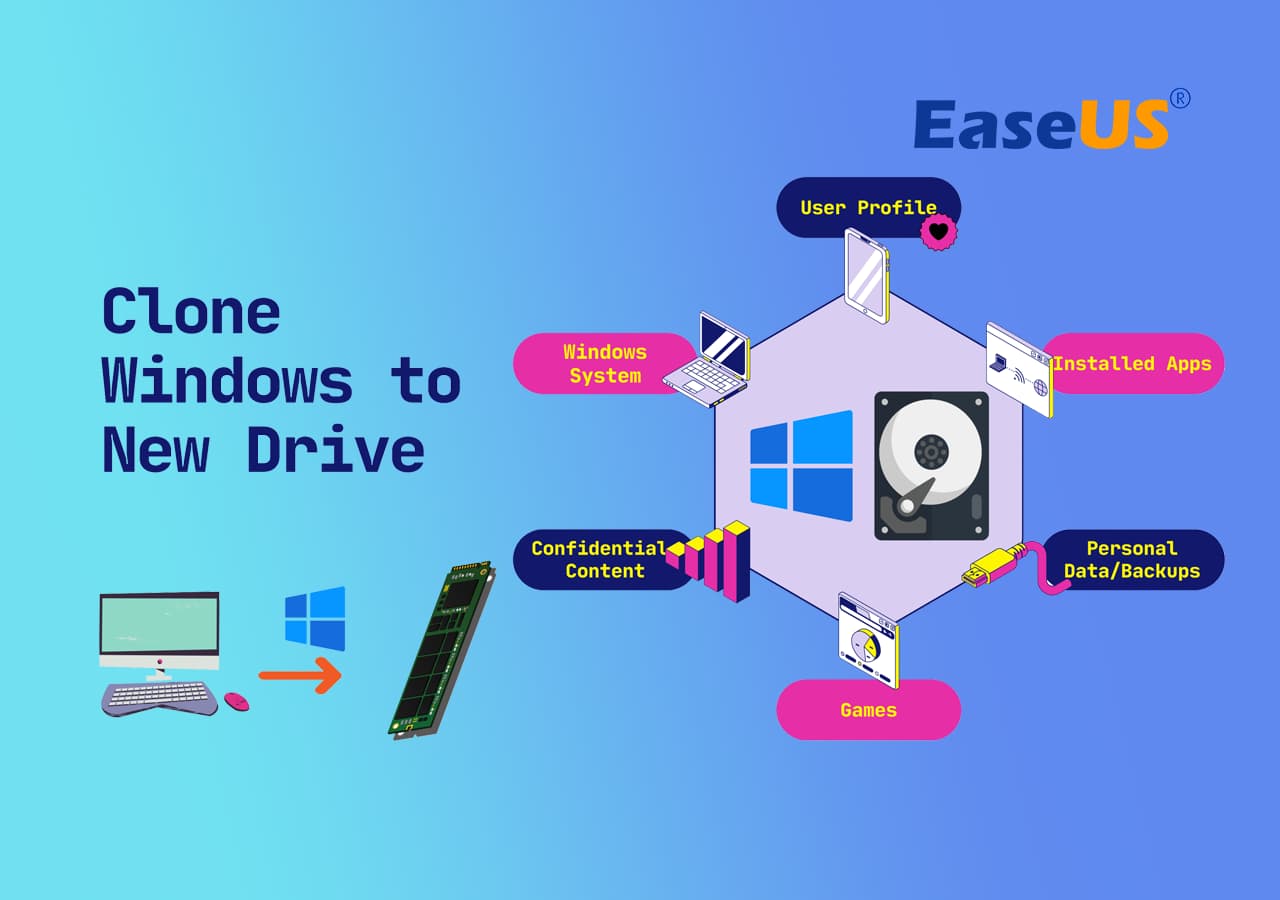
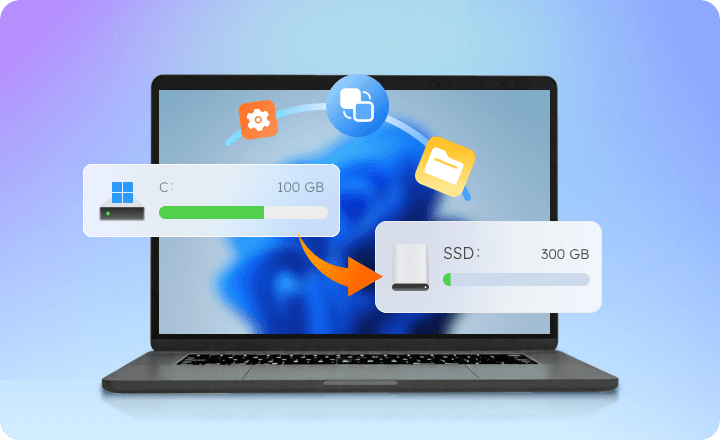
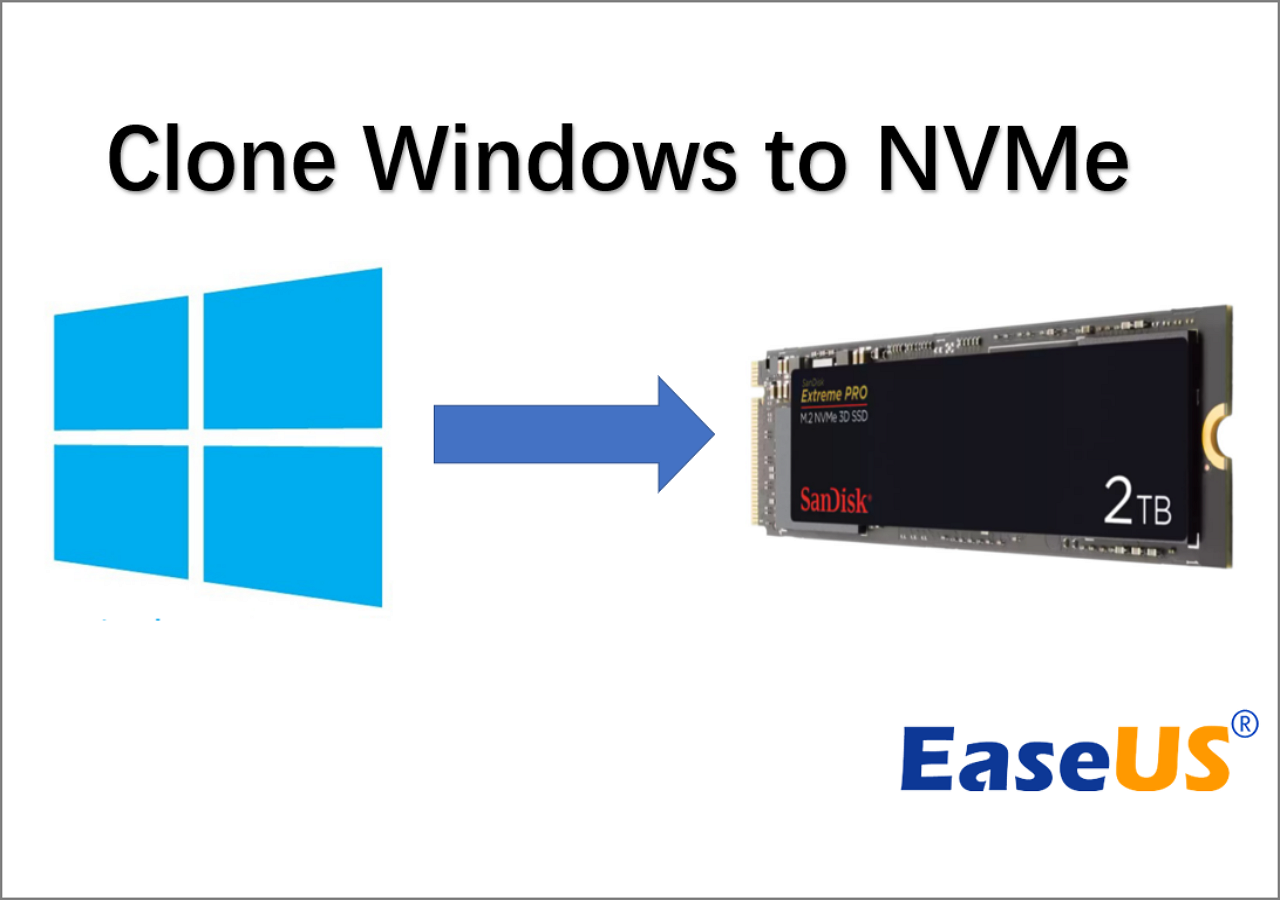
Upgrading system disk or replacing a failing drive can feel risky; no one wants to reinstall Windows, reconfigure settings, or lose important data. Cloning C drive offers a much safer and faster alternative. Instead of starting over, this C drive manager allows you to copy your entire system, including Windows, apps, and personal files, to a new disk, ensuring everything works the same after migration. Whether you're cloning to an SSD or a larger drive, the disk cloning tool simplifies the process and guarantees a bootable result.
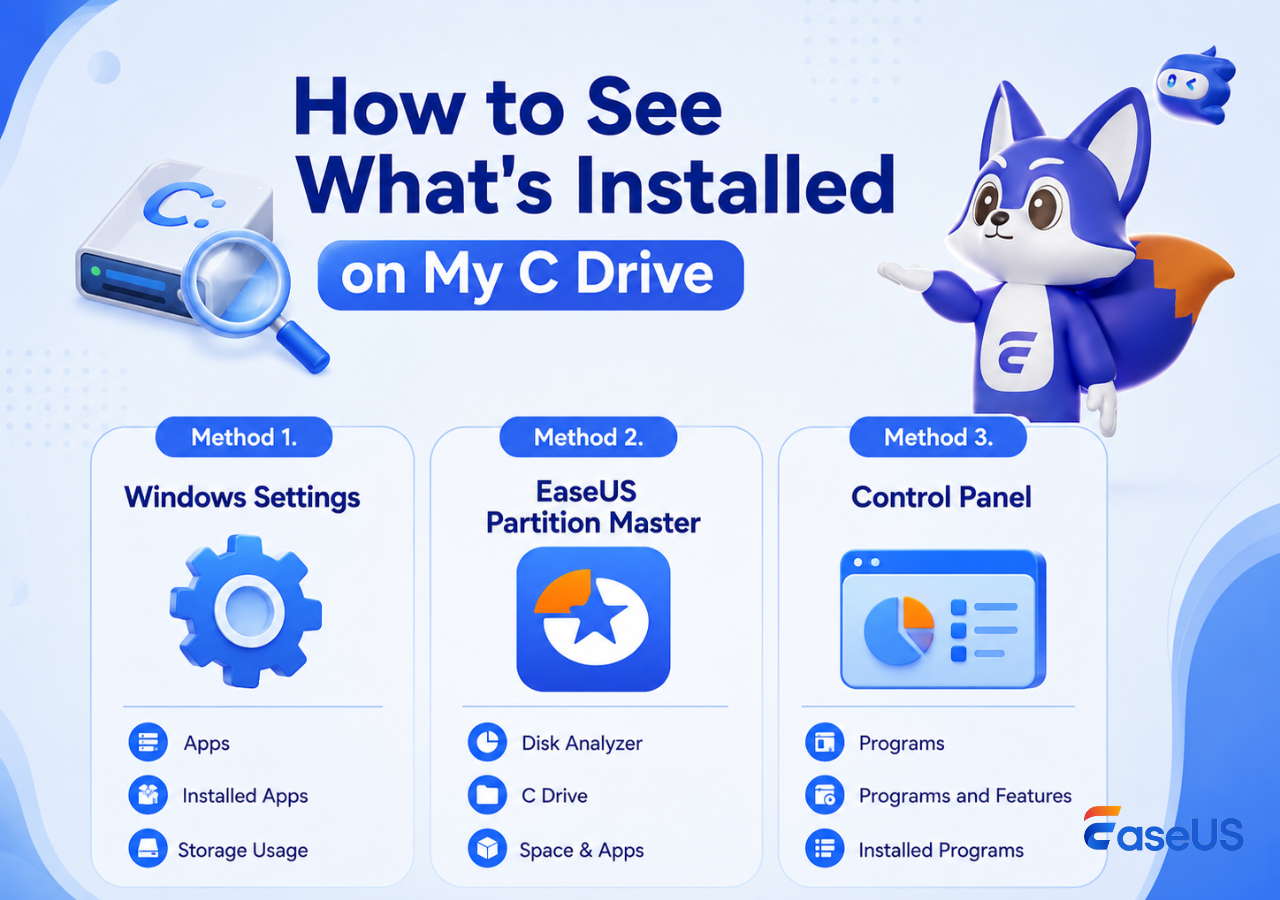
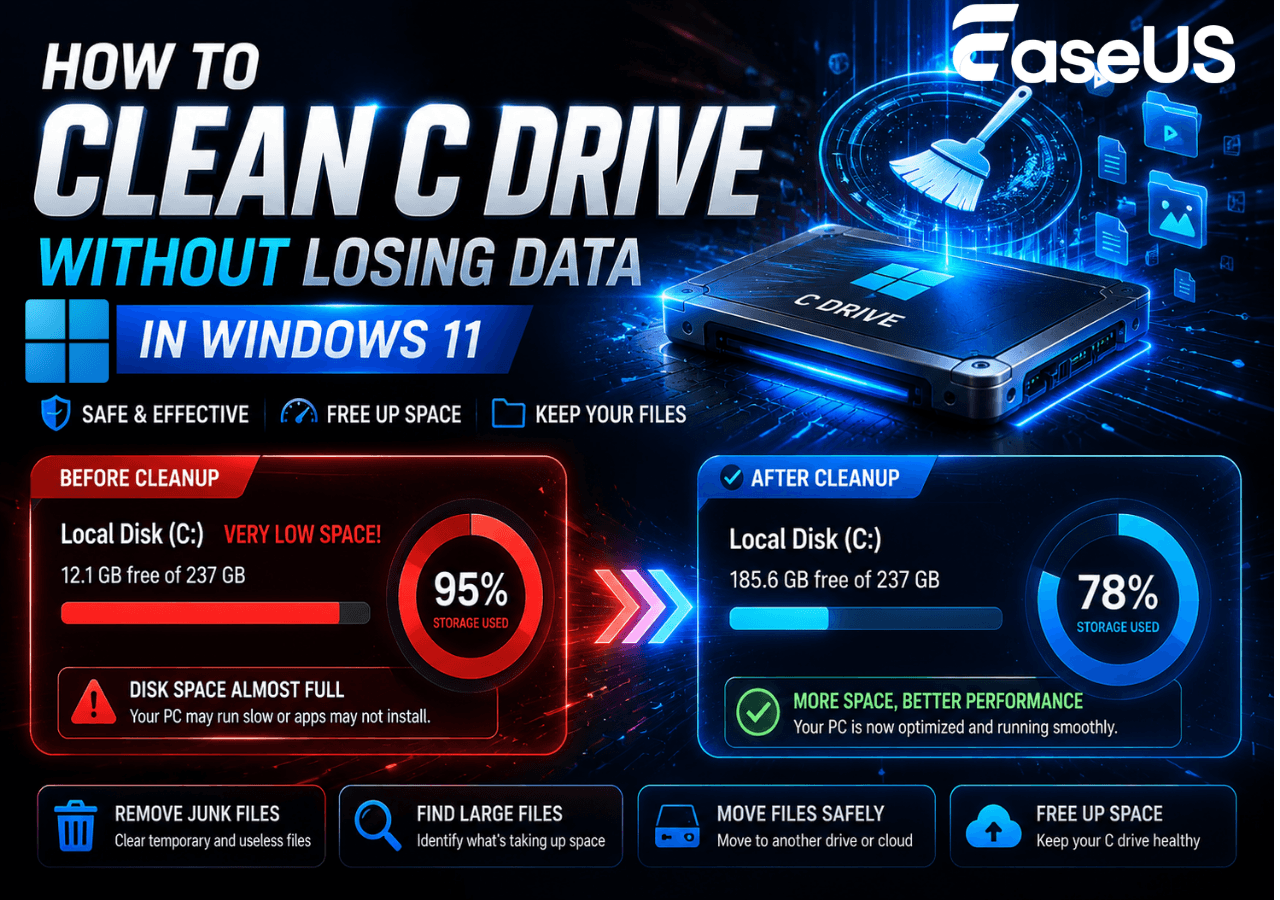
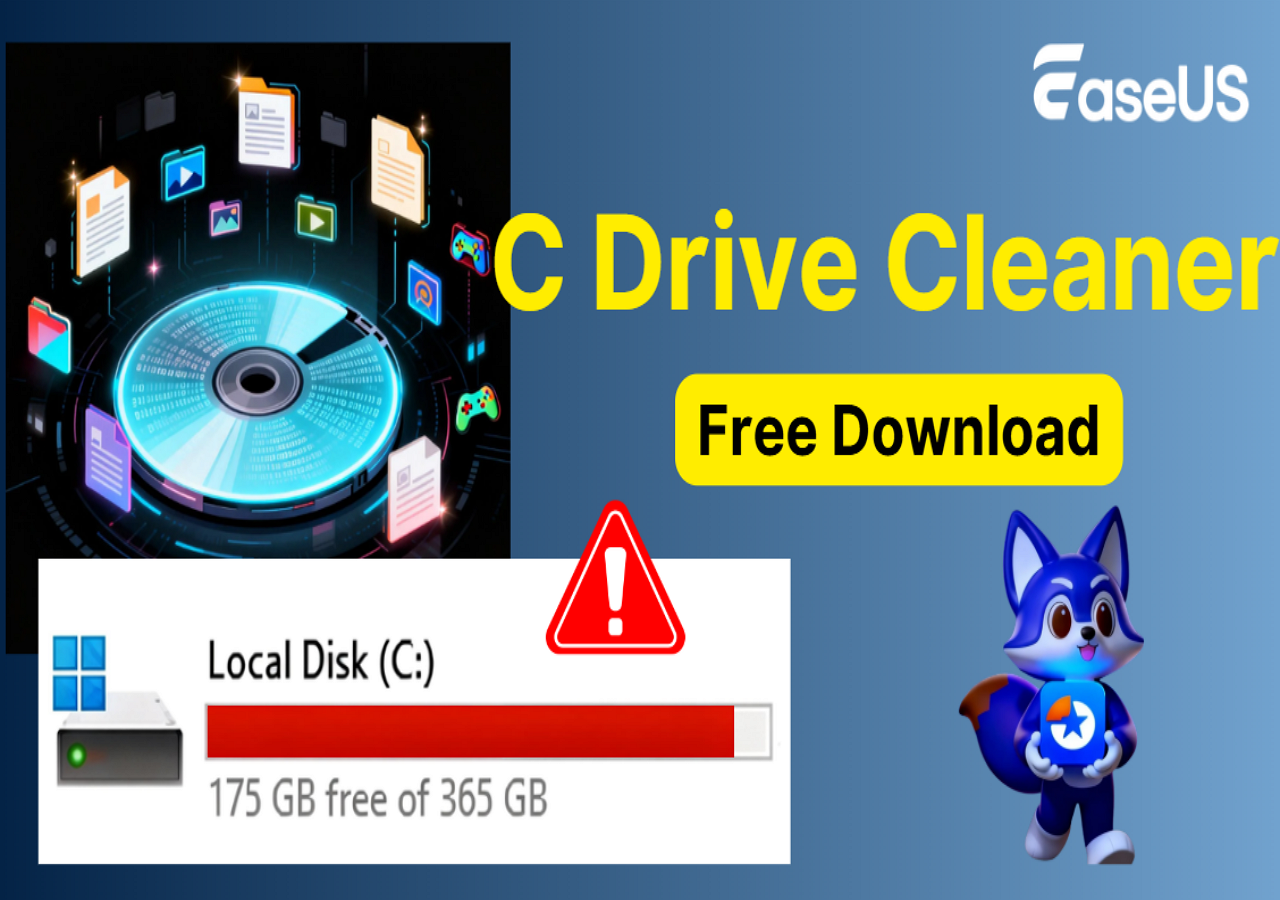
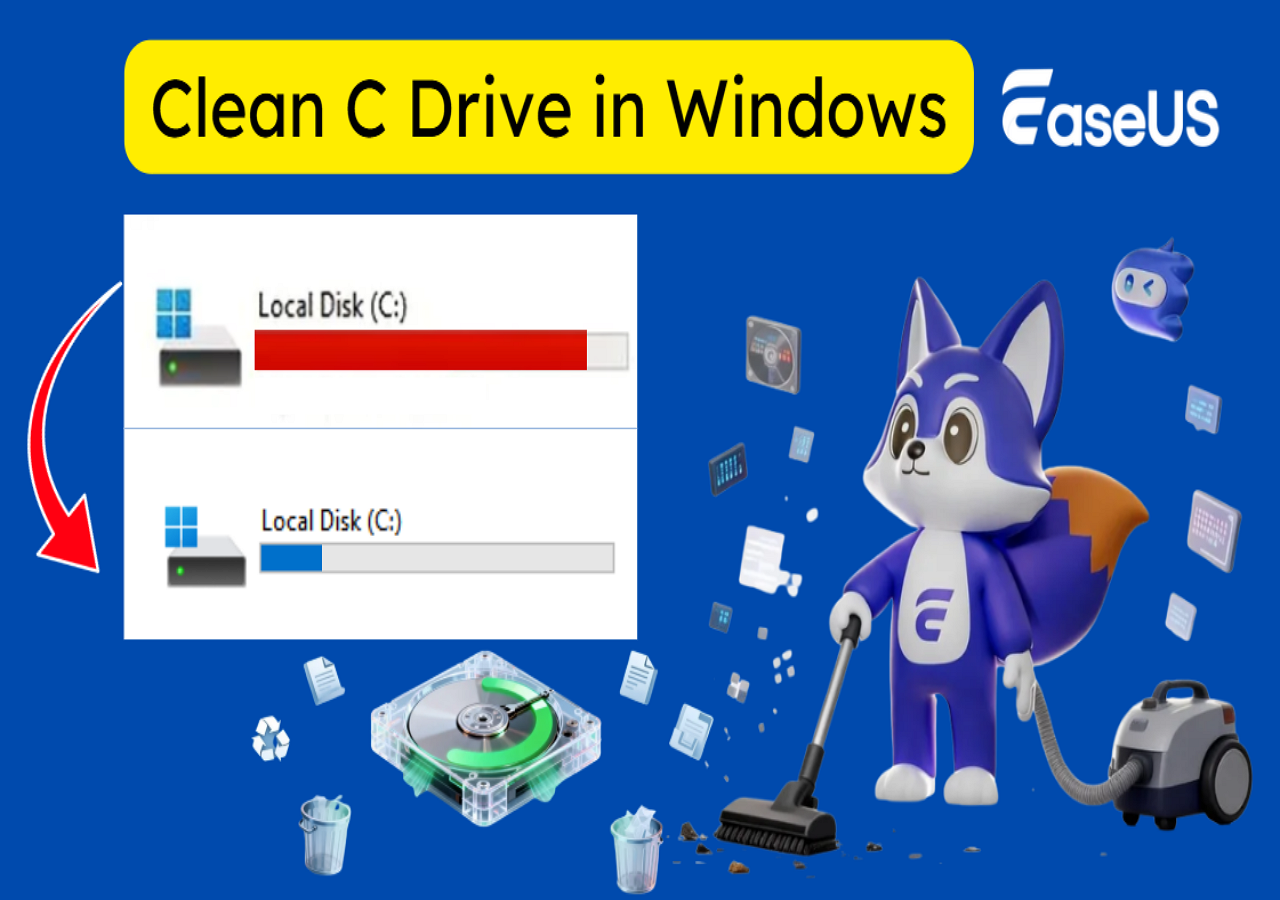
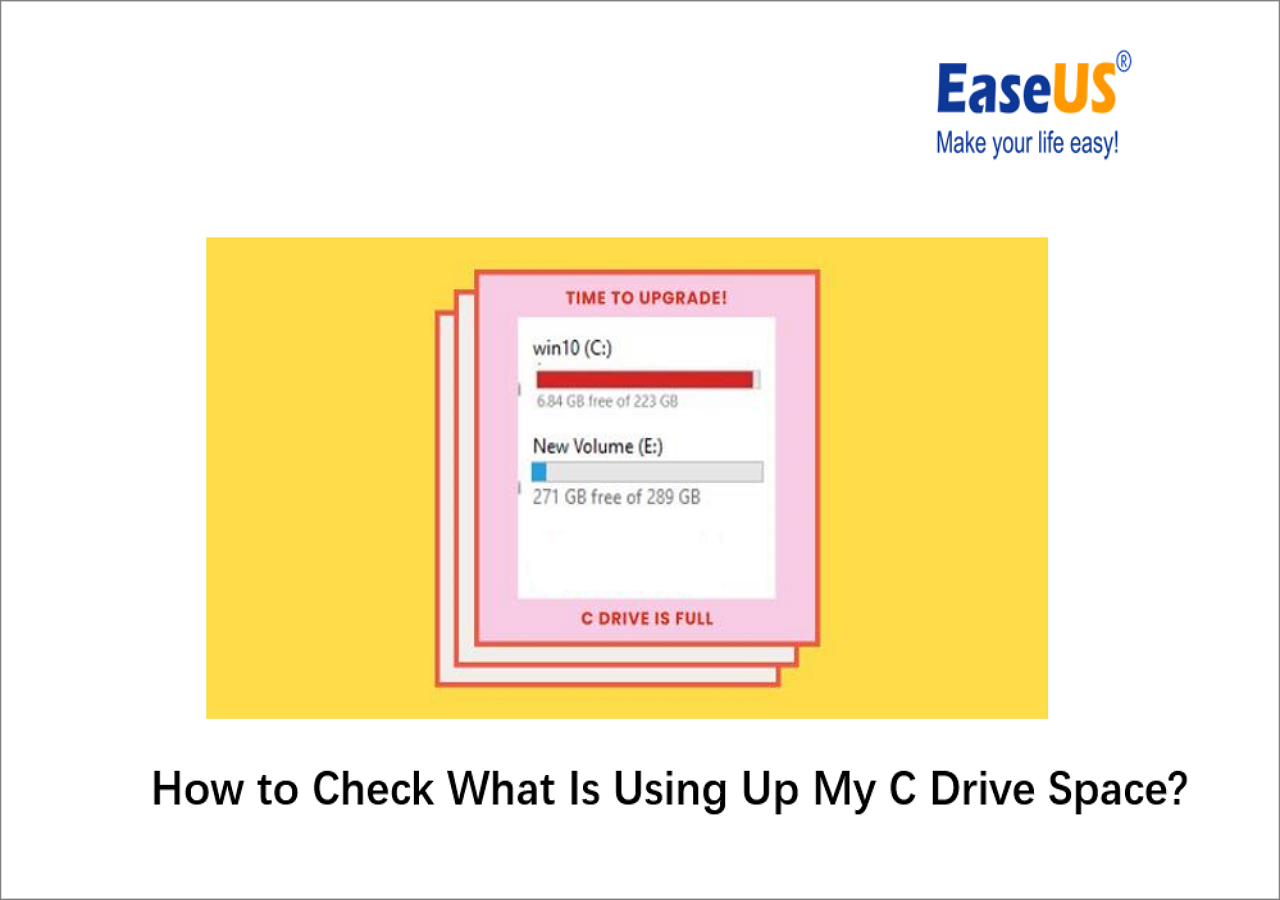
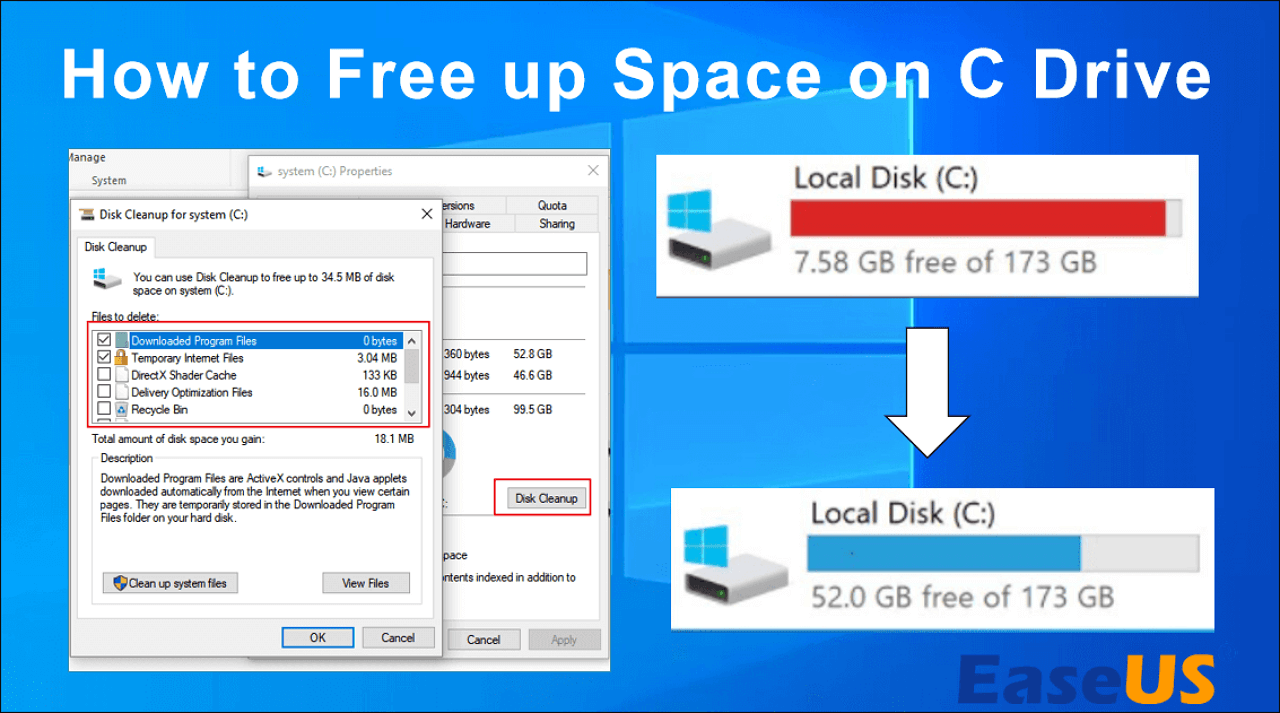
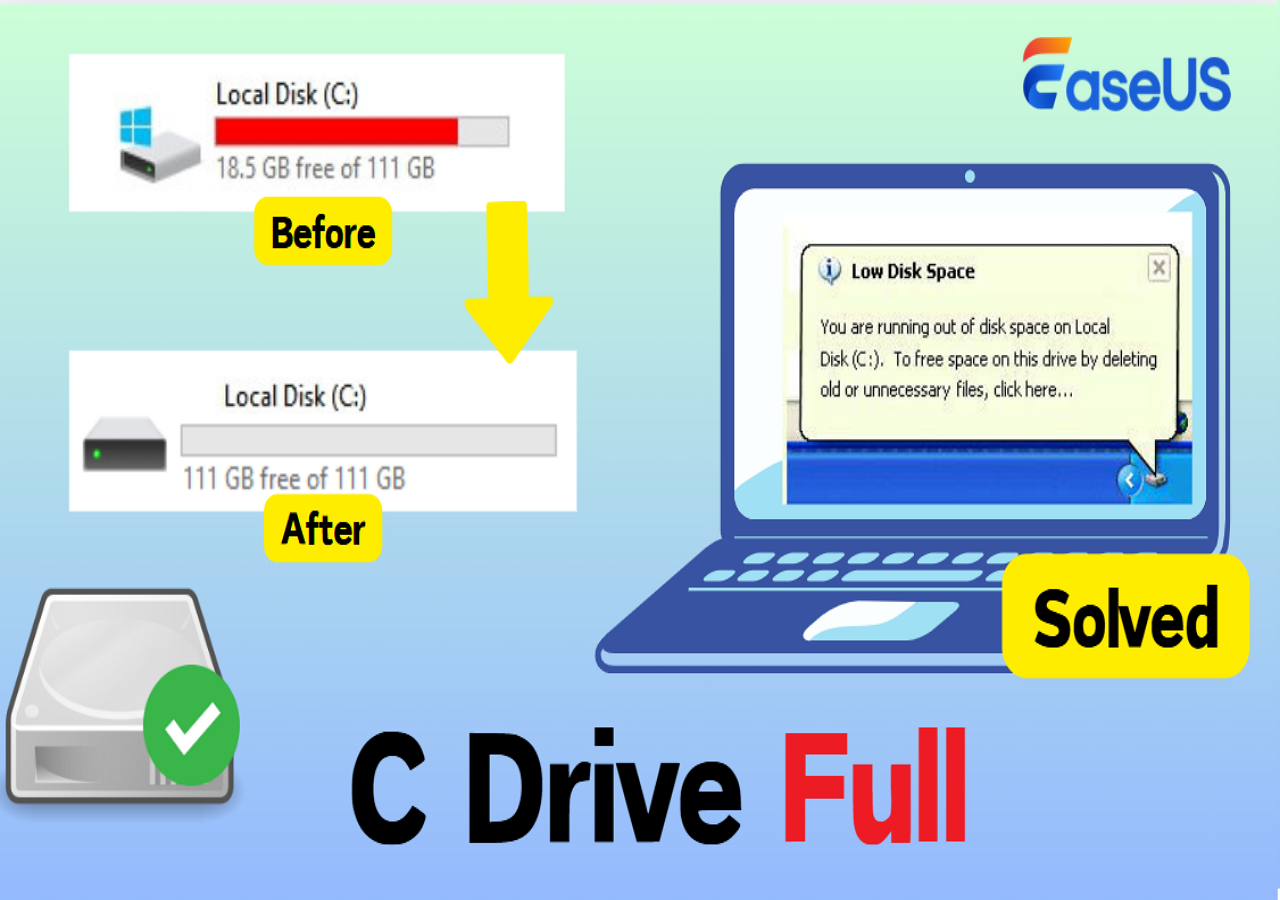
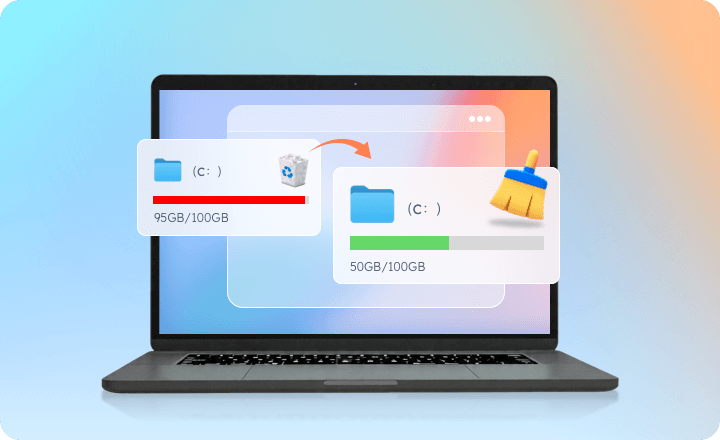
A full C drive doesn’t always mean you need more space; often, it’s filled with hidden junk files, system caches, and large unused data that accumulate over time. However, manually finding and removing these files can be time-consuming and ineffective. EaseUS C drive manager helps you quickly analyze disk usage, identify what’s taking up space, and safely clean unnecessary files to free up storage. With it, you can optimize your C drive, improve system performance, and avoid constant low disk space warnings.

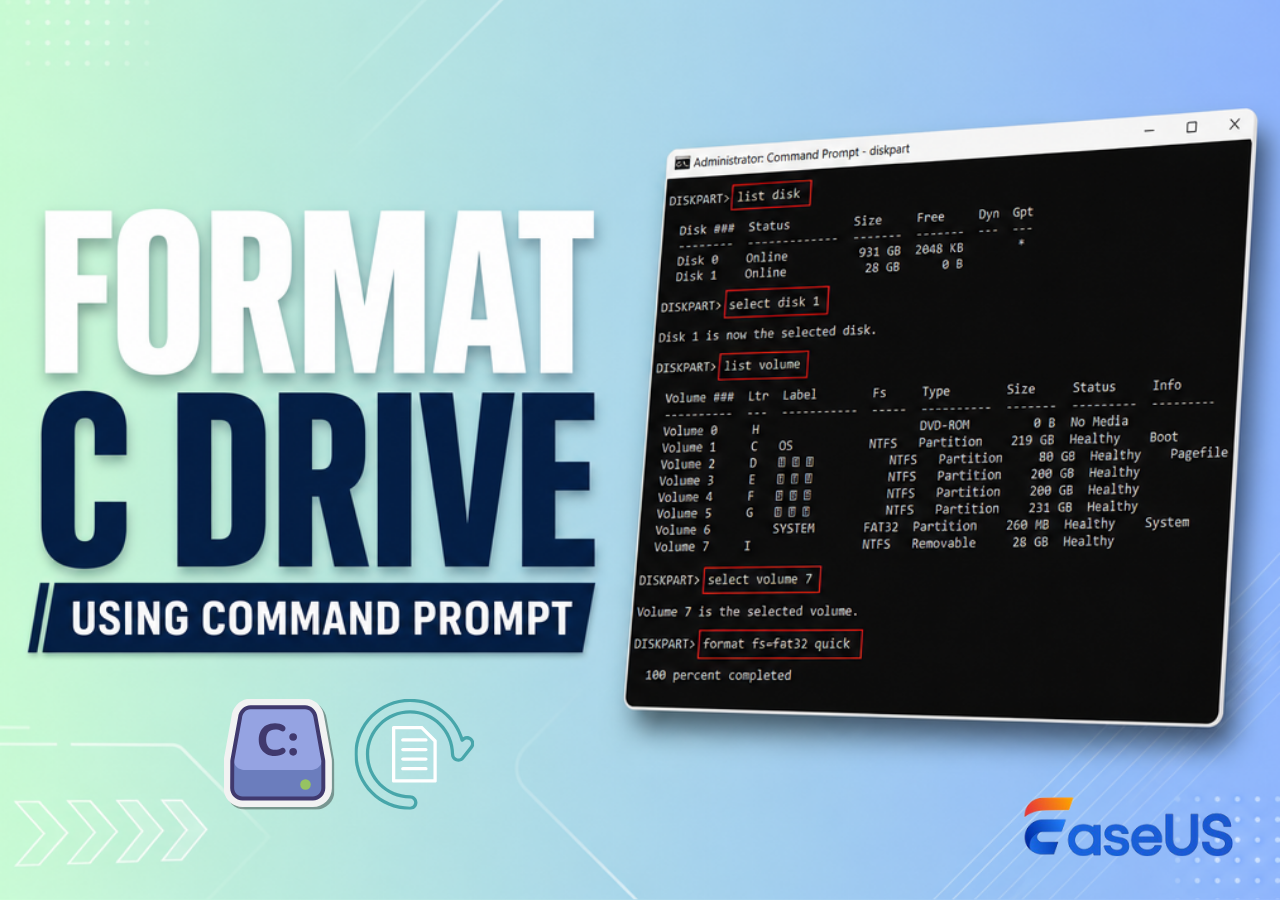
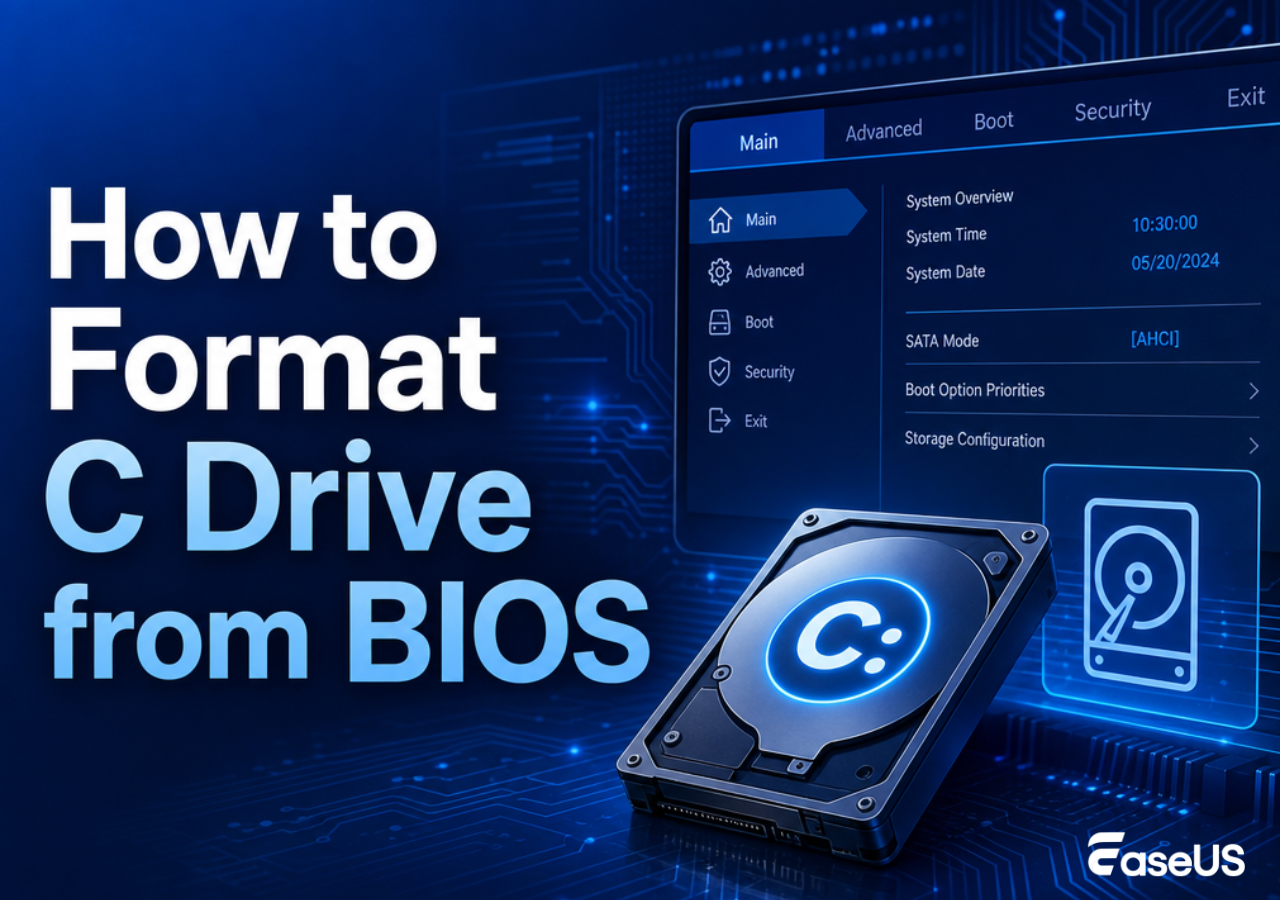
With this C drive manager, you can perform advanced tasks like formatting, wiping data, and resolving permission or access issues with ease.
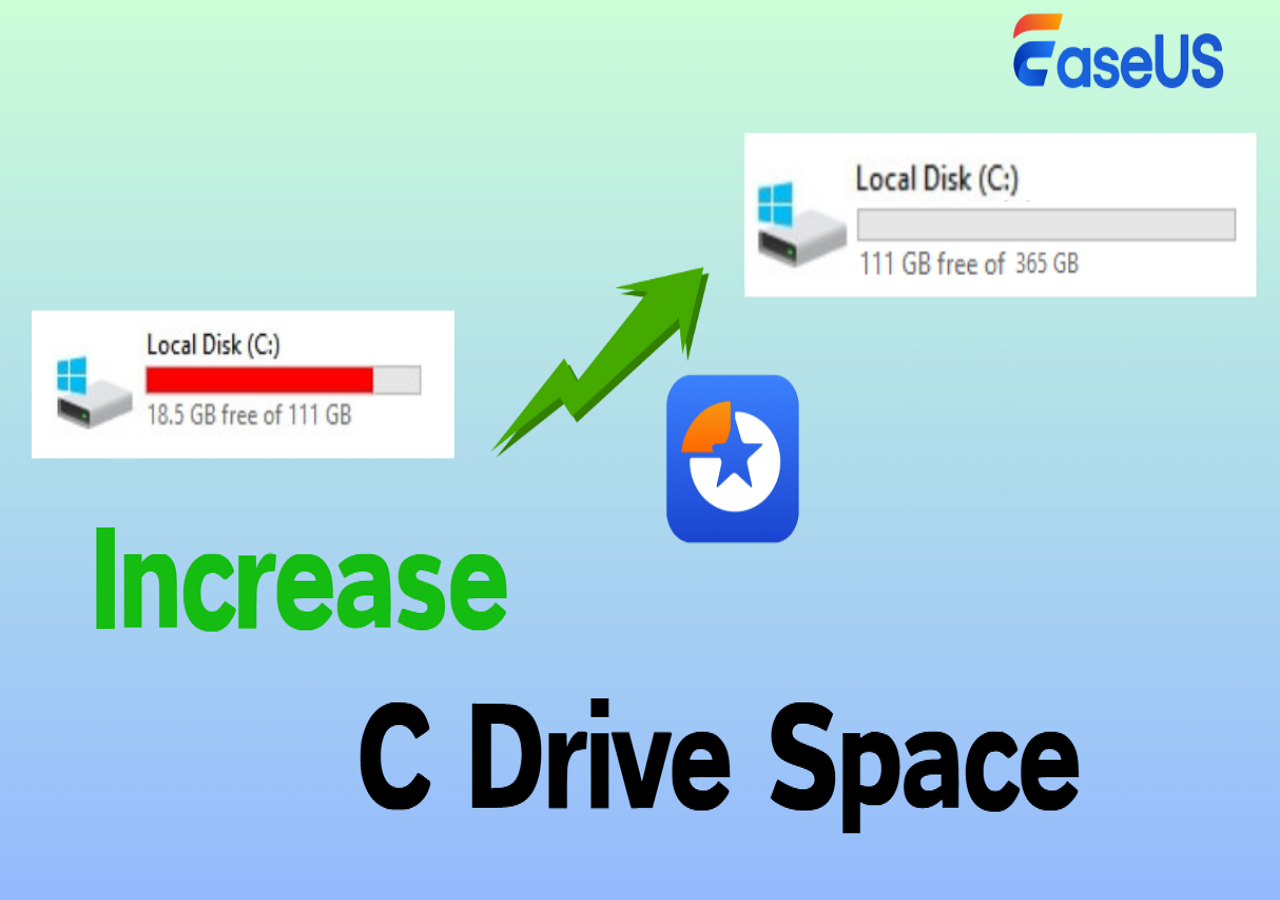
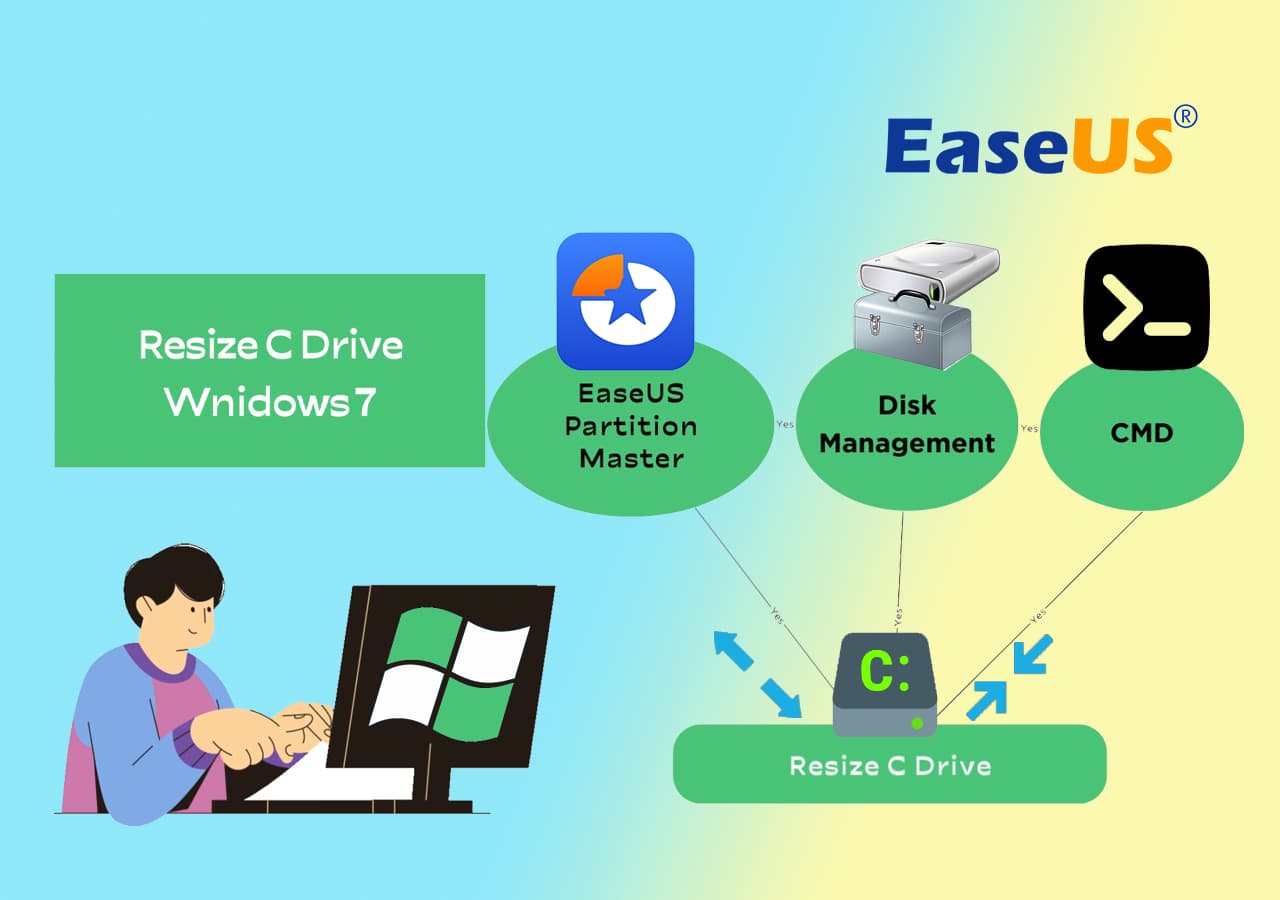
Resize C drive smartly to fix low disk space and resolve C drive full issues without data loss.
Format C drive on Windows 11/10/8/7 easily with support for NTFS, FAT32, exFAT, and Ext2/3/4 file systems.
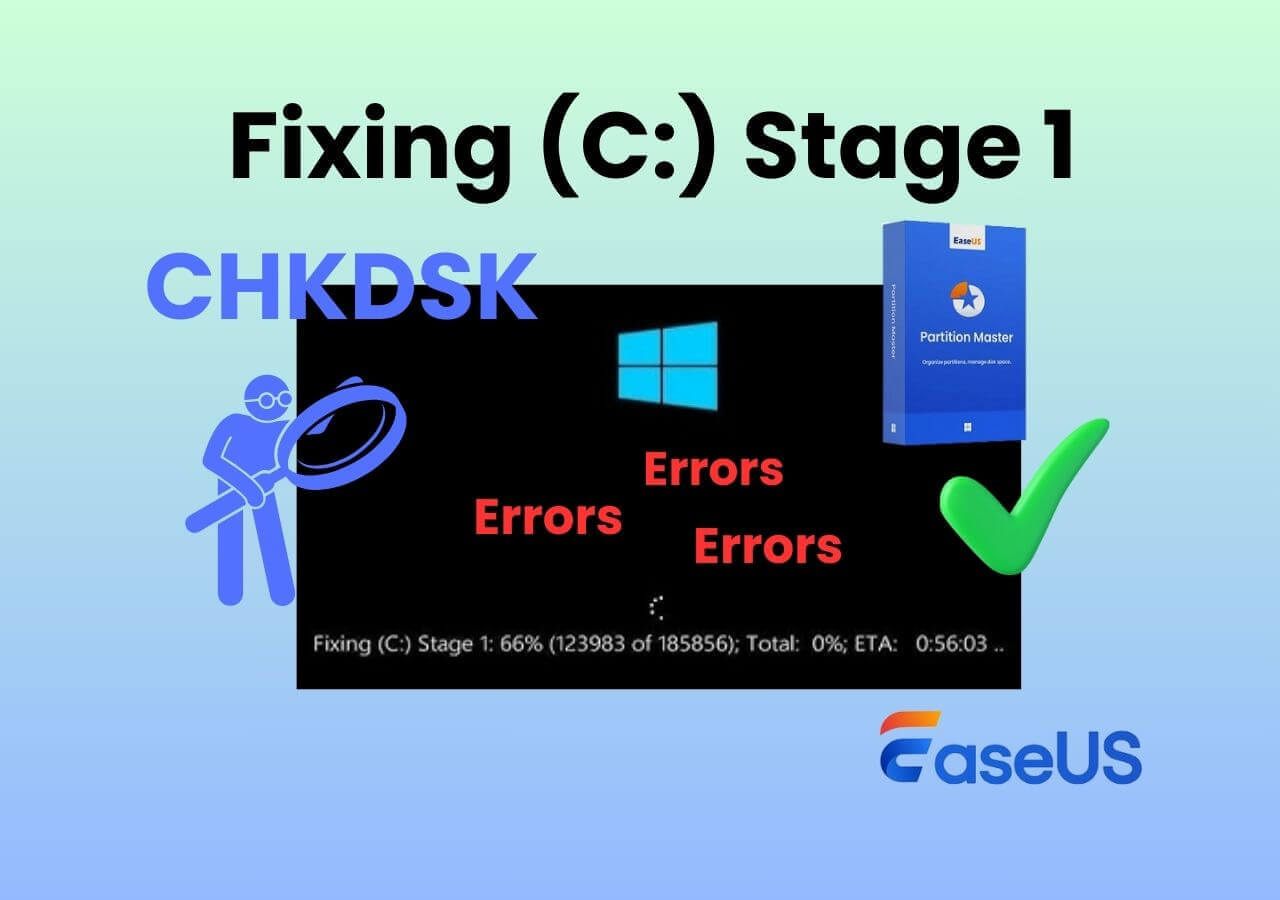
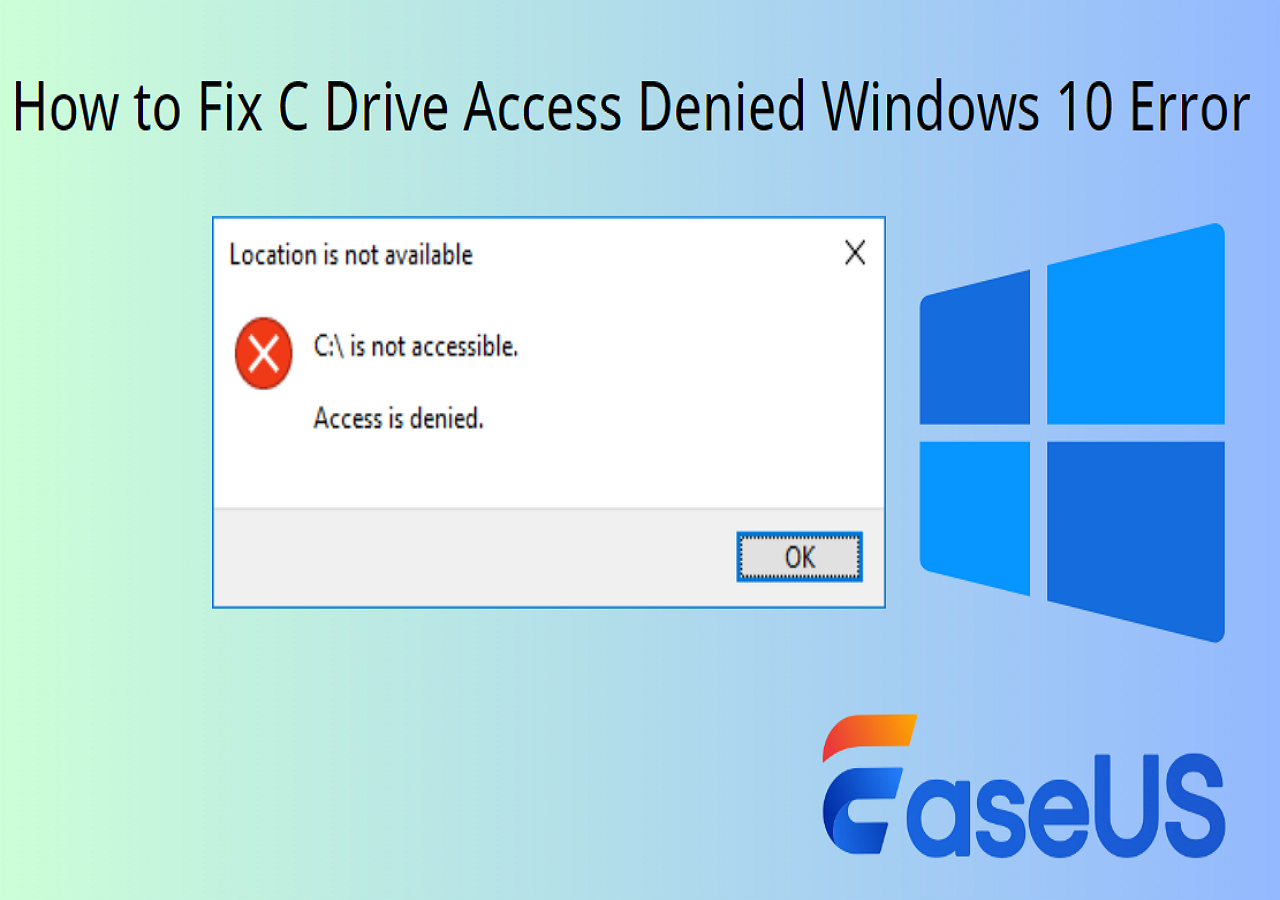
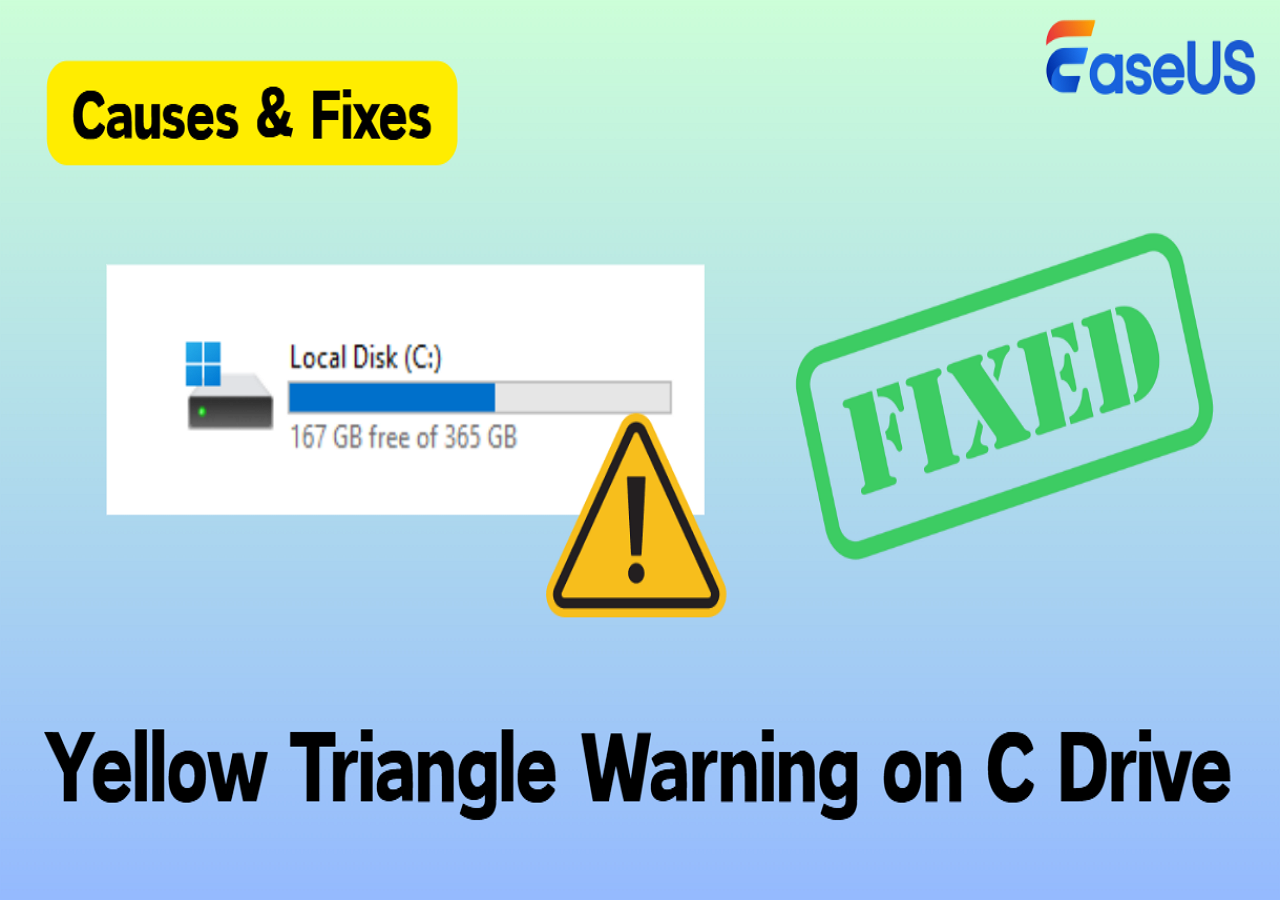
Check disk errors, clean up space, and fix permission or access issues affecting your C drive.
The following sections organize a variety of C drive issues by real-world usage scenarios, making it easier for you to quickly locate the most targeted C drive tutorials, practical solutions, and troubleshooting methods that match your specific problem.
Move Unallocated Space Next to C Drive in Windows 10/11/8/7
This article provides a detailed guide on how to move unallocated space next to C drive and introduces three ways to help you transfer unallocated space to C drive.
Windows Server Extend C Drive - Step by Step Guide
Extend C Drive Window Server in 2019/2016. A step-by-step guide to extending Windows Server volume with built-in features and third-party utility.
How to Extend C Drive in Windows 11 [2025 Tutorial] 🏆
How to extend C drive in Windows 11? This page teaches you how to increase C drive space in Windows 11 by using three methods. Follow this tutorial to extend C drive, increase available disk space, and optimize the performance of your Windows 11 computer immediately.
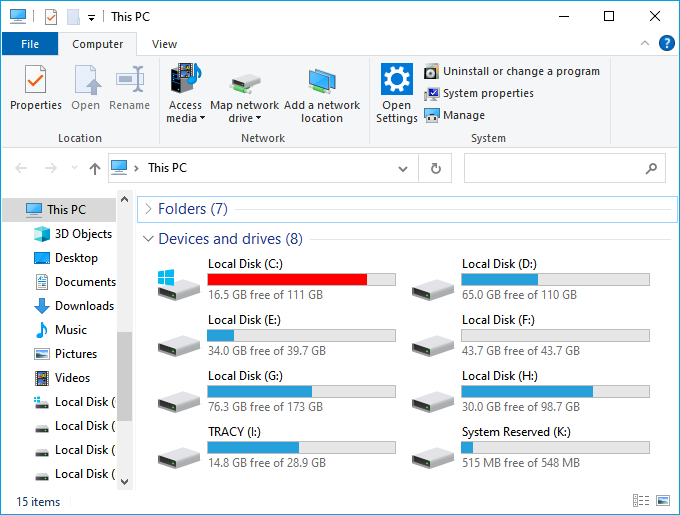
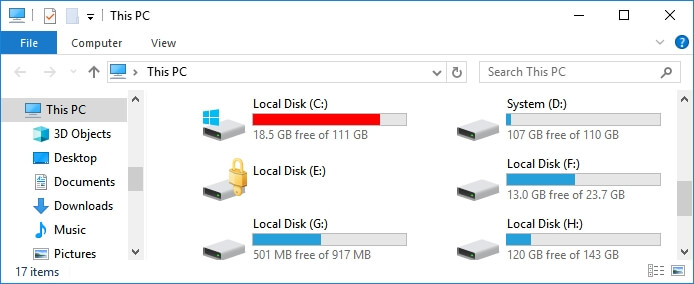
Windows 10/7 C Drive Red Bar, How to Fix C Drive Full - EaseUS
Windows 10 C drive red bar shows C drive full with low disk space. How to solve C drive red bar problem? You can use EaseUS partition manager to help you solve C drive full capacity issue and more space to C drive with 1-click.
RECOMMENDED: Resize Windows 10 Partition with Free Windows 10 Partition Manager - EaseUS
EaseUS provides the best free Windows 10 partition manager as partition magic tool for Windows 10 users to apply and perform safe and fast partition management. It applies to resize (extend/ shrink) partition, merge partition, allocate unallocated space, etc. for free on Windows 10 32 bit, 64 bit and older Windows system.
How to Extend C Drive in Windows 10 Easily
How do you extend the C drive in Windows 10? If Windows 10 warns you of a low disk space error, the powerful partition manager EaseUS Partition Master, with two other built-in Windows disk utilities, will assist you in extending the volume of the C drive in Windows 10 successfully.
Top 8 Tips | How to Fix Hard Drive Slow Suddenly - EaseUS
If you are faced with hard drive slow error, you can make it faster with this post. Here, you can fix a slow hard drive or USB external hard drive easily with eight solutions without worrying about data being corrupted or inaccessible.
How to Increase C Drive Space in Windows (Fase, Safe & No Data Loss)
How to increase C drive space? Back up important data first, then try the 6 methods on this page to extend your C drive on Windows 11, Windows 10, or older versions for free without losing any data.
FREE | How to Extend C Drive in Windows 7/8/10 - EaseUS
Don't worry if the system partition C drive runs low space in Windows 7. This page shows how to extend C drive in Windows 7/8/10 32bit and 64bit with or without software in 4 reliable methods. No data loss!
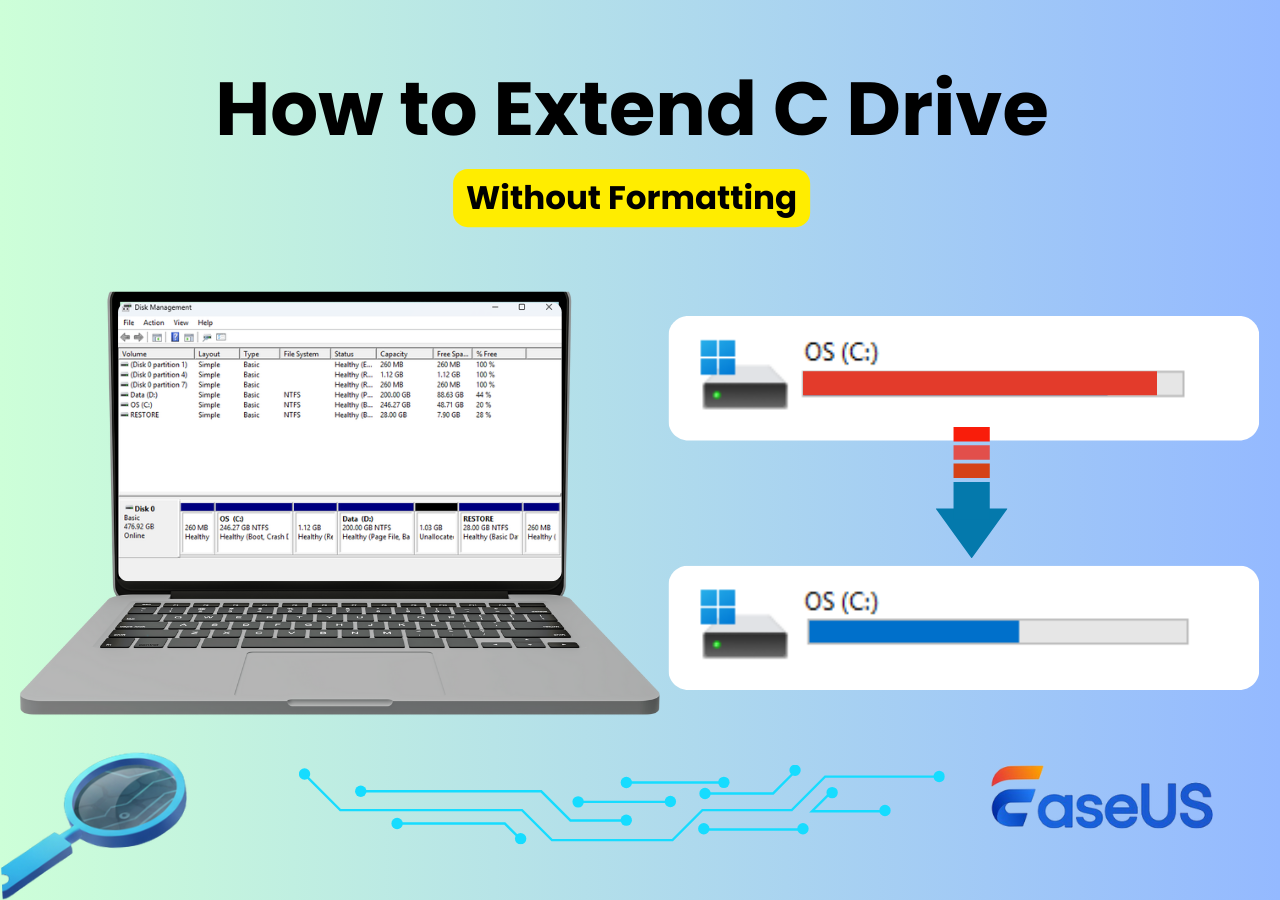
How to Extend C Drive in Windows 10/11 Without Formatting
How to extend C drive in Windows 10/11? Read this tutorial and learn how to use EaseUS Partition Master to extend C drive system partition without deleting or formatting.
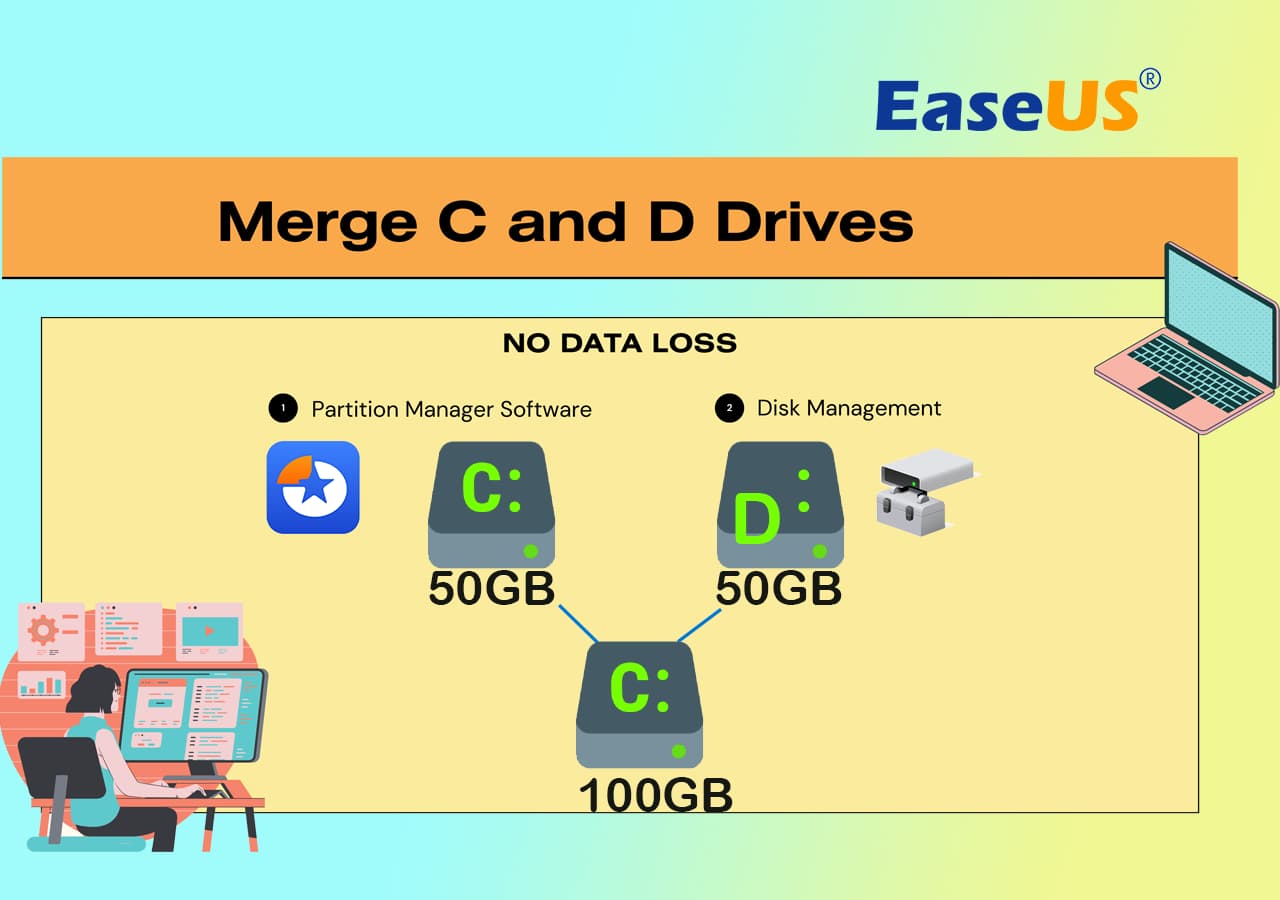
How to Merge C and D Drive in Windows 11/10 Without Losing Data
When you face C drive is running out of space and want to extend C drive, you can choose to merge C and D drive in Windows 11/10. How to merge partitions in Windows 11/10 without losing data? You can easily merge C and D drive and extend C drive in 3 ways with a professional partition management tool.
As a robust and professional partition manager, EaseUS Partition Master enables efficient C drive management, supporting tasks such as extending, resizing, cloning, formatting, and cleaning the C drive, as well as resolving common C drive-related issues quickly and safely.