







Content
Page Table of Contents
About the Author
Hot Topics
Is the "Extend Volume" option for your C drive grayed out in Disk Management? You are not alone. Many Windows users run into this problem right when the C drive is running out of space. Windows may show available disk space or even unallocated space, yet the system partition still cannot be extended since the Extend Volume option is greyed out.
Hi all, I'm having a lot of trouble with this one. I recently started booting from my SSD over my HDD as when I first got the computer is was configured to boot from the HDD. I created a specific boot partition on the SSD and was recommended to make the partition about 50GB. However, now I just want to have one primary partition on the SSD containing the boot. I deleted the other partition and now want to extend the C volume. Even with nearly 2TB of unallocated space, I still cannot extend the volume.
Does anyone know why? Every time I've tried looking it up it just tells me I need unallocated space to extend a volume, which I already have. This is doing my head in and any advice would be hugely appreciated - From r/PCHelp
This usually happens when:
- Windows updates fail because the C drive is full
- Games or applications refuse to install
- SSD upgrades leave unused space behind
- Recovery partitions block the extension
- Disk cloning changes the partition layout
In most cases, the problem is not the disk itself - it is simply a limitation of Disk Management. The good news is that you can usually fix it safely without reinstalling Windows or losing data.
Why Is "Extend Volume" Disabled on the C Drive?
Before jumping into solutions, it is important to understand how Windows partition management works. Disk Management can extend C drive but it has several limitations that many users do not realize until the extend option becomes unavailable. Below are the most common reasons why the C drive cannot be extended.
1️⃣Unallocated Space Is Not Adjacent to the C Drive
Windows Disk Management can only extend a partition into unallocated space that is located immediately to the right of the target partition.
- ❌[C Drive] [Recovery Partition] [Unallocated Space]
- ❌ [Unallocated Space][C Drive] [D Drive]
- ❌ [C Drive] [D Drive][Unallocated Space]
- ✔️[Recovery Partition][C Drive] [Unallocated Space]
Even though free space exists, Windows can't skip over the recovery partition. Disk Management cannot move partitions, which is why the option becomes grayed out.
2️⃣There Is No Unallocated Space on the Disk
Many users confuse "free space" with "unallocated space." You have free disk space available on D or another drive; it doesn't mean you have unallocated space.
For example, D: drive may have 300 GB available, but it is still part of an active partition; Windows can't directly give that space to C.
3️⃣A Recovery Partition Is Blocking the C Drive Extension
Disk Management can't extend C drive if a Recovery partition is between C drive and the unallocated space. Disk Management can't move Recovery partitions, so the Extend Volume feature becomes unavailable automatically.
4️⃣The Disk Uses Logical Partitions or Extended Partitions
On MBR disks, Windows may use:
- Primary partitions
- Extended partitions
- Logical drives
In some situations, the free space exists as "Free Space" inside an extended partition rather than true "Unallocated Space." Windows can't use this free space to extend the C drive directly.
5️⃣The to-be-extended partition is not formatted with NTFS
Disk Management can only resize partitions using NTFS file system. If the target drive is formatted as FAT32 or exFAT, the Extend Volume will turn grey.

How to Fix "Extend Volume of C Is Disabled" on Windows 11
Before making partition changes, it is strongly recommended to:
- Back up important files
- Avoid forced shutdowns
- Keep laptops connected to power
- Close unnecessary applications
Now, follow the fixes below to fix extend volume of C drive unavailable error.
Fix 1: Extend the C Drive with Non-Adjacent Unallocated Space
If unallocated space exists but is separated by another partition, Windows Disk Management alone will not help. This is where a professional partition manager becomes useful. EaseUS Partition Master can move partitions safely and directly extend the C drive using non-adjacent unallocated space. Instead of forcing users to manually delete partitions, it can reposition partitions automatically while preserving data.
Extend C Drive Using Non-Adjacent Space on Windows 11
Step 1: Launch EaseUS Partition Master, right-click the C drive, and select "Resize/Move." It can intelligently reorganize partitions when the unallocated space is not adjacent.
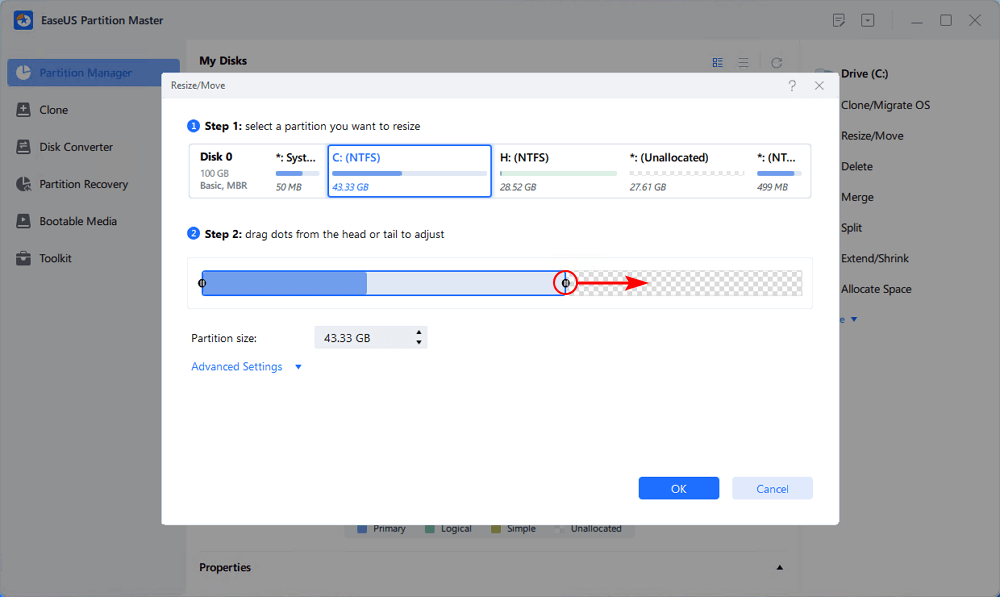
Step 2: Drag the partition border to include the available unallocated space. Then, click Execute the Task and Apply to extend the C drive on Windows 11.
After this, you can see your C drive has been extended without losing any data.
Fix 2: Allocate Free Space from Another Partition Directly to C Drive
Sometimes the Extend Volume becomes available because there is no unallocated space on the disk. In this situation, Windows typically forces users to manually shrink another partition to create unallocated space first. However, Disk Management can only extend C drive when the unallocated space is right behind the C drive, so you still have to use a partition moving tool to move the unallocated space behind the C drive before you can extend it.
EaseUS Partition Master provides a simpler alternative through its Allocate Space feature. Instead of manually creating unallocated space, the software can directly transfer free space from a larger partition (such as D:) to the C drive.
For example:
- D: has 500 GB free
- C: is almost full
- No unallocated space exists
This partition resizer can reallocate storage safely without requiring complex manual restructuring, such as allocating space from the D drive to the C drive.
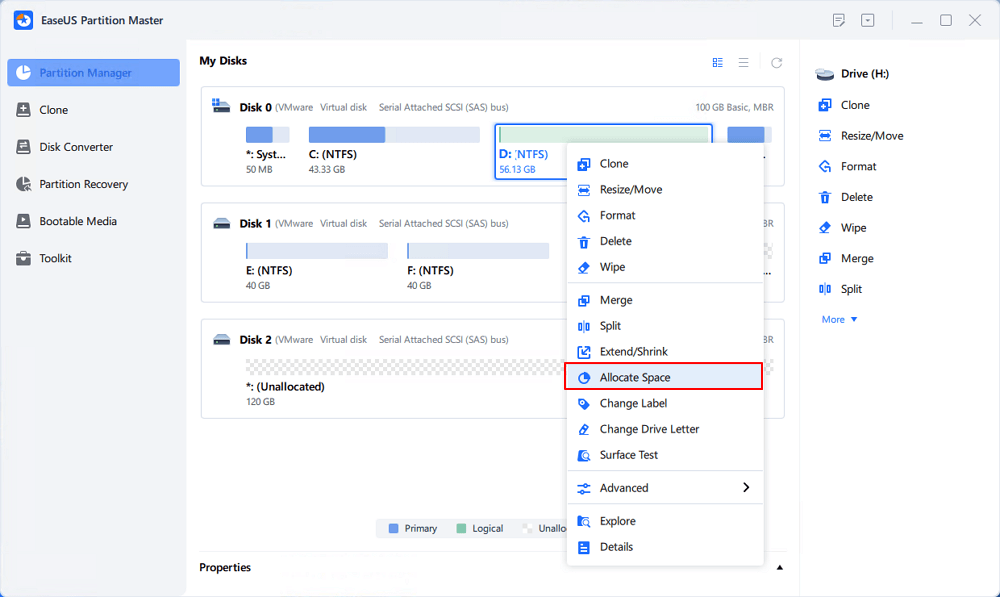
Step 1. Right-click on the D: partition with enough free space and select "Allocate Space".
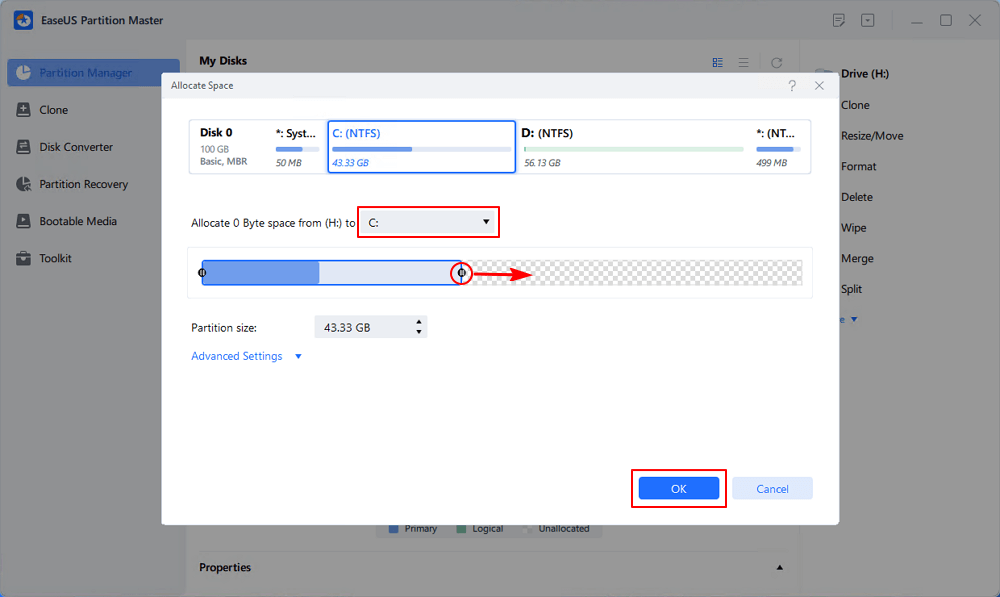
Step 2. Select the target partition - C: drive and drag the partition panel rightward to add the free space from D: drive to C: drive. Then click "OK" to confirm.
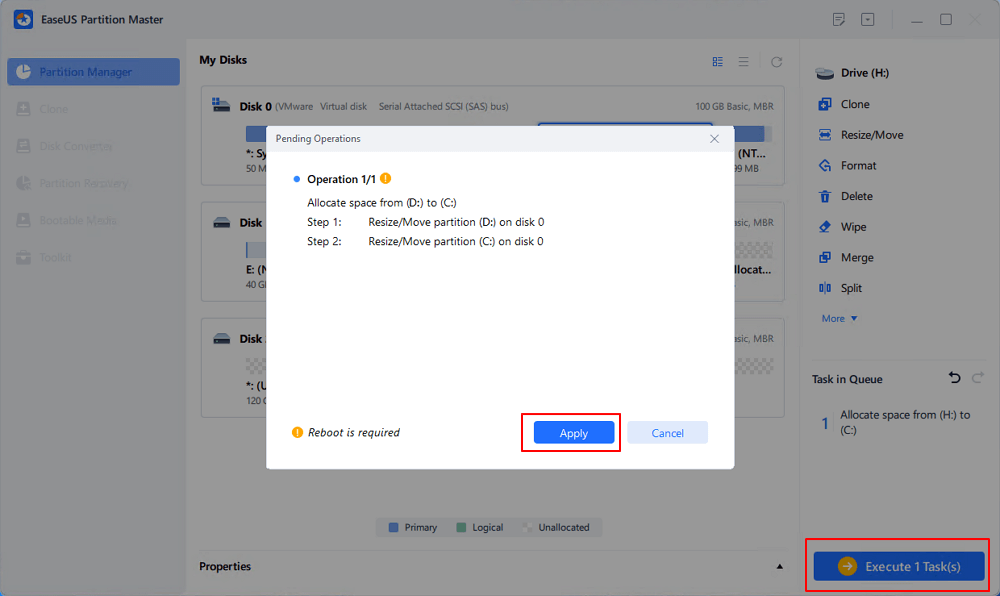
Step 3. Click the "Execute Task" button and click "Apply" to start the process of moving free space from D: drive to C: drive.
Fix 3: Delete the Recovery Partition
Recovery partitions are one of the most common reasons the C drive can't be extended, and the Extend Volume is disabled. If the recovery partition sits between C: and the unallocated space, Windows Disk Management becomes useless because it can't move partitions. You can delete the Recovery Partition to enable the Extend Volume option. Before getting started, read the notice below:
- 🚩 Is it safe to delete the recovery partition?
Deleting the Recovery Partition may cause problems if you later need to use Windows recovery options, because the system may not be able to locate the recovery environment.
However, if you have already created a system backup or saved the recovery environment to external storage, deleting the recovery partition is generally safe and will not affect normal Windows operation.
- 🚩 Why are there two recovery partitions? Which one should you delete?
When Windows detects that the original recovery partition does not have enough space for newer recovery files, it may automatically create another recovery partition instead of replacing the old one. Before deleting anything, check which recovery partition is currently active.
Step 1. Search for: cmd, then press: Ctrl + Shift + Enter to open Command Prompt as administrator.
Step 2. Run the following command: b
Windows will display the currently active recovery environment location. This helps identify which Recovery Partition is still being used and which one may be safe to remove.
Now, follow the steps below to fix "Extend Volume of C is disabled" error:
Step 1: Open Command Prompt as Administrator
- Search for: cmd
- Then select: Run as administrator
Step 2: Launch DiskPart
Type: diskpart and press Enter to launch Diskpart.exe.
Step 3: Identify the Recovery Partition
Run:
- list disk
- select disk 0 (Replace 0 with the correct disk number)
- list partition
- select partition 1 (Replace 1 with the correct number)
Step 4: Delete the Partition
Run: delete partition override
Fix 4: Delete All Logical Drives in the Extended Partition
This solution applies specifically to MBR disks using extended partitions and logical drives. In some cases, Windows shows: "Free Space" instead of "Unallocated Space." The difference matters. Disk Management cannot directly use free space inside an extended partition to extend the C drive.
To solve this issue, all logical drives inside the extended partition must be deleted first. Once removed, the entire extended partition becomes true unallocated space, allowing the "Extend Volume" option for the C drive to become available.
This method should be approached carefully because deleting logical drives erases all data stored inside them.
Fix 5. Convert the C Drive File System to NTFS
In some cases, the "Extend Volume" option is disabled because the C drive is formatted as FAT32 instead of NTFS. Windows Disk Management only supports extending NTFS partitions, even if there is adjacent unallocated space available. The good news is that Windows allows you to convert FAT32 to NTFS without formatting the drive or deleting files.
Notice
- 🚩 Although the conversion normally keeps your data intact, it is still recommended to back up important files before making file system changes.
- 🚩 Windows supports converting FAT32 to NTFS directly, but there is no built-in way to safely convert NTFS back to FAT32 without formatting.
Step 1: Open Command Prompt
Press Windows + R and type cmd in the Search box. Then press Enter.
Step 2: Convert FAT32 to NTFS
Run the following command: convert drive_letter: /fs:ntfs
(For example, convert e: /fs:ntfs)
Then press Enter to start the conversion.
After the conversion completes, check Disk Management again. If the extend option is still unavailable because the unallocated space is non-adjacent, tools like EaseUS Partition Master can help move partitions and extend the C drive directly. Share this post to help more people.
Frequently Asked Questions
1. Why is "Extend Volume" grayed out even when there is free space available?
This usually happens because Windows can only extend the C drive into unallocated space that is directly next to it. Free space inside another partition, such as D:, does not count. The problem is common after:
- SSD cloning
- Windows updates
- Recovery partition creation
- Partition resizing
If another partition sits between C: and the unallocated space, Disk Management will disable the Extend Volume option automatically.
2. Can I extend the C drive without deleting partitions?
Yes. You do not always need to delete partitions to extend the C drive. Third-party tools like EaseUS Partition Master can move partitions safely and extend C drive with nonadjacent unallocated space.
3. Is it safe to move partitions?
Generally, yes, especially with modern partition software. However, resizing or moving partitions still changes low-level disk structures, so there is always some risk if the process is interrupted.
Before making changes, it is recommended to back up important files and keep the PC connected to power. Avoid force shutdowns during the operation
4. What is the difference between free space and unallocated space?
Free space belongs to an existing partition, while unallocated space does not belong to any partition at all. Windows Disk Management can only extend partitions into unallocated space. That is why the C drive may still show "Extend Volume" as disabled even when another partition appears mostly empty.
5. Can I allocate space from D: directly to C:?
Yes. Some partition tools allow you to transfer unused space directly from D: to C: without manually creating unallocated space first. For example, EaseUS Partition Master includes an "Allocate Space" feature that can automatically move free space from a larger partition to the C drive.
6. Why are there two recovery partitions on my disk?
This usually happens after major Windows updates or SSD cloning. If the original recovery partition does not have enough space for newer recovery files, Windows may create another one automatically. These extra recovery partitions often block the C drive from extending because they sit between C: and the unallocated space.
Final Thoughts
When the "Extend Volume" option for the C drive is disabled, the problem is usually related to the partition layout rather than a damaged disk. In most cases, Windows cannot extend the partition because the unallocated space is not directly next to the C drive, a recovery partition is blocking the extension, or the disk uses unsupported partition structures. The good news is that this issue can usually be fixed without reinstalling Windows or losing data. Depending on your situation, you may need to:
- move a blocking partition
- create unallocated space
- delete an unused recovery partition
- convert the file system to NTFS
remove logical drives inside an extended partition
For more complex disk layouts, some users prefer using partition management tools because Windows Disk Management cannot move partitions or use non-adjacent unallocated space.
Before making any partition changes, remember to back up important files and avoid interrupting the process. This helps reduce the risk of boot issues or partition corruption during resizing operations.
How Can We Help You
About the Author

Sherly joined EaseUS in 2022 and she has always loved writing articles and enjoys the fun they bring. She receives professional training here, focusing on product performance and other relative knowledge. She has written over 200 articles to help people overcome computing issues.
Product Reviews
-
I love that the changes you make with EaseUS Partition Master Free aren't immediately applied to the disks. It makes it way easier to play out what will happen after you've made all the changes. I also think the overall look and feel of EaseUS Partition Master Free makes whatever you're doing with your computer's partitions easy.
Read More -
Partition Master Free can Resize, Move, Merge, Migrate, and Copy disks or partitions; convert to local, change label, defragment, check and explore partition; and much more. A premium upgrade adds free tech support and the ability to resize dynamic volumes.
Read More -
It won't hot image your drives or align them, but since it's coupled with a partition manager, it allows you do perform many tasks at once, instead of just cloning drives. You can move partitions around, resize them, defragment, and more, along with the other tools you'd expect from a cloning tool.
Read More
Related Articles
-
Guide to Clone SSD to NVMe SSD (with Pictures🏞️)
![author icon]() Tracy King/2026/09/29
Tracy King/2026/09/29 -
How to Extend C Drive in Windows Server 2019/2016
![author icon]() Tracy King/2026/09/29
Tracy King/2026/09/29 -
Can I Clone Windows to Virtual Machine? Your Guide Here
![author icon]() Tracy King/2026/09/29
Tracy King/2026/09/29 -
How to Fix C Drive Access Denied Windows 10 Error
![author icon]() Sherly/2026/09/29
Sherly/2026/09/29
 Tracy King/2026/09/29









