







Content
Page Table of Contents
About the Author
Hot Topics
Dividing your C drive into D and E partitions is a practical way to organize files, protect data, and improve system management. Whether you're running Windows 11 or an earlier version, this guide from EaseUS Software explains two effective methods to safely split your C drive.
Method 1. Divide C Drive Using Disk Management
Disk Management is a free, built-in tool for basic partition tasks like shrinking and creating volumes, making it a convenient starting option. However, it has limitations: it can't move certain system files, restricts how much you can shrink C, and lacks advanced features for flexible partition management. To prevent data loss, you're recommended to back up all your precious data on your previous C drive.
Please refer to the following steps to divide C drive into D and E drive via Disk Management.
Step 1. Please press Win + X > select Disk Management to open it > right-click the C drive > choose Shrink Volume.
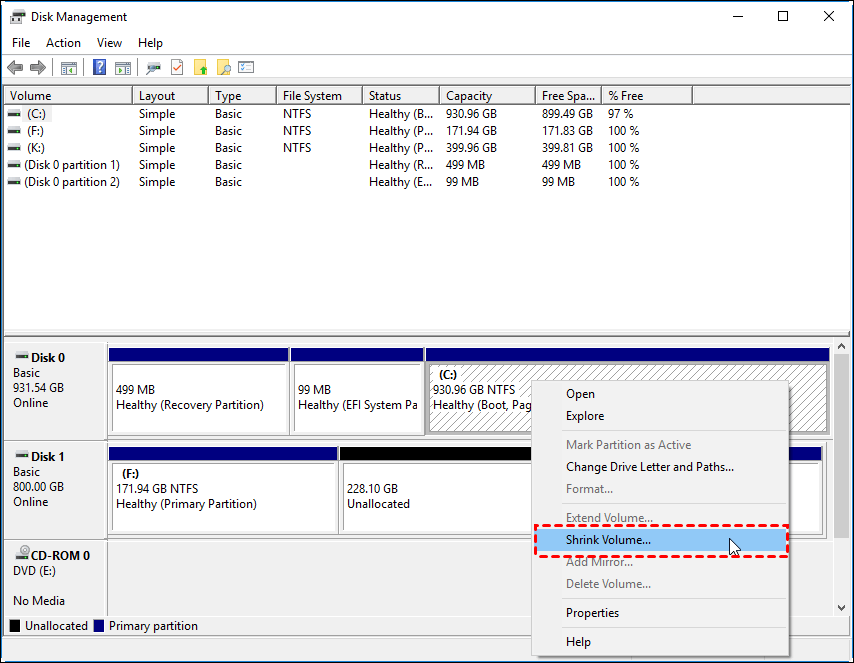
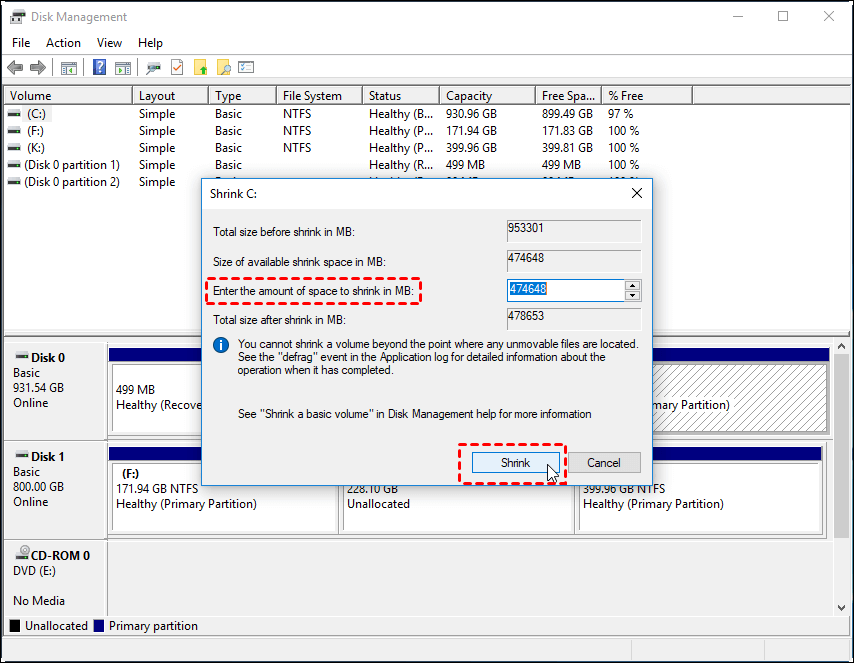
Step 2. Enter the size to shrink to create an Unallocated space.
Step 3. Right-click the Unallocated space > select New Simple Volume > assign it as the D drive.
Step 4. Repeat the process to create the E drive.
Method 2. Divide C Drive Using EaseUS Partition Master
EaseUS Partition Master is a professional partition management tool that offers greater flexibility and reliability than Disk Management. It provides advanced features, including resizing, splitting, merging, and moving partitions.
More importantly, it addresses the key limitations of Disk Management by allowing users to perform deeper and more precise partition resizing and preview changes before applying them. This significantly reduces the risk of errors and ensures that partition operations are completed safely, helping prevent data loss.
Create or Delete Partitions: Easily create new partitions to organize data types such as files, documents, and media. You can also delete unnecessary partitions to free up disk space and reallocate storage to other drives for better efficiency.
Merge Partitions: Combine two separate partitions into one larger drive to increase storage capacity and simplify disk management. This is especially useful when you need more continuous space for applications or large files.
Format or Wipe Partition: Format or wipe a partition to completely erase all data stored on it. This helps protect your privacy and prepares the partition for reuse, ensuring a clean and secure storage environment.
Convert MBR to GPT: Convert disk partition style from MBR to GPT to unlock advanced features, including support for drives larger than 2TB and improved system compatibility for modern operating systems like Windows 11.
Resize or Move Partition: Resize or move partitions without losing data to better manage disk space allocation. This allows you to expand or shrink storage volumes flexibly while keeping your files safe and intact.
Step 1: Locate and select target partition to shrink
Go to the Partition Manager section, right-click on the partition that you want to shrink and select "Resize/Move".
Step 2: Adjust to shrink partition
Use your mouse to drag the end of the target partition to shrink partition space.
You can also adjust the partition size box to shrink the target partition. Once done, click "OK" to continue.
Step 3: Execute operation
Click the "Execute 1 Task(s)" button and "Apply" to keep all changes.
Why Do Users Want to Divide C Drive into D and E
This section also explains the key reasons why users choose to divide the C drive into D and E partitions. Please see the details below.
- Protect the system and personal data separately: Keep operating system files separate from personal files, so data on D and E remains safe during OS reinstallation.
- Better file organization: Allow users to store apps, work documents, and media in different partitions for easier management.
- More efficient backups: Back up specific drives instead of the entire disk to save time and storage space.
- Reduced risk of data loss: Limit potential damage to personal files if the system drive encounters issues.
- Improved storage control: Give users clearer and more flexible control over how disk space is used.
Final Thoughts
Dividing your C drive into D and E is a simple yet effective way to improve file organization and data safety. While Disk Management is a good starting point for basic tasks, EaseUS Partition Master offers greater flexibility, reliability, and protection—making it the better choice for users who want a smoother and safer partitioning experience.
How Can We Help You
About the Author

Sherly joined EaseUS in 2022 and she has always loved writing articles and enjoys the fun they bring. She receives professional training here, focusing on product performance and other relative knowledge. She has written over 200 articles to help people overcome computing issues.

Cici is the junior editor of the writing team of EaseUS. She accepted the systematic training on computers at EaseUS for over one year. Now, she wrote a lot of professional articles to help people resolve the issues of hard drive corruption, computer boot errors, and disk partition problems.
Product Reviews
-
I love that the changes you make with EaseUS Partition Master Free aren't immediately applied to the disks. It makes it way easier to play out what will happen after you've made all the changes. I also think the overall look and feel of EaseUS Partition Master Free makes whatever you're doing with your computer's partitions easy.
Read More -
Partition Master Free can Resize, Move, Merge, Migrate, and Copy disks or partitions; convert to local, change label, defragment, check and explore partition; and much more. A premium upgrade adds free tech support and the ability to resize dynamic volumes.
Read More -
It won't hot image your drives or align them, but since it's coupled with a partition manager, it allows you do perform many tasks at once, instead of just cloning drives. You can move partitions around, resize them, defragment, and more, along with the other tools you'd expect from a cloning tool.
Read More
Related Articles
-
How to Extend C Drive in Windows 10
![author icon]() Daisy/2026/09/29
Daisy/2026/09/29 -
3 Effective Tools to Resize C Drive in Windows 7 [2026 Tutorial]
![author icon]() Tracy King/2026/09/29
Tracy King/2026/09/29 -
C Drive Full for No Reason on Windows 11/10? Fixed!
![author icon]() Cici/2026/09/29
Cici/2026/09/29 -
How to Move Unallocated Space to Next to C Drive | Full Guide
![author icon]() Brithny/2026/09/29
Brithny/2026/09/29
 Daisy/2026/09/29
  Tracy King/2026/09/29
  Brithny/2026/09/29









