







Content
Page Table of Contents
About the Author
Hot Topics
Can You Format C Drive Using Command Prompt?
If Windows is running, you cannot format the C drive with Command Prompt directly. The C drive is usually the system partition. Windows is using it for the operating system, files, and background processes. Because the drive is in use, the system will block a direct format operation.
But you can format C drive from Windows PE, Windows Recovery Environment, or installation media. In those environments, the system drive is not running in the same way, so you can access the disk structure and perform tasks. If your goal is to reinstall Windows, clean a damaged system partition, or start over with a fresh setup, Command Prompt can be a useful tool once you are in the Windows PE environment.
Can you format disk c in Windows recovery environment Command Prompt?.
by u/usafqn2025 in WindowsHelp
What Should You Do Before Formatting C Drive
Before you touch the C drive, you need to know that formatting will erase data. Any personal files, installed apps, and system settings on that partition will be removed. If there is anything important on the drive, back it up first.
You should also prepare the tools you need before starting. A Windows installation USB or a bootable recovery drive is the most common option. It is also wise to confirm whether your C drive is the only system partition, because on some PCs the boot files are stored separately.
- Checklist
- Back up important files
- A USB flash drive at least 8GB
- Check your disk number
- Save product key
- Windows Installation Media
How to Format C Drive Using Command Prompt [Step-by-Step]
You can format the C drive in Windows PE. Note that formatting the C drive will completely erase Windows, all installed programs, settings, and personal files on it. So, make sure you've backed up important data first. Then, follow the steps to format the C drive using the Command Prompt.
Step 1. Create a bootable USB drive.
- On a working computer, download the Windows Media Creation Tool from Microsoft's official website.
- Run the tool and select Create installation media for another PC.
- Select USB flash drive (at least 8GB) and follow the prompts to make it bootable.
Step 2. Boot from the USB.
- Insert the USB into the computer you want to format.
- Restart the computer and enter BIOS. (Usually by pressing F2, F10, Del, or Esc during startup. Please check your motherboard/PC.)
- Set the USB as the first boot device and save & exit.
- The computer should boot into the Windows Setup screen.
Step 3. Open Command Prompt in Setup.
- On the setup screen, click "Next > Repair your computer > Troubleshoot > Advanced options > Command Prompt."
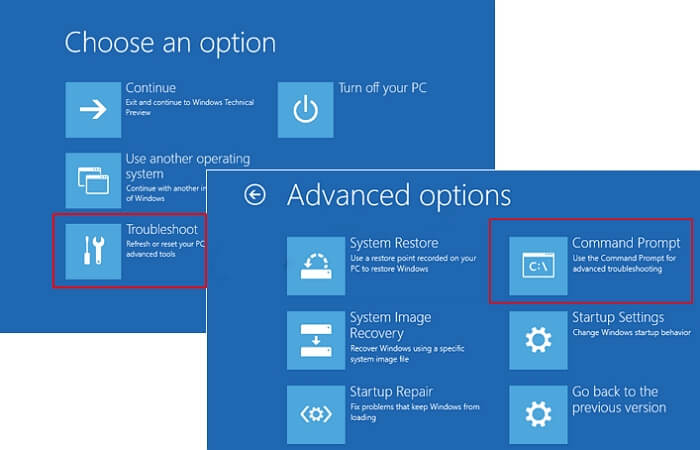
If you want to learn more about how to open Command Prompt, you can refer to the link.
Step 4. Format C Drive Using Diskpart.
In Command Prompt, type the following commands one by one and press Enter after each.
- diskpart
- list disk
- select disk 1 (replace 1 with your disk number)
- list volume
- select volume 7 (replace 7 with your C drive number)
- format fs=ntfs quick
- exit
- Notice:
- Since your operating system has been erased, your computer will not boot into Windows anymore. You might need to reinstall Windows using your bootable USB drive or restore your system from a backup image.
CMD Alternative to Formatting C Drive
You may encounter issues when formatting C drive with CMD. For example, you selected the wrong disk or can't boot from the USB. If you want an easier method, you can use EaseUS Partition Master. EaseUS Partition Master offers a visual interface that makes partition management easier than working entirely in Command Prompt. For users who want to resize, format, clone, or organize partitions, this can save time and reduce stress. What EaseUS Partition Master can help with Windows issues:
- Create a bootable disk(USB/CD)
- Fix Windows problems, like Windows startup issues, blue screen, etc.
- Reset Windows with or without a password
- Optimize OS & speed up PC
Here is how to create a bootable USB with EaseUS Partition Master.
Step 1. To create a bootable disk of EaseUS Partition Master, you should prepare a storage media, like a USB drive, flash drive or a CD/DVD disc. Then, correctly connect the drive to your computer.
Step 2. Launch EaseUS Partition Master, and find the "Bootable Media" feature on the left. Click on it.
Step 3. You can choose the USB or CD/DVD when the drive is available. However, if you do not have a storage device at hand, you can also save the ISO file to a local drive, and later burn it to a storage media. Once made the option, click the "Create" button to begin.
- Check the Warning message and click "Yes".
Step 4. When the process finishes, you'll see a pop up window, asking if you want to restart computer from the bootable USB.
- Reboot Now: it means you want to restart the current PC and enter EaseUS Bootable Media to manage your disk partitions without OS.
- Done: it means you don't want to restart the current PC but to use the bootable USB on a new PC.
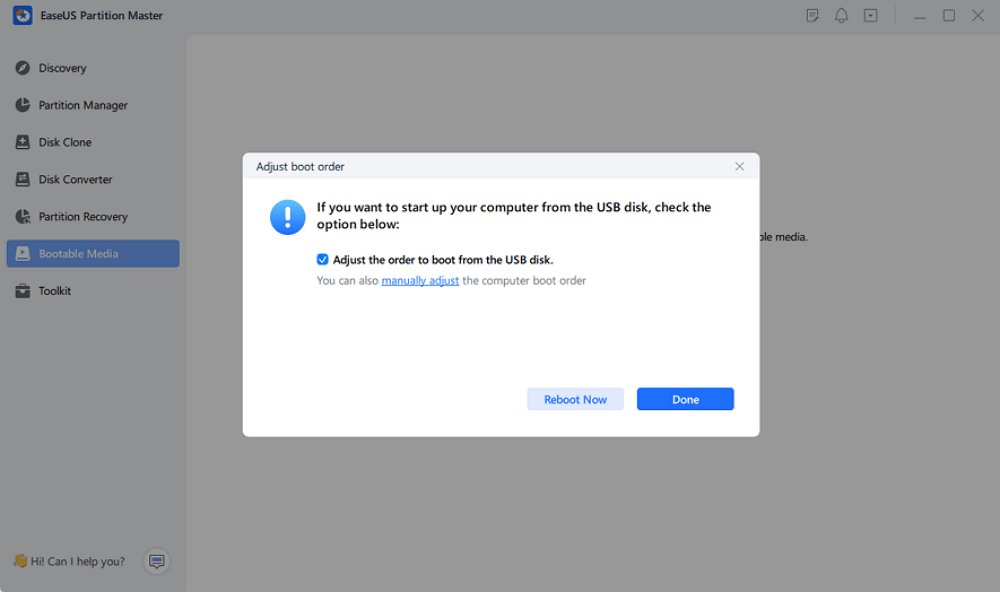
Note: To use the bootable disk on a new PC, you need to resart the target computer and press F2/F8/Del key to enter BIOS, and set the USB bootable disk as the first boot disk.
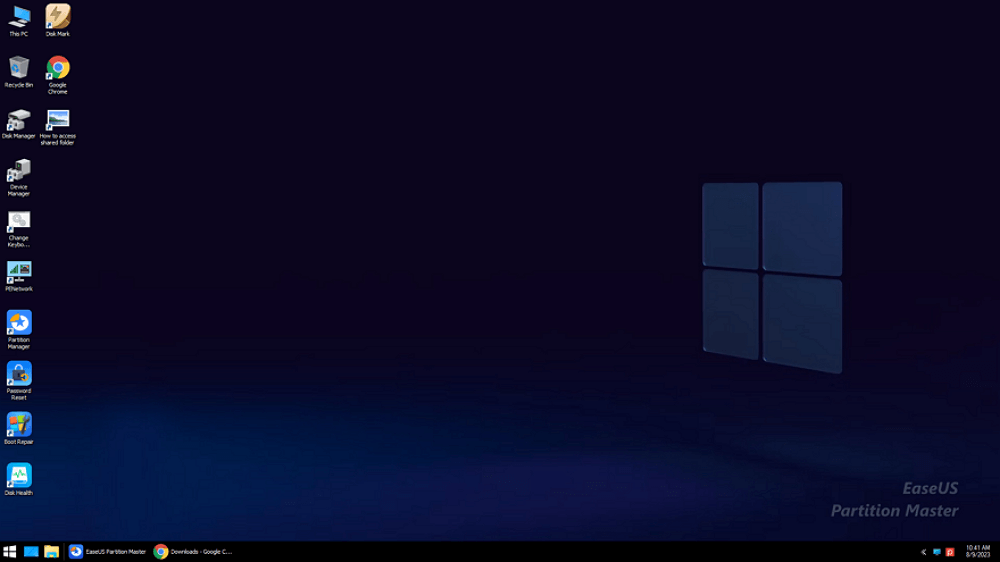
Wait patitiently and your computer will automatically boot up from the USB bootable media and enter EaseUS WinPE desktop.
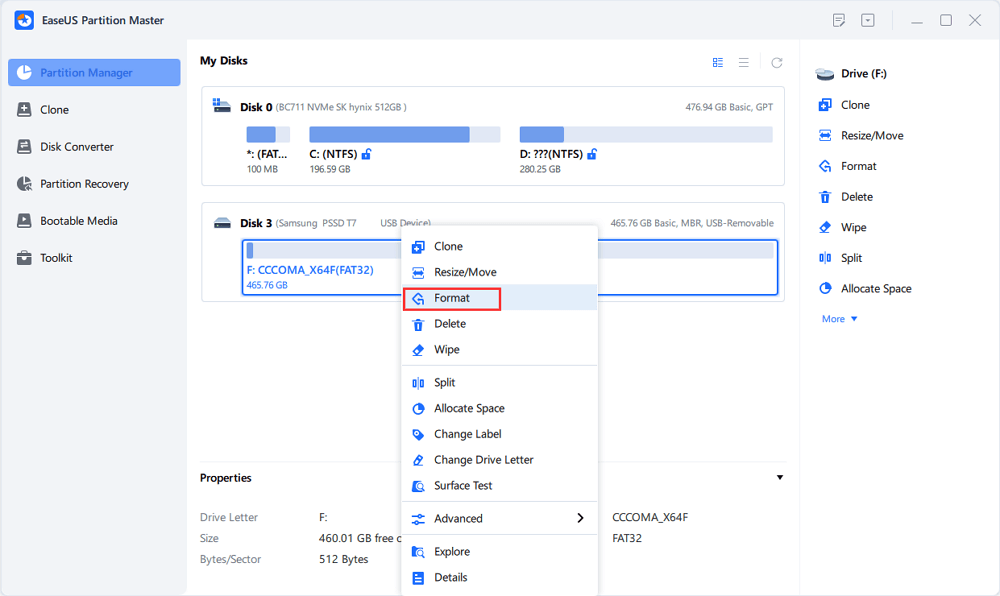
After you create the bootable USB, you can boot from it and format C drive using EaseUS Partition Master easily.
When & Why to Use CMD to Format C drive
Command Prompt is useful when you need low-level control over disk operations. It is especially helpful when Windows will not boot, the system is damaged, or you want to perform a clean reinstall. You might need to format C drive using Command Prompt when:
- Windows will not boot normally.
- The system partition is corrupted or damaged.
- You want a clean Windows reinstall.
- Malware is stuck in the system drive.
- You are preparing the disk for a fresh OS.
- You are working in recovery or PE mode.
- You want to remove all partitions completely.
- You are comfortable with command-line operations.
Conclusion
You can format the C drive with Command Prompt, but only outside the running Windows environment. If the C drive is locked by the system, you must use Windows PE, recovery mode, or installation media.
EaseUS Partition Master is also a reliable C drive format tool that helps format C drive easily. It's an all-in-one disk manager that can format, wipe, clone, resize, split, and merge your partitions. This format tool can also help fix Windows system issues.
FAQs
1. Can I format C drive while Windows is running?
No. The C drive is in use by the operating system. So formatting it directly from the Command Prompt in a running Windows session is not possible.
2. Do I need to reinstall Windows after formatting C drive?
Yes. After formatting the C drive, the operating system files are removed. You must reinstall Windows to make the computer usable again.
3. Is 'Clean' the same as 'Format'?
No. Clean removes all partition information from a disk. Format prepares a partition with a file system. They serve different purposes.
Share this post with your friends if you find it helpful!

How Can We Help You
About the Author

Sherly joined EaseUS in 2022 and she has always loved writing articles and enjoys the fun they bring. She receives professional training here, focusing on product performance and other relative knowledge. She has written over 200 articles to help people overcome computing issues.

Written by Joey Albert
Joey is an enthusiast of science and technology. With a passion for uncovering the latest tech innovations, she creates clear, engaging how-to guides that make technology accessible and enjoyable for all.
Product Reviews
-
I love that the changes you make with EaseUS Partition Master Free aren't immediately applied to the disks. It makes it way easier to play out what will happen after you've made all the changes. I also think the overall look and feel of EaseUS Partition Master Free makes whatever you're doing with your computer's partitions easy.
Read More -
Partition Master Free can Resize, Move, Merge, Migrate, and Copy disks or partitions; convert to local, change label, defragment, check and explore partition; and much more. A premium upgrade adds free tech support and the ability to resize dynamic volumes.
Read More -
It won't hot image your drives or align them, but since it's coupled with a partition manager, it allows you do perform many tasks at once, instead of just cloning drives. You can move partitions around, resize them, defragment, and more, along with the other tools you'd expect from a cloning tool.
Read More
Related Articles
-
How to Shrink C Drive without Losing Data [Full Guide]
![author icon]() Cici/2026/09/18
Cici/2026/09/18 -
C Drive Extend Software Free Download Safely | How to Guide
![author icon]() Sherly/2026/08/16
Sherly/2026/08/16 -
How to Increase C Drive Space in Windows Safely? 6 Fixes Here
![author icon]() Jean/2026/09/27
Jean/2026/09/27 -
Fix Unable to Shrink C Drive on Windows 11/10/8/7
![author icon]() Sherly/2026/06/17
Sherly/2026/06/17
 Cici/2026/09/18
  Jean/2026/09/27









