







Content
Page Table of Contents
About the Author
Hot Topics
If you have unallocated space on the same disk but Windows won't let you extend the C drive, the problem is usually its location. Windows Disk Management can extend a partition only when the unallocated space is directly next to it on the right. If another partition, such as D: or a Recovery partition, sits between C: and the unallocated space, you cannot use that space to extend C: directly.
For example, Windows can extend this layout:
C: | Unallocated Space
But not this one:
C: | D: | Unallocated Space
In the second case, you need to move the partition between C: and the unallocated space first. This places the unallocated space next to C:, after which you can extend the C: drive.
This guide explains how to move unallocated space to the left, right, or next to C: drive, why Windows Disk Management cannot do it directly, and what to do when the free space is on another physical disk.
Why Can't I Extend C Drive With Unallocated Space?
Unallocated space is disk space that is not currently assigned to a partition. You can use it to create a new volume or add space to an existing partition.
However, simply having unallocated space on the disk does not mean that Windows can use it to extend C:. The location of the unallocated space matters.
1️⃣Unallocated Space Is Not Adjacent to C Drive
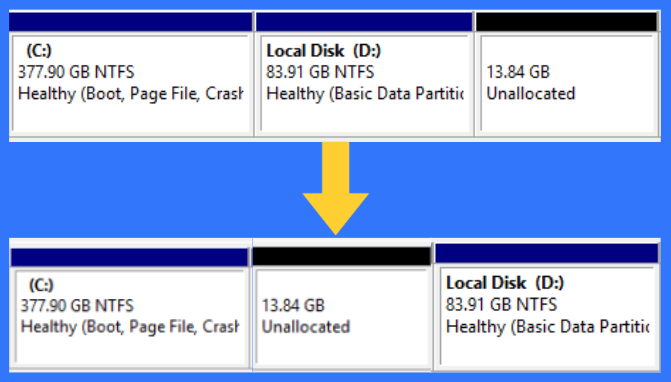
Suppose your disk looks like this: C: | D: | Unallocated
You have unallocated space, but it is separated from C: by the D: partition. Windows Disk Management cannot simply move D: out of the way. As a result, Extend Volume for C: may be greyed out.
To make the space usable for C:, the layout needs to become: C: | Unallocated | D:
Now the unallocated space is directly next to C:, so it can be added to the system partition.
2️⃣Another Partition May Be Blocking the Space
D: is not the only partition that can prevent C: from being extended. You may also see:
- C: | Recovery | Unallocated
- C: | EFI | Recovery | Unallocated
These partitions can also prevent the unallocated space from being adjacent to C:. Do not delete an EFI, Recovery, or other system-related partition just to create contiguous unallocated space unless you fully understand its purpose. Moving the partition is often a safer approach when you need to preserve the existing partition layout.
How to Move Unallocated Space Next to C Drive
If the unallocated space is separated from C: by another partition, you need a partition manager that can move partitions.
- For example, your current disk layout is: C: | D: | Unallocated; your goal is: C: | Unallocated | D:
You do not actually move the unallocated space by itself. Instead, you move the partition between C: and the unallocated space. EaseUS Partition Master provides a Resize/Move feature that can reposition a partition without requiring you to delete it first.
Step 1. Open EaseUS Partition Master
- Launch EaseUS Partition Master and open Partition Manager.
- Locate the disk containing the C drive and the unallocated space.
Step 2. Select the partition between C: and the unallocated space
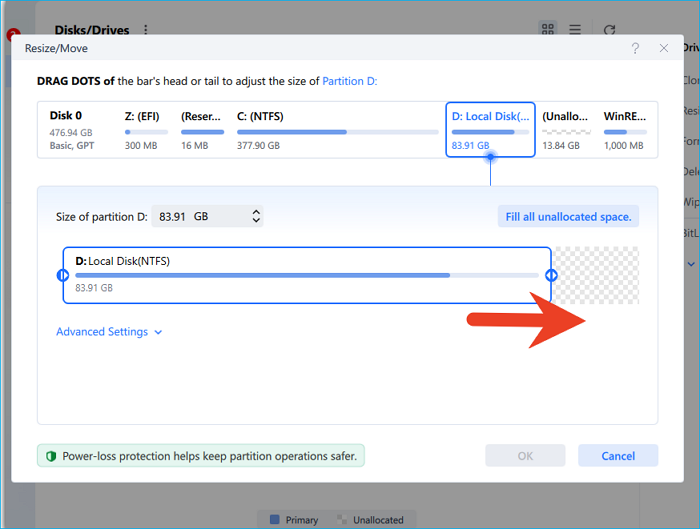
Right-click the partition that is blocking the unallocated space and select Resize/Move.
Step 3. Move the partition to the right
In the Resize/Move window, drag the entire partition toward the right until the unallocated space is positioned directly after C:.
Step 4. Apply the operation
Click OK, then click Execute Task and Apply to confirm the pending operation.
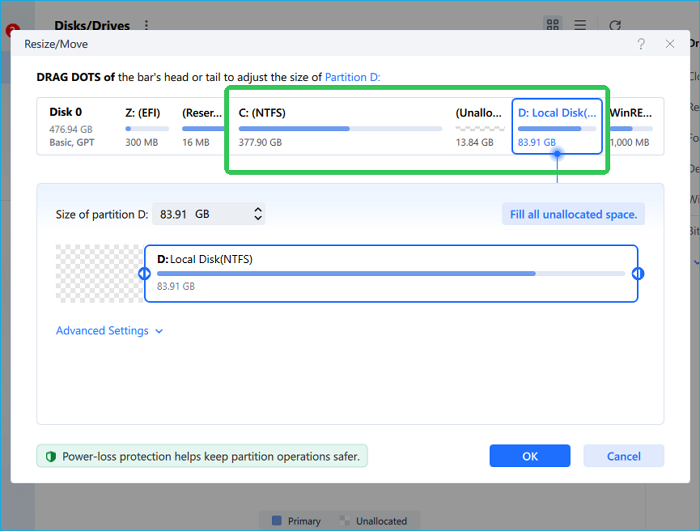
If the partition contains a large amount of data, the operation may take some time. Avoid shutting down the computer or interrupting the process while the partition is being moved.
Step 5. Extend C Drive
Once the unallocated space is directly next to C:, you can extend the system partition. Right-click the C drive, click Resize/Move, and follow the prompts to extend the C drive with the unallocated space.
Or, you can use Disk Management to continue.
Steps to extend C drive with Disk Management:
- Press Windows + X and select Disk Management.
- Find the C: partition.
- Right-click C: and select Extend Volume.
- Follow the wizard to select the available unallocated space.
- Confirm the amount of space to add and complete the operation.
- Warning
-
However, Disk Management has an important limitation: The unallocated space must be immediately adjacent to the right side of the partition you want to extend.
If your disk looks like this: C: | D: | Unallocated
Disk Management cannot move D: to make the space adjacent to C:. This is why Extend Volume may be greyed out even when your disk has plenty of unallocated space.
How to Move Unallocated Space to the Right/Left
The direction you need depends on the current partition layout and the partition you want to extend.
Move Unallocated Space to the Left
Suppose you have: D: | Unallocated, and you want the unallocated space to appear before D:.
You can move the D: partition toward the right:
- Before: D: | Unallocated
- After: Unallocated | D:
This can be useful when you need to place unallocated space next to another partition on its left.
Move Unallocated Space to the Right
Suppose you have: Unallocated | D:, and need the unallocated space on the other side of D:.
You can move D: toward the left:
Before: Unallocated | D:
After: D: | Unallocated
The important point is that moving unallocated space usually means moving the partition next to it. You are changing the location of the unallocated area by changing the position of the partition that separates it from the target partition.
What If the Unallocated Space Is on Another Disk?
If the layout is:
- Disk 0: C: | D:
- Disk 1: Unallocated
you cannot simply move the unallocated space from Disk 1 beside C: on Disk 0. The two areas belong to different physical disks.
Similarly, if you have:
- SSD 0: C:
- HDD 1: Unallocated
The unallocated space on the HDD is not the same as the unallocated space immediately following C: on the SSD. If your goal is to free up space on C:, consider alternatives such as:
- Moving large personal files to another drive
- Moving supported applications or games to another disk
- Changing default storage locations
- Migrating large data from C: to another partition
- Replacing the system SSD with a larger drive
- Cloning or migrating the system to a larger SSD
For a detailed explanation of the limitations of extending C: across physical disks, see [Can I Extend C Drive From Another Disk].
What If the Unallocated Space Is Separated by a Recovery Partition?
A common layout on Windows PCs is: C: | Recovery | Unallocated
The Recovery partition prevents the unallocated space from being directly adjacent to C:. In this case, deleting the Recovery partition is not the first solution to consider. Windows Recovery Environment may depend on that partition. Instead, check whether the partition can be safely moved with a partition management tool like EaseUS Partition Master.
The same principle applies when an EFI or other system partition sits between C: and the unallocated space.
Do not delete system or recovery partitions simply because Disk Management cannot extend C:.
Can I Move Unallocated Space Without Losing Data?
Moving a partition is designed to preserve the files stored on that partition, but partition operations modify the disk's layout and should not be treated as completely risk-free.
Before moving or resizing a partition:
- Back up important files.
- Make sure the computer has a stable power supply.
- Do not interrupt the operation while it is running.
- Check whether BitLocker or other disk encryption is enabled.
- Make sure you are working on the correct disk and partition.
If the partition contains important data, having a backup is especially important before performing a large partition move.
FAQs About Moving Unallocated Space
1. Can I move unallocated space in Windows Disk Management?
No. Windows Disk Management can create, delete, shrink, and extend volumes under certain conditions, but it cannot move an existing partition to reposition unallocated space.
If another partition is between the unallocated space and C:, you need to move that partition or use another method to make the space adjacent.
2. How do I move unallocated space next to C drive?
If the unallocated space is on the same disk but another partition is between it and C:, move the blocking partition toward the opposite side with EaseUS Partition Master.
For example: C: | D: | Unallocated
Move D: to the right: C: | Unallocated | D:
You can then extend C: into the adjacent unallocated space.
3. Why can't I extend C drive even though I have unallocated space?
The most common reason is that the unallocated space is not directly next to C: on its right.
For example: C: | Recovery | Unallocated or: C: | D: | Unallocated
Windows Disk Management can't move the intervening partition, so Extend Volume may be unavailable.
4. Can I move unallocated space from D drive to C drive?
Not directly with Windows Disk Management. If you want to take free space from D: and add it to C:, Windows' built-in tools generally require you to create suitable adjacent unallocated space. A partition manager can move or resize the partitions so that the required space becomes available to C:.
5. Can I move unallocated space from one disk to another?
Not as ordinary unallocated space. Unallocated space belongs to a specific physical disk. You cannot simply drag unallocated space from one HDD or SSD and place it next to a partition on another physical disk.
If the goal is to increase C: storage using another disk, consider moving large files or supported applications to that disk, migrating data, or upgrading the system drive.
6. Does moving unallocated space delete my files?
Moving unallocated space itself does not contain files because it is not part of a formatted volume. However, repositioning a partition changes where the partition is stored on the disk. Back up important data before moving or resizing partitions, and do not interrupt the operation while it is being applied.
Final Thoughts
If you have unallocated space but cannot use it to extend C:, check its location before deleting anything. The key difference is simple:
- C: | Unallocated —— C: can be extended
- C: | D: | Unallocated —— C: cannot use the space directly with Disk Management
When the unallocated space is not adjacent to C:, the solution is usually to move the partition between C: and the unallocated space. Once the layout becomes: C: | Unallocated,
you can extend the C drive into the available space. If the unallocated space is on another physical disk, moving partitions is not the solution. In that case, you need a different way to free up space on the system drive.
How Can We Help You
About the Author

Sherly joined EaseUS in 2022 and she has always loved writing articles and enjoys the fun they bring. She receives professional training here, focusing on product performance and other relative knowledge. She has written over 200 articles to help people overcome computing issues.

Brithny is a technology enthusiast, aiming to make readers' tech lives easy and enjoyable. She loves exploring new technologies and writing technical how-to tips. In her spare time, she loves sharing things about her game experience on Facebook or Twitter.
Product Reviews
-
I love that the changes you make with EaseUS Partition Master Free aren't immediately applied to the disks. It makes it way easier to play out what will happen after you've made all the changes. I also think the overall look and feel of EaseUS Partition Master Free makes whatever you're doing with your computer's partitions easy.
Read More -
Partition Master Free can Resize, Move, Merge, Migrate, and Copy disks or partitions; convert to local, change label, defragment, check and explore partition; and much more. A premium upgrade adds free tech support and the ability to resize dynamic volumes.
Read More -
It won't hot image your drives or align them, but since it's coupled with a partition manager, it allows you do perform many tasks at once, instead of just cloning drives. You can move partitions around, resize them, defragment, and more, along with the other tools you'd expect from a cloning tool.
Read More
Related Articles
-
Extend Volume of C Is Disabled? Fix the Greyed-Out Extend Volume Error on Windows 11
![author icon]() Sherly/2026/06/17
Sherly/2026/06/17 -
How Do I Completely Wipe C Drive [Full Guide]
![author icon]() Oliver/2026/06/30
Oliver/2026/06/30 -
Unable to Extend C Drive? Fix It Now
![author icon]() Cici/2026/09/16
Cici/2026/09/16 -
Fix Unable to Shrink C Drive on Windows 11/10/8/7
![author icon]() Sherly/2026/06/17
Sherly/2026/06/17
 Oliver/2026/06/30
  Cici/2026/09/16









