







Content
Page Table of Contents
About the Author
Hot Topics
If your C drive is getting full, the main question is simple: what is using all the space? Many users check their C drive and still do not know what is taking up space. Some programs are easy to find. But some programs leave files in hidden folders or use more space than expected. This guide will show you how to check what is installed on your C drive. You will also know how to clear unwanted apps and free up C drive space.
🔸Reddit Case: How do I see all the programs on my C drive? Without installing any softwares is perferd but if I must then I will.
🔸Quora Case: How do we see what's installed on our C drive?
How to See What's Installed on My C Drive [3 Methods]
This section introduces three methods to check what's installed on your C drive. Some methods show installed apps, while others help you find the files and folders that are actually consuming storage. The best approach depends on whether you want a quick list of programs or a deeper look.
Method 1. Windows Settings
Windows Settings is the easiest place to start. It gives you a quick view of the apps installed on your computer. You can sort or filter them to find what is installed on the C drive. For many users, this is the fastest way to find large or old apps.
Here is how to see what's installed on your C drive.
Step 1. Open Settings on your computer.
Step 2. Click "System" > "Storage."
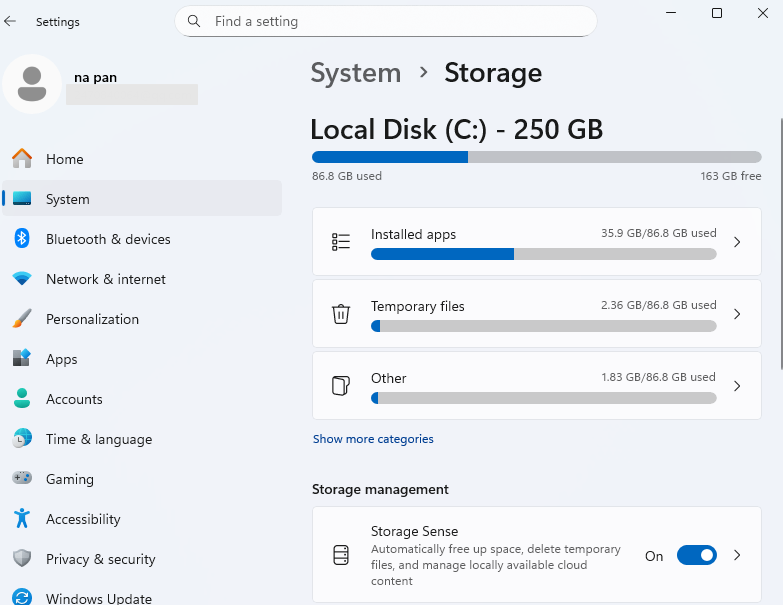
Step 3. Here, you can see what is taking up your C drive.
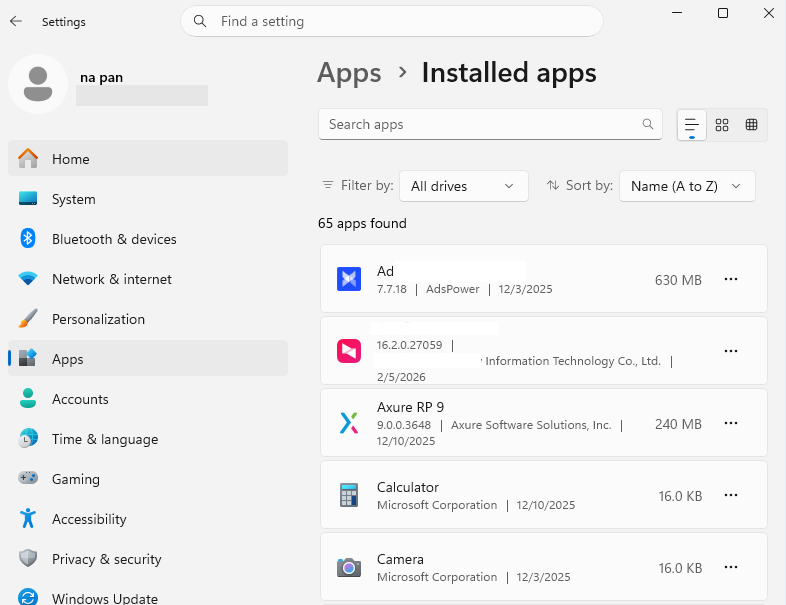
Step 4. Click "Installed apps."
Step 5. Sort by size or install date if needed. It displays all the apps on your C drive.
|
😆Pros:
|
😦Cons:
|
Method 2. EaseUS Partition Master
EaseUS Partition Master is a better choice if you want to see more than the installed apps. It can help you visually analyze the C drive. You can find large files, folders, and usage patterns. This is useful when you are not sure why the C drive is full and need a deeper look. EaseUS Partition Master gives you a simple view of disk usage and helps you find large files and folders faster than basic Windows tools. For users who want to manage storage efficiently, it can make the whole process easier and more efficient.
What EaseUS Partition Master helps with space management:
- Check how much space the C drive is using.
- Find large files and folders.
- See storage usage more clearly.
- Free up space on a full drive.
- Organize disk space more efficiently.
- Review what may be slowing down the system.
- Manage disk partitions.
How to check what's installed on your C drive with EaseUS Partition Master.
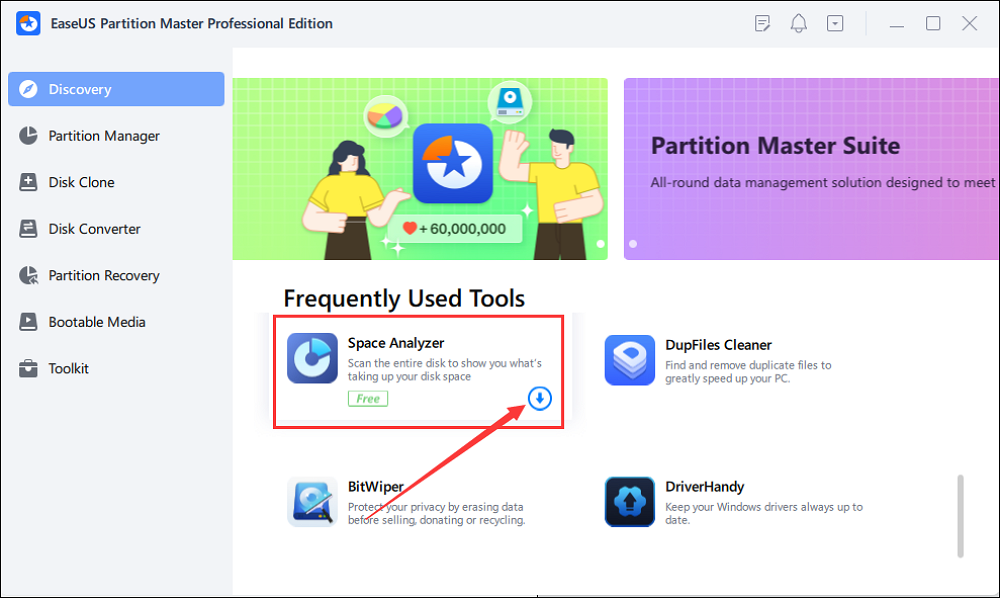
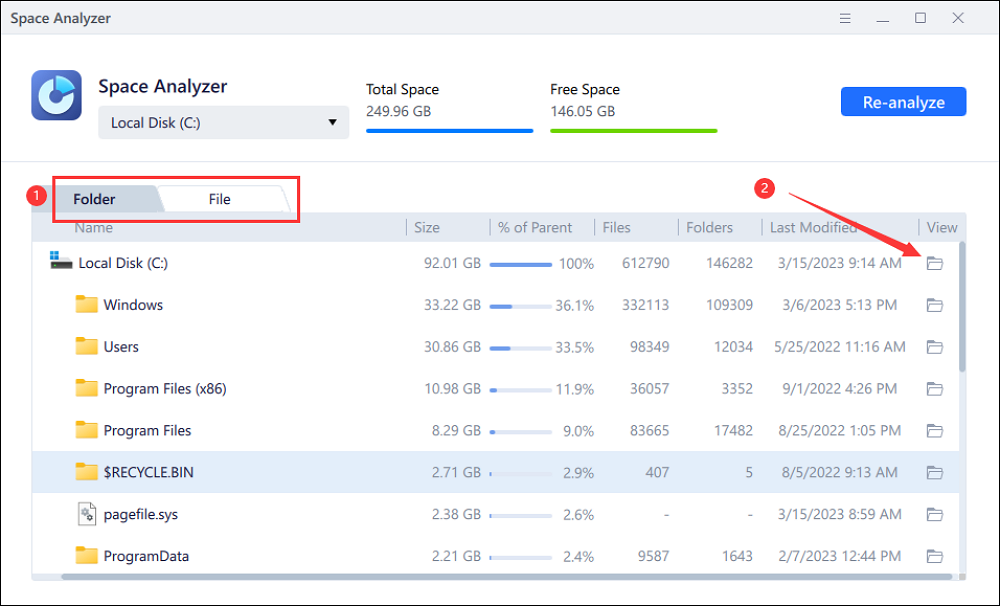
Step 1. Launch EaseUS Partition Master and turn to Discovery. Find and Download Space Analyzer below Frequently Used Tools.
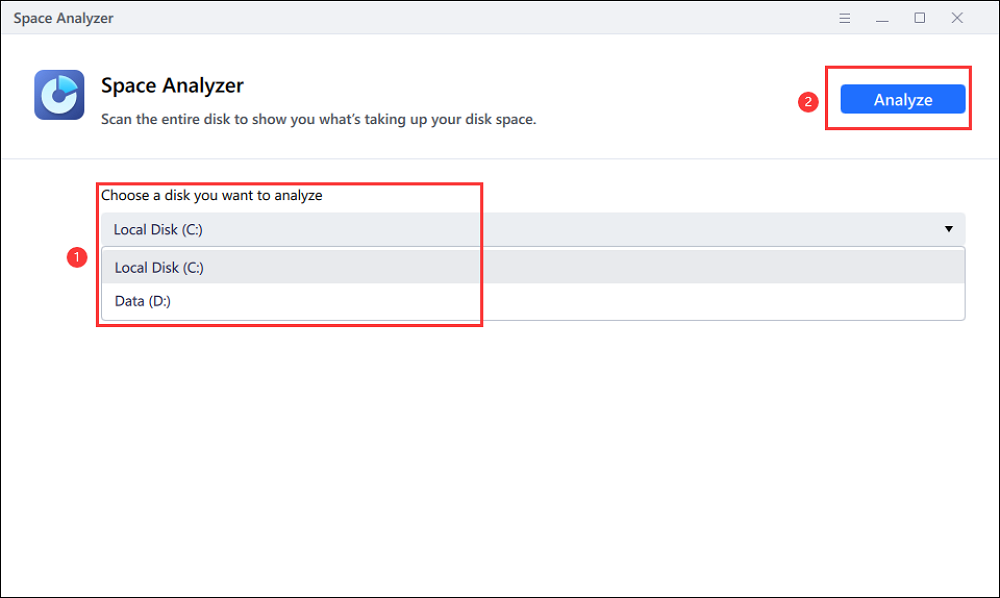
Step 2. In the Space Analyzer pop-up window, select the target disk to be analyzed and click Analyze in the upper right corner.
Step 3. Wait a while, and you will see the detailed data. You can click on Folder/File to view different data types and click on the small folder icon to see more information inside the file.
|
😆Pros:
|
😦Cons:
|
Method 3. Control Panel
Control Panel is another useful way to check what is installed on your C drive. It's a built-in Windows tool. So many users prefer it, especially when they want a simple list of desktop programs.
To check what's installed on your C drive:
Step 1. Open Control Panel.
Step 2. Click Programs.
Step 3. Choose Programs and Features.
Step 4. Look through the list of installed programs.
Step 5. Sort by name, publisher, or install date.
Step 6. Uninstall any program you no longer need.

|
😆Pros:
|
😦Cons:
|
How to Clean C drive
Once you know what is installed on your C drive, you might clear out the files and apps you no longer need. A full C drive can slow down your computer and leave you with very little room for updates, new programs, or normal daily use. Here is how to clean the C drive.
Step 1. Uninstall apps you do not use.
Open Settings > Apps > Installed apps or Control Panel > Programs and Features. Then, remove programs you no longer need. This is often the fastest way to free up space.
Step 2. Delete files in Downloads.
Check your Downloads folder and remove old installers, zip files, videos, and documents you no longer need. This folder often holds a lot of forgotten data.
Step 3. Clear temporary files.
Use Windows storage cleanup or a trusted cleanup tool to remove temporary files, cache, and update leftovers. These files can build up over time and waste space.
Step 4. Review large folders.
Look inside folders like Desktop, Documents, and Videos. Move large personal files to another drive or an external disk if you do not need them on C drive.
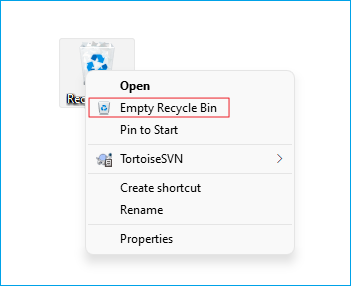
Step 5. Empty the Recycle Bin.
Deleted files still take space until the Recycle Bin is emptied. Make sure to clear it after you finish removing files.
Conclusion
If you want to know what is installed on your C drive, you can use Windows Settings, EaseUS Partition Master, or Control Panel. Windows Settings and Control Panel are good for viewing installed apps. EaseUS Partition Master helps you check larger space issues more clearly.
FAQs
1. Does Windows show every file on my C drive?
No. Windows app lists mainly show installed programs, not all files, folders, caches, or hidden data on the drive. If you want to see what is really using space, a disk analysis tool like EaseUS Partition Master is often more useful.
2. Why do I still have a full C drive after uninstalling apps?
Apps are only one part of storage use. Temporary files, downloads, update data, app caches, and personal files can still take a lot of space. That is why checking folder usage matters.
3. Can I move installed apps from C drive to another drive?
Yes. EaseUS Partition Master can easily move installed apps from the C drive to another drive. It offers an App Move feature. It is best for users who want a simple way to manage storage without reinstalling.
Share it on:

How Can We Help You
About the Author

Sherly joined EaseUS in 2022 and she has always loved writing articles and enjoys the fun they bring. She receives professional training here, focusing on product performance and other relative knowledge. She has written over 200 articles to help people overcome computing issues.

Written by Joey Albert
Joey is an enthusiast of science and technology. With a passion for uncovering the latest tech innovations, she creates clear, engaging how-to guides that make technology accessible and enjoyable for all.
Product Reviews
-
I love that the changes you make with EaseUS Partition Master Free aren't immediately applied to the disks. It makes it way easier to play out what will happen after you've made all the changes. I also think the overall look and feel of EaseUS Partition Master Free makes whatever you're doing with your computer's partitions easy.
Read More -
Partition Master Free can Resize, Move, Merge, Migrate, and Copy disks or partitions; convert to local, change label, defragment, check and explore partition; and much more. A premium upgrade adds free tech support and the ability to resize dynamic volumes.
Read More -
It won't hot image your drives or align them, but since it's coupled with a partition manager, it allows you do perform many tasks at once, instead of just cloning drives. You can move partitions around, resize them, defragment, and more, along with the other tools you'd expect from a cloning tool.
Read More
Related Articles
-
C Drive Is Raw Win 10: How to Repair - 5 Fixes
![author icon]() Sherly/2026/09/14
Sherly/2026/09/14 -
How to Fix C Drive Access Denied Windows 10 Error
![author icon]() Sherly/2026/06/17
Sherly/2026/06/17 -
Fix Unable to Shrink C Drive on Windows 11/10/8/7
![author icon]() Sherly/2026/06/17
Sherly/2026/06/17 -
Create D Drive from C Drive in 2 Simple Ways
![author icon]() Oliver/2026/06/30
Oliver/2026/06/30
 Oliver/2026/06/30









