







Content
Page Table of Contents
About the Author
Hot Topics
Is your C drive full but nothing to delete? If you've already emptied the Recycle Bin, removed unnecessary files, and run Disk Cleanup, but Windows still shows low disk space, you may be dealing with hidden files, application caches, Windows update leftovers, or a C drive that is simply too small.
You don't have to delete important files to fix a full C drive. In this guide, you'll learn how to find out what's taking up space on your C drive, safely free up storage in Windows 11 and Windows 10, move large files and applications, and extend your C drive if cleaning up isn't enough.
Local Disk (C:) is full but i cant find no files to delete
by u/Generalcaine2007 in techsupport
Why Is My C Drive Full but I Have Nothing to Delete?
When your C drive is full but you cannot find anything to delete, the problem may be hidden storage usage rather than a lack of cleanup. Windows, installed applications, and background processes can consume disk space even when your personal folders look nearly empty.
Here are some common reasons why your C drive is full without obvious files to remove.
| Possible cause | Why it takes up space |
|---|---|
| Hidden files and folders | Hidden files and folders |
| Windows update files | Update downloads and previous installation files can occupy additional storage. |
| System restore points | Windows reserves disk space for restore points and shadow copies. |
| Hibernation file | The hidden hiberfil.sys file supports hibernation and may use several GB or more. |
| Virtual memory | The pagefile.sys file uses disk space to support memory management. |
| Applications and games | Large programs, game installations, and local application data can fill the system drive. |
| Cloud storage files | Locally stored OneDrive files occupy physical disk space even when synchronized online. |
| Insufficient partition capacity | Windows and installed software may simply need more space than the C drive can provide. |
Found it helpful? Do not hesitate to share this post and let more people learn why the C drive is almost full but there is nothing to delete.

8 Ways to Fix C Drive Full But Nothing to Delete Error
The best approach is to identify what's consuming your storage before deleting anything. Start with the following methods and move to more advanced solutions only when necessary.
- 1. Find Hidden Large Files Taking Up Space on Your C Drive
- 2. Run Disk Cleanup as Administrator
- 3. Delete Unnecessary Temporary Files
- 4. Enable Storage Sense to Prevent Future Low Disk Space
- 5. Check System Restore Points and Disable Hibernation If Unnecessary
- 6. Move Large Files, Applications, and Games to Another Drive
- 7. Extend the C Drive If Cleaning Isn't Enough
- 8. Upgrade to a Larger SSD If Your Entire Disk Is Full
1. Find Hidden Large Files Taking Up Space on Your C Drive
If File Explorer doesn't show any obvious large files, check how Windows distributes your storage and then scan for folders that may be difficult to find manually.
1️⃣Check Windows Storage Settings
Windows 11 and Windows 10 include storage tools that categorize disk usage.
- Press Win + I to open Settings.
- Go to System > Storage.
- Review the storage categories, including Installed apps, Temporary files, System & reserved, and Other.
- Identify which categories consume the most space.
If Installed apps accounts for most of your used storage, uninstalling or moving large applications may help more than cleaning temporary files. If System & reserved is unusually large, investigate Windows system files, restore points, and virtual memory.
2️⃣Scan Your C Drive with WizTree or WinDirStat
When Windows Storage doesn't explain the missing space, a disk space analyzer can reveal which files and folders are consuming the most storage.
Two useful options are WizTree and WinDirStat. Both can visualize disk usage and help you identify large directories.
To investigate your C drive:
- Download and install a disk space analyzer from its official website.
- Scan the C drive. If necessary, run the tool as an administrator to improve access to protected directories.
- Sort the results by size and expand large folders to find their biggest subfolders.
- Identify whether the space is occupied by applications, caches, downloads, or system-managed files.
- Investigate the largest items before deciding whether they can be removed.
Keep in mind that some protected files may remain inaccessible, and the reported size of a folder doesn't necessarily equal the amount of space you can safely recover.
3️⃣Check Application Caches and Hidden Folders
Applications sometimes store large amounts of data outside the folders you normally use. Common locations include:
- %appdata% — opens the current user's Roaming application data folder.
- %localappdata% — opens the current user's Local application data folder.
- C:\ProgramData — stores data shared by installed applications.
- C:\Windows\SoftwareDistribution — contains Windows Update download data.
- C:\Users\YourName\Downloads — may contain large installers, archives, and downloaded files.
For example, video editing and design applications may generate preview files, render caches, and temporary project data that consume several gigabytes.
Do not delete everything inside AppData or ProgramData. These directories can contain application settings, profiles, databases, and important user data. Use an application's built-in cache-cleanup feature whenever possible, and only remove files you have identified as safe to delete.
Once you know what's using the space, choose a targeted solution instead of repeatedly running cleanup tools that may have little effect.
2. Run Disk Cleanup as Administrator
Windows creates temporary files during updates, software installations, and routine operations. It can also retain certain update cleanup files and previous installation data.
If a standard cleanup hasn't freed enough space, running Disk Cleanup with administrator permissions can expose additional system cleanup categories.
- Open the Start menu and search for Disk Cleanup.
- Right-click the result and select Run as administrator, if available.
- Select the C drive and click OK.
- Click Clean up system files.
- Select the C drive again if prompted.
- Review the available categories, including Windows Update Cleanup, Temporary files, and Recycle Bin.
- Select the items you no longer need and click OK to start cleanup.
The available options vary depending on your Windows version and system state.
Be careful with Previous Windows installation(s) and other rollback-related files. Removing them may prevent you from returning to a previous Windows version. Check the Recycle Bin before emptying it, too, to avoid permanently losing files you still need.
If Disk Cleanup frees only a small amount of space, don't keep repeating the same process. Move on to checking temporary folders, system-managed files, and large applications.
3. Delete Unnecessary Temporary Files
Temporary files can accumulate even when you rarely download anything. Windows and applications create temporary data during installations, updates, and normal operation.
You can use Windows Settings to remove eligible temporary files or manually inspect the standard temporary folders.
1️⃣Use Windows Storage Settings
In Windows 11:
- Open Settings > System > Storage.
- Select Temporary files.
- Wait for Windows to calculate the available cleanup options.
- Review the categories and select the files you want to remove.
- Click Remove files.
In Windows 10, open Settings > System > Storage, select the C drive or Temporary files, and review the available cleanup categories.
Do not select every category without checking its contents. In particular, previous Windows installation files may be required if you want to roll back after an upgrade.
2️⃣Clear the Temp and %temp% Folders
If you still need to free up space, you can check Windows temporary folders manually.
To clear the current user's temporary files:
- Press Win + R.
- Type %temp% and press Enter.
- Select the files and folders you no longer need.
- Press Delete.
- Skip any items that Windows reports as being in use.
You can also enter temp in the Run dialog to open the system temporary folder. Review its contents and delete eligible temporary files, skipping anything that cannot be removed.
Close unnecessary applications before doing this. Some temporary files are actively used by Windows or running programs, so not every item can or should be deleted.
You generally do not need to clear the Prefetch folder manually. Windows manages this folder to support application startup, and emptying it is not a reliable way to recover significant disk space.
After cleaning, return to Storage settings to check the available space. If your C drive is still full, investigate other storage consumers rather than repeatedly deleting temporary files.
💡Alternative Option
You can use EaseUS Partition Master to find and free up C drive space without manually checking multiple locations.
- Open EaseUS Partition Master and select Clean.
- Use Space Analysis to identify what is taking up the most space.
- Scan for and remove unnecessary junk files.
- Find and uninstall large or unwanted applications.
- Use Data Migration to move supported large apps or files from C drive to another drive, such as D drive.
- Check the available C drive space again after cleanup.
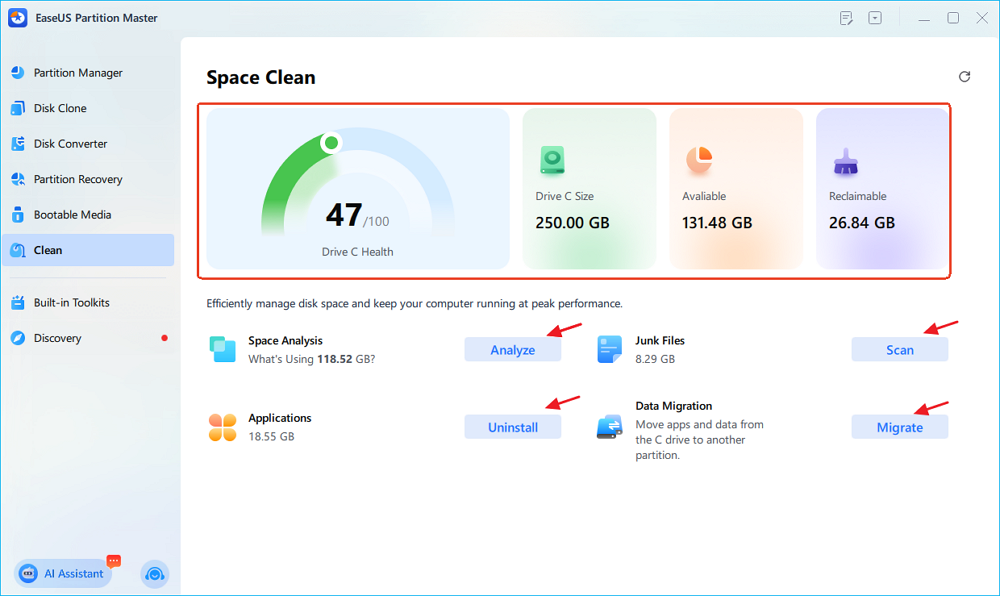
This feature lets you analyze disk usage and free up space through cleanup, app removal, and data migration from a single interface.
4. Enable Storage Sense to Prevent Future Low Disk Space
If your C drive frequently runs out of space, Storage Sense can automatically remove selected temporary files and manage Recycle Bin contents according to your settings.
To enable it:
- Open Settings > System > Storage.
- Turn on Storage Sense.
- Open its settings to configure how often it runs.
- Review the rules for temporary files, the Recycle Bin, and the Downloads folder.
- Select Run Storage Sense now if the option is available.
Be careful when configuring automatic cleanup. Depending on your settings, files in the Recycle Bin or Downloads folder may be removed.
Storage Sense is useful for preventing temporary files from accumulating, but it won't solve a problem caused by a very large application, system-managed files, or an undersized C drive.
5. Check System Restore Points and Disable Hibernation If Unnecessary
Some files consume storage because Windows needs them to support recovery or power management. If your C drive is full but ordinary cleanup doesn't help, check whether these system features are using a significant amount of space.
1️⃣Manage System Restore Points
Windows System Protection can create restore points that allow you to return system settings and files to an earlier state. These restore points use disk space, and their storage allocation can grow over time.
To check the current usage:
- Press Win + R.
- Type SystemPropertiesProtection and press Enter.
- Select the C drive under Protection Settings.
- Click Configure.
- Review the current usage and maximum disk space allocation.
If necessary, adjust the maximum space allocated to System Protection. You can also remove older restore points if you have decided they are no longer needed.
Important: Deleting restore points removes available recovery options. Avoid disabling System Protection or removing all restore points without considering your recovery needs.
2️⃣Disable Hibernation If You Never Use It
Windows uses a hidden file named hiberfil.sys to support hibernation. Depending on your system configuration and memory usage, this file can occupy several gigabytes or more.
If you never use hibernation, disabling it can free up the space allocated to this file.
- Search for Command Prompt in the Start menu.
- Select Run as administrator.
- Enter the following command: powercfg /hibernate off
- Press Enter.
- Check the available space on your C drive.
This command disables hibernation and removes the hibernation file. It also disables Fast Startup, which relies on hibernation functionality.
The amount of space recovered varies by system, so you should not assume it will always reclaim 32 GB. If you use hibernation or want to keep Fast Startup available, leave the feature enabled and consider other cleanup options.
Avoid manually deleting hiberfil.sys from File Explorer.
6. Move Large Files, Applications, and Games to Another Drive
If your D drive has plenty of free space but your C drive is nearly full, moving suitable data can free up storage without permanently deleting files.
1️⃣Move Personal Files to D Drive
Start with large files you want to keep but don't need to store on the system drive.
- Open File Explorer and navigate to Downloads, Videos, Documents, or another folder.
- Sort the files by size to identify large items.
- Select the files you want to move and press Ctrl + X.
- Open a destination folder on D drive and press Ctrl + V.
- Open the moved files to confirm that they are accessible.
You can also change where Windows saves new documents, music, videos, and other content through Settings > System > Storage > Advanced storage settings > Where new content is saved, where available.
For OneDrive, consider using Files On-Demand to make eligible files online-only rather than keeping full local copies. Confirm that your files are synchronized and backed up before changing their local availability.
Move Installed Applications and Games
Applications and games may occupy tens or hundreds of gigabytes, especially if they include large asset libraries.
For Microsoft Store apps that support moving:
- Open Settings > Apps > Installed apps in Windows 11, or the equivalent Apps settings in Windows 10.
- Find the application you want to move.
- Open its available options.
- Select Move if the option is available, then choose another drive.
Not every application supports this method. For traditional desktop software and games, use the application's built-in migration feature or uninstall and reinstall it to another drive when necessary.
Do not manually drag an entire installed application's folder to D drive. This may break registry entries, shortcuts, services, and other dependencies.
If moving files and applications still doesn't free enough space, the next step is to check whether you can increase the size of the C drive itself.
7. Extend the C Drive If Cleaning Isn't Enough
If you have already cleaned temporary files, checked hidden storage usage, and moved everything practical, your C drive partition may simply be too small. When another partition on the same physical disk has available space, you may be able to extend C drive and give Windows more room.
Why Can't I Extend C Drive in Disk Management?
Windows Disk Management has specific requirements for extending a partition. On a basic disk, the unallocated space generally must be immediately to the right of the partition you want to extend and on the same physical disk. For example, consider this disk layout: [C: Drive] [D: Drive] [Unallocated Space]
You cannot directly extend C drive into the unallocated space through Disk Management because D drive sits between C and the unallocated space. Free space inside D drive is also different from unallocated space. Shrinking D may create unallocated space at its end, but that space may not be adjacent to C.
You have two main options:
- Use Disk Management: If unallocated space is immediately to the right of C drive on the same disk, right-click C and select Extend Volume.
- Use a partition management tool: If another partition sits between C and the unallocated space, a tool that supports moving or resizing partitions can help reposition the space before extending C drive.
Extend C Drive with EaseUS Partition Master
EaseUS Partition Master provides partition resizing and moving features that can help when Windows Disk Management cannot extend C drive because the available space isn't adjacent.
💡Note: Back up important data before resizing or moving partitions, keep the computer connected to reliable power, and avoid interrupting the operation.
Extend System C drive with unallocated space
- 1. Right-click on the System C: drive and select "Resize/Move".
- 2. Drag the system partition end into the unallocated space so to add it to the C: drive. And click "OK".
- 3. Click "Execute Task" and "Apply" to execute the operations and extend the C drive.
Partition resizing can't create additional physical storage capacity. If the entire disk is nearly full, you may need to move data to another disk or upgrade to a larger SSD.
8. Upgrade to a Larger SSD If Your Entire Disk Is Full
Sometimes there is no meaningful amount of removable data, no spare space on another partition, and no room to extend the C: drive. In that situation, the underlying issue may be insufficient physical storage capacity.
For example, a smaller SSD may have been adequate when you first installed Windows, but later accumulated applications, games, updates, and work files. Cleanup can only recover so much space if the operating system and installed software genuinely need more capacity.
Upgrading to a larger SSD is worth considering when:
- The entire physical disk is almost full.
- C drive has very little capacity and there is no useful space to reclaim.
- You regularly install large applications or games.
- You want to retain your existing files and Windows installation.
You can migrate your Windows installation to a larger SSD or clone your existing disk, depending on your hardware and software setup. Check our full guide on disk upgrade.

New Disk Upgrade, Migration & Space Management
You can migrate Windows and transfer your data. You can also partition your new disk and manage C drive space. The guide also covers disk cloning, SSD optimization, HDD defragmentation, and disk health checks.
Before replacing the drive, verify that the new SSD is compatible with your PC, back up important files, and confirm that the destination drive has enough capacity for the data being transferred.
How to Prevent Your C Drive from Filling Up Again
After fixing a full C drive, a few changes can help reduce the chance of running into the same problem again.
- Keep Storage Sense enabled: Let Windows clean eligible temporary files automatically.
- Change default save locations: Store new personal files on a larger secondary drive when practical.
- Monitor large applications: Review installed apps and games periodically.
- Manage cloud storage: Avoid keeping unnecessary local copies of files that are safely synchronized and available online.
- Leave room for Windows updates: Avoid filling the system partition to its maximum capacity.
- Check storage usage periodically: Use Windows Storage settings to catch unusual growth before it becomes a problem.
The right long-term fix depends on the cause. If temporary files are the issue, automatic cleanup may be sufficient. If applications and games are responsible, moving them can help. If your C drive is simply too small, expanding the partition or upgrading the SSD may be the better solution.
FAQs About C Drive Full but Nothing to Delete
Why is my C drive full when I have no files?
Your C drive may contain hidden application data, Windows update files, restore points, hibernation data, virtual memory, or other system-managed files. Open Settings > System > Storage to identify which categories use the most space before removing anything.
Why is my C drive full after deleting files?
Deleted files may remain in the Recycle Bin, applications may recreate temporary data, or the files you removed may account for only a small portion of total storage usage. Check the available space after emptying the Recycle Bin and investigate large folders if the problem persists.
How do I find hidden files taking up space on my C drive?
Start with Windows Storage settings. If they don't explain the used space, scan your C drive with WizTree or WinDirStat to identify large folders and files. Remember that hidden system files are not necessarily safe to delete.
Can I free up C drive space without deleting personal files?
Yes. You can remove eligible temporary files, clean up old Windows installation files if you no longer need rollback, move personal files to another drive, move supported applications, or extend C drive when suitable unallocated space is available. Back up important data before making significant changes.
Why is my C drive full but D drive has plenty of space?
C and D may be separate partitions on the same physical disk or partitions on different disks. Free space on D does not automatically become available to C. You can move suitable files or applications to D, or investigate whether the partition layout allows you to extend C drive.
Is it safe to delete files from the Windows folder to free up space?
No, not without identifying exactly what the files are and using an appropriate cleanup method. The Windows folder contains essential operating system components. Use Windows Storage settings, Disk Cleanup, or other supported maintenance options instead of manually deleting unfamiliar system files.
What should I do if Disk Cleanup doesn't free up enough space?
Use a disk space analyzer to identify large folders, inspect application caches, and check system-managed files such as restore points and hibernation data. If cleaning doesn't help, move data to another drive, extend C drive when the partition layout allows it, or upgrade to a larger SSD.
How much free space should I leave on my C drive?
There is no single amount that works for every PC. Windows updates, installed applications, virtual memory, and your workload all affect storage requirements. Keep enough space for updates and normal system operations, and investigate the cause when free space consistently approaches zero.
Final Thoughts
When your C drive is full but nothing to delete, the solution is not necessarily to find more files to remove. Start by identifying what is consuming storage, then choose the least disruptive fix: clean eligible system files, move data or applications, or expand your C drive.
If the disk is genuinely too small for your Windows installation and daily workload, adding storage capacity is a more sustainable answer than repeatedly running cleanup tools.
How Can We Help You
About the Author

Sherly joined EaseUS in 2022 and she has always loved writing articles and enjoys the fun they bring. She receives professional training here, focusing on product performance and other relative knowledge. She has written over 200 articles to help people overcome computing issues.
Product Reviews
-
I love that the changes you make with EaseUS Partition Master Free aren't immediately applied to the disks. It makes it way easier to play out what will happen after you've made all the changes. I also think the overall look and feel of EaseUS Partition Master Free makes whatever you're doing with your computer's partitions easy.
Read More -
Partition Master Free can Resize, Move, Merge, Migrate, and Copy disks or partitions; convert to local, change label, defragment, check and explore partition; and much more. A premium upgrade adds free tech support and the ability to resize dynamic volumes.
Read More -
It won't hot image your drives or align them, but since it's coupled with a partition manager, it allows you do perform many tasks at once, instead of just cloning drives. You can move partitions around, resize them, defragment, and more, along with the other tools you'd expect from a cloning tool.
Read More
Related Articles
-
How to Format C Drive from BIOS - 3 Methods
![author icon]() Joey Albert/2026/10/21
Joey Albert/2026/10/21 -
How to Add Unallocated Space to C Drive in Windows 10/11
![author icon]() Brithny/2026/10/21
Brithny/2026/10/21 -
Solved: C Drive Not Showing in File Explorer
![author icon]() Cici/2026/10/21
Cici/2026/10/21 -
How to Fix Hard Drive Very Slow in Windows 10/8/7
![author icon]() Jean/2026/10/21
Jean/2026/10/21
 Joey Albert/2026/10/21
  Brithny/2026/10/21
  Cici/2026/10/21
  Jean/2026/10/21









