







Content
Page Table of Contents
About the Author
Hot Topics
Is a game taking up too much space on your PC? Large game installations, optional content, frequent updates, and recorded gameplay can quickly fill an SSD or HDD. You may run out of space on your C drive, D drive, or whichever drive stores your games.
You don't always need to uninstall a game or buy a larger SSD. Start by checking what's using the most storage, remove game content you no longer need, and move games to another drive if necessary. If the drive is still nearly full, you can clean up unnecessary files or consider expanding the partition.
Why Is Your Game Taking Up So Much Space?
Before deleting files, identify what's actually consuming storage. A game that appears to occupy 100 GB or more may include optional content, downloaded updates, mods, and other files beyond its core installation.
| Possible cause | What to check |
|---|---|
| Large game installation | Check the game's installed size and system requirements |
| Optional DLC and content packs | Look for unused campaigns, language packs, or high-resolution textures |
| Updates and temporary installation files | Check whether the launcher or game has retained unnecessary files |
| Mods, recordings, and screenshots | Review custom content and saved media |
| Other games and applications | Identify large installations on the same drive |
| Limited drive capacity | Check available space on the drive where the game is installed |
Keep in mind that a game's download size may be smaller than its installed size. Installation and updates can also require temporary extra space, so a game may need more free storage than its final installed size suggests.
How to Free Up Space When a Game Is Taking Up Too Much Storage
The best solution depends on whether the game itself is too large or the drive has too little free space. Try the following methods in order, starting with changes that directly reduce the game's storage footprint.
1. Remove Game Content You Don't Use
Some PC games let you install or uninstall individual components. Depending on the game, these may include single-player campaigns, multiplayer modes, language packs, or high-resolution texture packs.
For example, if you mainly play multiplayer, you may not need to keep an optional campaign installed. Removing unused content can free up space without uninstalling the entire game.
To check for removable content:
- Open the game launcher, such as Steam or the game's dedicated launcher.
- Select the game and open its settings or properties.
- Look for options such as DLC, installed content, language packs, or additional components.
- Uninstall only the components you no longer use.
- Check the game's installed size again.
Not every game supports selective installation. The available options depend on the title and launcher, so don't delete folders manually just because their names look unfamiliar.
If your game keeps filling up the C: drive, read our full guide to get more details.
2. Find and Remove Unnecessary Game Files
Game-related files can occupy additional storage outside the main installation folder. Gameplay recordings, screenshots, downloaded mods, and old custom content can accumulate over time.
Start with files you can identify and safely remove:
- Gameplay recordings: Delete or move large video clips you no longer need.
- Mods and custom content: Remove mods you no longer use, following the relevant mod manager's instructions.
- Screenshots and exported media: Move them to another drive or delete unwanted copies.
- Old downloads: Review installers, archives, and duplicate files associated with games.
You can use File Explorer to locate large files. Open the drive where the game is installed, browse relevant folders, and sort files by size where appropriate.
Be careful with folders in AppData, Documents, and the game installation directory. These locations may contain save files, configuration data, or other information you want to keep. Back up important saves before making changes, and don't delete files simply because they appear large.
3. Move the Game to Another Drive Without Reinstalling It
If the game itself is large and the current drive is nearly full, moving it to another drive with enough free space may be the most practical solution.
For example, if a game is installed on a nearly full C drive but your D drive has plenty of space, moving the game can free up capacity on C. The same approach works when the game is installed on D and another SSD or HDD has more room.
For Steam games, use the built-in Move feature:
- Open Steam and go to Settings.
- Select Storage.
- Add a Steam Library location on the destination drive if you haven't already.
- Select the drive containing the game you want to move.
- Select the game, choose Move, and select the destination library.
Steam's supported process lets you move an existing game's installation without uninstalling and downloading it again. Other launchers may offer their own relocation options, so check the relevant launcher's instructions before moving folders manually.
Which drive should you choose?
- An internal SSD is generally a good choice for games you play frequently.
- A larger HDD can be useful for games you play less often, although loading times may be longer.
- An external drive may be suitable for storage, but check the game's and launcher's requirements before using it for active installations.
Make sure the destination has enough free space for the game and any required updates. Moving a game changes where its files are stored; it doesn't reduce the game's actual size.
💡💡Bonus Tip: Clean C If C Drive Is Full
You can use EaseUS Partition Master to find and free up C drive space without manually checking multiple locations.
- Open EaseUS Partition Master and select Clean.
- Use Space Analysis to identify what is taking up the most space.
- Scan for and remove unnecessary junk files.
- Find and uninstall large or unwanted applications.
- Use Data Migration to move supported large apps or files from C drive to another drive, such as D drive.
- Check the available C drive space again after cleanup.
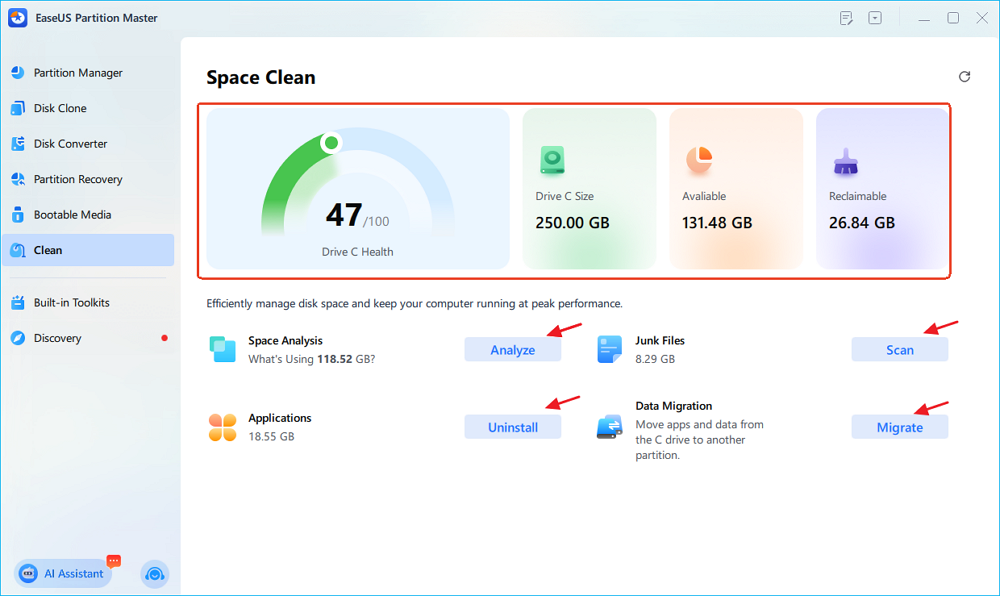
This feature lets you analyze disk usage and free up space through cleanup, app removal, and data migration from a single interface.
4. Compress Game Files to Save Storage Space
If you don't have another suitable drive and want to keep a large game installed, file compression is another option.
Some specialized utilities, including Game Compressor, use NTFS compression methods such as LZX to reduce the space occupied by compatible files. However, the amount of space saved varies by game and file type. Claims of 30–50% reductions are not guaranteed, and compression may introduce additional processing overhead.
Before trying a compression utility:
- Confirm which file system and compression methods it supports.
- Check whether the game, launcher, and any anti-cheat software are compatible.
- Back up important game data.
- Test the method on a game you can restore or reinstall if something goes wrong.
- Check game performance and stability afterward.
Don't assume compression will work equally well for every game or that it will have no effect on performance. If compatibility is uncertain, moving the game to another drive is usually the safer option.
5. Clean Up Other Files on the Same Drive
Sometimes the game isn't the only reason a drive is full. Other applications, downloads, temporary files, and personal media may occupy more space than expected.
On Windows 11 or Windows 10, you can use built-in storage tools to identify and remove unnecessary files.
Use Windows Storage settings:
- Open Settings > System > Storage.
- Review the storage categories to see what's using space.
- Open Temporary files or Cleanup recommendations, where available.
- Select only the items you no longer need and confirm the cleanup.
- Return to File Explorer and check the drive's available space.
You can also run Disk Cleanup by searching for it in the Windows taskbar. Select the drive you want to clean, review the available categories, and remove appropriate temporary or system files.
One important distinction: Storage Sense primarily manages the Windows system drive, usually C. If your game is installed on D or another drive, inspect that drive separately through File Explorer or Settings > System > Storage > Advanced storage settings > Storage used on other drives, where supported.
Review Downloads and the Recycle Bin before removing anything. Files you still need should be moved to another drive rather than permanently deleted.
6. Check for Leftover Files After Uninstalling a Game
If you have already uninstalled games but the drive still appears full, check whether other large files or game-related data remain.
Depending on the game, some settings, saved data, mods, or other files may be stored separately from the main installation. Their locations vary, so there is no single folder you can safely delete for every game.
To investigate:
- Open Settings > System > Storage and review the largest storage categories.
- Use File Explorer to inspect large folders on the affected drive.
- Check the game's official support information for save-data and configuration locations.
- Back up anything important before removing confirmed leftovers.
- Recheck the available space after cleanup.
Reinstalling a game is not a reliable general-purpose cleanup method. It can help resolve a corrupted installation or a specific launcher problem, but it may not remove separately stored saves, recordings, or other data.
Call of Duty is taking too much space? Check our full guide to learn more details.
What If the Drive Is Still Full After Cleaning Up Games?
If you've removed unused content, cleaned up unnecessary files, and moved games where possible, the remaining issue may be the capacity of the drive itself.
First, determine which drive is short on space:
- 1️⃣The game drive is full: Consider moving games to another drive or increasing the capacity available to that drive.
- 2️⃣C drive is full, but the game is on D: Investigate Windows files, installed applications, downloads, and game-related data stored on C.
- 3️⃣Both C and D are nearly full: Review storage across both drives and decide whether files can be moved or whether more capacity is needed.
Extend the Partition Where Your Games Are Installed
If the drive has unused, unallocated space, you may be able to extend the partition that stores your games.
Windows Disk Management has limitations: extending a basic partition generally requires suitable unallocated space immediately to its right on the same disk. Free space on another physical disk, or unallocated space separated by another partition, cannot simply be added to it through the standard Extend Volume function.
A partition manager such as EaseUS Partition Master can help you inspect the disk layout and, when the disk configuration supports it, move partitions or extend a partition using available unallocated space.
Back up important data before changing partitions, and verify that the planned operation supports your disk layout.
Remember that extending a partition increases the space available on that drive; it does not reduce the size of the game itself. If the game is unnecessarily large, removing optional content or moving it may be the better solution.
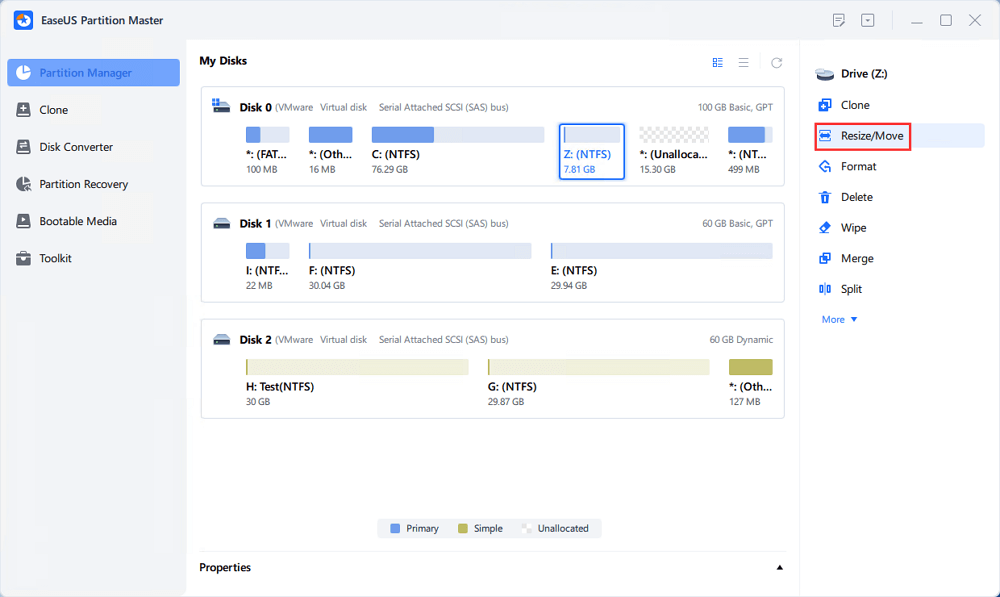
Step 1. Locate the Target Partition.
Go to Partition Manager, locate the target partition and select "Resize/Move".
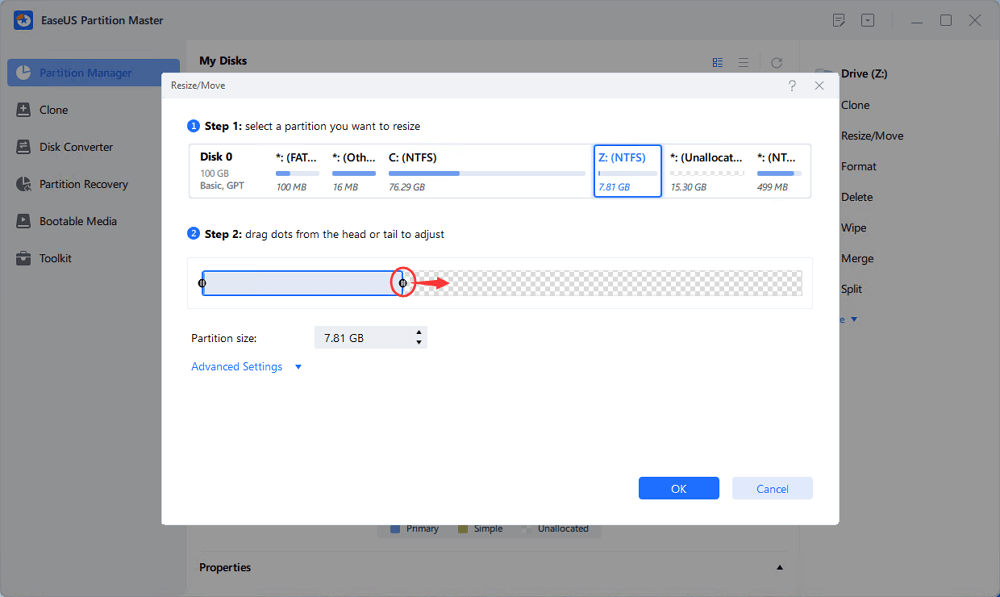
Step 2. Extend the Target Partition.
Drag the partition panel rightward or leftward to add the unallocated space into your current partition, or you can click click "fill in all unallocated" to allocate all space to the target partition. Then, click "OK" to confirm.
Extra Option: Get Space from Another Drive
If there is not enough unallocated space on your disk, right-click on a big partition with enough free space, select "Allocate space".
Then select the target partition that you want to extend at the allocate space to column.
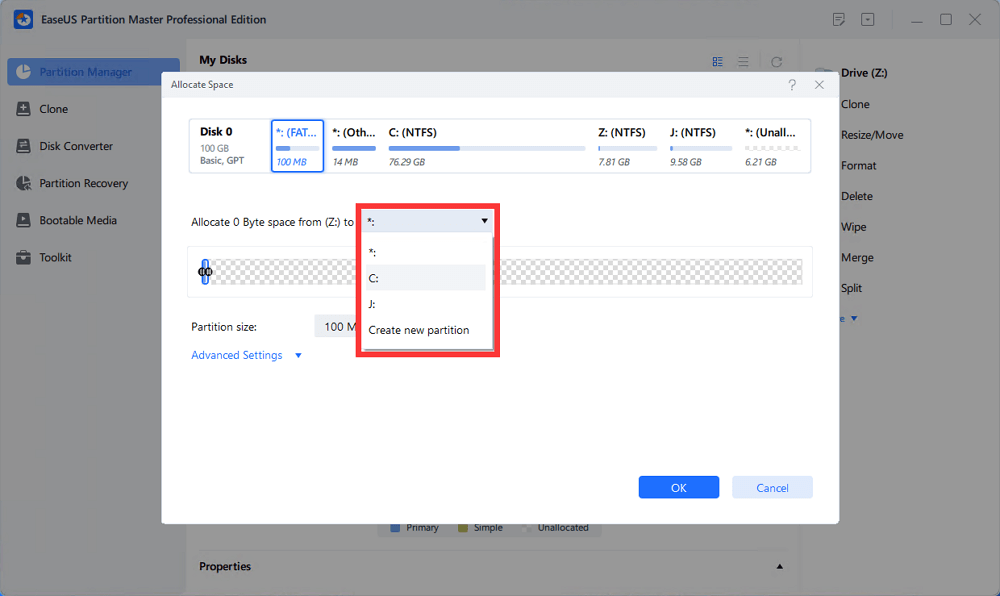
Step 3. Execute Operations to Extend Partition.
Drag the dots of the target partition into the unallocated space and click "OK".
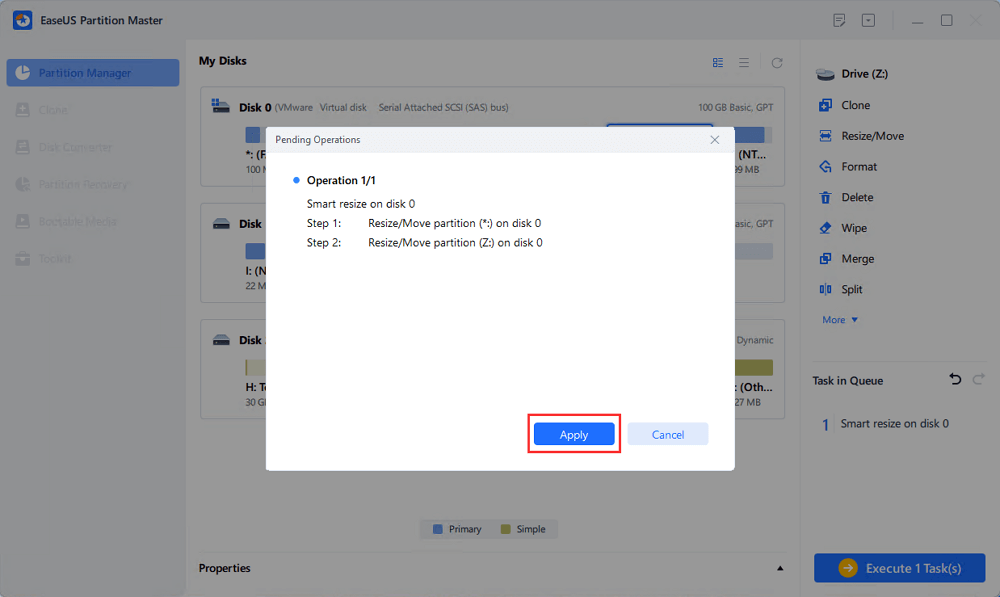
Then Click the "Execute Task" button and click "Apply" to keep all the changes.
FAQs About Games Taking Up Too Much Space
Why is my game taking up more space than its download size?
Download size and installed size can differ because files may be unpacked or expanded during installation. Optional content, updates, mods, and temporary installation files can also affect storage requirements.
How can I reduce a game's size without uninstalling it?
Start by removing optional content supported by the game, such as unused campaigns or texture packs. You can also remove unwanted recordings and mods, or investigate compatible compression options. Back up important saves before deleting game-related files.
My game is installed on D drive, but C drive is full. What should I do?
Check what is consuming space on C rather than assuming the game installation is responsible. Windows temporary files, applications, downloads, and game-related data may occupy the system drive even when the main game is installed elsewhere.
Can I move a game to another drive without downloading it again?
Often, yes. Steam provides a built-in feature for moving an installed game to another Steam Library location. Other launchers may have similar options. Use the supported process for your launcher to avoid broken installations or unnecessary downloads.
Will reinstalling a game make it take up less space?
Not necessarily. Reinstalling may resolve a specific installation problem, but the clean installation may occupy roughly the same amount of space. It may also leave separately stored files untouched. Identify the source of the storage usage before reinstalling.
Should I extend C drive or D drive for a large game?
Extend the partition that actually needs more capacity. If the game is installed on D and D is full, expanding C won't directly create more room for the game's installation. If C is full while the game is on D, investigate C's storage usage first.
Final Thoughts
When a game is taking up too much space, identify what's consuming storage before deleting files or reinstalling it. Remove optional content, clean up files you no longer need, and use your launcher's supported feature to move the game if another drive has enough capacity.
If the drive remains full, review Windows storage usage and consider whether the game partition needs more capacity. Whether the game is installed on C, D, or another SSD or HDD, choosing the right fix depends on what is using the space and which drive actually needs it.
How Can We Help You
About the Author

Sherly joined EaseUS in 2022 and she has always loved writing articles and enjoys the fun they bring. She receives professional training here, focusing on product performance and other relative knowledge. She has written over 200 articles to help people overcome computing issues.
Product Reviews
-
I love that the changes you make with EaseUS Partition Master Free aren't immediately applied to the disks. It makes it way easier to play out what will happen after you've made all the changes. I also think the overall look and feel of EaseUS Partition Master Free makes whatever you're doing with your computer's partitions easy.
Read More -
Partition Master Free can Resize, Move, Merge, Migrate, and Copy disks or partitions; convert to local, change label, defragment, check and explore partition; and much more. A premium upgrade adds free tech support and the ability to resize dynamic volumes.
Read More -
It won't hot image your drives or align them, but since it's coupled with a partition manager, it allows you do perform many tasks at once, instead of just cloning drives. You can move partitions around, resize them, defragment, and more, along with the other tools you'd expect from a cloning tool.
Read More
Related Articles
-
Extend C Drive Without Deleting Partition in Windows 11/10
![Sherly]() Sherly/2026/10/29
Sherly/2026/10/29 -
How to Move Space from D Drive to C Drive Windows 11/10/8/7
![Cedric]() Cedric/2026/10/29
Cedric/2026/10/29 -
How to Format C Drive in Windows 11/10? [4 Efficient Ways]
![Jean]() Jean/2026/10/29
Jean/2026/10/29 -
How to Clone C Drive on Windows 10 in 2026 [Newest Solution]
![Sherly]() Sherly/2026/10/29
Sherly/2026/10/29
 Cedric/2026/10/29
  Jean/2026/10/29









