







Content
Page Table of Contents
About the Author
Hot Topics
- Why Does Call of Duty Take Up So Much Space?
- 1. Uninstall Unused Call of Duty Content
- 2. Clean Up Unnecessary Files on Your C Drive
- 3. Check Where Call of Duty Is Installed
- 4. Extend Your C Drive if Another Partition Has Enough Space
- 5. Move Suitable Files or Applications to Another Drive
- 6. Add More Storage if Your Entire Disk Is Full
- Which Solution Should You Try First?
Is Call of Duty taking up too much space on your PC? Large game installations, multiple game modes, high-resolution assets, and additional content can quickly consume hundreds of gigabytes of storage. The problem becomes even more frustrating when your C drive is nearly full and you need space for a game update or other applications.
Why is Call of Duty taking up 236GB on my drive? - From r/ModernWarfareIII
[COD] Why does call of duty take so much storage even though I only own MW2 - From r/CallofDuty
The good news is that you may not need to uninstall the entire game or buy a new SSD. You can start by removing unused Call of Duty content, cleaning up unnecessary Windows files, and checking where your game is installed. If your C drive is running out of space but another partition on the same disk has room to spare, extending the C drive may also help.
This guide explains six ways to reduce Call of Duty's storage footprint and free up disk space on Windows 11 and Windows 10.
Why Does Call of Duty Take Up So Much Space?
Call of Duty can occupy a substantial amount of storage because its installation may include multiple games, game modes, and optional content. The exact size depends on the title, installed components, updates, and platform.
Here are the main reasons your installation may be larger than expected.
- Multiple games and game modes: Call of Duty HQ can provide access to different titles and modes. Content you no longer play may remain installed until you remove it.
- High-resolution game assets: Detailed textures, graphics resources, and other assets require significant storage.
- Optional content packs: Campaigns, multiplayer components, and other downloadable content may take up additional space.
- Updates and additional downloads: Game updates can require additional free space during installation. The amount needed varies by update and installation method.
- Limited free space on your system drive: Even if the game itself has not grown substantially, Windows, other applications, and personal files can leave too little room for updates.
Before deleting files manually, check the game's own content management options. Activision recommends managing and uninstalling unwanted Call of Duty content through the in-game file management system. Share this post and let more game players know why Call of Duty takes up so much space.

1. Uninstall Unused Call of Duty Content
If Call of Duty takes up too much space, start with the game itself. Removing modes or content you no longer use can reduce its storage footprint without requiring you to uninstall everything.
How to remove unwanted game content:
- Launch Call of Duty on your PC.
- Open the menu and look for Manage Files.
- Review the installed games, modes, and available content.
- Select the content you no longer need.
- Choose the available uninstall or removal option and confirm.
- Check your available disk space after the removal is complete.
The exact menu labels and available components may vary by Call of Duty release and platform. For example, if you only play multiplayer, check whether you can remove an unused campaign or another optional component. Do not uninstall a component you still need for the modes you play.
For detailed instructions, see Activision's guide to managing Call of Duty content.
Important: Avoid manually deleting individual files from the game's installation folder. Doing so may damage the installation or trigger another download. Use the game's content management options or the relevant launcher to remove game content.
2. Clean Up Unnecessary Files on Your C Drive
Removing unused game content is the most direct way to reduce Call of Duty's installation size. However, if your C drive is nearly full, you should also check whether Windows temporary files, application leftovers, and other unnecessary data are consuming valuable space.
You can use EaseUS Partition Master to find and free up C drive space without manually checking multiple locations.
- Open EaseUS Partition Master and select Clean.
- Use Space Analysis to identify what is taking up the most space.
- Scan for and remove unnecessary junk files.
- Find and uninstall large or unwanted applications.
- Use Data Migration to move supported large apps or files from C drive to another drive, such as D drive.
- Check the available C drive space again after cleanup.
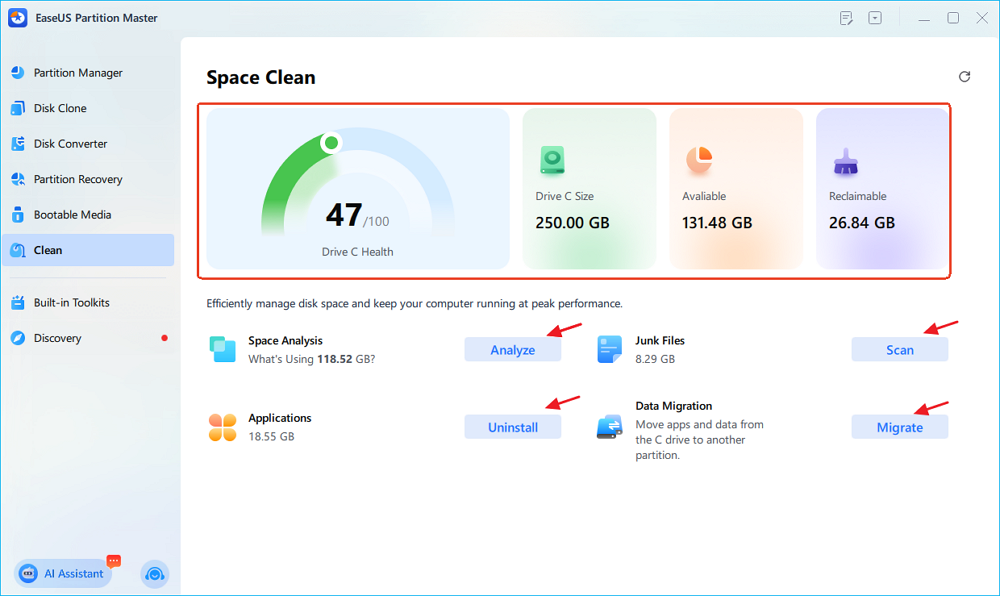
This feature lets you analyze disk usage and free up space through cleanup, app removal, and data migration from a single interface.
How to free up space manually with tools built in Windows
- Open Settings in Windows.
- Go to System > Storage.
- Review the categories using the most disk space.
- Open Temporary files and select the items you want to remove.
- Review your selections carefully, then confirm the cleanup.
- Return to Storage to check how much space is available.
You can also enable Storage Sense to help Windows manage certain temporary files automatically.
Before removing anything, review the file categories carefully. Check the Downloads folder separately, and do not delete personal files you still need. If you use other disk-cleanup tools, make sure you understand what they will remove.
Find large files and unnecessary applications
If your C drive is still full, look beyond temporary files.
- Uninstall applications you no longer use.
- Review large files in your Downloads and Videos folders.
- Remove duplicate files only after verifying that they are safe to delete.
- Move suitable personal files to another drive.
- Check whether other large games or applications are using most of your storage.
You can use Windows Storage settings to identify the main storage categories. For a more detailed review, a disk-space analysis tool can help you locate large files and folders.
Keep in mind: Cleaning the C drive does not necessarily reduce Call of Duty's installed size. It frees up space elsewhere on the drive so Windows and other applications have more room.
3. Check Where Call of Duty Is Installed
Before changing your partitions, determine which drive actually contains the game.
Open your game launcher and check the installation location. You can also review the game's library settings to locate its installation folder.
The next step depends on what you find:
- Call of Duty is installed on C: Cleaning C or increasing its available space may help.
- Call of Duty is installed on D: Freeing space on C will not directly solve a shortage of space on D.
- Both C and D are running low: Identify which drive needs more space before moving files or changing partitions.
- The entire physical disk is nearly full: Deleting unnecessary files, adding another drive, or replacing the existing drive may be necessary.
This distinction matters because drive letters represent partitions, not necessarily separate physical disks. C and D may be partitions on the same SSD, or they may belong to different drives.
If your game is installed on another partition, consider using the launcher's supported move or installation-location options. Make sure the destination drive has sufficient space before moving a large game.
4. Extend Your C Drive if Another Partition Has Enough Space
What if you have already cleaned up unnecessary files, but your C drive is still too small for Windows, applications, and game updates? In this situation, extending the C drive may be a better long-term solution than repeatedly deleting files.
Windows Disk Management has limitations when extending a partition. For a basic volume, the required unallocated space must be on the same disk and immediately to the right of the partition you want to extend. Free space inside D is not the same as unallocated space, and unallocated space separated from C by another partition cannot be used directly to extend C through Disk Management. EaseUS Partition Master provides partition resizing and moving functions that can help you reallocate disk space when Windows Disk Management cannot handle the existing layout.
Before resizing or moving partitions, back up important files and ensure that your PC has a reliable power supply. If BitLocker or device encryption is enabled, check the encryption status and prepare the appropriate recovery key before making changes.
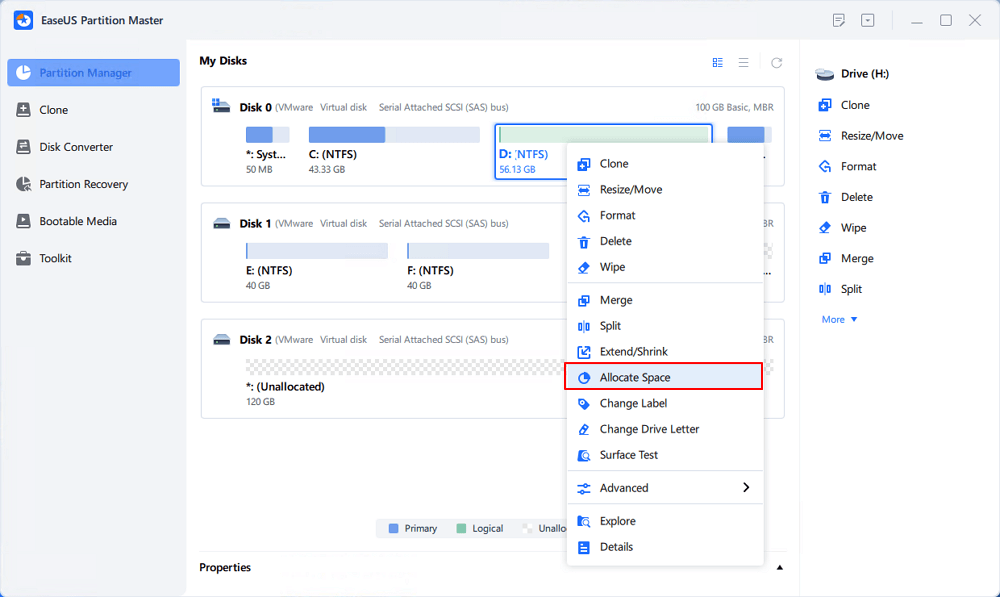
Step 1. Right-click on the D: partition with enough free space and select "Allocate Space".
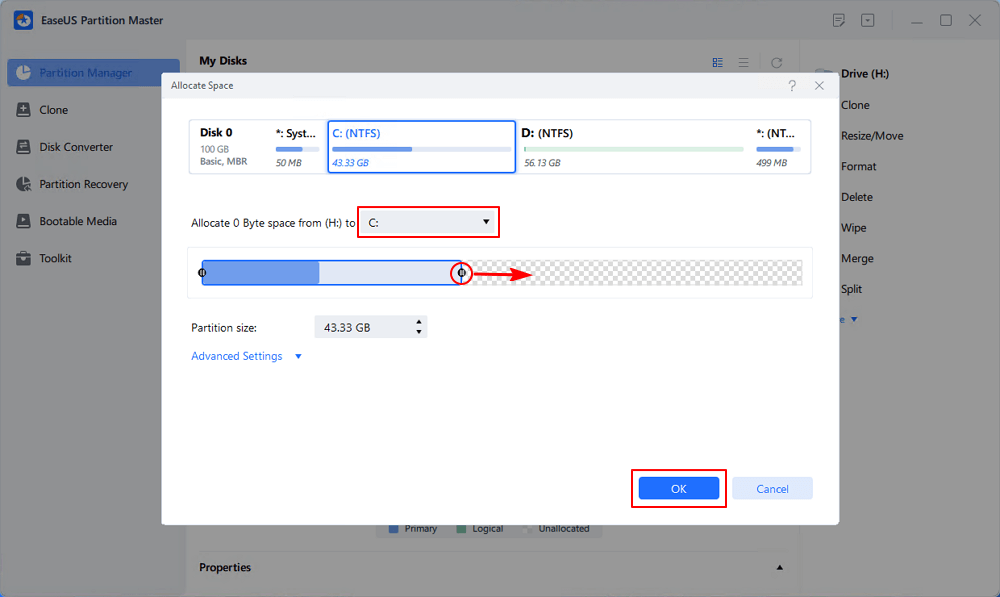
Step 2. Select the target partition - C: drive and drag the partition panel rightward to add the free space from D: drive to C: drive. Then click "OK" to confirm.
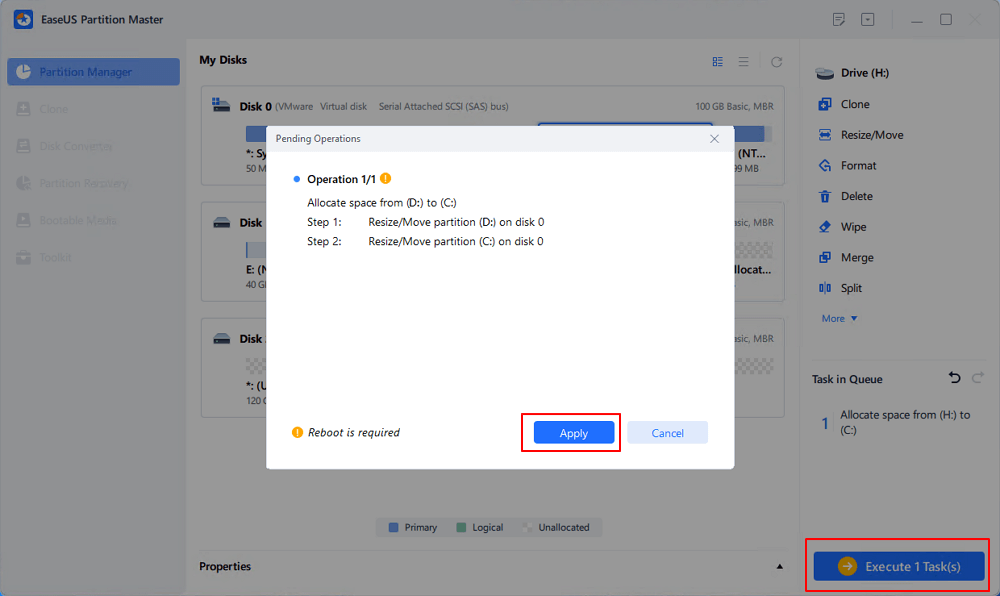
Step 3. Click the "Execute Task" button and click "Apply" to start the process of moving free space from D: drive to C: drive.
5. Move Suitable Files or Applications to Another Drive
If you do not want to change your partition layout, moving selected data can help free up space.
Move personal files
- Move large videos, archives, and other personal files to another drive with enough free space. You can also change the default save locations for supported types of content in Windows Storage settings.
Verify that your files are accessible from the new location before removing any original copies.
Move supported applications
- Some applications provide a built-in option to change their installation location. Others need to be uninstalled and reinstalled on another drive.
- For supported applications, EaseUS Partition Master also offers application and data migration features that may help move compatible items from C to another partition. Check the software's supported migration options before proceeding.
For Call of Duty itself, use the relevant launcher or game management options where available. Do not assume every game installation can be moved safely by dragging its folder to another drive.
6. Add More Storage if Your Entire Disk Is Full
Sometimes the issue is not the C drive's partition size but the capacity of the physical disk itself. If your SSD has very little free space across all its partitions, resizing C will only redistribute existing capacity. It will not increase the total storage available on the disk.
Consider these options:
- Remove unnecessary games and applications.
- Move large personal files to another drive.
- Install a larger SSD if your computer supports it.
- Add a secondary drive and install future games there when supported.
If you plan to replace your system drive, back up your data and verify Windows boot requirements before migrating the operating system.
Which Solution Should You Try First?
The right fix depends on whether the problem is Call of Duty itself, your C drive, or your entire disk.
| Your situation | Recommended solution |
|---|---|
| Call of Duty has unused modes installed | Uninstall unwanted content through Manage Files |
| Windows temporary files occupy too much space | Use Windows Storage settings |
| Large applications and personal files fill C | Uninstall, move, or clean up suitable files |
| C is full, but another partition on the same disk has spare capacity | Evaluate extending C with a partition manager |
| Call of Duty is installed on D and D is full | Free up or expand D, or move the game |
| All partitions on the disk are nearly full | Remove data or add a larger or additional drive |
For most players, the best starting point is to remove unused Call of Duty content and check Windows storage usage. If C remains too small despite having free space elsewhere on the same disk, partition resizing is worth considering.
Frequently Asked Questions
1. Why does Call of Duty take up so much space on PC?
Call of Duty can require substantial storage because of its game modes, optional content, high-resolution assets, and updates. The total depends on which titles and components you have installed. Check Manage Files to see whether you can remove content you no longer play.
2. How do I reduce Call of Duty's install size?
Open Call of Duty and look for Manage Files. Uninstall optional game modes or content you no longer need. Avoid deleting individual game files manually, as doing so may damage the installation.
3. Why does Call of Duty need more space for an update?
An update may need free space to download, unpack, install, or replace game files. The required amount depends on the update and installation method. Check the game's current storage requirements and free up space on the drive containing the installation.
4. Can I install Call of Duty on D instead of C?
Yes, if your game launcher and the relevant Call of Duty version support choosing another installation location. Make sure D has enough available space for the game and future updates, and use the launcher's supported installation or migration process.
5. Can I extend my C drive without deleting D?
Potentially. A partition manager may be able to shrink D, move partitions, and extend C without deleting D, depending on the disk layout and file system. Back up important data before changing partitions. Windows Disk Management has stricter requirements for the location of unallocated space.
6. Will extending C drive reduce Call of Duty's file size?
No. Extending C increases the partition's capacity but does not compress the game's files or remove optional content. To reduce the game's actual storage footprint, uninstall unused content through Call of Duty's file management options.
7. Should I upgrade my SSD if Call of Duty keeps taking up too much space?
Consider a larger SSD if your entire physical disk is nearly full and you cannot free enough space by removing unnecessary files or applications. If another partition on the same disk has sufficient unused capacity, resizing partitions may be a more practical first step.
Final Thoughts
When Call of Duty takes up too much space, start by checking its installed content and removing game modes you no longer use. Next, clean up unnecessary Windows files and identify which drive is running low on storage.
If your C drive is the problem but another partition on the same disk has enough spare capacity, EaseUS Partition Master can help you evaluate partition resizing and extension options. If the game is installed on another drive, focus on that drive instead.
The goal is to free up the right kind of space without deleting game files you still need or making unnecessary changes to your disk layout.
How Can We Help You
About the Author

Sherly joined EaseUS in 2022 and she has always loved writing articles and enjoys the fun they bring. She receives professional training here, focusing on product performance and other relative knowledge. She has written over 200 articles to help people overcome computing issues.
Product Reviews
-
I love that the changes you make with EaseUS Partition Master Free aren't immediately applied to the disks. It makes it way easier to play out what will happen after you've made all the changes. I also think the overall look and feel of EaseUS Partition Master Free makes whatever you're doing with your computer's partitions easy.
Read More -
Partition Master Free can Resize, Move, Merge, Migrate, and Copy disks or partitions; convert to local, change label, defragment, check and explore partition; and much more. A premium upgrade adds free tech support and the ability to resize dynamic volumes.
Read More -
It won't hot image your drives or align them, but since it's coupled with a partition manager, it allows you do perform many tasks at once, instead of just cloning drives. You can move partitions around, resize them, defragment, and more, along with the other tools you'd expect from a cloning tool.
Read More
Related Articles
-
How to Split C Drive in Windows 11/10/8/7🔥
![Tracy King]() Tracy King/2026/10/29
Tracy King/2026/10/29 -
How to Clone Windows 7 to USB and Make it Bootable
![Cici]() Cici/2026/10/29
Cici/2026/10/29 -
How to Clean C Drive Without Losing Data in Windows 11 (Safe & Easy Guide)
![Sherly]() Sherly/2026/10/29
Sherly/2026/10/29 -
How to Free Up Space on C Drive in Windows 11/10 [8 Efficient Ways]
![Sherly]() Sherly/2026/10/29
Sherly/2026/10/29
 Tracy King/2026/10/29
  Cici/2026/10/29









