







Content
Page Table of Contents
About the Author
Hot Topics

Updated on Oct 19, 2026
Does your C drive keep running out of space after cleanup? Windows updates, app data, and system files all take up storage. Some files build up over time. Others stay on the drive even after you stop using an app. This guide explains what to check and how to keep more free space on C.
C drive keeps filling up, I’ve cleaned up disk many times and ran many antivirus scans. It just keeps filling up. Any help?
by u/Significant-Mud-506 in pcmasterrace
Why Does My C Drive Keep Filling Up?
You delete files, free up space, and carry on using your PC. A few days later, the C drive is almost full again. Start by checking these common causes.
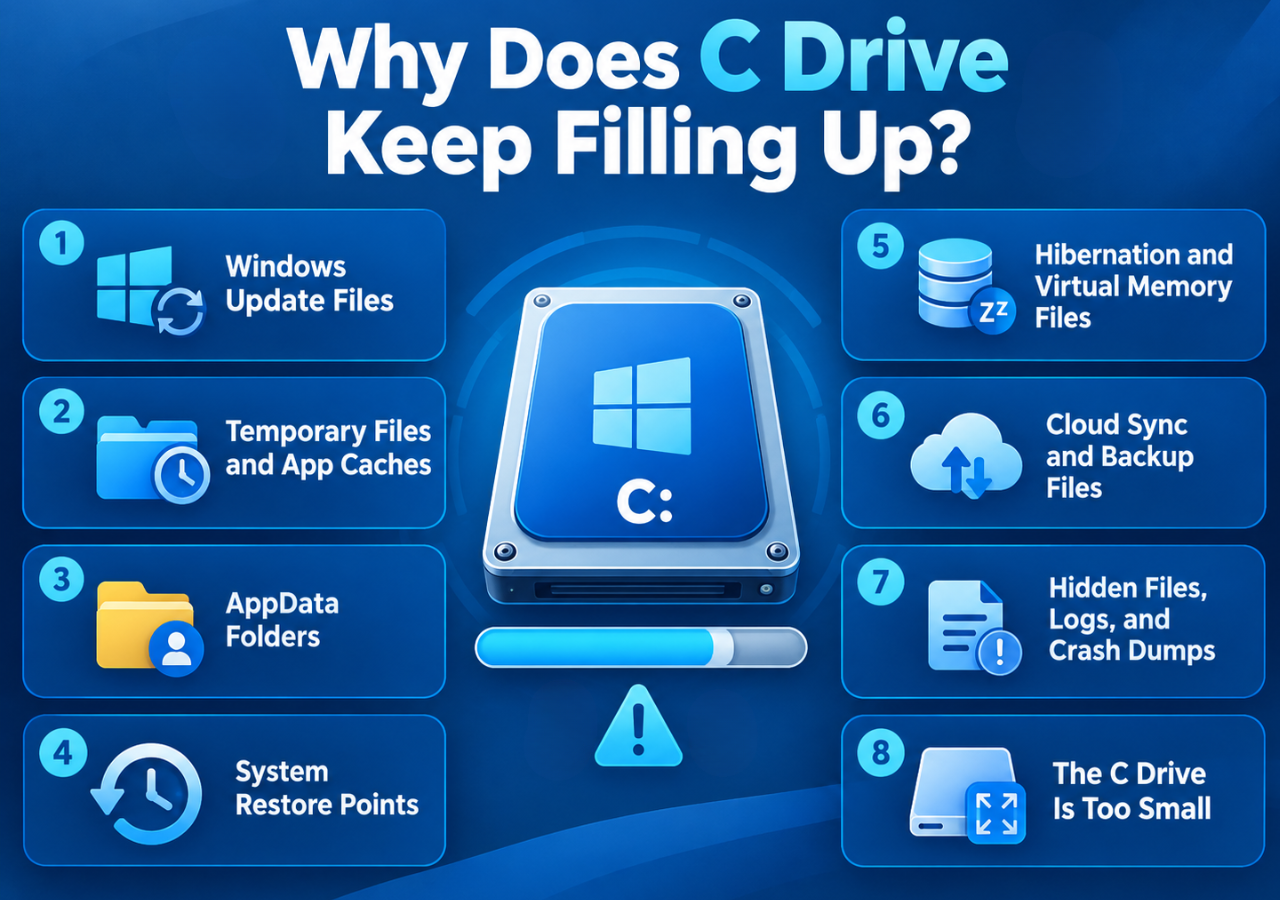
1. Windows Update Files
Windows downloads update files to C before installing them. Old installation files also stay on the drive for a while after some updates. These files take up extra space. Open Settings > System > Storage > Temporary files to see which update files Windows lets you remove. Check the previous Windows installation option carefully. Removing it also removes the option to roll back to that version.
2. Temporary Files and App Caches
Apps create temporary files as you use them. Browsers save website data. Game launchers download update files. Chat apps keep images and videos in their cache. This data builds up over time. Closing an app usually leaves its cache behind. Check the app's storage settings if you notice a large amount of cached data.
3. Large AppData Folders
Windows apps usually store local data in the AppData folder. The folder is hidden by default.
- C:\Users\YourName\AppData
Replace YourName with your Windows account folder. Browser profiles, game launcher data, and app caches are usually stored here. Some files also stay behind after an app is uninstalled. Check the folder size before deleting anything. AppData also contains settings and files that installed programs need.
4. System Restore Points
Windows keeps restore points to help recover from certain system problems. These restore points use disk space. The amount depends on your System Protection settings. To check the current usage, search for Create a restore point in Windows. Select the C drive and click Configure.
5. Hibernation and Virtual Memory Files
Two large system files are usually stored in the root of C:
- hiberfil.sys stores data used for hibernation and Fast Startup on supported systems.
- pagefile.sys provides virtual memory for Windows.
Their sizes depend on your system and its settings. Both files are managed by Windows. Don't delete them manually in File Explorer. Check the related Windows settings if you need to reduce their storage use.
6. Cloud Sync and Backup Files
Cloud files also take up local storage when they are downloaded to your PC. For example, OneDrive files marked for offline use stay on your drive. The OneDrive folder is often stored in your user folder on C. Local backups use space too. Check your sync folder and backup location if you regularly save photos, videos, or work documents.
7. Hidden Files, Logs, and Crash Dumps
Windows and installed apps save logs to record activity and errors. Crash dumps are usually created when a program or the system crashes. Failed updates can also leave installation files behind. These files are easy to miss when you check only your personal folders. Use Windows Storage settings or a disk space analyzer to find large files. Check their purpose before removing them.
8. The C Drive Is Too Small
Sometimes the C drive fills up because it doesn't have enough space for your usual workload. Windows, apps, and games all use storage. Updates and new downloads need more room over time. Regular cleanup won't solve the problem if the partition is too small. Check how much space your installed programs use and how much free space remains after cleanup.
How to Find Out What Keeps Filling Up Your C Drive
First, please check what is filling up your C drive. This helps you avoid removing useful data.
1. Check Windows Storage Settings
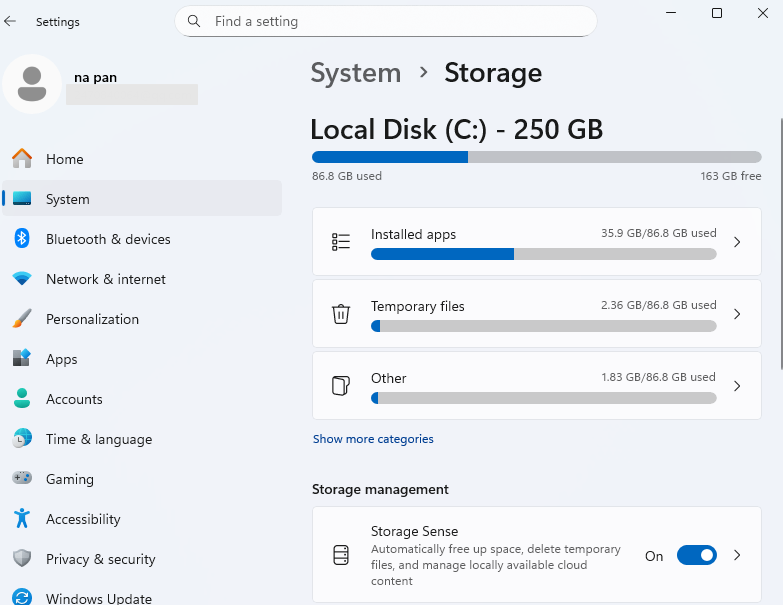
Windows Storage settings show how disk space is divided among apps, temporary files, system files, and other categories.
Step 1. Press Win + I to open Settings.
Step 2. Select System > Storage.
Step 3. Select the C drive if Windows displays a list of drives.
Step 4. Review the storage categories and note which ones use the most space.
2. Find Large Folders and Hidden Files
Storage settings provide a useful overview. They do not always show which individual folders are responsible for the problem.
To inspect hidden files:
Step 1. Open File Explorer.
Step 2. Select View > Show > Hidden items in Windows 11.
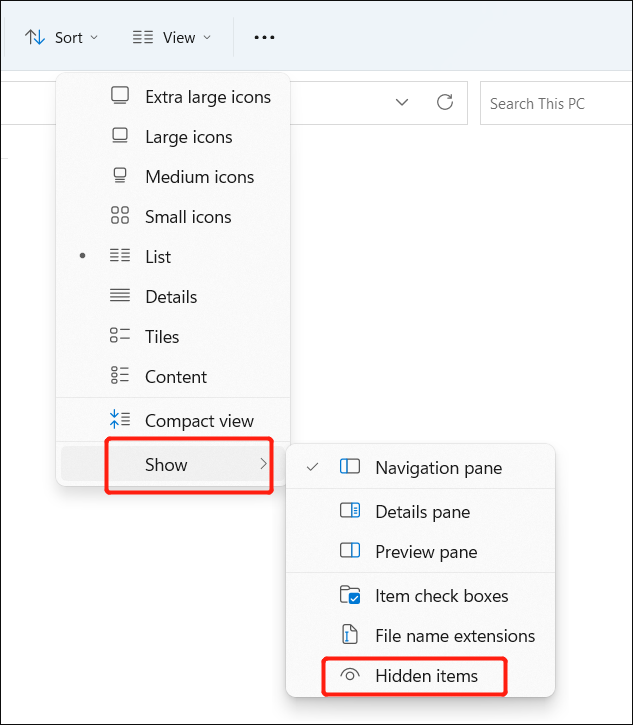
Step 3. Open your user folder and check the AppData folder.
Step 4. Look for unusually large folders related to applications you recognize.
- Notice:
- Do not delete files simply because they are hidden or large. System folders and application data often contain files that Windows or your apps need.
How to Stop Your C Drive from Filling Up
The right fix depends on what you find during the storage check.
Fix 1. Extend the C Drive When Storage Is Still Insufficient
If your C drive keeps filling up after you remove unnecessary files, the partition itself might be too small. Extending it gives Windows and applications more room to work.
EaseUS Partition Master helps you resize partitions and allocate available disk space to C without requiring you to delete your entire D drive.
What EaseUS Partition Master helps with:
- Extend the C drive with available unallocated space.
- Reallocate free space from another partition when the disk layout allows it.
- Resize partitions when Windows Disk Management cannot extend C because the available unallocated space is not in the right location.
- Keep existing files and installed games in place during supported partition resizing operations.
How to extend the C drive with EaseUS Partition Master:
Extend System C drive with unallocated space
- 1. Right-click on the System C: drive and select "Resize/Move".
- 2. Drag the system partition end into the unallocated space so to add it to the C: drive. And click "OK".
- 3. Click "Execute Task" and "Apply" to execute the operations and extend the C drive.
Fix 2. Clean Up Temporary and Windows Update Files
Temporary files and leftover update data are good places to start. Windows provides built-in tools to identify files that are safe to remove.
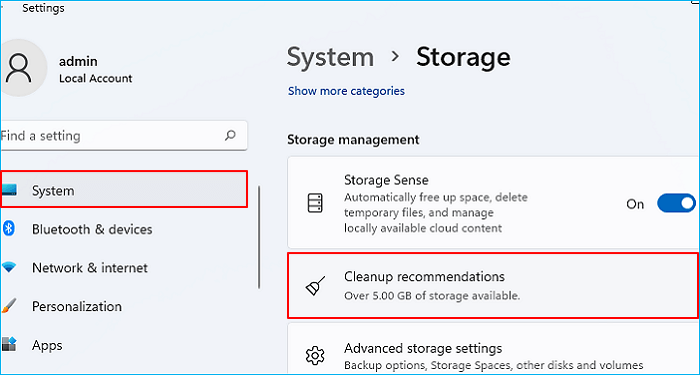
Use Cleanup recommendations in Windows 11:
Step 1. Open Settings > System > Storage.
Step 2. Select Cleanup recommendations.
Step 3. Review Temporary files, Large or unused files, and other available categories.
Step 4. Select the files you want to remove and click Clean up.
Fix 3. Remove Unnecessary Apps and Large Files
Large applications, game installations, videos, and downloaded files can consume a significant part of your C drive.
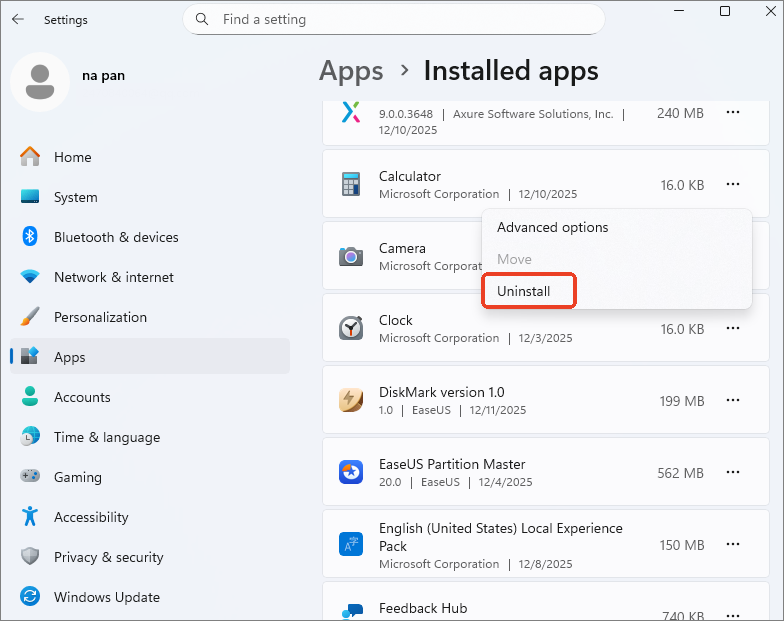
Step 1. Open Settings > Apps > Installed apps in Windows 11 or Settings > Apps in Windows 10.
Step 2. Sort apps by size when that option is available.
Step 3. Uninstall programs you no longer use.
Step 4. For personal files, check Downloads, Videos, Desktop, and Documents.
Step 5. Move files you want to keep to another drive or an external storage device.
Step 6. Empty the Recycle Bin after deleting files. Otherwise, those files can continue occupying disk space.
Fix 4. Find and Clear Growing AppData Caches
If the C drive fills up again after cleanup, check whether one application keeps creating data.
Step 1. Press Win + R.
Step 2. Enter "%localappdata%" and press Enter.
Step 3. Review the folders belonging to applications you recognize.
Step 4. Check their sizes with File Explorer or a disk space analyzer.
Step 5. Use the application's built-in cache or storage settings to remove unnecessary data.
Fix 5. Check for Malware or Abnormal Background Processes
If the C drive loses space rapidly without an obvious reason, check for unusual background activity.
High disk activity does not always mean a process is consuming storage. Windows updates, indexing, and legitimate background tasks can also use the disk heavily. Check the folders that are growing before removing files. If an unfamiliar program repeatedly creates large files, investigate the program and scan your system before taking further action.
Fix 6. Move Files to Another Drive or Change Save Locations
If your D drive has plenty of free space, move suitable personal files away from C. You can also change where Windows saves new content.
How to change where new content is saved:
Step 1. Open Settings > System > Storage.
Step 2. Select Advanced storage settings.
Step 3. Choose Where new content is saved.
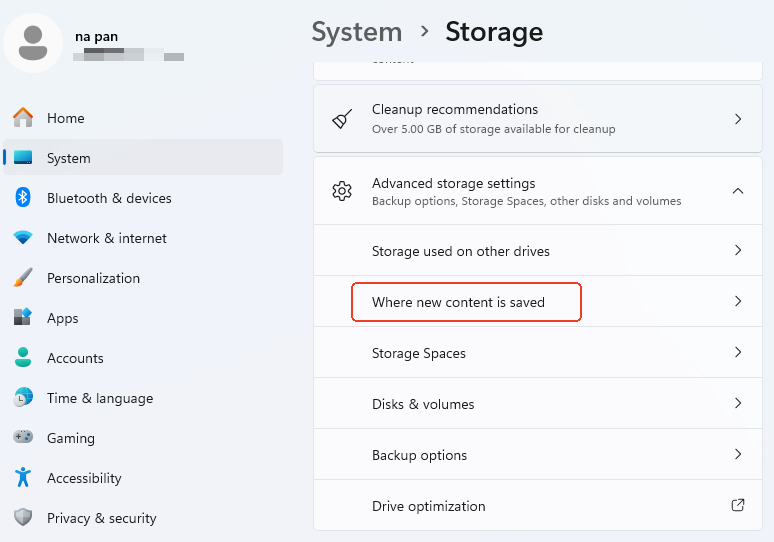
Step 4. Select another drive for supported content types.
How to Prevent the C Drive from Filling Up Again
A few storage habits help keep enough free space for Windows updates.
| What to do | Why it helps |
|---|---|
| Turn on Storage Sense | Automatically removes eligible temporary files and manages selected storage categories. |
| Review storage usage regularly | Helps you spot growing app data before C becomes nearly full. |
| Save large files to another drive | Keeps downloads, videos, and personal files from crowding the system partition. |
| Manage app caches | Prevents unnecessary cached data from accumulating over time. |
| Review cloud sync settings | Reduces the amount of cloud content stored locally when online-only access is suitable. |
| Leave enough free space for updates | Gives Windows room for temporary installation files and system maintenance. |
| Extend C when the partition is too small | Provides more capacity when routine cleanup no longer helps. |
Conclusion
You don't have to keep deleting files every time the C drive runs low. Start with the folders using the most space. If the same folder gets bigger again, check which app or Windows feature is putting files there.
Sometimes the problem is simply the size of the C partition. EaseUS Partition Master lets you adjust partition sizes and use available disk space to expand C, as long as the disk layout supports it. This is useful when you need more room for Windows, apps, and game updates.
FAQs
1. Why does my C drive fill up again after I delete temporary files?
Windows downloads new update files, and apps save data while you use them. So the space you cleared doesn't always stay free. If this happens often, check Storage settings or compare folder sizes to see where the space is going.
2. Is it safe to delete hidden files from the C drive?
Not always. Some are app leftovers, but others are needed for Windows to work properly. Avoid deleting files from Windows folders or removing system files by hand. Use the built-in cleanup options if you're unsure what to remove.
3. Will extending the C drive stop it from filling up?
It gives the drive more capacity, but it won't prevent new files from being created. If the C partition is too small for your apps and updates, expanding it helps. If one folder keeps growing, deal with that separately.
How Can We Help You
About the Author
Updated by Joey Albert
Joey is an enthusiast of science and technology. With a passion for uncovering the latest tech innovations, she creates clear, engaging how-to guides that make technology accessible and enjoyable for all.
Product Reviews
-
I love that the changes you make with EaseUS Partition Master Free aren't immediately applied to the disks. It makes it way easier to play out what will happen after you've made all the changes. I also think the overall look and feel of EaseUS Partition Master Free makes whatever you're doing with your computer's partitions easy.
Read More -
Partition Master Free can Resize, Move, Merge, Migrate, and Copy disks or partitions; convert to local, change label, defragment, check and explore partition; and much more. A premium upgrade adds free tech support and the ability to resize dynamic volumes.
Read More -
It won't hot image your drives or align them, but since it's coupled with a partition manager, it allows you do perform many tasks at once, instead of just cloning drives. You can move partitions around, resize them, defragment, and more, along with the other tools you'd expect from a cloning tool.
Read More
Related Articles
-
Can I Clone Windows to Virtual Machine? Your Guide Here
![author icon]() Tracy King/2026/09/29
Tracy King/2026/09/29 -
How to See What's Installed on My C Drive?
![author icon]() Joey Albert/2026/09/29
Joey Albert/2026/09/29 -
How to Extend C Drive with Nonadjacent Unallocated Space on Windows 11/10
![author icon]() Sherly/2026/09/29
Sherly/2026/09/29 -
How to Clone C Drive on Windows 10 in 2026 [Newest Solution]
![author icon]() Sherly/2026/09/29
Sherly/2026/09/29
 Tracy King/2026/09/29
  Sherly/2026/09/29









