







Content
Page Table of Contents
About the Author
Hot Topics

Updated on Oct 31, 2026
Games may fill up the C drive through large game installations, updates, cache files, and data stored outside the main game folder. The problem might also happen when your games are installed on another drive, but game-related files still use space on C.
If games are filling up your C drive, you can find which files are using the most space, move games to another drive, remove unnecessary files, or extend the C drive. The methods below work for most Windows 11 and Windows 10 gaming PCs.
Why Are Games Filling Up My C Drive?
Game is filling up my C drive. I was playing co op with a friend when windows told me i had no more room on my C drive. in the space of an hour the game had written 10 Gb there. Obviously the game is not installed there. i quit the game, and all the space was restored. yes, i'm installing a bigger drive soon, but what gives??? anyone else experience this? thanks.
Games often take up more C drive space than expected. The main reasons include:
- Large game installations: Modern PC games often take tens or hundreds of GB. Installing them on C drive quickly reduces available space.
- Game updates: Large updates often need extra temporary space while they download, unpack, and install new files.
- Game cache files: Games and launchers store cache files for faster loading and smoother performance. These files often grow over time.
- Game files in AppData: Some games store settings, logs, crash reports, and downloaded data under your Windows user profile instead of the main installation folder.
- Game saves and configuration files: Save data, screenshots, settings, and other game-related files may also take up C drive space.
- Launcher data: Steam, Epic Games, Xbox, and other launchers may store downloads, cache, and supporting files on the system drive even when the main game library sits on another drive.
- Temporary installation files: Game installations and updates often create temporary files that take up additional space during the process.
- A small C drive: Windows, applications, and games share the system partition, so a smaller C drive fills up much faster.
That is why deleting one large game isn't always the complete answer. You may need to check where the game and its related files are stored.
How to Find Which Games Are Filling Up C Drive
Windows Storage is the easiest place to start because it shows how your C drive is being used. To check which games are filling up C drive:
Step 1. Press Windows + I to open Settings.
Step 2. Go to System > Storage.
Step 3. Select Installed apps to see the applications and games installed on your PC.
Step 4. Sort the apps by size and look for large games or game launchers.
Step 5. Check other storage categories if the game size does not explain the missing space. Look for large temporary files, downloads, documents, or other files stored on C.
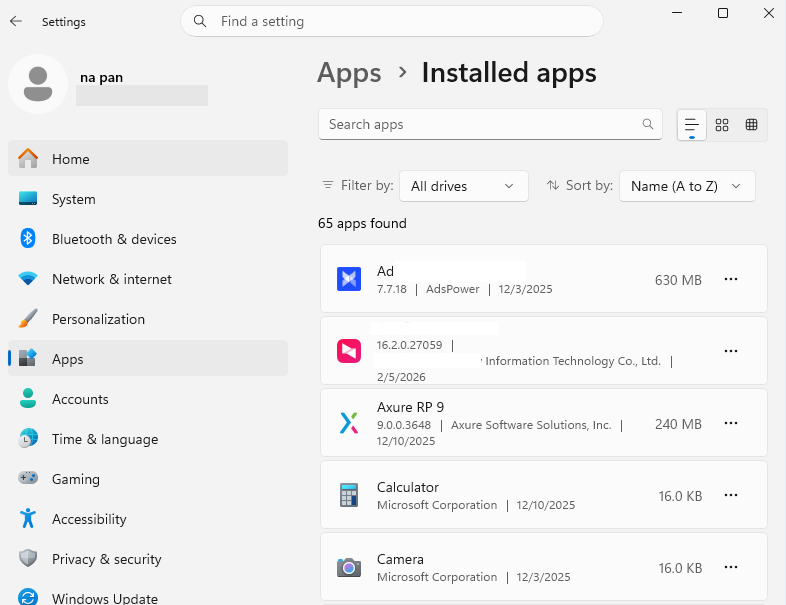
You can also open File Explorer and check large folders if the storage breakdown does not clearly show what is using the space. Pay particular attention to game-related folders under locations such as AppData, Documents, and the folders used by your game launcher.
Windows also provides Cleanup recommendations to identify temporary files, large or unused files, and unused apps that can be removed.
How to Fix Games Filling Up C Drive
This section shows you five ways to stop games from filling up the C drive. You can free up C drive space by moving large games, changing the default installation location, cleaning unnecessary files, uninstalling unused games, or extending the C drive.
Fix 1. Extend the C Drive with EaseUS Partition Master
Sometimes games are not the only problem with a full C drive. Your C drive may simply be too small for Windows, applications, updates, and everyday files. If another partition on the same physical disk has enough available space, you can allocate space to C drive instead of deleting your games.
EaseUS Partition Master helps resize and move partitions and allocate available space to the C drive. This method is useful when:
- C drive has very little free space.
- D drive has unused space.
- You want to keep your installed games.
- You do not want to reinstall Windows.
- Cleaning and moving games does not provide enough space.
Here is how to extend C drive using EaseUS Partition Master.
Extend System C drive with unallocated space
- 1. Right-click on the System C: drive and select "Resize/Move".
- 2. Drag the system partition end into the unallocated space so to add it to the C: drive. And click "OK".
- 3. Click "Execute Task" and "Apply" to execute the operations and extend the C drive.
Bonus Tip: Clear C drive with EaseUS Partition Master.
You can use EaseUS Partition Master to find and free up C drive space without manually checking multiple locations.
- Open EaseUS Partition Master and select Clean.
- Use Space Analysis to identify what is taking up the most space.
- Scan for and remove unnecessary junk files.
- Find and uninstall large or unwanted applications.
- Use Data Migration to move supported large apps or files from C drive to another drive, such as D drive.
- Check the available C drive space again after cleanup.
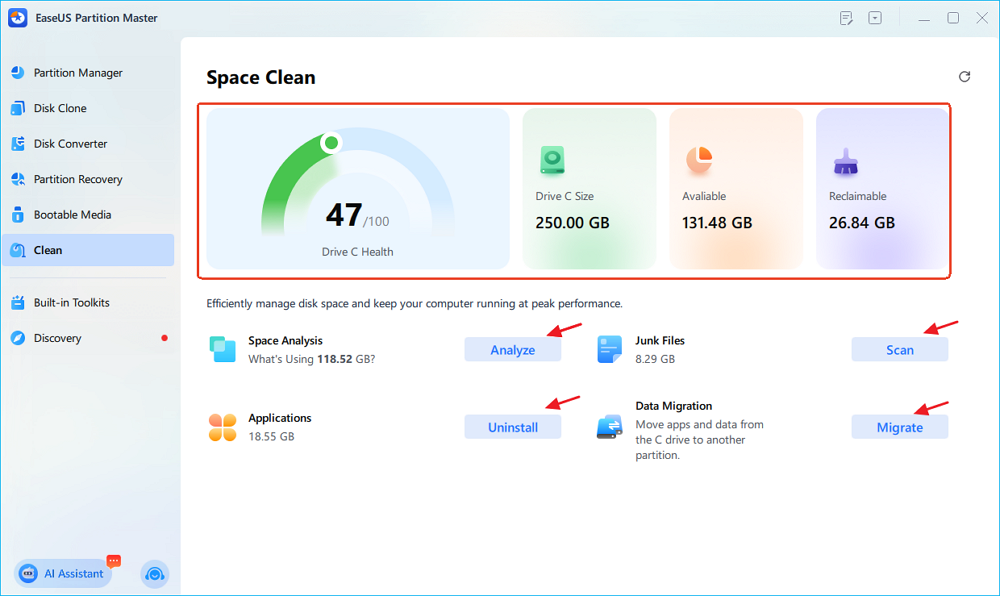
This feature lets you analyze disk usage and free up space through cleanup, app removal, and data migration from a single interface.
Fix 2. Move Games from C Drive to Another Drive
Moving large games from C to D or another drive frees up a lot of space without deleting the games. For games managed by Steam, Epic Games, Xbox, or another launcher, use the launcher's built-in storage management feature whenever possible.
Step 1. Open your game launcher and find the installed game.
Step 2. Open the game's storage, library, or installation settings.
Step 3. Choose Move or Change installation location if the option is available.
Step 4. Select a folder on another drive with enough free space.
Step 5. Confirm the move and wait for the process to finish.
- Notice:
- Do not manually move game folders unless the launcher supports the process. Moving files directly in File Explorer can cause the launcher to lose the game's installation path.
Fix 3. Change the Default Game Installation Location
Changing the default storage location can prevent new games from filling up the C drive again. For supported Windows apps and games, you can change where new content is saved.
Step 1. Open Settings.
Step 2. Go to System > Storage > Advanced storage settings.
Step 3. Select Where new content is saved.
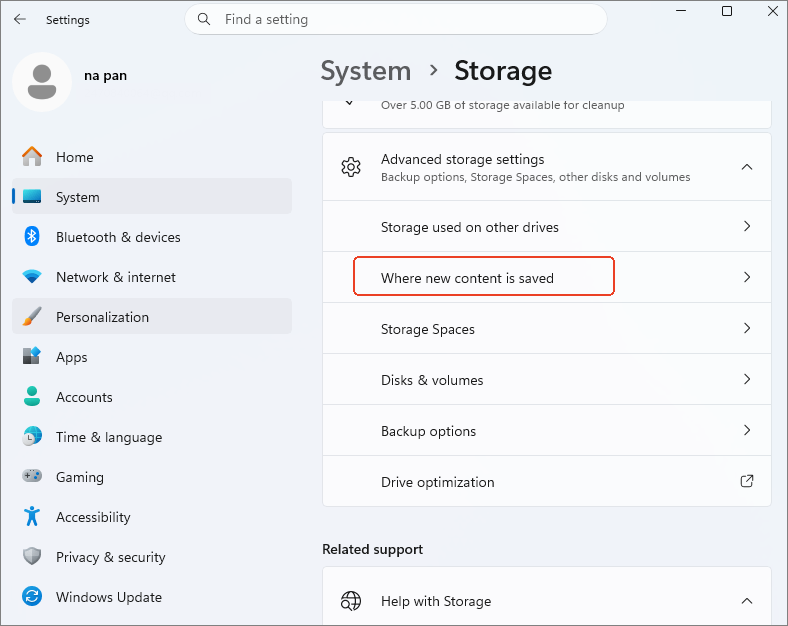
Step 4. Choose another drive under New apps will save to.
Step 5. Change the game library location in your game launcher if it provides a separate storage setting.
- Tip
- Choose a drive with enough free space for large game installations and future updates.
Fix 4. Clean Game Cache and Temporary Files
Game cache, crash reports, temporary installation files, and Windows temporary files can take up C drive space over time.
Start with Windows' built-in cleanup options.
Step 1. Open Settings > System > Storage.
Step 2. Select Temporary files and review the files.
Step 3. Select Remove files after checking the file categories.
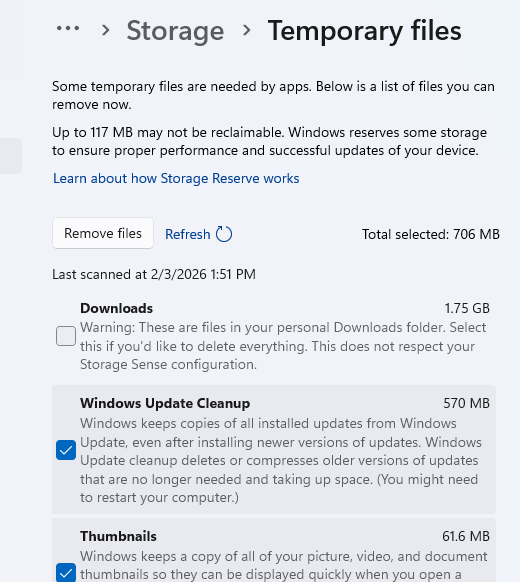
Step 4. Go back to Storage and select Cleanup recommendations if available.
Step 5. Review large or unused files and remove only files you no longer need.
Step 6. Check game-specific cache or crash-report folders if a particular game is using an unusual amount of C drive space.
Do not delete entire folders under AppData without checking what they contain. Some folders store game saves, settings, profiles, or other data that you may want to keep.
Fix 5. Uninstall Games You No Longer Play
Unused games can occupy tens or hundreds of GB on the C drive. Removing them can quickly recover storage. Follow these steps to uninstall games:
Step 1. Open Settings > Apps > Installed apps.
Step 2. Sort the installed apps by Size.
Step 3. Find games that you no longer play.
Step 4. Select the game and click Uninstall.
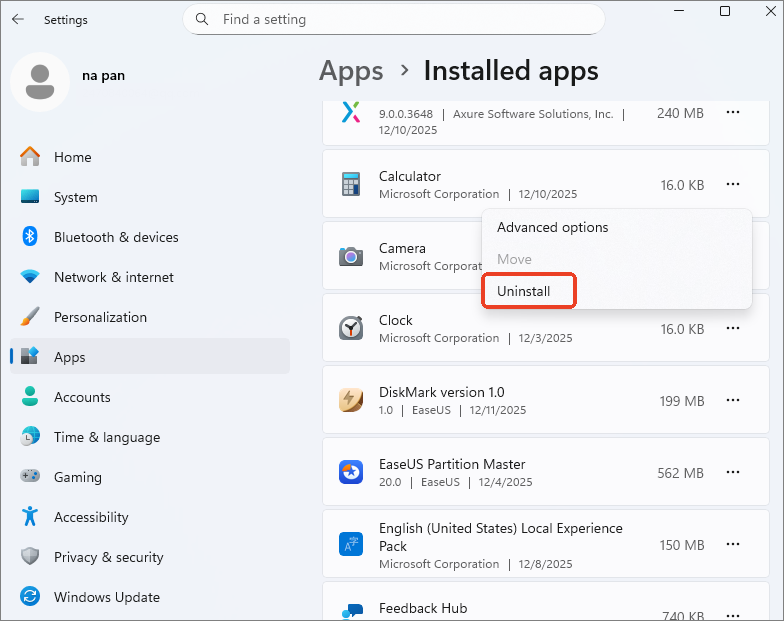
Step 5. Restart the PC if the game or launcher requests it.
Step 6. Check your C drive again to see how much space you recovered.
If you plan to reinstall a game later, check whether its save files are stored locally or synchronized with cloud storage before deleting related files.
Conclusion
A full C drive can quickly become a problem when you use your PC for gaming. Keeping enough free space on the system drive helps Windows, games, and updates run without storage-related issues.
This guide covers five ways to stop games from filling up the C drive. When the C drive remains too small, EaseUS Partition Master provides a simple way to extend the partition with available disk space without deleting your game library.
FAQs
1. Why is my C drive full when my games are on D drive?
Games often store some data on C even when the main installation folder is on D. Launcher files, crash reports, cache, save data, and configuration files may still use the system drive.
2. Will moving a game to another drive delete my game saves?
Moving the main game installation usually keeps files. Save locations vary by game and launcher, so check cloud sync or back up local saves before moving or uninstalling a game.
3. Can I install games directly on an external SSD?
Yes. Many games run from an external SSD when the launcher and game support it. The actual gaming experience depends on the SSD, connection speed, and game requirements.
4. Why does my C drive keep filling up after I clean it?
New game installations, updates, cache files, downloads, and temporary data may continue using C drive space. Check Storage again after installing or updating games to find which files are growing.
How Can We Help You
About the Author
Updated by Joey Albert
Joey is an enthusiast of science and technology. With a passion for uncovering the latest tech innovations, she creates clear, engaging how-to guides that make technology accessible and enjoyable for all.
Product Reviews
-
I love that the changes you make with EaseUS Partition Master Free aren't immediately applied to the disks. It makes it way easier to play out what will happen after you've made all the changes. I also think the overall look and feel of EaseUS Partition Master Free makes whatever you're doing with your computer's partitions easy.
Read More -
Partition Master Free can Resize, Move, Merge, Migrate, and Copy disks or partitions; convert to local, change label, defragment, check and explore partition; and much more. A premium upgrade adds free tech support and the ability to resize dynamic volumes.
Read More -
It won't hot image your drives or align them, but since it's coupled with a partition manager, it allows you do perform many tasks at once, instead of just cloning drives. You can move partitions around, resize them, defragment, and more, along with the other tools you'd expect from a cloning tool.
Read More
Related Articles
-
How to Check SMART Status on Windows 10 in 2026
![Sherly]() Sherly/2026/10/30
Sherly/2026/10/30 -
6 Best Hard Drive Disk Format Tool | Disk Format Tools
![Tracy King]() Tracy King/2026/10/30
Tracy King/2026/10/30 -
Free Download Latest macOS, OS X, Mac OS X Installer
![Sherly]() Sherly/2026/10/30
Sherly/2026/10/30 -
Download Free Toshiba Format Tool and Format Toshiba Device with Ease
![Daisy]() Daisy/2026/10/30
Daisy/2026/10/30
 Sherly/2026/10/30
  Tracy King/2026/10/30
  Daisy/2026/10/30









