







Content
Page Table of Contents
About the Author
Hot Topics

Updated on Oct 27, 2026
Is your C drive running out of space? Windows updates, apps, and games all need room on the system drive. When free space gets low, Windows may show storage warnings or struggle to complete updates.
Cleaning up files is a good place to start. But it won't solve every storage problem. If the C drive is too small, you might need to adjust its partition size. This guide looks at EaseUS Partition Master and two built-in Windows tools. You'll see what each C drive optimization tool does and which one fits your situation.
What Is C Drive Optimization Software?
C drive optimization software helps you manage storage on your Windows system drive. Some tools focus on junk files. Others handle disk checks or partition management.
The right choice depends on the problem you're facing.
- C drive is almost full: Remove temporary files and review large files or unused apps.
- Free space disappears quickly: Find out which files and programs are taking up room.
- Windows reports disk errors: Check the file system for possible errors.
- Your PC feels slow: Review startup apps and other causes of poor performance. A full C drive is only one possible reason.
Windows already includes tools for basic storage cleanup. A dedicated partition manager is more useful when you need to change partition sizes or manage disk space beyond deleting files.
Best C Drive Optimization Software Free Download
👍Best for: Users who need to manage C drive space, resize partitions, or make better use of available disk capacity.
EaseUS Partition Master is a disk and partition management tool for Windows. It helps users organize disk space, resize partitions, and handle common storage management tasks through a graphical interface.
If you're looking for free C drive optimization software, EaseUS Partition Master is a practical option for managing disk space and partitions. It offers tools to resize partitions, extend the C drive, check file systems, and manage HDDs and SSDs. You can view your disk layout and choose the operations that fit your needs without relying on command-line tools.
How EaseUS Partition Master Can Help You Optimize C Drive
| Feature | How It Helps Optimize C Drive |
|---|---|
| Extend C Drive | Increase C drive capacity when suitable unallocated space is available. |
| Resize/Move Partition | Adjust partition sizes to make better use of disk space. |
| Allocate Disk Space | Reallocate available space from other partitions when the disk layout and supported operations allow it. |
| Check File System | Scan for file system errors that could affect partition access. |
| Manage Disk Partitions | Create, delete, format, and organize partitions as needed. |
| Support HDDs and SSDs | Manage supported hard drives and solid-state drives from one interface. |
Why Choose EaseUS Partition Master?
- Easy to use: Manage disk space through a straightforward interface.
- Flexible disk management: Handle different storage needs with one tool.
- Free to get started: Try the Free edition with various features.
- Wide compatibility: Works with supported Windows systems and common storage devices.
EaseUS Partition Master Review from Experts & Users:
📖Statpit Review: After evaluating 10 hdd software, EaseUS Partition Master stands out as our overall top pick — it scored highest across our combined criteria of features, ease of use, and value, which is why it sits at #1 in the rankings above.
📖TheSweetBits Review: EaseUS Partition Master streamlines partition management, making the process accessible even for beginners.
📖G2 Review: What I like most about EaseUS Partition Master is its clean, user-friendly interface that makes complex disk tasks like resizing, merging, or cloning partitions feel simple and visual instead of technical. It lets you preview changes before applying them, which helps avoid mistakes, and it includes useful features like disk cloning and OS migration.
C Drive Optimization Tools Built into Windows
Windows also includes tools to remove unnecessary files and manage storage. Disk Cleanup and Storage Sense are useful starting points if your main goal is to free up space.
EaseUS Partition Master vs. Disk Cleanup vs. Storage Sense
| Feature | EaseUS Partition Master | Disk Cleanup | Storage Sense |
|---|---|---|---|
| Cost | Free edition available | Free, built into Windows | Free, built into Windows |
| Remove selected temporary files | Yes | Yes | Yes |
| Automatic routine cleanup | Depends on the available features | No scheduled cleanup function | Yes, configurable |
| Resize or move partitions | Yes, subject to edition and operation limits | No | No |
| Extend the C drive | Yes, when supported by the disk layout and edition | No | No |
| Partition management | Yes | No | No |
| Best use case | Partition management and disk space adjustments | One-time system file cleanup | Ongoing storage maintenance |
Which one should you choose?
- Choose Disk Cleanup if you want to remove selected temporary or system files without installing software.
- Choose Storage Sense if you want Windows to handle certain cleanup tasks automatically.
- Choose EaseUS Partition Master Free if you need partition management or want to explore options for increasing C drive capacity.
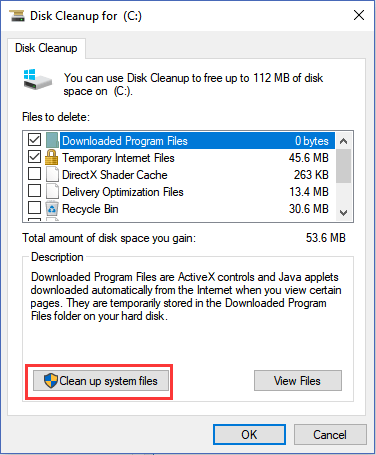
1. Disk Cleanup
Disk Cleanup is a built-in Windows utility that removes selected temporary files and other unnecessary system files. It is useful when you want to reclaim storage without installing another program.
2. Storage Sense
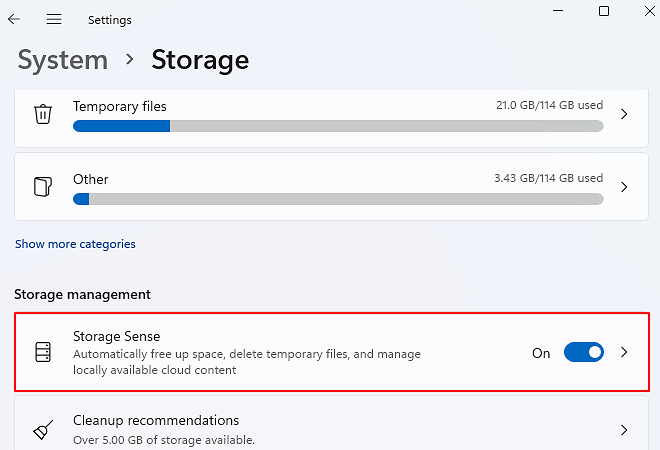
Storage Sense is a Windows storage management feature that can automatically remove certain unnecessary files. Depending on your settings, it can clean temporary files and items in the Recycle Bin when they are no longer needed.
Storage Sense is useful for routine maintenance because it can automatically handle selected cleanup tasks. It does not increase the capacity of the C: drive, and its cleanup rules determine which files it removes.
How to Use a C Drive Optimization Tool Step-by-Step
EaseUS Partition Master can help you manage C drive space in several ways. The appropriate method depends on whether you need to remove unnecessary files, investigate storage usage, or increase partition capacity. Here are two ways to optimize your C drive with EaseUS Partition Master. Choose the method that best fits your needs.
1. Clean C Drive
Unnecessary files, temporary data, and leftover files from installed applications can take up valuable C drive space. Cleaning up these files helps free storage without changing the partition size.
You can use EaseUS Partition Master to find and free up C drive space without manually checking multiple locations.
- Open EaseUS Partition Master and select Clean.
- Use Space Analysis to identify what is taking up the most space.
- Scan for and remove unnecessary junk files.
- Find and uninstall large or unwanted applications.
- Use Data Migration to move supported large apps or files from C drive to another drive, such as D drive.
- Check the available C drive space again after cleanup.
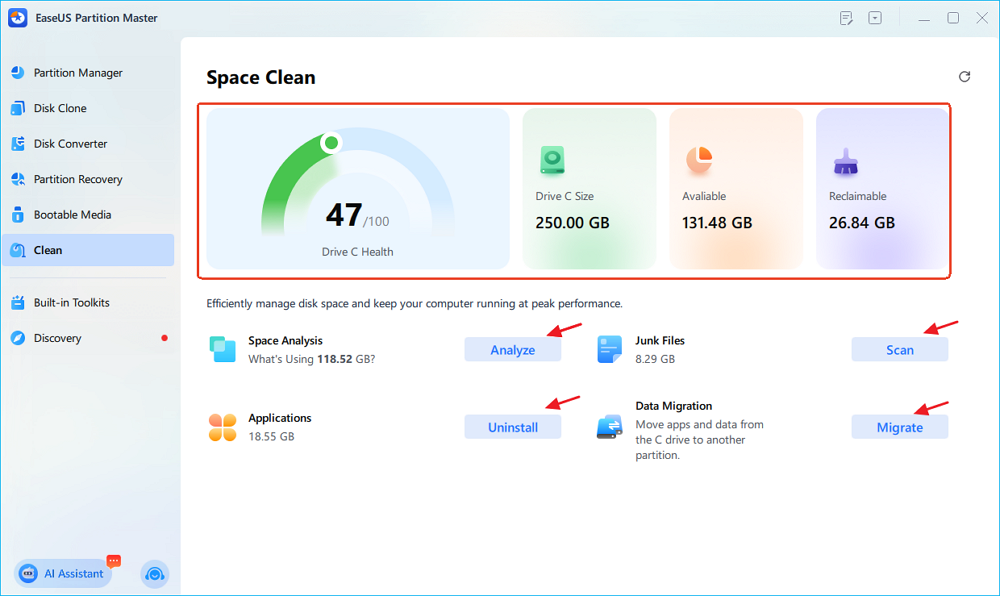
This feature lets you analyze disk usage and free up space through cleanup, app removal, and data migration from a single interface.
2. Resize the C Drive
If C drive space remains low after cleanup, increasing the partition size may be a better option. EaseUS Partition Master lets you resize partitions and extend C when suitable disk space is available.
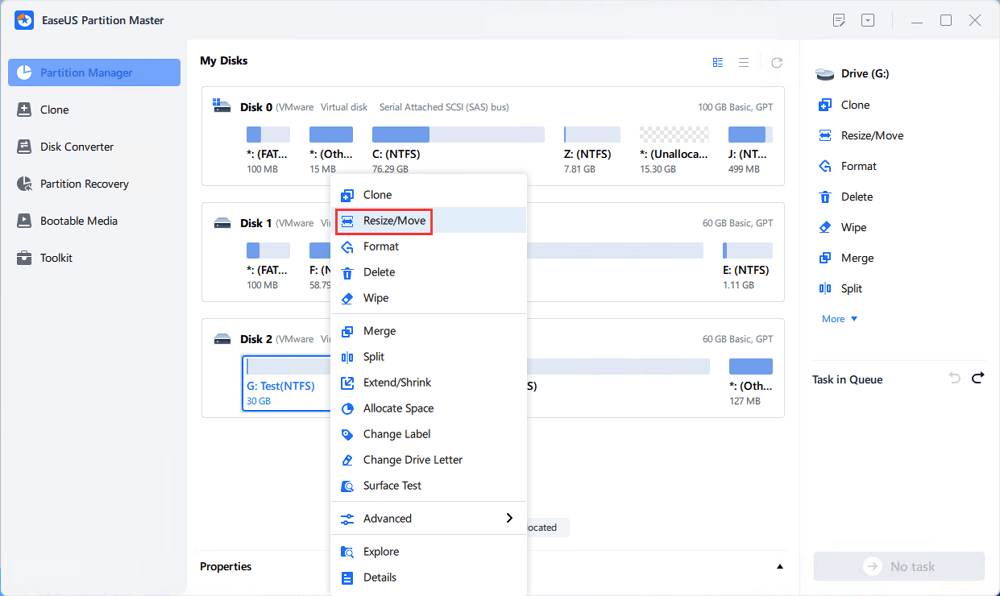
Step 1: Locate and select the target drive/partition
Launch EaseUS Partition Master and go to Partition Manager, select the target drive or partition you need to adjust its size, right-click on it and choose "Resize/Move".
Step 2: Resize or move the partition
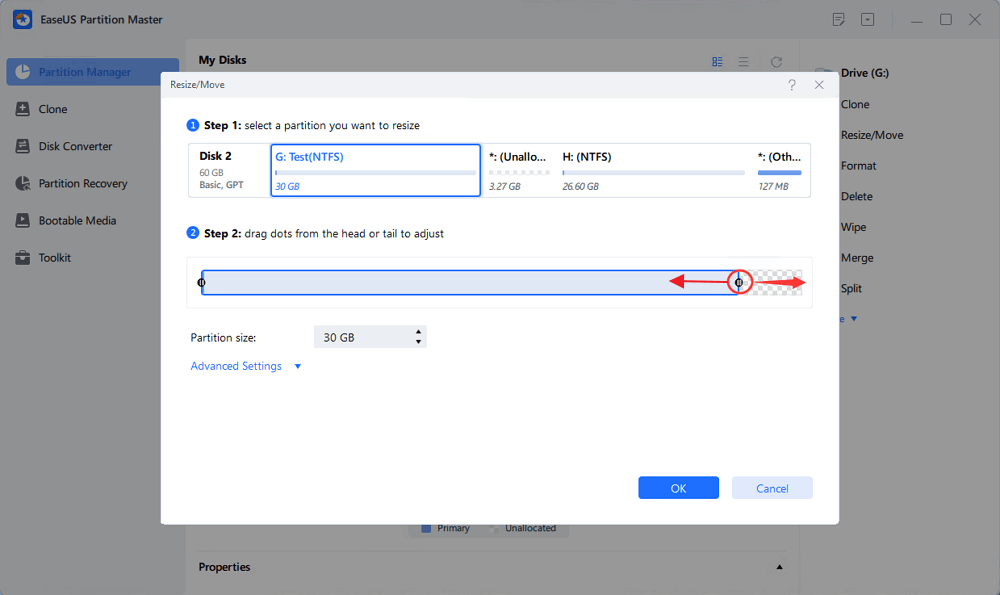
1.To shrink the partition, simply drag one of its ends to free up unallocated space. Once done, click "OK".
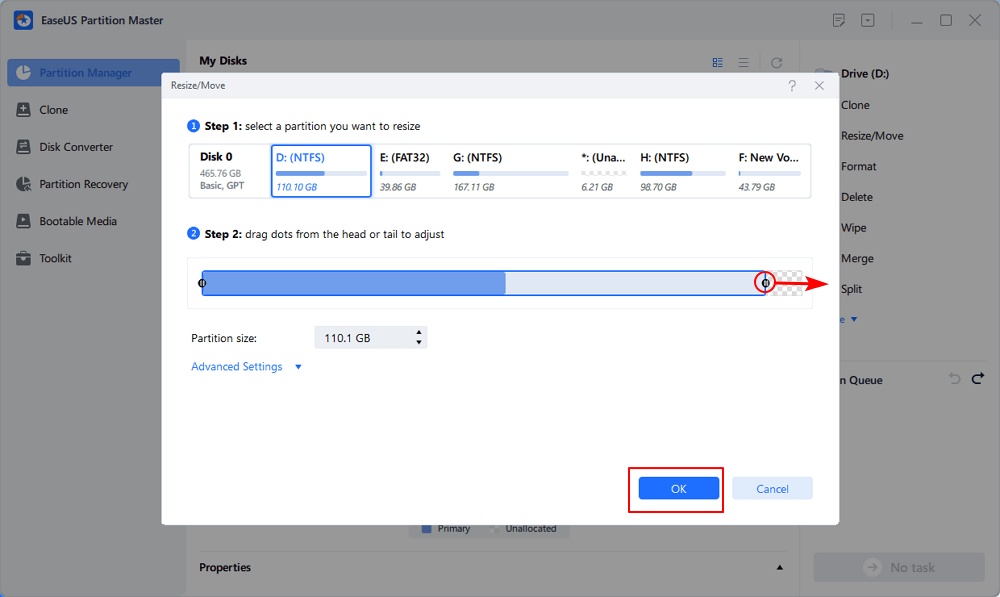
2. To extend the partition, make sure that there is unallocated space aside (if there isn't, follow the above steps to create some). In the same way, drag your mouse into the unallocated space. Click "OK".
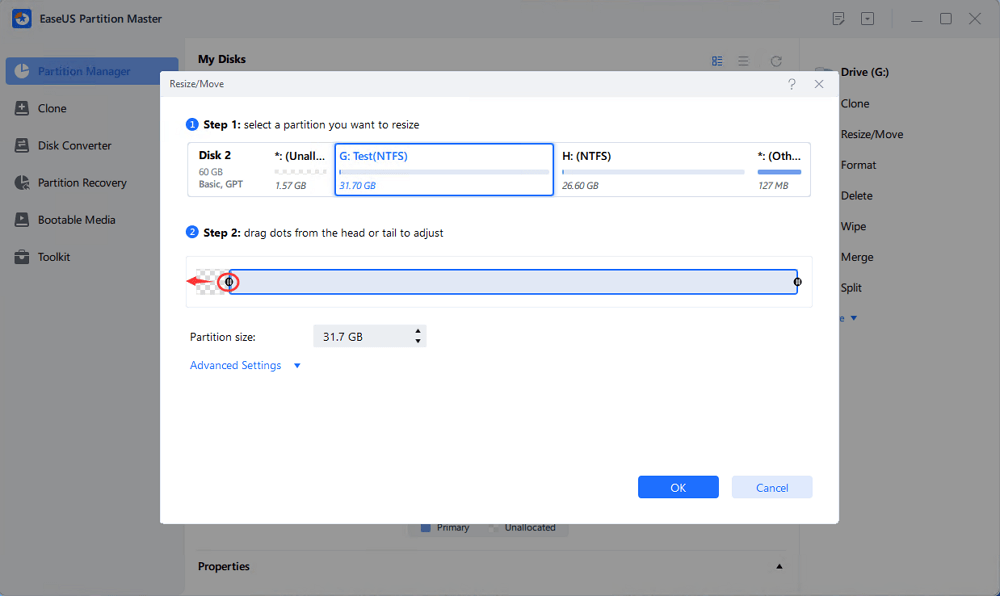
3. To move a partition position, suppose you have created and left the unallocated space next to the target partition. If no, free up some unallocated space first.
Then, right-click the target partition, select "Reize/Move". Then drag the whole partition leftward or rightward to adjust its position. Click "OK" to confirm.
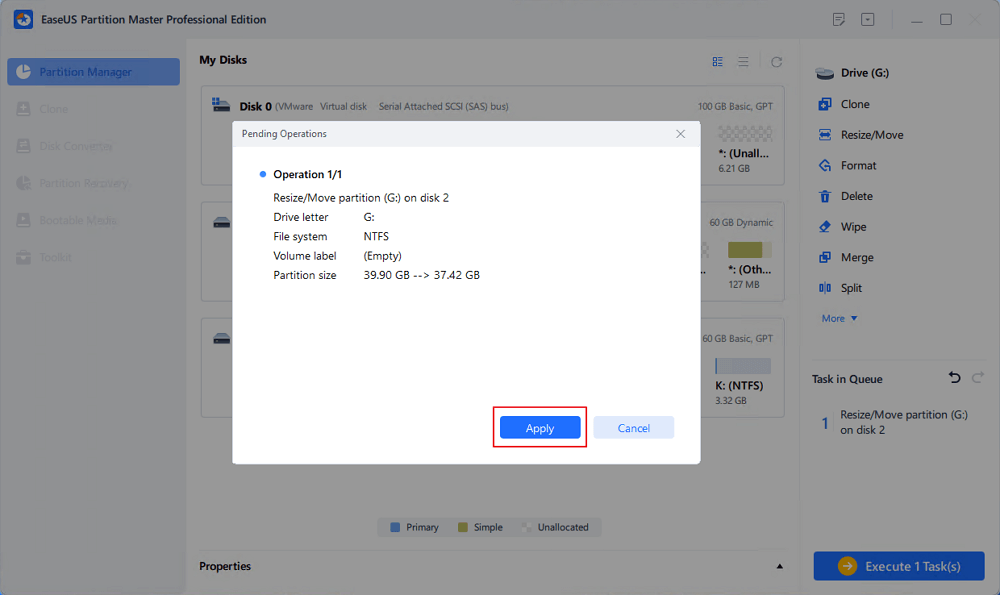
Step 3: Confirm the result and apply changes
At this step, you will see the new disk partition information & diagram.
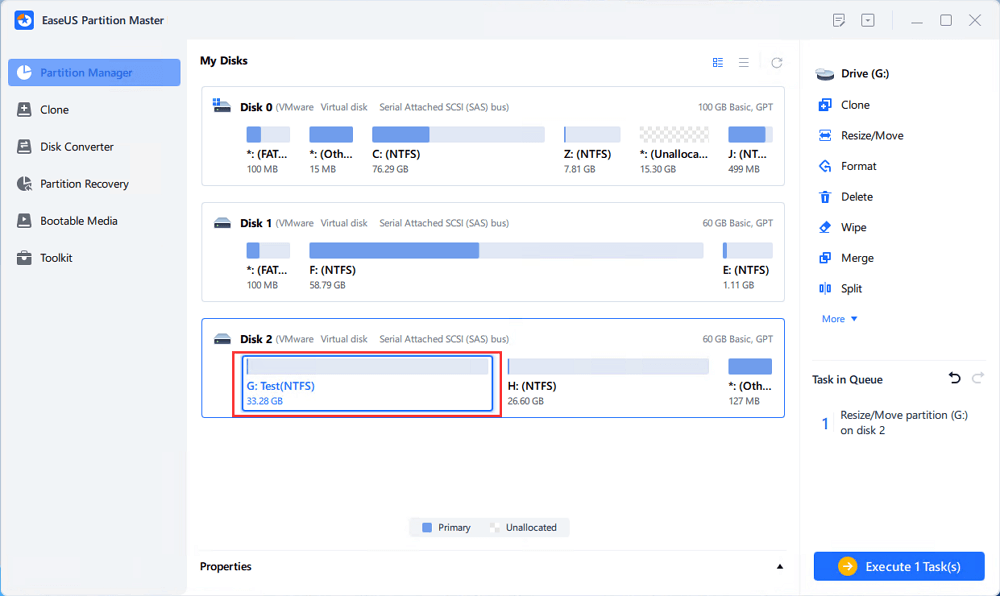
To save changes, click the "Execute Task" button and then "Apply".
Conclusion
A quick cleanup might be all your C drive needs. Disk Cleanup and Storage Sense are good starting points for removing unnecessary files. When space is still tight, look at the partition itself. EaseUS Partition Master offers tools to manage partitions and increase C drive capacity when the disk layout supports it. Download EaseUS Partition Master to explore its disk management features.
FAQs
1. How can I optimize my C drive for free?
Start with Disk Cleanup or Storage Sense. Remove files you no longer need and uninstall unused apps. Large personal files are often saved in Downloads, Videos, and Desktop. Move files you want to keep to another drive. If C is still short on space, check whether the partition can be extended.
2. Is C drive optimization software safe?
Yes. Download EaseUS Partition Master from its official website. Review the cleanup list before removing files. Back up important data before resizing partitions. Avoid deleting unfamiliar files from Windows folders.
3. Can optimizing the C drive make my computer faster?
It depends on what's causing the slowdown. A nearly full system drive can affect normal use, so freeing up space might help. Slow startup can also come from too many startup apps, limited memory, or an aging drive. Cleaning C won't fix every performance problem.
4. Can I increase C drive space without reinstalling Windows?
Yes. You can extend C without reinstalling Windows when the disk layout supports it. The space usually comes from unallocated space on the same disk. A partition manager can help adjust the layout. Back up important files before making changes.
5. Is EaseUS Partition Master really free?
EaseUS offers a Free edition with disk and partition management features. Some operations require a paid edition. Check the official product page for the latest feature list and edition limits.
How Can We Help You
About the Author
Updated by Joey Albert
Joey is an enthusiast of science and technology. With a passion for uncovering the latest tech innovations, she creates clear, engaging how-to guides that make technology accessible and enjoyable for all.
Product Reviews
-
I love that the changes you make with EaseUS Partition Master Free aren't immediately applied to the disks. It makes it way easier to play out what will happen after you've made all the changes. I also think the overall look and feel of EaseUS Partition Master Free makes whatever you're doing with your computer's partitions easy.
Read More -
Partition Master Free can Resize, Move, Merge, Migrate, and Copy disks or partitions; convert to local, change label, defragment, check and explore partition; and much more. A premium upgrade adds free tech support and the ability to resize dynamic volumes.
Read More -
It won't hot image your drives or align them, but since it's coupled with a partition manager, it allows you do perform many tasks at once, instead of just cloning drives. You can move partitions around, resize them, defragment, and more, along with the other tools you'd expect from a cloning tool.
Read More
Related Articles
-
Fix Unable to Shrink C Drive on Windows 11/10/8/7
![author icon]() Sherly/2026/10/22
Sherly/2026/10/22 -
How to Increase C Drive Space in Windows Safely? 6 Fixes Here
![author icon]() Jean/2026/10/22
Jean/2026/10/22 -
3 Effective Tools to Resize C Drive in Windows 7 [2026 Tutorial]
![author icon]() Tracy King/2026/10/22
Tracy King/2026/10/22 -
How to Increase C Drive From D Drive on Windows
![author icon]() Joey Albert/2026/10/25
Joey Albert/2026/10/25
 Sherly/2026/10/22
  Jean/2026/10/22
  Tracy King/2026/10/22









