







Content
Page Table of Contents
About the Author
Hot Topics
If your C drive is full but your D drive is empty, you can often solve the problem by allocating space from D to C, moving files to D, or cleaning up unnecessary files. The right fix depends on whether the two partitions are on the same physical disk and how they are arranged.
If you want to increase C drive space without deleting your D drive, EaseUS Partition Master can help you reallocate available space between partitions on the same disk. If you prefer to use Windows' built-in tools, you may be able to extend C drive through Disk Management, provided the required conditions are met.
This guide explains why the problem occurs, how to check your disk layout, and how to choose the right solution for Windows 11 and Windows 10.
Why Is My C Drive Full but D Drive Empty?
Your C drive and D drive are separate volumes. Windows does not automatically transfer unused space from one partition to another, even when C is running out of storage.
Here are the most common reasons your C drive is full while your D drive has plenty of free space.
- C drive has limited capacity. Windows, installed applications, updates, and system files may consume most of the space allocated to your system partition.
- Applications and games are installed on C. Large programs, game files, and application caches can gradually fill up the system drive.
- Personal files accumulate on C. Downloads, videos, desktop files, and documents may take up more space than expected.
- D drive is underused. You may have plenty of free space on D, but Windows will not automatically reallocate it to C.
- C and D are on different physical disks. A drive letter does not tell you whether two partitions belong to the same HDD or SSD. If they are on different disks, the available space on D cannot directly extend C on a standard basic-disk configuration.
The key is to determine whether you need to free up storage or increase the size of the C partition. If C is consistently running out of space and D has plenty of unused capacity on the same disk, reallocating space may be the more lasting solution. Feel free to share this post and help more people.

How to Check Whether You Can Extend C Drive
Before changing partition sizes, check your disk layout in Windows Disk Management. This helps you avoid deleting the wrong partition or choosing a method that will not work.
- Press Win + X and select Disk Management.
- Find the disk containing your C drive. Check whether D is on the same disk, such as Disk 0, or on another disk, such as Disk 1.
- Look at the order of the partitions. Check whether C is immediately followed by D, a Recovery partition, or unallocated space.
- Identify any Unallocated space. In Disk Management, it appears as a region with a black bar rather than a blue bar for a typical allocated partition.
Your next step depends on what you find.
| Disk Layout | Recommended Solution |
|---|---|
| C has unallocated space immediately to its right | Extend C using Disk Management |
| C and D are on the same disk, and you want to keep D | Use EaseUS Partition Master to allocate space from D to C |
| A Recovery or another partition sits between C and the available space | Move the recovery partition with a partition tool |
| C and D are on different physical disks | Move files to D or consider upgrading the system disk |
| You do not want to change partitions | Clean up C and move personal files to D |
Important: A nearly empty D drive is not the same as unallocated space. D is still an allocated partition, so its capacity cannot be added directly to C through Disk Management unless the necessary unallocated space is created in the correct location.
How to Fix C Drive Full but D Drive Empty
There are several ways to solve this problem, depending on whether you want to expand C drive, preserve your D drive data, or simply free up storage. Start with the method that matches your disk layout.
Method 1. Allocate Free Space from D Drive to C Without Deleting D
If C and D are on the same physical disk and you want to keep your files on D, using a partition manager is a practical option. EaseUS Partition Master includes an Allocate Space feature that lets you transfer unused capacity from one partition to another on the same disk.
Unlike Windows Disk Management, which cannot directly extend a basic partition into non-adjacent unallocated space, EaseUS Partition Master can help adjust partition layouts to make better use of available space. The exact operation depends on the disk configuration and supported partition types.
Why choose this method?
- ✅You can increase C drive space without deliberately deleting the D partition.
- ✅You can choose how much space to transfer rather than giving C the entire D partition.
- ✅It can be useful when the available space is not positioned where Windows Disk Management requires it to be.
Follow these steps to allocate space from D to C.
Partition resizing can be interrupted by power loss, hardware problems, or other errors. Back up important files before proceeding, ensure your PC has reliable power, and check whether BitLocker or other disk-encryption protections require preparation.
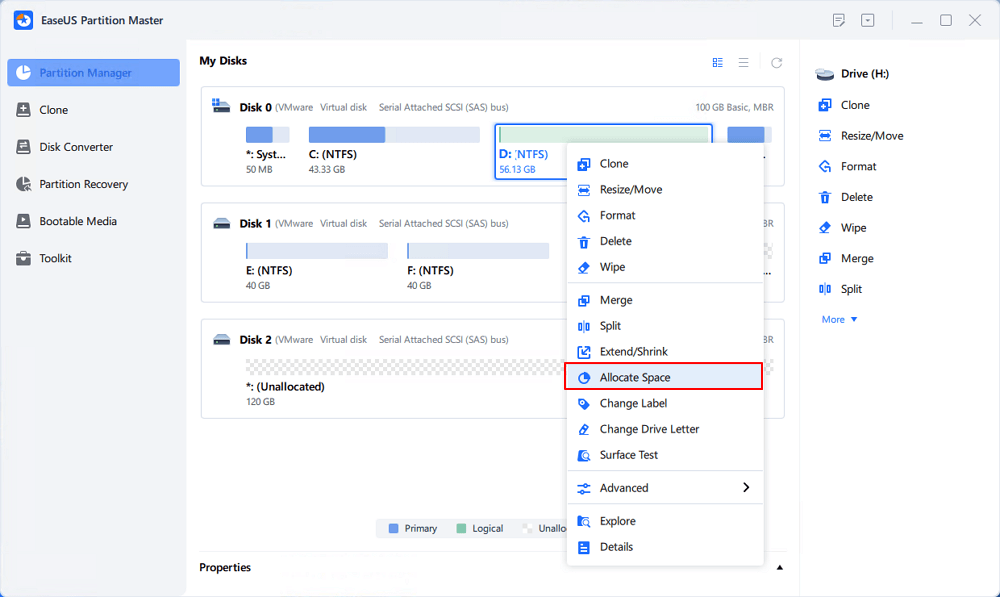
Step 1. Right-click on the D: partition with enough free space and select "Allocate Space".
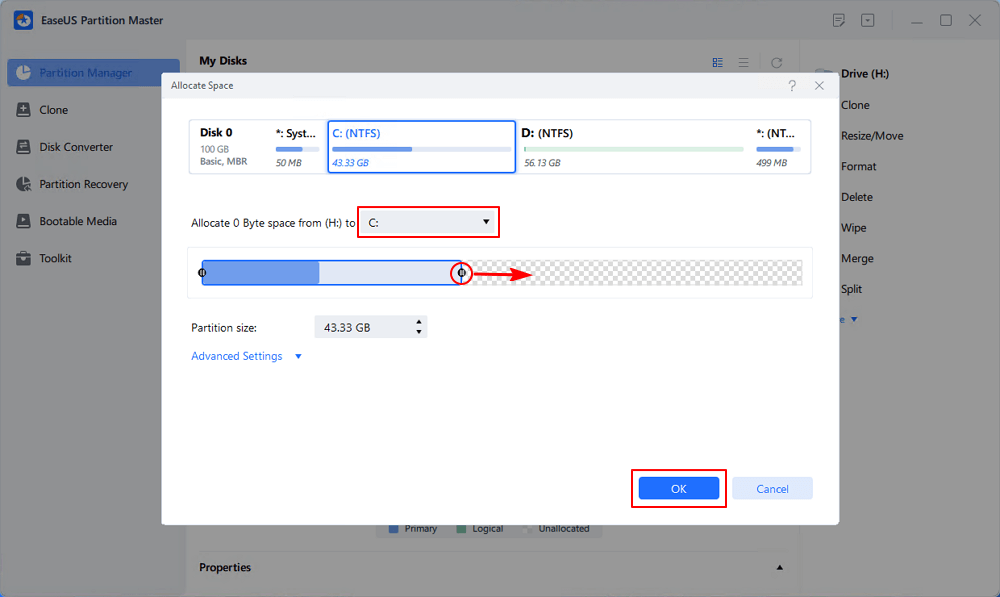
Step 2. Select the target partition - C: drive and drag the partition panel rightward to add the free space from D: drive to C: drive. Then click "OK" to confirm.
Step 3. Click the "Execute Task" button and click "Apply" to start the process of moving free space from D: drive to C: drive.
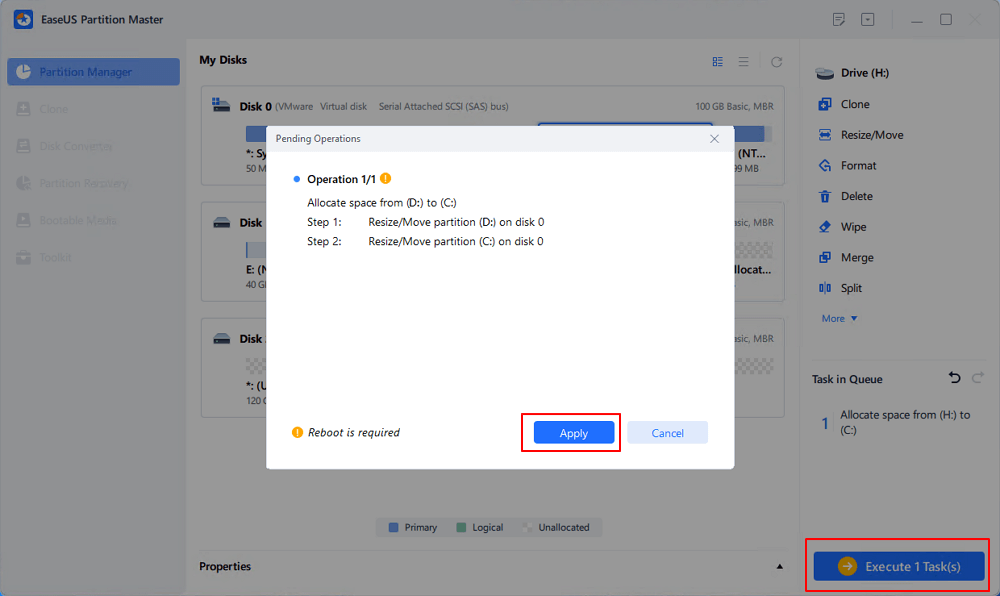
If the program requests a restart to complete the operation, follow its instructions and wait for the process to finish.
Method 2. Delete the Empty D Drive and Extend C Using Disk Management
If D is genuinely unnecessary and you are comfortable removing it, Windows Disk Management may be sufficient. This option is best when D is on the same disk as C and deleting D will leave unallocated space immediately to the right of C.
- Apply to: D and C drive are on the same physical disk, and D is exactly behind C drive.
- Warning: Deleting D removes its file-system contents. Verify that no important files, application data, or other required data remain on the partition. Back up anything you need before proceeding.
Step 1. Open Disk Management.
Press Win + X and select Disk Management.
Step 2. Verify the disk layout.
Make sure C and D belong to the same physical disk. Check that no Recovery, EFI, or other partition remains between C and the space released from D.
Step 3. Delete D.
Right-click the D partition and select Delete Volume. Confirm only after verifying the correct partition and backing up its contents.
Step 4. Extend C.
Once D becomes unallocated space immediately to the right of C, right-click C and select Extend Volume.
Step 5. Complete the wizard.
Follow the Extend Volume Wizard to specify how much unallocated space to add to C, then finish the operation.
If Extend Volume is still unavailable, do not delete additional partitions at random. Check the partition layout again. Windows requires the unallocated space to be immediately after the volume being extended, on the same disk, and the volume must meet the supported file-system requirements (Check this full guide).
Method 3. Fix Extend Volume Greyed Out in Disk Management
If you tried to extend C drive but found that Extend Volume is greyed out, the problem is often the location of the available space rather than the amount of free space on D.
For example, consider this layout:
Before shrinking D — C: | Recovery | D:
After shrinking D — C: | Recovery | D: | Unallocated
The new unallocated space is to the right of D, not next to C. The Recovery partition also separates C from D. Windows Disk Management cannot simply move that space across the intervening partitions. Microsoft's guidance confirms that the unallocated space must be immediately after the volume being extended.
Here is how to troubleshoot the problem.
- If you see unallocated space after D: Shrinking D alone will not make that space available to C through Disk Management. Consider a partition manager that supports moving or resizing partitions.
- If a Recovery partition sits between C and D: Do not delete it casually. It may be required for Windows recovery. A partition tool may be able to rearrange the layout, but back up your data and understand the consequences before proceeding.
- If C and D are on different disks: You cannot use the space on a separate physical disk to extend C as a standard basic volume.
- If the file system is unsupported for extension: Check the volume's file system and Microsoft's requirements before making changes. Reformatting a volume can erase its contents, so it is not a routine troubleshooting step.
If the issue is caused by partition placement and you want to preserve D, EaseUS Partition Master can be considered for its Allocate Space and Move/Resize features. Review the proposed disk layout before applying any changes.
Method 4. Free Up C Drive Space Without Changing Partitions
You do not always need to resize C. If temporary files, downloads, or large applications are consuming the space, cleaning up C and moving personal files to D may be enough. Windows includes built-in storage tools that help you identify unnecessary files and reclaim space.
Step 1. Check what is using C drive space.
Open Settings > System > Storage in Windows 11 or Windows 10. Review the storage categories to see whether temporary files, installed apps, or personal files are taking up the most room.
Step 2. Remove unnecessary temporary files.
Select Temporary files or Cleanup recommendations, depending on your Windows version. Review the items before deleting them. Be careful with Downloads and Recycle Bin selections. They may contain files you still need.
Step 3. Run Disk Cleanup.
Search for Disk Cleanup, select C, and review the available categories. If you choose to clean up system files, check the list carefully before confirming.
Step 4. Move large personal files to D.
Move videos, documents, installers, and other personal files you want to keep from C to D. Check that the files work from their new locations before deleting any remaining copies.
This approach can quickly free up space without changing partition boundaries. However, it will not increase C's actual capacity, and the space may fill up again if applications and system data continue to grow.
Method 5. Move Apps and Change Default Save Locations to D
If C keeps filling up, even after cleanup, you may need to change where your files and applications are stored.
- Move supported apps: Open Settings > Apps > Installed apps and check whether the app offers a Move option. Availability depends on the app and installation type.
- Reinstall large desktop programs when necessary: If an app cannot be moved safely, use its supported uninstall and reinstall process, choosing D as the installation location if the installer allows it.
- Change default save locations: In Windows Storage settings, look for the option to choose where new content is saved.
- Move personal folders: For folders such as Documents, Downloads, and Videos, use supported folder-location settings where available.
Do not simply cut and paste entire Program Files or Windows folders to D. Applications and system components may rely on fixed paths, registry entries, services, or other dependencies.
Moving files and supported applications can help keep C from filling up again. If the system partition is fundamentally too small, however, expanding C or upgrading the system disk may be the more effective long-term solution.
How to Prevent C Drive from Filling Up Again
Once you have resolved the immediate problem, a few maintenance habits can help keep your system drive from running low again.
- Check storage usage periodically. Use Windows Storage settings to identify categories that grow over time.
- Install large applications thoughtfully. Choose D for programs that support a different installation location and that you do not need on C.
- Store large personal files on D. Videos, archives, installers, and project files can consume substantial space.
- Clean up safely. Remove unnecessary temporary files, but do not delete unfamiliar system folders just because they look large.
- Reassess C drive capacity. If Windows, applications, and your normal workload regularly exhaust the available space, consider reallocating space from D or upgrading the system disk.
The goal is not just to make the low-disk-space warning disappear. It is to give Windows enough room for normal operation, updates, and the applications you use.
FAQs About C Drive Full but D Drive Empty
1. Why is my C drive full when my D drive is empty?
C and D are separate partitions, and Windows manages their storage independently. System files, applications, updates, and personal data may fill C while D remains mostly unused. To solve the problem, you can reallocate space from D if the disk layout allows it, move files to D, or clean up unnecessary data on C.
2. Can I move space from D drive to C without losing data?
Yes, in supported configurations, you can use a partition manager such as EaseUS Partition Master to allocate available space from D to C without deliberately deleting the D partition. However, partition changes always carry some risk, so back up important data before resizing partitions.
3. Why can't I extend C drive after shrinking D?
When you shrink D using Windows Disk Management, the resulting unallocated space usually appears immediately to the right of D. Windows requires unallocated space immediately after C to extend it, so the Extend Volume option may remain greyed out. A tool that supports moving or resizing partitions may help resolve this layout issue.
4. Can I merge C and D if they are on different disks?
Not as a standard basic-disk operation that directly extends C using D's space. If C and D are on different physical disks, consider moving personal files to D, moving supported applications, or upgrading the system disk to a larger drive.
5. Is it better to extend C drive or clean it up?
It depends on the cause. If C is small and D has unused capacity on the same physical disk, extending C may provide a more lasting solution. If temporary files, downloads, or applications are consuming unnecessary space, cleaning C and moving data to D may be sufficient.
6. Will deleting D drive delete Windows?
Deleting D does not normally delete Windows when Windows is installed on C, but it will remove the data stored on D. Some computers may also have important boot, recovery, or application-related files on partitions other than C. Verify the disk layout and back up important data before deleting any partition.
Wrap Up
If your C drive is full but your D drive is empty, start by checking Disk Management to confirm whether both partitions are on the same physical disk.
- If you want to keep D and use its unused capacity, try EaseUS Partition Master and its Allocate Space feature.
- If D is genuinely disposable and the layout allows it, you can delete D and extend C using Windows Disk Management.
- If the two drives are on different physical disks, move files or applications to D, or consider upgrading the system disk.
- If you only need to reclaim a little space, start with Windows Storage settings and Disk Cleanup.
Choosing the method based on your actual disk layout is safer and more effective than trying to extend C blindly.
How Can We Help You
About the Author

Sherly joined EaseUS in 2022 and she has always loved writing articles and enjoys the fun they bring. She receives professional training here, focusing on product performance and other relative knowledge. She has written over 200 articles to help people overcome computing issues.
Product Reviews
-
I love that the changes you make with EaseUS Partition Master Free aren't immediately applied to the disks. It makes it way easier to play out what will happen after you've made all the changes. I also think the overall look and feel of EaseUS Partition Master Free makes whatever you're doing with your computer's partitions easy.
Read More -
Partition Master Free can Resize, Move, Merge, Migrate, and Copy disks or partitions; convert to local, change label, defragment, check and explore partition; and much more. A premium upgrade adds free tech support and the ability to resize dynamic volumes.
Read More -
It won't hot image your drives or align them, but since it's coupled with a partition manager, it allows you do perform many tasks at once, instead of just cloning drives. You can move partitions around, resize them, defragment, and more, along with the other tools you'd expect from a cloning tool.
Read More
Related Articles
-
How to Upgrade EMMC to SSD [Tutorial with Pictures]
![Sherly]() Sherly/2026/10/29
Sherly/2026/10/29 -
How to Extend C Drive in Windows Server 2019/2016
![Tracy King]() Tracy King/2026/10/29
Tracy King/2026/10/29 -
How to Free Up Space on C Drive in Windows 11/10 [8 Efficient Ways]
![Sherly]() Sherly/2026/10/29
Sherly/2026/10/29 -
Can I Clone Windows to Virtual Machine? Your Guide Here
![Tracy King]() Tracy King/2026/10/29
Tracy King/2026/10/29
 Tracy King/2026/10/29









