







Content
Page Table of Contents
About the Author
Hot Topics

Updated on Oct 20, 2026
Did your C drive run out of space after a Windows update? You might have had several gigabytes of free space before the update. Now Windows shows a low disk space warning.
Windows updates store downloaded files and temporary installation data on the system drive. A major upgrade also keeps files from the previous Windows installation for a limited time. These files take up space on the C drive. A small system partition makes the problem worse.
You don't need to delete random files to fix it. This guide covers seven ways to free up space after a Windows update. You'll learn how to clean up Windows Update files, remove Windows.old, and manage other files on the C drive. If cleanup doesn't help, you'll also find out how to extend the C drive.
📖Reddit User Case: After an update, free space in C drive was reduced from 131 GB to 113 GB. Is this normal?
Why Is My C Drive Full After a Windows Update?
A Windows update often leaves extra files on the C drive. Other files might already be using most of the available storage.
Here are the common reasons why C drive full after a Windows update:
- Windows Update files: Downloaded update packages and temporary installation files take up space.
- Windows.old folder: A major Windows upgrade usually keeps files from the previous installation in this folder.
- Temporary files: Update caches and other temporary data remain on the system drive.
- Large apps and personal files: Games, videos, downloads, and installed programs use space that Windows needs for updates.
- System files and reserved storage: Windows keeps system components and other data on the C drive.
- Small C drive partition: A small system partition fills up quickly when Windows and installed apps already use most of its capacity.
How to Fix C Drive Full After Windows Update
A full C drive doesn't always require a major change. Start with the cleanup tools included in Windows. Check the available space after each fix. This helps you see which method works for your PC.
Fix 1. Check What Is Taking Up Space on the C Drive
If you notice your C drive is full after updating to Windows 11/10, first find out what's taking up the space. Before deleting files, check where the storage has gone.
Here is how to check what's using up C drive space.
Step 1. Press Windows + I to open Settings.
Step 2. Go to System > Storage.
Step 3. Check the space used by Temporary files, Installed apps, and System & reserved.
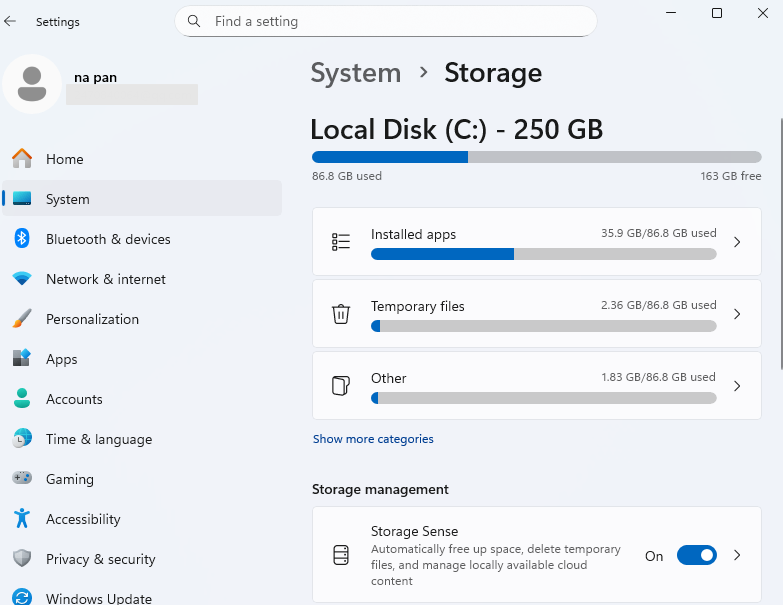
Step 4. Open the largest categories and look for files you no longer need.
- Tip
- Temporary files often contain data that is safe to remove after a review. If installed apps take up most of the C drive, you can uninstall unused programs.
Fix 2. Delete Temporary Windows Update Files
Windows keeps temporary files during the update process. Some of these files are no longer needed after installation. Removing them is a good way to free up C drive space.
Step 1. Open Settings > System > Storage.
Step 2. Select Temporary files.
Step 3. Wait for Windows to scan the available files.
Step 4. Select Windows Update Cleanup or Delivery Optimization Files if these options appear.
Step 5. Review your selections and click Remove files.
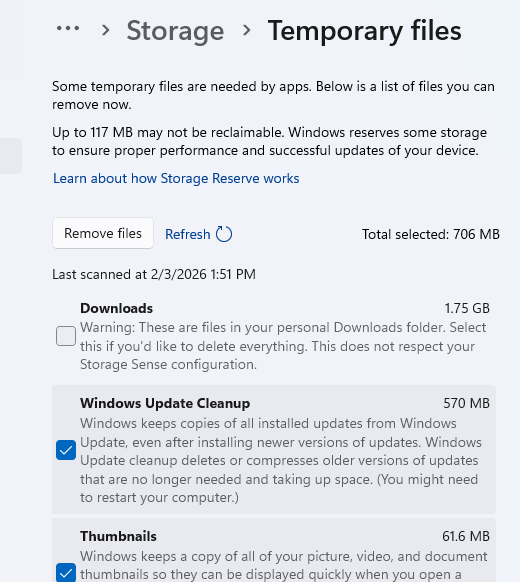
Check the C drive's free space when the cleanup finishes. If the drive is still almost full, move on to the next fix.
- Tip
- The available cleanup items depend on your Windows version and update history. Don't select Downloads without checking its contents. This folder often holds personal files and installers.
Fix 3. Remove Windows.old to Free Up C Drive Space
Did your C drive lose a lot of free space after a major Windows upgrade? Check for the Windows.old folder. It usually stores files from the previous Windows installation.
Windows keeps these files to support rollback to the earlier version. You can remove them if the current installation works well and you no longer need to roll back.
Step 1. Open Settings > System > Storage.
Step 2. Select Temporary files or Cleanup recommendations.
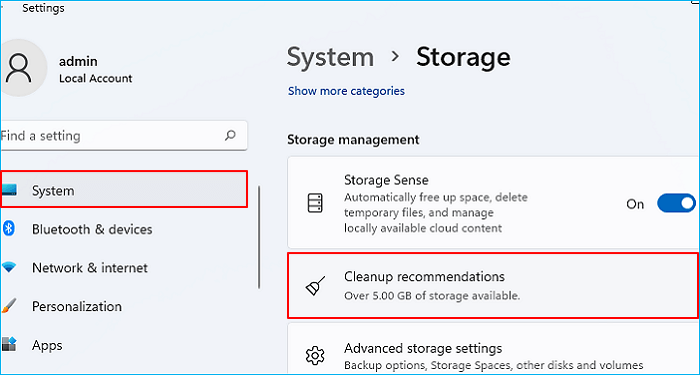
Step 3. Look for Previous Windows installation(s).
Step 4. Select the item if you no longer need the previous Windows version.
Step 5. Click Remove files to confirm.
- Important
- Removing the previous installation files also removes the normal rollback option. Keep them if the latest update has caused problems. Windows might remove these files automatically after the rollback period. The cleanup option only appears when the relevant files are available.
Fix 4. Run Disk Cleanup to Remove System Files
Disk Cleanup is a built-in Windows tool for removing temporary files and selected system data. Its system-file scan is worth trying if the usual cleanup options don't free enough space.
Step 1. Search for Disk Cleanup in the Windows search box.
Step 2. Open the tool and select the C drive.
Step 3. Click Clean up system files.
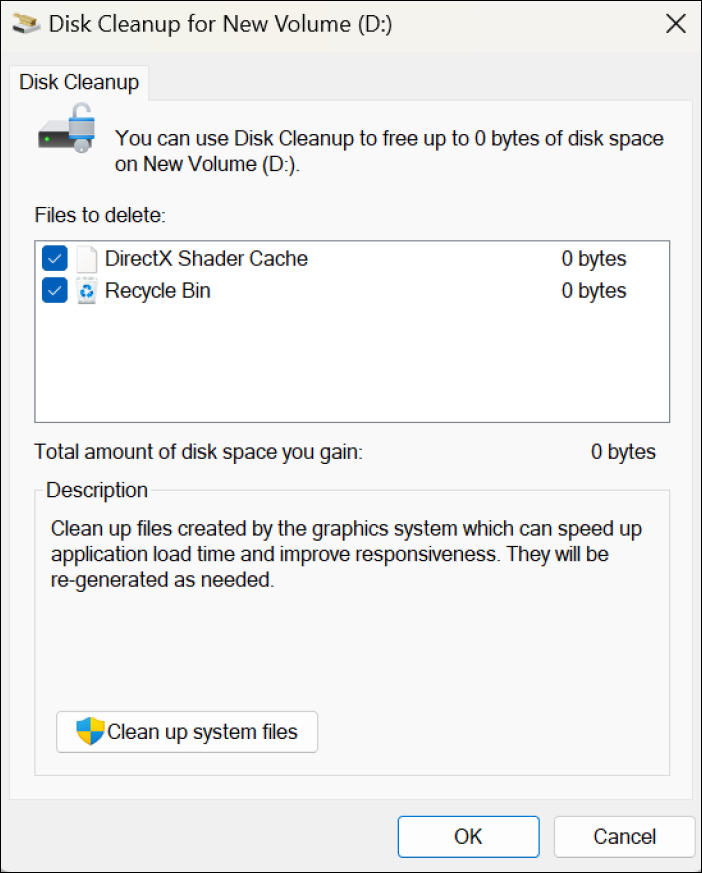
Step 4. Select the C drive again if prompted.
Step 5. Review the available file categories.
Step 6. Select the items you want to remove, click OK, and confirm.
Look for Windows Update Cleanup if it appears. Read each category before deleting its files. Be careful with previous Windows installation files if you still need the rollback option. Check the free space again after Disk Cleanup finishes. You can try the next fix if the C drive still has little room.
Fix 5. Turn On Storage Sense
Does your C drive keep filling up after Windows updates? Storage Sense helps manage temporary files and other unnecessary data. It runs according to your cleanup settings.
Step 1. Open Settings > System > Storage.
Step 2. Turn on Storage Sense.
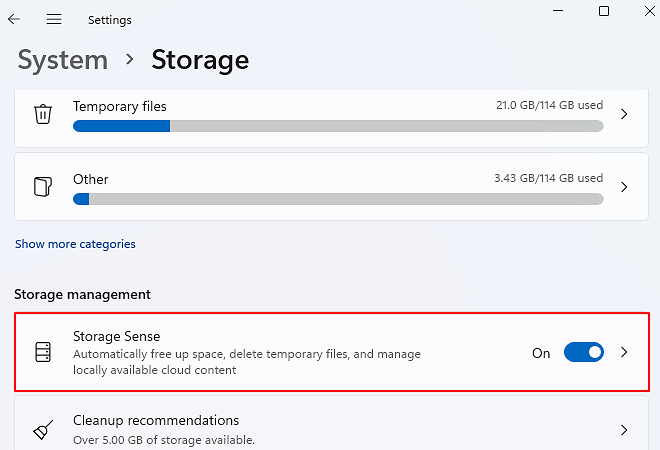
Step 3. Open the Storage Sense settings.
Step 4. Choose when Windows should run cleanup.
Step 5. Review the options for temporary files, the Recycle Bin, and Downloads.
Step 6. Save your settings. Run Storage Sense manually if you need to clean up the drive now.
Check the Downloads setting carefully. Important documents and installers are often saved in this folder. Storage Sense doesn't clear Downloads by default unless you configure it to do so.
Storage Sense helps maintain free disk space. It won't remove every large file or increase the size of your C drive partition.
Fix 6. Move Large Files and Unused Apps
Windows Update files might not be the main problem. Large games, videos, downloads, and applications often take up more space than expected. Moving personal files and removing unused apps helps free up the C drive.
Move large personal files:
Step 1. Open File Explorer.
Step 2. Check Downloads, Videos, Documents, and Desktop.
Step 3. Sort files by size if the option is available.
Step 4. Move files you no longer need on the C drive to another drive.
Step 5. Open the moved files to make sure they work.
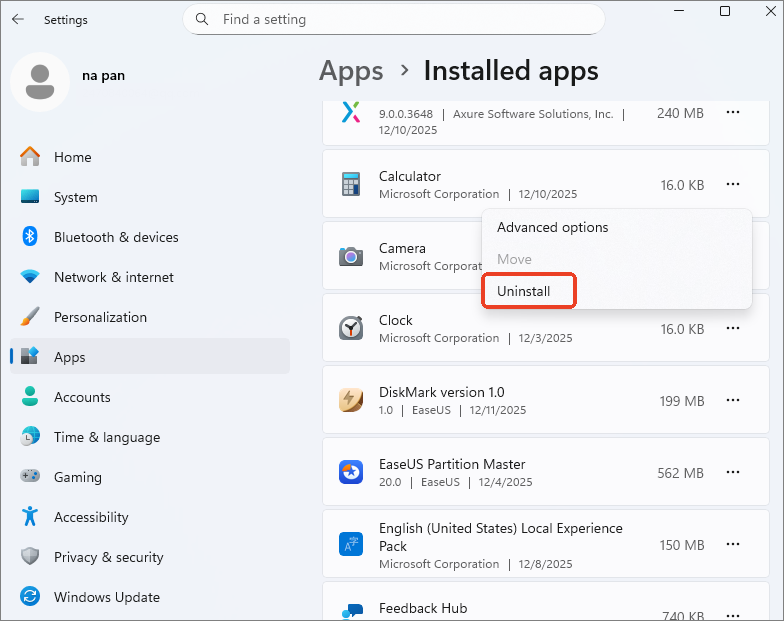
Uninstall unused applications:
Step 1. Open Settings > Apps > Installed apps on Windows 11.
- On Windows 10, open Settings > Apps > Apps & features.
Step 2. Sort applications by size if the option is available.
Step 3. Select an app you no longer use.
Step 4. Click Uninstall and follow the instructions.
- Tip
- For games that support moving to another drive, use the launcher's built-in move option. Don't move program folders manually. This often breaks application files or shortcuts.
Avoid deleting unfamiliar files from AppData. Many apps keep settings and other important data there. If the C drive is still full after these changes, its partition might be too small for your current needs.
Fix 7. Extend the C Drive
If the C drive stays full after cleanup, the partition itself might need more space. Cleaning temporary files helps, but it doesn't solve every storage problem. If your C drive partition is too small, adding available disk space gives Windows more room for updates and applications.
EaseUS Partition Master provides partition resizing and space allocation features for supported disk layouts. It is an option when another partition has free space, but Windows Disk Management won't extend the C drive.
How EaseUS Partition Master helps extend C drive:
- Extend the C drive with available disk space.
- Move free space from another partition to C.
- Resize partitions without deleting them.
- Extend C when Disk Management cannot.
- Keep existing files and installed programs.
Extend System C drive with unallocated space
- 1. Right-click on the System C: drive and select "Resize/Move".
- 2. Drag the system partition end into the unallocated space so to add it to the C: drive. And click "OK".
- 3. Click "Execute Task" and "Apply" to execute the operations and extend the C drive.
Conclusion
A C drive full after a Windows update is often caused by leftover update files or limited storage space. Check the largest storage categories first. Remove files you no longer need, then check how much free space remains.
If the C drive keeps running out of space after cleanup, consider extending the partition. EaseUS Partition Master provides another option when Windows Disk Management doesn't support the change you need.
FAQs
1. Why did Windows Update take up so much space on my C drive?
Windows Update stores downloaded packages and temporary installation files on the system drive. A major upgrade might also keep a copy of the previous Windows installation. The amount of space used depends on the update and your PC.
2. Is it safe to delete Windows Update cleanup files?
Windows Update Cleanup files listed in Windows' built-in cleanup tools are generally intended for removal when they are no longer needed. Review the selected items before deleting them. Keep previous Windows installation files if you still need to roll back.
3. Will deleting Windows.old cause problems?
Deleting Windows.old through Windows cleanup settings usually doesn't affect the current Windows installation. However, you lose the normal option to return to the previous Windows version. Keep the files if you're still troubleshooting update problems.
4. How do I stop my C drive from filling up after Windows updates?
Turn on Storage Sense and remove unnecessary temporary files regularly. Move large personal files to another drive. Uninstall apps you no longer use. If the C drive has limited capacity, consider extending the partition to leave more room for future updates.
How Can We Help You
About the Author
Updated by Joey Albert
Joey is an enthusiast of science and technology. With a passion for uncovering the latest tech innovations, she creates clear, engaging how-to guides that make technology accessible and enjoyable for all.
Product Reviews
-
I love that the changes you make with EaseUS Partition Master Free aren't immediately applied to the disks. It makes it way easier to play out what will happen after you've made all the changes. I also think the overall look and feel of EaseUS Partition Master Free makes whatever you're doing with your computer's partitions easy.
Read More -
Partition Master Free can Resize, Move, Merge, Migrate, and Copy disks or partitions; convert to local, change label, defragment, check and explore partition; and much more. A premium upgrade adds free tech support and the ability to resize dynamic volumes.
Read More -
It won't hot image your drives or align them, but since it's coupled with a partition manager, it allows you do perform many tasks at once, instead of just cloning drives. You can move partitions around, resize them, defragment, and more, along with the other tools you'd expect from a cloning tool.
Read More
Related Articles
-
Best C Drive Split Software Free Download Recommended🔥
![author icon]() Cici/2026/09/29
Cici/2026/09/29 -
How to Clone C Drive to Larger SSD in 2026 [Full Guide]🔥
![author icon]() Tracy King/2026/09/29
Tracy King/2026/09/29 -
Unable to Extend C Drive Windows 11? Fix It Now!
![author icon]() Sherly/2026/09/29
Sherly/2026/09/29 -
2026 Tutorial: How to Resize C Drive in Windows 10/8/7
![author icon]() Jean/2026/09/29
Jean/2026/09/29
 Cici/2026/09/29
  Tracy King/2026/09/29
  Sherly/2026/09/29
  Jean/2026/09/29









