







Content
Page Table of Contents
About the Author
Hot Topics
Is your C drive full no reason? Many Windows users notice their storage space disappearing automatically without understanding why. In most cases, hidden system files, Windows updates, temporary files, restore points, and application cache are silently consuming disk space in the background.
This guide from EaseUS Software explains why the C drive keeps filling up, what is taking up storage, and how to free up space safely on Windows 10 and Windows 11.
Why Is My C Drive Full for No Reason
If your C drive keeps filling up even though you are not saving large files, hidden system data is usually the cause. Windows continuously creates temporary files, updates cache, restores points, logs, and virtual memory files in the background.
As a result, you may notice:
- The C drive space disappears automatically
- Storage becomes full overnight
- No large visible files on the C drive
- Space does not increase after deleting files
In most cases, the problem is caused by removable system files or background storage growth rather than hardware failure.
9 Ways to Fix the C Drive Full for No Reason
How to fix the C drive full for no reason? This section offers you nine feasible methods. You can start with the most efficient one, EaseUS Partition Master. Let's check them out!
Way 1. Use EaseUS Partition Master
1️⃣Guide 1. Extend C Drive
However, Windows Disk Management cannot always extend the C drive successfully. This often happens when the Extend Volume option is greyed out, or when unallocated space is not directly adjacent to the C drive, sometimes because recovery partitions block the available space.
In such cases, third-party partition managers like EaseUS Partition Master can help by moving partitions and reallocating unallocated space, making it easier to extend the C drive effectively.
Extend System C drive with unallocated space
- 1. Right-click on the System C: drive and select "Resize/Move".
- 2. Drag the system partition end into the unallocated space so to add it to the C: drive. And click "OK".
- 3. Click "Execute Task" and "Apply" to execute the operations and extend the C drive.
2️⃣Guide 2. Quickly Free Up C Drive
Also, EaseUS Partition Master comes with a "Clean" feature. Instead of checking different locations to find files and applications you no longer need, you can use EaseUS Partition Master's Clean feature to manage C drive space in one place. It combines space analysis, junk file cleanup, app removal, and data migration in a single workflow.
You can use EaseUS Partition Master to find and free up C drive space without manually checking multiple locations.
- Open EaseUS Partition Master and select Clean.
- Use Space Analysis to identify what is taking up the most space.
- Scan for and remove unnecessary junk files.
- Find and uninstall large or unwanted applications.
- Use Data Migration to move supported large apps or files from C drive to another drive, such as D drive.
- Check the available C drive space again after cleanup.
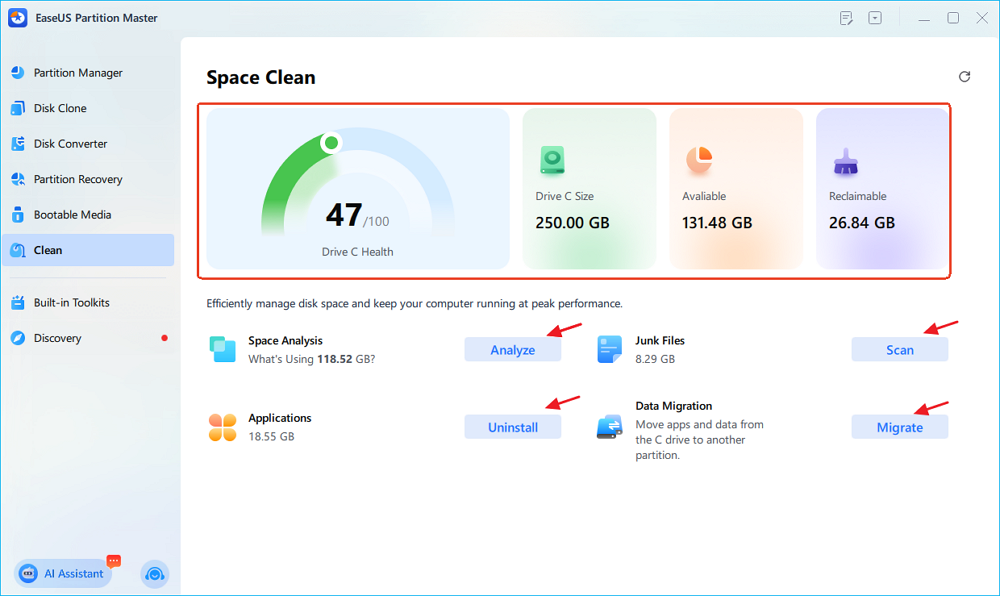
This feature lets you analyze disk usage and free up space through cleanup, app removal, and data migration from a single interface.
Way 2. Remove Windows Update Cache
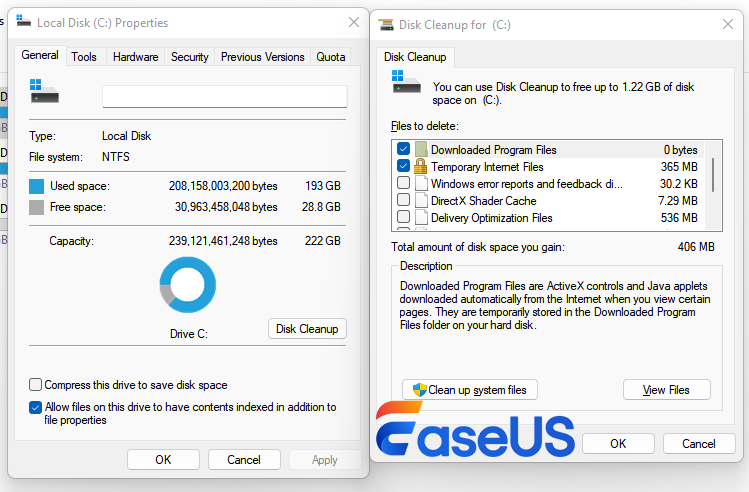
Windows stores update files locally before and after installation. Over time, these leftover update files can consume several gigabytes of C drive space, especially after major Windows updates or failed installations. Here, you can run Disk Cleanup to clear Windows Update cache files.
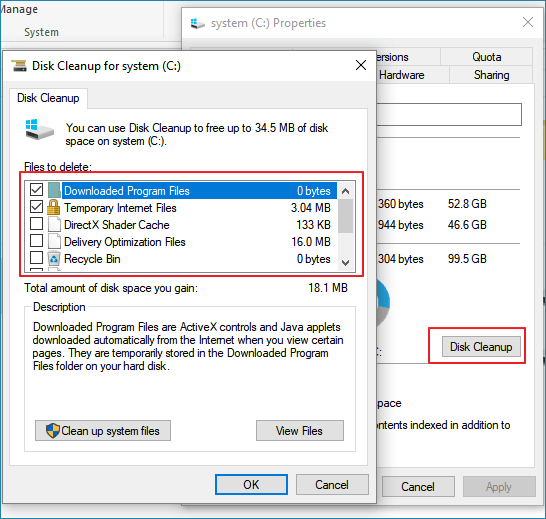
Step 1. Please press Win + E to open File Explorer > right-click on the C drive > select Properties > click Disk Cleanup.
Step 2. In the new pop-up window, under the Files to delete tab, select Windows Update Cleanup > remove it.
Way 3. Delete Temp Files
Windows and applications constantly generate temporary files such as cache, logs, thumbnails, and installer leftovers. Over time, these files can accumulate and consume a large amount of C drive space, especially on systems that have not been cleaned regularly. There are three ways for your reference to delete temporary files.
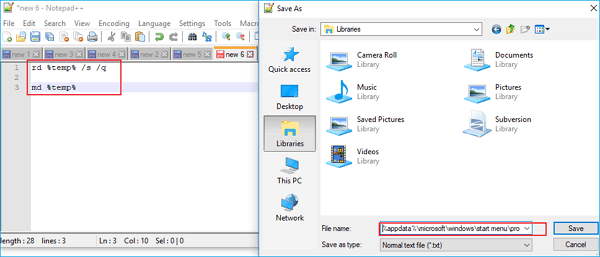
How to Automatically Delete Temp Files in Windows 7/8/10/11
This article offers you two ways to automatically delete Temp files. If you're interested, please read more >>
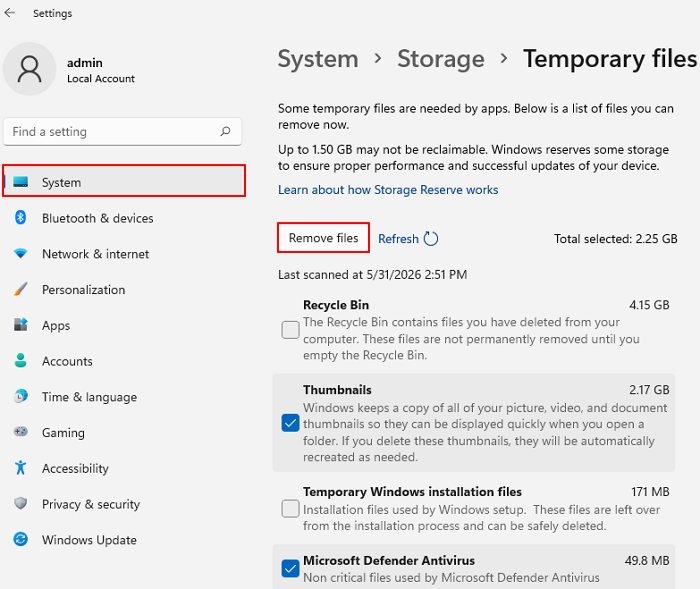
🎈Option 1. Go to Windows Settings > select System > click Temporary files > select your unnecessary files > click Remove files.
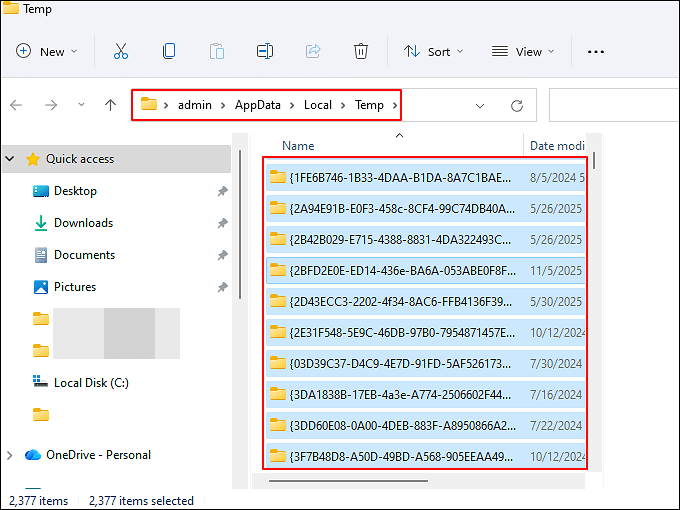
🎈Option 2. Press Win + R to open the Run window > type % temp% in the search bar > click OK or press Enter > press Ctrl + A to select all the temporary files > right-click on them > click Delete.
🎈Option 3. Open the Disk Cleanup utility > under the Files to delete tab, check Temporary files > click Delete.
Way 4. Delete Old System Restore Points
System Restore automatically creates backup snapshots to help recover Windows from system problems. Over time, these restore points can silently consume a large amount of C drive space, especially after frequent updates or driver installations. Thus, you can reduce the storage allocated for System Restore.
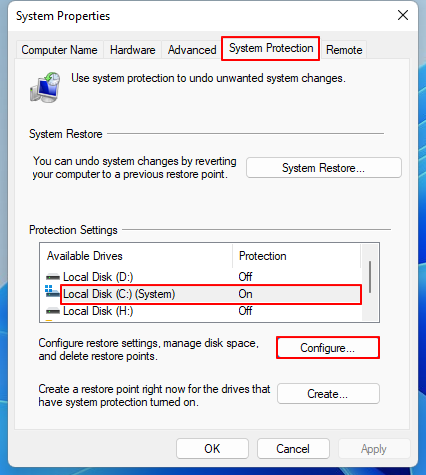
Step 1. Type create a restore point in the search bar > open it after matching it.
Step 2. In the System Properties tab, select System Protection > select C drive > click Configure.
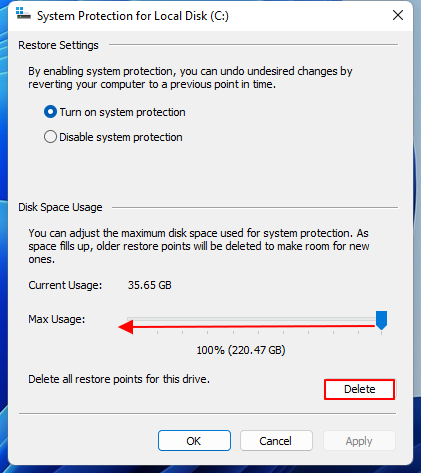
Step 3. Reduce Max Usage > click Delete to delete old restore points > click OK.
Way 5. Disable Hibernation
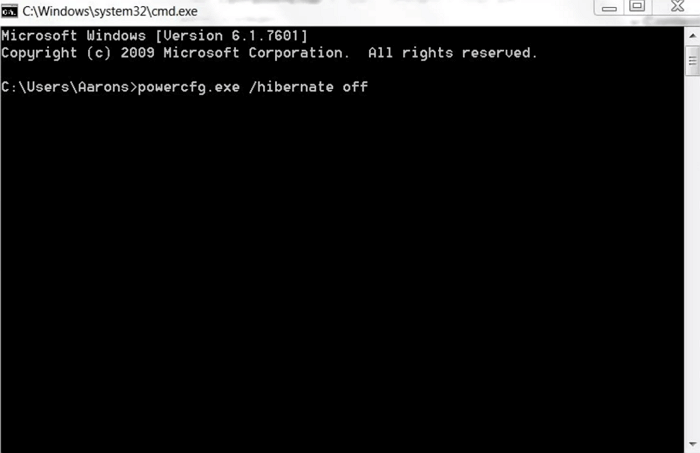
Windows uses the hidden hiberfil.sys file to store memory data for hibernation. Depending on your installed RAM, this file can consume several gigabytes of C drive space even if you rarely use hibernation mode. If you do not use hibernation, disable it using Command Prompt. Let's check it out below!
Step 1. Type cmd in the search bar > click Run as administrator to open the Command Prompt window.
Step 2. Type powercfg.exe /hibernate off > press Enter.
Way 6. Adjust Page File Size
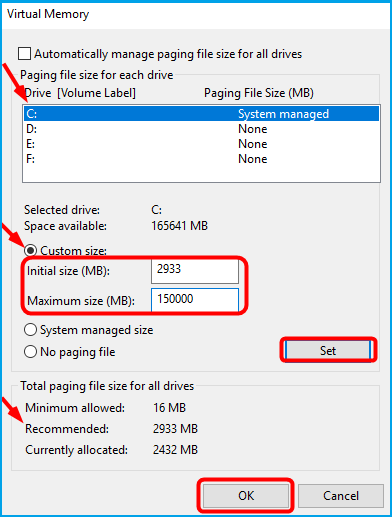
The page file is a hidden virtual memory file used by Windows when RAM usage is high. On systems running resource-intensive applications or frequently multitasking, it can grow automatically and consume a large amount of C drive space. Thus, if your C drive full for no reason, you can reduce the page file size. Please refer to the following steps.
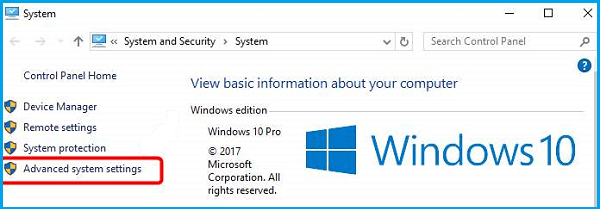
Step 1. Type system and security in the search bar > click it to open it. Then, click Advanced system settings.
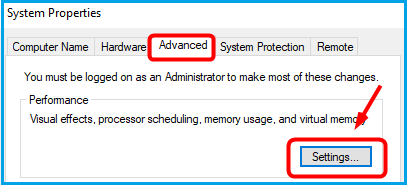
Step 2. Under the Advanced tab, click Settings.
Step 3. In the Performance Options window, under the Advanced tab, click Change.
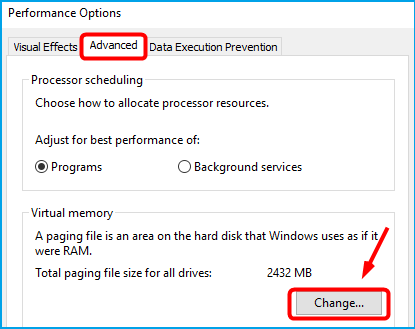
Step 4. Uncheck Automatically manage paging file size for all drives > select the C drive > set the Initial size and Maximum size > click Set > click OK.
Way 7. Delete the AppData Folder
The AppData folder is a commonly overlooked cause of C drive storage issues. It is a hidden system folder where applications store cache, logs, user profiles, sync data, and temporary files. Over time, AppData can grow significantly, especially with daily software use, and may quietly take up a large amount of disk space.
Apps that often contribute to this growth include Google Chrome, Discord, Spotify, Adobe software, Steam, and game launchers. So, you can delete the AppData folder to free up space on the C drive.
▶️Please press Win + R to open the Run box > type %appdata% to open the AppData folder > right-click on the folder > delete it.
Way 8. Move Large Files to Another Drive
Games, videos, backups, virtual machines, and downloads can quickly consume space on the system partition. Whenever possible, move large files to another partition, an external drive, NAS storage, or Cloud storage, as this can reduce long-term pressure on the C drive.
Way 9. Uninstall Unnecessary Applications
Your C drive full for no reasons? Old or unused software can leave behind hidden cache files, background data, and residual system files, even after it is no longer actively used. Uninstalling unnecessary applications is an effective way to reduce both visible and hidden storage usage on the C drive, freeing up valuable disk space.
Step 1. Type Control Panel in the search bar > click it to open it.
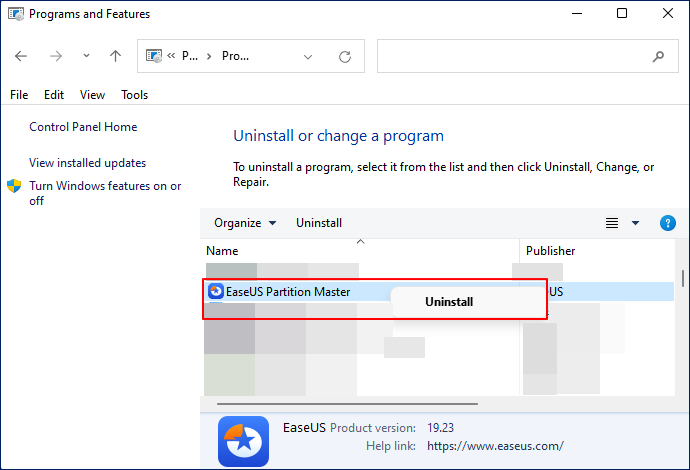
Step 2. Go to Programs > Programs and Features > Uninstall a program > right-click on the application you want to delete > click Uninstall.
Why the C Drive Keeps Filling up Again
Sometimes the issue returns even after cleanup. This usually means background services or applications continue generating files automatically.
Common recurring causes include:
- Windows Update cache regeneration
- AppData cache growth
- OneDrive synchronization
- Restore point accumulation
- Log file generation
- Memory dump files
If storage continues to decrease, regular maintenance and monitoring become important.
How to Prevent the C Drive from Filling up
Preventing storage issues is easier than repeatedly fixing them. Good storage habits can help maintain stable system performance and avoid future low disk space warnings. Here are several practical prevention tips.
- Enable Storage Sense: Open Windows Settings > System > Storage, then turn on Storage Sense.
- Keep Enough Free Space: Windows performs best when sufficient free space is available. For SSDs, try to maintain at least 15%-20% free storage. Low available space may reduce performance and increase system instability.
- Avoid saving large files on the C drive: Avoid saving Games, Videos, backup files, ISO images, and Virtual machines on your C drive. You can select another stored path.
Final Thoughts
If your C drive full for no reason, hidden system files and background storage growth are usually responsible rather than personal files. Windows updates, temporary files, restore points, AppData cache, hibernation data, and OneDrive synchronization can all silently consume large amounts of storage over time.
By identifying what is actually consuming disk space and applying the appropriate cleanup methods, you can safely free up storage and prevent the problem from recurring.
If cleanup methods no longer provide enough free space, extending the C drive with EaseUS Partition Master may be the best long-term solution to improve storage capacity and overall system performance.
How Can We Help You
About the Author

Sherly joined EaseUS in 2022 and she has always loved writing articles and enjoys the fun they bring. She receives professional training here, focusing on product performance and other relative knowledge. She has written over 200 articles to help people overcome computing issues.

Cici is the junior editor of the writing team of EaseUS. She accepted the systematic training on computers at EaseUS for over one year. Now, she wrote a lot of professional articles to help people resolve the issues of hard drive corruption, computer boot errors, and disk partition problems.
Product Reviews
-
I love that the changes you make with EaseUS Partition Master Free aren't immediately applied to the disks. It makes it way easier to play out what will happen after you've made all the changes. I also think the overall look and feel of EaseUS Partition Master Free makes whatever you're doing with your computer's partitions easy.
Read More -
Partition Master Free can Resize, Move, Merge, Migrate, and Copy disks or partitions; convert to local, change label, defragment, check and explore partition; and much more. A premium upgrade adds free tech support and the ability to resize dynamic volumes.
Read More -
It won't hot image your drives or align them, but since it's coupled with a partition manager, it allows you do perform many tasks at once, instead of just cloning drives. You can move partitions around, resize them, defragment, and more, along with the other tools you'd expect from a cloning tool.
Read More
Related Articles
-
How to Split C Drive in Windows 11/10/8/7🔥
![author icon]() Tracy King/2026/06/17
Tracy King/2026/06/17 -
Extend C Drive Without Deleting Partition in Windows 11/10
![author icon]() Sherly/2026/08/13
Sherly/2026/08/13 -
Extend Volume of C Is Disabled? Fix the Greyed-Out Extend Volume Error on Windows 11
![author icon]() Sherly/2026/06/17
Sherly/2026/06/17 -
How to Extend C Drive in Windows 7/8/10
![author icon]() Tracy King/2026/08/13
Tracy King/2026/08/13
 Tracy King/2026/06/17









