







Content
Page Table of Contents
About the Author
Hot Topics
Is Windows 11 out of space? No worry! We noticed many users reporting Windows disk space errors on forums:
|
We have a number of machines that are running Windows 11 24H2 that are running out of disk space. It appears to be Windows patches that are taking up all the space. Disk Cleanup and other built-in Windows tools aren't cleaning it up. - From r/Sysadmin |
|
I don't know why my disk is full. The c drive takes about 100 GB storage after Windows 11 update. I've already used Disk Cleanup and Storage Sense, but I'm still struggling with low disk space. Are there any advanced methods or tools to efficiently clean up disk space in windows 11? - From Microsoft Community |
|
Is there a way to clear a lot of space or am I screwed? - From r/Windows 11 |
This guide explains why Windows 11 runs out of space, how to fix Windows 11 low disk space error safely, and what you can do to prevent it from happening again, even if your system drive is small.
What Does Low Disk Space Mean in Windows 11?
In Windows 11, a low disk space warning appears when the system drive (usually C:) does not have enough free space to operate reliably. Windows constantly needs available space for updates(Windows10 Forum), temporary files, virtual memory, and system recovery features.
When free space drops below a safe threshold, you may notice slower performance, failed updates, or repeated warning notifications. This is Windows signaling a system-level risk rather than a minor inconvenience.
Please share this post to help more users if you find it helpful.

Why Is Disk Space Suddenly Full on Windows 11?
Many users are surprised by how quickly disk space disappears, even when they haven't installed new software or saved large files. This usually happens because a significant amount of storage is consumed quietly in the background.
Common causes include:
- Windows feature updates that leave rollback and recovery files behind
- System folders like WinSxS (r/Sysadmin) that grow over time as Windows components are updated
- Preinstalled apps and background services, often referred to as Windows 11 bloatware, that accumulate app data, caches, and update files without obvious user interaction
- Large apps or games installed on the C drive by default, especially on systems with limited storage
- Cloud sync folders downloading local copies of files automatically
- A system partition that was undersized from the start, leaving little room for normal Windows operations
In many cases, disk space issues are structural rather than accidental. While cleaning files can provide temporary relief, it does not always address the underlying causes, especially when preinstalled software, background apps, and system-level growth continue to consume space over time.
How to Check What's Taking Up Space in Windows 11
Before deleting anything, it's important to understand where your storage is actually going.
Open Settings > System > Storage to see a categorized breakdown of disk usage. This view highlights temporary files, apps, system data, and other major space consumers.
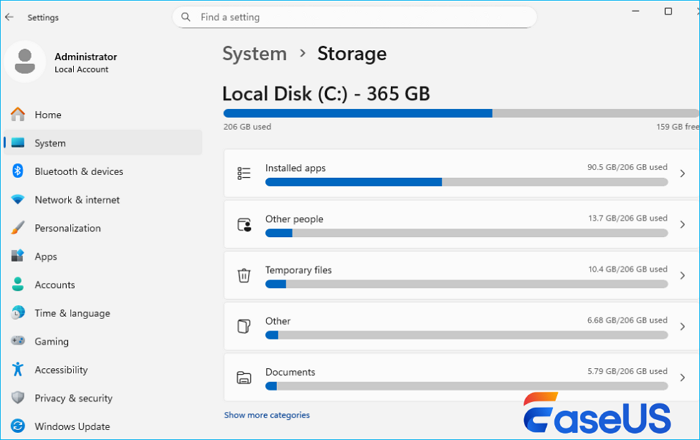
For a more detailed look, File Explorer can help identify large files, while disk usage tools can visualize which folders are using the most space. Knowing what is filling the drive helps you choose the safest and most effective fix.
How to Fix Windows 11 Low Disk Space
Fixing low disk space in Windows 11 works best when you move from safe, built-in cleanup methods to advanced, long-term solutions. Some approaches offer quick relief, while others address the root cause of why your system drive keeps filling up.
The fixes below are ordered to help you reclaim space efficiently while minimizing risk. You don't need to apply all of them, choose the methods that best match your situation.
Fix 1. Enable Storage Sense for Automatic Cleanup (Low Risk, Ongoing)
Before manually deleting files, it's worth enabling Windows 11's built-in automation. Storage Sense is designed to manage temporary files continuously, which helps prevent low disk space warnings from appearing in the first place.
This solution is especially useful if your C drive keeps filling up slowly over time due to temporary system files, cached data, or the Recycle Bin.
Step 1. Open Settings and go to System > Storage on Windows 11.
Step 2. Turn on Storage Sense.
Step 3. Click Storage Sense to configure when cleanup runs.
Step 4. Choose how often temporary files are deleted. Review options for clearing the Recycle Bin and Downloads folder.
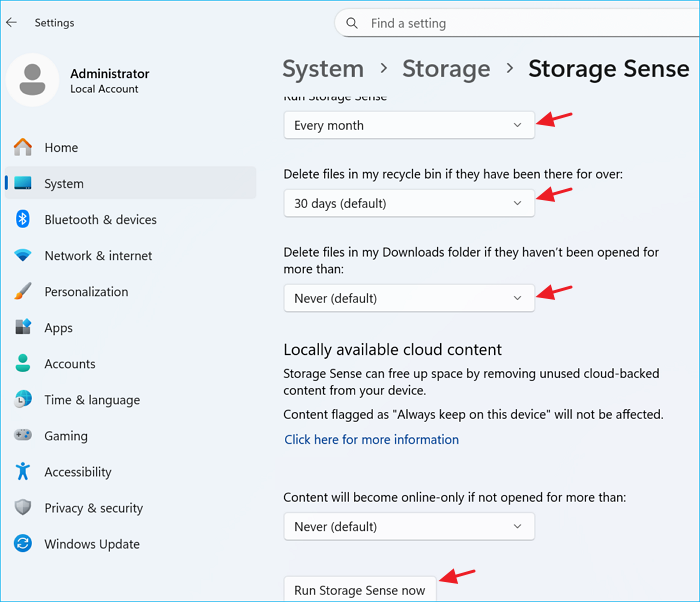
Storage Sense works quietly in the background and is one of the safest ways to manage disk space on Windows 11. If you found this fix helpful, consider sharing this guide with others who may be struggling with Windows 11 low disk space issues.
Fix 2. Use Disk Cleanup to Remove System and Update Files
If your disk space dropped suddenly after a Windows update, Disk Cleanup is often the fastest way to recover lost space. Unlike basic file deletion, Disk Cleanup can remove system-level files that are otherwise difficult to locate.
This method is particularly effective for clearing Windows Update leftovers, log files, and temporary system data.
Step 1. Search for Disk Cleanup and run it as an administrator.
Step 2. Select the C drive and wait for the scan to complete. Click Clean up system files
Step 3. Check items such as:
- Windows Update Cleanup
- Temporary Windows installation files
- Delivery Optimization Files
Step 4. Confirm the cleanup and restart if prompted
This process is Microsoft-supported and does not affect your personal files.
Fix 3. Extend the C Drive to Solve Low Disk Space Permanently
If your system drive was created with limited space, cleanup alone will never be enough. Windows 11 requires continuous free space for updates, virtual memory, system restore points, and background processes. When the C drive is too small, low disk space warnings will keep coming back.
Extending the C drive reallocates space from other partitions, addressing the problem at the disk structure level rather than repeatedly deleting files.
EaseUS Partition Master makes this process accessible even for beginners. It allows you to extend the C drive with or without unallocated space by borrowing free space from other partitions on the same disk.
- No data loss during C drive extension
- Supports Windows 11/10/8/7/XP/Vista
- Clean, intuitive interface suitable for non-technical users
Extend System C drive with unallocated space
- 1. Right-click on the System C: drive and select "Resize/Move".
- 2. Drag the system partition end into the unallocated space so to add it to the C: drive. And click "OK".
- 3. Click "Execute Task" and "Apply" to execute the operations and extend the C drive.
This approach provides a long-term fix and significantly reduces the chance of recurring disk space warnings.
Fix 4. Move Apps and Games to Another Drive
Large applications and games are one of the most common reasons the C drive fills up quickly. By default, many programs install directly to the system drive, even when other partitions have plenty of free space. Instead of uninstalling and reinstalling everything, migrating apps to another drive is a more efficient solution.
EaseUS Partition Master includes a Data Migration feature that allows you to move installed apps, games, and large files from the C drive to D or other drives without data loss or broken shortcuts.
This is especially useful for:
- Games installed via Steam or Epic Games
- Large productivity apps
- Software that stores heavy cache data
Step 1. Launch EaseUS Partition Master, navigate to "Partition Manager," right click the C drive, and select "Data Migration."
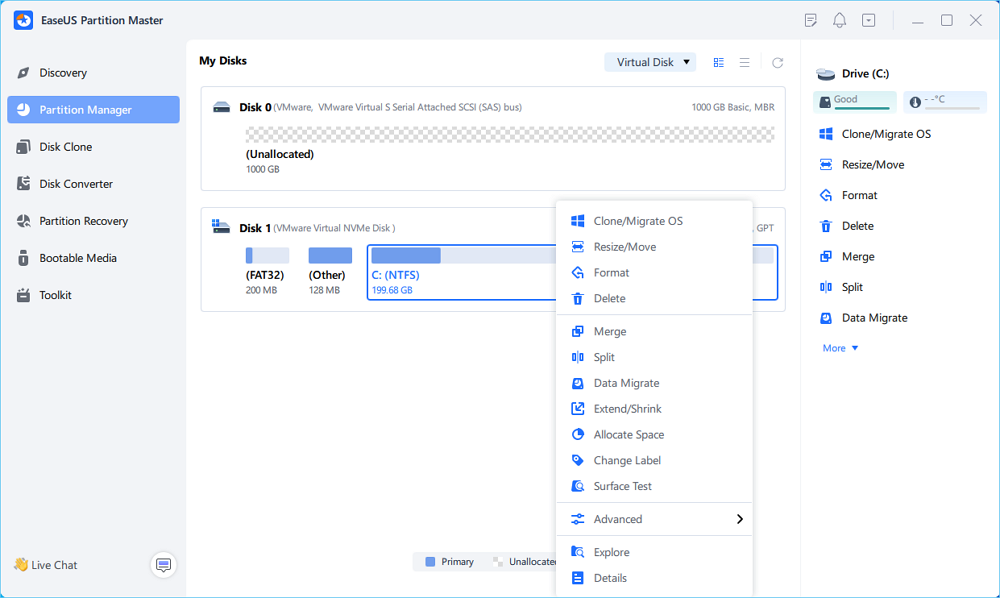
Step 2. Select the data you want to migrate and click "Next" to continue.
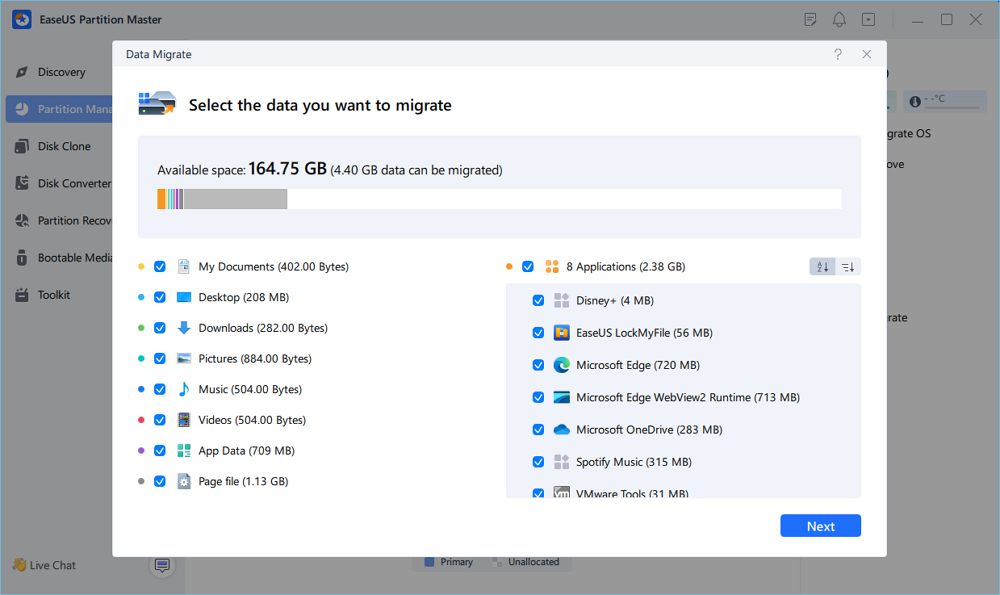
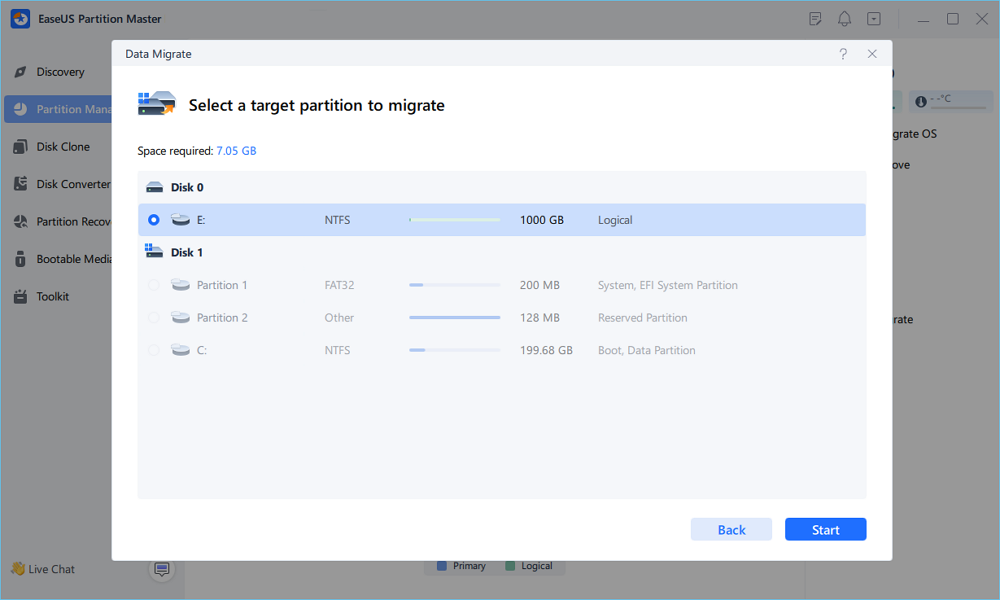
Step 3. Select a target partition to migrate and click "Start" to execute the task.
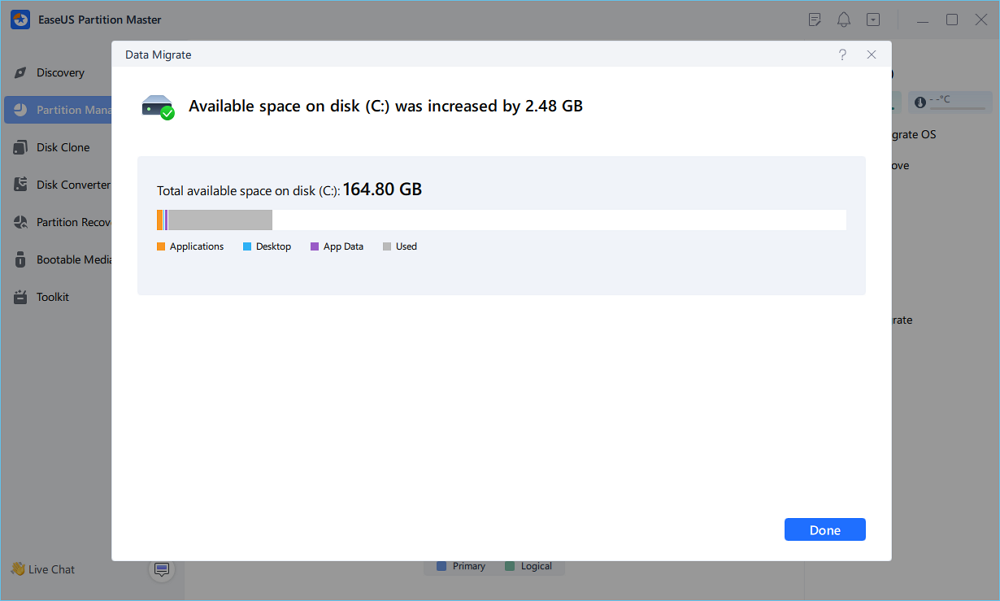
Step 4. After the migration, the available space on the C drive will be increased.
Fix 5. Use Cleanup Recommendations to Identify Easy Wins
Windows 11 provides cleanup recommendations based on actual disk usage patterns. This feature helps you identify files that are safe to remove but often overlooked. Cleanup Recommendations are ideal when you want quick results without deep system changes.
Step 1. Go to Settings > System > Storage > Click Cleanup recommendations
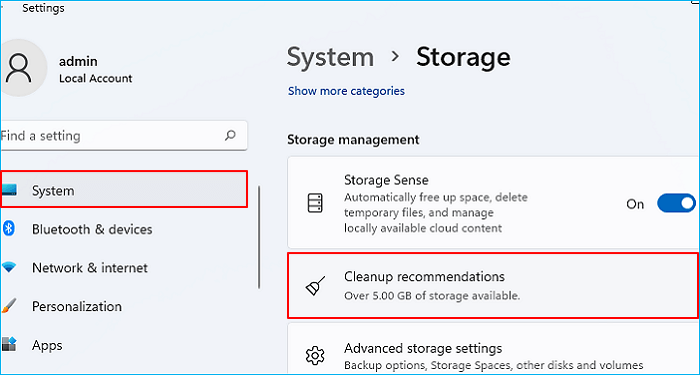
Step 2. Review categories such as:
- Temporary files
- Large or unused files
- Files synced to the cloud
- Select items carefully and confirm removal
This method often reveals space that can be reclaimed with minimal effort. If this section helped you free up space, feel free to share this article with others facing Windows 11 storage issues.
Fix 6. Uninstall Apps You No Longer Use
Unused applications take up more than just installation space; they also generate cache files, logs, and background data. Removing them can free up meaningful disk space over time.
Step 1. Open Settings > Apps > Installed apps.
Step 2. Sort apps by Size.
Step 3. Identify programs you no longer need. Uninstall them properly.
Avoid deleting app folders manually, as this can leave broken registry entries behind.
Fix 7. Delete or Move Personal Files to External Storage or Cloud
If your C drive contains large personal files such as videos, photos, or project archives, moving them off the system drive can immediately reduce disk pressure.
You can:
- Move files to another internal drive
- Use an external hard drive or SSD
- Upload files to cloud storage and remove local copies
This approach is especially useful for laptops with small internal drives.
-
What NOT to Do When You See a Low Disk Space Warning
- Avoid manually deleting system folders such as WinSxS System32, or recovery files. These actions can break updates or prevent Windows from booting properly.
Fix 8. Use a Disk Space Analyzer to Find Large Files Quickly
Sometimes Windows Storage settings don't reveal what's actually consuming space. Disk space analyzers provide a visual breakdown of file and folder sizes across the entire drive. EaseUS Partition Master can analyze disk usage and help you locate large files with one click, making it easier to clean up space efficiently.
This is particularly effective when disk usage feels unexplained or difficult to trace. Here is how to do it:
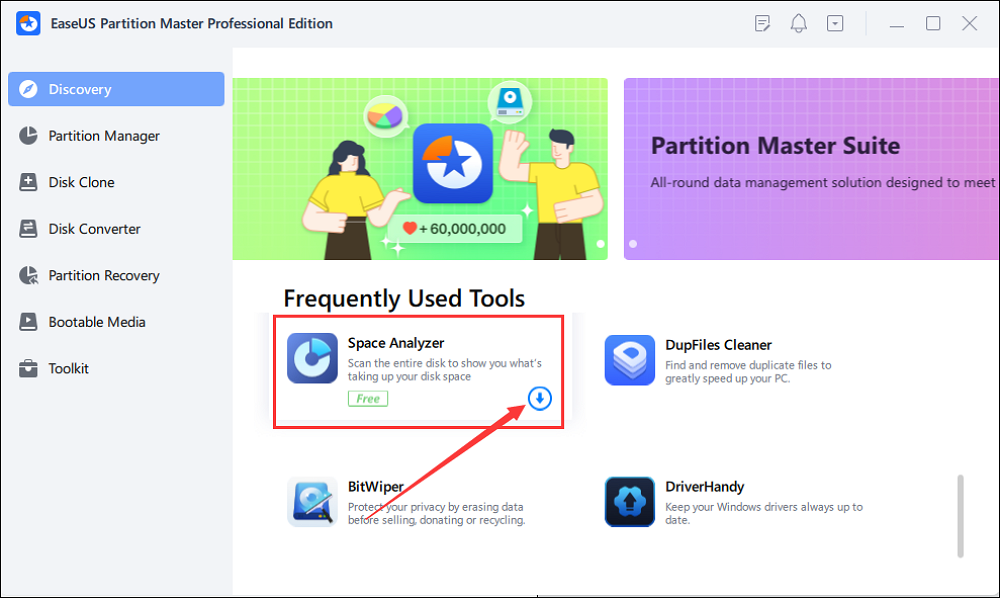
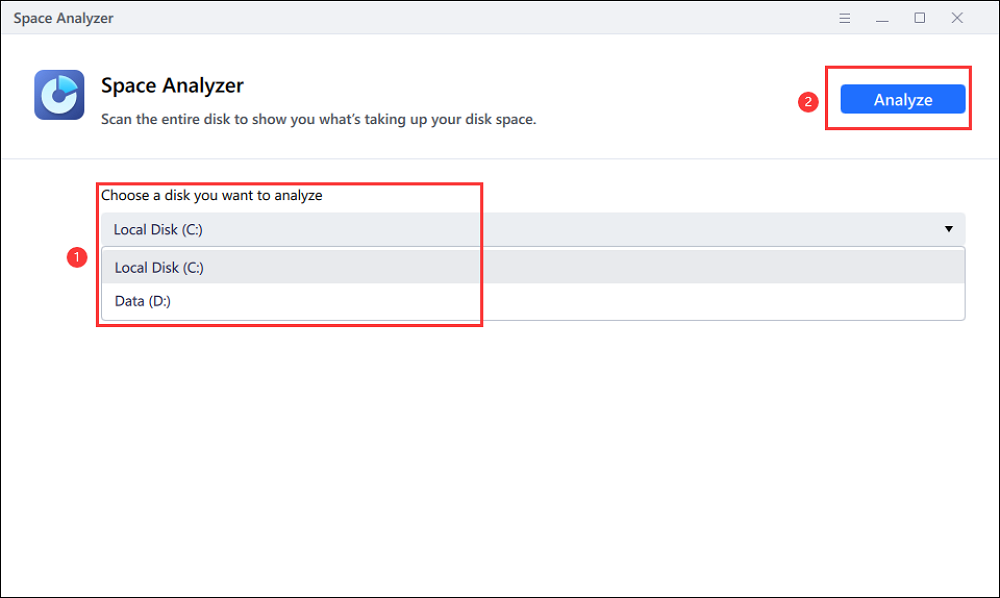
Step 1. Launch EaseUS Partition Master and turn to Discovery. Find and Download Space Analyzer below Frequently Used Tools.
Step 2. In the Space Analyzer pop-up window, select the target disk to be analyzed and click Analyze in the upper right corner.
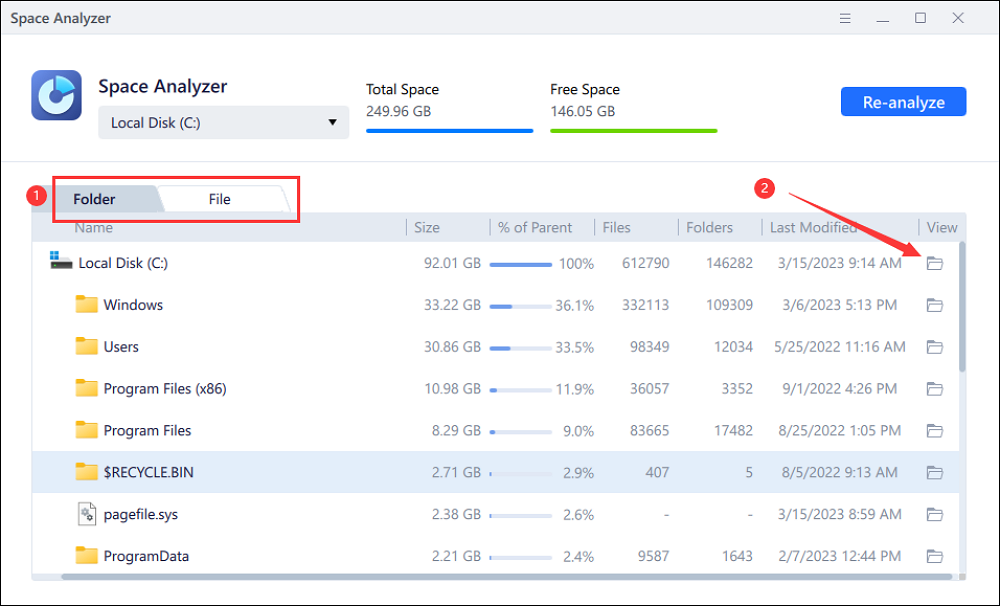
Step 3. Wait a while, and you will see the detailed data. You can click on Folder/File to view different data types and click on the small folder icon to see more information inside the file.
Fix 9. Change Where New Content Is Saved
Preventing future issues is just as important as fixing current ones. Windows 11 allows you to change default save locations so new apps, documents, and media files don't automatically fill up the C drive.
Step 1. Go to Settings > System > Storage, click Advanced storage settings, and select Where new content is saved
Step 2. Change default locations for apps, documents, music, and videos
Fix 10. Manage Windows Updates and System Files
Windows updates require temporary space to download, install, and roll back changes. If your system drive is consistently low on space, updates may fail or create additional clutter. Keeping sufficient free space and regularly cleaning up leftovers helps Windows operate more smoothly and reduces unexpected storage spikes.
To Sum Up
Low disk space in Windows 11 is rarely caused by one bad file. In most cases, it's a sign that the system drive is under constant pressure from updates and background processes. Addressing both cleanup and structure is the key to a lasting solution.
FAQs About Windows 11 Low Disk Space
1. Why does Windows 11 keep saying low disk space?
Windows 11 requires continuous free space for updates, caching, and system recovery. When the system drive becomes too full, warnings appear to prevent update failures and performance issues.
2. How much free space does Windows 11 need?
While Windows 11 can run with limited space, maintaining at least 20–30 GB of free space on the system drive is recommended for stable updates and performance.
3. Can I fix low disk space without deleting personal files?
Yes. Removing update leftovers, extending the system partition, and moving apps or data to another drive can resolve low disk space issues without deleting personal files.
How Can We Help You
About the Author

Finley is interested in reading and writing articles about technical knowledge. Her articles mainly focus on file repair and data recovery.

Sherly joined EaseUS in 2022 and she has always loved writing articles and enjoys the fun they bring. She receives professional training here, focusing on product performance and other relative knowledge. She has written over 200 articles to help people overcome computing issues.
Product Reviews
-
I love that the changes you make with EaseUS Partition Master Free aren't immediately applied to the disks. It makes it way easier to play out what will happen after you've made all the changes. I also think the overall look and feel of EaseUS Partition Master Free makes whatever you're doing with your computer's partitions easy.
Read More -
Partition Master Free can Resize, Move, Merge, Migrate, and Copy disks or partitions; convert to local, change label, defragment, check and explore partition; and much more. A premium upgrade adds free tech support and the ability to resize dynamic volumes.
Read More -
It won't hot image your drives or align them, but since it's coupled with a partition manager, it allows you do perform many tasks at once, instead of just cloning drives. You can move partitions around, resize them, defragment, and more, along with the other tools you'd expect from a cloning tool.
Read More
Related Articles
-
How to Format a USB for Xbox 360 on PC/Mac/Xbox 360 [Newest Solution]
![author icon]() Cici/2026/10/23
Cici/2026/10/23 -
How to Convert Simple Volume to Primary Partition
![author icon]() Jean/2026/10/23
Jean/2026/10/23 -
SSD Health Checker Free Download: How to Check SSD Health on Windows
![author icon]() Joey Albert/2026/10/22
Joey Albert/2026/10/22 -
Hard Drive Failure: How to Check & What to Do
![author icon]() Sherly/2026/10/23
Sherly/2026/10/23
 Cici/2026/10/23
  Jean/2026/10/23
  Joey Albert/2026/10/22









