







Content
Page Table of Contents
About the Author
Hot Topics
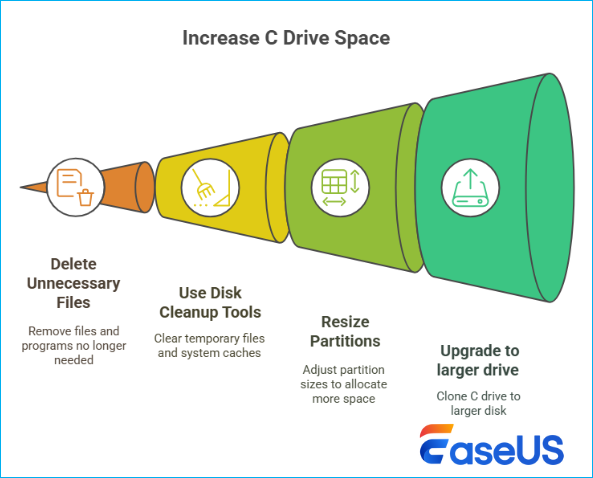 When your C drive gets full, your PC will slow down, freezes, and even degrade its performance. So, how to increase space in C drive? To increase the space on your C drive, you can first back up vital data in your C drive and then try the 6 quick fixes to extend your system C drive for free:
- Manually Free Up C Drive Space
- Use Disk Cleanup to Delete Unnecessary Files
- Use Third-Party Free Partition Manager Software
- Use Disk Management
- Use CMD
- Upgrade C Drive Disk to A Larger Disk
⭐Notice: For the easiest and safest way to increase your C drive, using a reliable partition manager tool like EaseUS Partition Master Free Edition is the most effective option.
How to Increase C Drive Space? Select a Suitable Way
Before you start extending the C drive, make sure you follow this part and identify your case so as to select the most suitable method to increase your C drive space efficiently:
| Suitable Situation | Solution | Difficulty | Risk |
|---|---|---|---|
| C drive full, only one C drive on sysetm disk | Easy | None | |
| C drive full, only one C drive on sysetm disk | Disk Cleanup | Easy | Low |
| C drive with low disk space, with or without unallocated space | EaseUS Partition Master Free Edition | Easy | None |
| C drive disk is full, but has adjacent unallocated space | Disk Management | Medium | Low |
| C drive disk is full, but has adjacent unallocated space | CMD | Complex | High |
| C drive system disk is too small | Upgrade Disk | Complex | High |
In this part, we've collected 6 effective ways that have been tested to be effective in resizing and enlarging the C drive on Windows 11, Windows 10, Windows 8.1, Windows 8, Windows 7, and even older computers. Whether you are a Dell, HP, Asus, Acer, Toshiba, Lenovo, Samsung, or other brands of PC owner, just back up your vital data on the C drive, then follow your desired method to extend the C drive, speed up your PC, and optimize your computer's performance. Now, let's see how to enlarge your system C drive on your computer.
Also, don't forget to share this list online to help more of your Windows pals to resolve C drive low disk space error for free.

- Important
- Microsoft has officially announced that Windows 10 support ended on October 14, 2026. After this date, the system will no longer receive security updates, bug fixes, or technical support.
Method 1. Manually Free Up C Drive
- Complex Level: ⭐
- Tools: Windows computer, an external hard drive or a local disk drive, Windows settings
- Best for: all levels of Windows users, beginners' best choice
When your C drive gets full but doesn't have free or unallocated space left on your system disk, or you only have a C drive on the system disk as shown in the picture below, then the fastest and safe way for you is to free up the C drive space by moving some big files from C drive to an external disk:

Here are the detailed steps of how to free up C drive space:
Step 1. Move big files from C drive to a local disk or an external drive
- Connect an external hard drive to your PC
- Locate and find some big files that are taking up space on your C drive
- Select big files, right-click "Copy", then open the external disk and right-click on an empty space to select "Paste."
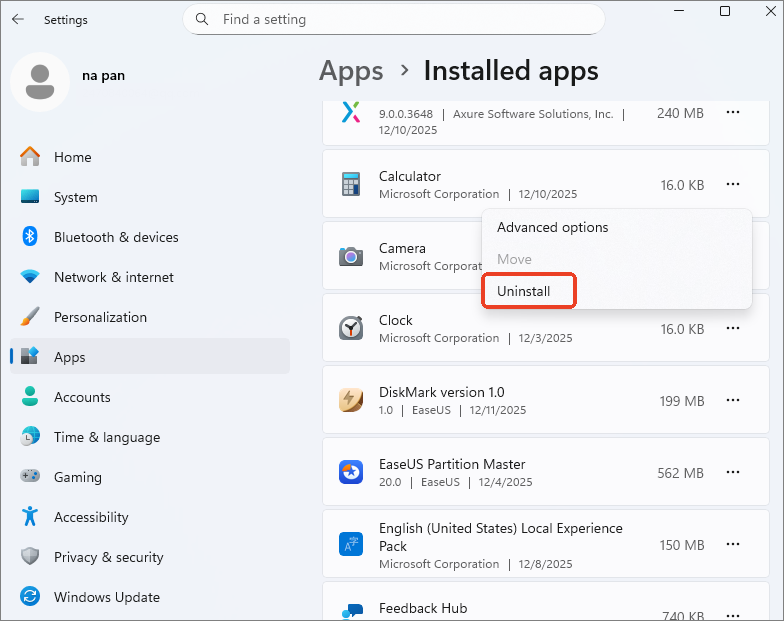
Step 2. Uninstall big and useless programs
- Go to Windows Settings > Click "Apps" > and click "Apps & features."
- Find the big programs you don't use anymore and click "Uninstall."
Method 2. Run Disk Cleanup to Free Up C Drive Space
- Complex Level: ⭐
- Tools: your computer, File Explorer and Disk Cleanup
- Best for: all levels of Windows users
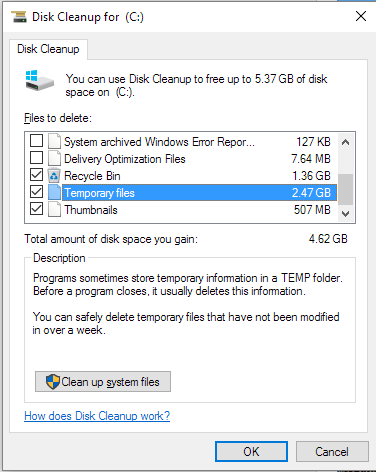
This method is also designed for Windows users who only have a C drive space on the system disk. This will effectively work to help you remove useless big files so as to free up more disk space on the C drive. Follow the steps here:
Step 1. Open File Explorer and right-click on the C drive, select "Properties".
Step 2. Click "Disk Cleanup" at the General tab, and let this tool analyze your disk usage state.
Step 3. View and check the listed items that take the most space on your C drive, and select "Clean up system files".
Note: Downloaded Program Files, Temporary Internet Files, Recycle Bin, Temporary files, etc., usually take the most space on the C drive.
Step 4. Click "OK" and wait for the disk cleanup process to complete.
Method 3. Increase C Drive Space with EaseUS Partition Master
- Complex Level: ⭐
- Tools: computer, EaseUS Partition Master.
- Best for: all levels of Windows users, beginners' best choice
When your C drive gets a low disk space error, you can directly apply a free partition manager software like EaseUS Partition Master Free Edition to get rid of this issue from your PC, regardless of whether your system disk has or doesn't have unallocated space left next to the C drive. It applies to increase C drive from D drive, add unallocated space to C drive, or even shrink partition and add space to C drive, etc.
Step-by-step Guide: Enlarge C Drive Space in Windows 10/8/7
If there is unallocated space on your system disk, you may go to Step 2 and start by right-clicking C drive and selecting "Resize/Move":
Step 1: Free up unallocated space for C drive.
If there is no unallocated space on the system disk, go to Partition Manager and right-click on a partition next to the C: drive and select "Resize/Move".
Drag left panel of the partition to shrink and leave unallocated space behind the system C: drive and click "OK".
Step 2: Increase C drive space.
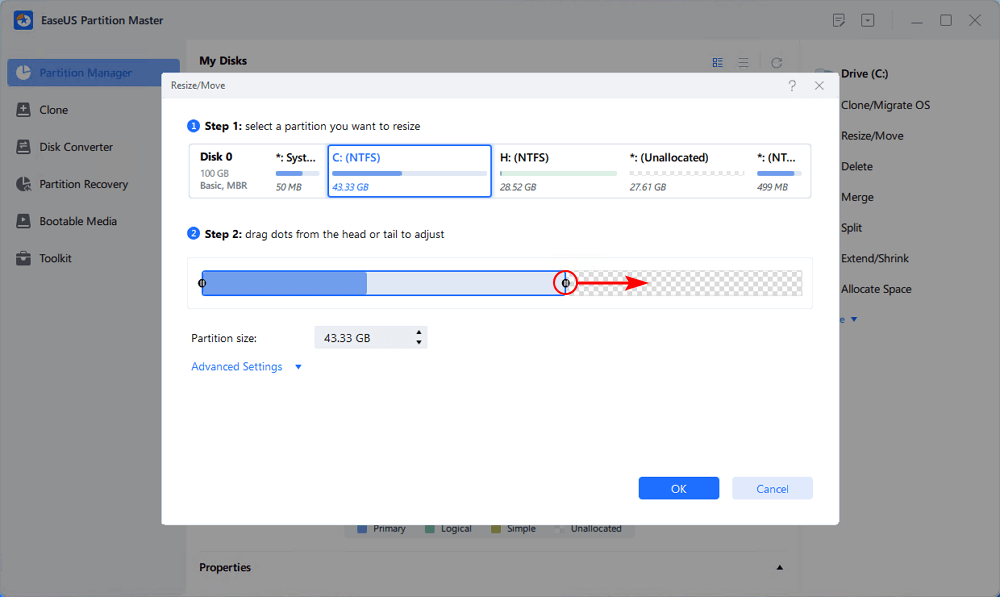
1. Right-click on C: drive and select "Resize/Move".
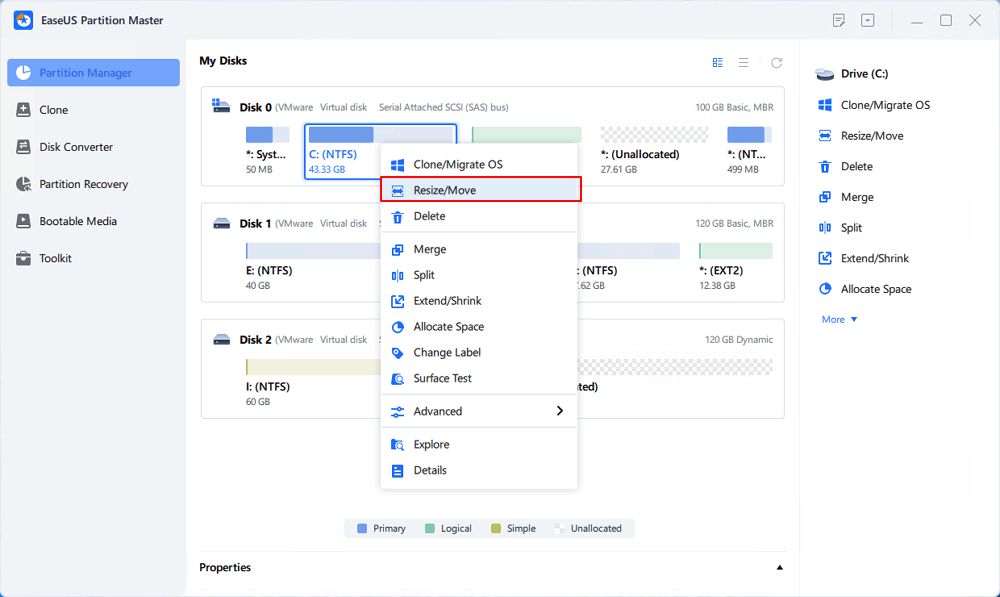
2. Drag the system partition end into unallocated space so to add space to C: drive, or click the "fill in all unallocated" and click "OK".
Step 3: Keep all changes to extend C: drive.
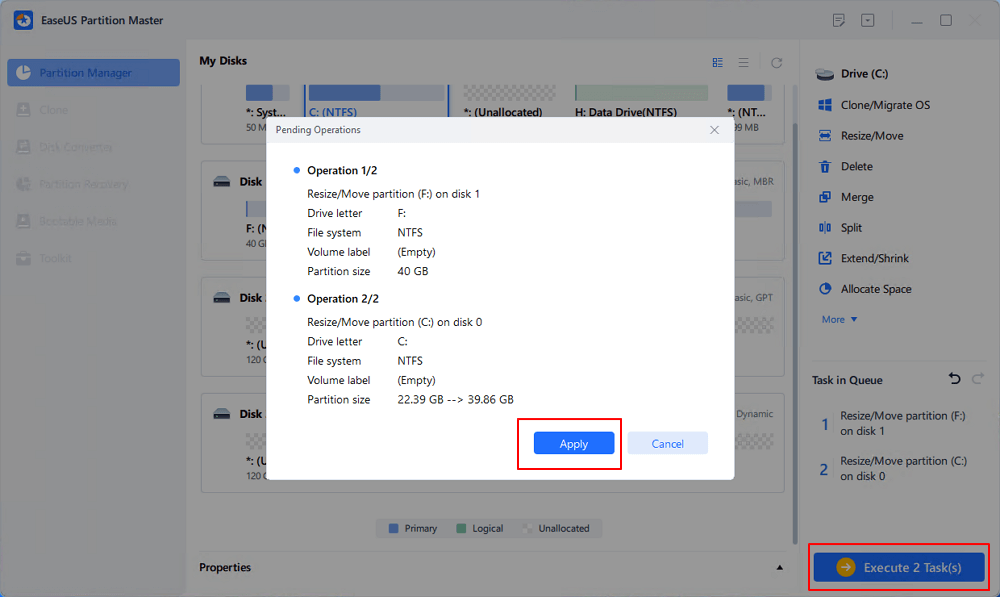
Click the "Execute Task" and click "Apply" to keep all changes so to extend the system C: drive.
1-on-1 Tech Support for Increasing C Drive
Should you need further explanation or remote assistance for extending your C drive, our support staff is equipped to provide detailed, one-on-one guidance.
EaseUS System Volume or Disk Partitioning Services
Click here to contact EaseUS Partition Master experts for free
EaseUS experts are available to provide you with 1-on-1 manual services (24*7) and help extend C drive or disk partitioning issues. Our experts will offer you FREE evaluation services and efficiently diagnose and resolve low disk space in C drive or other partition problems using their decades of experiences.
- 1. C drive gets full but unable to extend it with unallocated space.
- 2. Extend volume greyed out and unable to increase C drive space.
- 3. To extend C drive with a second disk without losing any data.
Did you successfully increase disk space by using this method? If you did, share this way with your friends.
Method 4. How to Increase Disk Space with Windows Disk Management
- Complex Level: ⭐⭐⭐
- Tools: computer, Disk Management.
- Best for: Experienced Windows users
Disk Management is a Windows built-in tool that supports increasing partition size with its "Extend Volume" feature. However, the program has some limitations in increasing disk space:
- Extend Volume only works on NTFS and RAW partitions. FAT32 and other file systems are not supported.
- The "Extend Volume" option will grey out if no adjacent unallocated space is behind the target partition.
- When there's no unallocated space left, you'll need to delete a neighbor partition behind the C drive.
So, make sure you get a backup of your important data before you take action. Open Disk Management, and follow the right tutorials listed below to extend the local disk C drive on your own now:
#Option 1. Increase C Drive Space with Adjacent Unallocated Space
🔖Note: This method only works when the unallocated space is just right behind your C drive.
Step 1. Right-click This PC/My Computer, click "Manage," and select "Disk Management" under Storage.
Step 2. Locate and right-click on the local disk C drive, and choose "Extend Volume".
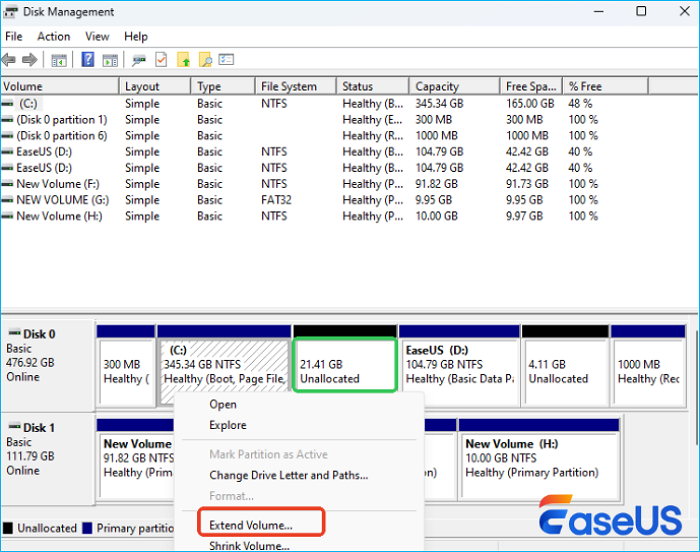
Step 3. Set and add more space to your system C drive and click "Next" to continue.
Step 4. Click "Finish" to complete the process.
If you have two disks on your PC, you can extend C drive with another disk. In this case, you can turn to EaseUS Partition Master as a solution for help.
#Option 2. Extend C Drive without Unallocated Space - Data Loss
‼️Caution: Remember, if there is no unallocated space on your disk and all space is occupied by multiple volumes, or if you need to delete a neighboring partition to get unallocated space for extending the C drive.
How to increase C drive space if there is no adjacent unallocated space? Make sure you have backed up important data before you get started.
Step 1. Open Disk Management
- Right-click the Windows Icon and select "Disk Management."
Step 2. Delete D or a Partition Behind the C Drive
- Right-click the partition behind C (typically D) and select "Delete Volume."
- Follow the on-screen prompts to complete and you can see the partition has become the unallocated space.
Step 3. Extend the C Drive
Now, right-click the C drive and select "Extend Volume." Follow the Extend Volume Wizard, and you can increase the local disk C space.
- Something You Should Know
- Here, I want to correct something. Many tutorials mentioned they can increase C space by shrinking the D drive. That's wrong.
- The unallocated space you get by shrinking the D drive in Disk Management is behind the D drive. It's not adjacent to the C drive. As a result, you can't directly extend the C drive using the created unallocated space behind the D drive.
This is vital and you can click the buttons below to share this clarifying information to your social media and let more of your friends know about this.
Video Guide: How to Increase/Extend Local C Space in Windows 10
This video guide recorded by ProgrammingKnowledge2 will explain how to extend C drive in Windows 10 with Disk Management, working for all brands devices.
- Open Disk Management - 0:32~0:44
- Shink and create volume - 1:42 ~ 5:10
- Enable advanced system settings - 5:11 ~ 5:47
- Change the location of page file - 5:48
- Reboot to save settings - 6:43
- Extend volume - 7:46
Method 5. Extend C Drive Space with CMD - DiskPart
- Complex Level: ⭐⭐⭐⭐
- Tools: computer, Command Prompt
- Best for: IT Administrators, Experienced users
In this part, I'll lead you to extend the system partition by running the CMD command via DiskPart. It's an administrator tool that might be a bit complex for normal Windows users. Therefore, you should be very careful with this process. Also, be sure to identify whether you've got unallocated space left on your C drive, then follow the right guide.
Option 1. Extend C drive with Contiguous Unallocated Space
Step 1. Open Diskpart prompt window
- Press Windows + R keys to open the Run dialog, type cmd and hit Enter to open Command Prompt as Administrator.
- Type diskpart and hit Enter to open DiskPart.
Step 2. Type CMD command lines and hit Enter each time to extend C drive
- list disk
- select disk x (Replace X with the disk number of your system disk.)
- list volume
- select volume x (Replace X with the partition number of your C drive.)
- extend size =number (Normally, the default size unit is MB.)
- exit
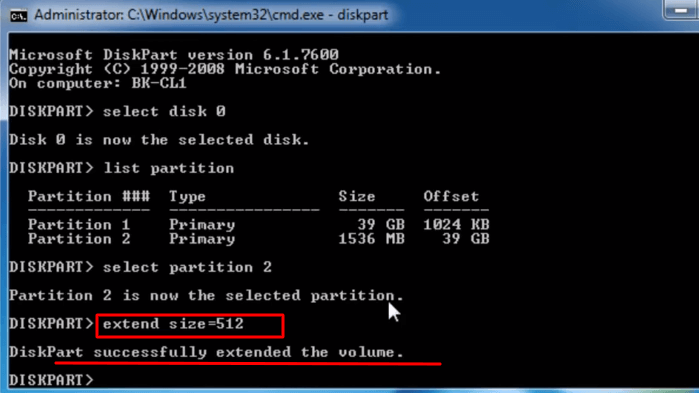
After this, you can restart the PC, and you'll get a larger C drive on your computer.
Option 2. Extend C Drive When There Is No Unallocated Space Behind
If there is no adjacent unallocated space behind your system C drive, you'll encounter this error as shown below:
"Virtual Disk Service error: There is not enough usable space for this operation".
In this case, you'll have to prefer Method 3 offered by EaseUS Partition Master for help. Or, delete the adjacent drive behind C drive to get an unallocated space. If you prefer the 2nd option, remember to back up all user data to another location first.
Now, follow the steps below to extend C drive for free:
Step 1. Open Diskpart prompt window
- Open the Run dialog, type cmd, and hit Enter to open Command Prompt as Administrator.
- Type diskpart and hit Enter to open DiskPart.
Step 2. Type command lines below and hit Enter each time:
- list disk
- select disk x (Replace X with the disk number of your system disk.)
- list volume
- select volume * (Replace * with the partition number that is behind the C drive.)
- delete volume
- select volume x (Replace X with the disk number of your C drive.)
- extend size =number (Normally, the default size unit is MB.)
- exit
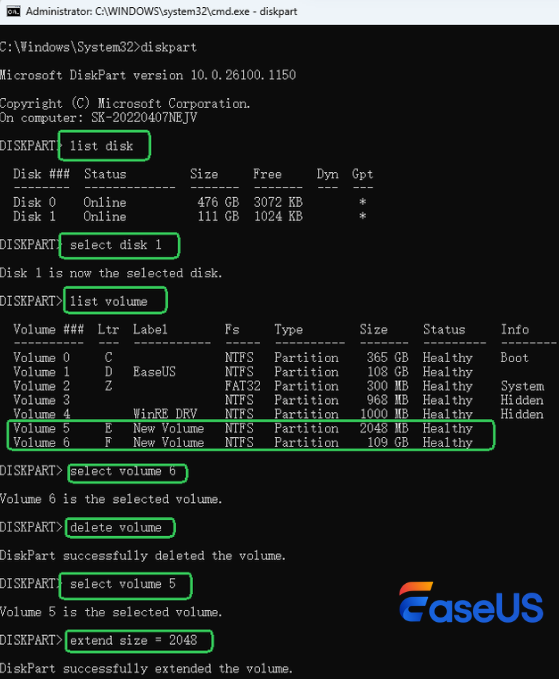
After this, you can restart the PC to keep all the changes. Later, you'll see that your C drive is larger and the computer is running faster than before.
Method 6. Upgrade C Drive Disk to a Bigger One
- Complex Level: ⭐⭐⭐⭐⭐
- Tools: computer, a bigger new disk, disk cloning tool - EaseUS Partition Master, screwdriver
- Best for: IT Administrators, Experienced users
To ensure that you get the entire system disk upgrade to a newer and bigger disk safely, I'd recommend that you pick a reliable disk cloning software for help. Here, EaseUS Partition Master Professional Edition with its Disk Cloner feature can accomplish the task for you.
Hint: If you currently use a free edition, make sure to upgrade EaseUS Partition Master to the Pro edition to unlock the full disk cloning feature.
Now, follow my steps here to see how to upgrade your C drive disk to a bigger one without reinstalling your OS:
Step 1. Install the new disk in your PC and initialize it
- Shut down your PC and open the computer or laptop case with a screwdriver
- Install or connect the new disk to your computer correctly: plug in an HDD or insert an SSD into the SSD slot.
- Fasten the disk and close the computer case, then restart the PC.
- Open Disk Management after the PC boots up, right-click on the new disk and select "Initialize Disk", set the new disk with the same disk type as the system disk.
Step 2. Run EaseUS Partition Master to clone your system disk to the new disk
- Run EaseUS Partition Master and go to the Disk Cloner section, select "Clone OS Disk".
- Click "Next" and select the target disk - your new disk, and click "Next".
- Click "Edit Disk layout" to exlarge your C drive with the provided option.
- Click "Yes" and "Start" to clone your system disk.
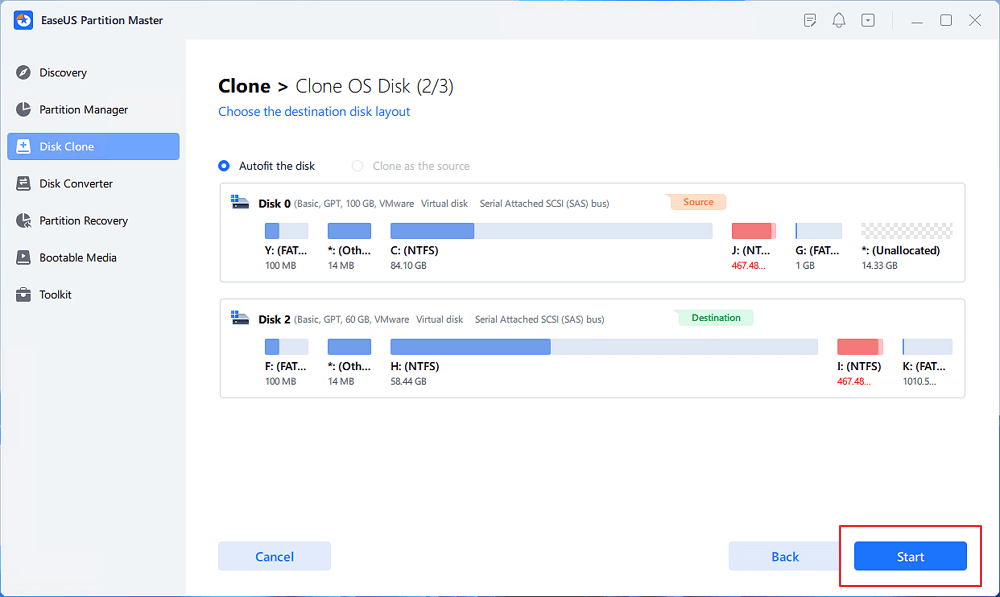
After this, click "Reboot Now" on EaseUS Partition Master to configure your PC's boot order.
Step 3. Reboot the PC from the new disk
- When your PC reboots, press the Delete/F2/F8/F10 key to enter BIOS.
- Go to the Boot Menu, and use the arrow key to select the new disk as the first boot drive for your PC.
- Press F10 to save the changes and exit BIOS settings, then restart your PC.
When you complete the process, congratulations, you've got a bigger system disk, and you can further extend your C drive with more space by using EaseUS Partition Master.
Why Need to Increase C Drive Space
Accordingly, the reasons people need to increase the C drive space vary. Mostly, it could be divided into the following two cases:
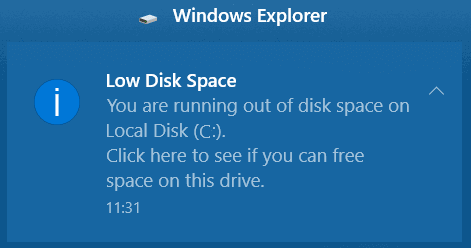
#1. C drive full, Windows warns with "Low Disk Space" message
One day, you may find the system partition (C: drive) does not have much free disk space left, and the Windows OS pops up a low disk space warning message, which states: "You are running out of disk space on Local Disk (C:)..."
#2. Windows slows down, and computer performance goes down
As time goes by, Windows OS, installed applications, and programs will generate some application data, and cache files, which will take up huge space on your C drive. So it is to your personal user data.
With the C drive getting full, the running speed of Windows OS and the performance of your computer will go down. Problems like high CPU usage, high ram memory, Windows 11/10 update stuck, etc., come along.
If you are with one of the listed cases, the best resolution is to increase the C drive space on your computer. How to do it? You'll need a reliable disk partitioning tool that allows you to extend local disk C: drive.
Pro Tips You Can't Miss for Increasing C Drive Space
Besides the above-presented methods, here we also have some bonus tips that can help you fix the C drive low space issue and optimize computer performance.
Follow the tips below to get an even larger C drive and a faster computer:
| Tips | Details |
|---|---|
| 1. Back-Up Big Data to An External Storage Device |
If you have a certain number of big files saved on your C drive, but you don't need to use them frequently, we suggest you back up those files to an external storage device. You may apply reliable Windows file backup software for help. |
| 2. Delete Useless Large Files in C Drive Regularly | Deleting the old or unnecessary files on the system drive will free up space to ensure the normal operations of the Windows system. Follow to see how to locate and delete large files in Windows 10/8/7. |
| 3. If Extend Volume Greyed Out, Turn to EaseUS Partition Master | When you can't extend a volume using Disk Management, it's highly possible that there is no unallocated space behind your target volume. And EaseUS Partition Master can resolve this issue effectively with its Resize/Move feature. You can also apply this tool to partition the hard drive. |
| 4. Upgrade to a Larger Disk | If your C drive is constantly running out of space, consider upgrading to a larger hard drive. While expanding the C drive can provide temporary relief, it may not be a long-term solution if your current drive is too small. Upgrading to a larger SSD or HDD can permanently solve low-space issues and also improve overall system performance. With disk cloning or migration tools, you can move your OS and data to the new drive without reinstalling Windows, making the transition smooth. |
Sum Up
On this page, we explained why people need to increase C drive space and introduced 6 methods for Windows 10/8/7 users to extend the system C drive and other partitions.
If you are a Windows server user, you may also refer to the listed methods as shown above to enlarge your c drive partition:
- ✅For fast fixes, use the manual method and the Disk Cleanup
- ✅For a safe and long-term solution, extend C using EaseUS Partition Master
- ✅For a non-software resolution, turn to Disk Management or DiskPart
- ✅For a permanent resolution, upgrading your OS disk to a bigger one
FAQs of Increasing C Drive Space
Read the following part and find the answers if you have further questions about how to increase C drive space.
1. What should I do if my C drive is full, but my D drive is still empty?
One option is to move some of your files from C to D. This can be done by right-clicking on the file and selecting "Move to." Another option is to delete some of the files you no longer need on your C drive. You can do this by right-clicking on the file and selecting "Delete."
The final quick and easy option if your C drive has unallocated space, you can easily extend C drive space by EaseUS Partition Master. If not, you can also add space to C drive.
2. How to redistribute the memory in a laptop if the C drive is full and the other drives are empty?
If your C drive is full and the other drives empty, you can redistribute the memory using a Windows tool called Disk Management. To access Disk Management, press the Windows key + R, type in diskmgmt.msc, and press Enter. In the Disk Management window, right-click on the C drive and select "Shrink Volume." This will open a new window where you can enter the amount of space you want to free up. Next, right-click on the other drives and select "Expand Volume." This will add the freed-up space to the other drives. Finally, restart your computer for the changes to take effect.
3. Why does the Extend Volume gray out in Disk Management?
Several reasons may lead the Extend Volume option to be grayed out:
- No adjacent unallocated space (must be right after the partition).
- Unallocated space is not on the same disk (can't extend to another disk).
- Partition is not NTFS/ReFS (FAT32/exFAT won't work).
- Disk is Dynamic (Basic disks support simple extension).
4. Can I make a C partition bigger?
Sure, the fastest way to make a C drive bigger is to add unallocated space to your C drive. To do so, you can use Disk Management to extend C drive when there's unallocated space behind the system partition. However, if there's no unallocated space left behind, for a safer and more efficient way, you can turn to a third-party partition manager like EaseUS Partition Master to move unallocated space or shrink volume to extend the C drive without affecting your data.
How Can We Help You
About the Author

Sherly joined EaseUS in 2022 and she has always loved writing articles and enjoys the fun they bring. She receives professional training here, focusing on product performance and other relative knowledge. She has written over 200 articles to help people overcome computing issues.

Jean is recognized as one of the most professional writers in EaseUS. She has kept improving her writing skills over the past 10 years and helped millions of her readers solve their tech problems on PC, Mac, and iOS devices.
Product Reviews
-
I love that the changes you make with EaseUS Partition Master Free aren't immediately applied to the disks. It makes it way easier to play out what will happen after you've made all the changes. I also think the overall look and feel of EaseUS Partition Master Free makes whatever you're doing with your computer's partitions easy.
Read More -
Partition Master Free can Resize, Move, Merge, Migrate, and Copy disks or partitions; convert to local, change label, defragment, check and explore partition; and much more. A premium upgrade adds free tech support and the ability to resize dynamic volumes.
Read More -
It won't hot image your drives or align them, but since it's coupled with a partition manager, it allows you do perform many tasks at once, instead of just cloning drives. You can move partitions around, resize them, defragment, and more, along with the other tools you'd expect from a cloning tool.
Read More
Related Articles
-
2026 Tutorial: How to Resize C Drive in Windows 10/8/7
![author icon]() Jean/2026/09/29
Jean/2026/09/29 -
How to Divide C Drive into D and E Safely🔥
![author icon]() Cici/2026/08/13
Cici/2026/08/13 -
How to Clean C drive in Windows 10/11 - 12 Methods
![author icon]() Sherly/2026/09/27
Sherly/2026/09/27 -
How to Clone Windows to a New Drive [2026 Full Guide]
![author icon]() Sherly/2026/09/15
Sherly/2026/09/15
 Cici/2026/08/13









