







Content
Page Table of Contents
About the Author
Hot Topics
Does your C drive get full for no reason? It's easy to find "Low Disk Space" error pops up on your system partition after you use Windows for a certain period. Then, you'll start facing problems, such as slowed-down performance, constant low-storage errors, etc.
To get rid of this issue, as an experienced Windows user, you may use Disk Management to easily increase the C drive space with unallocated space left behind your system partition. However, some Windows users report that Windows doesn't allow them to do so because the unallocated space isn't left on the C drive.
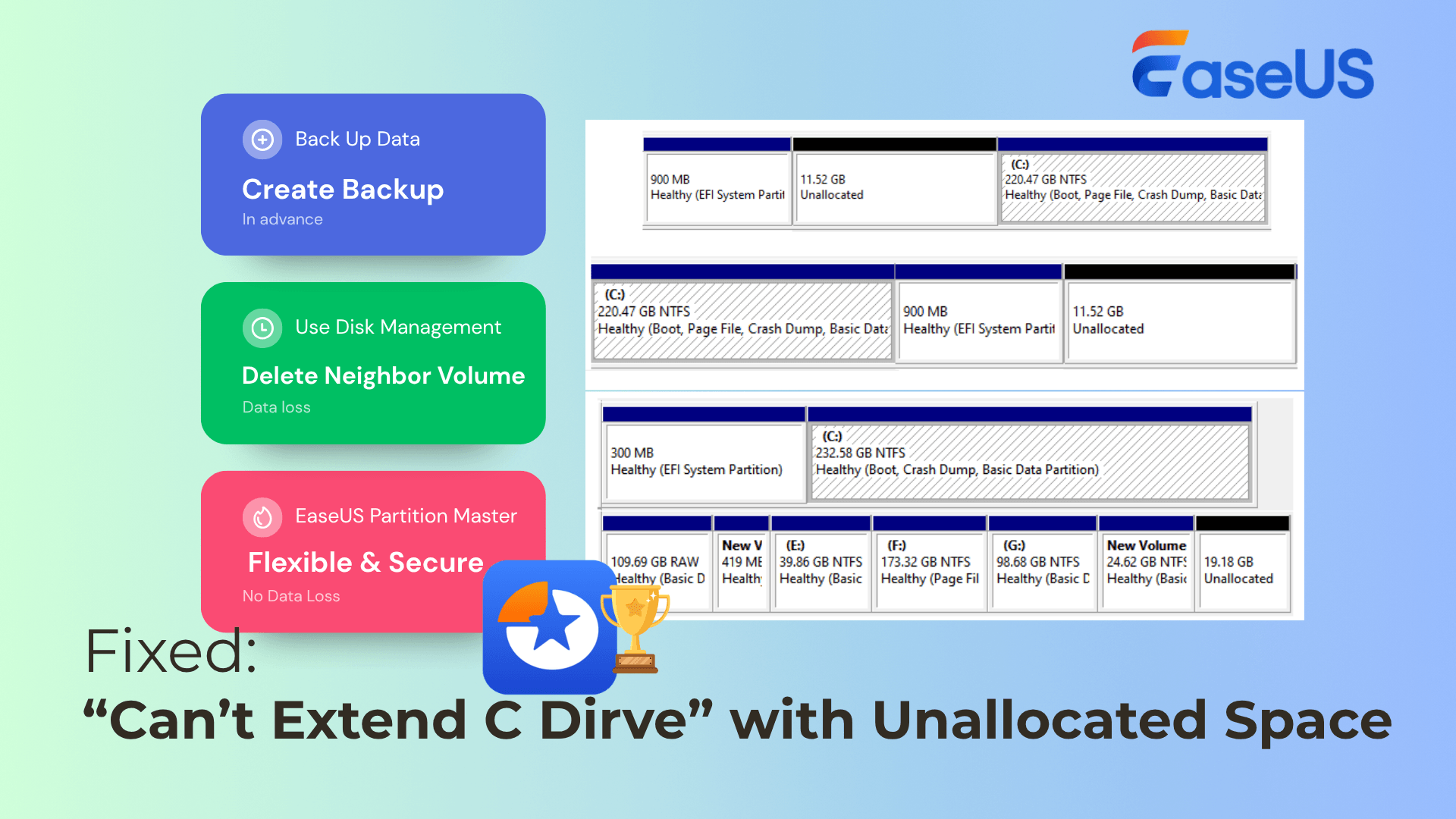
On this page, I'll take extending the C drive in Windows 11 as an example to show you the complete process of enlarging the system C drive without losing any data, time, or computer performance.
Why Can't Extend C Drive with Unallocated Space?
What exactly is the real cause that blocks you from extending the C drive even with unallocated space? Here's a checklist for you to learn:
| 1. There is a partition between the C drive and the unallocated space | 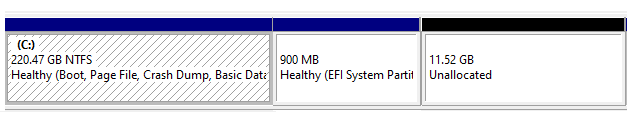 |
| 2. The unallocated space is not on the right side of C |  |
| 3. The unallocated space is on a different disk, not the system disk | 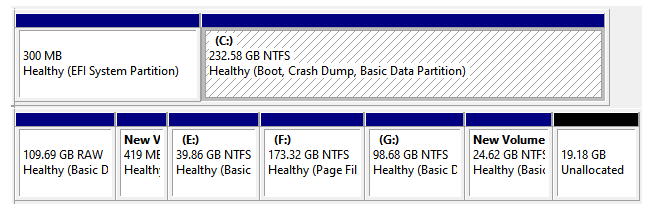 |
Now, you can run a quick diagnostic to see if you are in one of the above-listed states. If so, you'll get an "Extend volume greyed out" error when trying to run Disk Management to extend the C volume.
So, how to fix this error? Dig into the next part, and you'll find efficient methods to get your C drive enlarged successfully.
How to Fix "Can't Extend C Drive with Unallocated Space" Error?
Now, you've clearly noticed which state you are in. If your C drive is not adjacent to the unallocated space, or the unallocated space is on a different disk, follow the lead here to get the right solution.
| Solutions | Situations |
|---|---|
|
Delete a neighbor volume after C drive to make unallocated space for C |
|
|
Method 2. Use Third-Party Partition Software - EaseUS Partition Master |
Extend C with non-adjacent unallocated space, or extend the C drive across disks |
🎈 Highlights: for non-Windows techs, you can take Method 2 as your first pick. It's easier and safer for you to expand the system volume by keeping data safe and intact.
Third-party partition software like EaseUS Partition Master not only offers a clear guide for resolving this issue but also provides instant online assistance when you encounter any further issues.
Don't forget to share this guide online to help more of your friends. Ready to get started increasing your C drive space? Let's dive into the respective guide now.

Method 1. Use Disk Management to Delete a Neighbor Volume to Extend C Drive
Tool: Disk Management
Suitable Cases:
- 1️⃣There is a partition between the C drive and the unallocated space
- 2️⃣There are partitions behind the C drive, but no unallocated space
Note: As deleting an existing partition may cause data loss, please ensure that you back up all your vital data from the partition you plan to delete, located behind your C drive.
To make space on a physical drive, it must feature unallocated space. Since we don't have anyone on our hard drive, we'll be taking some from the Neighbor partition.
You can delete the neighbor partition to extend the C Drive with the following steps:
Step 1. Open Disk Management by right-clicking the Windows icon and selecting "Disk Management".
Step 2. Locate and right-click on the neighbor partition behind the C drive and select "Delete Volume".
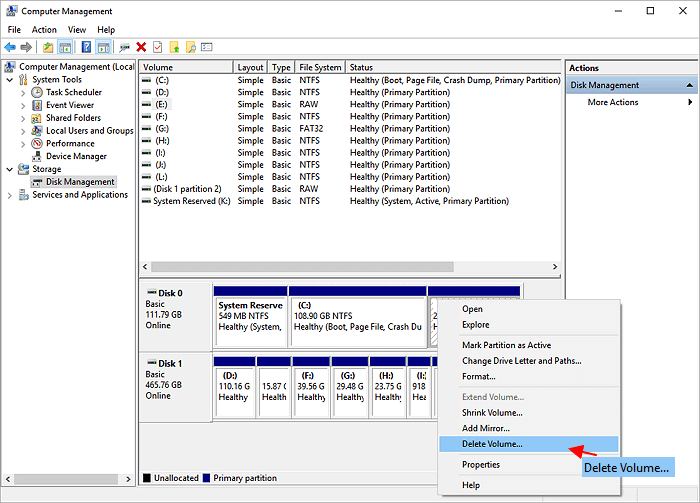
Step 3. Click "OK" to confirm.
Once the space is unallocated, continue with the next step.
Step 4. Right-click on the C drive and select "Extend Volume...".
Step 5. Expand your C drive with the whole available unallocated space by clicking "Next", "Next" and "Finish".
Method 2. Use Partition Software to Extend C Drive with Non-adjacent Unallocated Space
Tool: Third-party partition software - EaseUS Partition Master
Suitable Cases:
- 1️⃣The unallocated space is not adjacent to C drive
- 2️⃣There is no unallocated space on the system disk, but on a second or third local disk
Note that there's no way to add non-adjacent unallocated space to your system partition without the help of a third-party tool. EaseUS Partition Master, with its reliable resize/move and data migration features, is exactly the tool you need for help.
Option 1. Directly Extend C with Non-adjacent Unallocated Space
Step 1. Shrink a neighbor partition to extend partition.
If the hard drive has enough unallocated space to extend the target partition, jump to Step 2, and continue. If not, free up space first:
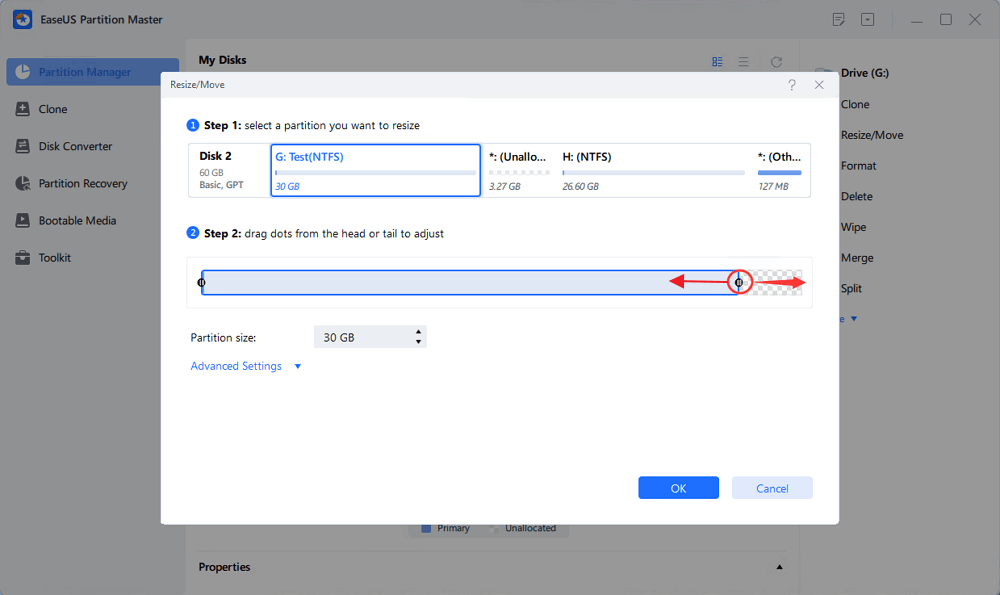
- Go to the Partition Manager section, right-click on a partition next to the target partition and select "Resize/Move".
- Drag the partition ends to free up space, leaving enough unallocated space behind the target partition, click "OK".
Step 2. Extend the target partition with unallocated space.
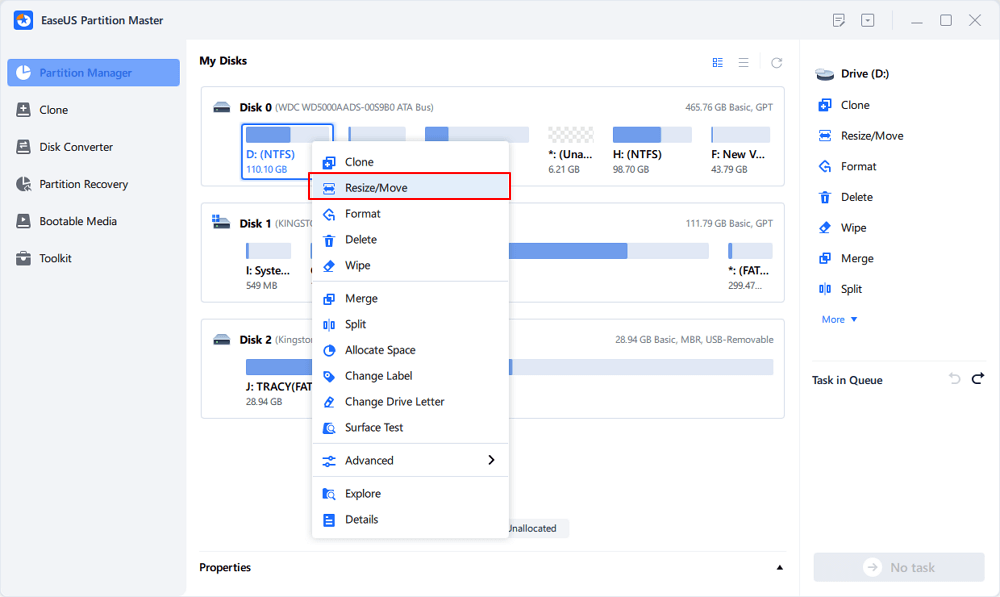
Right-click on the target partition you want to extend and select "Resize/Move".
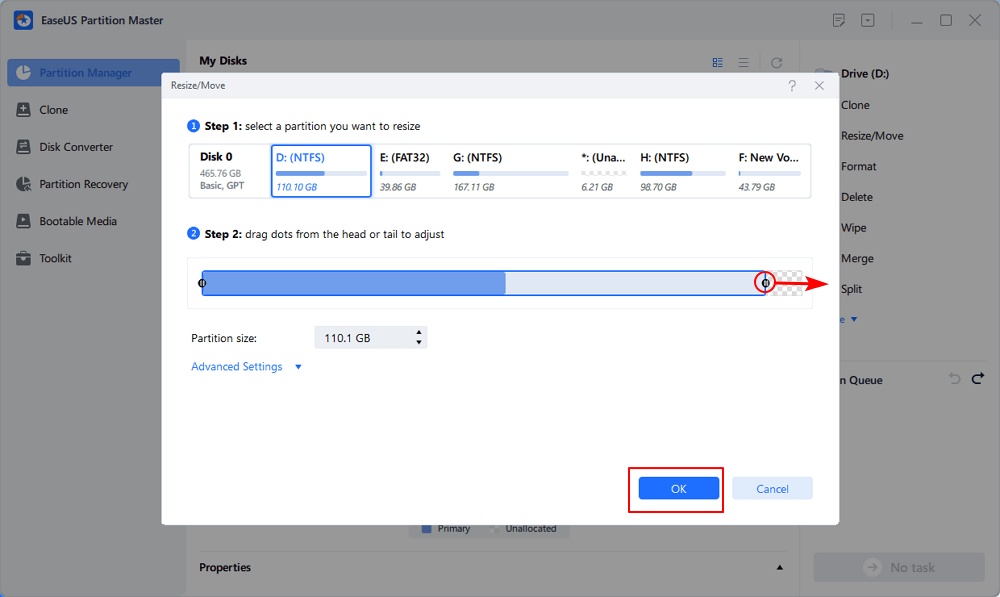
Drag the target partition handle into the unallocated space to extend partition.
Step 3. Keep all changes.
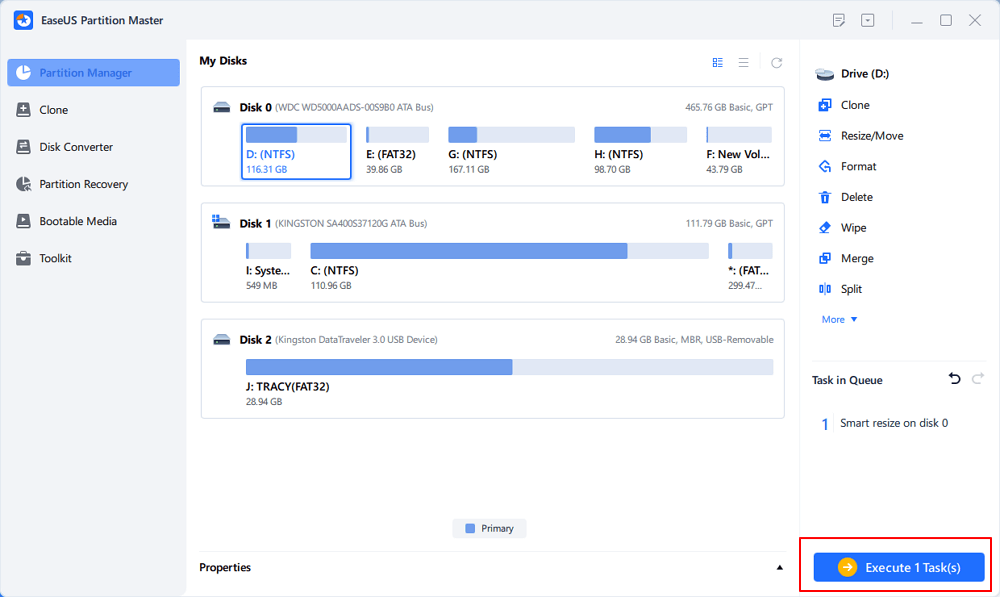
Click the "Execute Task" button and click "Apply" to keep all changes.
Option 2. Extend C with Unallocated Space Across Disks
When the unallocated space exists on another disk, you can apply the Data Migration feature to enlarge the C drive.
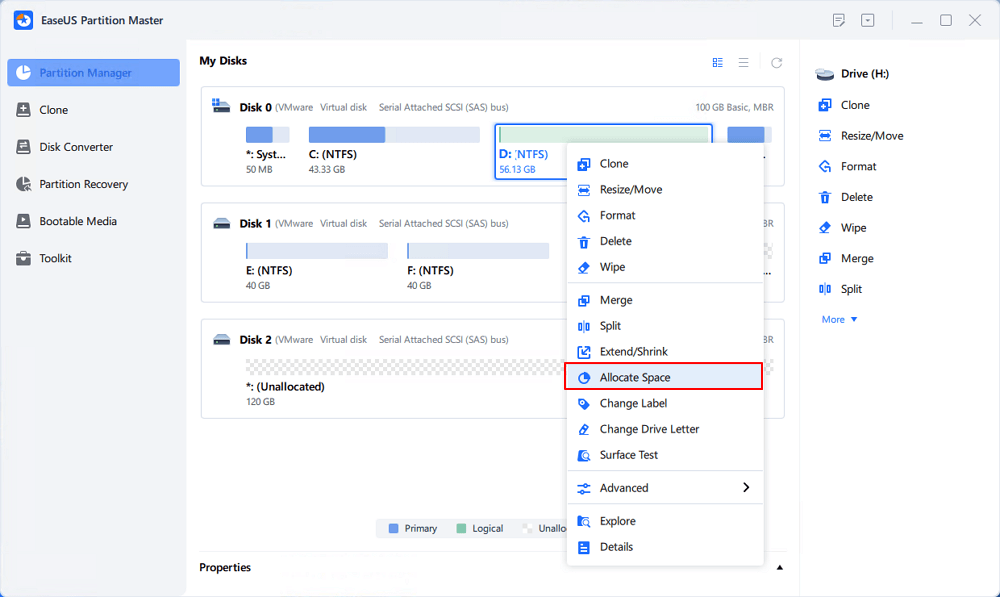
Step 1. Right-click on the D: partition with enough free space and select "Allocate Space".
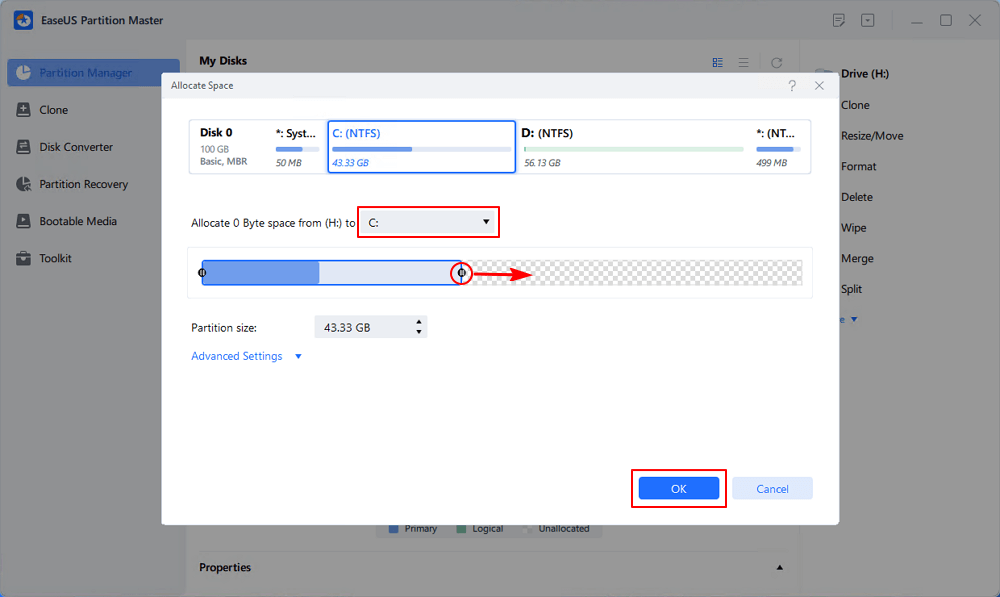
Step 2. Select the target partition - C: drive and drag the partition panel rightward to add the free space from D: drive to C: drive. Then click "OK" to confirm.
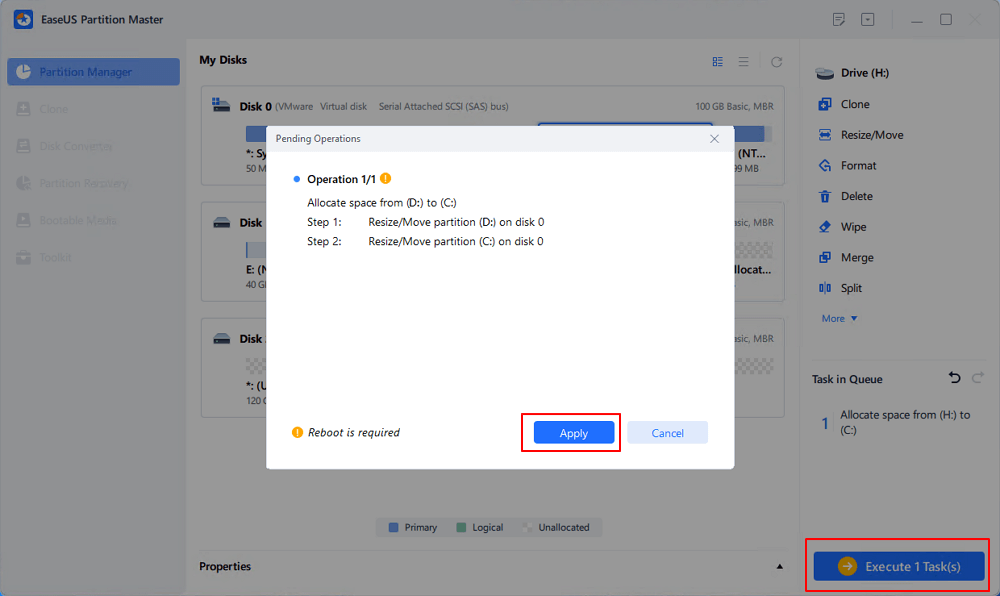
Step 3. Click the "Execute Task" button and click "Apply" to start the process of moving free space from D: drive to C: drive.
Alongside this, EaseUS Partition Master also allows you to merge C and D and move space from D to C, etc., to enlarge the C drive.
Tip: For more efficient storage management, this guide covers different approaches to upgrading and optimizing your disks.
Conclusion:
The "Can't Extend C Drive with Unallocated space" error is fixable. To get rid of this issue, you can either use the Disk Management tool within Windows or EaseUS Partition Master.
For a Windows beginner or if you prefer a secure method, we'll recommend the latter because it covers up all the ends and ensures a smooth partition extension for a beginner.
How Can We Help You
About the Author

Updated by Joey Albert
Joey is an enthusiast of science and technology. With a passion for uncovering the latest tech innovations, she creates clear, engaging how-to guides that make technology accessible and enjoyable for all.

Cici is the junior editor of the writing team of EaseUS. She accepted the systematic training on computers at EaseUS for over one year. Now, she wrote a lot of professional articles to help people resolve the issues of hard drive corruption, computer boot errors, and disk partition problems.
Product Reviews
-
I love that the changes you make with EaseUS Partition Master Free aren't immediately applied to the disks. It makes it way easier to play out what will happen after you've made all the changes. I also think the overall look and feel of EaseUS Partition Master Free makes whatever you're doing with your computer's partitions easy.
Read More -
Partition Master Free can Resize, Move, Merge, Migrate, and Copy disks or partitions; convert to local, change label, defragment, check and explore partition; and much more. A premium upgrade adds free tech support and the ability to resize dynamic volumes.
Read More -
It won't hot image your drives or align them, but since it's coupled with a partition manager, it allows you do perform many tasks at once, instead of just cloning drives. You can move partitions around, resize them, defragment, and more, along with the other tools you'd expect from a cloning tool.
Read More
Related Articles
-
How to Extend C Drive with Nonadjacent Unallocated Space on Windows 11/10
![Sherly]() Sherly/2026/10/29
Sherly/2026/10/29 -
Fix "We Can't Tell If Your PC Has Enough Space to Continue Installing Windows 11" Error [5 Methods]
![Jean]() Jean/2026/10/29
Jean/2026/10/29 -
Extend Volume of C Is Disabled? Fix the Greyed-Out Extend Volume Error on Windows 11
![Sherly]() Sherly/2026/10/29
Sherly/2026/10/29 -
Extend or Expand SSD C Drive Across Disks Like An Expert in 2026
![Tracy King]() Tracy King/2026/10/29
Tracy King/2026/10/29
 Sherly/2026/10/29
  Jean/2026/10/29
  Tracy King/2026/10/29









