
Content
Page Table of Contents
About the Author
Hot Topics
- #1. Find Large Files Taking Up Space on C Drive
- #2. Move Individual Files from C Drive to Another Drive
- #3. Move Desktop, Downloads, and Other User Folders to Another Drive
- #4. Move Files and Applications from C Drive with EaseUS Partition Master
- #5. Change Where New Files Are Saved in Windows
- #6. What Files Should You Never Move from C Drive Manually?
When your C drive is running out of space, moving large files to another drive is one of the easiest ways to free up storage without deleting things you still need. You can move photos, videos, documents, downloads, and other personal files from C: to D: or an external drive.
However, not everything on C: can be moved by simply dragging it to another location. Windows system files and installed programs require different handling. This guide explains how to find large files, move them safely, relocate frequently used folders, and use a dedicated migration tool when you need to transfer more data at once. Share this post if you found it helpful.

#1. Find Large Files Taking Up Space on C Drive
Before moving files, find out what's actually using your C drive space. There is no need to move everything if a few large folders or files are responsible for most of the storage usage.
Windows provides two easy ways to identify files and folders that take up the most space.
Method 1. Check Storage Usage in Windows Settings
Windows Storage settings provide an overview of what is taking up the C drive space. You can see how much storage is occupied by installed apps, temporary files, documents, pictures, and other categories.
Follow these steps:
- Press Windows + I to open Settings.
- Select System > Storage.
- Wait for Windows to calculate the storage usage.
- Click Show more categories if necessary to see additional storage categories.
- Check which categories are taking up the most space.
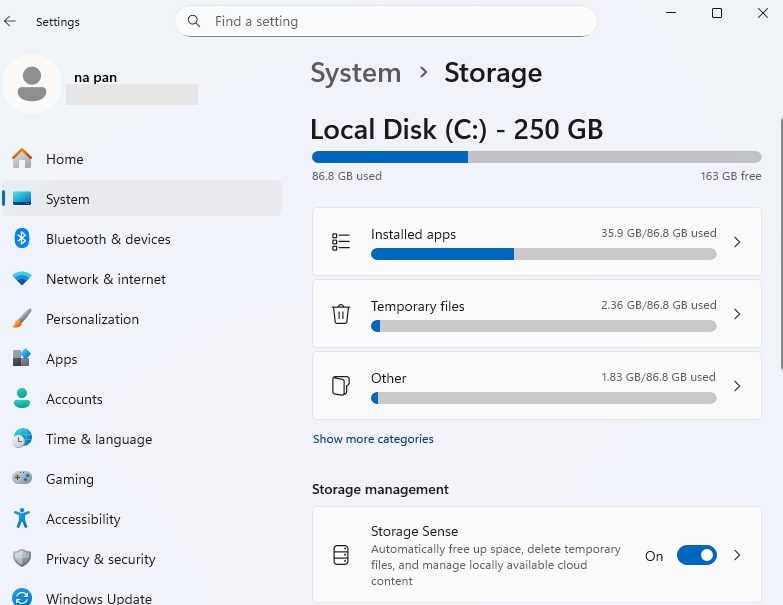
Pay particular attention to categories such as Apps & features, Documents, Pictures, Videos, and Other. These can help you decide whether to move personal files, transfer applications, or clean up unnecessary data.
Method 2. Find the Largest Files in File Explorer
If you want to locate individual large files, File Explorer is a more direct option. This is particularly useful for finding old videos, downloaded installers, ZIP archives, and other files you may have forgotten about.
- Press Windows + E to open File Explorer.
- Select This PC > Local Disk (C:).
- Open a folder where you usually store personal files, such as Downloads, Documents, Pictures, or Videos.
- Change the folder view to Details.
- Right-click an empty area, select Sort by > Size, and arrange the files from largest to smallest.
- Review the results and identify files you want to keep but don't need to store on C:.
You can start with Downloads and Videos, as these folders often contain large files. Make a note of the files you want to relocate before proceeding.
#2. Move Individual Files from C Drive to Another Drive
If you only need to move a few large files, File Explorer is usually sufficient. You don't need additional software to transfer ordinary documents, photos, videos, or other personal files.
Before starting, make sure your destination drive has enough free space. In this example, we'll use D: as the destination.
Steps to Move Files Using Cut and Paste
- Press Windows + E to open File Explorer.
- Navigate to the location of the files you want to move on C:.
- Select the files or folders you want to transfer. Hold Ctrl while clicking to select multiple items.
- Right-click the selection and choose Cut. You can also press Ctrl + X.
- Open This PC > Local Disk (D:).
- Create a new folder to organize your files, such as D:\My Files.
- Open the new folder, right-click an empty area, and select Paste. Alternatively, press Ctrl + V.
- Wait for the transfer to finish, then open several files from the new location to make sure they work correctly.
Once you've verified that the files are accessible on D:, check the available space on C: to confirm that the transfer has freed up storage.
💡Note: If you're moving important files, back them up before starting. For a large transfer, avoid shutting down your computer or disconnecting the destination drive before the operation finishes.
#3. Move Desktop, Downloads, and Other User Folders to Another Drive
Moving individual files works well for occasional transfers. However, if your Downloads, Documents, or Desktop folders keep filling up, relocating the entire folder is a better long-term solution.
Windows has a built-in Location feature that lets you change where these folders are stored. Existing files can be moved to the new location, and Windows will use that location for future files saved to the folder.
Steps to Relocate a User Folder
We'll use the Downloads folder as an example. The same process works for Documents, Desktop, Pictures, Music, and Videos.
- Open File Explorer and navigate to C:\Users\YourUserName.
- Right-click the Downloads folder and select Properties.
- Switch to the Location tab.
- Click Move.
- Select a destination on another drive, such as D:\Downloads. Create the folder if it doesn't already exist.
- Click Select Folder, then click Apply.
- When Windows asks whether you want to move all existing files to the new location, select Yes.
- Wait for Windows to finish moving the files, then check the new Downloads folder.
Afterward, Windows will use the new location for your Downloads folder instead of the original location on C:.
💡Important: Choose a permanent destination, preferably another internal drive. If you move a frequently used Windows folder to an external USB drive and disconnect it, the folder may become unavailable. Also, avoid changing the location of the entire user profile or moving the AppData folder manually.
#4. Move Files and Applications from C Drive with EaseUS Partition Master
Manually moving files is straightforward, but it can become time-consuming when you have many files and applications taking up space on C:. You may also find that installed applications account for a large portion of your storage usage. In this situation, a dedicated data migration tool can make the process easier. EaseUS Partition Master provides a Data Migration feature that lets you select supported applications and data on C: and transfer them to another drive.
Unlike ordinary cut-and-paste operations, it is designed to handle application and data migration together, making it useful when you want to reclaim C drive space without manually locating every item.
- ✅Move applications and data together: Transfer supported installed applications and data from C: to another drive instead of handling everything manually.
- ✅Simplify batch migration: Select multiple items after scanning rather than searching through different folders one by one.
- ✅Free up C drive space: Move selected data to a drive with more available capacity and reduce the storage pressure on your system partition.
The amount of space you can reclaim depends on the items you select and the available capacity of the destination drive. Here is how to move files and applications from C drive:
Step 1. Launch EaseUS Partition Master, navigate to "Partition Manager," right click the C drive, and select "Data Migration."
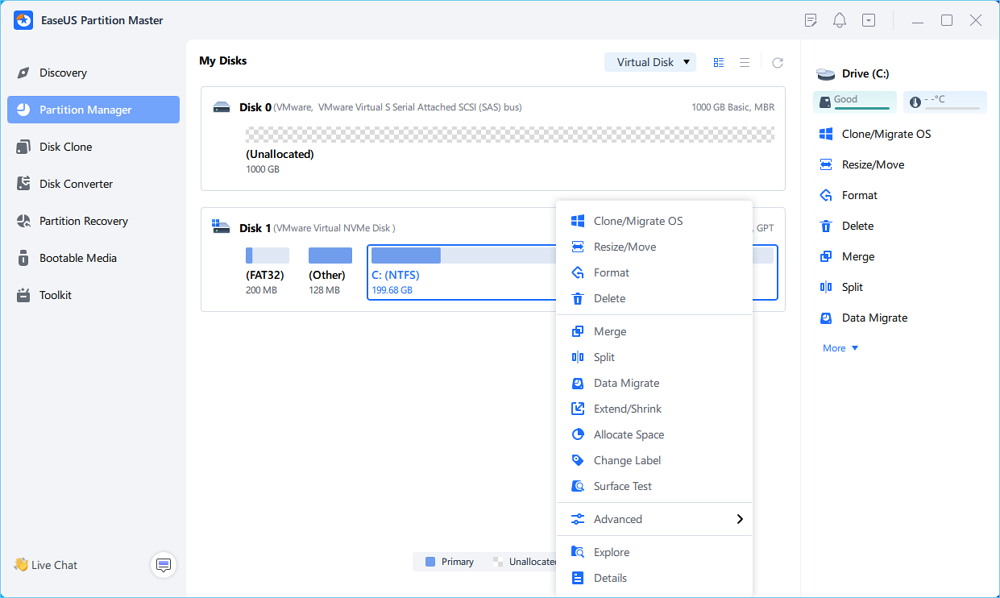
Step 2. Select the data you want to migrate and click "Next" to continue.
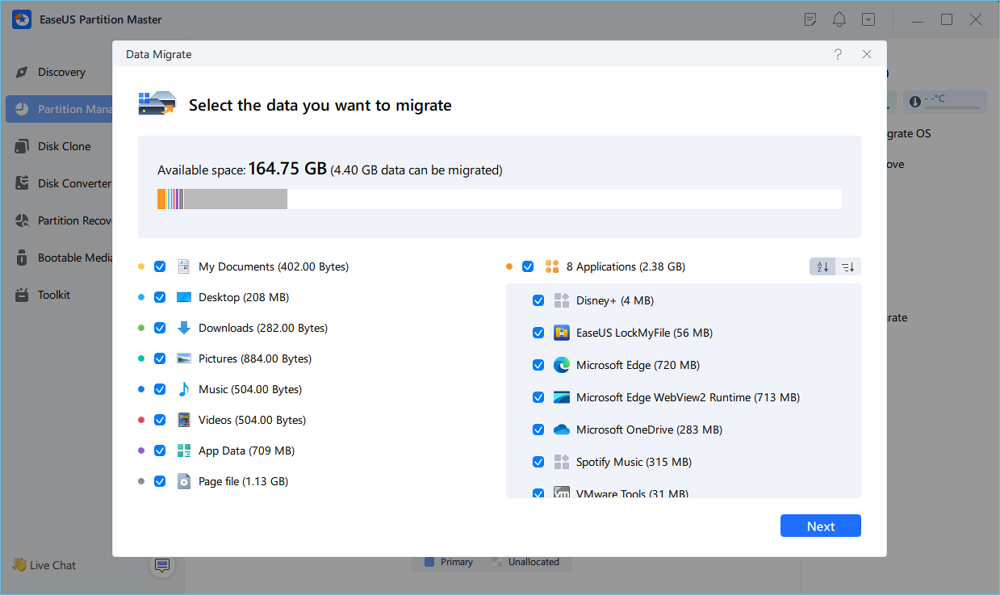
Step 3. Select a target partition to migrate and click "Start" to execute the task.
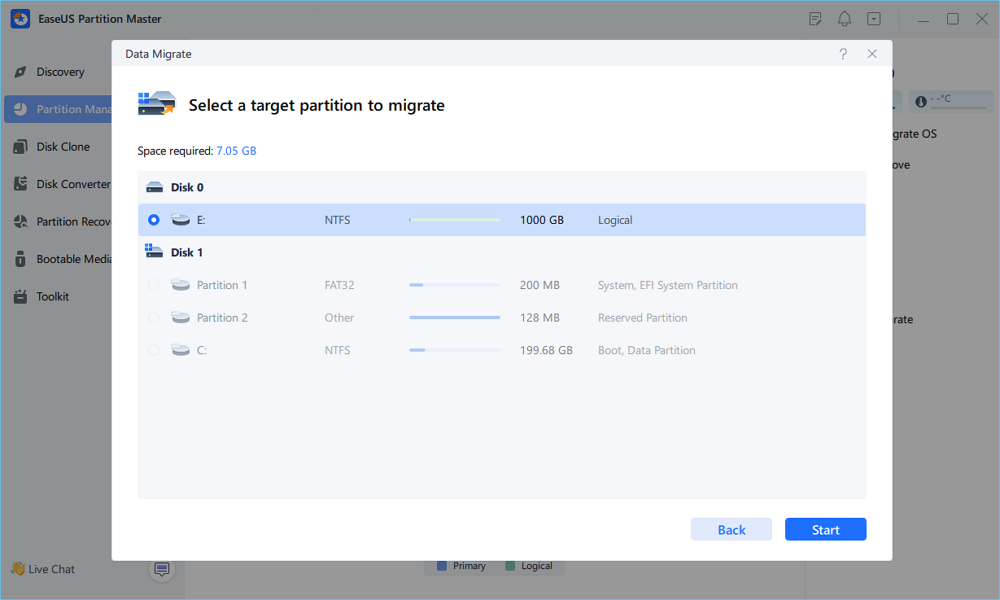
Step 4. After the migration, the available space on the C drive will be increased.
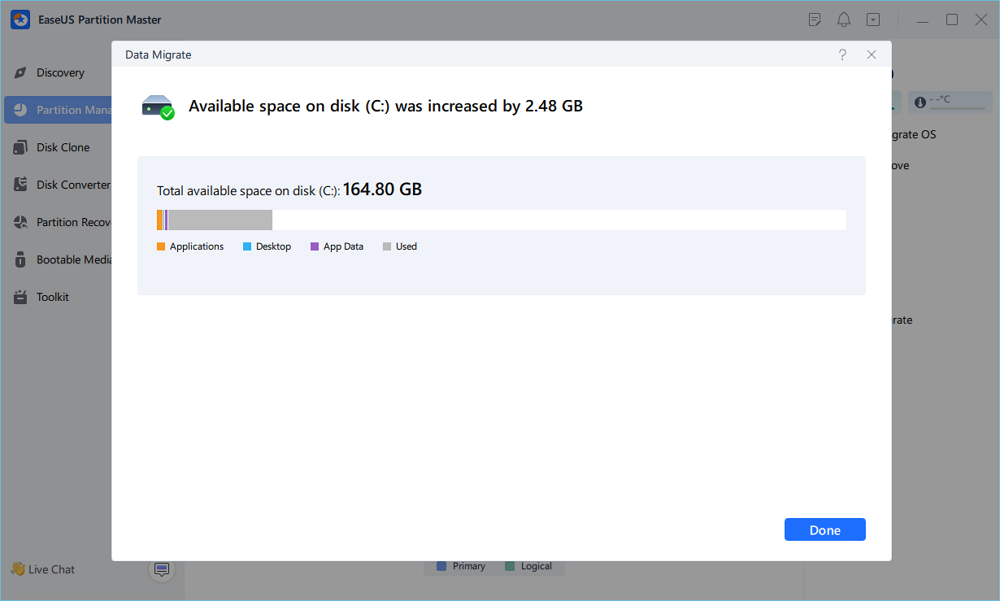
Note: Data Migration availability depends on your product edition. Check the current edition comparison before purchasing. Back up important data before migration, and keep both drives connected until the operation is complete. Avoid manually deleting the original application folders after migration unless the software confirms the transfer is complete.
#5. Change Where New Files Are Saved in Windows
Moving existing files frees up space immediately, but your C drive may fill up again if Windows continues saving new content there.
To avoid repeating the same transfer process, you can change the default storage location for supported types of new content.
Steps to Change the Default Save Location
- Press Windows + I to open Settings.
- Go to System > Storage.
- Expand Advanced storage settings.
- Select Where new content is saved.
- Find the content types you want to redirect, such as new apps, documents, music, photos, and videos.
- Open the corresponding drop-down menu and select D: or another available drive.
- Click Apply if prompted.
Windows will use the selected drive for supported new content. Keep in mind that this setting does not automatically move files that are already stored on C:, and individual applications may have their own download or installation settings.
#6. What Files Should You Never Move from C Drive Manually?
Moving personal files is generally safe, but moving system files or application folders manually can cause serious problems. Windows and installed programs rely on specific file paths, registry entries, and system configurations.
Before moving anything, make sure you know which files are safe to relocate.
| File or folder | Can you move it manually? | Recommendation |
|---|---|---|
| Documents, Pictures, Videos, Music | Yes | Use File Explorer or the Location tab |
| Downloads | Yes | Move individual files or relocate the folder |
| Desktop files | Yes | Use the Location tab to relocate the folder |
| Windows folder | No | Keep it on C: |
| Program Files | No | Use a supported app migration method or reinstall |
| Program Files (x86) | No | Do not move the folder manually |
| AppData | No | Keep the user profile configuration in its original location |
| ProgramData | No | Do not relocate manually |
If you're unsure whether a folder is safe to move, leave it where it is until you confirm its purpose.
Moving Windows system directories can prevent Windows from starting properly. Manually moving installed application folders can also break shortcuts, dependencies, and registry references.
FAQs About Moving Files from C to Free Up Space
1. Can I move files from C drive to D drive to free up space?
Yes. You can move personal files such as documents, photos, videos, music, and downloads from C: to D:. You can also relocate supported Windows user folders through their Location settings. For installed applications, use a supported migration method rather than manually dragging program folders.
2. Will moving files from C drive to D drive delete them?
Moving files transfers them to the new location, so they are no longer stored in their original location. However, if you use Copy and Paste instead, the original files remain on C: until you delete them.
Always verify the transferred files before deleting the originals.
3. Can I move the entire Users folder from C drive to D drive?
It is not recommended to move the entire C:\Users folder manually. Windows relies on user profile paths and configuration files, and changing them incorrectly can cause login, application, and system problems.
Instead, relocate individual folders such as Documents, Downloads, Pictures, and Desktop through the Location tab.
4. Can I move installed programs from C drive to D drive?
Yes, but it depends on the application. Some Microsoft Store apps have a built-in Move option in Windows Settings. Traditional desktop programs generally need to be reinstalled on another drive or transferred using a compatible migration tool.
Never move the entire Program Files folder using Cut and Paste.
5. Why is my C drive still full after moving files to D drive?
Several reasons may explain this:
- The files were copied instead of moved, so the originals remain on C:.
- The Recycle Bin still contains deleted files.
- Temporary files, Windows update files, and application caches are taking up space.
- Installed applications and games still occupy significant storage.
- Some applications continue saving new data to C:.
Check Settings > System > Storage to identify what is still consuming space. You can also use Windows Storage Sense to remove unnecessary temporary files.
6. Is D drive on the same disk as C drive?
Not necessarily. D: may be another partition on the same physical disk, a separate internal hard drive, or an external storage device.
You can check this in Disk Management by pressing Windows + X and selecting Disk Management. Look at the disk numbers to see whether C: and D: belong to the same physical disk.
If both partitions are on the same physical disk, moving files to D: will free up space on the C: partition, but it will not increase the total available storage on the physical disk. It also does not provide an independent backup if that disk fails.
Conclusion
Moving files from C to free up space doesn't have to be complicated. For a few large personal files, File Explorer is enough. For frequently used folders, Windows' Location feature provides a more convenient way to relocate them permanently.
If applications and large amounts of data are taking up too much room, EaseUS Partition Master offers a Data Migration feature to simplify the transfer. Choose the right method for each type of data, verify your files after moving them, and keep enough free space on C: for Windows updates and normal system operations.
How Can We Help You
About the Author

Sherly joined EaseUS in 2022 and she has always loved writing articles and enjoys the fun they bring. She receives professional training here, focusing on product performance and other relative knowledge. She has written over 200 articles to help people overcome computing issues.
Product Reviews
-
I love that the changes you make with EaseUS Partition Master Free aren't immediately applied to the disks. It makes it way easier to play out what will happen after you've made all the changes. I also think the overall look and feel of EaseUS Partition Master Free makes whatever you're doing with your computer's partitions easy.
Read More -
Partition Master Free can Resize, Move, Merge, Migrate, and Copy disks or partitions; convert to local, change label, defragment, check and explore partition; and much more. A premium upgrade adds free tech support and the ability to resize dynamic volumes.
Read More -
It won't hot image your drives or align them, but since it's coupled with a partition manager, it allows you do perform many tasks at once, instead of just cloning drives. You can move partitions around, resize them, defragment, and more, along with the other tools you'd expect from a cloning tool.
Read More
Related Articles
-
Unable to Extend C Drive Windows 11? Fix It Now!
![Sherly]() Sherly/2026/10/30
-
How to Clone Windows to NVMe [2026 Full Guide]
![Cici]() Cici/2026/10/30
-
![Daisy]() Daisy/2026/10/30
-
Best C Drive Optimization Software Free Download for Windows 11/10
![Joey Albert]() Joey Albert/2026/11/01
 Cici/2026/10/30
 Daisy/2026/10/30
 Joey Albert/2026/11/01