


Content
Page Table of Contents
About the Author
Hot Topics
Have unallocated space on your hard drive but still can't extend your C drive? Is the unallocated space not adjacent to the C drive, making the "Extend Volume" option greyed out? It is a common issue for Windows users. In this guide, you'll learn why this happens, whether it's possible to extend the C drive with nonadjacent unallocated space, and most importantly, how to do it safely without losing data using the right tools and methods.
Can I Extend C Drive with Nonadjacent Unallocated Space?
Yes, you can extend the C: drive with nonadjacent unallocated space, but Windows Disk Management cannot do it directly. Here's why:
- Disk Management only allows extending a partition when the unallocated space is immediately adjacent on the right side of the target partition.
- If the unallocated space is separated by another partition (like D:), the Extend Volume option will be greyed out.
There are many similar cases on forums:
|
I have 4 partitions on my C: drive, in order left-to-right (on Disk Management): 579M Recovery Partition, 99.33G Boot, 100M EFI, 50G Unallocated. I want to merge the Boot partition with the Unallocated, but they are not adjacent. I've read several posts on this but I find them confusing. Is this doable? Can someone give me a simple step-by-step? - From Learn Microsoft |
|
Can't extend C even tough I have unallocated space next to it (on the left side) - From r/Windows 11 |
To extend the C drive with nonadjacent unallocated space in Disk Management, you must delete the partition in between, which erases all data on that partition. If there is a Recovery partition or EFI partition in the way, it's not recommended that you delete them since deleting critical partitions like EFI System Partition or Recovery Partition may cause boot failure or break system recovery functions.
|
🚫 Also note: If the unallocated space is on the left side of the C drive, Disk Management cannot extend it at all, even if you delete partitions. |
So, the best solution is using a third-party partition software like EaseUS Partition Master to move partitions safely, merge nonadjacent unallocated space, or extend C drive without deleting partitions or losing data
How to Extend C Drive with Nonadjacent Unallocated Space
In this part, you will get two methods to add nonadjacent unallocated space to the C drive. Based on your needs, select the proper guide to get started.
Method 1. Use EaseUS Partition Master (Recommended)
EaseUS Partition Master offers a much more flexible way to manage disk partitions than Windows Disk Management. It can extend the C drive with nonadjacent unallocated space directly, without deleting any partitions. It works smoothly on Windows 11/10/8/7. For beginners, it's easy to use, without typing any command lines or deleting any partitions.
Extend System C drive with unallocated space
- 1. Right-click on the System C: drive and select "Resize/Move".
- 2. Drag the system partition end into the unallocated space so to add it to the C: drive. And click "OK".
- 3. Click "Execute Task" and "Apply" to execute the operations and extend the C drive.
With EaseUS Partition Master, you can extend C drive without deleting partitions. If you have a backup, you can try Disk Management as mentioned in the Method 2.
Method 2. Use Disk Management (With Limitations)
Windows Disk Management can extend the C drive, but only when unallocated space is adjacent on the right side. If not, you must manually make it adjacent by deleting partitions.
|
⚠️ Important Notes Before You Start If unallocated space is on the left side of C drive, Disk Management won't work. Deleting partitions will permanently erase all data, so always back up important files before proceeding. |
Steps to Extend C Drive with Nonadjacent Unallocated Space in Disk Management:
Step 1. Open Disk Management
- Right-click Start
- Select Disk Management
Step 2. Identify Disk Layout
Locate your:
- C: drive
- Unallocated space
- Any partition between them (e.g., D:)
Step 3. Delete the Partition Between C and Unallocated Space
Right-click the partition (e.g., D:)
- Select Delete Volume
- Confirm deletion
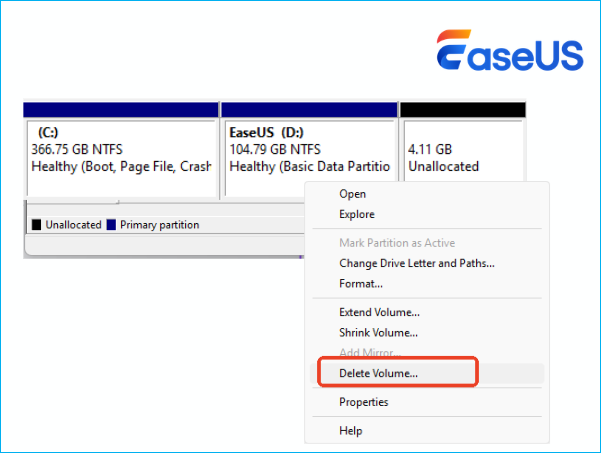
👉 Now the unallocated space should become adjacent to the C drive. If not, repeat and delete other partitions between the unallocated space and the C drive.
Step 4. Extend C Drive
- Right-click C drive
- Select Extend Volume
- Follow the wizard: Choose available unallocated space
- Click Next > Finish
Your C drive will now successfully expand into the newly available space.
👉 If this guide helped you, consider sharing it with others who are facing the same issue!

Conclusion
Extending the C drive with nonadjacent unallocated space is possible, but Windows Disk Management has strict limitations. It only works when the space is directly adjacent, often forcing users to delete partitions and risk data loss. For a safer and more flexible approach, third-party tools like EaseUS Partition Master allow you to move partitions and extend the C drive without deleting data, making the process significantly easier and more reliable for everyday users.
FAQs About Extending C Drive but Unallocated Space Not Adjacent
1. Why can't I extend C drive with unallocated space in Windows 11?
Because Disk Management only supports extending partitions when unallocated space is directly next to the C drive on the right. If it's not adjacent, the Extend Volume option will be unavailable.
2. How to move unallocated space next to C drive?
You need to move the partition located between the C drive and the unallocated space. Windows Disk Management cannot do this, so you'll need third-party partition software like EaseUS Partition Master to safely relocate partitions without data loss.
3. How to extend C drive with unallocated space via DiskPart?
You can use DiskPart only when unallocated space is adjacent to the C drive.
Open Command Prompt as Administrator
Type:
- diskpart
- list volume
- select volume C
- extend
If the space is not adjacent to C drive on the right side, the command will fail.
How Can We Help You
About the Author

"I hope my articles can help solve your technical problems. If you are interested in other articles, you can check the articles at the bottom of this page. Similarly, you can also check my Twitter to get additional help."

Sherly joined EaseUS in 2022 and she has always loved writing articles and enjoys the fun they bring. She receives professional training here, focusing on product performance and other relative knowledge. She has written over 200 articles to help people overcome computing issues.
Product Reviews
-
I love that the changes you make with EaseUS Partition Master Free aren't immediately applied to the disks. It makes it way easier to play out what will happen after you've made all the changes. I also think the overall look and feel of EaseUS Partition Master Free makes whatever you're doing with your computer's partitions easy.
Read More -
Partition Master Free can Resize, Move, Merge, Migrate, and Copy disks or partitions; convert to local, change label, defragment, check and explore partition; and much more. A premium upgrade adds free tech support and the ability to resize dynamic volumes.
Read More -
It won't hot image your drives or align them, but since it's coupled with a partition manager, it allows you do perform many tasks at once, instead of just cloning drives. You can move partitions around, resize them, defragment, and more, along with the other tools you'd expect from a cloning tool.
Read More
Related Articles
-
[Fixed] Can't Extend C Drive with Unallocated Space
![author icon]() Shelly/2026/05/07
Shelly/2026/05/07 -
How to Check What Is Using Up My C Drive Space [2026 Tutorial]
![author icon]() Cici/2026/05/07
Cici/2026/05/07 -
How to Extend C Drive in Windows 10? [3 Efficient Ways]
![author icon]() Tracy King/2026/05/07
Tracy King/2026/05/07 -
How to Clone Windows to NVMe [2026 Full Guide]
![author icon]() Cici/2026/04/30
Cici/2026/04/30
 Cici/2026/05/07
  Tracy King/2026/05/07
 Hot Topics








EaseUS Partition Master
Version 20.0 is here - full exFAT support, easier disk partitioning, and PC performance optimization.


