







Content
Page Table of Contents
About the Author
Hot Topics
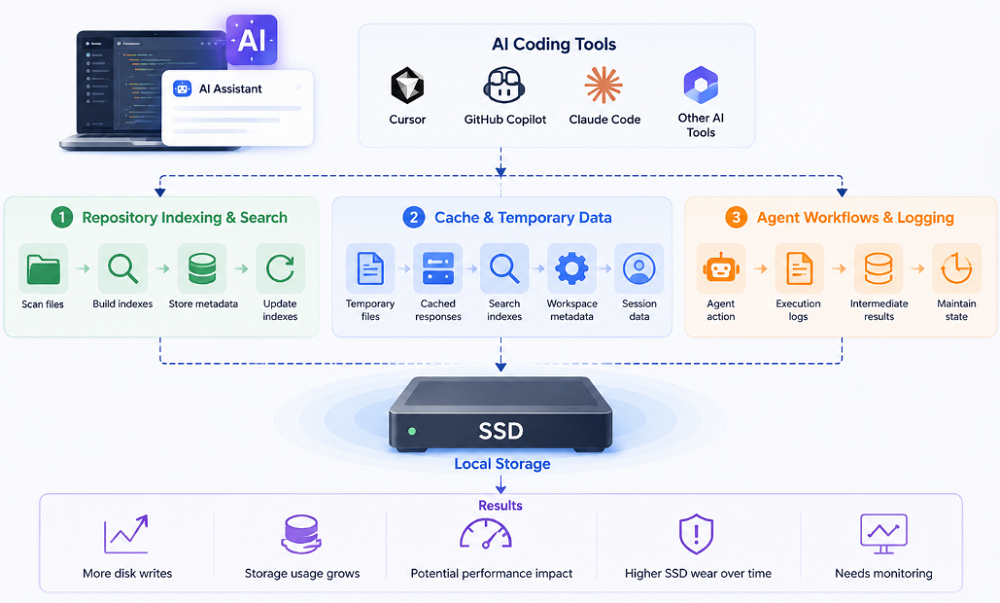
Recent discussions about unusually high SSD write activity in AI coding tools like Codex have raised a question many developers had never considered before: Can AI tools affect SSD health? The answer depends less on the AI model itself and more on how the software uses local storage. Features such as repository indexing, caching, logging, and agent workflows can generate additional disk activity, but that does not automatically mean your SSD is at risk.
To understand whether SSD wear is something worth worrying about, it helps to first look at how modern AI tools interact with storage. Share this post if you found it helpful.

How AI Tools Use Local Storage
Most developers are familiar with monitoring CPU usage, memory consumption, and network traffic. Storage activity often receives less attention because it is rarely visible during normal use.
However, many AI-powered development tools perform background tasks that rely heavily on local storage. Depending on the product and configuration, these tasks can generate significantly more disk activity than a traditional text editor.
Repository Indexing and Code Search
Many AI coding assistants analyze a codebase to provide context-aware suggestions and answers. To do this, they may:
- Scan project files
- Build search indexes
- Store metadata
- Update indexes when files change
For small projects, this activity is usually minimal. Larger repositories with thousands of files can require more frequent indexing and updates.
Cache Files and Temporary Data
AI tools often rely on caching to improve responsiveness and reduce repeated processing. Depending on the application, locally stored data may include:
- Temporary files
- Cached responses
- Search indexes
- Workspace metadata
- Session-related data
Not every AI tool stores the same information locally. Some rely heavily on cloud infrastructure, while others perform more processing on the user's machine.
Agent Workflows and Logging
Agent-based tools introduce another layer of storage activity. When an AI agent performs multiple actions, the software may record execution history, save intermediate results, and maintain state information between steps.
Individually, these writes are usually small. Over long sessions, however, they can accumulate into a noticeable amount of disk activity.
Why the Codex Discussion Drew So Much Attention
Most developers rarely check how much data has been written to their SSD. As a result, storage-related issues often remain unnoticed until unusually large numbers appear. This helps explain why reports of high write activity associated with OpenAI Codex generated so much discussion within the developer community.
Several users observed unexpectedly large increases in SSD write counters while using Codex-related workflows. Investigation pointed to a local SQLite logging database and raised concerns about whether excessive logging activity was contributing to abnormal write volumes.
Subsequent updates have repaired this bug, but the incident highlighted a broader issue that extends beyond any single product. The most important lesson was not that AI tools are unsafe for SSDs. Instead, the discussion reminded developers that modern AI applications can generate storage workloads that are very different from those created by traditional IDEs. For many users, it was the first time they had considered monitoring SSD write activity at all.
That's why it can be useful to monitor key SSD metrics such as SMART attributes, drive temperature, health status, and total host writes. Tools like EaseUS Partition Master provide a centralized view of these indicators, making it easier to identify unusual write activity and track overall SSD health over time.
What Counts as Normal SSD Write Activity?
After learning that AI tools can generate additional disk activity, many users immediately ask a practical question: How much SSD writing is actually normal? Unfortunately, there is no universal answer. Write volume varies widely depending on workload, hardware, and usage patterns.
Why SSD Write Volumes Vary So Much? A software developer, gamer, video editor, and database administrator can all generate very different write patterns while remaining within the expected operating range of their SSDs. Factors that influence write activity include:
- File sizes
- Application behavior
- Logging frequency
- Virtual machines
- Containers
- Local databases
- Backup software
Because of these differences, raw write numbers should always be interpreted within the context of how a system is being used.
When Write Activity Deserves Investigation
In general, write activity becomes more interesting when:
- SSD write counters increase rapidly without a clear explanation
- The system performs continuous writes while idle
- Logging or cache files grow unexpectedly
- Storage-intensive applications run in the background for extended periods
These situations do not necessarily indicate a problem, but they may warrant a closer look.
Can AI Tools Actually Wear Out an SSD?
This is the question most users care about, and the answer is usually less dramatic than online discussions suggest. Modern SSDs are designed to handle substantial amounts of write activity over their lifespan.
Understanding SSD Endurance
Manufacturers typically describe SSD durability using metrics such as:
Consumer SSD endurance ratings vary significantly by capacity and model, ranging from roughly 150TBW to well over 1,000TBW.
Because of this, occasional spikes in write activity are rarely a concern on their own.
What Actually Determines SSD Wear
SSD wear is influenced by several factors working together:
- Total write volume
- Drive capacity
- Endurance rating
- Workload duration
- Write amplification
- Operating temperature
This is why it is difficult to assign a universal risk level to every user or workflow.
For most developers, SSD endurance is unlikely to be the limiting factor in the lifespan of a modern computer. That said, users running storage-intensive workloads - such as continuous AI agents, large-scale indexing systems, virtual machines, or local databases - may benefit from monitoring drive health more closely.
The goal is not to avoid using AI tools. The goal is to understand how those tools contribute to overall system activity.
Signs Your SSD May Be Experiencing Heavy Write Activity
SSD wear rarely produces immediate symptoms. Unlike high CPU usage or memory shortages, excessive writes can accumulate quietly in the background. Monitoring a few indicators can help identify unusual behavior before it becomes a long-term concern.
1️⃣Rapid Growth in Total Host Writes
Most SSD monitoring tools report the total amount of data written to the drive.
A steadily increasing value is expected. However, unusually large jumps over short periods may justify further investigation.
2️⃣Continuous Disk Activity While Idle
If a system continues writing data even when no active work is being performed, it may be worth checking for:
- Background indexing
- Logging services
- Synchronization tools
- Database activity
In many cases, these processes are legitimate. The goal is simply to understand what is generating the activity.
3️⃣Unexpected Growth of Cache or Log Files
Large or rapidly growing cache directories sometimes indicate inefficient application behavior. Reviewing storage usage periodically can help identify applications that consume more disk resources than expected.
How to Check SSD Health
Understanding SSD write activity is only useful if you can actually see what is happening on your drive. While Windows provides limited storage information, it does not offer an easy way to track SSD health, SMART attributes, temperature, or total writes in a single view.
This is where a dedicated disk management and health monitoring tool can help. EaseUS Partition Master includes an SSD Health Monitor that allows users to check key drive metrics, including:
- SSD health status
- SMART attributes
- Drive temperature
- Total host writes
- Estimated drive condition
These metrics can help you understand whether a drive is operating normally and identify unusual storage activity before it becomes a larger issue.
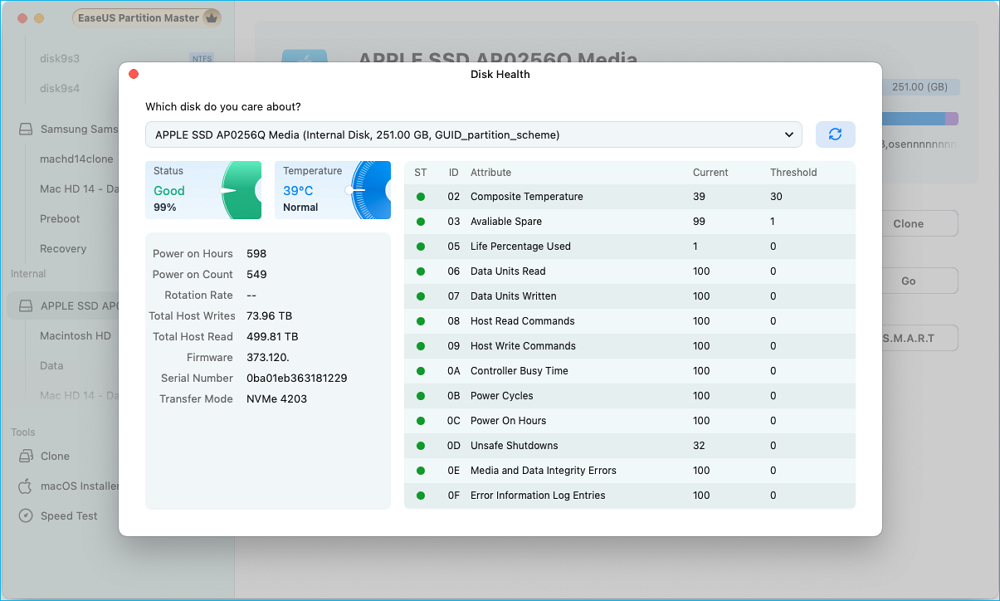
1️⃣Check SSD Status on Mac
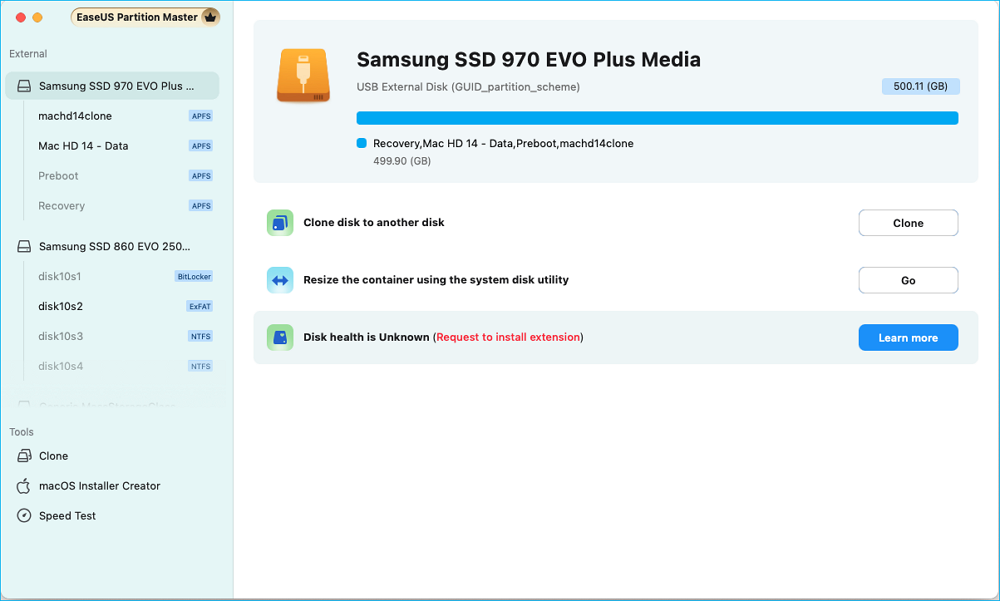
Step 1. Run EaseUS Partition Master for Mac, select your target disk, and you'll see a few options.
Step 2. Locate the option related to Disk health.
- If it shows "Disk health is Unknown (Request to install extension)," click on "Learn more" and move to Step 3.
- If it shows "Disk health is valid," click on "S.M.A.R.T" and move to Step 5.
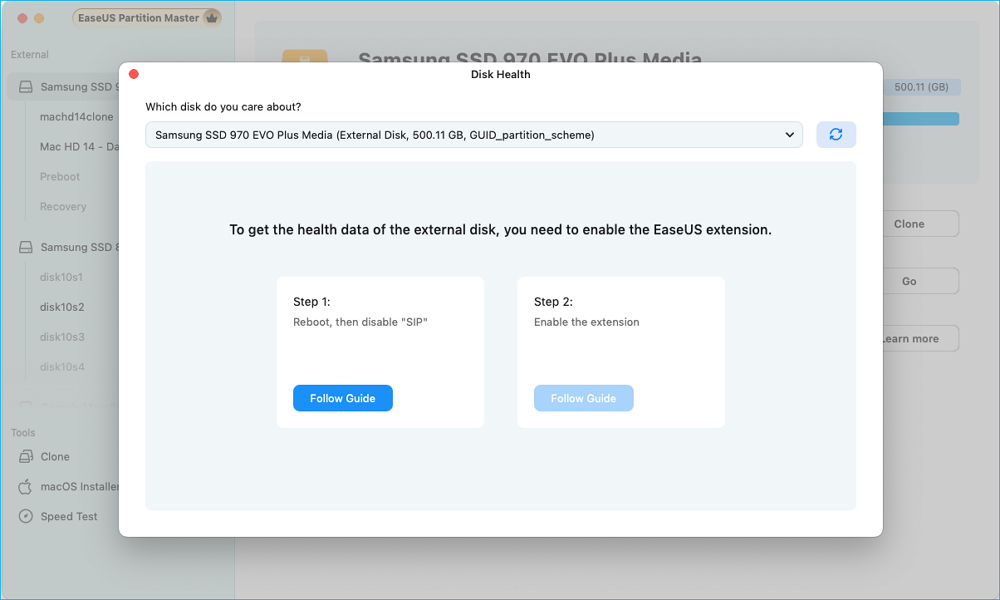
Step 3. In the new window, you'll be prompted to enable the EaseUS extension. Click the "Follow Guide" buttons below to get the detailed steps of each.
- 1: Restart Mac to Recovery Mode and allow user management kernel extension in Recovery mode.
- 2: Install the extension and click "Allow" in your Privacy & Security.
Step 4. Once you've completed the installation, the option will presented as "Disk health is valid." Then, click "S.M.A.R.T" to check your disk health.
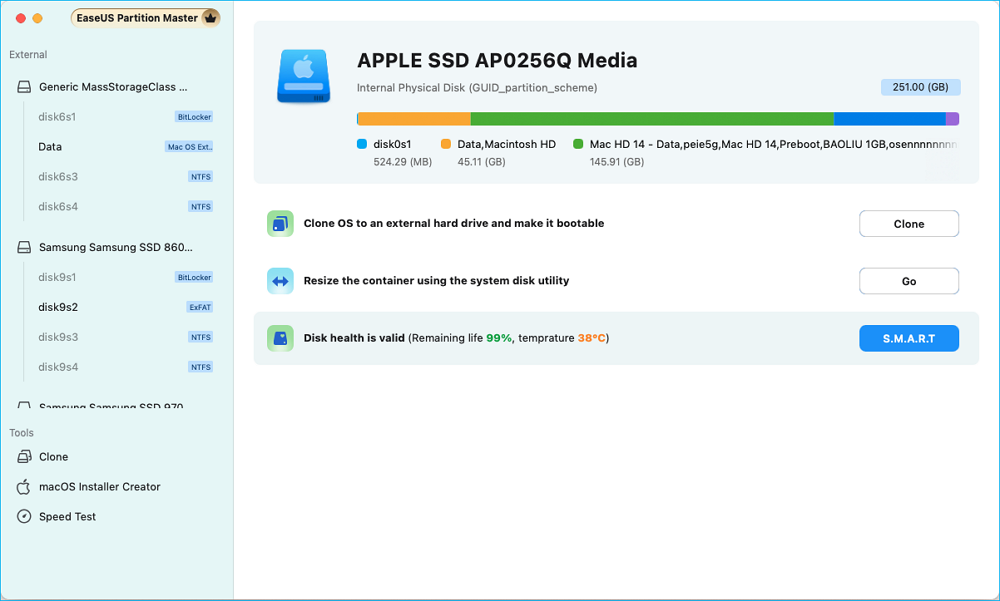
Step 5. Then, the health condition of your disk will be presented on the new window.
2️⃣Monitor SSD Health on Windows
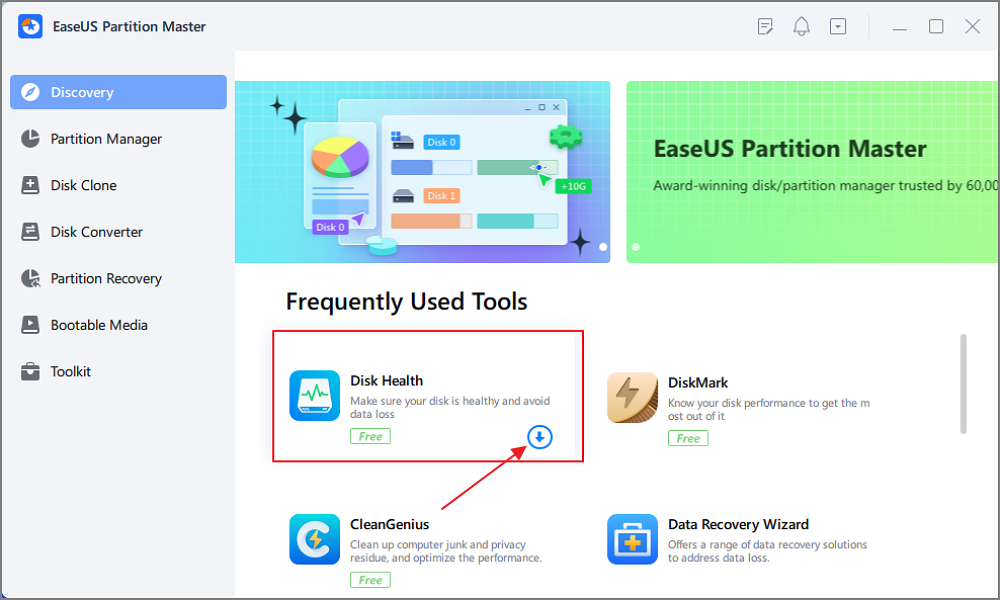
Step 1. Launch EaseUS Partition Master and click the blue arrow to activate the "Disk Health" feature under the "Discovery" section.
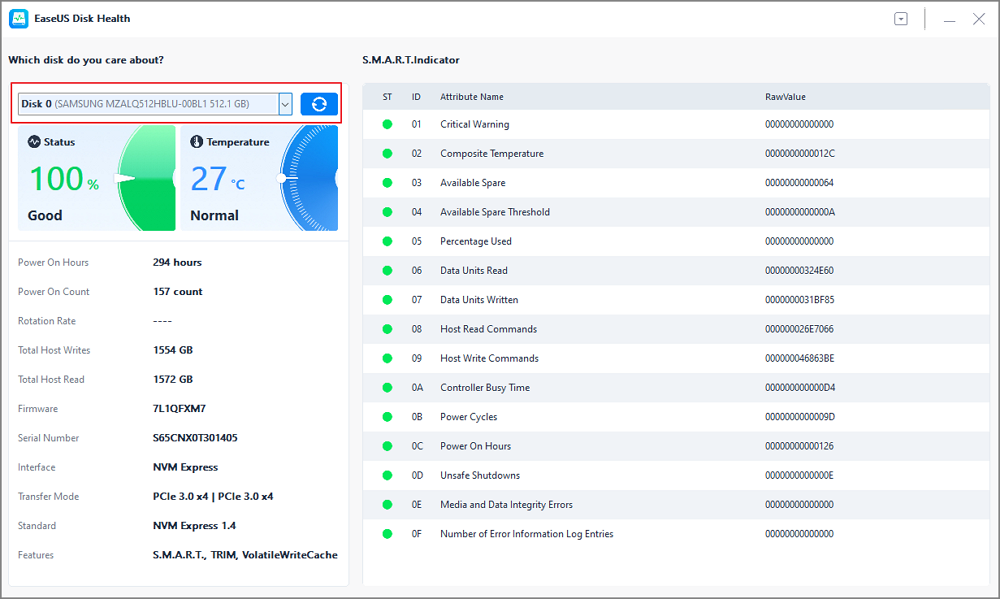
Step 2. Select the target disk and click the "Refresh" button. Then, you can see the health condition of your disk.
Conclusion
The discussion around AI tools and SSD wear is ultimately not about a single application or a single bug. It is about visibility. Modern AI-powered workflows can introduce storage behaviors that many developers never needed to think about before. Repository indexing, caching, local databases, and agent logging all contribute to disk activity that may not be obvious from the user interface alone. For most users, these workloads are unlikely to cause immediate SSD problems. However, understanding how much data is being written and occasionally checking SSD health can provide a clearer picture of how your system is being used.
As AI-assisted development becomes more common, monitoring storage activity may become as routine as checking CPU usage, memory consumption, or network performance.
FAQs About How AI Tools Affect SSD
1. Can AI tools damage an SSD?
Most AI tools are unlikely to damage an SSD during normal use. However, some AI-assisted workflows can generate additional disk activity through repository indexing, caching, logging, and local databases. SSD wear depends on total write volume over time rather than the use of any single AI application.
2. Do AI coding assistants write data to local storage?
Yes, many AI coding assistants store some data locally. Depending on the product, this may include cache files, search indexes, temporary data, workspace metadata, logs, or conversation history. The amount of local storage activity varies significantly between tools and configurations.
3. How much SSD write activity is considered normal?
There is no universal number that applies to every system. SSD write activity depends on workload, hardware, and software usage. Developers running virtual machines, local databases, AI tools, or large repositories may generate substantially more writes than typical office users while still operating within normal SSD endurance limits.
4. What is SSD write amplification?
SSD write amplification occurs when the amount of data physically written to NAND flash memory exceeds the amount originally requested by the operating system. This happens because SSDs perform background operations such as garbage collection, wear leveling, and block management. Higher write amplification can increase overall SSD wear.
5. How can I check SSD health in Windows?
You can check SSD health by reviewing SMART data, drive temperature, health status, and total host writes. Windows provides limited storage health information, while dedicated disk management tools such as EaseUS Partition Master can display SSD health metrics and SMART attributes in a more accessible format.
6. Does repository indexing increase SSD wear?
Repository indexing can increase disk activity because the software must scan files, build search indexes, and update metadata when projects change. For most developers, the impact is relatively small. However, large repositories that are indexed frequently may generate noticeably more writes than traditional file editing workflows.
How Can We Help You
About the Author

Updated by Larissa
Larissa has rich experience in writing technical articles and is now a professional editor at EaseUS. She is good at writing articles about data recovery, disk cloning, disk partitioning, data backup, and other related knowledge. Her detailed and ultimate guides help users find effective solutions to their problems. She is fond of traveling, reading, and riding in her spare time.

Sherly joined EaseUS in 2022 and she has always loved writing articles and enjoys the fun they bring. She receives professional training here, focusing on product performance and other relative knowledge. She has written over 200 articles to help people overcome computing issues.
Product Reviews
-
I love that the changes you make with EaseUS Partition Master Free aren't immediately applied to the disks. It makes it way easier to play out what will happen after you've made all the changes. I also think the overall look and feel of EaseUS Partition Master Free makes whatever you're doing with your computer's partitions easy.
Read More -
Partition Master Free can Resize, Move, Merge, Migrate, and Copy disks or partitions; convert to local, change label, defragment, check and explore partition; and much more. A premium upgrade adds free tech support and the ability to resize dynamic volumes.
Read More -
It won't hot image your drives or align them, but since it's coupled with a partition manager, it allows you do perform many tasks at once, instead of just cloning drives. You can move partitions around, resize them, defragment, and more, along with the other tools you'd expect from a cloning tool.
Read More
Related Articles
-
CHKDSK Not Working in Windows 11/10/8/7? Fix It Now!
![author icon]() Tracy King/2026/10/23
Tracy King/2026/10/23 -
Best Disk Partition Manager for Mac in 2026
![author icon]() Cici/2026/10/22
Cici/2026/10/22 -
Windows 10 Repair Tool Free Download | How-to Guide
![author icon]() Sherly/2026/10/23
Sherly/2026/10/23 -
Top 7 Windows 11 Password Reset Tools - Checklist
![author icon]() Sherly/2026/10/22
Sherly/2026/10/22
 Tracy King/2026/10/23
  Cici/2026/10/22









