







Content
Page Table of Contents
About the Author
Hot Topics
exFAT is a modern file system that supports large files (over 4GB) and large partitions. Many users face problems when working with large files on FAT32 USB drives or external disks. FAT32 file system has a 4GB file size limit. It can be an issue when transferring HD videos, system images, or game files.
If you want to format your FAT32 drive to exFAT without data loss, you have come to the right place. This guide shows four ways to convert FAT32 to exFAT without losing data.
So I have a 2tb external hard drive. It's formatted in fat 32 but I want it to be exfat. I was wondering if there's a way I can change my hard drive to exfat without formatting it and losing all my data. - From Reddit.
Why Do You Convert FAT32 to exFAT?
FAT32 and exFAT are both popular file systems. You may need to convert FAT32 to exFAT for these reasons. FAT32 cannot handle files larger than 4GB. It limits partitions to 32GB when using Windows tools. However, exFAT supports drives up to 128PB. It works perfectly on Windows, macOS, Android, PS5, Xbox, and TVs. exFAT also offers faster read and write speeds. In short, exFAT is the modern choice for large files and cross-device compatibility.
Which file system is more suitable for you? Below is a comparison table of common file systems.
| Feature | FAT32 | exFAT | NTFS |
| Typical use | Older USB drives, memory cards | Modern USB drives, SD cards, external storage | Internal hard drives and SSDs for Windows |
| Max single file size | 4 GB | Up to 16 EB | Very large |
| Max partition size | Up to several TB | Up to about 128 PB | Up to about 256 TB on MBR, much larger on GPT |
| Compatibility | Windows; read/write on macOS; read/write on Linux with drivers | Windows; read/write on modern macOS; read/write on Linux with drivers | Best on Windows; read-only by default on macOS (write needs extra software); read/write on Linux |
| Ideal media | Small/older devices, high compatibility | Flash drives and large removable storage | System drives, internal disks, advanced storage |
| Performance | Good on small volumes, weak for big files | Good for large files on flash storage | Strong, especially with many small files |
All-in-one Solution to Convert FAT32 to exFAT Without Losing Data
When converting file systems, data safety should come first. Many Windows tools require formatting, which means you could lose your files during the process. EaseUS Partition Master is the most trusted tool for this job. The latest version of EaseUS Partition Master now fully supports exFAT conversion and management. It converts FAT32 to exFAT in one click and protects your data.
This professional partition manager can convert FAT32 to exFAT directly without formatting. It provides clear instructions, built-in safety checks, and a simple interface. You can also back up or resize partitions, clone drives, and fix disk errors with just a few clicks.
Here is how to convert FAT32 to exFAT without losing data with EaseUS Partition Master.
Step 1. Install and launch EaseUS Partition Master on your computer.
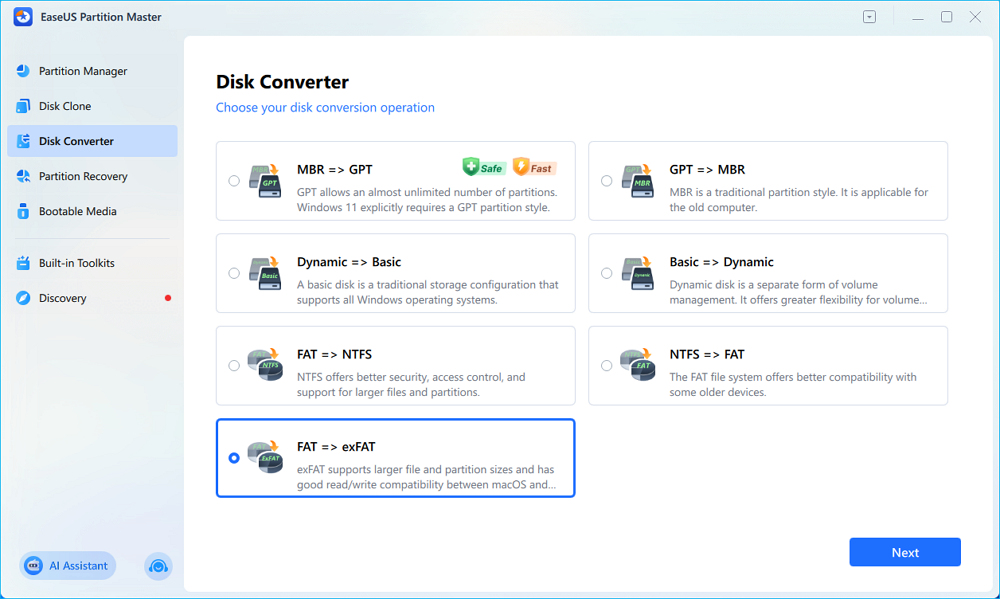
Step 2. In the "Disk Converter" window, select "FAT => exFAT" and click "Next."
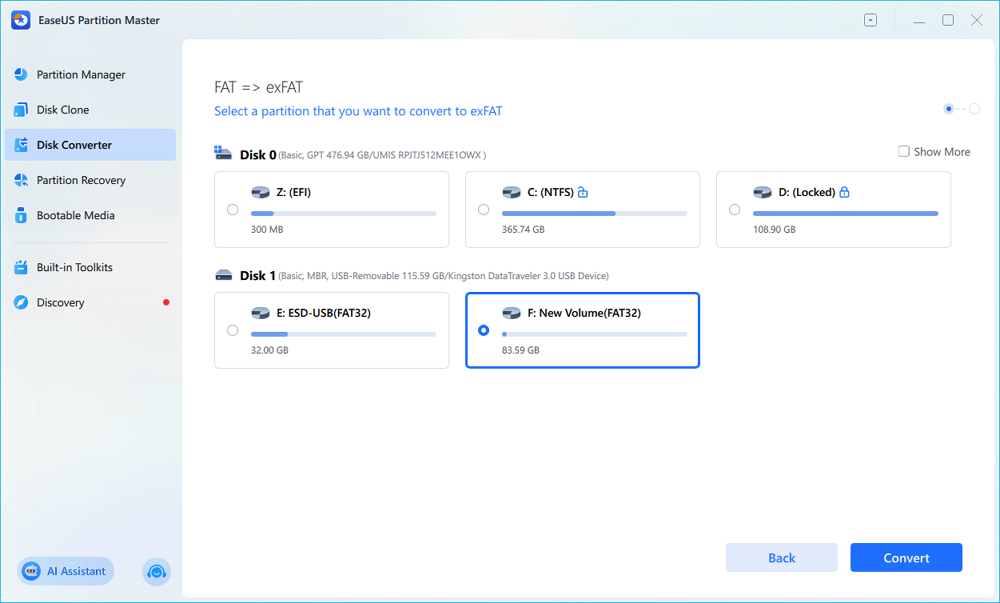
Step 3. In the new window, choose the partition you want to format to exFAT, and click "Convert."
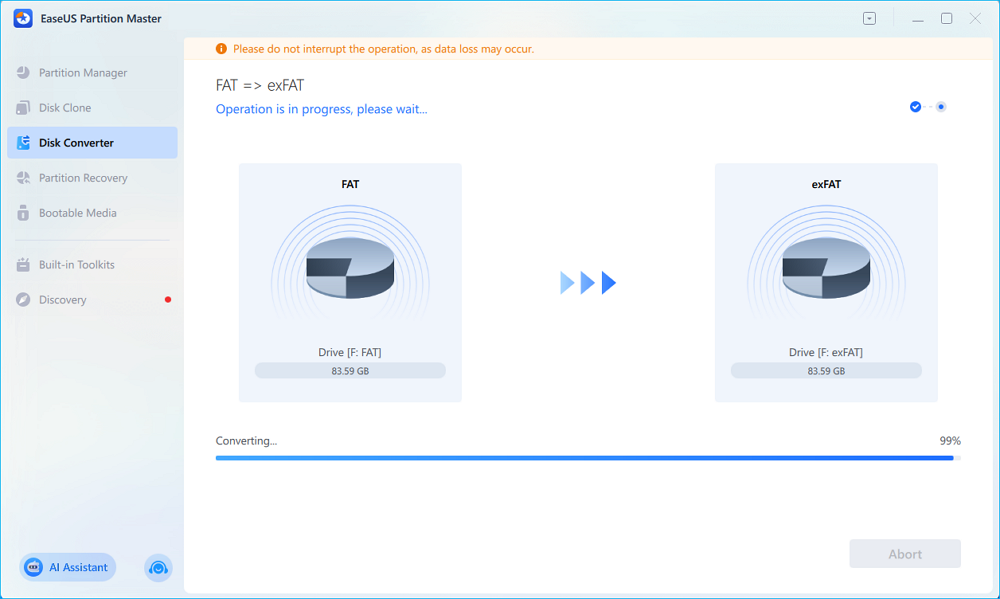
Step 4. During the process, do not interrupt the operation or turn off the program. Wait for it to finish, click "Done," and you can see the FAT32 partition has been switched to exFAT.
- Convert FAT32 to exFAT without formatting or data loss
- Convert NTFS to exFAT; convert exFAT to NTFS/FAT32
- Resize/move, merge, split, create, delete, format partitions
- Migrate OS to SSD/HDD without reinstalling Windows
Convert FAT32 to exFAT Without Data Loss Manually
If you prefer to handle the process yourself, Windows includes several built-in tools to reformat your drive to exFAT. But before starting, create a backup of your files to prevent data loss.
🏷️Phase 1. Create a Backup of your device
Always back up your files first. You can copy them manually to another drive or use a tool like EaseUS Partition Master for a faster, full backup. Once your data is secure, move on to conversion.
🏷️Phase 2. Convert FAT32 to exFAT
Now that your data is safe, it's time to convert your FAT32 drive to exFAT. Windows offers three built-in options - File Explorer, Disk Management, and DiskPart.
Way 1. Convert FAT32 to exFAT via File Explorer
In File Explorer, you can quickly convert FAT32 to exFAT. This is the fastest method. But it removes all data unless you've backed it up in advance. Here is how to convert FAT32 to exFAT.
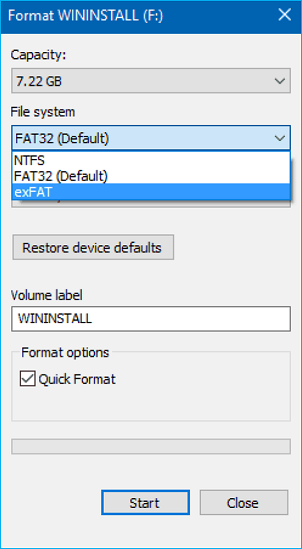
Step 1. Open File Explorer and right-click your drive. Then, select Format.
Step 2. Choose exFAT for the File System.
Step 3. Click Start.
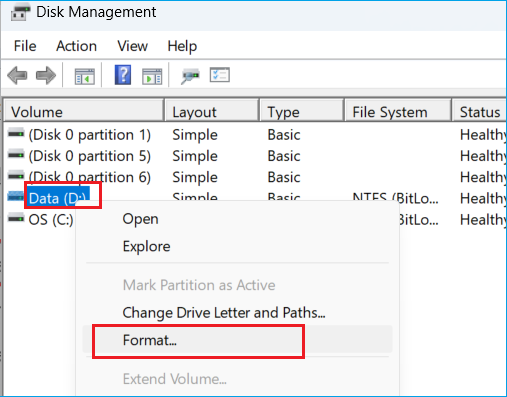
Way 2. Convert FAT32 to exFAT using Disk Management
Disk Management gives more control over volume sizes and drive labels. You can also use Disk Management to convert FAT32 to exFAT. This method requires formatting. How to do:
Step 1. Press Win + X and open Disk Management.
Step 2. Right-click your FAT32 partition, and then select Format.
Step 3. Choose exFAT as the file system, and click OK.
Way 3. Convert FAT32 to exFAT in DiskPart
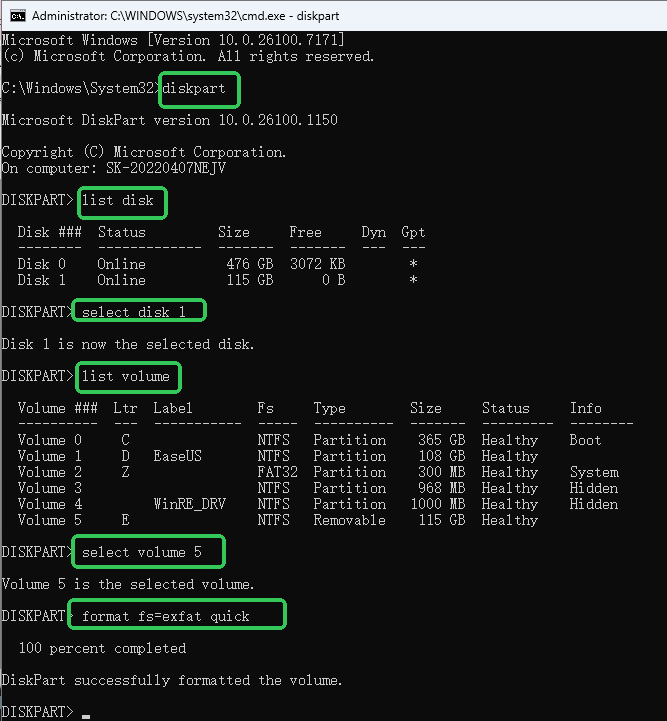
DiskPart is powerful and direct but should be used with care. A single mistaken command can delete data permanently.
Step 1. Type "cmd" in the Windows search bar, then right-click Command Prompt. Select Run as administrator.
Step 2. Input the following commands:
- diskpart
- list disk
- select disk X (replace X with your disk number)
- list volume
- select volume Y (replace Y with your volume number)
- format fs=exfat quick
- exit
- Tip
- After the format conversion, you can restore the data to your device using your backup. Then, you will not lose your data during exFat conversion.
Conclusion
FAT32 is reliable but outdated for today's storage needs. Converting to exFAT allows you to store larger files, improve performance, and keep compatibility across operating systems. This guide offers four ways to convert FAT32 to exFAT without losing data. To ensure no data loss, using EaseUS Partition Master is the safest and most efficient method. It can convert your drive from FAT32 to exFAT without formatting. If you prefer manual options, Windows utilities like File Explorer, Disk Management, or DiskPart work well. Always back up important data before you convert the file system.
FAQs on How to Convert FAT32 to exFAT
1. Can you reformat a USB drive without losing data?
Usually, normal reformatting always deletes everything. You can back up the data, format the drive, and then restore the data to avoid any actual loss. To switch to exFAT and keep your files, use third-party software like EaseUS Partition Master. It converts FAT32 to exFAT directly, without formatting or data loss.
2. Can I resize an exFAT partition?
Yes, you can resize an exFAT partition. EaseUS Partition Master fully supports resizing, moving, merging, and splitting exFAT partitions. Windows Disk Management cannot resize exFAT, so you need a dedicated tool.
3. How to change USB to exFAT without formatting?
If you want to change a USB to exFAT without formatting, you can use an exFAT tool like EaseUS Partition Master. It helps change your USB to exFAT without formatting.
Share these methods to convert FAT32 to exFAT on:

How Can We Help You
About the Author

Sherly joined EaseUS in 2022 and she has always loved writing articles and enjoys the fun they bring. She receives professional training here, focusing on product performance and other relative knowledge. She has written over 200 articles to help people overcome computing issues.

Written by Joey Albert
Joey is an enthusiast of science and technology. With a passion for uncovering the latest tech innovations, she creates clear, engaging how-to guides that make technology accessible and enjoyable for all.
Product Reviews
-
I love that the changes you make with EaseUS Partition Master Free aren't immediately applied to the disks. It makes it way easier to play out what will happen after you've made all the changes. I also think the overall look and feel of EaseUS Partition Master Free makes whatever you're doing with your computer's partitions easy.
Read More -
Partition Master Free can Resize, Move, Merge, Migrate, and Copy disks or partitions; convert to local, change label, defragment, check and explore partition; and much more. A premium upgrade adds free tech support and the ability to resize dynamic volumes.
Read More -
It won't hot image your drives or align them, but since it's coupled with a partition manager, it allows you do perform many tasks at once, instead of just cloning drives. You can move partitions around, resize them, defragment, and more, along with the other tools you'd expect from a cloning tool.
Read More
Related Articles
-
Disk Read Only Fix: How to Change Drive from Read Only to Read Write (5 Ways)
![author icon]() Daisy/2026/09/14
Daisy/2026/09/14 -
Disk Benchmark Software Free Download for Windows
![author icon]() Joey Albert/2026/09/13
Joey Albert/2026/09/13 -
How to Format Hard Drive from Bootable USB
![author icon]() Brithny/2026/09/21
Brithny/2026/09/21 -
How to Fix SSD Not Initialized Error - 5 Fixes with Guide
![author icon]() Sherly/2026/09/28
Sherly/2026/09/28
 Daisy/2026/09/14
  Brithny/2026/09/21









