







Content
Page Table of Contents
About the Author
Hot Topics
Windows 10 won't boot? Are you stuck on a black screen, BSOD, trapped in a startup loop, or seeing error messages that make little sense? That's scary, but don't worry. There are many ways to fix Windows 10 unable to boot properly. We've noticed that many users raise similar questions across forums:
|
Hi there, can someone possibly help? Win 10 won't start up. Really need help. Any help is very much appreciated - Learn Microsoft |
| I booted up the PC and got a message about downloading Windows features. After about 30 minutes, I got another message saying something like Windows could not install features. Undoing changes. And that's it. In 2 days, I have not been able to get any further than that. Tonight I was going to try starting the PC and shutting it down 3 times, but after the first start and forced shutdown, the PC went completely dead. And that's where I am at right now, with a completely dead PC. - HP |
|
Hi everyone. So I recently finished building my PC, I installed Windows 10 (Via a 8GB USB) everything seems to be looking fine, but when I shut down the PC and reboot it, I can't get into Windows 10 boot. However, restarting the system and accessing the BIOS and interacting with it is fine but can't get back into Windows 10. - r/buildapc |
This guide helps you find the causes of Windows 10 not booting error and provides 13 fixes to boot up your PC properly.
Why Won't Windows 10 Boot Up?
Before jumping into fixes, it's important to understand why Windows 10 may fail to start. Boot issues are usually caused by a combination of software conflicts, corrupted system files, or hardware-related problems.
⚒️Common Reasons Windows 10 Fails to Boot
- Corrupted system or boot files: Sudden power loss, forced shutdowns, or disk errors can damage critical boot files.
- Failed or incompatible Windows updates: Some updates may conflict with drivers or system configurations.
- Incorrect BIOS/UEFI settings: Wrong boot mode, boot order, or disabled system disks can prevent startup.
- Disk errors or failing hard drive/SSD: Bad sectors or file system corruption can stop Windows from loading.
- Malware or virus infections: Malicious software can alter boot records or system files.
- Driver conflicts: Especially after hardware changes or driver updates.
If this article helps you resolve your issue, consider sharing it with others who may be facing similar Windows 10 boot problems.

⚠️ Quick Checks Before You Begin
Before applying any fixes below, perform these basic checks to rule out obvious causes:
- Check hardware power: If there are no indicator lights, fan noise, or signs of power, inspect the battery, power cable, and charger. This may indicate a power supply or motherboard failure, which usually requires professional repair.
- Remove external devices: Disconnect USB drives, external hard drives, printers, docking stations, and extra monitors. These peripherals can sometimes interfere with the Windows boot process. Restart the PC and see if the issue changes.
How to Fix Windows 10 Won't Boot Error - 13 Fixes
If Windows 10 still won't start after basic checks, work through the following fixes in order. Start with simpler methods and move on only if the problem persists. Some steps involve system-level changes, so follow each instruction carefully.
Fix 1. Run Startup Repair
Startup Repair is a built-in Windows recovery tool designed specifically for this scenario. It automatically scans boot configuration data, system files, and startup settings, then attempts to repair them without affecting your personal files.
- 🚩What you need to know before starting: Startup Repair works from the Windows Recovery Environment (WinRE). If Windows cannot boot normally, you may need to interrupt the startup process multiple times to access it.
Step 1. Turn on your PC and interrupt the boot process 2–3 times by holding the power button when Windows starts loading.
Step 2. When the Automatic Repair screen appears, select Advanced options.
Step 3. Go to Troubleshoot > Advanced options > Startup Repair.
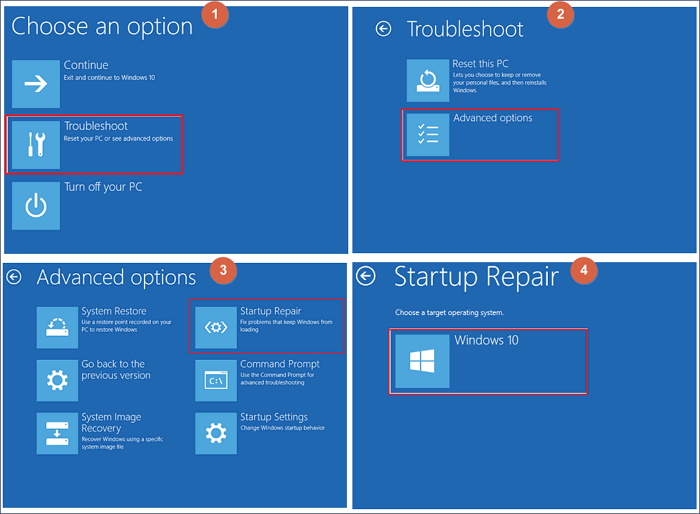
Choose your Windows account and enter your password if prompted. Wait while Windows diagnoses and repairs startup-related issues automatically.
Fix 2. Disable Fast Startup
Disabling Fast Startup forces Windows to perform a full, clean boot, which can resolve issues where the system gets stuck at the logo, black screen, or spinning dots. This method requires access to the Windows Recovery Environment and basic command-line input. The command used here disables hibernation-related features safely.
Step 1. Enter Advanced options from the Automatic Repair screen.
Step 2. Select Troubleshoot > Advanced options > Command Prompt.
Step 3. In the Command Prompt window, type the following command and press Enter:
powercfg -h off
Close the window and restart your computer. If disabling Fast Startup resolves the issue, consider sharing this guide to help others experiencing similar Windows 10 boot problems.
Fix 3. Uninstall Recent Windows Updates
Windows updates are intended to improve system stability and security, but in some cases, a buggy or incompatible update can prevent Windows 10 from booting properly. This is especially common when updates conflict with existing drivers or older hardware. Uninstalling the most recent update allows you to roll back changes without reinstalling Windows entirely.
Here is how to fix Windows 10 boot failure after update:
Step 1. From Advanced options, select Troubleshoot > Advanced options.
Step 2. Click Uninstall Updates. Choose Uninstall latest quality update or Uninstall latest feature update.
Restart your PC and check whether Windows boots normally.
Fix 4. Check BIOS/UEFI Settings
An incorrect BIOS or UEFI configuration is a common but overlooked reason why Windows 10 won't boot. Changes to boot mode, disabled system drives, or incorrect boot order can all prevent Windows from loading. So follow the steps below to check the BIOS/UEFI settings:
- Notice:
- Avoid changing unfamiliar settings, as incorrect values may cause further issues.
Step 1. Restart your PC and press F2, DEL, F12, or ESC repeatedly (key varies by manufacturer).
Step 2. Confirm that your system disk (HDD/SSD) is detected.
Step 3. Verify the correct boot mode (UEFI or Legacy) based on how Windows was installed.
Step 4. Set the Windows system drive as the first boot device and save changes and exit BIOS/UEFI.
Fix 5. Boot into Safe Mode
If Windows 10 fails to boot due to driver conflicts, incompatible software, or startup programs, Safe Mode can help. It loads Windows with only essential drivers and services, bypassing non-critical components. Safe Mode is particularly useful if your PC crashes after login, freezes at startup, or shows repeated blue screens.
Step 1. Go to Advanced options > Startup Settings > Click Restart.
Step 2. Press 4 or F4 to enable Safe Mode. (key varies by manufacturer).
Step 3. Uninstall recently added drivers, software, or updates that may be causing the issue.
Fix 6. Repair Boot Files
Boot files such as the Master Boot Record (MBR) and Boot Configuration Data (BCD) are essential for loading Windows. If these files are corrupted or missing, Windows 10 may not boot at all. Follow the instructions below to repair boot files:
Step 1. Open Command Prompt from Advanced options.
Step 2. Type the following commands one by one, pressing Enter after each:
- bootrec /fixmbr
- bootrec /fixboot
- bootrec /scanos
- bootrec /rebuildbcd
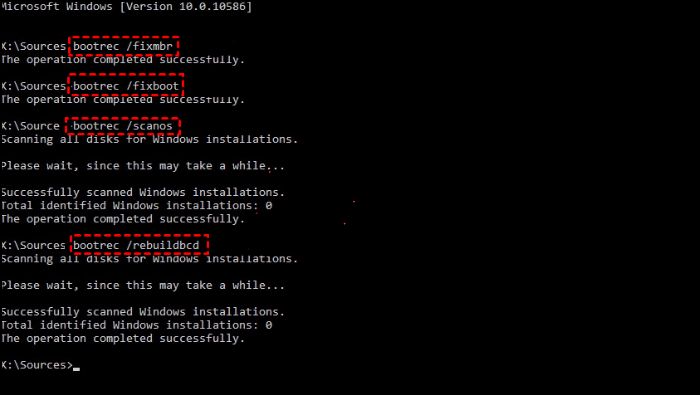
Restart your computer after the process completes.
Fix 7. Run Disk Check
File system corruption and bad sectors on your hard drive or SSD can prevent Windows 10 from starting. These issues often develop gradually due to aging hardware, improper shutdowns, or power failures. Running a disk check scans the drive for errors and attempts to repair them automatically.
💡Note: This scan may take a long time depending on disk size and damage severity. Do not interrupt the process.
Step 1. Open Command Prompt from Advanced options. Type the following command and press Enter:
- chkdsk C: /f /r
Step 2. Allow the scan to finish, then restart your PC.
Fix 8. Scan for Malware
Malware and viruses can modify system files, boot records, and registry settings, leading to Windows 10 boot failures. In some cases, security threats deliberately block system startup. Running a malware scan in a minimal environment helps detect and remove threats that a normal startup cannot handle.
Fix 9. Reassign Drive Letter
If your Windows 10 system has multiple drives installed, Windows 10 may fail to boot when the system partition loses its assigned drive letter or is assigned incorrectly. This issue often occurs after disk cloning, partition resizing, or connecting and disconnecting additional storage devices. You need to correctly identify the Windows system volume. Assigning a drive letter to the wrong partition can cause additional boot issues or data confusion.
Follow the steps below:
Open Command Prompt from Advanced options. Type the following commands in turn and follow each with Enter:
- diskpart
- list volume
- select volume 4 (replace 4 with the correct number)
- assign letter=H (Replace H with a letter you want)
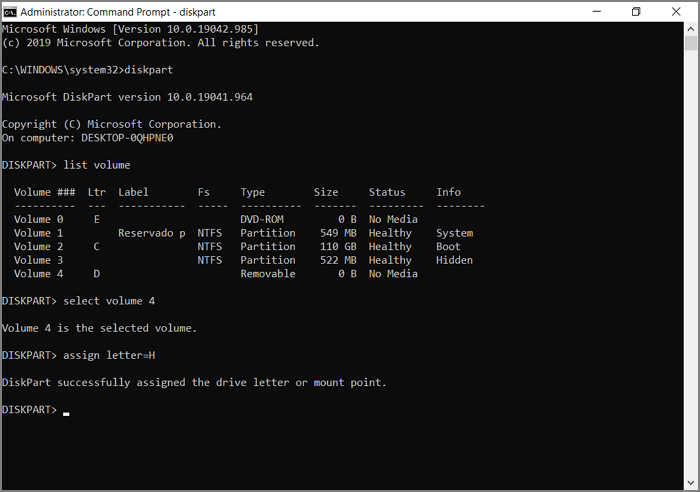
Share by clicking the buttons below to let more people learn how to reassign a new letter to fix Windows 10 startup failures.
Fix 10. Replace Windows 10 Boot Loader
If Windows 10 still won't boot after repairing boot files, the boot loader itself may be corrupted or misconfigured. This is common after setting up a dual-boot system, cloning disks, or interrupting Windows updates. The boot loader is responsible for telling your computer where Windows is installed and how to load it. Replacing it rebuilds the startup instructions without reinstalling the operating system.
Open Command Prompt from Advanced options. Run the following command:
- bcdboot C:\Windows
Restart your PC and check if Windows loads normally.
- Warning
- This method directly affects how your system starts. Make sure the Windows installation path is correct before proceeding, especially on systems with multiple operating systems or drives.
Fix 11. Reset This PC
When Windows 10 refuses to boot due to deep system corruption, resetting the PC can be an effective last-resort solution before reinstalling Windows from scratch.
What you should know:
Installed applications will be removed. This option is best used when repair tools fail but your disk and hardware are still functioning properly.
Steps:
Go to Troubleshoot > Reset this PC > Choose Keep my files.
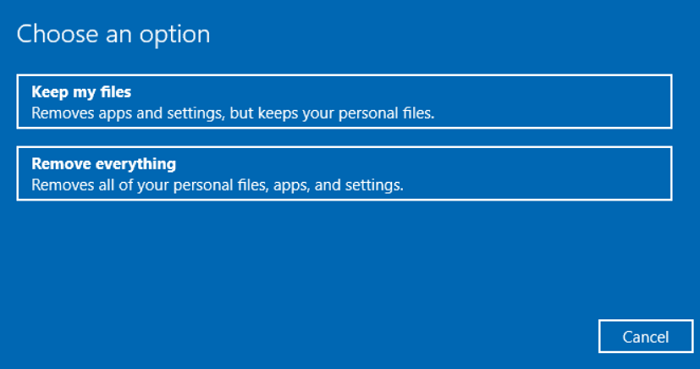
Follow the on-screen instructions to complete the reset and see if Windows 10 can boot properly.
Fix 12. Use System Restore
If Windows 10 worked correctly in the past, System Restore allows you to roll the system back to a previous stable state. This method is especially useful after installing updates, drivers, or software that caused boot failures. System Restore only affects system files and settings; it does not delete personal data, making it one of the safer recovery options.
Requirement:
System Restore must have been enabled before the boot issue occurred. If no restore points exist, this option will not be available.
Step 1. Select Troubleshoot > Advanced options > System Restore.
Step 2. Choose a restore point created before the Windows 10 boot failure. Confirm and wait for the restoration process to finish.
Fix 13. Use Installation Media
If Windows 10 cannot boot and built-in recovery options are unavailable or ineffective, using Windows installation media provides access to advanced repair tools. A bootable USB allows you to enter the Windows Recovery Environment even when the internal recovery system is damaged.
What you need:
Another working PC and a USB drive with at least 8GB of storage.
Step 1. Create a Windows 10 installation USB using Microsoft's Media Creation Tool on another PC.
Step 2. Boot the affected Windows 10 PC from the USB drive.
Step 3. Select Repair your computer instead of Install.
Step 4. Use Startup Repair, Command Prompt, or System Restore as needed.
Repair Windows 10 Unable to Boot Error Automatically
Manually troubleshooting can be time-consuming and error-prone, especially for non-technical users. EaseUS Partition Master provides automated system startup repair features, addressing common Windows boot failure scenarios such as boot loops, freezing on the loading screen, system crashes, boot errors, and failure to reach the desktop.
It detects system partitions, boot records, and critical startup files, repairing the core issues that prevent Windows from starting or loading properly. This makes it ideal for users unfamiliar with BIOS, BCD, or command-line operations.
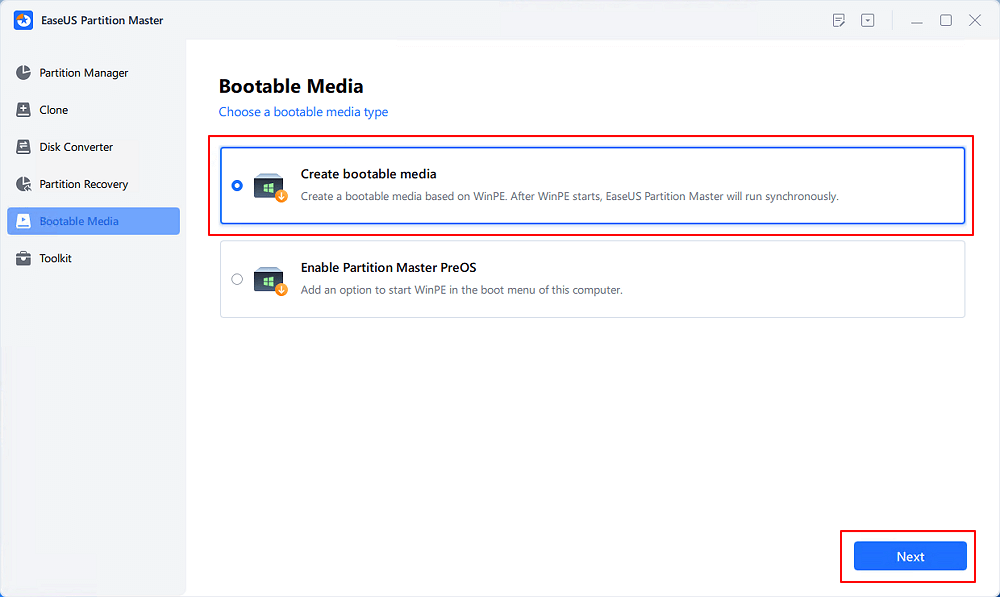
Step 1. Start EaseUS Partition Master after connecting the external drive/USB to your computer, go to "Bootable Media," and click "Create bootable media."
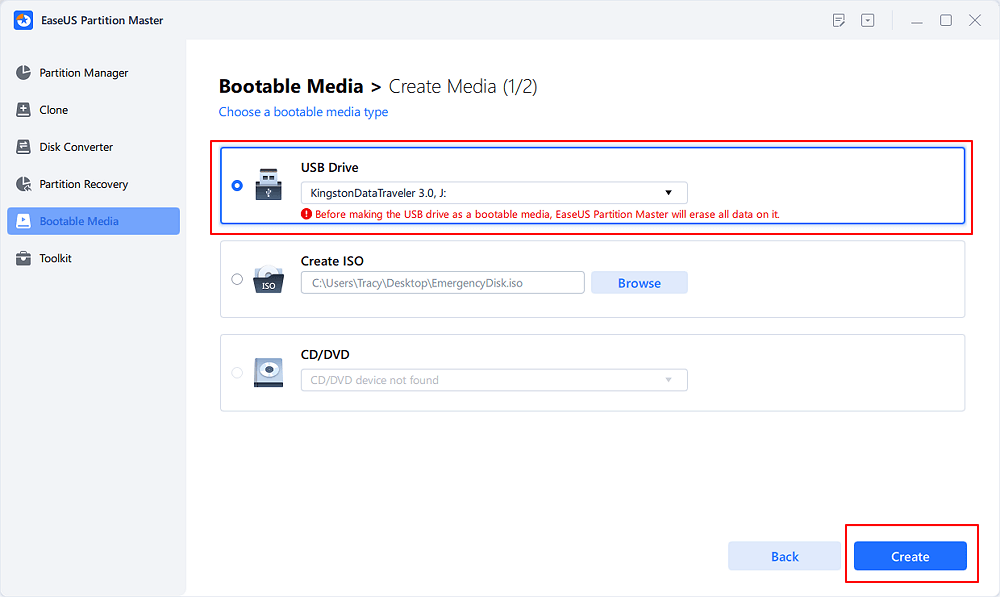
Step 2. Select an available USB Drive or CD/DVD and click "Create." You can also burn the Windows ISO file to the storage media.
Step 3. Connect the created bootable drive to the new computer and reboot the computer by pressing and holding F2/Del to enter the BIOS. Then, set the WinPE bootable drive as the boot disk and press F10 to exit.
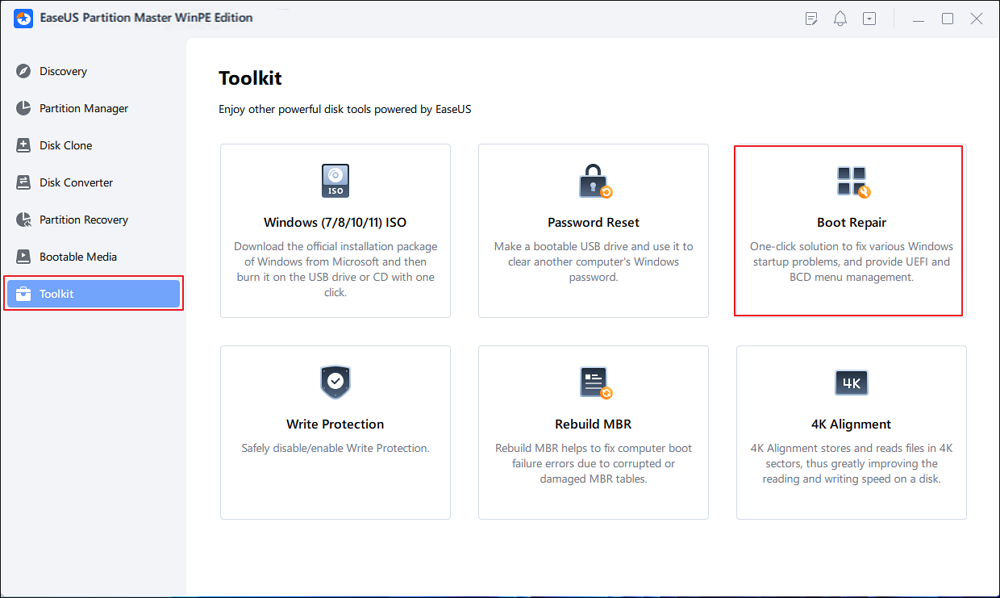
Step 4. Boot the computer again and enter the WinPE interface. Then, open EaseUS Partition Master and click "Boot Repair" under the "Toolkit" option.
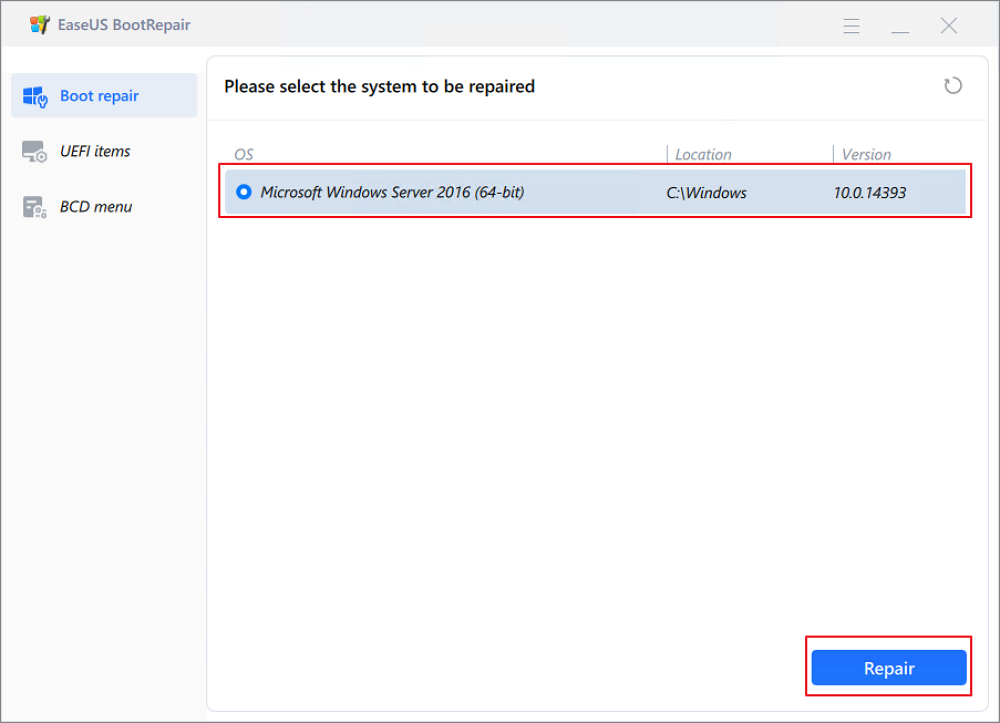
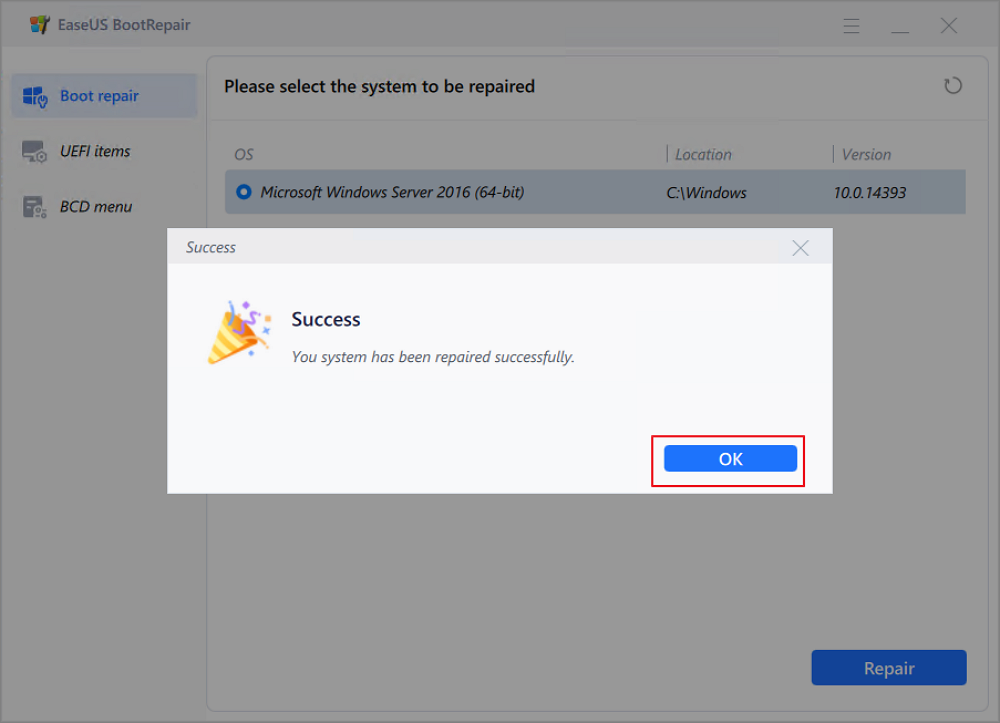
Step 5: Select the system you want to repair and click "Repair."
Step 6. Wait a moment, and you will receive an alert that the system has been successfully repaired. Click "OK" to complete the boot repair process.
5 Tips to Avoid Windows 10 Boot Failure
When Windows 10 won't boot, identifying the cause can be frustrating and time-consuming. If you want to avoid encountering the same startup problem again, proactive system maintenance is essential. The following tips help keep your PC stable and reduce the risk of future boot failures.
1. Update BIOS Regularly
Keeping your BIOS up to date is critical for system stability. BIOS updates often fix hardware compatibility issues and firmware-level bugs that can prevent Windows from booting. Always follow the manufacturer's official instructions, as incorrect BIOS updates may cause serious system damage.
2. Keep Device Drivers Updated
Outdated or incompatible drivers are a common cause of Windows startup issues. Ensure all device drivers are up to date, and keep reliable antivirus software running in the background. Malware and malicious drivers can corrupt system files and block the boot process.
3. Create System Restore Points Frequently
System Restore points allow you to quickly revert Windows to a previously working state after updates or software changes. This can save significant time and effort when troubleshooting boot-related problems.
4. Avoid Sudden Power Loss and Forced Shutdowns
Unexpected power outages and forced shutdowns can corrupt boot files and system data. Using a UPS for desktop PCs and avoiding hard power-offs whenever possible helps protect system integrity.
5. Monitor Disk Health and Free Space
Failing drives and insufficient disk space increase the likelihood of boot errors. Regularly check disk health, clean up unnecessary files, and replace aging HDDs or SSDs before they fail completely.
Following these practices and maintaining your system regularly can greatly reduce the chances of Windows 10 failing to boot again.
Conclusion
When Windows 10 won't boot, the issue is often caused by corrupted system files, failed updates, disk errors, or configuration problems. By following a structured troubleshooting process, from built-in recovery tools to advanced repair methods, you can usually restore your system without losing data. For complex or recurring failures, automated boot repair tools provide a faster alternative. Regular maintenance and backups remain the most reliable way to prevent future startup issues.
FAQs About Windows 10 Not Booting
Q1. Why won't Windows 10 boot after an update?
Some Windows updates conflict with existing drivers or hardware configurations. Rolling back the update, disabling Fast Startup, or using System Restore often resolves the issue without reinstalling Windows.
Q2. Can Windows 10 boot issues be fixed without data loss?
Yes. Startup Repair, Safe Mode, System Restore, and Reset with "Keep my files" are designed to repair boot problems while preserving personal data.
Q3. What causes Windows 10 to get stuck in a boot loop?
Boot loops are commonly caused by corrupted boot files, failed updates, or driver conflicts. Startup Repair, boot file repair, or disabling Fast Startup can usually break the loop.
Q4. Is a failing hard drive a common reason Windows won't boot?
Yes. Bad sectors, file system corruption, or aging drives can prevent Windows from loading. Running disk checks or replacing the drive may be necessary.
Q5. When should I use third-party boot repair software?
Third-party tools are helpful when built-in Windows recovery options fail or feel too complex. Always choose reputable software from trusted vendors and avoid unknown repair utilities.
How Can We Help You
About the Author

"I hope my articles can help solve your technical problems. If you are interested in other articles, you can check the articles at the bottom of this page. Similarly, you can also check my Twitter to get additional help."

Sherly joined EaseUS in 2022 and she has always loved writing articles and enjoys the fun they bring. She receives professional training here, focusing on product performance and other relative knowledge. She has written over 200 articles to help people overcome computing issues.
Product Reviews
-
I love that the changes you make with EaseUS Partition Master Free aren't immediately applied to the disks. It makes it way easier to play out what will happen after you've made all the changes. I also think the overall look and feel of EaseUS Partition Master Free makes whatever you're doing with your computer's partitions easy.
Read More -
Partition Master Free can Resize, Move, Merge, Migrate, and Copy disks or partitions; convert to local, change label, defragment, check and explore partition; and much more. A premium upgrade adds free tech support and the ability to resize dynamic volumes.
Read More -
It won't hot image your drives or align them, but since it's coupled with a partition manager, it allows you do perform many tasks at once, instead of just cloning drives. You can move partitions around, resize them, defragment, and more, along with the other tools you'd expect from a cloning tool.
Read More
Related Articles
-
How to Fix Dell Inaccessible Boot Device Error | 5 Solutions
![author icon]() Oliver/2026/06/17
Oliver/2026/06/17 -
Solved - Windows Not Booting After Installing New SSD
![author icon]() Sherly/2026/06/30
Sherly/2026/06/30 -
[Fixed] BitLocker Backup Recovery Key Option Missing
![author icon]() Shelly/2026/06/17
Shelly/2026/06/17 -
How to Fix ASUS Unmountable Boot Volume in Windows
![author icon]() Oliver/2026/06/17
Oliver/2026/06/17
 Oliver/2026/06/17









