





 About the Author
 Reviews and Awards
 Mac SD Card Recovery
You can recover unsaved Excel files on Mac. Excel's AutoRecover saves temporary backups every 10 minutes. If you act before those temp files are overwritten, avoid unnecessary restarts or new file saves. You have a high chance of full recovery. Priority: AutoRecovery folder > Terminal TMPDIR > Time Machine > Professional recovery tool.
You've just spent three hours refining a financial model, and then Excel crashes, or worse, you absent‑mindedly click "Don't Save". The panic is real. But here's the reassuring truth: most unsaved Excel files on a Mac are recoverable, even if AutoRecovery seems empty at first glance.
Based on extensive testing (macOS Sequoia, Excel 365, M2/M3 chips), we've ranked the best recovery methods by success rate, difficulty, and suitability for different crash scenarios. No need to be a terminal wizard—just follow the steps below.
| ❓Core Issue | 💅Solution | Description | ✌️Rate |
| Recovering Unsaved Excel Files (App crash, closed without saving) | Recover from AutoRecovery Folder | Search for Excel's autosaved backup files in a specific path (~/Library/Containers/.../AutoRecovery). | ⭐⭐⭐ |
| Recover from Temporary Folder | Use Terminal to open the temp folder ($TMPDIR), look for temp files in TemporaryItems. | ⭐⭐⭐⭐ | |
| Restore from Time Machine Backup | Enter Time Machine, browse backup snapshots, restore the folder containing temp files or saved files. | ⭐⭐ | |
| Professional Data Recovery Software | Scans the disk at a low level to find residual temporary files and reconstruct them. | ⭐⭐⭐⭐ |
This post offers 6 reliable methods to help you recover unsaved Excel files on Mac and 3 ways to help you recover deleted/lost Excel files on Mac. If you happen to lose an unsaved Excel file or delete it by mistake on a Mac, stay calm and use any method to bring your lost Excel file back now.
🔎Quick Solution: Access Excel's AutoRecovery Folder
Excel for Mac (2016/2019/365) stores automatic backups every 10 minutes by default. Here's the exact path:
- 1. Open "Finder" > "Go" > "Go to Folder".
- 2. Paste the following path (depending on your Excel version):
~/Library/Containers/com.microsoft.Excel/Data/Library/Preferences/AutoRecovery - 3. Look for files that start with "AutoRecovery save of" – double‑click to open with Excel.
- 4. Once opened, click "File" > "Save As" to permanently save your recovered workbook.
💡 Pro tip: If the folder is empty, don't panic. Excel may have deleted the file because you clicked "Don't Save" or because a different version path was used.
Can You Really Recover an Unsaved Excel File on Mac
Before diving into the step-by-step methods, let's address the most pressing question: Is it actually possible to recover an Excel file you never saved? The short answer is yes.
Excel for Mac has a built-in AutoRecover feature that automatically saves temporary versions of your open files at regular intervals (by default, every 10 minutes). This means that even if Excel crashes, your Mac shuts down unexpectedly, or you accidentally close the file without saving, there's a high likelihood that a temporary backup exists. Additionally, macOS stores temporary files for active applications, which can be recovered if AutoRecover doesn't capture the file.
The success rate depends on a few factors: whether AutoRecover was enabled (it's on by default in Excel 2016 and later), how long you'd been working on the file before the loss, and whether you've closed other applications or restarted your Mac since the incident (restarting may overwrite temporary files). The key rule here is: act quickly. The sooner you try to recover the file, the higher the chance of success. Avoid opening new applications or saving new files to your Mac, as this can overwrite the temporary data you're trying to retrieve.
Recover Unsaved Excel Files on Mac Without Software (Built-in Methods)
Third-party data recovery tools should be your last resort, not because they're ineffective, but because macOS and Excel offer robust, free built-in solutions that work for most unsaved file cases. These methods are safe, easy to follow, and require no downloads or technical expertise. We recommend trying them in the order listed below, as they're ranked by success rate and simplicity.
1. Recover Unsaved Excel Files from Excel's AutoRecover Folder
Excel's AutoRecover is the first line of defense against losing unsaved files. This feature runs in the background while you work, creating temporary backup files of your open Excel spreadsheets. Even if you never clicked "Save" once, AutoRecover likely has a snapshot of your work stored in a hidden folder on your Mac.
AutoRecover is enabled by default in Excel 2016, Excel 2019, Excel 2021, and Microsoft 365 for Mac. It saves temporary files with names like "AutoRecovery save of [Filename].xlsx" or "AutoRecovery save of Book1.xlsx" (for new, unsaved files) at regular intervals. These files are stored in a dedicated folder, and we'll show you exactly how to find and open them.
Step-by-Step Guide to Access the AutoRecover Folder:
Step 1. Launch Finder on your Mac.
Step 2. Choose "Go" from the drop-down menu and then go to the Folder.
Step 3. Type the following command and hit Enter:

Step 4. Next, open the AutoRecovery folder and locate the file starting with "AutoRecovery save of." Then, select the item you wish to restore.

Pro tip: How to confirm AutoRecover is enabled?
To avoid future issues, check your Excel settings: Open Excel > Click "Excel" in the top menu bar > Select "Preferences" > Click "Save" > Ensure "Save AutoRecover info every X minutes" is checked (we recommend setting it to 5 minutes for maximum protection).
2. Find Unsaved Excel Files in macOS Temporary Folders
If AutoRecover didn't work, don't panic - macOS stores temporary files for all active applications, including Excel. These files are created when you open a new Excel spreadsheet and are often retained even if Excel crashes or closes unexpectedly. Unlike AutoRecover files, temporary files are stored in system-wide temporary folders, but they're still easy to find with a few simple searches.
When you open a new, unsaved Excel file, macOS creates a temporary file (with a ".tmp" extension) to store your progress. This file is usually deleted when you save the file normally or close Excel properly, but if Excel crashes or your Mac shuts down abruptly, the temporary file may remain. By searching for these temporary files, you can often retrieve your unsaved work.
Step-by-Step Guide to Find Temporary Excel Files:
Step 1. Go to "Applications" > "Utilities" > "Terminal".

Step 2. Type open $TMPDIR and press "Return" to open the Temporary files folder. Select the folder named "TemporaryItems".

Step 3. Find the unsaved Excel file under "TemporaryItems" and restore it.
Pro tips: Is the temporary file empty or corrupted?
This can happen if the file was only partially saved before the crash. Try opening it in Excel's "Open and Repair" mode: Open Excel > Click "File > Open" > Select the temporary file > Click the arrow next to "Open" > Select "Open and Repair" > Follow the prompts to fix the file.
No temporary files found?
If you restarted your Mac after the file loss, macOS may have deleted the temporary files (system temporary folders are cleared on restart). Move to the following method if this happens.
3. Recover Unsaved Excel Files Using Time Machine
This method is for a specific scenario: If you previously saved the Excel file (so it's not a brand-new, unsaved file) but then made changes and forgot to save them before Excel crashed or closed. Time Machine is macOS's built-in backup tool, and if it's enabled, it can restore previous versions of your saved files - including the version before you made the unsaved changes.
Time Machine takes regular backups of your Mac's files (by default, hourly for the past 24 hours, daily for the past month, and weekly for older files). If you saved the Excel file at least once before, Time Machine likely has a backup of that saved version - even if you didn't save the latest changes. This is a lifesaver if you've been working on a saved file for hours and forgot to save your updates.
Step-by-Step Guide to Restore with Time Machine:
Time Machine works by taking regular snapshots of your entire hard drive – including all those hidden system folders and temporary files. So even if the temporary AutoRecover file has been deleted from your Mac, a previous version of it is likely still sitting in a Time Machine backup from before you closed the document. Here is how you can do this:
Step 1. Locate and click the Time Machine icon and choose "Browse Time Machine Backups".

Step 2. Now, you can use the arrow to adjust the time to the point where your files are still there.
Step 3. Choose the file you want to recover and click "Restore" to get it back.

Pro tip:
If you're not sure where you saved the original file, use Time Machine's search feature: While in Time Machine, press Command + F (⌘+F) to search for the file name. This will show you all backups of that file across all folders.
When Built-in Methods Fail: Recover Excel File with Data Recovery Software
⭐Knowledge Center: Why can a data recovery tool restore unsaved files on Mac?
When you delete a file, your Mac doesn't erase it. Think of it like this—your Mac removes the file's "address" from its internal index and marks that space on the drive as available. But the original data? It stays put. It remains fully intact, right where it was, until new files come along and overwrite it.
EaseUS Data Recovery Wizard for Mac provides a specialized, effective, and safe method for macOS users to recover unsaved Excel files. Its ability to locate hidden temporary data, coupled with powerful reconstruction algorithms and a user-friendly preview system, makes it an excellent tool for rescuing invaluable, unsaved work from being permanently lost.
Other than unsaved Excel files, this Microsoft data recovery tool can also restore unsaved Word documents on Mac and fix errors like cannot save Excel files on Mac.
 Review:
- The program works well. I was able to recover 90% of my checkbook register that used Excel 2007 when my internal HDD started to fail on my old computer, as well as fix some indexing problems on some old movies I had. Support worked with me to transfer the program key to my replacement computer without a problem. from Trustpilot
- I accidentally reformatted my external hard drive and tried Disk Drill which I was able to recover 80% of my data and all disorganized. A day after that while browsing internet I saw the EaseUS and decided to try and was able to recover 100% of my files and organized before I had the accident. I'm very happy and I wish I could give them 10 stars. from Trustpilot
- I also appreciated the flexibility of Data Recovery Wizard, as it was able to recover files from a variety of storage devices including my hard drive, USB drive, and SD card. from Trustpilot
Download the software and follow the 3-step guide below to get your lost Excel files back on Mac:
Step 1. Select the disk
Launch EaseUS Data Recovery Wizard for Mac, hover the mouse over the device where you lost an unsaved file, and click "Search for lost files".

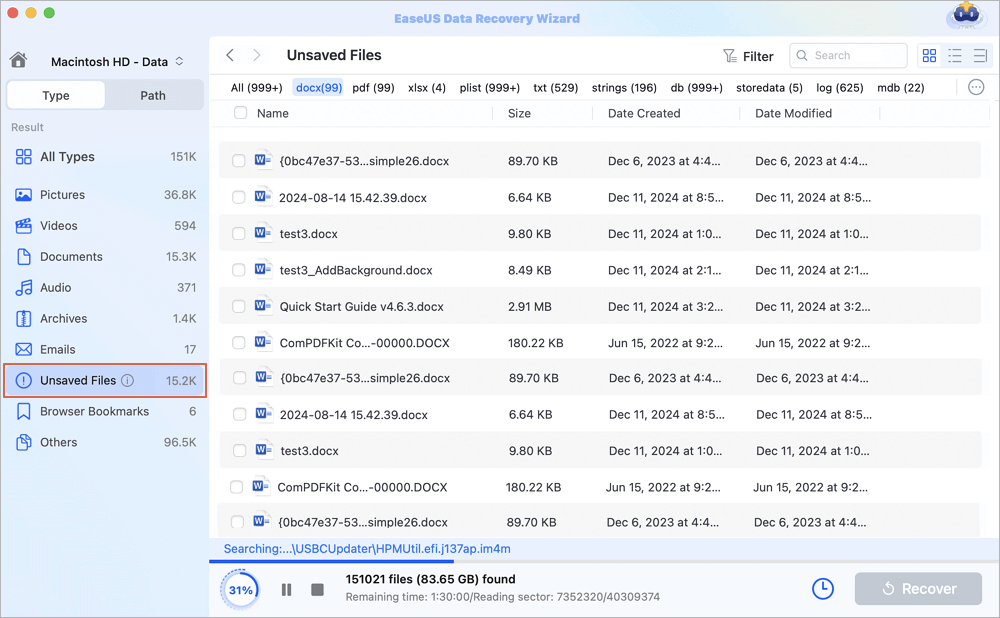
Step 2. Choose unsaved documents
After the scan, click "Type", and expand "Unsaved Documents". Click the exact file type - Word, Excel, Powerpoint, Keynote, Pages, or Numbers you lost without saving.
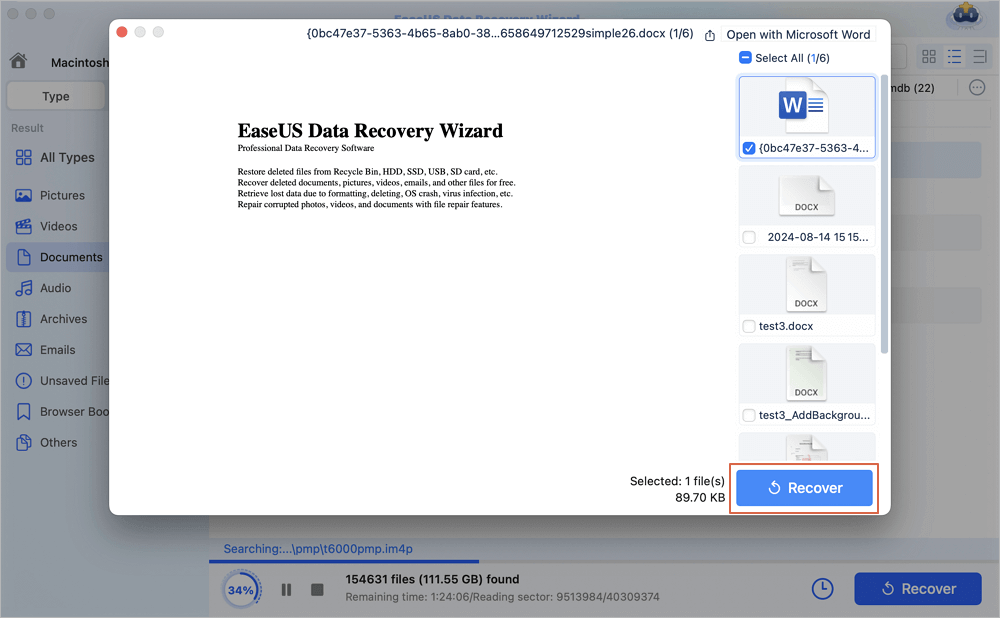
Step 3. Preview and recover unsaved files
Double-click to preview your unsaved file, select the right version and click "Recover" to save the file to another secure location on Mac.
Hope this video guide can make it easy for you to follow suit and recover Excel file not saved on Mac:
- 00:16 What causes Excel files not saved on your Mac
- 00:38 Method 1. Recover TMP Folder
- 01:06 Method 2. Recover from AutoSave
- 02:05 Method 3. Use Recovery Software

EaseUS specializes in recovering office files, including unsaved Excel spreadsheets. It can scan for temporary Excel files, AutoRecover backups, and residual data from unsaved files. The interface is user-friendly (perfect for beginners), and it offers a "Preview" feature so you can check if the file is recoverable before purchasing. Remember to sahre this tool with users who are facing the same unsaved Excel file error and help them retrieve their precious data:
Extra Tips: Why Do Excel Files Become Unsaved on Mac
Understanding the root cause of unsaved Excel file loss can help you avoid it in the future. Here are the most common reasons Excel files are lost or unsaved on Mac, along with expert prevention tips:
Common Causes of Unsaved Excel File Loss:
- 1. Excel crashes or freezes: This is the most common cause. Excel may crash due to outdated software, insufficient RAM, or conflicting applications (e.g., antivirus software blocking Excel's temporary files).
- 2. Accidental closure: Clicking "Don't Save" when closing Excel (by mistake) or closing the window without saving.
- 3. Power failure or Mac shutdown: A sudden power outage or forced Mac restart (e.g., due to a frozen system) can prevent Excel from saving your work.
- 4. AutoRecover is disabled: If you previously turned off AutoRecover (not recommended), Excel won't create temporary backups.
- 5. Insufficient storage space: If your Mac's hard drive is whole, Excel can't create temporary AutoRecover files.
- 6. Corrupted Excel preferences: Damaged Excel preference files can cause AutoRecover to fail.
1️⃣Restore Deleted Excel Documents with Data Recovery Tool
You can retrieve the unsaved Excel file using either of the two approaches mentioned above. But you can't use them to recover lost Excel files due to accidental deletion, hard drive formatting, system crash, or storage device corruption. Then, what to do in this kind of circumstance? Don't worry. Here comes EaseUS Mac File Recovery Freeware. As a leading data recovery tool, it allows you to fix Excel won't open on Mac and perform Office document recovery, email recovery, photos recovery, and other data recovery.
- ✅ Success rate: 98.5% based on 30,,000+ user reviews and Macworld testing.
- ✅ Supports recovery of unsaved temporary Excel files, overwritten documents, and damaged volumes.
- ✅ Free preview before recovery – you see the content before paying.
Install it and follow the following tips to restore deleted or lost Excel files on Mac in 3 simple steps.
Step 1. Scan for lost documents
Select the location where your important Word/Excel/PPT/Numbers/Pages documents were lost and click "Search for lost files".
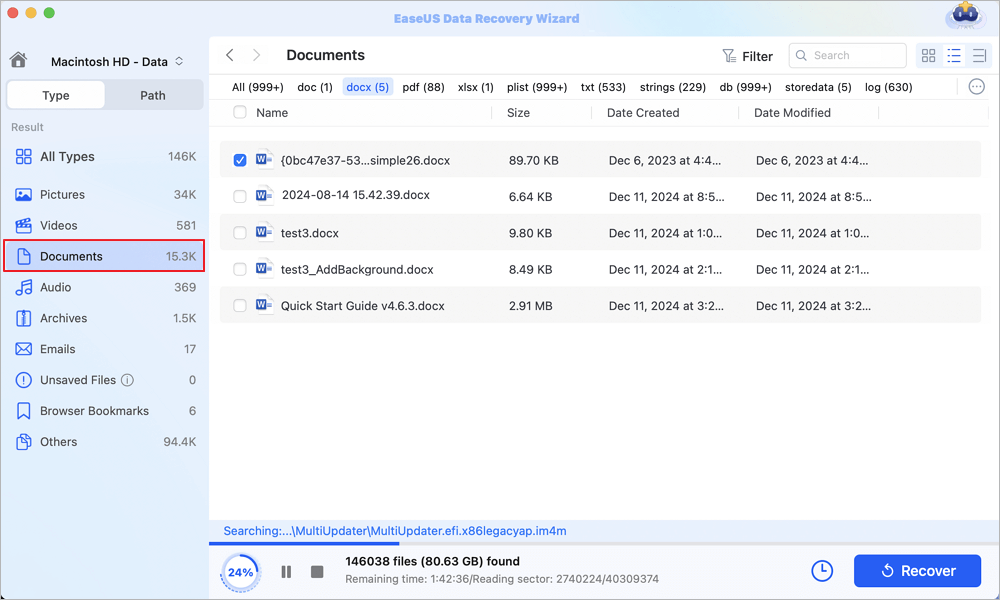
Step 2. Find lost documents on Mac
EaseUS Data Recovery Wizard for Mac will immediately start a scan on your selected disk volume. Meanwhile, the scanning results will be presented in the left pane. Select "Documents" and you can quickly filter the DOC/PDF/PPT/XLS files you've lost earlier.
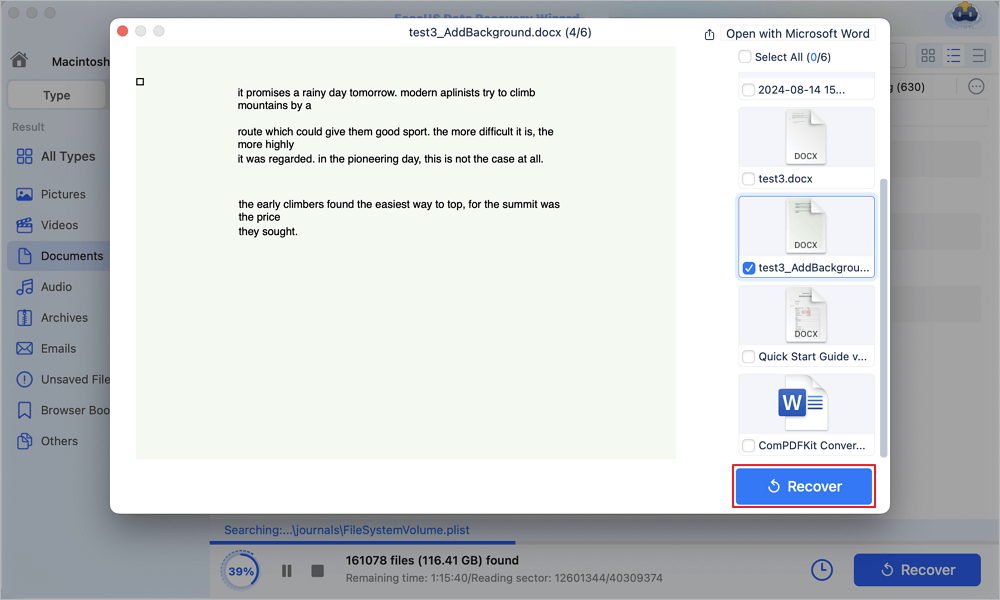
Step 3. Recover lost/deleted documents
Select the target files and preview them by double-clicking them. Then, click "Recover" to get lost documents back at once.
After this, you'll get the lost Excel file back and resume your work. You can also apply this Mac data recovery software to restore deleted photos, music, videos, or other data on Mac for free.
2️⃣Recover Deleted Excel Files from Trash
Recovering a file you've accidentally deleted is straightforward if it's still in the Trash. Here's how to do it:
Step 1. Click the Trash icon in the Dock, then open the Mac Trash folder.
Step 2. Locate the deleted files you want to recover, then click them. Choose "Put Back" to restore them to the original location.

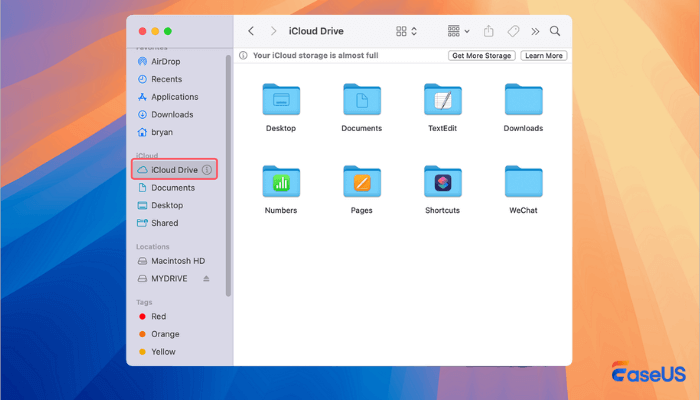
3️⃣Recover Deleted Excel Files from iCloud
If you have Microsoft 365 and saved the Excel file at least once to OneDrive, Excel's AutoSave keeps a version history. Go to File > Info > Browse Version History. You can restore any previous version, even if you made changes and clicked "Don't Save" later. Here we will take iCloud as an example:
Step 1. Visit the iCloud website and log in to your account.
Step 2. Go to iCloud Drive and select Browse.
Step 3. Find the Excel file you want to recover and click "Download a Copy".
Or, you can directly go to the iCloud Dirve to better locate your missing files.
Add: Search for .xlsx / .tmp files manually with Spotlight
Sometimes your unsaved file isn't in the standard AutoRecovery path but in a different cache location. Open Finder > Press Cmd+F > set "Kind" to "Other" > file extension "xlsx" or "tmp" > search in "System Files" (show invisible files). With the help of Terminal command defaults write com.apple.Finder AppleShowAllFiles true, you can hunt every possible temp .xlsx leftover.
The Bottom Line
This post provides you with three ways to recover unsaved Excel on macOS Ventura, Monterey, Big Sur, and more. I hope these solutions work for you. Additionally, EaseUS data recovery software for Mac is effective at recovering data from hard drives, SD cards, SSD, and other devices. Try this tool to recover deleted files on Mac.
Recover Unsaved Excel Files on Mac FAQs
Read the questions and answers below to get better help recovering unsaved Excel files on Mac.
1. Where are Excel autosave files stored on Mac?
There is an AutoRecovery folder for Microsoft users. When you forget to save files or delete Excel files, you can find the Excel files this way:
defaults write com.apple.Finder AppleShowAllFiles true
2. How to recover deleted Excel files on Mac?
The easiest way to recover deleted Excel files on Mac is using free data recovery software for Mac:
- Download and run EaseUS Mac data recovery software
- Open the software and select the drive and click Search for lost files
- After the scan, select the Excel files
- Preview the Excel files and recover the data
3. How do you recover unsaved Excel files after clicking don't save on a Mac?
Three ways to recover unsaved Excel files:
- Run Excel data recovery software
- Check the autosave folder
- Check your backup folder
4. How to recover overwritten Excel files?
Follow these steps to recover overwritten Excel files:
- Open Excel, and click File > Info > Manage Workbook.
- Click Recover Unsaved Workbooks from the drop-down menu.
- Select the unsaved file and click the Open button.
- Then, choose Save As from the File menu to save it.
Was This Page Helpful?

Jaden is one of the editors of EaseUS, who focuses on topics concerning PCs and Mac data recovery. Jaden is committed to enhancing professional IT knowledge and writing abilities. She is always keen on new and intelligent products.

Written by Tracy King
Tracy became a member of the EaseUS content team in 2013. Being a technical writer for over 10 years, she is enthusiastic about sharing tips to assist readers in resolving complex issues in disk management, file transfer, PC & Mac performance optimization, etc., like an expert.
-
EaseUS Data Recovery Wizard is a powerful system recovery software, designed to enable you to recover files you’ve deleted accidentally, potentially lost to malware or an entire hard drive partition.
Read More -
EaseUS Data Recovery Wizard is the best we have seen. It's far from perfect, partly because today's advanced disk technology makes data-recovery more difficult than it was with the simpler technology of the past.
Read More -
EaseUS Data Recovery Wizard Pro has a reputation as one of the best data recovery software programs on the market. It comes with a selection of advanced features, including partition recovery, formatted drive restoration, and corrupted file repair.
Read More
Related Articles
-
How to Recover Data from Another Mac in Target Disk Mode✅
![author icon]() Dany/Sep 20, 2026
Dany/Sep 20, 2026 -
How to Fix Mac Won't Boot After Time Machine Restore
![author icon]() Dany/Sep 20, 2026
Dany/Sep 20, 2026 -
How to Recover Data from the Dead Mac in 2026 [Pro/Air]🍎
![author icon]() Tracy King/Aug 14, 2026
Tracy King/Aug 14, 2026 -
Recover Data from WD My Passport on Mac [Effective Ways]
![author icon]() Dany/Sep 20, 2026
Dany/Sep 20, 2026
 Dany/Sep 20, 2026

