Page Table of Contents

As an SSD fills up over time, your computer may slow down and run out of storage space. If you want to upgrade to a larger or faster SSD without reinstalling Windows, apps, and personal files, cloning your SSD to a new SSD is the easiest solution.
SSD cloning creates an exact copy of your current drive, including Windows, installed programs, settings, and data. In this guide, we'll show you how to clone SSD to new SSD step by step and explain what to check after cloning.
Quick Answer: How to Clone SSD to New SSD
- Step 1. Run the New SSD to Your Computer Properly
- Step 2. Select Disk Clone in EaseUS SSD Cloning Software
- Step 3. Select Source and Target SSDs
- Step 4. Start Cloning SSD
What You Need Before Cloning to An New SSD
Before cloning your current SSD to a new SSD, check the following:
- A new SSD: Make sure the new SSD has enough capacity for the data you want to clone.
- Compatible SSD interface: Check whether your computer and new SSD support the same connection type, such as SATA or NVMe.
- Back up target disk: Check the new SSD before cloning, as existing data on the target drive may be overwritten during the cloning process.
- Reliable SSD Cloning Software: Reliable SSD cloning software can make the process much easier. EaseUS Disk Copy supports a wide range of SSDs and cloning scenarios, allowing you to clone an entire SSD or migrate the system to a new drive without reinstalling Windows and applications. Its straightforward interface makes it suitable for both beginners and experienced users.
🔥EaseUS Disk Copy: Best Software for Cloning SSD
- Disk Mode: Clone to a new, bigger SSD for full transfer.
- System Mode: Migrate Windows from one SSD to another.
- Auto 4K Alignment: 4K alignment for better SSD performance.
- Sector-by-sector clone: Clone HDD or SSD with bad sectors.
- Simple interface: Clone SSD to larger SSD with 3 steps.
 Free Download
Windows 11/10/8/7
Download and install the SSD clone software on your PC and use it to clone your current SSD to a new SSD.
For anyone planning an SSD upgrade, we documented the all-in-one clone disk manual here.
How to Clone SSD to New SSD | Step-by-step Guide
The guide below will show you how to clone SSD to SSD using EaseUS Disk Copy, but before you start the cloning process, please ensure you have made the following preparations:
Step 1. Run the New SSD to Your Computer Properly
- ✅Install the new SSD: If your PC has two SSD slots, install the new drive internally; for a laptop with only one slot, use a USB-to-SATA cable or external SSD enclosure.
- ✅Run a surface test: Some new drives also contain bad sectors, which can prevent a disk clone. So, you'd better perform a surface test on your new drive before cloning it to verify its health.
- ✅Backup SSD: If the target SSD contains data, remember to create a backup first.
Step 2. Select Disk Clone in EaseUS SSD Cloning Software
- Download EaseUS Disk Copy, launch it, and choose the Disk Mode feature.

Step 3. Select Source and Target SSDs
- Designate the old SSD drive as the source, and the new SSD drive as the target.
- Enable "Preview partition layout" for advanced cloning settings, like Sector-by-sector copy and SSD Alignment.
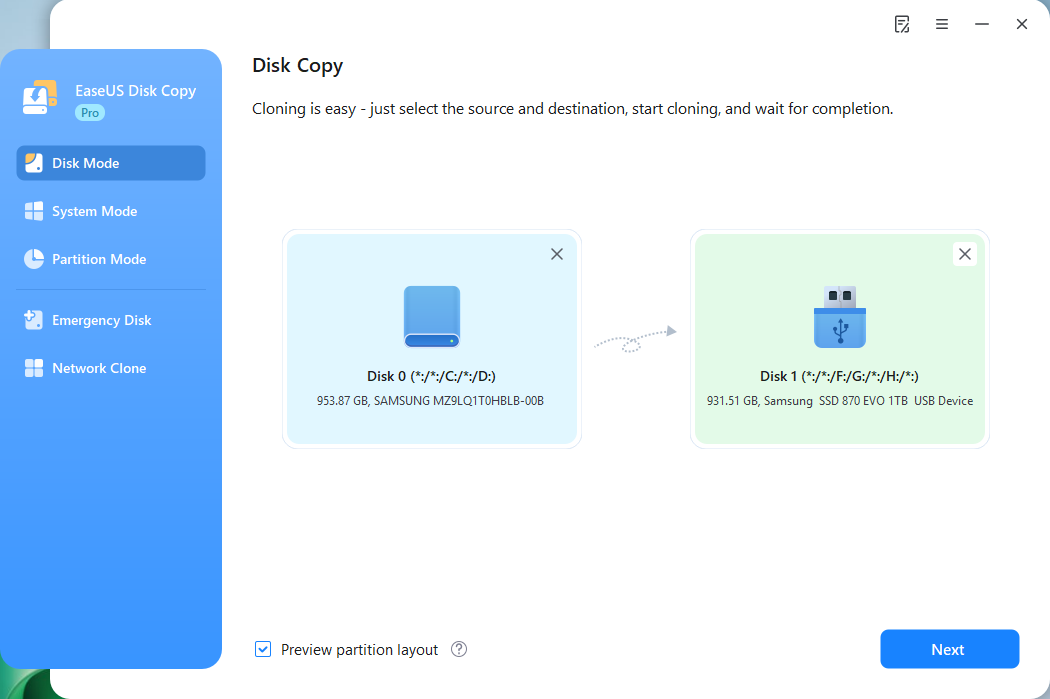
- Adjust SSD layout if necessary. If your new NVMe or SATA SSD is larger, you can choose "Auto-fit the disk" to automatically use the extra or bigger space.

Step 4. Start Cloning SSD
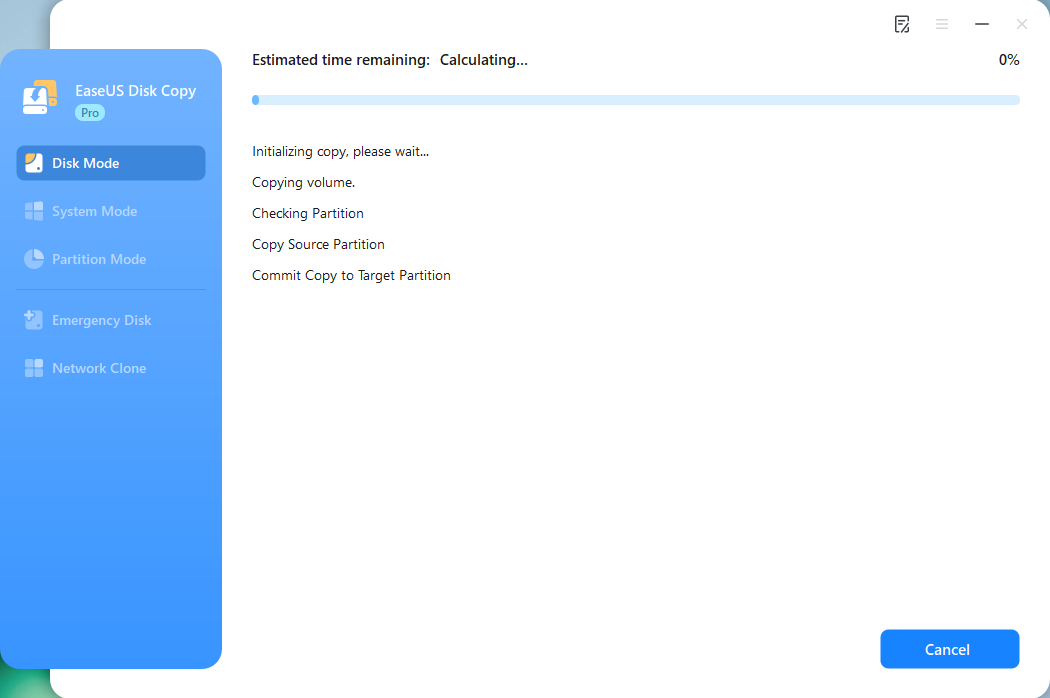
- Click Proceed to copy SSD to new SSD and wait for the SSD cloning process to complete.
How to Boot from the New SSD
After cloning, boot from the new SSD by either changing the boot order in BIOS or physically replacing the old drive.
- To replace SSD: Shut down your PC, open the PC case with a screwdriver, locate the old SSD, remove it, and install the new one.
- To change boot order: Enter BIOS by pressing the BIOS key (F2, Del, F10, Esc, or F12) during startup, go to the boot tab, and set the new SSD as the primary boot device.
Watch this video to see how to clone SSD to a new, larger one:
If you like this post, you can share it on your social platforms to help more people.

Real SSD to SSD Cloning Test
To see what SSD-to-SSD cloning looks like in a real upgrade scenario, we tested the cloning process with a Windows PC and two SSDs. The test included the operating system, installed applications, and personal files on the source SSD.
Test setup:
- Source SSD: Samsung MZALQ512HBLU 512GB NVMe SSD
- Target SSD: Samsung 870 EVO 1TB NVMe SSD
- Operating system: Windows 11
- Data to clone: 476.94 GB
- Cloning method: Disk Mode cloning
- Target: Clone the existing SSD to the new SSD without reinstalling Windows
- Time: 48 minutes
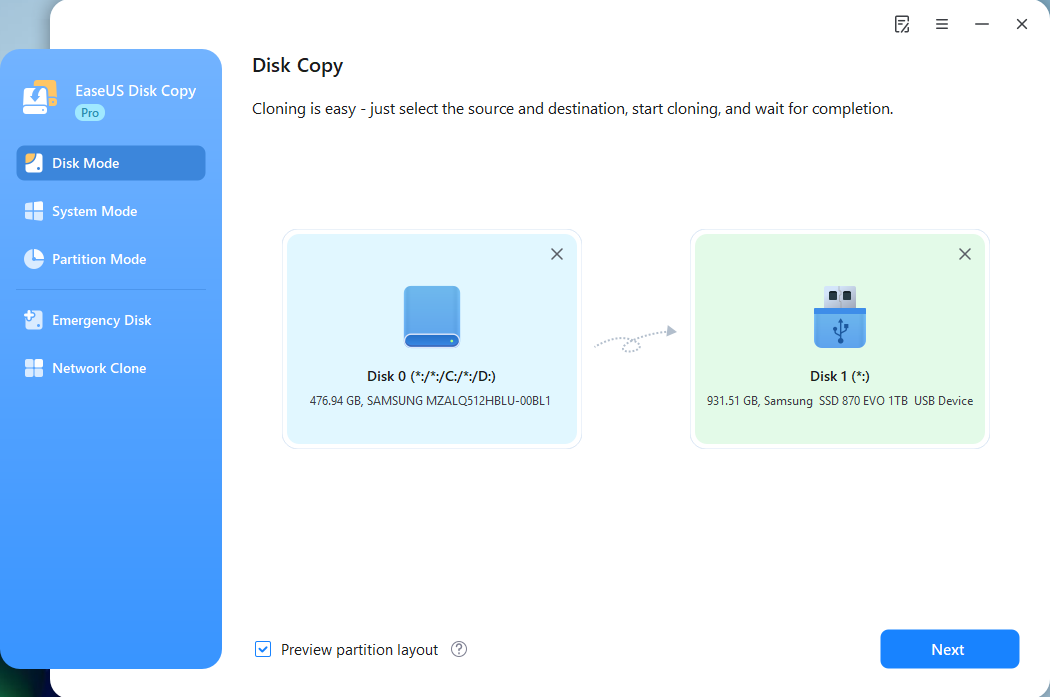
The cloning process copied the Windows system, applications, files, and partitions to the new SSD. After cloning, we shut down the computer, booted from the new SSD, and verified that Windows and the installed applications worked normally.
Troubleshooting SSD Cloning Issues
Even though SSD cloning is usually straightforward, users may encounter several issues during or after the process. Below are the most common problems and how to fix them.
#1. Cloned SSD Won't Boot
Possible causes
- The boot order in BIOS is incorrect
- The disk partition style (MBR/GPT) does not match the boot mode
- The EFI or system partition was not cloned properly
Solutions
- Restart the computer and enter BIOS/UEFI.
- Set the cloned SSD as the first boot device.
- If the problem persists, check whether the system uses UEFI or Legacy BIOS and ensure the disk partition style matches the boot mode.
- If needed, run Startup Repair from Windows installation media.
#2. SSD Not Detected
Possible causes
- SSD not initialized
- Loose SATA or USB connection
- Outdated drivers
Solutions
- Open Disk Management in Windows.
- If the SSD shows as Not Initialized, initialize it first.
- Check cables or USB adapters.
- Update storage controller drivers if necessary.
#3. Clone Is Extremely Slow
Possible causes
- Using a USB 2.0 connection
- A large number of small files
- Disk health issues
Solutions
- Use USB 3.0 or NVMe connections
- Close unnecessary applications
- Check disk health with SMART tools
#4. Clone Process Failed
Possible causes
- Bad sectors on the source disk
- Antivirus software interference
- Disk space mismatch
Solutions
- Run CHKDSK to scan for disk errors.
- Close background programs.
- Temporarily disable antivirus software.
- Make sure the target SSD has enough space.
If you like this post, you can share it on your social platforms to help more people.
Common SSD Cloning Scenarios
The right cloning method depends on what you want to move and the SSDs you are using. Choose the scenario that matches your needs and check the key requirements before you start.
| What to Know Before Cloning | |
| ⭐Clone SSD to Larger SSD | Make sure the new SSD has enough capacity. After cloning, extend the partition to use the extra space and check SSD alignment. |
| ⭐Clone SATA SSD to NVMe SSD | Confirm your PC supports NVMe and that the new SSD is properly recognized. After cloning, set the NVMe SSD as the boot drive in BIOS/UEFI if necessary. |
| ⭐Clone SSD to Smaller SSD | The target SSD must have enough space for all data being cloned. Delete unnecessary files or shrink partitions on the source SSD first if needed. |
| ⭐Clone SSD to External SSD | Use a compatible USB-to-SATA adapter or NVMe enclosure. If you want to boot from the external SSD, make sure your computer supports external booting and set the correct boot device. |
| ⭐Transfer C Drive to New SSD | If you only need to migrate Windows, select the correct system partitions rather than copying the entire disk. Make sure the new SSD contains all partitions required for Windows to boot. |
| ⭐Transfer Data from One SSD to Another | If you only need personal files, a regular file copy may be enough. Use disk cloning when you need to move the operating system, applications, and other partitions together. |
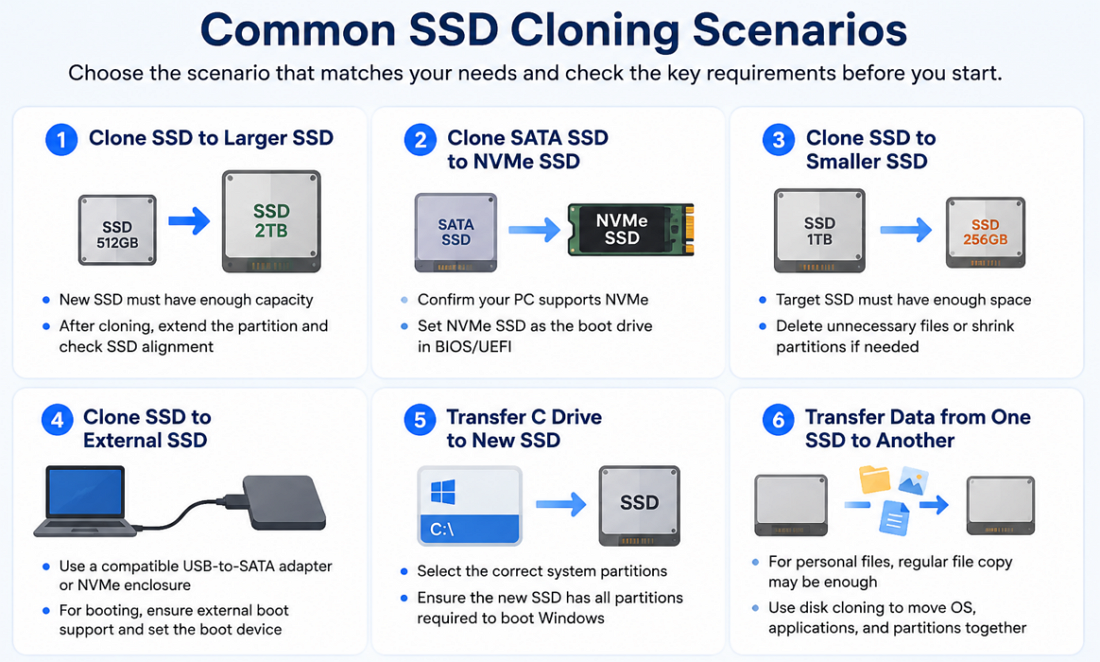
In short: Choose disk cloning when you want an identical, bootable copy of the source SSD. If you only need to move files or folders, regular file transfer can be simpler.
SSD Clone vs. Fresh Windows Install: Which Should You Choose?
When upgrading to a new SSD, many users choose to perform a fresh Windows installation rather than clone their existing drive. A clean install gives you a fresh start, while cloning lets you keep your current Windows environment, apps, settings, and files. Which option is better depends on whether you want to start over or keep your existing setup.
| SSD Cloning | Fresh Windows Install | |
| Windows and apps | Keeps them as they are | Need to reinstall |
| Personal files and settings | Transferred with the clone | Need to restore or set up again |
| Time and effort | Faster and easier | Takes more time |
| Old files and system issues | Carried over | Starts with a clean system |
| Best for | A working system you want to keep unchanged | A system that needs a fresh start |
➡️Choose SSD Cloning If...
Your current Windows installation is working well and you want to upgrade the SSD without changing your existing setup. Cloning is especially convenient when you have many applications, games, files, or customized settings that would be difficult or time-consuming to reinstall.
➡️Choose a Fresh Install If...
Your current Windows installation has persistent errors, unnecessary software, performance issues, or other problems you want to leave behind. A clean installation gives you a fresh system, but you will need to reinstall applications, restore your files, and reconfigure your settings.
Still not sure? If your current system works normally and your goal is simply to replace or upgrade the SSD, cloning is usually the more convenient option. If you want to clean up your system or troubleshoot existing Windows problems, a fresh installation may be worth the extra work.
To Wrap Up
This is all about how to clone SSD to new SSD. If you have no idea about how to clone an SSD, this article will be here to help you in every aspect. Cloning an SSD to a new SSD isn't a tricky task as long as you choose the right tool. EaseUS Disk Copy can help you execute the task with simple clicks. Download this robust tool to clone any of your disks. You should never miss it for cloning an SSD to another SSD.
Free Download
Windows 11/10/8/7
FAQs on Cloning SSD to New SSD
1. Will Windows remain activated after cloning the SSD?
Yes. Windows activation is linked to the motherboard and Microsoft account, not the storage device. After cloning, the system should remain activated as long as the hardware has not changed significantly.
2. What if my computer only has one M.2 slot?
You can connect the new SSD using a USB-to-M.2 enclosure or adapter during the cloning process. Once cloning is complete, replace the old SSD with the new one.
3. Will cloning delete everything on the new SSD?
Yes. During cloning, the target SSD will be completely overwritten by the data from the source disk. Make sure to back up any important files on the destination drive before starting.
4. Can I clone an SSD without reinstalling Windows?
Yes. Disk cloning copies the operating system, installed applications, settings, and files to the new SSD, allowing you to use the system immediately without reinstalling Windows.
5. How long does it take to clone an SSD?
Cloning an SSD generally takes between 15 minutes and over an hour, depending on data volume, drive speed, and connection method. For a standard 500GB-1TB drive, expect roughly 30–60 minutes, with internal NVMe-to-NVMe transfers being the fastest and USB 2.0 connections the slowest.
6. Can I clone NVMe SSD to SATA SSD?
Yes. Disk cloning software can copy data between different SSD types as long as the target disk has enough capacity.
7. Can I clone a larger SSD to a smaller SSD?
Yes, you can clone a larger SSD to a smaller SSD, but only if the larger drive's data is less than the smaller SSD's total capacity.
8. Can You Clone Between Different SSD Types?
Yes, SSDs of different types can be cloned, provided the target has enough capacity and your PC supports the new interface.
- SATA → NVMe: Supported; ensure UEFI boot and an NVMe-compatible M.2 slot or USB adapter.
- NVMe → NVMe: Fully supported; the simplest upgrade path.
- M.2 → M.2: Supported, but confirm whether each M.2 drive is SATA or NVMe, since M.2 is a form factor, not a protocol.
After cloning, select the new SSD as the boot device in BIOS/UEFI.
-
Updated by
![]()
Larissa
Larissa has rich experience in writing technical articles and is now a professional editor at EaseUS. She is good at writing articles about data recovery, disk cloning, disk partitioning, data backup, and other related knowledge. Her detailed and ultimate guides help users find effective solutions to their problems. She is fond of traveling, reading, and riding in her spare time.…Read full bio