Page Table of Contents

PAGE CONTENT:
When you notice symptoms of a failed hard drive on your PC, your heart skips a beat or two. Generally, a series of events trigger the hard drive failure. But what bothers the user is losing important data on the drive. We have you if you have a dead hard drive and are wondering how to replace it. The post from EaseUS details the events leading to the drive failure and how to replace a failed hard drive.
Can a Failing Hard Drive be Replaced
Yes, it is viable to replace a failed hard drive. Replacing or upgrading hard drives is a common practice to improve performance. With Windows, the process is streamlined to get the data and Windows OS to the new drive. But can we recover data on the failing hard drive?
Recovering data from a failed hard drive directly depends on the reason for the failure. If it is due to issues like partition mistakes, virus attacks, and file system malfunction, it's still possible to recover data to an extent. But if the drive fails due to a physical problem, you may never recover the data.
What to Prepare Before Replacing a Failed Hard Drive
Removing a hard drive from the laptop or desktop requires some tools and preparation. Below are some equipment and preparations one needs to perform before replacing the hard drive.
- 🪛Phillips or Torx screwdrivers: To unscrew the back panel, you need screwdrivers. Try to find the screwdrivers which can help you remove the back panel. For laptops, you need #1, #0, #00 Phillips screwdrivers, and T3, T4, or T5 Torx drivers.
- 🧵SATA Cable: If you are switching to a hard disk drive, you need a SATA Cable to connect the drive to the motherboard.
- 💾Compatible SSD/HDD: It is important to buy a compatible SSD. Check with the manufacturer to find the form factor (M.2 or SATA) and buy the hard drive.
- 📚Migrate and clone data: If you have data present on the failing hard disk, make a backup of it. Migrate the data to the new hard disk. Now, clone the Windows OS to the new drive to keep your data and avoid reinstalling the Windows operating system.
- 📭Cloning Software: To clone Windows OS to the new SSD, you need safe and efficient cloning software. EaseUS Disk Copy helps you clone Windows OS and data from the failing hard drive to the new SSD. If you have bad or damaged sectors, the software intelligently avoids them and recovers all the data and Windows OS onto the new SSD with its sector-by-sector clone feature..
 Free Download
Windows 11/10/8/7
Cloning should be the priority when replacing or upgrading a hard drive. Cloning copies every bit of data on the old drive to a new one, including the Windows OS. EaseUS Disk Copy offers a bit-by-bit cloning process to migrate the data safely to SSD. Also, with its backup and instant recovery capability, EaseUS Disk Copy becomes an ideal tool for Windows users to ensure data protection. You can make bootable USB flash drives to boot your PC anywhere.
👣Download EaseU Disk Copy and clone your failed hard drive with the steps below.
Before cloning:
- If your computer has only one slot, connect the target disk to your machine via a USB-to-SATA/NVMe adapter.
- If your computer has an extra slot, install the target disk into the empty slot properly, and make sure it is compatible.
Step 1. Launch EaseUS Disk Copy and choose Disk Mode.
Install EaseUS Disk Copy cloning software on your Windows computer, then launch it and select Disk Mode from the left panel.

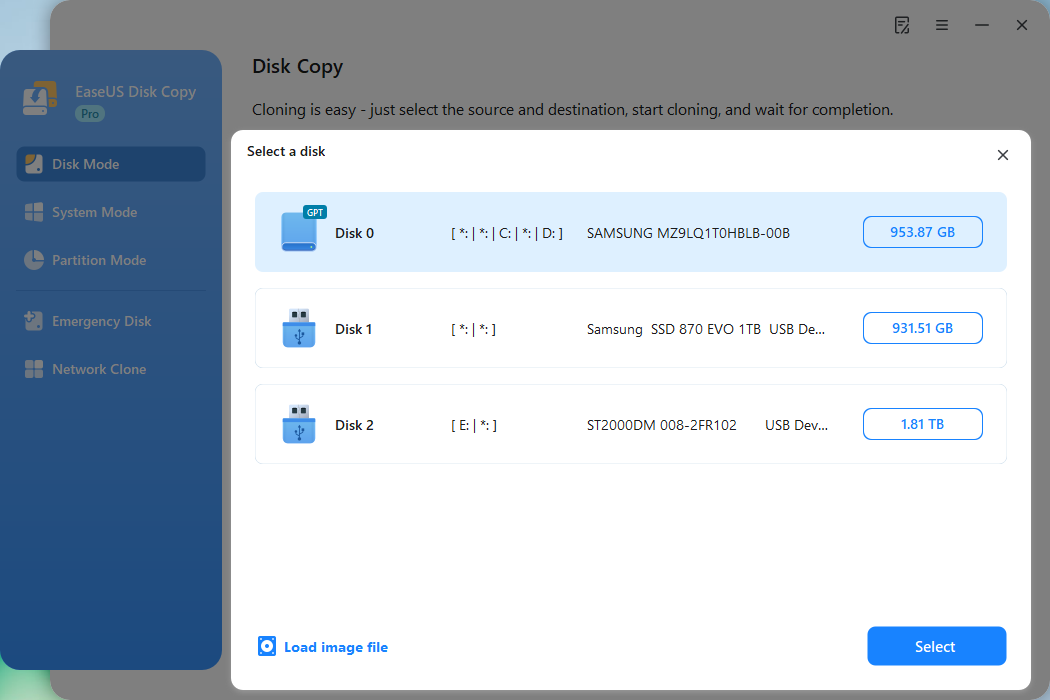
Step 2. Select the source drive.
Select the drive you want to copy, then click Select.
Step 3. Choose the target disk.
Choose the disk that you want to clone data to, and click Select. Note that the used space of the source disk should be less than the target disk capacity.
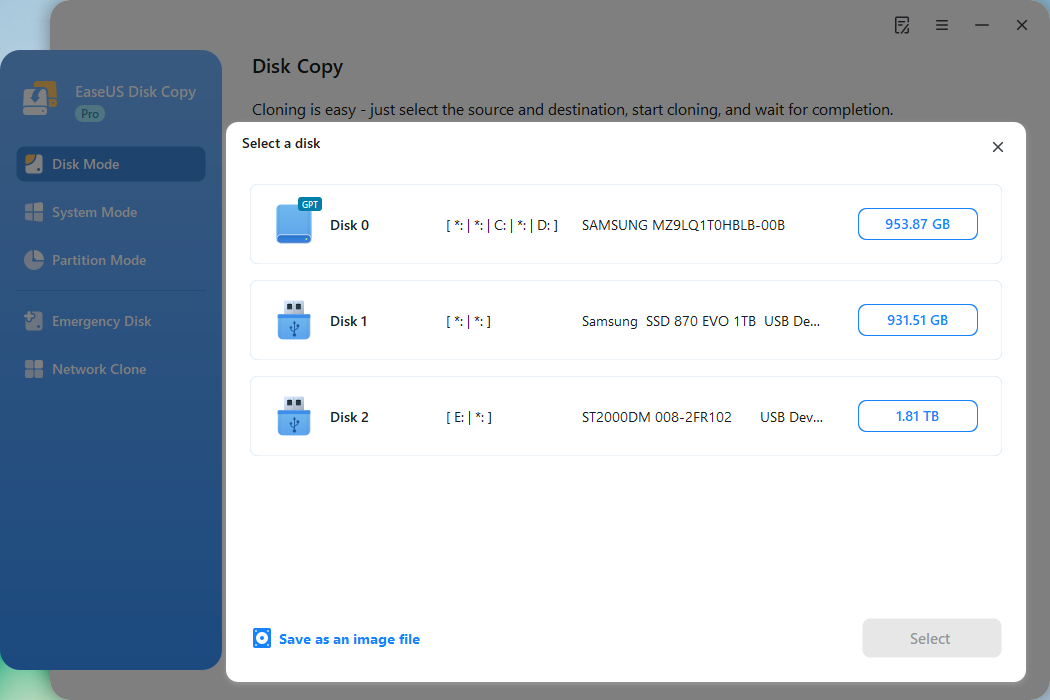
*At this step, you can also click the option "Save as an image file" to store your disk as a compressed image file, which can be restored without any data loss.
Step 4. Adjust disk layout.
Specify the target disk layout as your preference. You can choose among:
- Autofit the disk: makes some changes by default on the destination disk layout so that it can work at its best.
- Copy as the source: create a 1-to-1 copy of your source disk; the layout is the same as the source disk.
- Edit disk layout: allows you to manually resize/move the partition layout on this destination disk.
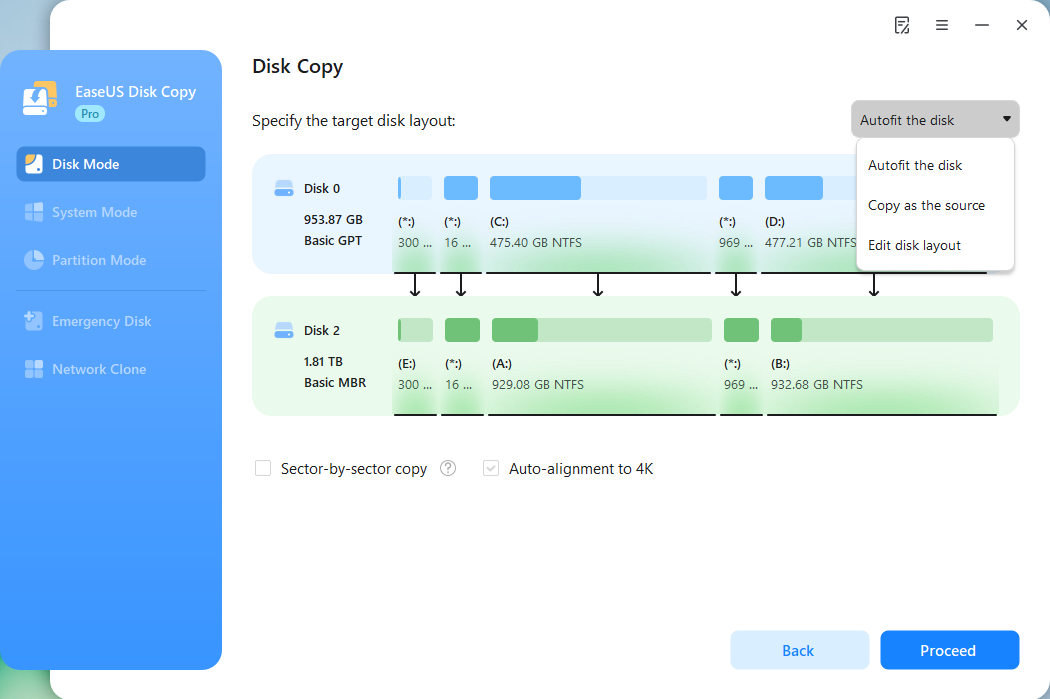
*If the target disk is an SSD, the option "Auto-alignment to 4K" will be checked automatically to optimize the performance of your SSD.
Step 5. Start cloning.
Click Proceed, and a message will appear, warning you that data will be lost. Confirm the message by clicking Continue.
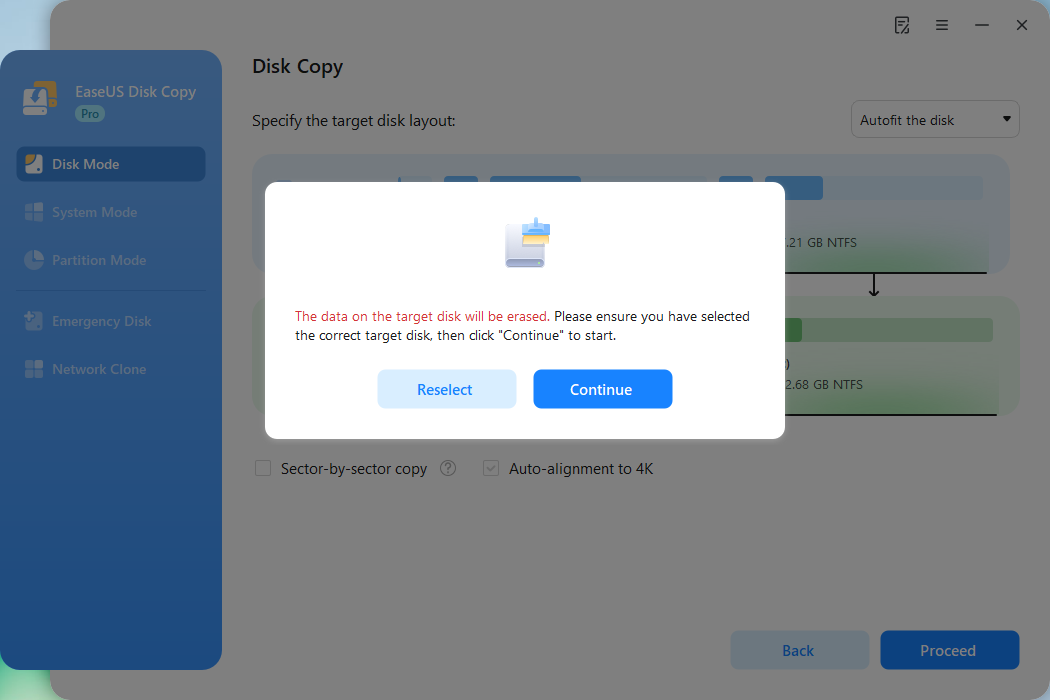
Now, it will start executing the cloning task.
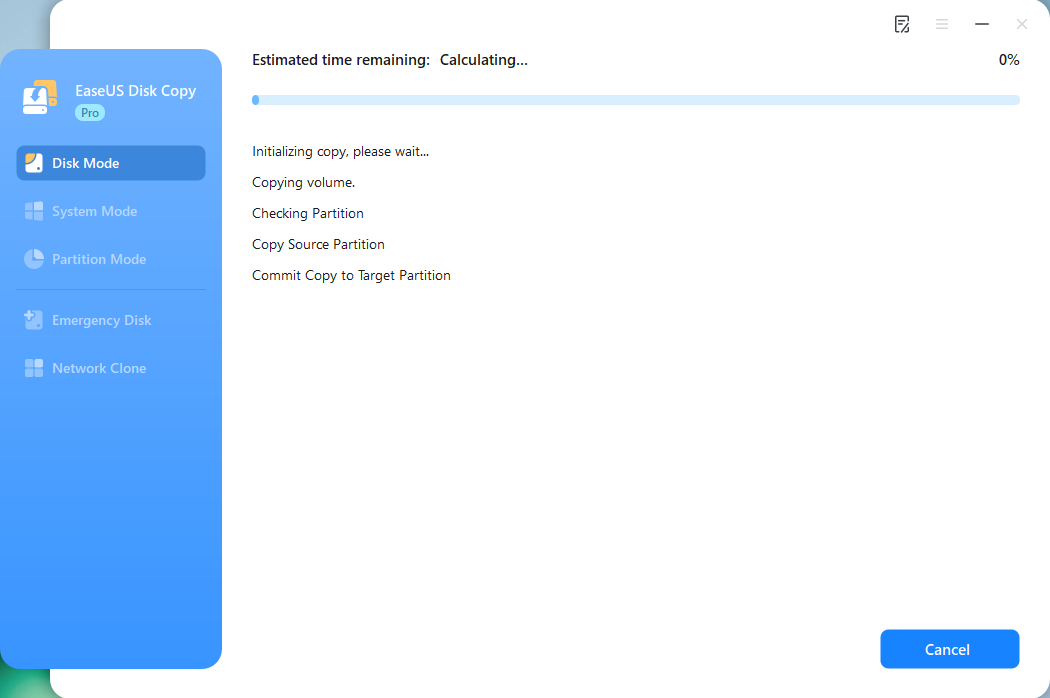
*The time it takes to clone a hard drive depends on how much data is on the source disk, and it will also be affected by the disk types, USB connection, etc.
Step Guide: How to Replace a Failed Hard Drive in Windows 11/10
After gathering all the necessary tools and transferring all accessible data to the new hard drive, let's open the PC and replace the failed hard drive with a new one.
1️⃣Replace a failed hard drive on a Laptop:
Step 1. Disconnect all the external peripherals connected to the laptop. Now, hold the Power button to drain the remaining battery.
Step 2. Remove the back panel using the Phillips and Torx screws. If you have large and small screws for various sections, please mark them; it will be helpful while putting the panel back.
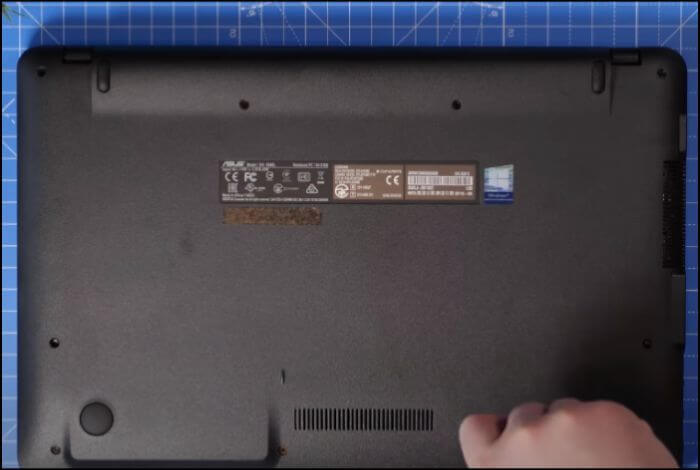
Note: For some laptops, the back panel is divided into sections. You should remove the one with the hard disk.
Step 3. Find the hard drive. The hard drive will be present in the hard drive mount or screwed to the laptop. Please remove the hard drive carefully.
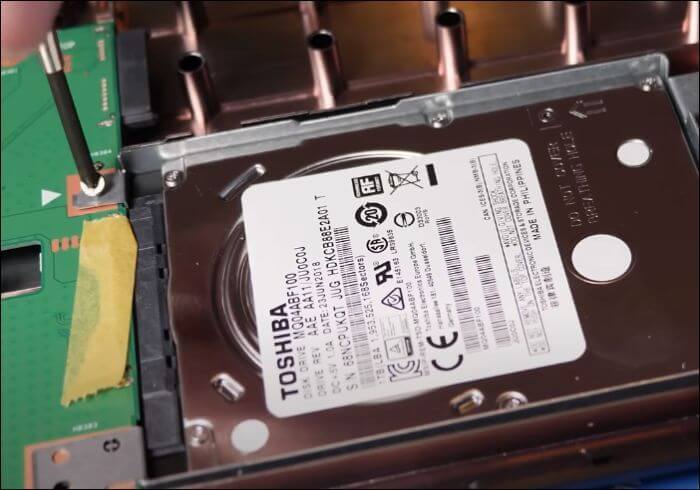
Note: If the hard drive has any cables or battery connected, remove them before taking out the hard drive.
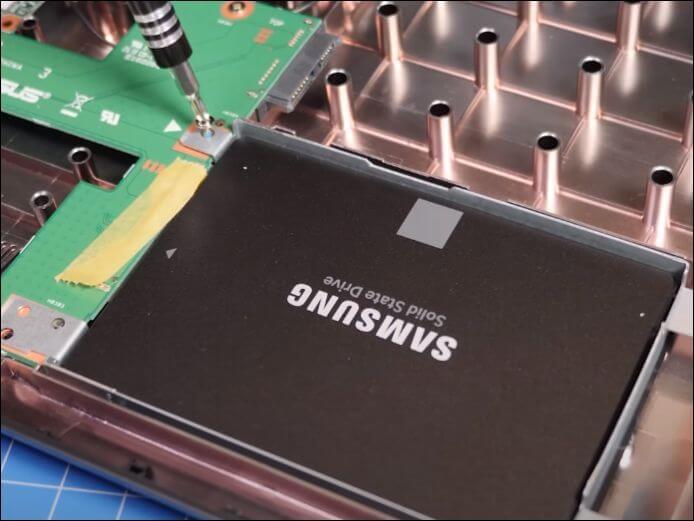
Step 4. Replace the failed hard drive with the new hard drive. If upgrading to a thin SSD, you can find the SSD slot beside the hard drive. The SSD slot is slightly thinner compared to the HDD. Place it in the mount if you are switching to a thick SSD.
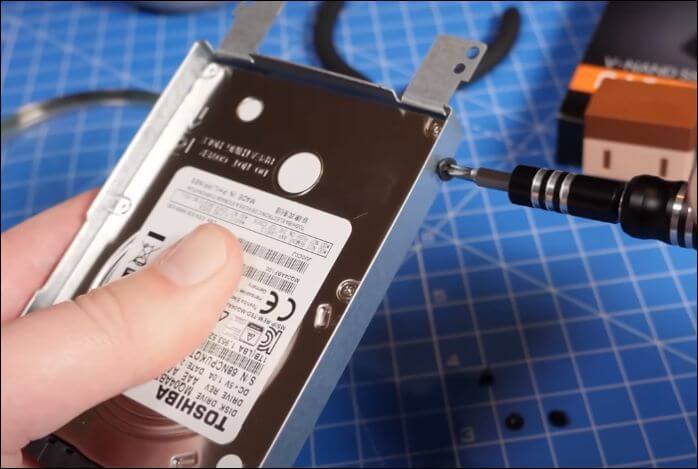
Step 5. Reconnect the SATA and battery cables to the HDD/SSD. Now, screw the hard drive to the laptop with the help of screws. Do it gently to avoid any physical damage.
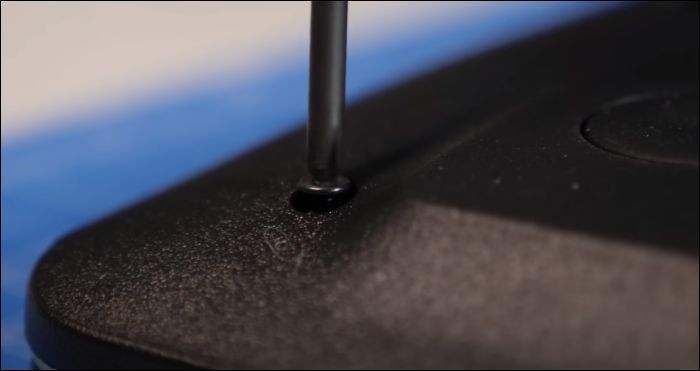
Step 6. Now, do the steps in reverse. Place the back panel, screw it to the laptop.
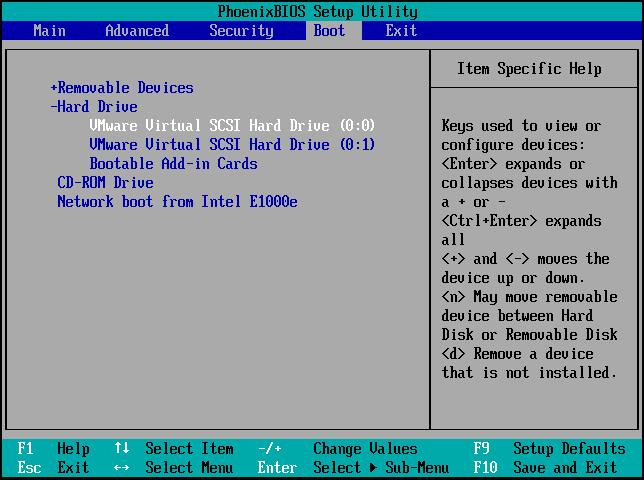
If you have upgraded to an SSD with a different slot, invoke the BIOS and alter the boot order to launch the laptop with the new drive.
Is the post helpful? Share it on your social platforms to help other users clone a failed hard drive without issue.
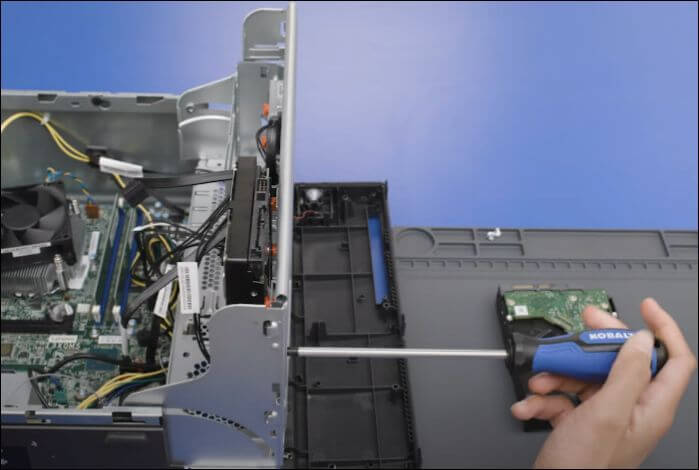
2️⃣Replace a failed hard drive on a Desktop:
When it comes to a desktop PC, it's relatively easy. You need to open the PC case to replace the hard drive. The guide is given below:
Step 1. Ensure all power connections and external cables are disconnected before you start the process.
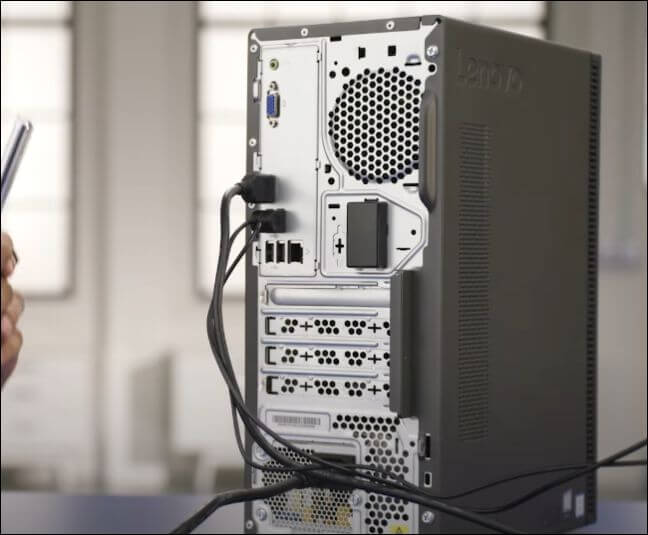
Step 2. To remove the side panel, get the screwdriver and carefully remove the screws. Mark the screw positions for later use.
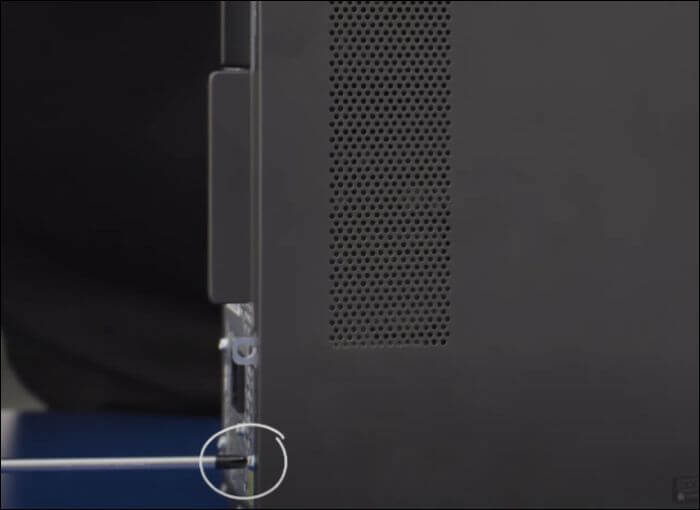
🎁Note: Some desktops do not require screwdrivers; you can detach the panel by sliding it to the left/right.
Step 3. Locate the hard drive and disconnect the power and data cables. Now, take out the hard drive mount. If the mount is connected with the screws, remove them before trying to detach the mount.
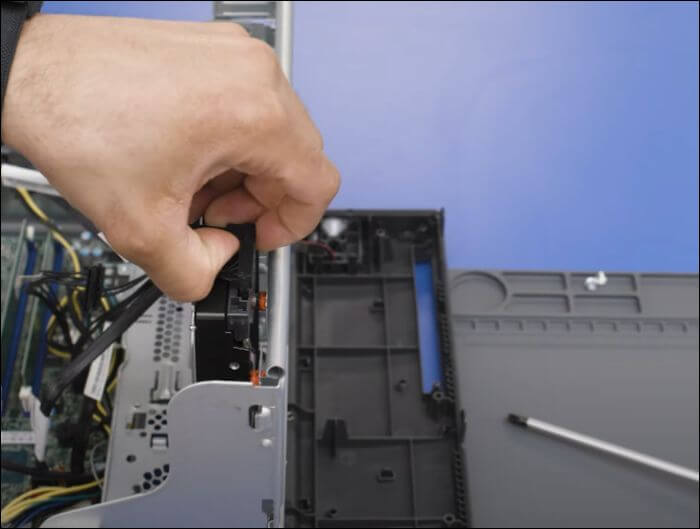
Step 4. Remove the hard drive from the mount, and replace the new SSD/HDD in the hard drive bracket instead of the failed hard drive.
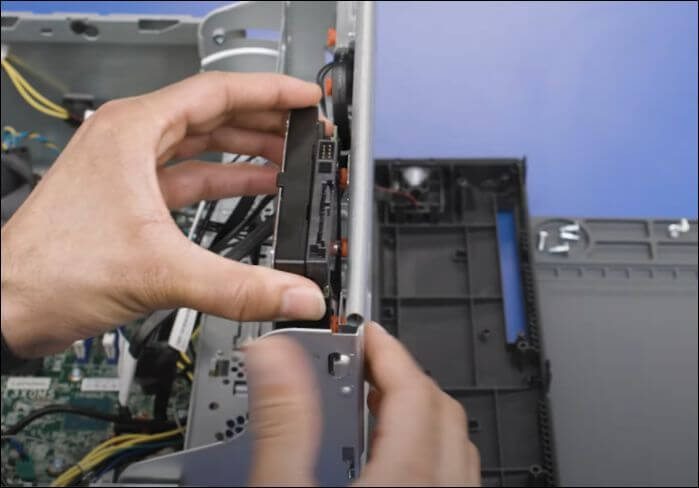
Step 5. Repeat the steps in reverse order to fix the back panel onto the desktop. Remember to attach the data and power cables.
After completing the process, you can boot the PC with the new hard drive. You can boot the desktop directly since you made the SSD/HDD clone with EaseUS Disk Copy.
What to Do If the Filaed Hard Drive is Not Accessible
If you cannot read and write on the hard drive, you must recover possible data first. EaseUS Data Recovery Wizard is an excellent tool for recovering data from an inaccessible hard drive. Find a USB or hard drive to store the files. The USB flash drive should be at least 16GB.
Step 1. Connect the USB to the laptop and use Windows Media Creation Tool to create Installation Media (Bootable disk).
🎁Note: Opt for a fresh Windows installation while creating the installation media.
Step 2. Get the compatible SSD/HDD and replace the inaccessible hard drive with the new one.
Step 3. Boot the PC from the USB drive, and install the Windows OS files on the new drive.
Step 4. Complete the Windows installation setup and change the Boot order to the new drive using the BIOS settings. Now, you are good to do. You can download or import your files from the backup.
Is the post helpful? Share it on your social platforms to help other users clone a failed hard drive without issue.
Sum Up
If you want to learn how to replace a failed hard drive, the article gives detailed procedures for laptops and desktops. It would be best if you were careful while making or removing connections. Some manufacturers will void your warranty if you remove the back panel, so keep it in mind before you proceed.
Cloning is the way to go if you are replacing or upgrading to a better drive or SSD. With EaseUS Disk Copy, you can clone the hard drive and create backups using advanced solutions. Download it now, and safely clone all the data on the failed drive to the new disk.
Free Download
Windows 11/10/8/7
FAQs Related to Replacing a Failed Hard Drive
1. Can a faulty hard drive be repaired?
One can repair a faulty hard drive for reuse, but it is not recommended. The drive can be repaired if the fault is due to a logical problem like file system corruption or bad sectors. But It isn't easy to reuse a drive with physical damage, as physical damage ruins the drive structure completely.
2. Is it expensive to replace a hard drive?
A new drive (standard quality) will cost over $100 but can be replaced manually. If you are consulting a technician to replace the drive, it depends on the person. You can manage with YouTube tutorials if you have Torx or Phillips screwdrivers.
3. What are the symptoms of a failing hard disk drive?
The common symptoms of a failing hard drive are overheating, clicking or whirring noises, and file corruption. Over time, the system will become slow, and files will be inaccessible. It would be best to act quickly as soon as you see the signs.
-
Updated by
![]()
Larissa
Larissa has rich experience in writing technical articles and is now a professional editor at EaseUS. She is good at writing articles about data recovery, disk cloning, disk partitioning, data backup, and other related knowledge. Her detailed and ultimate guides help users find effective solutions to their problems. She is fond of traveling, reading, and riding in her spare time.…Read full bio