Over time, your original SSD may run out of space, especially if it's the system drive:

Even if your SSD isn't full, it may be outdated or slowing down:

When setting up a new computer or replacing your main drive, transferring your system can be the best option:

Creating a full SSD copy is also a great backup method:
Although the goal is to migrate all files and the system intact, unexpected issues like transfer failure or hardware errors can occur. To avoid data loss, it's recommended to back up important files to an external drive or cloud storage. Most importantly, if your target SSD contains data, you must back it up.

This involves 2 things: checking compatibility and choosing the right capacity. Make sure the SSD interface (such as SATA or NVMe) and form factor (like 2.5" or M.2) are supported by your computer. Also, ensure the new SSD has enough storage, at least equal to the used space on the old SSD. Opting for a larger size, such as 1TB or 2TB, is preferred.

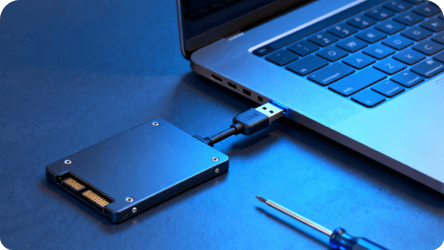
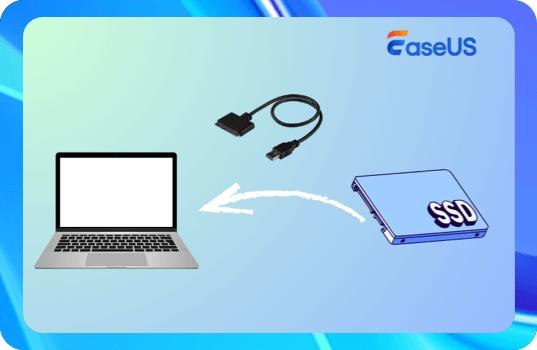
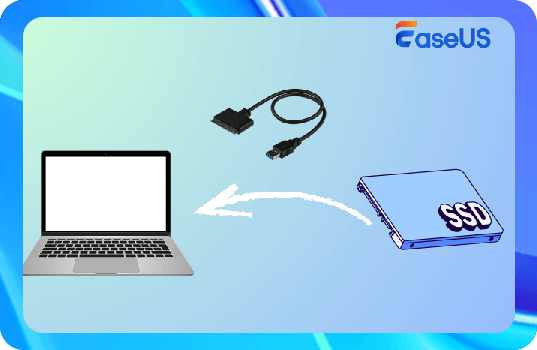
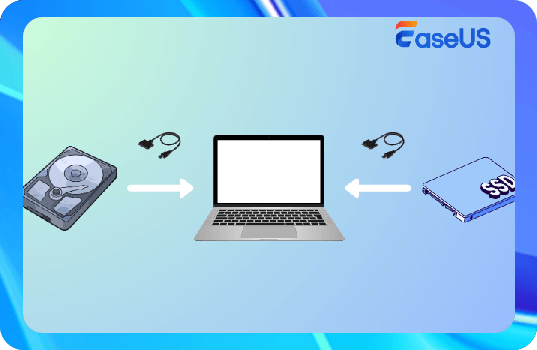
On a desktop, this usually means connecting it to an available slot on the motherboard. On a laptop, you may need to open the back panel to install the new or larger SSD in an available slot or use a USB-to-SATA adapter to connect the new drive temporarily. Once installed, boot up your system and confirm that the new SSD is recognized, so can start the data transfer.


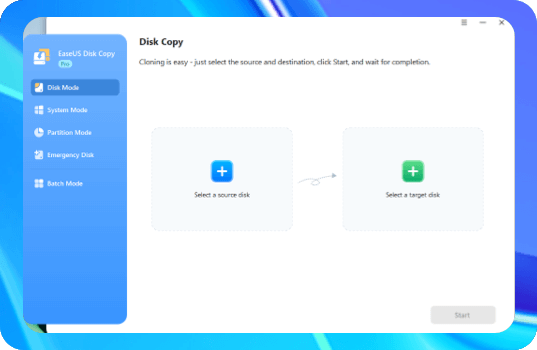
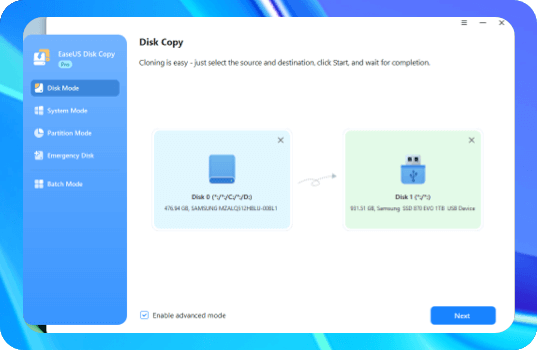
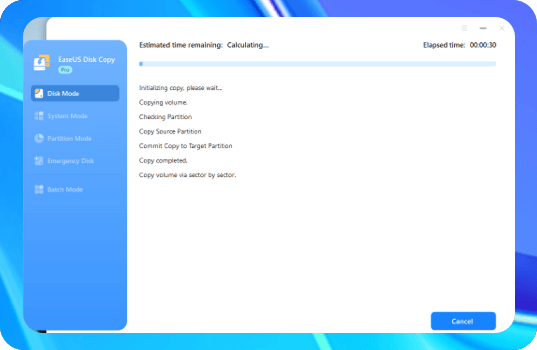
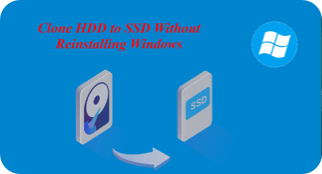
Cloning is the best method for creating a complete copy of your old SSD, including the operating system, applications, and settings, onto the new drive. EaseUS Disk Copy is an all-in-one cloning utility designed for SSD upgrades and system migration. It supports all SSD types (SATA, NVMe, M.2) and works perfectly for Windows system disks.
Step-by-step guide:
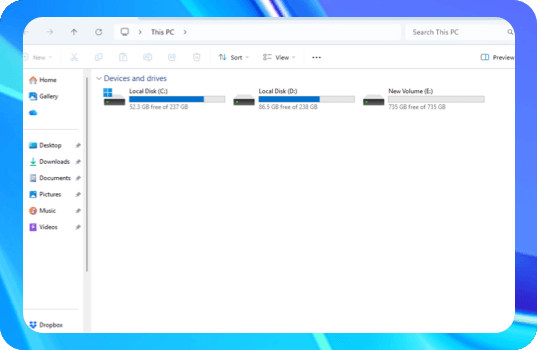
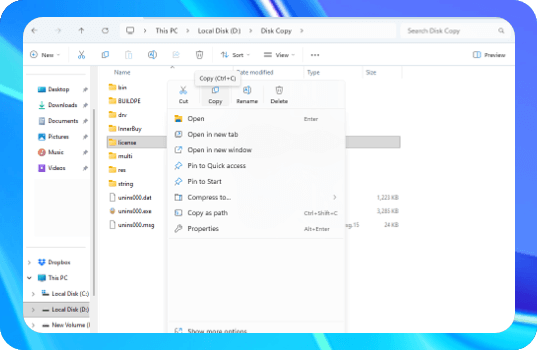
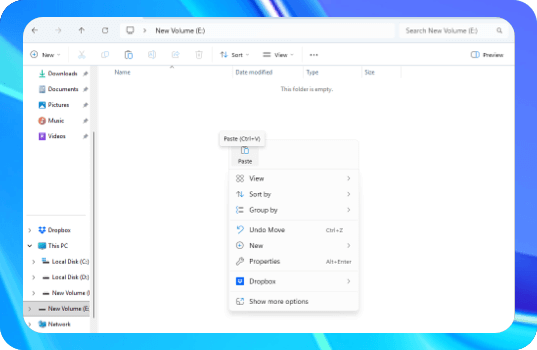
The copy and paste method is ideal if you're only moving documents, photos, or other personal files and not the operating system from one disk to another. With this method, no additional software is needed, and you can have more flexibility to copy files and folders you need.
Step-by-step guide:
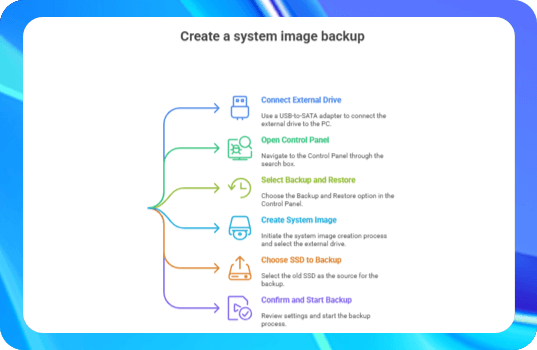
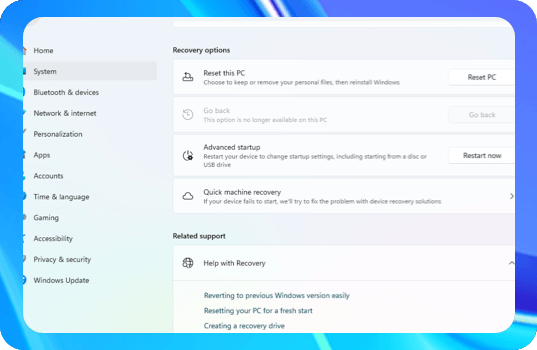
To transfer data using backup and restore, you need to create a system image of your PC (the source SSD), save it to an external drive, and then restore the image onto the new SSD. This method is suitable for migrating your entire operating system and all its files from one SSD to another on the same computer.
Step-by-step guide:
| Method | Difficulty | Speed | Keeps OS & Apps | Tools Required | Best for |
| Clone SSD | | Fast | | EaseUS Disk Copy | OS Migration and Full Disk Transfer |
| Manual Copy & Paste | | Slow | | None | Personal Files Only |
| Windows Backup & Restore | | Medium | | Built-in | Disaster System Recovery |
Power off the computer, remove the original SSD, and install the new SSD in the appropriate slot. Ensure the connection is secure.

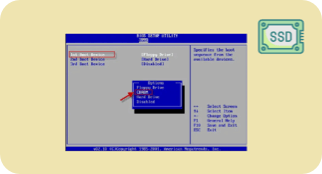
Power on the computer and enter the BIOS. Set the new SSD as the first boot device, save the changes, and reboot the system to confirm it starts up properly.

After the system boots up, gradually check key files and applications to ensure everything is complete and functional, and that no data was lost or corrupted during the migration process.

1. Can I clone to a smaller SSD?
Yes, you can clone to a smaller SSD drive if your total used space on the old drive is smaller than the size of the SSD. You can't fit 500GB of actual used space into a 250GB drive.
2. How do I clone my old SSD to my new SSD?
To clone an SSD, install and launch SSD cloning software, connect the new SSD to your computer using a USB enclosure or adapter, select the source and destination drives, and run the cloning process. After cloning is complete, you may need to shut down your PC, swap the SSD drives, and reboot from the new drive.
3. Can I transfer Windows OS to another SSD without reinstalling?
Yes, you can transfer your Windows OS to another SSD without reinstalling by using a disk cloning tool to create an exact copy of your old drive onto the new SSD. This process will transfer your operating system, settings, files, and programs, allowing you to boot from the new drive after physically swapping the drives.
4. Will my apps and games still work after transferring?
Yes, apps and games will generally work after cloning a drive because cloning creates an exact copy, but you may encounter issues that require troubleshooting. Problems can arise from software protection, missing drivers due to new hardware, or issues with drive letter assignments.
5. Do I need to initialize SSD before cloning?
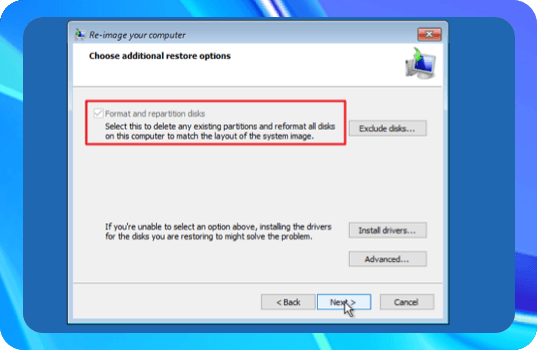
No, you do not need to initialize an SSD before cloning it, as the cloning process will overwrite everything on the target drive, including any existing formatting. However, if you are not using a cloning tool or if your system is not recognizing the new drive, you may need to initialize it to make it visible and usable.
6. How to clone an M.2 if you only have one M.2 slot?
To clone an SSD with only one slot, you can use a USB enclosure or adapter for the new drive. First, place the new SSD into a USB enclosure and connect it to your computer via USB ports. Next, use cloning software (like EaseUS Disk Copy or Clonezilla) to copy the contents of the old SSD to the new one externally. Finally, shut down your computer, physically replace the old SSD with the new one, and boot from the new SSD.