


Content
Page Table of Contents
About the Author
Hot Topics
C drive access denied on your Samsung PCs after Windows update? No worry. This post covers the root cause and 4 proven fixes of C drive access denied errors on Samsung Galaxy Book.
I am using a Samsung laptop (Galaxy Book4) and recently installed the KB5079473 and KB5077181 update, after that I am not able to access C drive, also Microsoft word, excel etc not opening. Uninstall and Install options also not working now. - From Microsoft
Overview: Can't Access C: Drive on Some Samsung PCs
In late February 2026, a serious issue began affecting some Windows 11 systems, where users suddenly lost access to the C: drive after installing recent updates. The problem quickly drew attention because it impacts the system partition, making normal Windows operations unreliable or completely unusable.
1️⃣Symptoms
Before understanding the cause, it's important to recognize how this issue manifests in real-world scenarios. In most cases, the problem appears immediately after a Windows update and affects core system functionality.
Common symptoms include:
- "C:\ is not accessible – Access Denied" error
- Applications failing to open or crashing on launch
- File Explorer unable to load system directories
- Task Manager, Settings, or system tools not responding
- In some cases, Windows boots but becomes nearly unusable
Some users in IT communities also reported that even administrative accounts lose access to the system drive, indicating a deeper system-level permission issue.
2️⃣Root Cause
The issue is not caused by hardware failure or disk corruption. Instead, Microsoft has confirmed that it is related to Windows 11 updates interacting with certain Samsung software environments.
Here's the simplified mechanism:
- A February 2026 Windows update (e.g., KB5077181) introduces changes to the system
- On some Samsung devices, preinstalled services (such as Galaxy ecosystem tools) interact with the update
- This interaction modifies NTFS permissions (ACL) on the C: drive
- Critical system accounts lose access rights
As a result, Windows is effectively locked out of its own system partition, even though the data remains intact.
This is why the system appears "broken" while the underlying disk is still healthy.
3️⃣Affected Devices
Although the issue is tied to Windows updates, it does not impact all Windows 11 PCs. Current confirmed scope:
Primarily affects Samsung laptops, especially Samsung Galaxy Book models
- Observed on systems running Windows 11 24H2/25H2
- Reported globally across multiple regions
- Very limited or no widespread reports from other brands
Microsoft also acknowledged that only certain Samsung device models are affected, not the entire Windows ecosystem.
If you know someone who is encountering this error, consider sharing this guide with them.

Why This Issue Mainly Affects Samsung PCs
 While the problem surfaced after Windows updates, it does not affect most Windows 11 devices. Reports are heavily concentrated on laptops manufactured by Samsung.
The reason is related to OEM software environments.
Samsung laptops typically ship with several system utilities designed to integrate with the company's ecosystem, such as device synchronization services, system optimization tools, or device connectivity software. These applications sometimes manage system-level configurations including permissions.
During recent updates, a combination of:
- Windows security updates
- Samsung system software updates
- automated system services
It appears to have caused incorrect permission changes to the root directory of the system drive. Devices from other manufacturers generally do not include the same Samsung services, so they do not trigger the same behavior. In other words, the issue is not tied to the hardware itself, but rather to a specific software environment that only exists on some Samsung systems.
One Click Remove C Drive Access Denied Error From Samsung
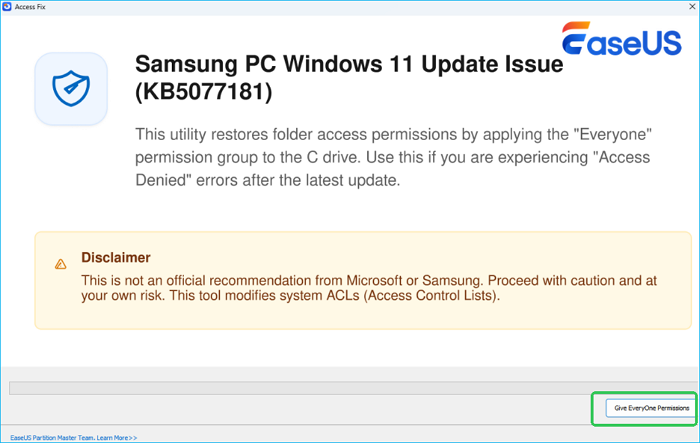
To make this issue easier for non-technical users, we've developed a simple Access Fix utility specifically for affected Samsung PCs. Instead of manually running commands or dealing with complex permission settings, this tool automatically restores the required access permissions on the C: drive with just one click. It’s designed for users who just want their system working again, no technical knowledge, no command lines, and no need to understand NTFS or ACLs. If your C: drive suddenly shows "Access Denied" after a Windows update, this tool provides the fastest and most straightforward way to fix it.
Step 1. Download the Access Fix on your PC and click it to launch.
Step 2. Click "Give Everyone Permissions" to remove C drive access denied error on Galaxy Book.
How to Fix "Windows 11 Users Can't Access C: Drive on Samsung PCs" - Manually
If your system is affected, the good news is that the issue is usually recoverable without reinstalling Windows. However, because the system drive permissions are involved, users should proceed carefully. Changing system permissions incorrectly can create additional problems. If you are unsure about a step, consider backing up important data first.
Below are several methods that have helped users restore access.
Fix 1: Uninstall the Recent Windows Update
For many users, the issue appeared immediately after installing a recent Windows security update. Removing that update can restore the previous system state.
To uninstall a recent Windows update:
- Open Settings
- Navigate to Windows Update
- Click Update history
- Select Uninstall updates
- Locate the most recent security update
- Choose Uninstall
After restarting the computer, check whether the C: drive becomes accessible again. This method is often the safest option because it restores the system configuration to a point before the permission change occurred. Share this post to help more Samsung users.
Fix 2: Reset C Drive Permissions
If the update removal does not resolve the issue, resetting the NTFS permissions on the system drive can repair the access control structure.
This approach requires administrator privileges.
Here is how to reset C drive permissions on Samsung PCs:
- Open Windows Terminal (Admin) or PowerShell (Admin)
- Run the following command: icacls C:\ /reset /T /C /L
This command attempts to reset file and folder permissions under the C: drive to their default state. Depending on the number of files on the drive, the process may take some time. Once completed, restart the computer and check whether access is restored.
Because this command modifies permissions across the drive, it should only be used if you understand its effect.
Fix 3: Restore Proper System Permissions
If the permissions are severely damaged, manually restoring the correct access for system accounts may help.
Run these commands in Administrator PowerShell:
- icacls C:\ /grant SYSTEM:(OI)(CI)F /T
- icacls C:\ /grant Administrators:(OI)(CI)F /T
These commands grant full control permissions to the SYSTEM account and the Administrators group, which are required for Windows to operate normally.
🚩Be cautious when modifying permissions manually. Granting access to the wrong accounts can weaken system security.
Fix 4: Use System Restore
If the system still behaves incorrectly, using System Restore may be the most reliable recovery method. System Restore rolls the system back to a previous configuration without affecting personal files.
Here is how to use the Restore Point:
- Restart the computer
- Enter Advanced Startup Options
- Select Troubleshoot
- Choose System Restore
- Pick a restore point created before the issue occurred
Once the process finishes, Windows should revert to a stable state where the C: drive is accessible again. Check the Reddit post to learn more details about this Samsung C drive access denied after Windows 11 update error.
Samsung Galaxy Book laptops screwd over a Windows update?
by u/Ok-Net428 in sysadmin
A Deeper Explanation of Users Can't Access C: Drive on Some Samsung PCs
From a technical perspective, the problem is essentially a case of NTFS permission corruption. Windows uses a security structure known as an Access Control List (ACL) to determine which users and system services can access files or folders.
On a healthy system, the root of the system drive typically includes permissions for several key identities:
- TrustedInstaller
- SYSTEM
- Administrators
- Users
Each of these entries has carefully defined privileges that allow Windows components to read, write, or execute files.
When those permissions are accidentally modified or removed, Windows loses access to critical system paths. Even though the files themselves are still present, the operating system is effectively locked out of its own storage.
This is why affected systems may still boot but behave as if the operating system is damaged.
Understanding this distinction is important:
- The disk is not failing
- The file system is not corrupted
- The security permissions are incorrect
Sharing clear explanations about issues like this helps prevent unnecessary reinstallations and reduces the risk of data loss. If you found this analysis helpful, consider sharing it so more users understand what is happening.
Conclusion
The "Windows 11 users can't access C: drive on some Samsung PCs" issue highlights how sensitive modern operating systems are to permission structures. Although the symptoms may appear catastrophic, the root cause is usually a misconfigured NTFS permission set rather than hardware failure or permanent system damage.
In most cases, users can recover their systems by: uninstalling recent updates, resetting drive permissions, restoring proper system access rights
or using System Restore. As updates continue to roll out, both Microsoft and hardware vendors are likely to address the underlying trigger.
Until then, understanding the real cause of the issue can help users apply the correct fix quickly and avoid unnecessary data loss.
FAQs About C Drive Access Denied after Windows Update
1. Why can't I access my C drive after a Windows 11 update?
The issue is typically caused by incorrect NTFS permissions on the root of the C: drive. When key system accounts lose access rights, Windows cannot read its own files, which leads to access errors and application failures.
2. Is my hard drive damaged if I can't open C: drive?
In most reported cases, the storage device itself is not damaged. The files still exist on the disk, but Windows cannot access them due to permission errors.
3. Should I reinstall Windows to fix the issue?
Reinstalling Windows is usually unnecessary. Many users recover their systems by removing the recent update, resetting permissions, or using System Restore. Reinstallation should only be considered if other recovery methods fail.
How Can We Help You
About the Author

Updated by Joey Albert
Joey is an enthusiast of science and technology. With a passion for uncovering the latest tech innovations, she creates clear, engaging how-to guides that make technology accessible and enjoyable for all.

Sherly joined EaseUS in 2022 and she has always loved writing articles and enjoys the fun they bring. She receives professional training here, focusing on product performance and other relative knowledge. She has written over 200 articles to help people overcome computing issues.
Product Reviews
-
I love that the changes you make with EaseUS Partition Master Free aren't immediately applied to the disks. It makes it way easier to play out what will happen after you've made all the changes. I also think the overall look and feel of EaseUS Partition Master Free makes whatever you're doing with your computer's partitions easy.
Read More -
Partition Master Free can Resize, Move, Merge, Migrate, and Copy disks or partitions; convert to local, change label, defragment, check and explore partition; and much more. A premium upgrade adds free tech support and the ability to resize dynamic volumes.
Read More -
It won't hot image your drives or align them, but since it's coupled with a partition manager, it allows you do perform many tasks at once, instead of just cloning drives. You can move partitions around, resize them, defragment, and more, along with the other tools you'd expect from a cloning tool.
Read More
Related Articles
-
How to Delete D Drive and Extend C Drive Safely Without Data Loss
![author icon]() Cici/2026/06/17
Cici/2026/06/17 -
Why Can't shrink C Drive with All of the Space Free and How to Fix
![author icon]() Shelly/2026/06/17
Shelly/2026/06/17 -
How to Add Unallocated Space to C Drive in Windows 10/11
![author icon]() Brithny/2026/06/17
Brithny/2026/06/17 -
How to Format C Drive in Windows 11/10? [4 Efficient Ways]
![author icon]() Jean/2026/06/17
Jean/2026/06/17
 Cici/2026/06/17
  Shelly/2026/06/17
  Brithny/2026/06/17
  Jean/2026/06/17









