


Content
Page Table of Contents
About the Author
Hot Topics
Are you looking for a way to extend the C drive without deleting any partitions, like D, or losing any data? This page is the right place for you.
To extend your C drive without deleting any partition, you can use Disk Management, a third-party partition manager, or you can free up disk space on C by moving files to another drive.
The method depends on your disk layout:
- If unallocated space is directly next to C:, you can use Windows Disk Management.
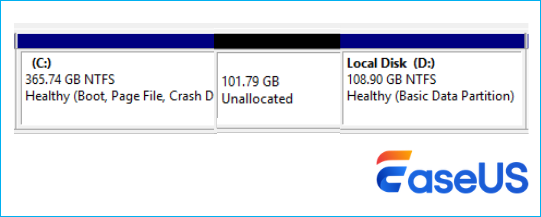
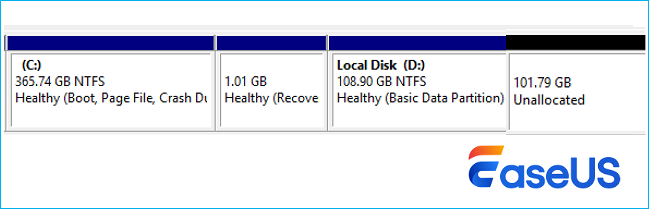
- If the unallocated space is nonadjacent to the C drive, you'll need a partition manager like EaseUS Partition Master to move or resize partitions.
- ✔️Add nonadjacent unallocated space to C without deleting or losing any data
- ✔️Move unallocated space to C drive without formatting
- ✔️Support Windows 11/10/8/7
- If there is no unallocated space at all, you can either reallocate space from another partition or free up disk space.
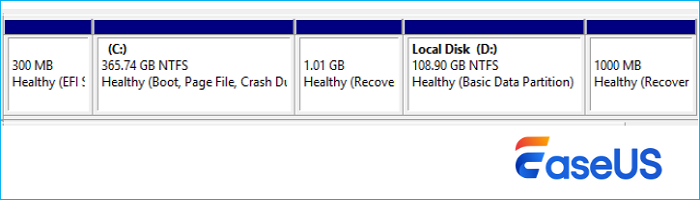
Unable to extend C drive due to recovery partition or worroed about data loss? Follow the guide before to extend C drive on Windows 11/10 without deleting D drive or any other partitions. Before you proceed, make sure to identify your disk situation correctly, choosing the wrong method may result in failed operations or unnecessary risks.
How to Extend C Drive Without Deleting Any Partitions?
Not all disk layouts are the same. Follow the scenario that matches your situation to safely extend your C drive.
- Notice:
-
Before you begin, it's strongly recommended to back up your important data. Although most partition operations are designed to be non-destructive, unexpected interruptions, such as power loss or system errors, can still lead to data loss.
Case 1. Unallocated Space Is Right Behind C Drive
If the unallocated space is directly adjacent to the right side of your C drive, you’re in the simplest situation. Windows allows you to extend the partition without deleting anything.
However, if the space is not contiguous, the "Extend Volume" option will be unavailable (grayed out).
Steps to extend C drive using Disk Management:
Step 1. Right-click the Start menu and select Disk Management.
Step 2. Locate your C drive and confirm that unallocated space is immediately to its right.
Step 3. Right-click the C drive and choose Extend Volume.
Step 4. Follow the Extend Volume Wizard and click Next.
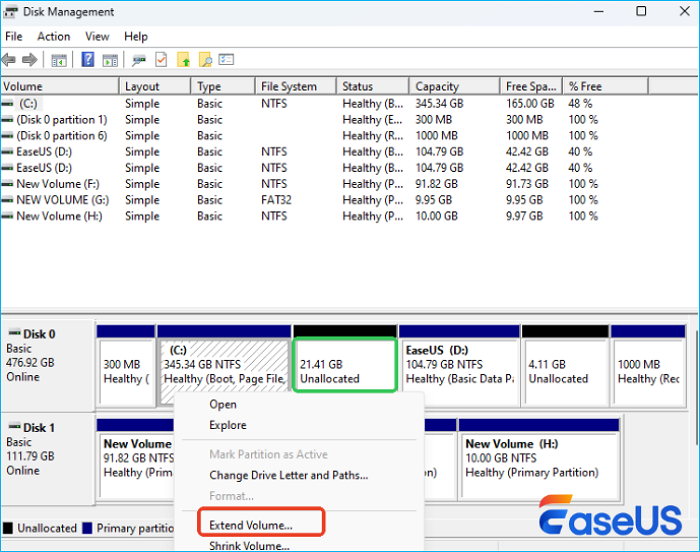
Step 5. Select the available unallocated space and click Finish.
After completion, your C drive will be expanded without affecting other partitions.
⚠️ Important:
If "Extend Volume" is grayed out, it usually means:
- The unallocated space is not adjacent
- Or the file system is not supported (only NTFS/RAW works)
Case 2. Unallocated Space Is Not Adjacent to the C Drive
When the unallocated space is separated from C by another partition (like D: or a recovery partition). Windows Disk Management cannot handle this because it cannot move partitions. This is where EaseUS Partition Master becomes useful. It allows you to move partitions and merge nonadjacent unallocated space into the C drive without deleting anything.
🚩Before performing operations, it's recommended to close running programs and avoid interruptions to prevent data risks.
Steps to extend the C drive with nonadjacent space (no data loss):
Extend System C drive with unallocated space
- 1. Right-click on the System C: drive and select "Resize/Move".
- 2. Drag the system partition end into the unallocated space so to add it to the C: drive. And click "OK".
- 3. Click "Execute Task" and "Apply" to execute the operations and extend the C drive.
Case 3. There Isn't Any Unallocated Space
If your disk is fully occupied and there is no unallocated space at all, you still have options. You don't need to delete partitions to extend C drive.
You can:
- Reallocate space from another partition (like D:)
- Free up space on C drive manually
Option 1. Allocate Space to C Drive from D
Unlike Windows tools, EaseUS Partition Master can directly allocate free space from one partition to another. This means you can take unused space from D: and add it to C: without deleting or formatting any partition.
This approach is especially useful when:
- D drive has plenty of unused space
- You want a fast, no-data-loss solution
⚠️ Note: Always preview changes before applying them to ensure correct allocation.
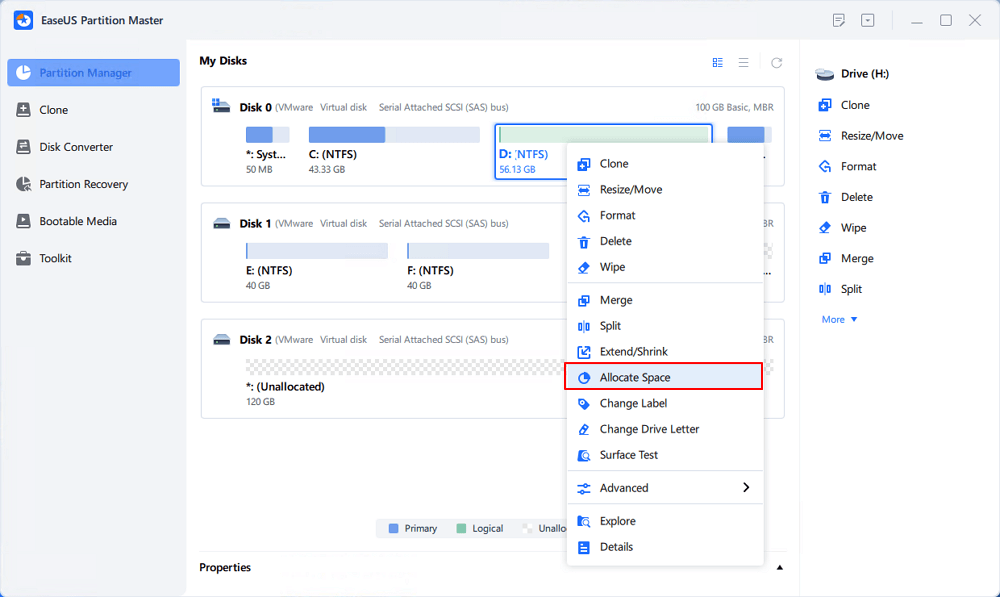
Step 1. Right-click on the D: partition with enough free space and select "Allocate Space".
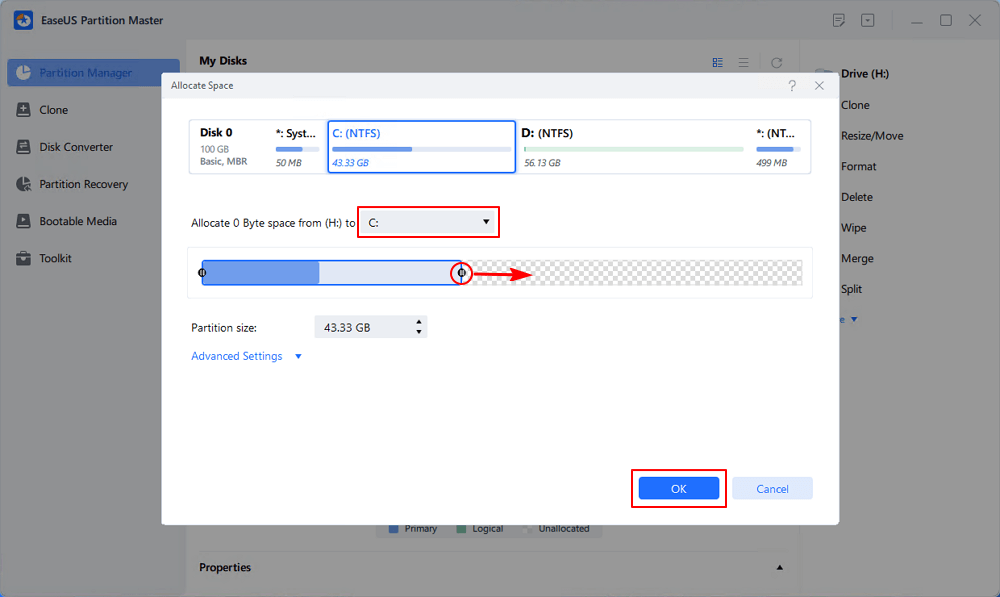
Step 2. Select the target partition - C: drive and drag the partition panel rightward to add the free space from D: drive to C: drive. Then click "OK" to confirm.
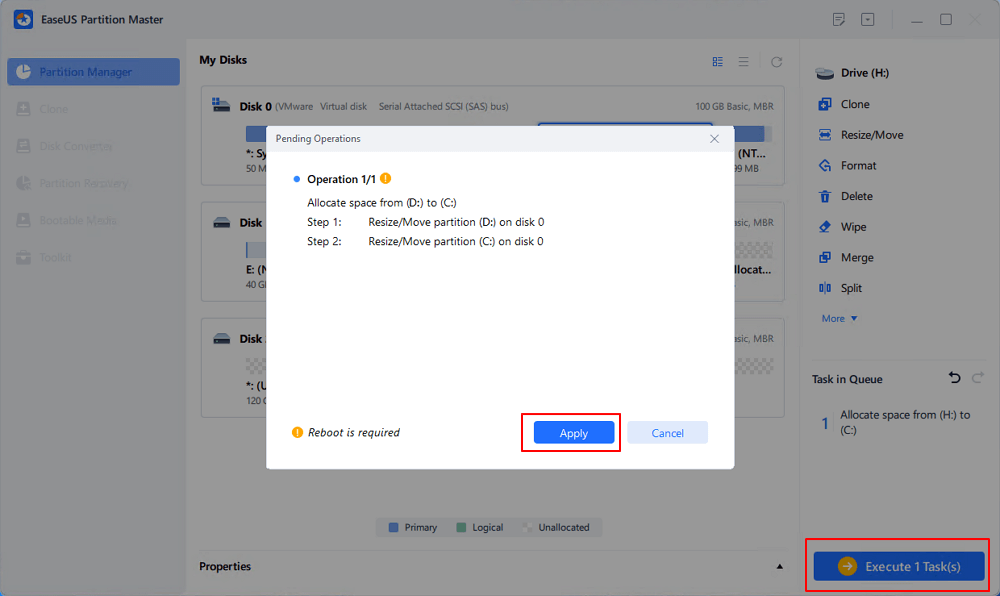
Step 3. Click the "Execute Task" button and click "Apply" to start the process of moving free space from D: drive to C: drive.
Option 2. Free Up Disk Space on C Drive
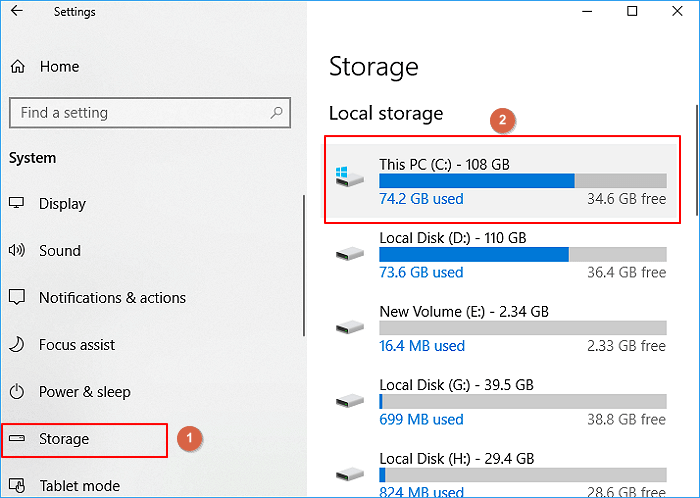
If you prefer not to modify partitions, freeing up disk space is another practical solution. While it doesn’t increase partition size, it can quickly resolve low disk space issues.
Here are common ways to free up space:
- Delete temporary files and system cache
- Uninstall unused applications
- Move large files (videos, downloads) to another drive
- Enable Storage Sense in Windows 11
- Clear recycle bin and old backups
These methods are safe and effective for routine maintenance. If you want to learn more details, check our full guide below:

Solved: C Drive Full and Out of Space in Windows 11/10/8/7
Why is my C drive so full, how to fix it? Here are 3 solutions for you to apply and resolve C drive full issue in Windows 11/10/8/7. Try the provided solutions to fix this issue when your computer prompts a low disk space warning because the C drive is full and out of disk space..
👉 If this guide helped you, consider sharing it with others facing the same issue.

Why Is "Extend Volume"Grayed Out?
If the Extend Volume option is unavailable in Disk Management, it's usually due to structural limitations of Windows.
The most common reasons include:
- The unallocated space is not directly next to C drive
- There is a recovery or EFI partition in between
- The partition is not formatted as NTFS or RAW
Disk Management cannot move partitions or merge nonadjacent space. In short, Windows tools only work with contiguous unallocated space (on the right side of the C drive), which is why third-party partition resizers like EaseUS Partition Master are often required.
Conclusion
Can you extend C drive without deleting D drive or any partition? Yes, you can extend your C drive without deleting the D drive or any other partition. The key is understanding your disk layout and choosing the appropriate method: if unallocated space is directly adjacent to C, you can use Disk Management; if the space is nonadjacent, a partition tool like EaseUS Partition Master is required to move or merge space; and if there is no unallocated space at all, you can either reallocate space from another partition or free up disk space. With the right approach, it’s entirely possible to expand your C drive safely without formatting, deleting partitions, or losing data.
FAQs About Extending C Drive Without Deleting the Partition
1. Can I extend C drive without deleting D drive?
Yes. You can extend C drive without deleting D drive by either using adjacent unallocated space or reallocating space from D using partition management tools. No data loss is required if done correctly.
2. Why can't I extend my C drive even when I have free space?
Free space inside another partition (like D:) is not the same as unallocated space. Windows Disk Management can only use unallocated space directly next to C drive, otherwise the option will be disabled.
3. Is it safe to use third-party partition software?
Yes, as long as you use reliable tools like EaseUS Partition Master. These tools are designed to resize and move partitions without data loss, but it's still recommended to back up important files.
How Can We Help You
About the Author

"I hope my articles can help solve your technical problems. If you are interested in other articles, you can check the articles at the bottom of this page. Similarly, you can also check my Twitter to get additional help."

Sherly joined EaseUS in 2022 and she has always loved writing articles and enjoys the fun they bring. She receives professional training here, focusing on product performance and other relative knowledge. She has written over 200 articles to help people overcome computing issues.
Product Reviews
-
I love that the changes you make with EaseUS Partition Master Free aren't immediately applied to the disks. It makes it way easier to play out what will happen after you've made all the changes. I also think the overall look and feel of EaseUS Partition Master Free makes whatever you're doing with your computer's partitions easy.
Read More -
Partition Master Free can Resize, Move, Merge, Migrate, and Copy disks or partitions; convert to local, change label, defragment, check and explore partition; and much more. A premium upgrade adds free tech support and the ability to resize dynamic volumes.
Read More -
It won't hot image your drives or align them, but since it's coupled with a partition manager, it allows you do perform many tasks at once, instead of just cloning drives. You can move partitions around, resize them, defragment, and more, along with the other tools you'd expect from a cloning tool.
Read More
Related Articles
-
Computer Says Fixing (C:) Stage 1 | Reasons and Fixes
![author icon]() Shelly/2026/05/03
Shelly/2026/05/03 -
Fix Unable to Shrink C Drive on Windows 11/10/8/7
![author icon]() Sherly/2026/04/30
Sherly/2026/04/30 -
C Drive Cleaner Free Download for Windows 11/10
![author icon]() Sherly/2026/05/07
Sherly/2026/05/07 -
![author icon]() Daisy/2026/04/30
Daisy/2026/04/30
 Daisy/2026/04/30
 Hot Topics








EaseUS Partition Master
Version 20.0 is here - full exFAT support, easier disk partitioning, and PC performance optimization.


