- EaseUS Freeware
- Free Data Recovery Software
- Free Backup Software
- Free Partition Manager

Updated on Apr 16, 2019 by Brithny to Todo Backup Resource
- Summary:
- Are you still looking for the best way on how to back up terabytes of data? You are in the right place. Read this article, and follow the best way to back up large amounts of files.
"I have many DVDs full of movies and games. They are getting old and dusty and some of them are damaged. They are all important to me and I'm planning to back up all of them. Is there any way that can backup large amounts of data easily?"
The Best Way to Backup Terabytes of Data
Without applying any backup and recovery software, sometimes the copy-and-paste way is considered as the most frequently used way to back up a small size of data. However, you have terabytes of data, you must find some assistive tools to significantly reduce the cost of time and energy, meanwhile, to hugely increase the rate of successful backup of those bulky files.
If your hard drives don't have enough space to hold those data, you are advised to back up files to Google Drive automatically( You can also choose OneDrive or Dropbox ).
If you have enough space to back up those data, you can follow the steps below:
EaseUS Todo Backup does not limit the size or types of files you can back up, so you don't need to worry about it being unable to fulfill your demands. Apparently, when you run this backup software, you will find it extremely easy to get started. Nevertheless, there are some hidden tricks for you to put to practical use.
- 1. Create a compressed backup file of large files.
- 2. Set up a schedule file backup on a regular basis.
Step 1. Open EaseUS Todo Backup and select "File Backup".
You may have a large amount of vital data to be protected as time goes on, such as documents, pictures, music, and videos, etc. It is always a good habit to have a backup on a regular basis. File Backup is one of the best choices for you to get over unexpected data loss.
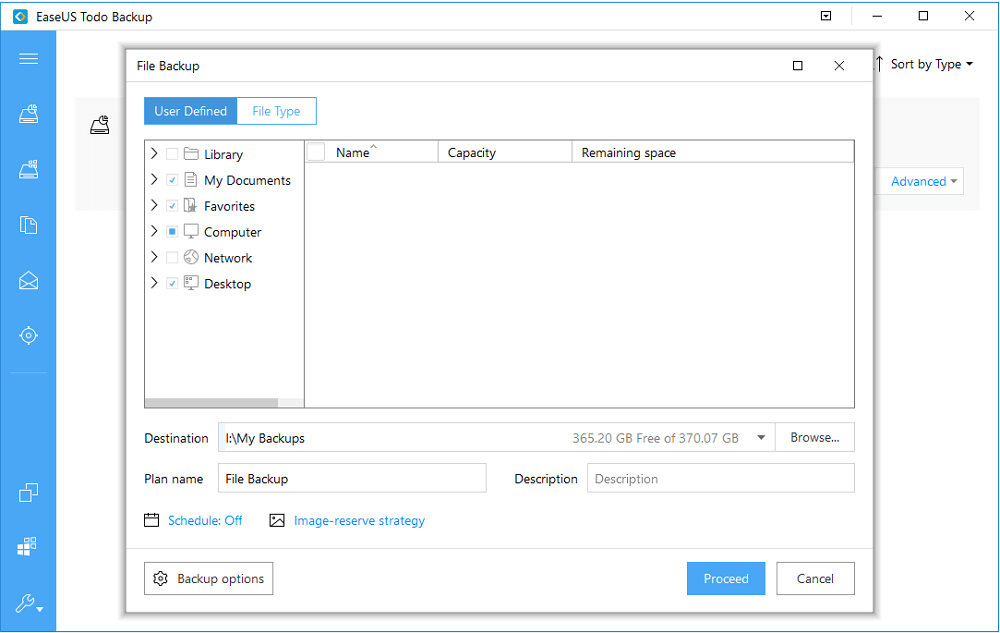
Step 2. Select the files that you want to back up.
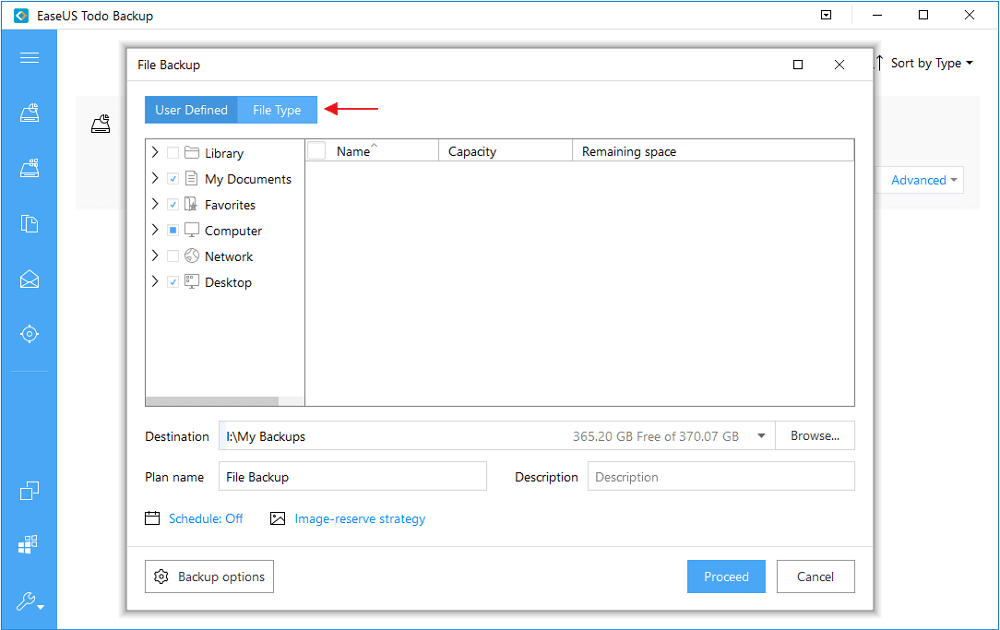
If you just want to back up one or some specific file types from one folder, the option at top right corner can help you exclude the other files.
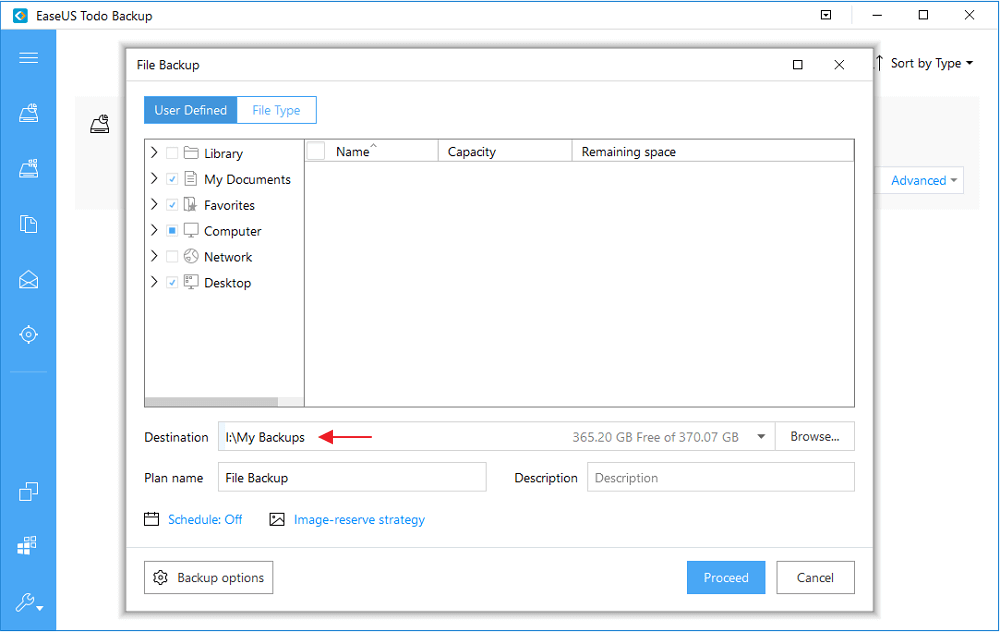
Step 3. Select a destination to save your backup file. You'd better create the backup file in some other storage media or in some other drive. If not, there may be a risk of the backup file getting corrupted or destroyed.
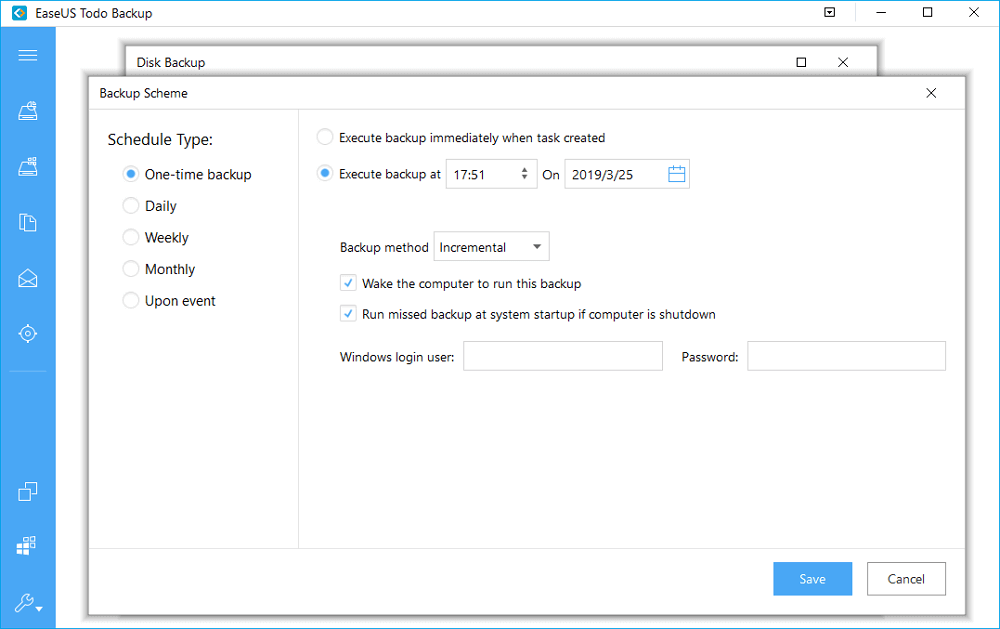
Advanced backup settings are useful when you want to create a flexible and automatic backup plan.
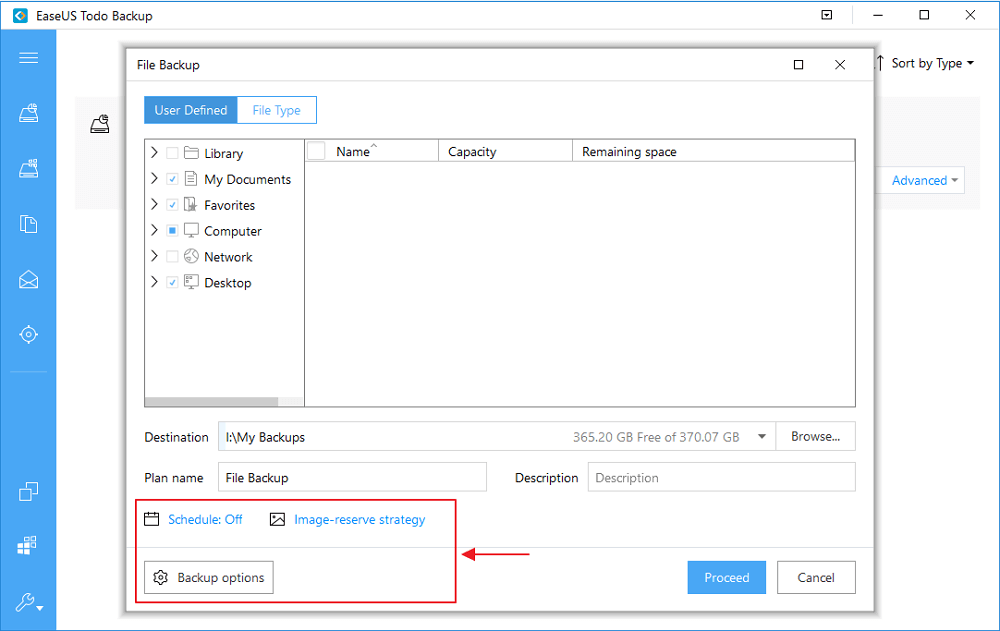
The schedule is to create an automatic backup plan.
Backup options are to edit the advanced parameters.
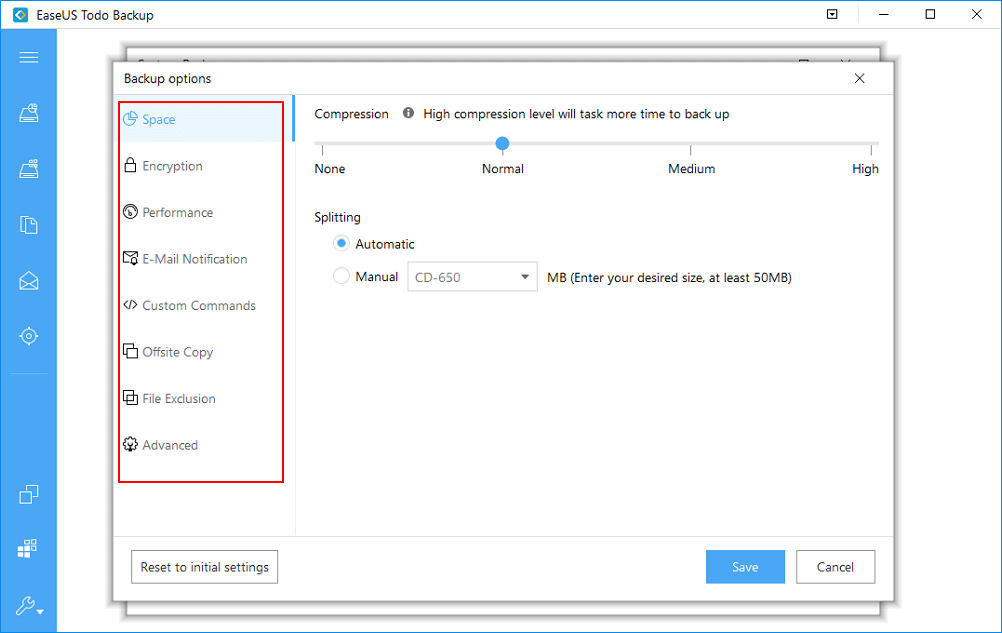
Image-reserve strategy is to reserve the limited image as per image retention rule.

Advanced backup settings are for reference only but not a prerequisite for backup.
Step 4. Click "Proceed" to execute your operation.
If you don't want to choose these files one by one, you can simply choose "Disk/Partition Backup" to backup all the data on your CDs or other devices.
Related Articles - ALSO ON EaseUS SOFTWARE
-
Clone Windows 10 OS to New SSD without Reinstallation
2016-11-15 16:29:26

Tracy King - Wanna change your Windows system disk without reinstalling OS again? Easy way to free clone Windows 10 OS to new SSD wit…
-
How to Boot from SSD After Cloning
2017-04-27 16:25:46

Jean - Do you know how to make a cloned SSD bootable? Here, you can follow the two-step guide to make it. First, migrate OS to …
-
4 Ways to fix PS4 (PlayStation 4 ) Error Code CE-34878-0
2017-05-11 16:49:29

Abby Haines - Getting error code CE-34878-0 on PS4 constantly and cannot play your games? Here we give you some troubleshooting steps …
-
How to Stop Windows 10 from Automatically Restarting
2018-01-09 17:09:51
Brithny - Windows automatically downloads updates and then restarts your computer, even if you do not want it to at that moment. W…