







Content
Page Table of Contents
About the Author
Hot Topics
GParted is a popular tool for managing disk partitions on Linux and other systems. You can use it to resize, move, and create partitions. If you are thinking about using GParted to organize your hard drive or fix low‑space issues, you are in the right place.
This is a complete review of GParted. You will learn what GParted is, how to use it, its main pros and cons, and a simpler alternative for everyday users.
What is GParted?
GParted, or GNOME Partition Editor, is an open‑source partition manager with a graphical interface. It lets you create, delete, resize, move, copy, and check disk partitions on different kinds of storage devices. You can use it on internal hard drives, SSDs, USB drives, and memory cards as long as the file system is supported.
Unlike simple disk tools that only work within a single operating system, GParted can run in a live environment. This means you can boot it from a USB drive or CD and work outside your main system. It helps change partitions safely without Windows or Linux locking the disk.
GParted is free to download and use. Many Linux distributions include it by default. There is also a dedicated GParted Live image that runs on most PCs. The tool is designed for users who are comfortable with system utilities.
GParted Download
There are two main ways to get GParted, depending on your system and your goal.
1. Install GParted inside a Linux distribution.
- If you use a common Linux distro, you can usually install GParted from the package manager.
- Once installed, you can open it and manage partitions on your disks.
This approach is handy for routine tasks but may be limited if your system partitions are in use.
2. Use GParted Live from USB or CD.
- GParted provides a live image that you can burn to a USB drive or CD/DVD.
- You then boot your computer from that USB or disc instead of your regular operating system.
- In this environment, GParted has full control over your disks and can modify partitions.
⬇️Download GParted Live from its website:
https://gparted.org/download.php
When downloading GParted Live, you can choose the right version for your computer and create a bootable USB. Always back up your important data before using any partition tool, including GParted.
GParted Pros & Cons
GParted is powerful, but it is not perfect for every user. Here are some key advantages and disadvantages of GParted.
✅Pros:
|
⚠️Cons:
|
What users say about GParted:
📖LifeWire Review: I like disk partition programs like GParted because they work regardless of the operating system you're using.
📖XDA Reivew: GParted is fantastic in that it can run straight from a live USB drive, so you don't need anything on your disk before using it, which also means it works regardless of your operating system.
📖Reddit User Case: GParted is so good, I'd boot the Live image over using the Windows disk utility
How to Use GParted for Partition Management
Below is a general outline you can follow. These steps help you manage partitions and disks with GParted.
1. Prepare and back up
Before you start:
- Back up all important files to another drive or cloud storage.
- Close other tools that might be using the disk.
- If you plan to modify system partitions, create a bootable GParted Live USB and boot from it.
2. Select the correct disk
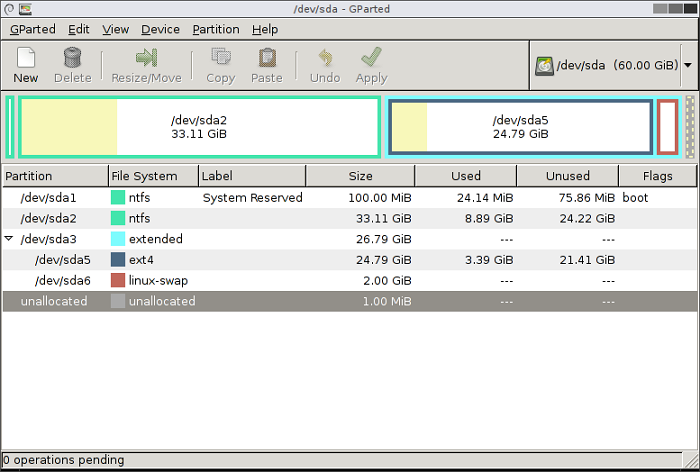
When GParted opens, it shows the current disk at the top‑right. Use the drop‑down list to choose the device you want to work on. Make sure you recognize the disk by its size and layout.
3. Review current partitions
In the main window, you will see a visual bar and a list of partitions:
- Check the size, file system type, and labels.
- Confirm which partition you want to shrink, extend, create, or delete.
4. Resize or move a partition
To resize a partition:
Step 1. Right‑click the target partition and select "Resize/Move".
Step 2. In the dialog box, adjust the size using the sliders or by entering numbers.
- Decrease the size to free space.
- Increase the size into unallocated space next to the partition.
Step 3. If needed, you can move the partition by dragging it in the graphical bar so that unallocated space sits in the right location.
Step 4. Confirm the changes, but remember that operations are not applied until you click "Apply".
5. Create or delete partitions
To create a new partition:
Step 1. Right‑click on unallocated space and choose "New".
Step 2. Select the file system type (such as ext4 or NTFS) and set the size and label.
Step 3. Click "Add" to queue the operation.
To delete a partition:
Step 1. Right‑click the partition and choose "Delete".
Step 2. This marks the partition as unallocated space, which you can then use for other layouts.
After setting all changes, click the "Apply" button.
GParted Alternative to Manage Your Disk
For many Windows users, GParted may feel too technical, especially when handling system partitions or operating within a live environment. In that case, a user‑friendly alternative like EaseUS Partition Master can make disk management easier.
EaseUS Partition Master is a Windows‑based partition manager designed with a familiar interface. You install it like a regular program and run it inside Windows. So, you do not need to boot from an external USB most of the time. The tool offers common tasks such as:
- ✔️Extend, shrink, create, and delete partitions
- ✔️Move and merge partitions to reorganize space
- ✔️Convert between partition styles in supported scenarios
- ✔️Check and manage file systems on Windows disks
- ✔️Create bootable USB & fix Windows boot issues
Here is how to partition a hard drive with EaseUS Partition Master:
Step 1. Launch EaseUS Partition Master to check for free space at the Partition Manager section.
- If your hard drive has unallocated space, jump to Step 3 to create partition.
- If the hard drive has no unallocated space, continue with Step 2.
Step 2. Shrink a disk partition to create unallocated space.
Right-click on the target drive partition with a lot free space and select "Resize/Move".
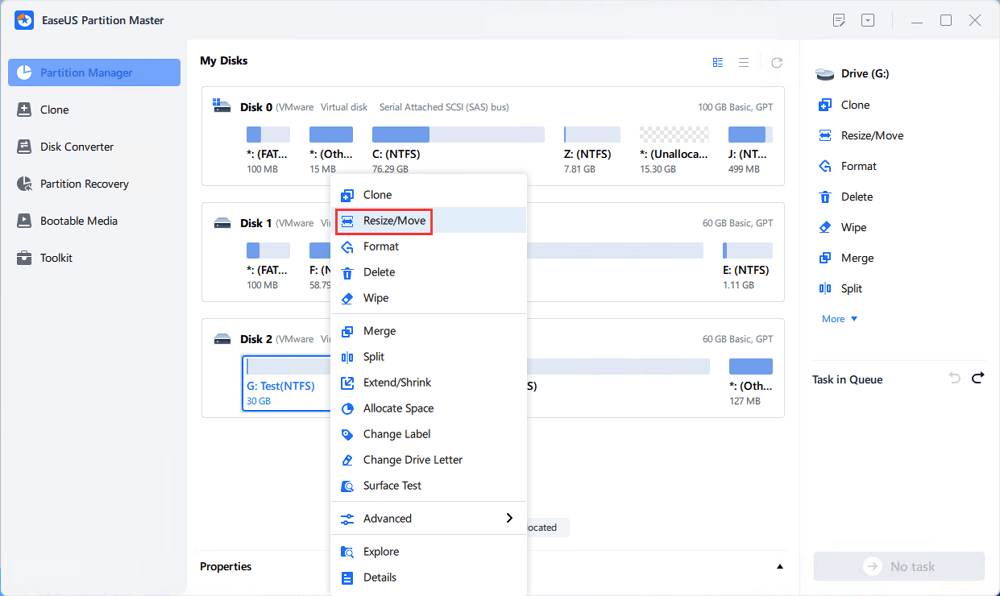
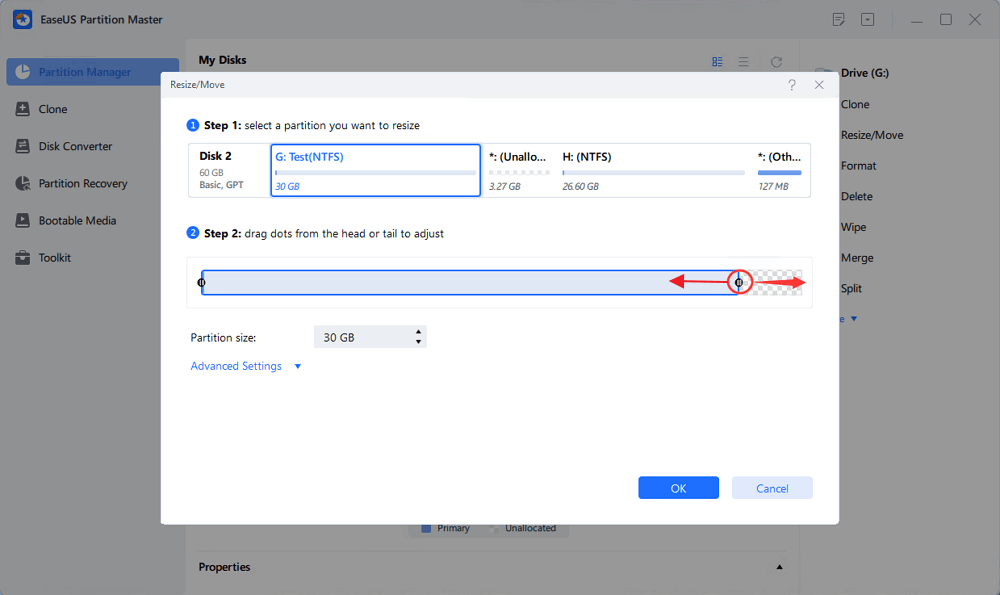
Drag either end of the partition rightwards or leftwards to shrink the partition size so as to get ample unallocated space. You can visually know how much space you've decreased in the "Size of partition" area. Click "OK".
Click "Execute xx Task" and then "Apply" to save all the changes.
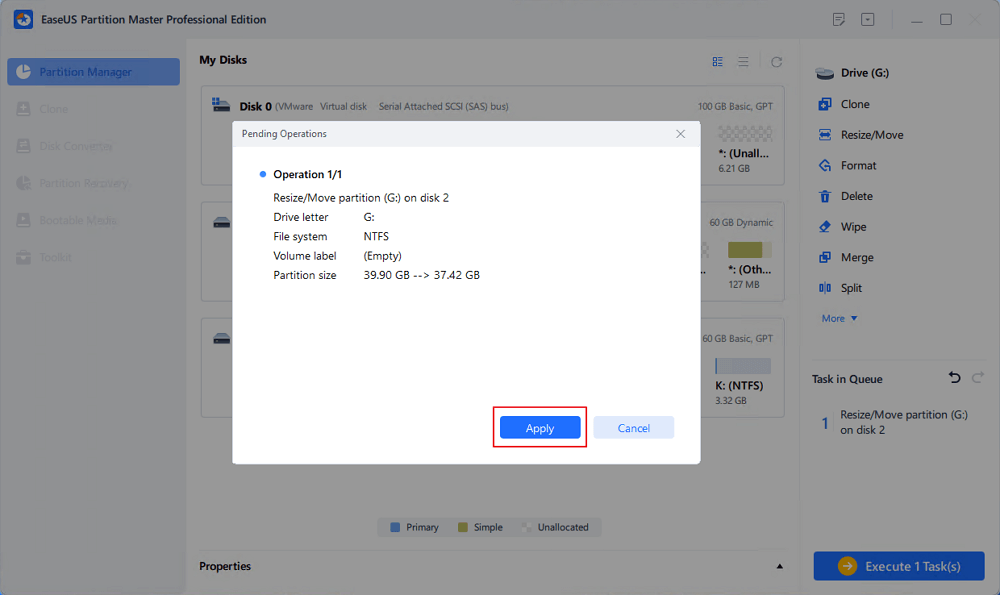
Go back to Partition Manager, there should be unallocated space appearing on the same disk and you can continue with the next step to create new partition on your hard drive.
Step 3. Create a new partition with unallocated space on the target hard drive.
Right-click on the unallocated space and choose "Create".
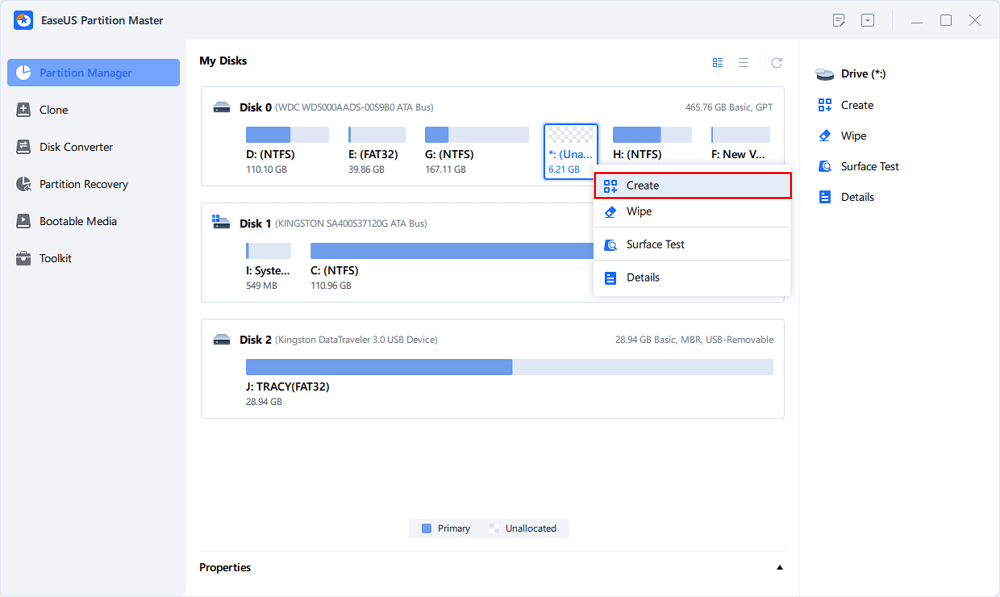
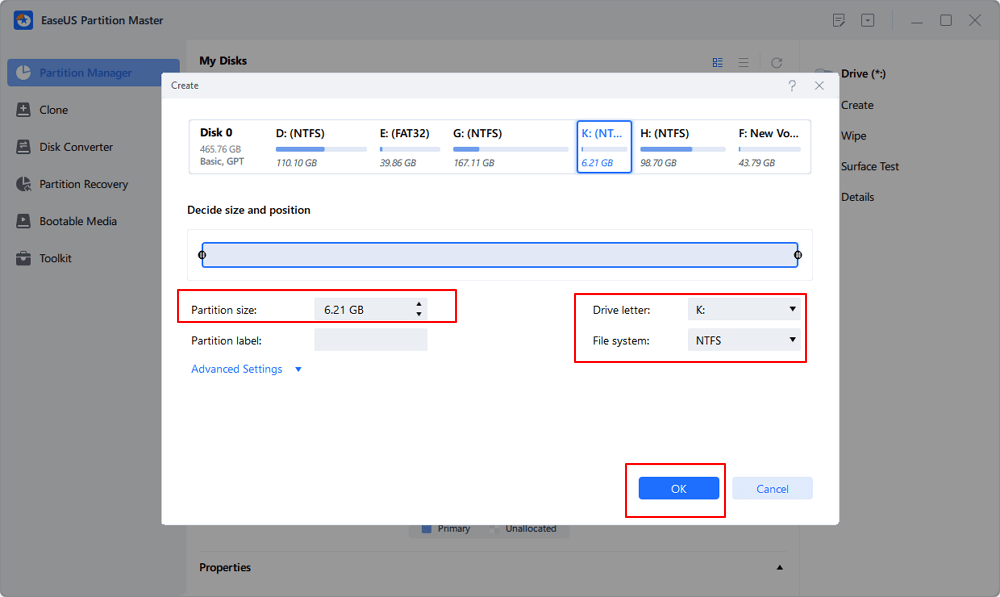
Customize the partition size, partition drive letter, partition label, file system (NTFS, FAT32, EXT2/3/4, exFAT) and more in the Advanced Settings. Click "OK".
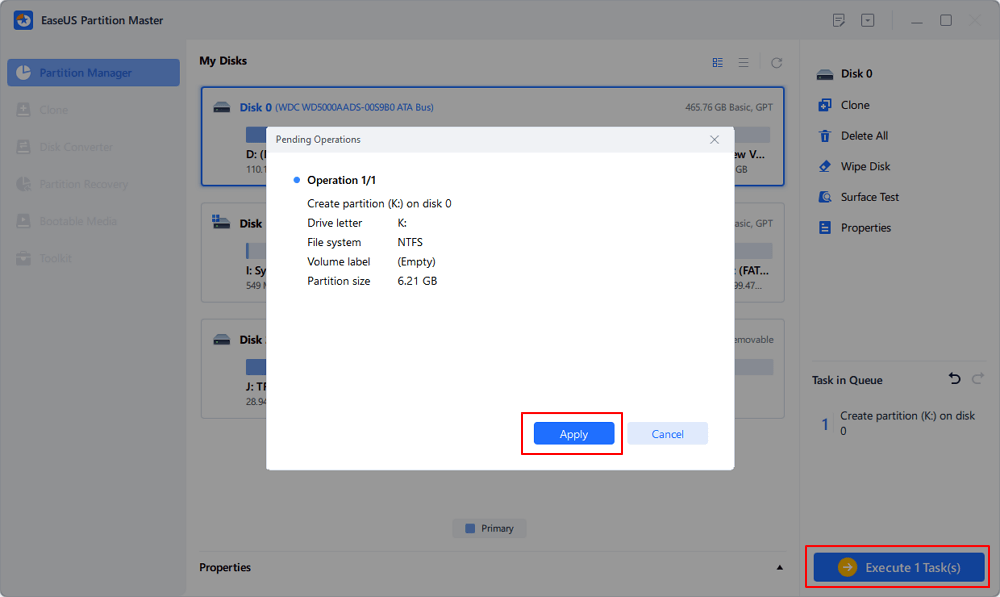
Finally, click "Execute * Task" and "Apply" to complete creating partition with the unallocated space on your disk. Repeat the steps to partition a hard drive and get many more partitions.
One of the main advantages is its step‑by‑step wizards. For example, extending the system partition is usually a guided process with clear prompts, which helps non‑technical users avoid mistakes. Visual indicators and plain‑language tips reduce the chance of selecting the wrong partition or entering unsafe values.
EaseUS Partition Master also focuses on Windows‑specific needs, such as adjusting C drive space, optimizing partitions for system performance, and working with different disk types. This makes it more convenient for everyday Windows maintenance.
Conclusion
GParted is a robust, free partition manager that offers a wide range of features for users who are comfortable with system tools. It works across different file systems and gives you deep control over your disk layout.
For Windows users who want an easier way to manage partitions, a dedicated tool like EaseUS Partition Master can be more practical. It provides guided workflows, a familiar interface, and Windows‑focused features.
FAQs
1. Is GParted safe to use?
GParted is widely used and considered stable, but no partition tool is completely risk‑free. If you follow instructions carefully and back up important data before making changes, you can use it safely.
2. Can I use GParted on Windows?
GParted does not install as a normal Windows program, but you can use GParted Live to manage disks that contain Windows partitions. You boot from a USB or CD, run GParted in that environment, and then adjust NTFS or other supported file systems.
3. Do I need to back up my data before using GParted?
Yes. Backing up your data is strongly recommended. Any partition resize, move, or delete operation can cause data loss if something goes wrong, such as a power failure, hardware error, or user mistake.
How Can We Help You
About the Author

Sherly joined EaseUS in 2022 and she has always loved writing articles and enjoys the fun they bring. She receives professional training here, focusing on product performance and other relative knowledge. She has written over 200 articles to help people overcome computing issues.

Written by Joey Albert
Joey is an enthusiast of science and technology. With a passion for uncovering the latest tech innovations, she creates clear, engaging how-to guides that make technology accessible and enjoyable for all.
Product Reviews
-
I love that the changes you make with EaseUS Partition Master Free aren't immediately applied to the disks. It makes it way easier to play out what will happen after you've made all the changes. I also think the overall look and feel of EaseUS Partition Master Free makes whatever you're doing with your computer's partitions easy.
Read More -
Partition Master Free can Resize, Move, Merge, Migrate, and Copy disks or partitions; convert to local, change label, defragment, check and explore partition; and much more. A premium upgrade adds free tech support and the ability to resize dynamic volumes.
Read More -
It won't hot image your drives or align them, but since it's coupled with a partition manager, it allows you do perform many tasks at once, instead of just cloning drives. You can move partitions around, resize them, defragment, and more, along with the other tools you'd expect from a cloning tool.
Read More
Related Articles
-
Best Alternative to TreeSize: Tools to Manage Disk Space
![author icon]() Joey Albert/2026/10/22
Joey Albert/2026/10/22 -
5 Best ISO Image Software Free Download [Pros & Cons]
![author icon]() Tracy King/2026/10/22
Tracy King/2026/10/22 -
Rufus Review 2026: A Fast and Reliable Tool for Creating Bootable USB Drives
![author icon]() Joey Albert/2026/10/22
Joey Albert/2026/10/22 -
Best HDClone Alternative in 2026: A Complete Comparison
![author icon]() Sherly/2026/10/22
Sherly/2026/10/22
 Tracy King/2026/10/22









