







Content
Page Table of Contents
About the Author
Hot Topics
If you're looking for a reliable disk management and backup solution for Windows, Paragon Hard Disk Manager is a good choice. It's an all-in-one solution for backup, cloning, partitioning, system migration, and recovery.
The review covers the features, performance, strengths, weaknesses, pricing, and alternatives of Paragon Hard Disk Manager. If you plan to upgrade to an SSD or move your system, this review will show you whether Paragon Hard Disk Manager fits your needs.
What is Paragon Hard Disk Manager
Paragon Hard Disk Manager is a popular software suite designed for disk management, backup, cloning, partitioning, and system migration. It is aimed at both home users and businesses who need to protect and manage their data.
The software bundles everything needed when upgrading drives, setting up new PCs, or safeguarding important files. Its features include backup and restore, disk cloning, partition editing, disk cleanup, and bootable recovery media creation.
Key Features of Paragon Hard Disk Manager
Paragon Hard Disk Manager has four key features.
1. Partition Management
Paragon's partition tools let you resize, move, create, delete, and merge partitions without losing data. Common operations include:
- Extending or shrinking partitions
- Merging adjacent partitions
- Changing drive letters
- Converting between primary and logical partitions
2. Disk Cloning and Migration
Cloning is one of the key features of Hard Disk Manager. This software helps clone an HDD to an SSD. The entire system can be migrated to a new drive. And partitions can be copied without rebooting. The cloning process is generally fast and stable. The System Migration tool is especially useful for users upgrading to a new computer or drives. The OS, apps, settings, and user data can be easily migrated to another drive.
3. Backup and Restore
Paragon Hard Disk Manager offers flexible backup options. You can back up a full disk, a single partition, files, folders, or specific applications. Scheduled backups are supported. The backups can be compressed to save space. Later, you can restore individual files or entire systems.
4. Bootable Recovery Media
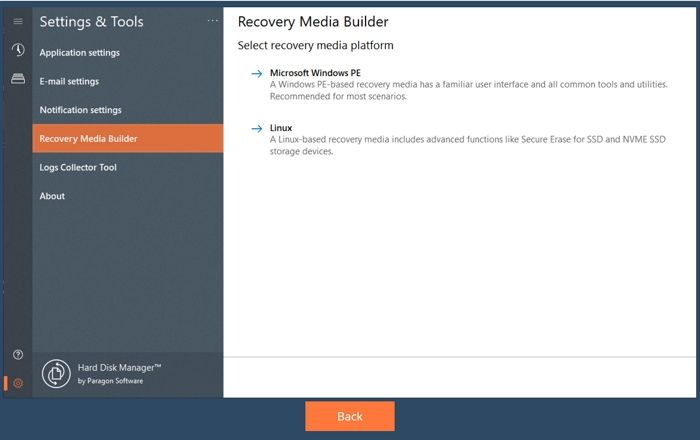
If the system crashes, it is possible to boot from a Paragon recovery disk. The software lets you create bootable USB. All tools needed to restore backups, clone disks, or fix partitions are included. This works even if Windows will not start.
Pros and Cons of Paragon Hard Disk Manager
This section shows the strengths and limitations of Paragon Hard Disk Manager. The software delivers a comprehensive suite of disk management and data protection features. But it also has certain limitations in usability and pricing. Let's see its pros and cons.
✅Pros:
|
⚠️Cons:
|
What users say about Paragon Hard Disk Manager:
📖TechRadar review: This software is good for making sure you always have data backups and can recover them when needed, but it's limited to only Windows users.
📖G2 review: Program is quick and easy to use, interface for junior techs AND more advanced interface for senior techs, ability to backup/restore individual partitions as well as entire drives.
📖Reddit User Case: Attempt to clone drive with Paragon Hard Disk Manager failed.
Paragon Hard Disk Manager Price
Is Paragon Hard Disk Manager free?
Paragon Hard Disk Manager is not free for the full version. Its business version starts from $24,95 for a 1-year license. How to get Paragon Hard Disk Manager:
https://www.paragon-software.com/us/home/hdm-windows/
However, Paragon offers a free community edition for personal use. With the free version, you can only:
- Resize, format, delete, check partitions
- Convert the MBR disk to GPT
- Manage dynamic disks
- Undelete volumes
- Create WinPE bootable disk
How to Use Paragon Hard Disk Manager
You can use Paragon Hard Disk Manager to handle common disk tasks. In its main dashboard, you can choose backup, cloning, partitioning, or recovery tools. The following steps show how to back up data.
Step 1. Open Paragon and start the backup wizard.
Step 2. Choose the backup source and destination.
Step 3. Select files, folders, or partitions.
Step 4. Click "Apply" and confirm any prompts.
Best Alternative to Paragon Hard Disk Manager
If Paragon Hard Disk Manager feels technical or expensive, EaseUS Partition Master is the best alternative. It is designed to simplify the partition and disk management tasks. EaseUS Partition Master is a professional disk manager for all Windows users. Here is why EaseUS Partition Master stands out:
- Simple and visual interface
- More partition tools
- Reliable disk and partition cloning
- OS migration feature
- MBR/GPT conversion and file system changes
- Bootable media and recovery tools
- More disk management tools, like disk health check
Here is how to clone a disk with EaseUS Partition Master
Step 1. Select the source disk.
- Click the "Clone" from the left menu. Select the "Clone OS Disk" or "Clone Data Disk" and click "Next".
- Choose the source disk and click "Next".
Step 2. Select the target disk.
- Choose the wanted HDD/SSD as your destination and click "Next" to continue.
- Read Warning message and confirm "Yes" button.
Step 3. View the disk layout and edit the target disk partition size.
Then click "Continue" when the program warns it will wipe out all data on the target disk. (If you have valuable data on the target disk, back up it in advance.)
You can select "Autofit the disk", "Clone as the source" or "Edit disk layout" to customize your disk layout. (Select the last one if you want to leave more space for C drive.)
Step 4. Click "Start" to start the disk cloning process.
Conclusion
Paragon Hard Disk Manager is a popular disk management suite on the market. It is useful for users who want backup, cloning, and partitioning in one package. The software is not the cheapest or simplest tool. But its reliability and feature set make it a strong tool.
In short, Paragon Hard Disk Manager is a trustworthy disk tool. It is worth considering for both home users and businesses that need dependable disk and data management.
Share it to help more users know Paragon Hard Disk Manager:

How Can We Help You
About the Author

Sherly joined EaseUS in 2022 and she has always loved writing articles and enjoys the fun they bring. She receives professional training here, focusing on product performance and other relative knowledge. She has written over 200 articles to help people overcome computing issues.

Written by Joey Albert
Joey is an enthusiast of science and technology. With a passion for uncovering the latest tech innovations, she creates clear, engaging how-to guides that make technology accessible and enjoyable for all.
Product Reviews
-
I love that the changes you make with EaseUS Partition Master Free aren't immediately applied to the disks. It makes it way easier to play out what will happen after you've made all the changes. I also think the overall look and feel of EaseUS Partition Master Free makes whatever you're doing with your computer's partitions easy.
Read More -
Partition Master Free can Resize, Move, Merge, Migrate, and Copy disks or partitions; convert to local, change label, defragment, check and explore partition; and much more. A premium upgrade adds free tech support and the ability to resize dynamic volumes.
Read More -
It won't hot image your drives or align them, but since it's coupled with a partition manager, it allows you do perform many tasks at once, instead of just cloning drives. You can move partitions around, resize them, defragment, and more, along with the other tools you'd expect from a cloning tool.
Read More
Related Articles
-
HP USB Disk Storage Format Tool Review 2026 [Benefits and Drawbacks]
![author icon]() Tracy King/2026/07/19
Tracy King/2026/07/19 -
Rufus Review 2026: A Fast and Reliable Tool for Creating Bootable USB Drives
![author icon]() Joey Albert/2026/09/28
Joey Albert/2026/09/28 -
Best Alternative to TreeSize: Tools to Manage Disk Space
![author icon]() Joey Albert/2026/08/16
Joey Albert/2026/08/16 -
SmartDisk FAT32 Format Utility Review: Features, Pros, Cons, and Alternative
![author icon]() Sherly/2026/07/19
Sherly/2026/07/19
 Tracy King/2026/07/19









