







Content
Page Table of Contents
About the Author
Hot Topics
If you want to create a bootable USB, Ventoy is a good tool. It lets you copy multiple ISO files onto a single USB and boot them from a menu. It saves time, reduces repetitive setup work, and makes a multi-boot USB much easier to manage. Whether you are an IT support team, a system administrator, or a tech enthusiast, you can consider Ventoy as a reliable bootable USB creator.
In this review, we'll look at what Ventoy does, how to use it, and which alternatives are worth considering.
What is Ventoy
🚩Quick Access to learn about Ventoy:
| Category | Ventoy |
|
Best for |
IT admins, system engineers, and tech enthusiasts who need a multi-boot USB |
|
Not ideal for |
Users who only need one Windows installation USB |
|
Price |
Free (open-source core version) |
|
Safety |
Open-source, no bundling, no ads, active community |
|
Overall recommendation |
Recommended as a top multi-boot USB tool, especially for multi-ISO use |
Ventoy is an open-source bootable USB tool designed for creating multi-boot drives. Once installed on a USB stick, you can copy ISO, WIM, IMG, VHD, and other supported image files directly onto the drive. Then, you can choose what you want to boot from a simple startup menu.
The key features of Ventoy:
- Multiple ISOs on one USB: Windows, Linux, PE, and diagnostic tools can coexist.
- No repeated formatting: After installing Ventoy, you just copy ISOs to the USB.
- Boot menu on insertion: Ventoy automatically shows a startup menu to choose the ISO.
- Hot-plug ISO support (in some versions): You can add new ISOs without re-making the USB.
- Supports Windows and Linux: Works on both platforms for creating bootable USBs.
Pros and Cons of Ventoy
Ventoy has a lot of advantages. But it is not perfect. Its value depends on how you plan to use it.
✅Pros:
|
⚠️Cons:
|
What users say about Ventoy:
📖Starwind Review: Ventoy offers a versatile and efficient solution that should be a staple in every IT administrator's toolbox.
📖Reddit User Case: Experiences with Ventoy? I was wondering if someone who is using it can share their opinion on it?
📖Reddit User Case: Ventoy is a game changer. I have a big usb stick permanently plugged into my desktop. Whenever I see a distro I want to check out I download it to the stick.
How to Use Ventoy
You can use Ventoy to create a bootable USB that holds multiple operating systems. The process has two stages: install Ventoy on the USB drive, then copy your boot images onto it. Let's see how to use Ventoy.
Step 1. Prepare Your USB Drive.
Save any important files from the USB drive. Ventoy will format the drive during installation, so all existing data will be erased.
Step 2. Download Ventoy.
- Go to the official Ventoy website.
- Choose the version for Windows or Linux.
- Download and extract the package if needed.
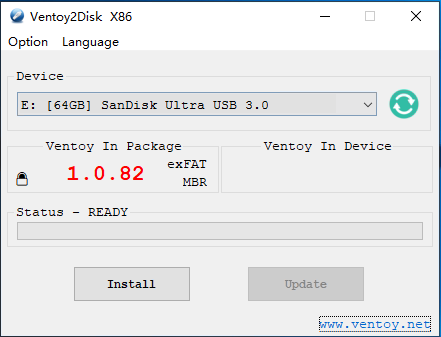
Step 3. Install Ventoy on the USB.
- Run the Ventoy tool.
- Select your USB drive carefully.
- Click Install and wait for it to finish.
Step 4. Copy ISO Files to the USB.
- Open the USB drive.
- Go to the ISO folder created by Ventoy.
- Copy your ISO, WIM, IMG, or VHD files into this folder.
Step 5. Boot from the USB.
- Insert the USB into the target computer.
- Restart and open the boot menu or BIOS/UEFI.
- Select the USB as the boot device.
- Choose the ISO you want from the Ventoy menu.
Ventoy Alternatives: Ventoy vs Rufus vs BalenaEtcher vs EaseUS Partition Master
Ventoy is excellent for multi-boot use. But there are other tools worth considering depending on your needs. In this section, you will know some Ventoy alternatives. They are all great bootable USB creators.
| Feature | Ventoy | Rufus | BalenaEtcher | EaseUS Partition Master |
| Main purpose | Multi-boot USB tool | Bootable USB creator | Simple image flasher | Disk manager and bootable USB creator |
| Multi-ISO support | ✅ Yes | ❌ No | ❌ No | ✅ Yes |
| Ease of use | ✅ Easy after setup | ✅ Very easy | ✅ Easy | ✅ Very Easy |
| Platform support | Windows + Linux | Windows only | Windows + Linux + macOS | Windows + macOS |
| Price | Free | Free | Free | Free+paid editions |
| Best for | Multi-boot USB drives | Single Windows installer USB | Single ISO flashing | All-in-one disk management, including boot USB |
| Ideal user | IT admins, testers, power users | Windows users needing one installer | Beginners needing a simple flasher | Users managing disks, partitions, or cloning tasks |
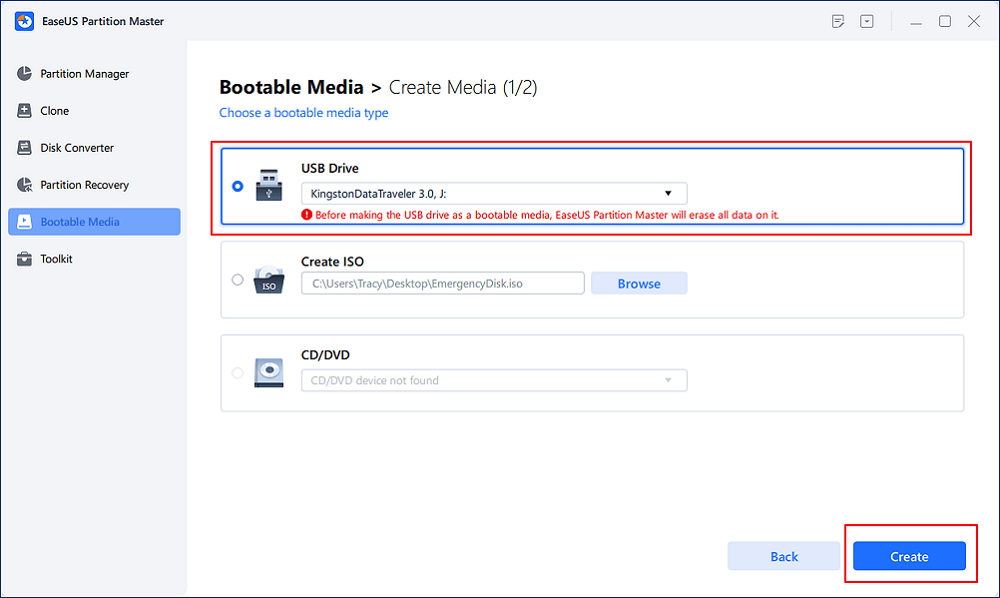
EaseUS Partition Master is a stronger choice if you need an all-in-one disk and partition manager. It can also help create bootable disks easily. EaseUS Partition Master can be a Ventoy alternative if your broader workflow includes system setup, drive migration, or disk maintenance. For users who want one utility that covers more than just boot media, EaseUS Partition Master is a good choice.
Conclusion
Ventoy is a popular tool for creating a bootable USB drive. If you want convenience, multi-boot support, and a smoother workflow, Ventoy is one of the best tools. With this tool, you don't need to repeatedly rebuild a USB drive. Ventoy turns the drive into a flexible boot library. Ventoy is useful for IT support, troubleshooting, system installs, and anyone who frequently works with multiple operating system images.
FAQs About Ventoy
1. Is Ventoy free?
Yes, Ventoy is free to use. It's an open-source bootable USB creator. It's especially attractive for technical users who prefer transparent tools.
2. Is Ventoy safe to use?
Generally, yes. Ventoy is widely used and well-known in the tech community. As with any bootable USB tool, you'd better download it from the official source and verify your ISO files before use.
3. Does Ventoy erase my USB drive?
Yes, you'll need to format the USB drive. The initial installation usually formats the USB drive. After that, you can add or remove ISO files without reformatting.
4. Can Ventoy boot Windows and Linux ISOs?
Yes. Ventoy is commonly used with Windows installers, Linux live images, and many recovery tools.
5. Is Ventoy better than Rufus?
It depends on the job. Ventoy is better for multi-boot USB use, while Rufus is better for quickly flashing a single installer.
Share this review to help more users know about Ventoy:

How Can We Help You
About the Author

Sherly joined EaseUS in 2022 and she has always loved writing articles and enjoys the fun they bring. She receives professional training here, focusing on product performance and other relative knowledge. She has written over 200 articles to help people overcome computing issues.

Written by Joey Albert
Joey is an enthusiast of science and technology. With a passion for uncovering the latest tech innovations, she creates clear, engaging how-to guides that make technology accessible and enjoyable for all.
Product Reviews
-
I love that the changes you make with EaseUS Partition Master Free aren't immediately applied to the disks. It makes it way easier to play out what will happen after you've made all the changes. I also think the overall look and feel of EaseUS Partition Master Free makes whatever you're doing with your computer's partitions easy.
Read More -
Partition Master Free can Resize, Move, Merge, Migrate, and Copy disks or partitions; convert to local, change label, defragment, check and explore partition; and much more. A premium upgrade adds free tech support and the ability to resize dynamic volumes.
Read More -
It won't hot image your drives or align them, but since it's coupled with a partition manager, it allows you do perform many tasks at once, instead of just cloning drives. You can move partitions around, resize them, defragment, and more, along with the other tools you'd expect from a cloning tool.
Read More
Related Articles
-
Rufus Review 2026: A Fast and Reliable Tool for Creating Bootable USB Drives
![author icon]() Joey Albert/2026/09/28
Joey Albert/2026/09/28 -
Best Alternative to HP USB Disk Storage Format Tool | Free Download
![author icon]() Sherly/2026/09/28
Sherly/2026/09/28 -
HDD Regenerator Free Alternative [Download & Review]
![author icon]() Tracy King/2026/08/13
Tracy King/2026/08/13 -
Paragon Migrate OS to SSD 4.0 Free Alternative [2026 Guide]
![author icon]() Cici/2026/08/13
Cici/2026/08/13
 Tracy King/2026/08/13
  Cici/2026/08/13









